


Fix 1: Disable Fast Startup
Fast Startup is a useful feature that puts your computer into a hibernation state rather than a full shutdown. This allows your computer to boot up quickly the next time you turn it on. However, it can sometimes prevent Windows from shutting down completely, causing problems.
You can try disabling Fast Startup temporarily to see if that fixes the issue.
Step 1: Press the Windows key + R to open the Run dialog. Type control in the box and press Enter.
Step 2: Use the drop-down menu in the top right corner to change the view type to Large icons. Then, select Power Options.

Step 3: Click the Choose what the power buttons do option in the left sidebar.

Step 4: Click on Change settings that are currently unavailable.

Step 5: Uncheck the box that reads Turn on fast startup (recommended), and click the Save changes button at the bottom.

Restart your PC after this, and then try shutting it down.
Fix 2: Configure Power Management Settings for USB Devices
Another reason why your Windows laptop or PC may not be shutting down fully is due to the connected USB devices. To avoid this, you need to change the power management settings for all of your USB devices. Here are the steps for the same.
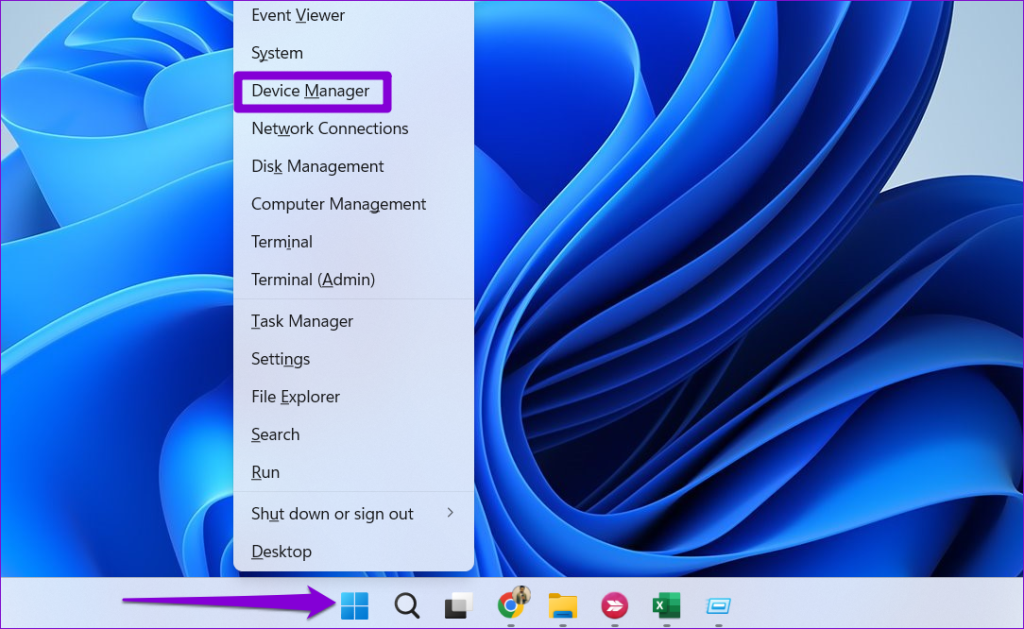
Step 1: Right-click on the Start icon and select Device Manager from the list.
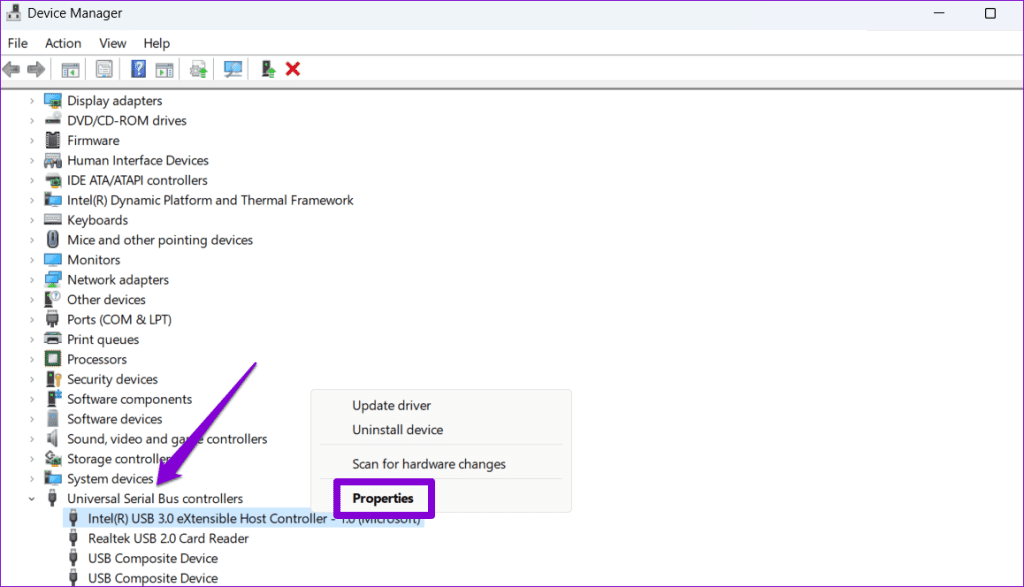
Step 2: Expand Universal Serial Bus controllers. Right-click on the first entry and select Properties.
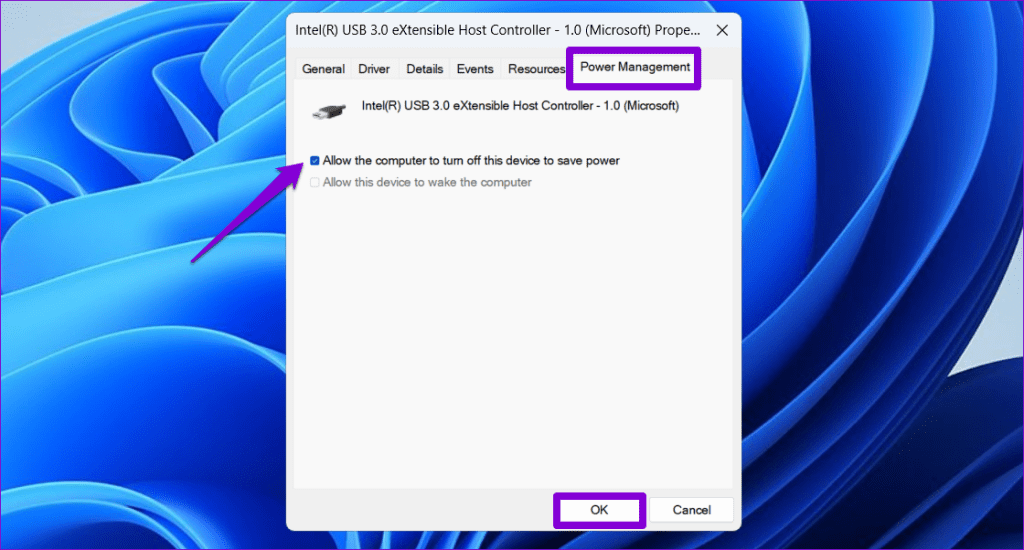
Step 3: Switch to the Power Management tab and untick the checkbox that reads Allow the computer to turn off this device to save power. Then, click OK.
Repeat these steps for all of your USB devices. Following that, your Windows PC or laptop should not stay on after a shutdown.
Fix 3: Reinstall Graphics Drivers
Outdated or corrupted graphics drivers can also cause your Windows PC to stay on after a shutdown. If that’s the case, uninstalling the graphics driver and reinstalling it should restore normalcy.
Step 1: Right-click on the Start icon and select Device Manager from the list.
Step 2: Expand Display adapters, right-click on your graphics driver, and select Uninstall device.

Note: If there is an exclamation point next to any entries in Device Manager, it means that those drivers are not working properly. In that case, you will need to update those drivers as well.
Restart your PC after removing the graphics driver. Windows will automatically reinstall the missing driver during startup.
Fix 4: Update BIOS/UEFI
If nothing works, you should download the most recent BIOS or UEFI version for your device and copy it to a USB flash drive. Since the steps for updating BIOS can differ depending on your PC’s make and model, it is best to refer to your computer manufacturer’s support page for detailed instructions.
Was this helpful?
Last updated on 25 July, 2024
1 Comment
Leave a Reply
Read Next
 How to Fix Windows 10 Asking to Update and Shutdown Every Time Issue
If bandwidth isn't a factor, then Windows 10 offers a super-convenient way to stay updated with minimal involvement on your part.
How to Fix Windows 10 Asking to Update and Shutdown Every Time Issue
If bandwidth isn't a factor, then Windows 10 offers a super-convenient way to stay updated with minimal involvement on your part.
 Top 4 Fixes for Windows 10 PC Automatically Restarting After Shutdown
Power-related failures on Windows PC come in different forms.
Top 4 Fixes for Windows 10 PC Automatically Restarting After Shutdown
Power-related failures on Windows PC come in different forms.
 How to Set Shutdown Timer in Windows 11
Method 1: Set Auto Shutdown Using Task Scheduler Task Scheduler is a built-in Windows OS app that can be used to schedule different chores.
How to Set Shutdown Timer in Windows 11
Method 1: Set Auto Shutdown Using Task Scheduler Task Scheduler is a built-in Windows OS app that can be used to schedule different chores.
 4 Ways to Fix Windows Mobile Hotspot Keeps Turning off
Fix 1: Disable Mobile Hotspot Power Saving Disable the power saving feature to prevent Windows from automatically turning off the hotspot when not in use.
4 Ways to Fix Windows Mobile Hotspot Keeps Turning off
Fix 1: Disable Mobile Hotspot Power Saving Disable the power saving feature to prevent Windows from automatically turning off the hotspot when not in use.
 6 Ways to Fix Bluetooth Keeps Turning Off on Windows 11
Fix 1: Toggle the Airplane Mode Toggling the airplane mode in Windows is a neat way to refresh your PC’s wireless connections, including Bluetooth.
6 Ways to Fix Bluetooth Keeps Turning Off on Windows 11
Fix 1: Toggle the Airplane Mode Toggling the airplane mode in Windows is a neat way to refresh your PC’s wireless connections, including Bluetooth.
 5 Ways to Fix Do Not Disturb Turning on Itself on Windows 11
Common Fixes Disable Do Not Disturb from the Notification Shade: Select the Notification bell at the rightmost end of the Windows Taskbar and click the blue Do Not Disturb button
5 Ways to Fix Do Not Disturb Turning on Itself on Windows 11
Common Fixes Disable Do Not Disturb from the Notification Shade: Select the Notification bell at the rightmost end of the Windows Taskbar and click the blue Do Not Disturb button
 3 Ways to Schedule Shutdown Timer on Mac
https://youtu.be/xEU_jtOvBZE Method 1: Using Built-in Power Scheduler The power scheduling feature was built into the Mac.
3 Ways to Schedule Shutdown Timer on Mac
https://youtu.be/xEU_jtOvBZE Method 1: Using Built-in Power Scheduler The power scheduling feature was built into the Mac.
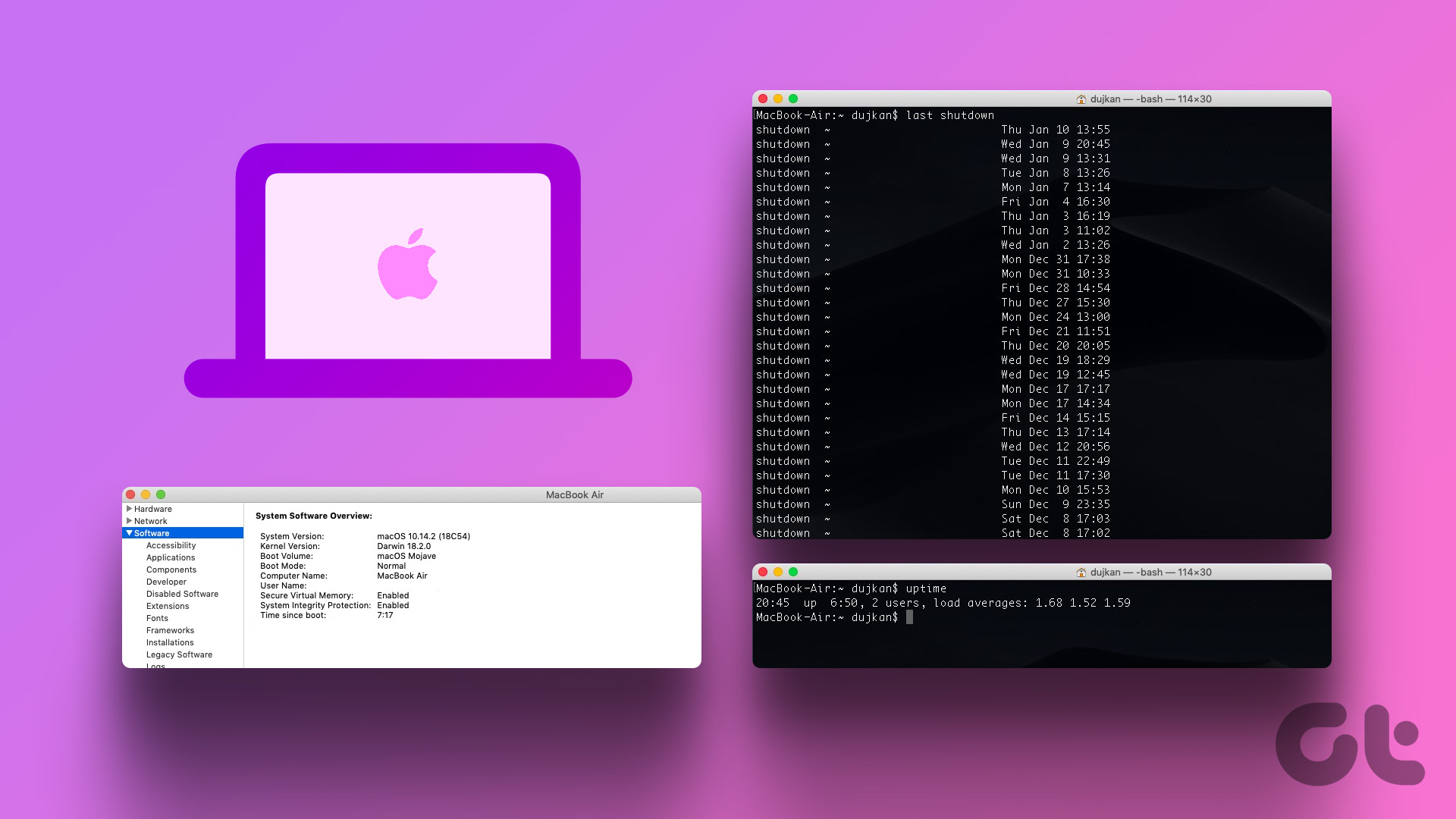 How to Check Your Mac’s Uptime, Reboot and Shutdown History
Are you curious to find out how often your Mac has been rebooted or shut down?
How to Check Your Mac’s Uptime, Reboot and Shutdown History
Are you curious to find out how often your Mac has been rebooted or shut down?
The article above may contain affiliate links which help support Guiding Tech. The content remains unbiased and authentic and will never affect our editorial integrity.

Thanks to you..my problem is solved..