

Preliminary Fixes
- Run the file as an administrator: This is often crucial in resolving Windows Installer Package errors. To run a file as an administrator, right-click the installer package and select Run as administrator from the context menu.
- Restart your PC: When you restart your computer, it clears the system’s temporary memory (RAM), closes all running applications, and resets the operating system. This process can resolve minor software glitches or conflicts that interfere with installation.
- Update Windows: Regularly updating your system helps maintain its stability and performance, reducing the likelihood of encountering installer package errors. To update Windows, go to the Settings menu, select Update & Security, and click on Windows Update.
Fix 1: Repair the Software
Step 1: Press Windows, type Settings, and click Open.
Step 2: Go to the Apps from the left pane.
Step 3: Now, scroll down to find the faulty app from the list, click on the three dots, and select Modify in the context menu.

Step 4: Choose the Repair option and follow the on-screen instructions to repair the application.

That’s about it. You should now be able to install the applications hassle-free.
Fix 2: Use Program Install and Uninstall Troubleshooter
Microsoft has a troubleshooter called Program Install and Uninstall that you can use to fix problems with installing or removing programs from your Windows PC. Follow the steps below.
Step 1: Go to the Program Install and Uninstall Troubleshooter download page using the below link and click on Download troubleshooter.

Step 2: Once downloaded, click on the downloaded file to open and install it.
Step 3: Follow the installation instructions. When it asks you to choose whether you are facing an issue with installing or uninstalling the software, choose Installing.
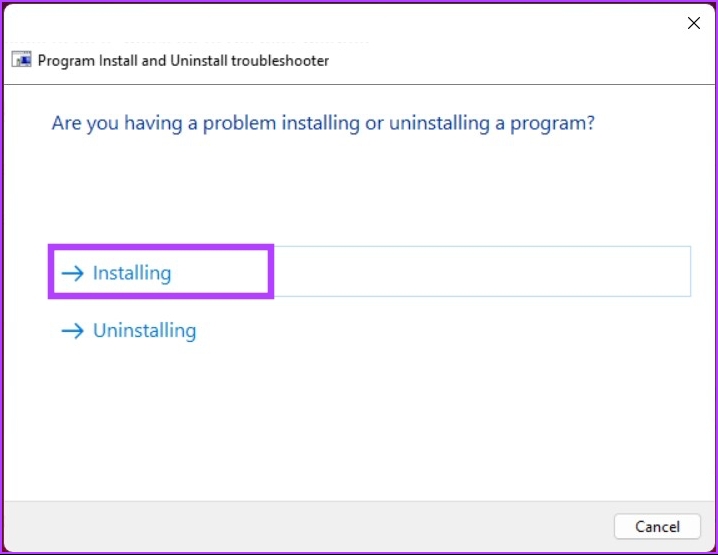
Step 4: On the next screen, choose the application you have issues with. If you cannot find it, click on Not Listed > Next.

With this, the troubleshooter scans the system and Registry for issues related to installation errors. If it finds something, it will suggest fixes. All you need to do is click on Apply this fix to proceed, and you will be good to go.
Fix 3: Re-Register Windows Installer
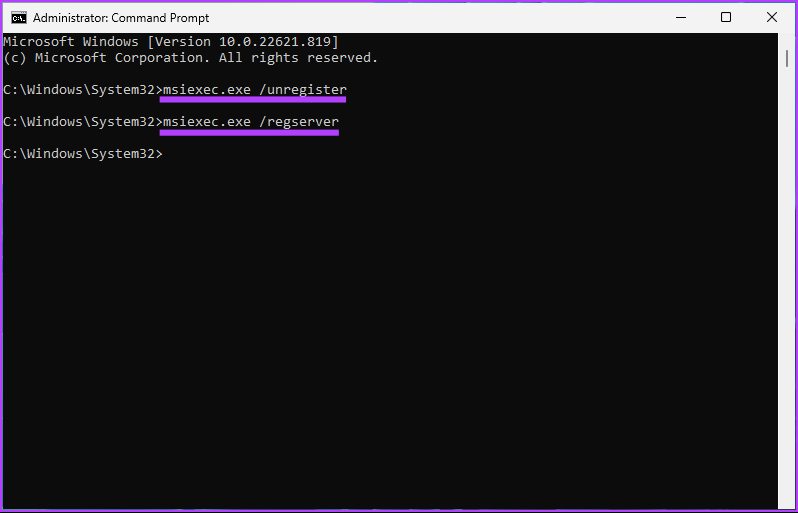
Step 1: Press the Windows key, type Command Prompt, and click Run as administrator. In the prompt, click Yes.
Step 2: Type the below command and press Enter.
msiexec.exe /unregister

Msiexec.exe /regserver
Fix 4: Restart the Windows Installer Service
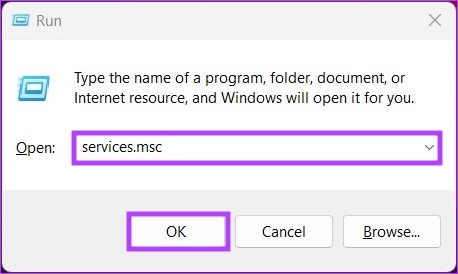
Step 1: Press the Windows key + R to open the Run command window.
Step 2: Type the below command in the textbox and press Enter.
services.msc
Step 3: Locate and right-click on Windows Installer service.
Step 4: Choose Properties from the context menu.

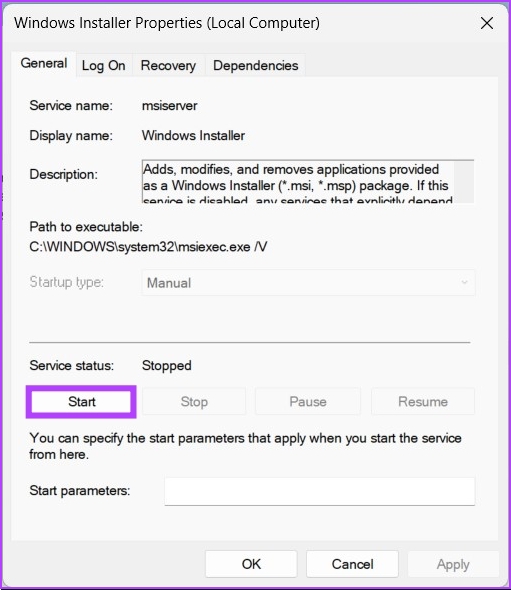
Step 5: From the Windows Installer Properties (Local Computer) window, go to the General tab and click on Stop.
Step 6: Wait for a few seconds and click on Start.
Step 7: Click OK to save the changes.
FAQs
Windows can be installed either through a full-frame or pocket installation.
Programs need installers for various reasons, such as writing system-wide data, creating registry files and directories, etc.
Windows installers use the .msi file type to install software packages.
Typically, Windows installers are located in the ‘C:/Windows/Installer’ directory on a Windows system. However, the location may vary depending on the configuration.
Was this helpful?
Last updated on 23 August, 2024
Read Next
 4 Ways to Fix for NSIS ‘Error Launching Installer’ in Windows
Basic Fixes Download the installer file again: A partially downloaded or corrupt installer file can cause an installer integrity check failure.
4 Ways to Fix for NSIS ‘Error Launching Installer’ in Windows
Basic Fixes Download the installer file again: A partially downloaded or corrupt installer file can cause an installer integrity check failure.
 How to Fix “Windows Installer Service Could Not Be Accessed” Error
Common Fixes Restart your PC: Press the Windows + X shortcut to open the Power User Menu, select Shut down or sign out, and click on Restart.
How to Fix “Windows Installer Service Could Not Be Accessed” Error
Common Fixes Restart your PC: Press the Windows + X shortcut to open the Power User Menu, select Shut down or sign out, and click on Restart.
 3 Fixes for “There Was a Problem Parsing the Package” Error on Android
Fix 1: Enable Installing Apps From Third-Party Sources An Android phone disables the permission to install third-party apps.
3 Fixes for “There Was a Problem Parsing the Package” Error on Android
Fix 1: Enable Installing Apps From Third-Party Sources An Android phone disables the permission to install third-party apps.
 6 Ways to Fix Windows Modules Installer Worker High CPU Usage
If you've ever found your computer's fan working overtime and the CPU usage going sky-high, you're not alone.
6 Ways to Fix Windows Modules Installer Worker High CPU Usage
If you've ever found your computer's fan working overtime and the CPU usage going sky-high, you're not alone.
 5 Fixes for Roblox Installer Not Working on Windows
Fix 1: Try Launching Roblox From the AppData Folder The Roblox installation process on Windows can sometimes become stuck for various reasons, making it seem like the installer is not
5 Fixes for Roblox Installer Not Working on Windows
Fix 1: Try Launching Roblox From the AppData Folder The Roblox installation process on Windows can sometimes become stuck for various reasons, making it seem like the installer is not
 6 Best All-In-One Package Tracking Apps
Grounds for Considering These Apps As said, numerous universal parcel tracking apps on the App Store or Play Store help you with this.
6 Best All-In-One Package Tracking Apps
Grounds for Considering These Apps As said, numerous universal parcel tracking apps on the App Store or Play Store help you with this.
 5 Fixes for “Word Experienced an Error Trying to Open the File” Error in Windows
Fix 1: Unblock Your Word File Microsoft Word may fail to open a document if it has been altered by third-party software.
5 Fixes for “Word Experienced an Error Trying to Open the File” Error in Windows
Fix 1: Unblock Your Word File Microsoft Word may fail to open a document if it has been altered by third-party software.
 4 Ways to Fix Discord No Route Error on Windows 10 and Windows 11
Try Basic Fixes Restart your router: Since the "No Route" error mainly occurs when there's an interruption with your internet connection, you can start by restarting your router.
4 Ways to Fix Discord No Route Error on Windows 10 and Windows 11
Try Basic Fixes Restart your router: Since the "No Route" error mainly occurs when there's an interruption with your internet connection, you can start by restarting your router.
The article above may contain affiliate links which help support Guiding Tech. The content remains unbiased and authentic and will never affect our editorial integrity.

