Fix 1: Enable Network Adapter
Windows may fail to communicate with the network adapter if you’ve previously disabled it. Hence, the first thing you should do is enable the network adapter.
Step 1: Click the search icon on the taskbar, type in control panel, and press Enter.

Step 2: Change the view type to Large icons and select Network and Sharing Center.

Step 3: Select Change adapter settings in the left pane.

Step 4: In the Network Connections window, right-click on your network adapter and select Enable.

After that, run the network troubleshooter and see if Windows can detect your network adapter driver.
Fix 2: Update or Reinstall the Network Adapter Driver
The “Windows could not find a driver for your network adapter” error can also appear if your PC’s current network driver is old or corrupt. You can update the network adapter driver via the Device Manager.
Step 1: Right-click on the Start icon and select Device Manager from the list.

Step 2: Double-click on Network adapters to expand it. Right-click your network adapter and select Update driver.

From there, follow the on-screen instructions to finish updating the network driver. After that, run the network troubleshooter again.
If the error persists even after you update the driver, there’s a chance that the network adapter driver is corrupt. In that case, you can uninstall the driver to fix the error message.

Once removed, restart your PC, Windows should automatically install the missing network adapter driver. Following that, you should no longer see the “Windows could not find a driver for your network adapter” error when you run the troubleshooter.
Fix 3: Change Power Management Settings
Windows may turn off your lesser-used devices and drivers if you’ve configured it to save power. When that happens, Windows will fail to communicate with those drivers and trouble you with such errors.
You can prevent Windows from turning off the network adapter driver by configuring its power management settings.
Step 1: Right-click on the Start icon and select Device Manager from the list.
Step 2: Expand Network adapters, right-click on your network adapter, and select Properties.

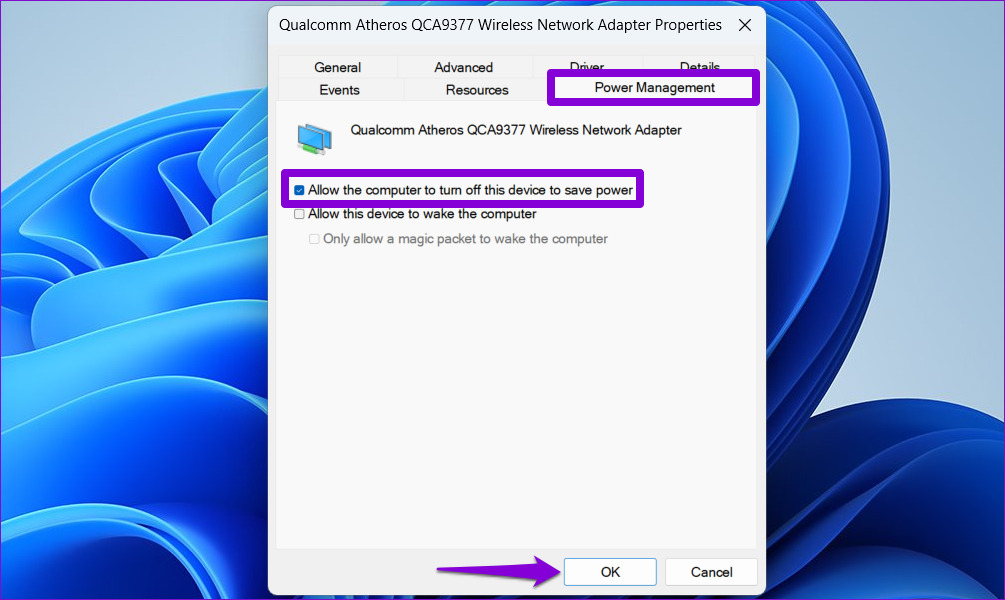
Step 3: Under the Power Management tab, uncheck Allow the computer to turn off this device to save power, and hit OK to save changes.
Fix 4: Use System Restore
System Restore is a useful utility that creates a backup of your entire system regularly or before making major system changes. You can use it to revert Windows to its earlier state in case the above solutions don’t work. Here’s what you’ll need to do.
Step 1: Open the search menu, type in create a restore point, and select the first result that appears.

Step 2: Under the System Protection tab, click the System Restore button.

Step 3: Click Next.

Step 4: Select the restore point before the error first appeared.

Step 5: Review all the details one more time before hitting Finish.

Was this helpful?
Last updated on 02 July, 2024
Read Next
 5 Ways to Fix Intel Wi-Fi 6 AX201 Adapter Driver or Hardware Issues
Fix 1: Update or Reinstall Driver The software drivers for the Intel Wi-Fi 6 AX201 on your Windows PC may be outdated and are due for an update.
5 Ways to Fix Intel Wi-Fi 6 AX201 Adapter Driver or Hardware Issues
Fix 1: Update or Reinstall Driver The software drivers for the Intel Wi-Fi 6 AX201 on your Windows PC may be outdated and are due for an update.
 3 Ways to Check Network Adapter Speed on Windows 11
Method 1: Using the Settings App Besides displaying the network adapter speed, the Settings app also provides information about other connection aspects, such as the network band, MAC address, and
3 Ways to Check Network Adapter Speed on Windows 11
Method 1: Using the Settings App Besides displaying the network adapter speed, the Settings app also provides information about other connection aspects, such as the network band, MAC address, and
 How to Disable Network Adapter (Ethernet) in Windows 11
Method 1: Using Settings Step 1: Press the Windows key on your keyboard, type Settings, and press Open.
How to Disable Network Adapter (Ethernet) in Windows 11
Method 1: Using Settings Step 1: Press the Windows key on your keyboard, type Settings, and press Open.
 5 Ways to Fix “A Driver Cannot Load on This Device” Error on Windows 11
Fix 1: Update the Problematic Driver If a driver is incompatible, Windows may fail to load it.
5 Ways to Fix “A Driver Cannot Load on This Device” Error on Windows 11
Fix 1: Update the Problematic Driver If a driver is incompatible, Windows may fail to load it.
 5 Ways to Fix Printer Driver Is Unavailable Error on Windows 11
Fix 1: Run the Printer Troubleshooter Windows 11 includes several troubleshooters that can help you fix common system-level issues.
5 Ways to Fix Printer Driver Is Unavailable Error on Windows 11
Fix 1: Run the Printer Troubleshooter Windows 11 includes several troubleshooters that can help you fix common system-level issues.
 4 Ways to Fix Graphics Device Driver Error Code 22 on Windows
Fix 1: Enable and Update the Graphics Driver You may see error code 22 on Windows if you have previously disabled the graphics driver or if it's outdated.
4 Ways to Fix Graphics Device Driver Error Code 22 on Windows
Fix 1: Enable and Update the Graphics Driver You may see error code 22 on Windows if you have previously disabled the graphics driver or if it's outdated.
 Top 10 Ways to Fix ‘Display Driver Failed to Start’ Error in Windows 10 and 11
Display drivers facilitate communication between the Windows operating system (or any OS) with your GPU.
Top 10 Ways to Fix ‘Display Driver Failed to Start’ Error in Windows 10 and 11
Display drivers facilitate communication between the Windows operating system (or any OS) with your GPU.
 Top 5 Ways to Reinstall a Sound Driver in Windows 10
The Windows 10 is renowned for struggling with an issue or another, and sound/audio issues are the most prominent.
Top 5 Ways to Reinstall a Sound Driver in Windows 10
The Windows 10 is renowned for struggling with an issue or another, and sound/audio issues are the most prominent.
The article above may contain affiliate links which help support Guiding Tech. The content remains unbiased and authentic and will never affect our editorial integrity.