

Try Basic Fixes
- Install Windows updates: If you have disabled automatic updates on your device, you might need to look for newer updates manually. If the issue with the battery reading is caused by a bug, installing newer updates will most likely fix it.
- Perform a power cycle: Performing a power cycle clears residual charge from the laptop’s capacitor and resolves any common issues. Press off your laptop and unplug all the external devices, including the battery. Then, press and hold the physical power button for 15-20 seconds. Re-insert the battery after a minute, and power on your laptop.
Fix 1: Calibrate Your Laptop Battery
Calibrating your laptop battery is another option to rectify inaccurate battery readings. Before that, you must adjust the power management settings so they don’t interfere with the battery calibration process.
Step 1: Press the Windows key + R to open the Run dialog box > type powercfg.cpl in the text field > press Enter.
Step 2: In the Power Options window, click Change when the computer sleeps.

Step 3: Set all the drop-down menus to Never > click on Change advanced power settings.
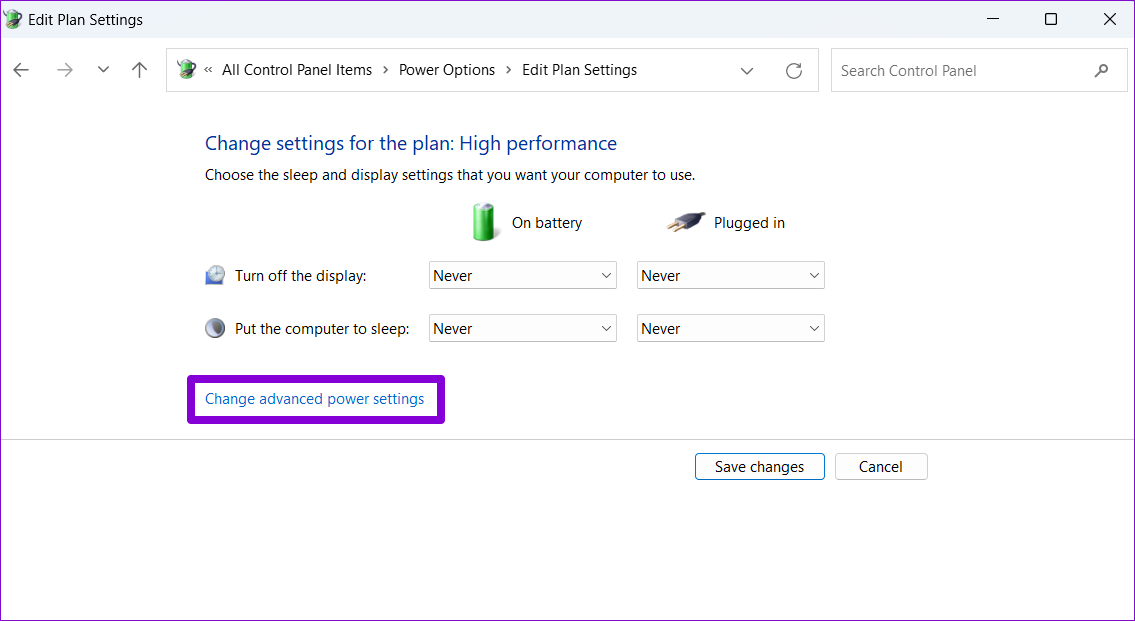
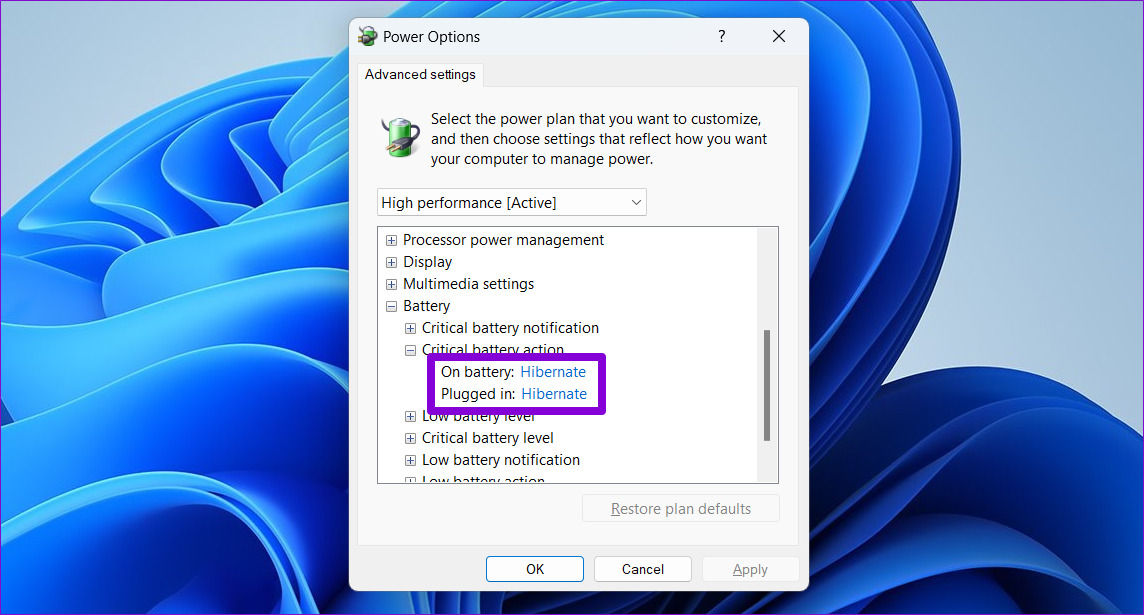
Step 4: Double-click on Battery and then Critical battery action. Then, use the drop-down menus to choose Hibernate for the On battery and Plugged in options.
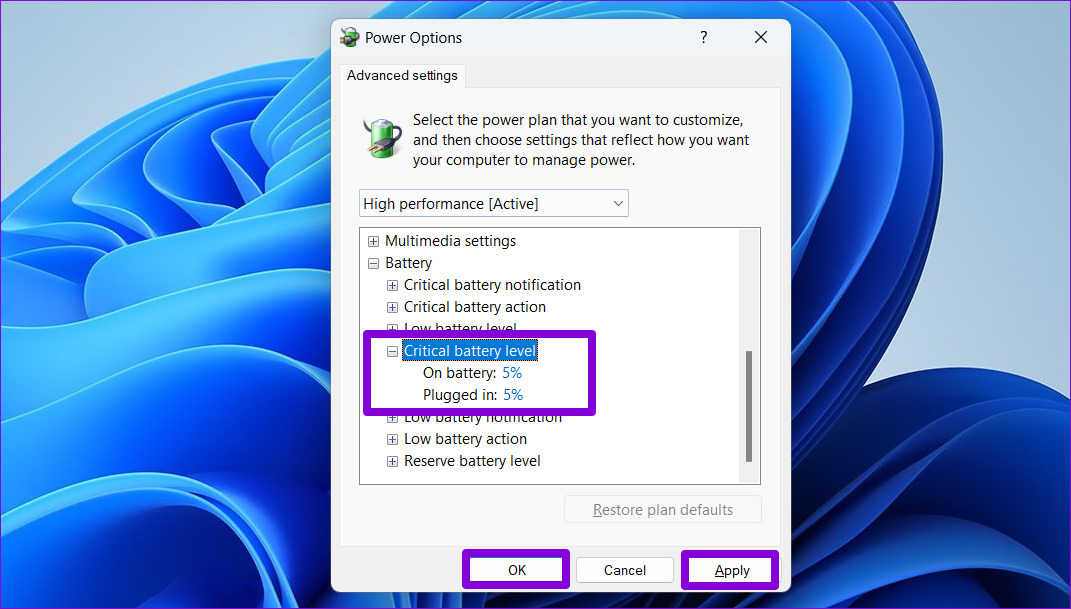
Step 5: Double-click on the Critical battery level and use the drop-downs to set the values to as low as possible. Then, hit Apply, followed by OK.
After you’ve configured the power management options, calibrate your laptop battery by following the steps below.
Step 6: Charge your laptop battery to 100% and leave it plugged in for at least a couple of hours after that.
Step 7: Unplug your laptop and start using it. Allow your laptop to discharge fully and shut down on its own.
Step 8: After your laptop runs out of power, plug it back in and charge the battery to 100% again.
Fix 2: Re-Enable Battery Adapter
The battery adapter on your computer allows Windows to communicate with your laptop’s battery. If this adapter is experiencing issues, Windows may fail to derive the necessary details and display an incorrect battery percentage. Here’s how to fix it.
Step 1: Press the Windows key + S to open the Windows search menu > type device manager in the box > press Enter.
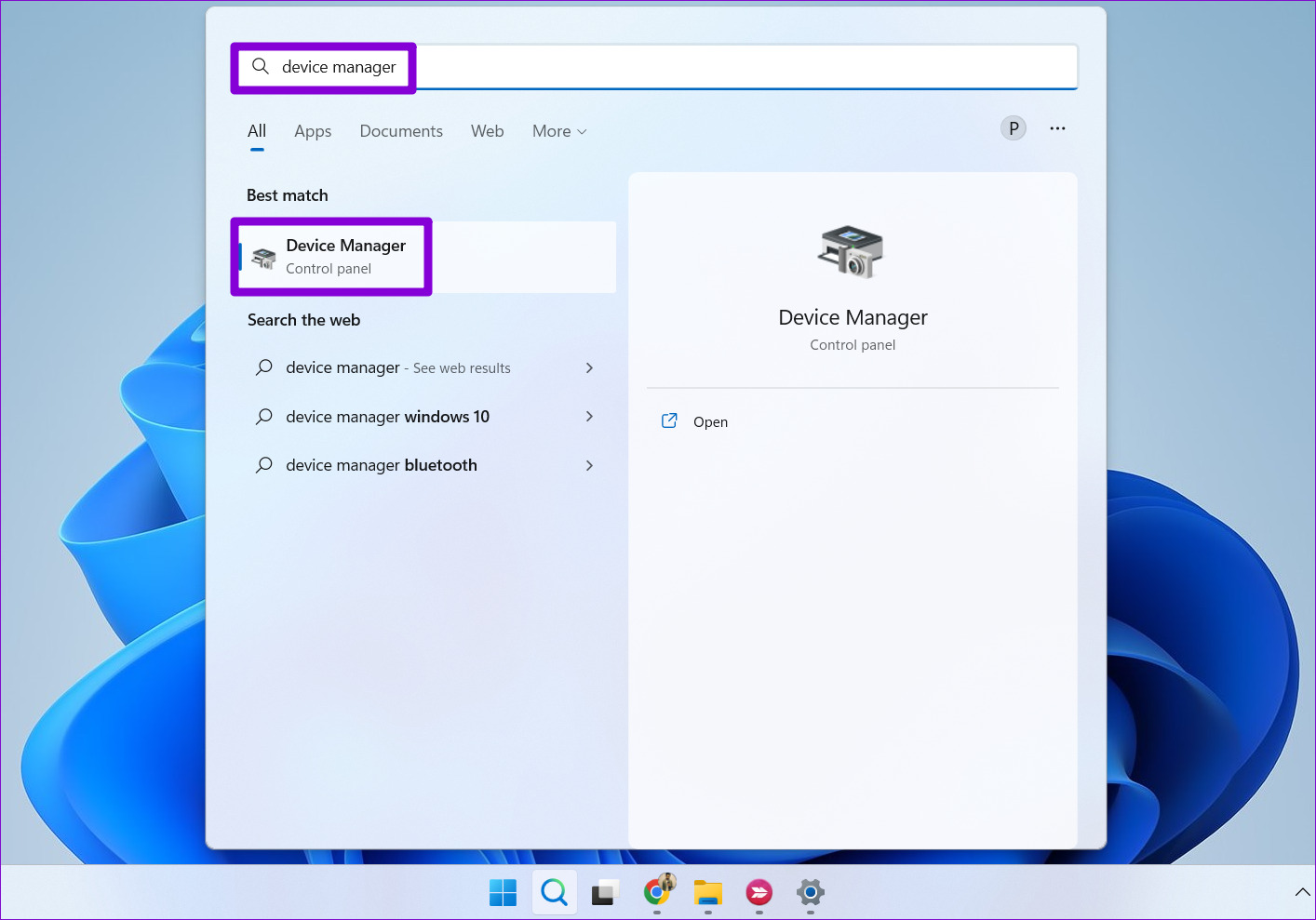
Step 2: Click the arrow before Batteries to expand it. Right-click on the battery adapter > select Disable device.
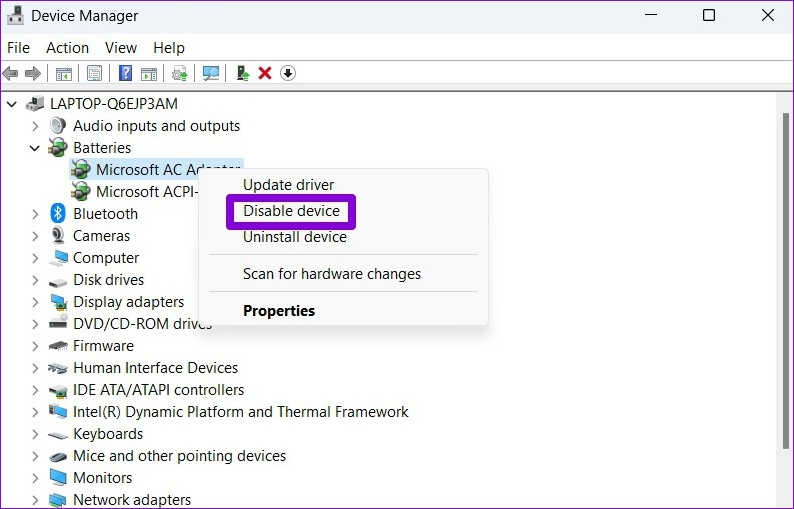
Step 3: Right-click on the battery adapter again > select Enable device.
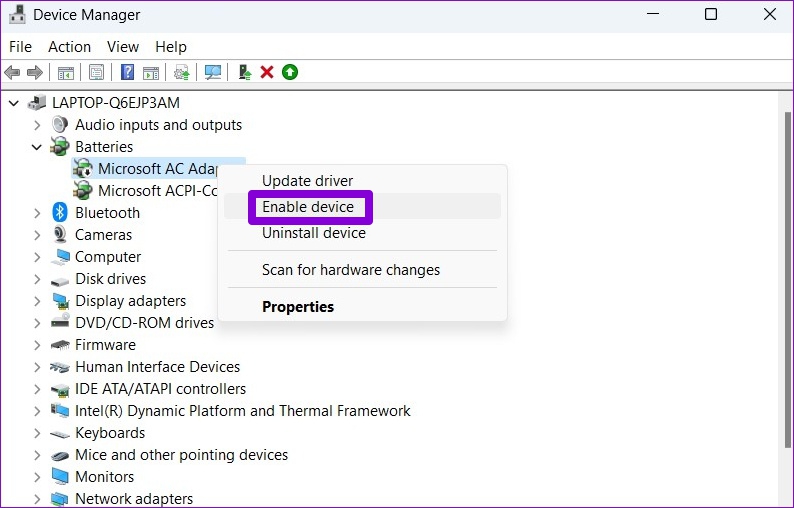
Fix 3: Update or Reinstall Battery Drivers
If restarting battery drivers doesn’t help, it’s time to update them. The idea is to fix any issues caused by outdated or malfunctioning battery drivers.
Step 1: Open Device Manager on your PC.
Step 2: Under Batteries, right-click on the battery adapter and select Update driver.
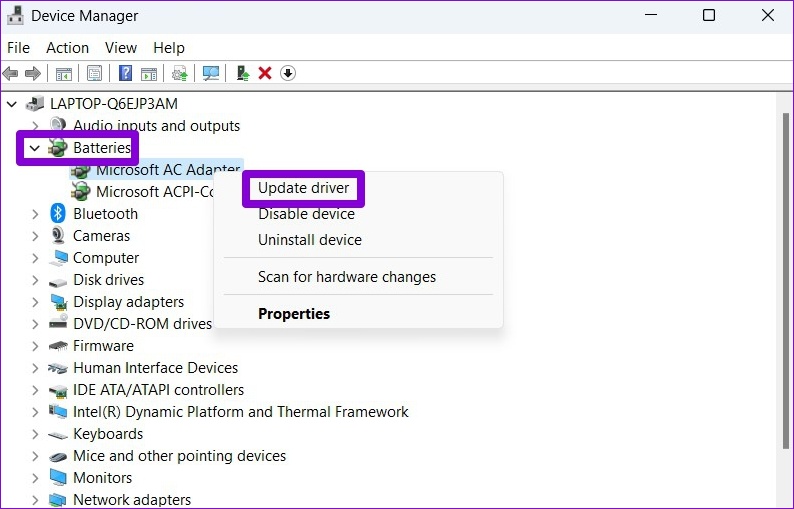
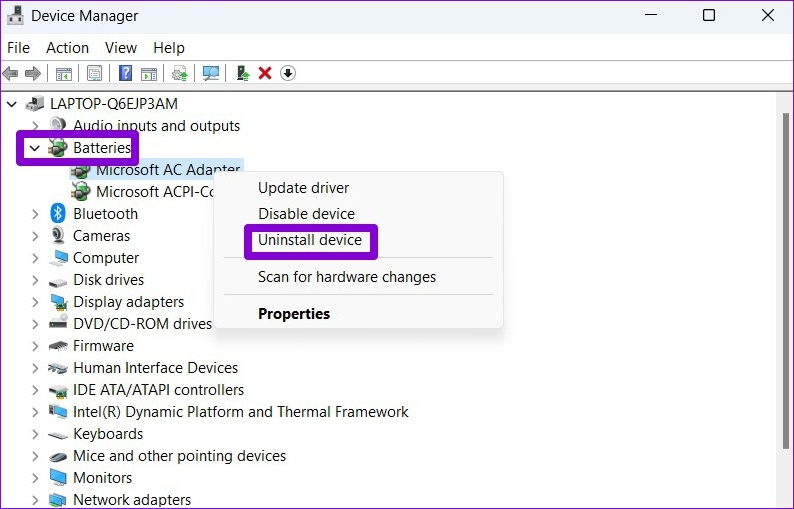
From there, follow the on-screen prompts to finish updating the driver. If the problem persists, the battery driver may be corrupted. So, try uninstalling the driver using Device Manager. Once removed, restart your PC to allow Windows to install the battery driver during boot. Then, check if the issue persists.
Was this helpful?
Last updated on 09 August, 2024
Read Next
 6 Ways to Fix Windows 11 Showing Wrong Time
Fix 1: Sync Windows Clock Manually One of the easiest ways to fix an out-of-sync Windows clock is via the Settings app.
6 Ways to Fix Windows 11 Showing Wrong Time
Fix 1: Sync Windows Clock Manually One of the easiest ways to fix an out-of-sync Windows clock is via the Settings app.
 4 Ways to Fix No Battery Is Detected on Windows 11 Laptop
Fix 1: Reconnect the Battery and Perform a Power Cycle You can start by removing your laptop’s battery if possible and installing it again.
4 Ways to Fix No Battery Is Detected on Windows 11 Laptop
Fix 1: Reconnect the Battery and Perform a Power Cycle You can start by removing your laptop’s battery if possible and installing it again.
 5 Ways to Fix iPhone Showing Wrong Caller ID
Basic Fixes Force restart your iPhone: Press and quickly release the Volume Up button followed by Volume Down.
5 Ways to Fix iPhone Showing Wrong Caller ID
Basic Fixes Force restart your iPhone: Press and quickly release the Volume Up button followed by Volume Down.
 3 Ways to Fix Google Maps Showing Wrong Location on Android and iPhone
Try Basic Fixes Turn off battery saver mode: When you enable battery-saving mode, your phone turns off power-hungry features such as GPS tracking and background app data to improve battery
3 Ways to Fix Google Maps Showing Wrong Location on Android and iPhone
Try Basic Fixes Turn off battery saver mode: When you enable battery-saving mode, your phone turns off power-hungry features such as GPS tracking and background app data to improve battery
 3 Ways to Fix iPhone Clock Widget Showing Wrong Time
Basic Troubleshooting Restart iPhone: If the iPhone clock widget used to show the correct time but suddenly stopped working, restart your iPhone.
3 Ways to Fix iPhone Clock Widget Showing Wrong Time
Basic Troubleshooting Restart iPhone: If the iPhone clock widget used to show the correct time but suddenly stopped working, restart your iPhone.
 12 Ways to Save Battery on Any Windows Laptop
Windows laptops are capable machines that can do almost all the tasks.
12 Ways to Save Battery on Any Windows Laptop
Windows laptops are capable machines that can do almost all the tasks.
 How to Prevent Battery Drain When Windows Laptop Lid Is Closed
Common Fixes Unplug external devices: Disconnect all plugged-in devices (e.g., USB devices, external hard drives, etc.) to prevent them from waking up the laptop when the lid is closed.
How to Prevent Battery Drain When Windows Laptop Lid Is Closed
Common Fixes Unplug external devices: Disconnect all plugged-in devices (e.g., USB devices, external hard drives, etc.) to prevent them from waking up the laptop when the lid is closed.
 5 Ways to Fix “Something Went Wrong” Error in Microsoft Teams for Windows
Try Basic Fixes Check if Teams is down: It's not uncommon for Microsoft Teams servers to go down at times.
5 Ways to Fix “Something Went Wrong” Error in Microsoft Teams for Windows
Try Basic Fixes Check if Teams is down: It's not uncommon for Microsoft Teams servers to go down at times.
The article above may contain affiliate links which help support Guiding Tech. The content remains unbiased and authentic and will never affect our editorial integrity.

