


Fix 1: Remove the Battery
Most new phones don’t have the ability to replace the internal battery. But, if you own an old Android phone, you may be able to remove the battery If it’s possible remove the battery and reinsert it to see if the display is back to normal.
Fix 2: Check the Charger
You should try charging your Android phone for a while. Maybe your phone is low on battery juice, and that’s why it’s unable to boot, thus causing the white screen issue. If you have already tried charging the phone, use a different charger. There are chances that you are using a defective charging adapter or cable.
Fix 3: Find the Problematic App
If you are somehow able to bypass the white screen on your Android phone, you should try clearing the cache of any recently installed app. For that, go to Settings, followed by Apps, and tap on a recently installed app that you think is causing the issue. Then, tap on Storage followed by Clear cache. Doing so will not delete any data from the app.

Alternatively, you should uninstall the app that you might think is responsible for the white screen issue on your Android phone.
Fix 4: Reboot Your Phone in Safe Mode
If you are still unable to get rid of the white screen or if you see vertical or horizontal lines on your Android phone, you should try rebooting your phone in Safe Mode. In Safe Mode, your phone will start only with the apps that came preinstalled. So if a third-party app is responsible for the white screen of death issue, your phone can boot up in Safe Mode.
Step 1: When the device is on, press the Power button on the side until you see the Power pop-up menu. On some phones, you might have to press Power and Volume Up or Power and Volume Down buttons together to see the Power Menu.
Step 2: In the Power pop-up menu, long-press the Power option until the Reboot to Safe mode message shows up. Tap on OK to go to Safe Mode. You will see Safe Mode text at the bottom of the screen when your phone is in Safe Mode.

Step 3: Now, go to Settings > Apps and uninstall the problematic app.
Note: To exit Safe Mode, restart your Android phone. If you’re unable to, learn how to fix Android phone stuck on Safe Mode.
Was this helpful?
Last updated on 30 August, 2024
1 Comment
Leave a Reply
Read Next
 How to Reset Home Screen Layout on Android Including Samsung Phones
Is your Android phone's home screen messed up?
How to Reset Home Screen Layout on Android Including Samsung Phones
Is your Android phone's home screen messed up?
 How to Disable Lock Screen Stories and Dynamic Wallpapers on Samsung Phones
How to Disable Lock Screen Stories Lock Screen Stories automatically changes wallpapers on your Samsung device.
How to Disable Lock Screen Stories and Dynamic Wallpapers on Samsung Phones
How to Disable Lock Screen Stories Lock Screen Stories automatically changes wallpapers on your Samsung device.
 How to Change Lock Screen Shortcuts on Samsung Galaxy Phones
https://youtu.be/UAEMzgi_Ju0 How to Change Lock Screen Shortcuts in One UI The new One UI offers a few native settings to modify the lock screen shortcuts.
How to Change Lock Screen Shortcuts on Samsung Galaxy Phones
https://youtu.be/UAEMzgi_Ju0 How to Change Lock Screen Shortcuts in One UI The new One UI offers a few native settings to modify the lock screen shortcuts.
 6 Fixes for Samsung Galaxy Phones Not Receiving Text Messages
Basic Fixes Check cellular network: Ensure that you have a working cellular network on your phone.
6 Fixes for Samsung Galaxy Phones Not Receiving Text Messages
Basic Fixes Check cellular network: Ensure that you have a working cellular network on your phone.
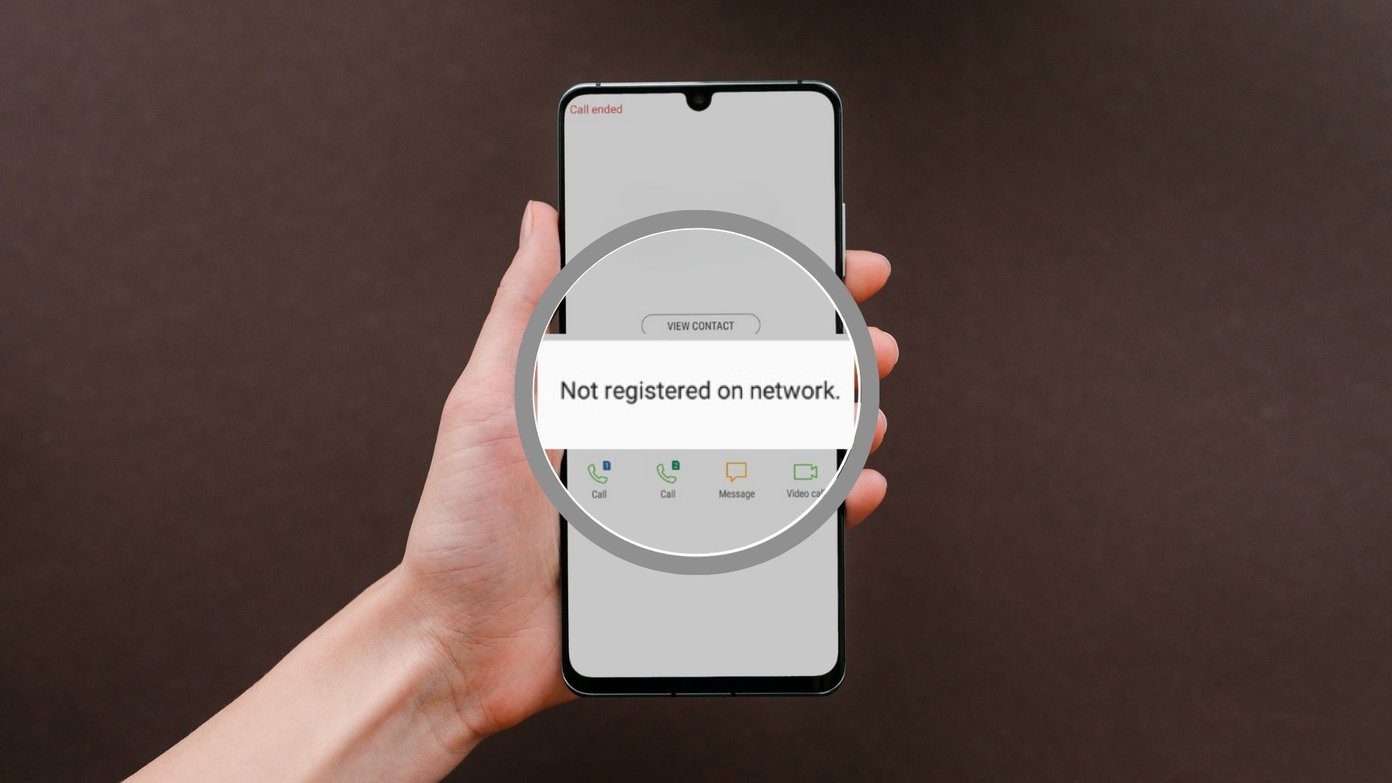 4 Ways to Fix “Not Registered on Network” Error on Samsung Galaxy Phones
Basic Fixes Remove and reinsert the SIM: An improperly inserted SIM can result in such network errors.
4 Ways to Fix “Not Registered on Network” Error on Samsung Galaxy Phones
Basic Fixes Remove and reinsert the SIM: An improperly inserted SIM can result in such network errors.
 5 Ways to Fix Samsung Keyboard Not Working on Galaxy Phones
Fix 1: Update the Samsung Keyboard App Running an outdated version of the Samsung Keyboard app can cause it to malfunction and stop working on your phone.
5 Ways to Fix Samsung Keyboard Not Working on Galaxy Phones
Fix 1: Update the Samsung Keyboard App Running an outdated version of the Samsung Keyboard app can cause it to malfunction and stop working on your phone.
 5 Ways to Fix Delayed Notifications on Samsung Galaxy Phones
Common Fixes Turn off Power saver - This mode disables background tasks, syncing, and other activities to save battery, creating notification delays.
5 Ways to Fix Delayed Notifications on Samsung Galaxy Phones
Common Fixes Turn off Power saver - This mode disables background tasks, syncing, and other activities to save battery, creating notification delays.
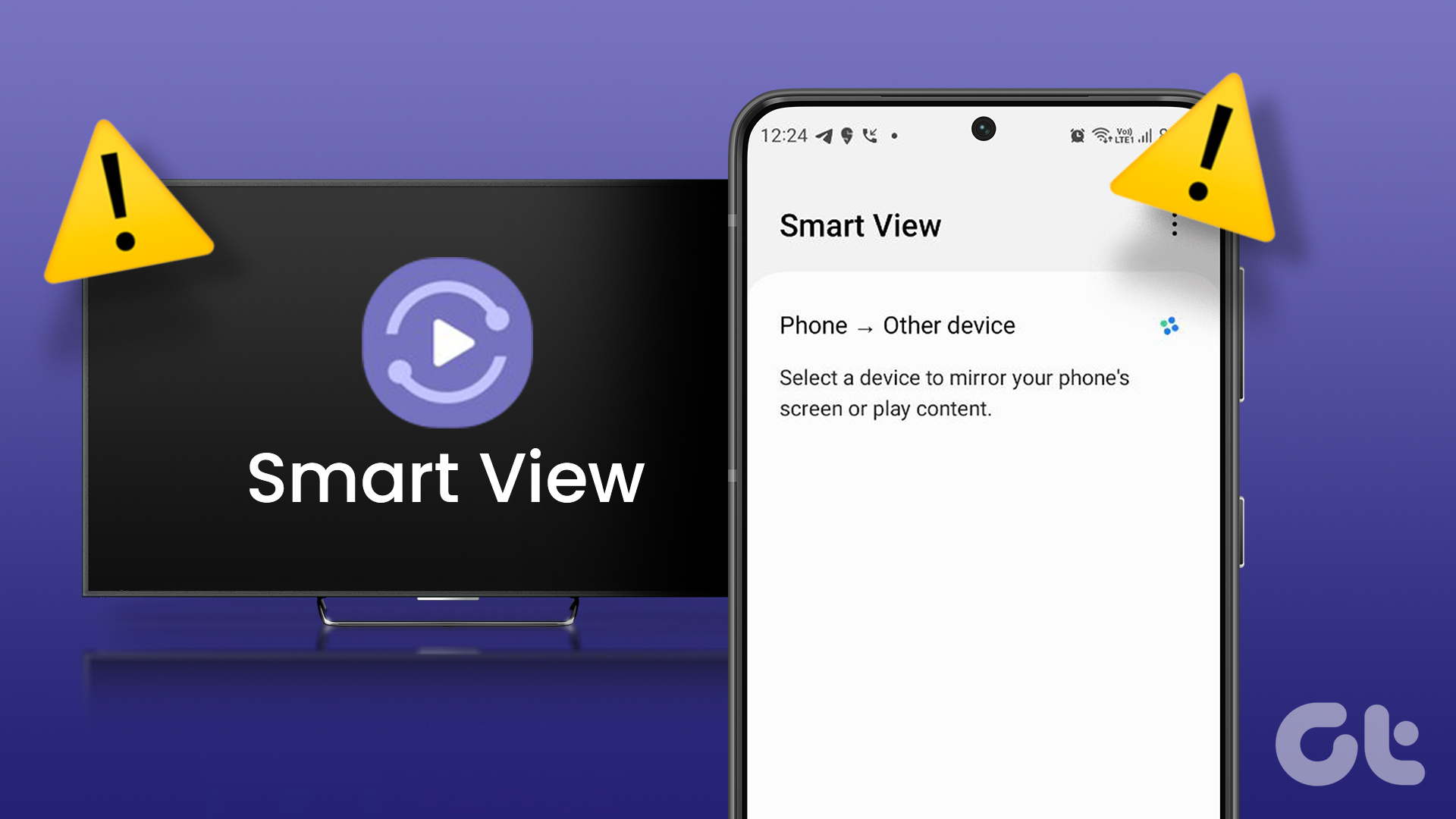 4 Best Ways to Fix Smart View Not Working on Samsung Galaxy Phones
Basic Fixes: Restart devices: If the Smart View feature isn’t working on your Samsung Galaxy phone, the first thing you must do is restart it.
4 Best Ways to Fix Smart View Not Working on Samsung Galaxy Phones
Basic Fixes: Restart devices: If the Smart View feature isn’t working on your Samsung Galaxy phone, the first thing you must do is restart it.
The article above may contain affiliate links which help support Guiding Tech. The content remains unbiased and authentic and will never affect our editorial integrity.

I cant power it off because when I hold the power button and down volume buttons I cannot see Power off, the screen is white