What Is the ‘WHEA_UNCORRECTABLE_ERROR’ BSOD Issue?
The ‘WHEA_UNCORRECTABLE_ERROR’ is a BSOD (Blue Screen of Death) issue that usually indicates a hardware problem on your Windows 11 PC. It may arise due to one of the following reasons:
- Corrupt or outdated device drivers.
- A hardware component failure.
- Bad or corrupted system memory (DRAM).
- Overheated system components.
- Software conflicts.
- A buggy Windows Update.
Basic Fixes
- Update all device drivers: Obsolete device drivers on Windows 11 can result in the ‘WHEA_UNCORRECTABLE_ERROR’ BSOD issue. Open the Device Manager app and expand all device entries to look for a yellow warning sign. Right-click the problematic device and select Update driver.
- Avoid using the system when overheating: Overheating system components can cause BSOD errors. Wait patiently and use the system when it cools down.
- Remove overclocking system components: Overclocking various system components leads to erratic temperature spikes. You must remove overclocking the system components (RAM, CPU, or GPU), and reboot the PC.
- Update Windows 11: Press the Windows + I shortcut to open Settings, select Windows Update from the sidebar, and install available system updates.
Fix 1: Run a Check Disk Scan
Disk errors such as bad or missing sectors are a common reason behind BSOD issues on Windows 11. Run the Check Disk utility to scan and repair them.
Step 1: Press the Windows key, search CMD, and click Run as administrator.

Step 2: Type chkdsk /r in the console and hit Enter to initiate a new Check Disk scan.

Step 3: Type ‘y’ when prompted and press Enter to begin it. Once the scan completes, reboot your PC.

Fix 2: Check RAM With Memory Diagnostic Utility
If the Check Disk scan doesn’t find any errors, you must inspect the system memory for issues (e.g. corrupt memory, DRAM). Windows 11 offers a Memory Diagnostic Utility to check and resolve all RAM-related errors.
Step 1: Press the Windows key, search ‘Windows Memory Diagnostic‘, and click to open it.
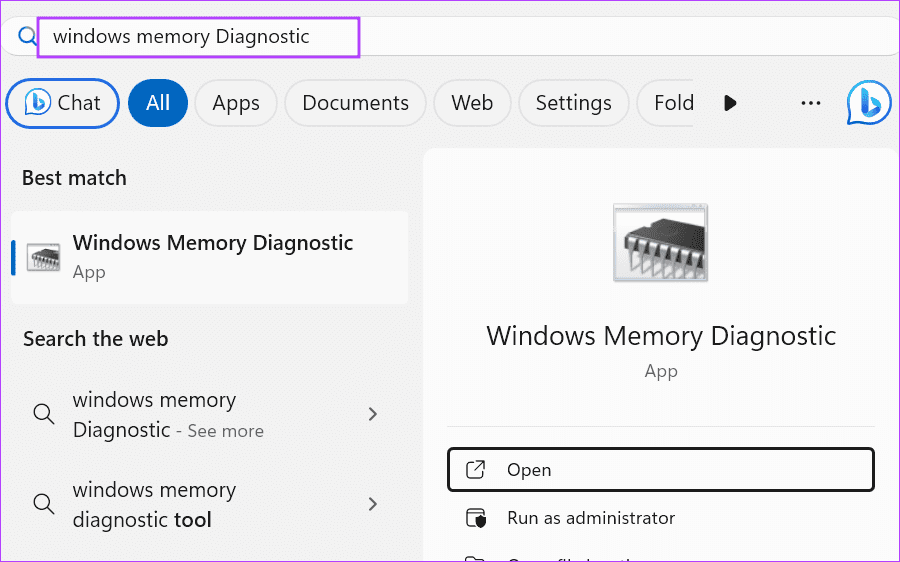
Step 2: Click ‘Restart now and check for problems (recommended)‘ to begin the memory scan.

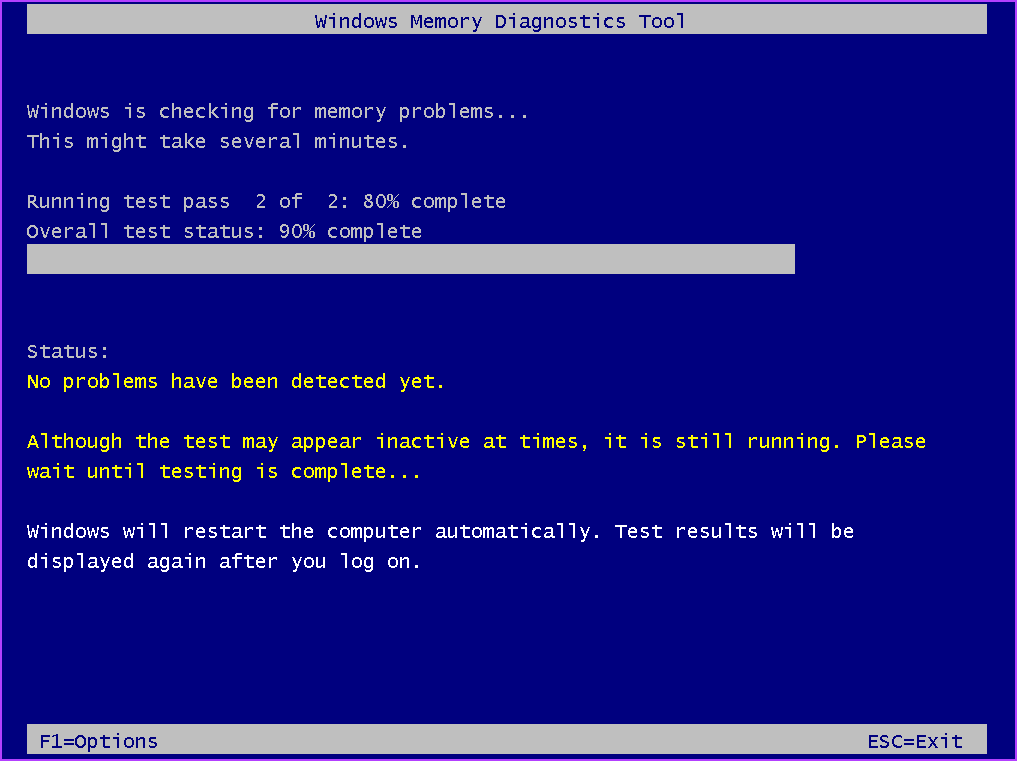
Step 3: Your PC will restart and boot into the utility page to scan and resolve system memory errors. Restart your PC once the scan completes.
Fix 3: Use Event Viewer to Identify a Problematic Device
Microsoft Windows offers an Event Viewer tool that contains a comprehensive log of all system events including errors and warnings. You can use it to locate the ‘WHEA_UNCORRECTABLE_ERROR’ and find the underlying cause to fix it.
Step 1: Press the Windows key, search Event Viewer, and click to open it.

Step 2: Double-click Administrative Events under Custom Views to view critical, error, and warning events from all administrative logs.

Step 3: Select the ‘WHEA_UNCORRECTABLE_ERROR’ in the list to view the associated details such as the Vendor ID or PCI ID of the device reporting the issue. Once you’ve identified the problematic hardware (e.g. video card), try reconnecting or reseating it.

Fix 4: Uninstall the Recent Windows Update
Sometimes, a buggy Windows update can break existing PC features. If you’re getting a BSOD error after a recent Windows update installation, roll it back to restore normalcy.
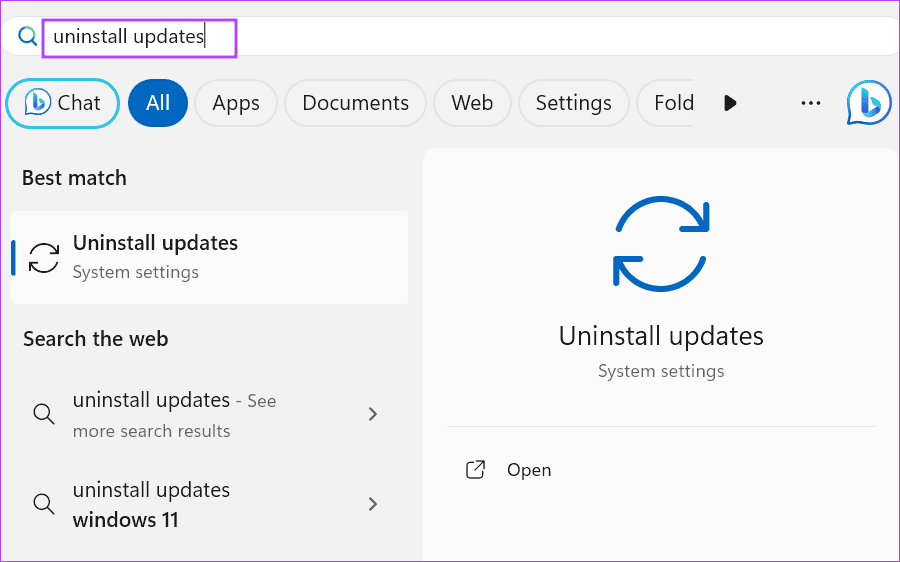
Step 1: Press the Windows key, search Uninstall updates, and click it to open the associated system settings.
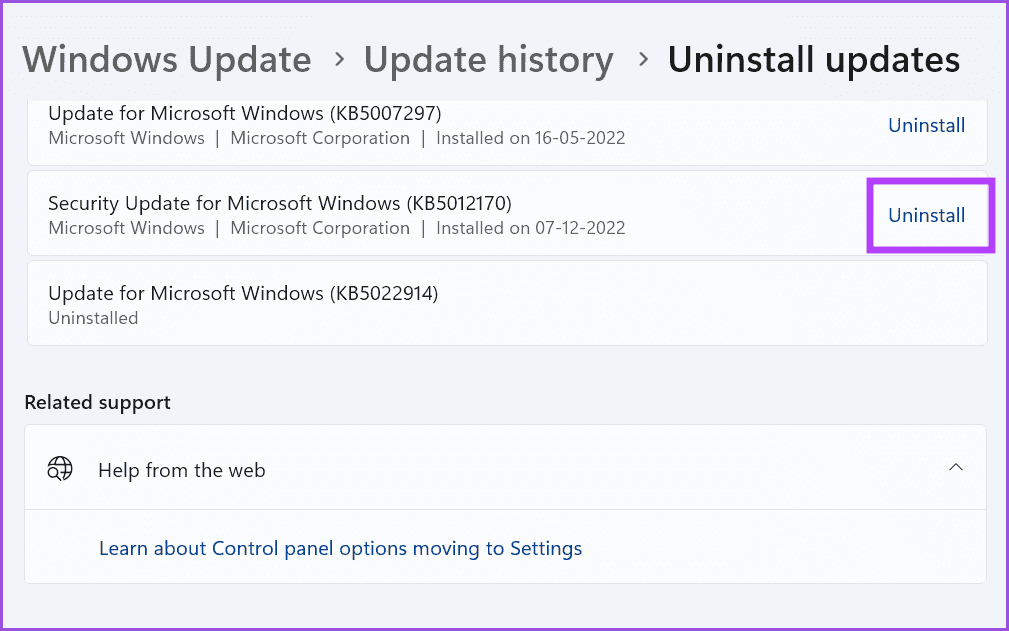
Step 2: Locate the recently installed update using the ‘Installed on’ timestamp, and click Uninstall to revert it. Select Uninstall when prompted to confirm it.
Fix 5: Reset BIOS Settings
If you notice the ‘WHEA_UNCORRECTABLE_ERROR’ on Windows after tweaking BIOS settings, you must revert them to their default state.
Note: BIOS settings page and menus may appear differently on your PC.
Step 1: Restart your Windows PC and press its designated key to boot into the BIOS menu.
Step 2: Navigate to the Exit tab and select Load Default Settings.

Step 3: Select Yes when prompted to reset all BIOS settings.

Was this helpful?
Last updated on 23 August, 2024
Read Next
 2 Ways to Fix Discord Not Opening on Windows 10 and Windows 11
Try Basic Fixes End Discord processes: Press Ctrl + Shift + Esc to launch the Task Manager.
2 Ways to Fix Discord Not Opening on Windows 10 and Windows 11
Try Basic Fixes End Discord processes: Press Ctrl + Shift + Esc to launch the Task Manager.
 4 Ways to Fix Firefox Not Opening on Windows 10 and Windows 11
Fix 1: Force Close Firefox Processes Sometimes, Firefox processes may become unresponsive on your PC, resulting in such issues.
4 Ways to Fix Firefox Not Opening on Windows 10 and Windows 11
Fix 1: Force Close Firefox Processes Sometimes, Firefox processes may become unresponsive on your PC, resulting in such issues.
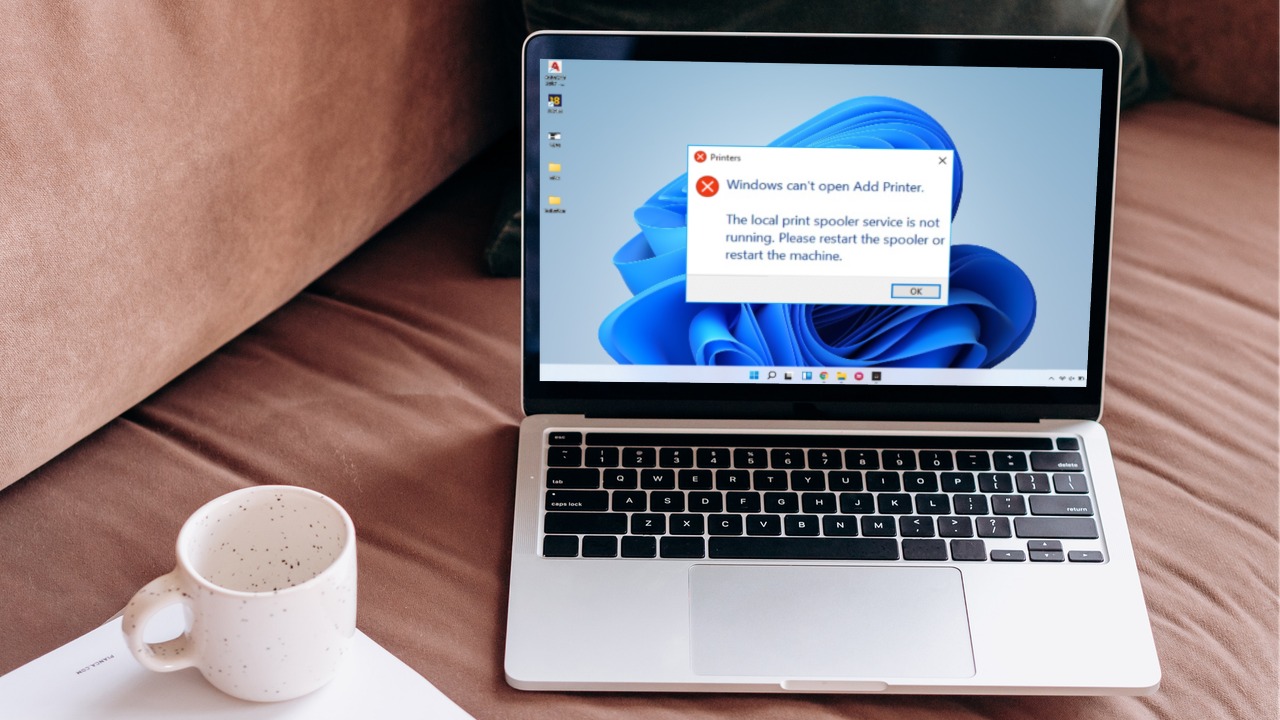 6 Ways to Fix Print Spooler Keeps Stopping on Windows 10 and Windows 11
Fix 1: Run Printer Troubleshooter Windows comes with a dedicated printer troubleshooter that can automatically diagnose and fix any printing issues on your PC.
6 Ways to Fix Print Spooler Keeps Stopping on Windows 10 and Windows 11
Fix 1: Run Printer Troubleshooter Windows comes with a dedicated printer troubleshooter that can automatically diagnose and fix any printing issues on your PC.
 5 Ways to Fix Error 0x8007003B on Windows 10 and Windows 11
Fix 1: Check Disk Format Windows may throw the error 0x8007003B message while transferring large files over a network if the destination drive is FAT32 formatted.
5 Ways to Fix Error 0x8007003B on Windows 10 and Windows 11
Fix 1: Check Disk Format Windows may throw the error 0x8007003B message while transferring large files over a network if the destination drive is FAT32 formatted.
 4 Ways to Fix Windows Terminal Not Opening on Windows 11
Fix 1: Ensure Windows Terminal Is Not Disabled If you cannot launch Windows Terminal via the Start menu or Run dialog box, ensure the app is not disabled on your
4 Ways to Fix Windows Terminal Not Opening on Windows 11
Fix 1: Ensure Windows Terminal Is Not Disabled If you cannot launch Windows Terminal via the Start menu or Run dialog box, ensure the app is not disabled on your
 5 Ways to Fix Windows Explorer High CPU Usage on Windows 11
Try Basic Fixes Restart the Windows Explorer process: There's a chance that Windows Explorer's high CPU usage is a one-time glitch.
5 Ways to Fix Windows Explorer High CPU Usage on Windows 11
Try Basic Fixes Restart the Windows Explorer process: There's a chance that Windows Explorer's high CPU usage is a one-time glitch.
 3 Best Ways to Fix Keyboard Backlight Not Working on Windows 10 and Windows 11
Try Basic Fixes Toggle the keyboard backlight using the hotkey: You can use a key combination to quickly enable or disable the keyboard backlight on your Windows 11 PC.
3 Best Ways to Fix Keyboard Backlight Not Working on Windows 10 and Windows 11
Try Basic Fixes Toggle the keyboard backlight using the hotkey: You can use a key combination to quickly enable or disable the keyboard backlight on your Windows 11 PC.
 3 Ways to Fix Mouse Keeps Scrolling Automatically Windows 10 and Windows 11
https://youtu.be/1UZ3PWNr-lE Try Basic Fixes Disconnect and reconnect the mouse: Unplug your mouse cable or wireless adapter from your computer and reconnect it to a different port.
3 Ways to Fix Mouse Keeps Scrolling Automatically Windows 10 and Windows 11
https://youtu.be/1UZ3PWNr-lE Try Basic Fixes Disconnect and reconnect the mouse: Unplug your mouse cable or wireless adapter from your computer and reconnect it to a different port.
The article above may contain affiliate links which help support Guiding Tech. The content remains unbiased and authentic and will never affect our editorial integrity.