Fix 1: Check if Your Smartwatch Is Supported
The official WhatsApp application for Wear OS is only supported on smartwatches running on Wear OS 3 and above. This list includes the big names like the Samsung Galaxy Watch 4, Galaxy Watch 5, Pixel Watch, Fossil Gen 6, and a few others. If you have an older smartwatch like the OPPO Watch or the Moto 360, you can’t use WhatsApp on it.
Note that you cannot sideload the official WhatsApp Wear OS application on unsupported smartwatches.
Fix 2: Check if Your Watch Is Connected to the Internet
Your Wear OS watch needs active internet if you want to use WhatsApp over it. You can ensure this in three ways:
Method 1: Connect your watch directly to a Wi-Fi network. You can do this by dragging the notification panel and going into settings.
Method 2: Keep your watch connected to your phone via Bluetooth.
Method 3: If your watch supports SIM card connectivity, ensure that you have an active data pack.
Fix 3: Re-Link WhatsApp Wear OS App With Your Phone
If WhatsApp doesn’t work on your Wear OS smartwatch after you successfully install it, unlink it and pair it again with your phone. Here’s how to do that.
Step 1: Open WhatsApp on your smartwatch.
Step 2: Swipe to the bottom. You will see the Settings option, tap on it.

Step 3: Scroll down and tap on the Logout button. Your watch will ask for confirmation to log out, tap on the green tick.
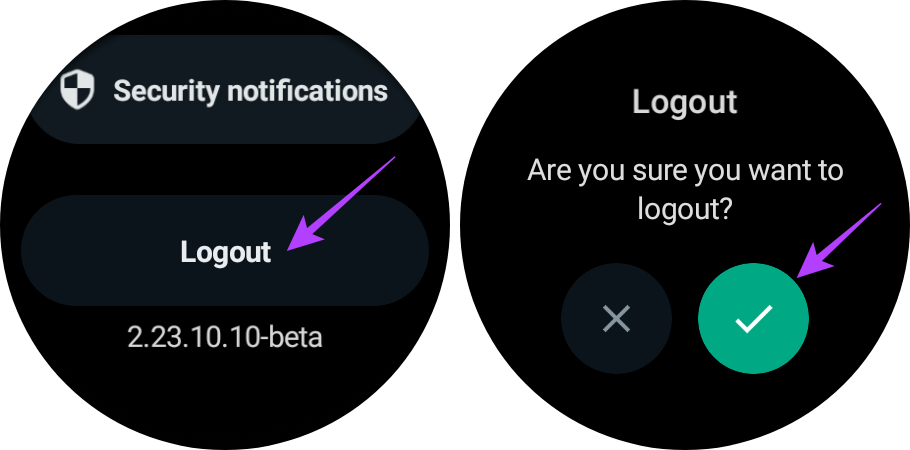
Step 4: Keep the WhatsApp application open on your smartwatch. Now, you will see a notification on your phone to link a new device. Tap on it.
Step 5: Your watch will now show an 8-digit alphanumeric code. Enter this on your smartphone.
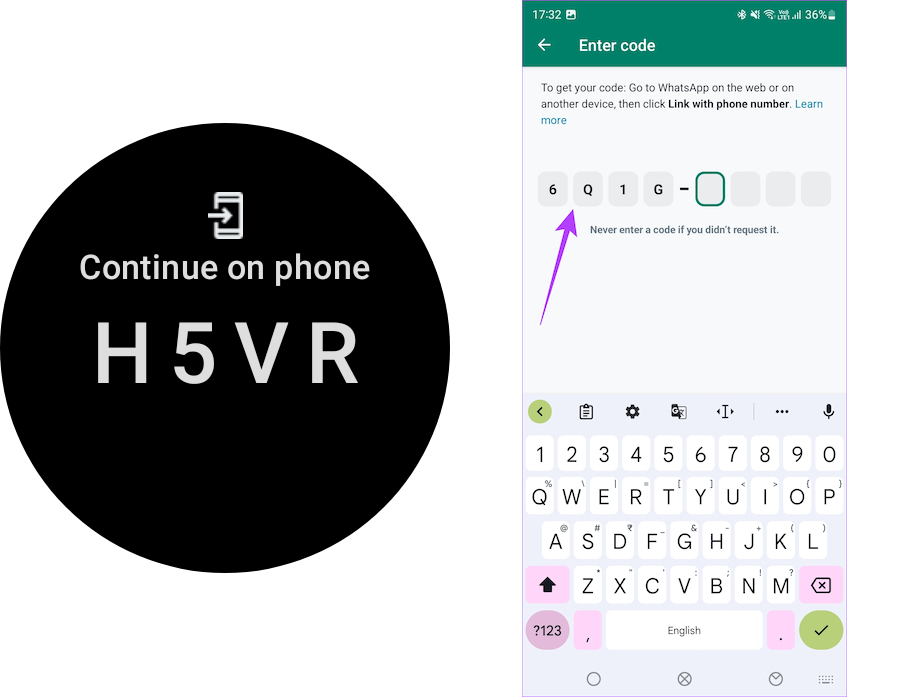
Your WhatsApp account will be re-linked to your Wear OS smartwatch. This will fix any setup-based errors that may have occurred last time and caused WhatsApp to malfunction on your watch.
Fix 4: Clear App Data of WhatsApp in Wear OS
Clearing the WhatsApp app data on your smartwatch can give you a fresh start and get the app working. It is also faster than deleting and re-installing the app on your watch. Here’s how to do that.
Step 1: Open the Settings app on your watch. Go to Apps > App info.
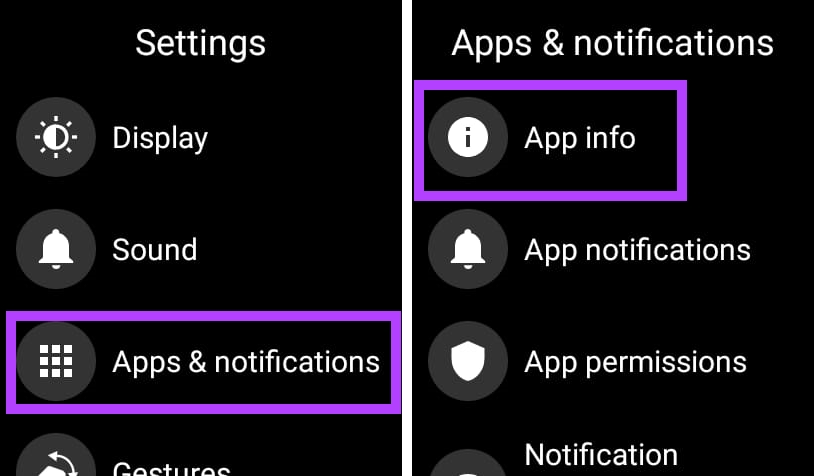
Step 2: Now, select WhatsApp from the list of apps. Tap on it.
Step 3: Scroll down and go to App info. Here, tap on the Clear data option.
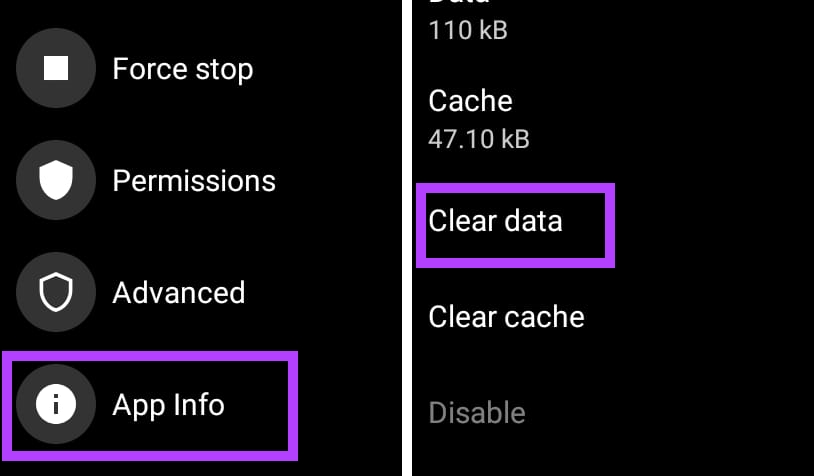
Note: Some smartwatches, like the Galaxy Watch series, do not have the option to clear the app data. In such cases, directly uninstall the WhatsApp application on your smartwatch. Here’s how to do that.
Step 1: Open the app of your watch on your Android device.
Step 2: Now, go to Watch Settings and tap on Apps.
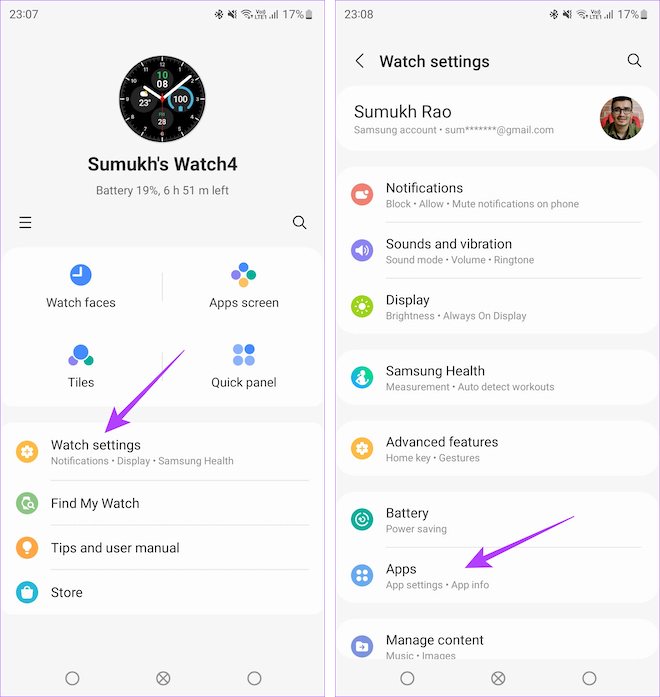
Step 3: Select WhatsApp from the list of apps and tap on Uninstall.
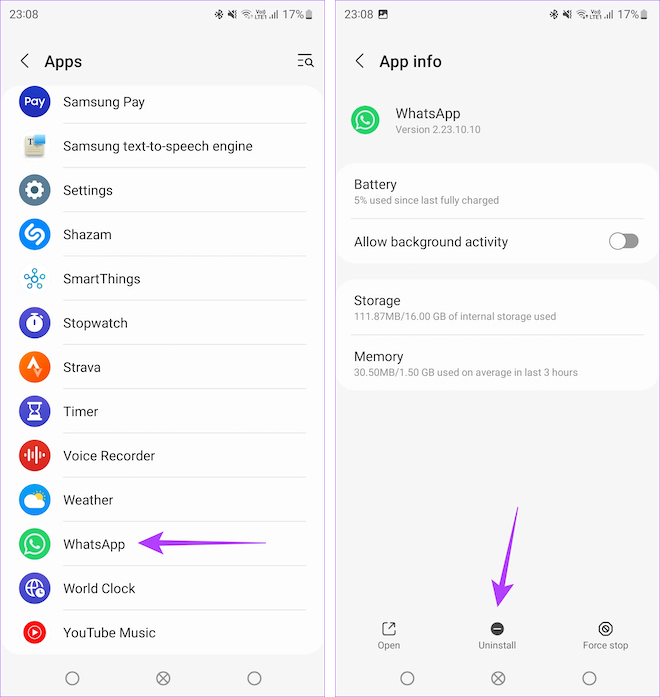
Once done, download WhatsApp again on your Galaxy Watch.
FAQs
If you have too many apps on your Wear OS watch, it can run short of resources and processing power, resulting in WhatsApp crashing frequently. If you face such issues, reduce the number of apps installed on your smartwatch.
It is a known issue that WhatsApp may sometimes not sync chats on your linked devices. In such cases, ensure that your chats are present on your primary phone, and then deactivate and re-link WhatsApp on your watch.
No, WhatsApp does not yet have an official app for the Apple Watch. However, you can use WhatsApp on Apple Watch through a third-party app.
Was this helpful?
Last updated on 24 July, 2024
Read Next
 6 Fixes for WhatsApp Notifications Not Working On Wear OS App
Ever since Telegram discontinued its Wear OS app, the wearables platform has lacked a functional messaging application.
6 Fixes for WhatsApp Notifications Not Working On Wear OS App
Ever since Telegram discontinued its Wear OS app, the wearables platform has lacked a functional messaging application.
 7 Best Ways to Fix Wear OS Smartwatch Keeps Disconnecting From Phone
A smartwatch is a great supplement to a smartphone.
7 Best Ways to Fix Wear OS Smartwatch Keeps Disconnecting From Phone
A smartwatch is a great supplement to a smartphone.
 How to Install APKs on Wear OS Smartwatches
How to Install an APK on a Wear OS Smartwatch Using ADB There are a few ways to sideload an APK onto a Wear OS smartwatch but we're going to
How to Install APKs on Wear OS Smartwatches
How to Install an APK on a Wear OS Smartwatch Using ADB There are a few ways to sideload an APK onto a Wear OS smartwatch but we're going to
 10 Best Wear OS Apps to Improve Your Smartwatch Experience
Smartwatches have become ubiquitous, mainly due to their availability at various price points.
10 Best Wear OS Apps to Improve Your Smartwatch Experience
Smartwatches have become ubiquitous, mainly due to their availability at various price points.
 How to Fix WhatsApp Web QR Code Not Loading or Scanning
Basic Fixes Reload WhatsApp QR code - If not scanned for long, the QR code expires.
How to Fix WhatsApp Web QR Code Not Loading or Scanning
Basic Fixes Reload WhatsApp QR code - If not scanned for long, the QR code expires.
 2 Ways to Fix WhatsApp Calls Not Working on Mac
Basic Fixes Check your internet speed: WhatsApp calls need a stable internet connection.
2 Ways to Fix WhatsApp Calls Not Working on Mac
Basic Fixes Check your internet speed: WhatsApp calls need a stable internet connection.
 4 Ways to Fix WhatsApp Not Working on Mobile Data
Before you begin, ensure you have no problems with using the internet via mobile data on your smartphone.
4 Ways to Fix WhatsApp Not Working on Mobile Data
Before you begin, ensure you have no problems with using the internet via mobile data on your smartphone.
 Top 8 Ways to Fix WhatsApp Microphone Not Working on iPhone and Android
Thanks to group calls, the ability to share and create call links, and desktop support, WhatsApp voice and video calls are gaining traction among users.
Top 8 Ways to Fix WhatsApp Microphone Not Working on iPhone and Android
Thanks to group calls, the ability to share and create call links, and desktop support, WhatsApp voice and video calls are gaining traction among users.
The article above may contain affiliate links which help support Guiding Tech. The content remains unbiased and authentic and will never affect our editorial integrity.