Fix 1: Check the Destination Drive Format
Are you attempting to copy a file to an external drive that uses a non-NTFS format? If so, you are likely to encounter such issues. For example, if the destination drive is formatted as FAT32, transferring a file larger than 4GB will most likely fail and result in an error.
Press Windows + E to open the File Explorer. Right-click on your drive and select Properties. Under General, check your drive’s file system.

If it says NTFS, disk format isn’t a problem, and you can continue with the solutions below. If it says FAT32, you may have to format the drive into the NTFS format.
Fix 2: Remove Write Protection for the Drive
Another reason you may have trouble copying files or folders to a storage drive is if it is write-protected. In that case, you must use the DiskPart utility to remove write protection from your drive.
Step 1: Right-click on the Start icon and select Terminal (Admin) from the list.

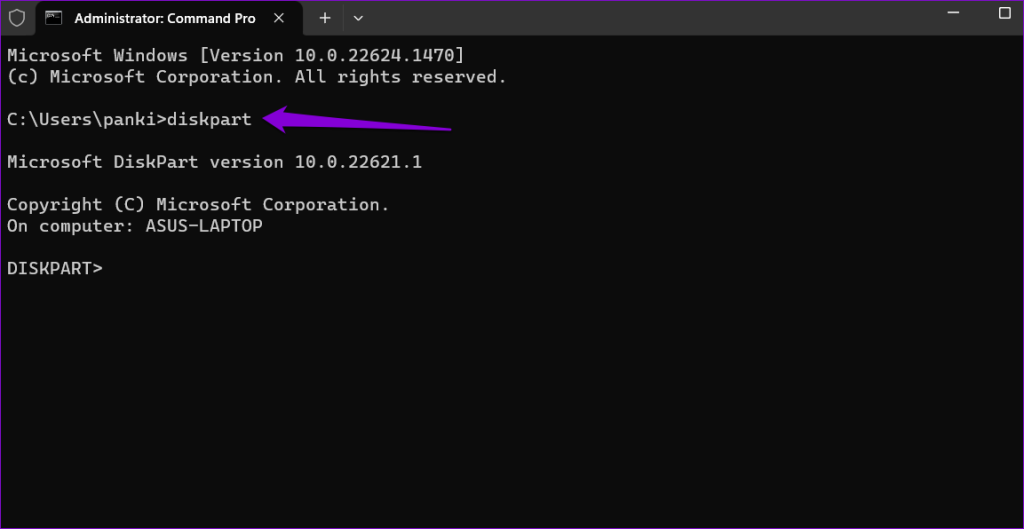
Step 2: Type diskpart in the console and hit Enter.
Step 3: Type list disk and press Enter to view a list of storage devices connected to your PC.
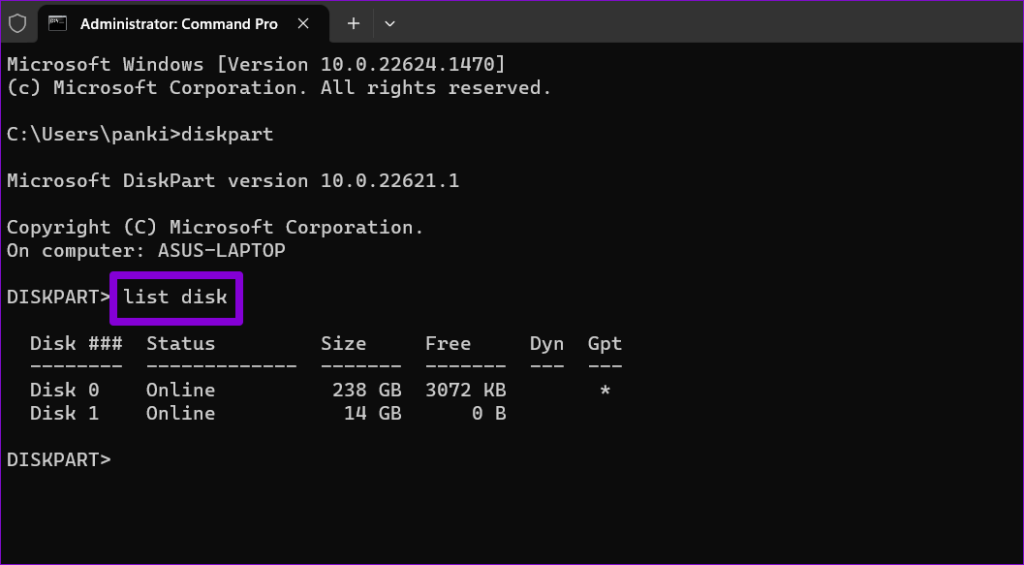
Step 4: Note the disk number associated with your storage device from the first column. Then, type the following command to select it.
Select disk N
Replace N in the above command with the actual number associated with the disk.

Step 5: Paste the following command and press Enter to remove write protection for the selected device.
attributes disk clear readonly

After completing the above steps, copy files and folders to that drive.
Fix 3: Download and Run the File and Folder Troubleshooter
Microsoft offers a File and Folder Troubleshooter to automatically fix issues preventing you from copying or moving files and folders. Here’s how to run it.
Step 1: Download the File and Folder Troubleshooter from Microsoft’s website.
Step 2: Double-click the downloaded file. Then, click Next to run the troubleshooter.

Step 3: Select the Renaming or moving files and folders option and hit Next.

Wait for the troubleshooter to detect and fix any issues, then copy your files and folders again.
Fix 4: Modify File or Folder Permission
Windows may display the “Unspecified error” if your current user account does not have permission to copy the file or folder. To fix this, you must obtain complete control over the file or folder you are attempting to copy.
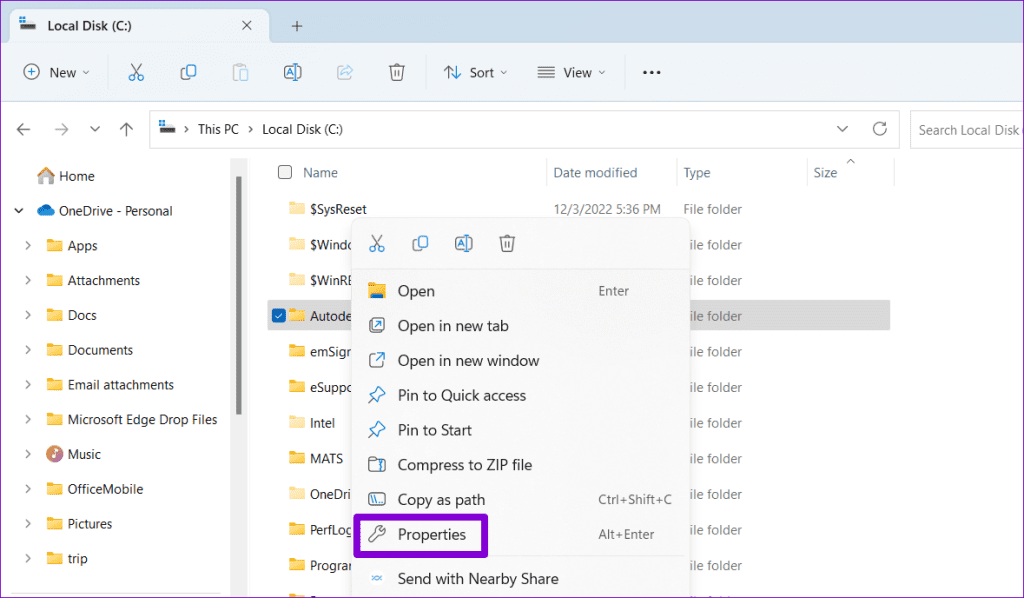
Step 1: Right-click on the file or folder you want to copy and select Properties.
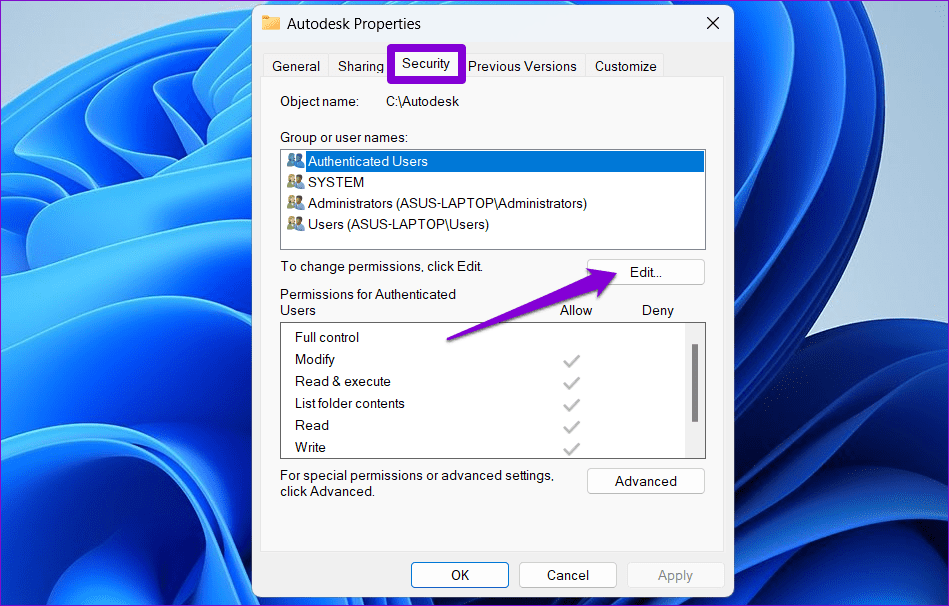
Step 2: Under the Security tab, click the Edit button.
Step 3: Tick the Allow checkbox for Full control. Then, hit Apply, followed by OK.

After completing the above steps, try copying or moving your file or folder.
Fix 5: Create a New User Account
Problems with your user account can also trigger the “Unspecified error” while copying files and folders on Windows 10 or 11. If so, you must create and switch to a new user account.
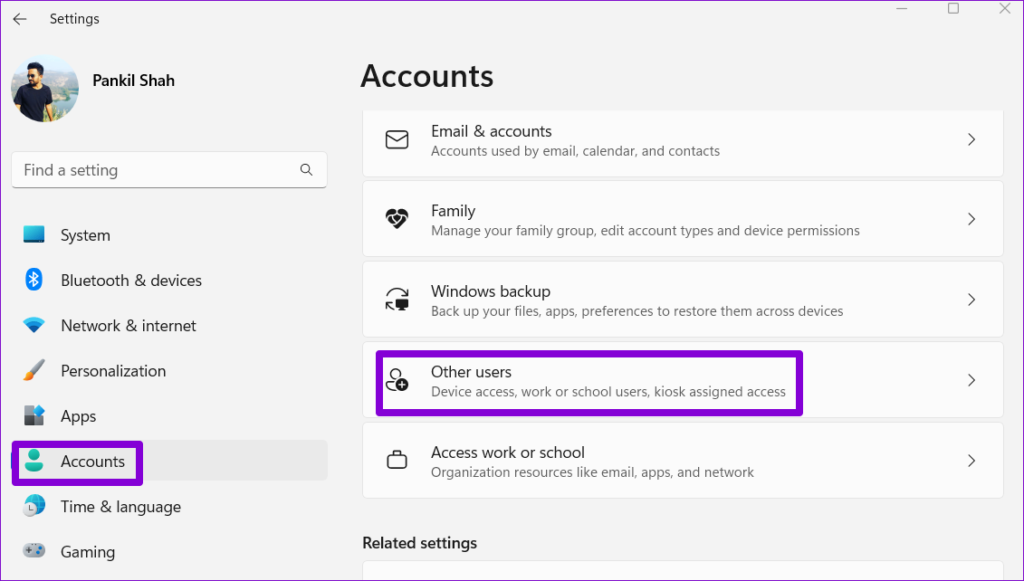
Step 1: Press Windows + I to open the Settings app. In the Accounts tab, click on Other users.
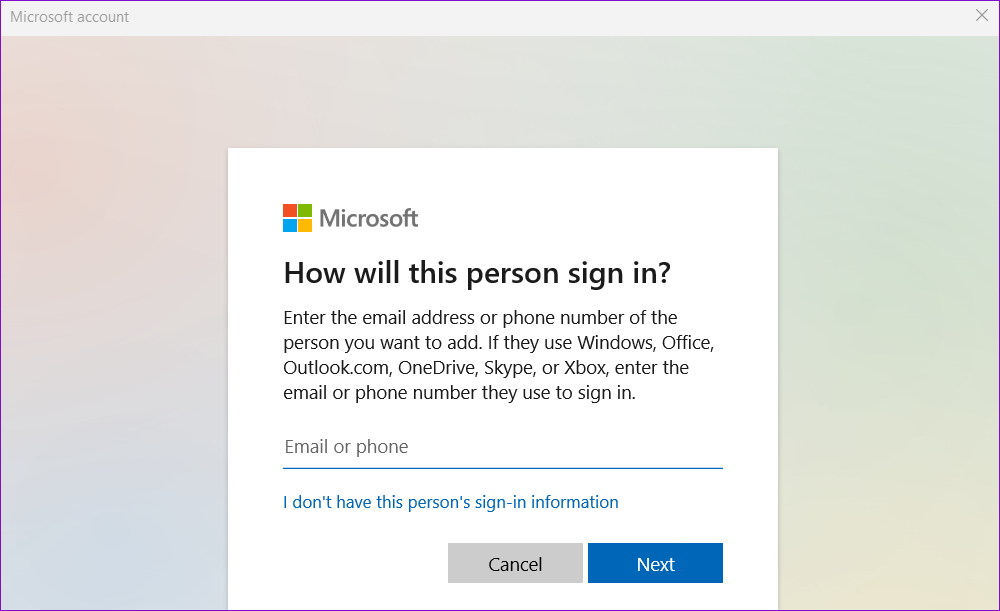
Step 2: Click the Add account button.

Step 3: Type your email address and follow the on-screen instructions to create a new user account on Windows.
Switch to the newly created user account and see if you can copy files and folders.
Was this helpful?
Last updated on 09 April, 2024
Read Next
 5 Fixes for OneDrive Creating Duplicate Files and Folders on Windows
Fix 1: Remove OneDrive Cached Credentials A common reason why OneDrive may keep creating duplicate files with the computer name added to the filename is due to its cached credentials.
5 Fixes for OneDrive Creating Duplicate Files and Folders on Windows
Fix 1: Remove OneDrive Cached Credentials A common reason why OneDrive may keep creating duplicate files with the computer name added to the filename is due to its cached credentials.
 4 Ways to Fix ‘Copying Is Not Allowed on This Webpage’
We advise against copying text from websites that restrict copying content to avoid plagiarism.
4 Ways to Fix ‘Copying Is Not Allowed on This Webpage’
We advise against copying text from websites that restrict copying content to avoid plagiarism.
 How to Control Integrity Level of Windows 10 Files, Folders
Ever had the problem of ‘Access is Denied’ while browsing through your own computer?
How to Control Integrity Level of Windows 10 Files, Folders
Ever had the problem of ‘Access is Denied’ while browsing through your own computer?
 How to Manage Files and Folders Efficiently on Windows 10
Files and folders tend to accumulate over time on our Windows computers.
How to Manage Files and Folders Efficiently on Windows 10
Files and folders tend to accumulate over time on our Windows computers.
 3 Ways to Fix USB Drive Not Showing Files and Folders on Windows 11
Try These Basic Fixes Configure File Explorer to show hidden items: If some of your files and folders are missing from the USB drive but the storage space is still
3 Ways to Fix USB Drive Not Showing Files and Folders on Windows 11
Try These Basic Fixes Configure File Explorer to show hidden items: If some of your files and folders are missing from the USB drive but the storage space is still
 4 Best Ways to Compare Files in Two Folders on Windows 11
Method 1: Use the Properties Menu You can launch the File Explorer and right-click on a folder to open Properties.
4 Best Ways to Compare Files in Two Folders on Windows 11
Method 1: Use the Properties Menu You can launch the File Explorer and right-click on a folder to open Properties.
 How to Open Files and Folders in CMD on Windows
How to Open a File Using Command Prompt on Windows Here's how you can easily open Command Prompt on your PC and use it to access a file.
How to Open Files and Folders in CMD on Windows
How to Open a File Using Command Prompt on Windows Here's how you can easily open Command Prompt on your PC and use it to access a file.
 How to Show Hidden Files and Folders in Windows 11
Have you ever been in a situation where you hid some files on your Windows device while sharing them with friends or family and couldn't find them later?
How to Show Hidden Files and Folders in Windows 11
Have you ever been in a situation where you hid some files on your Windows device while sharing them with friends or family and couldn't find them later?
The article above may contain affiliate links which help support Guiding Tech. The content remains unbiased and authentic and will never affect our editorial integrity.