Basic Fixes
- Check your internet connection: Ensure your Fire TV Stick is connected to a good internet connection. Test its speed online and retry updating the Fire OS.
- Check Amazon servers: Visit Downdetector to check an active Amazon server outage.
- Replug your Fire TV Stick: Unplug the Fire TV Stick from your TV, wait a few seconds, and plug it back in. Recheck the Fire OS to install new updates.
- Disconnect VPN: Open the installed VPN app and select Disconnect to disable the active connection.
Fix 1: Restart the Fire TV Stick
An existing Fire OS glitch can prevent you from updating it. Restart the Fire TV Stick from its settings and retry updating it.
Step 1: Navigate to the Gear icon in the Fire OS home screen and select My Fire TV.
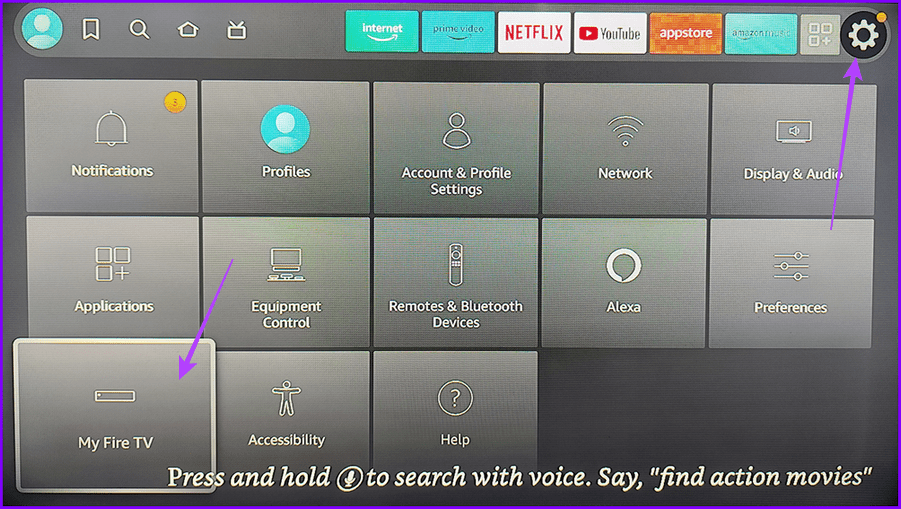
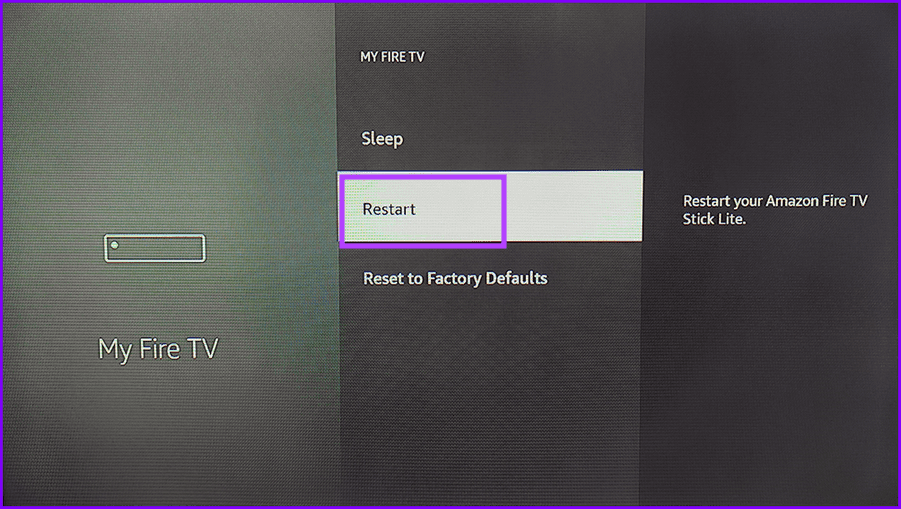
Step 2: Scroll down and select Restart to reboot your Fire TV Stick. Retry checking for new updates.
Fix 2: Check Storage and Delete Apps
If your Fire TV Stick doesn’t have adequate storage to download new updates, the update process will fail. Delete unnecessary apps to free the occupied storage and retry updating the device.
Step 1: Open Fire OS settings from the Gear icon at the top right and select Applications.

Step 2: Scroll down and open Manage Installed Applications. You can view the free space on the right side.

Step 3: Click on the app you wish to delete under the Applications list.

Step 4: Select Uninstall. Repeat the step to reclaim more free space and retry updating your Fire TV Stick.

Fix 3: Deregister the Fire TV Stick
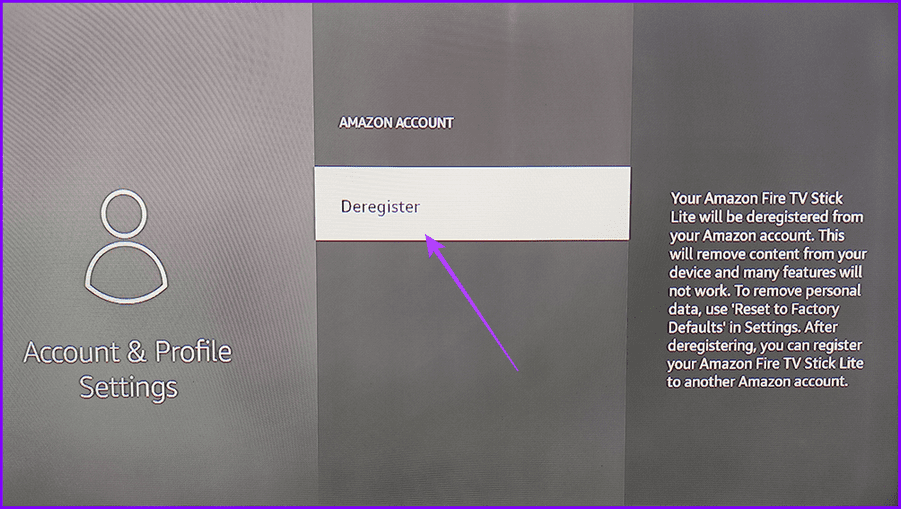
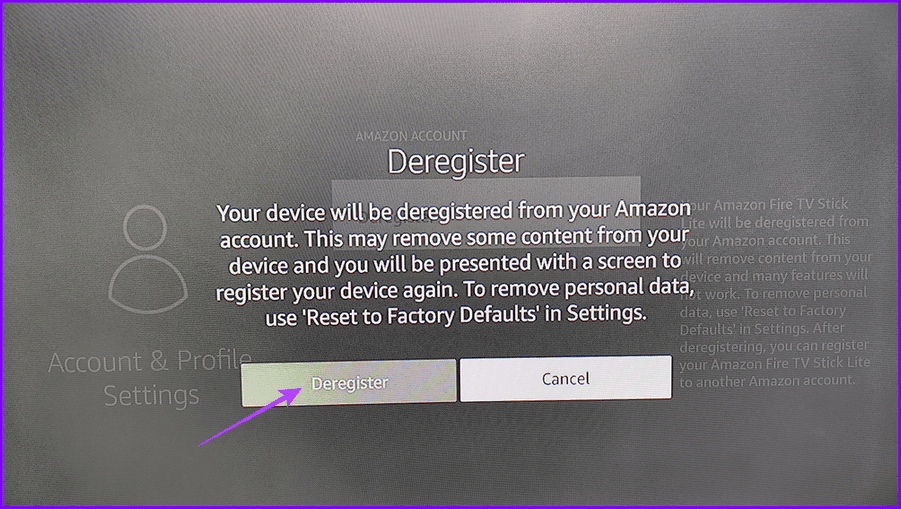
If you bought a used Fire TV Stick and it’s flagged as Lost/Stolen by Amazon, you can’t register it to a new account or update it. Try deregistering it manually and check for Fire OS updates.
Step 1: Access Fire OS Settings and select Account & Profile Settings.

Step 2: Open Amazon Account.

Step 3: Select Deregister and confirm it using the Deregister button. Once deregistered, Fire OS will present a new screen to register the device with your Amazon account.
Was this helpful?
Last updated on 15 July, 2024
Read Next
 3 Ways to Fix Amazon Fire TV Stick Keeps Restarting
Basic Fixes Use official accessories: If you aren't using the original accessories with your Firestick, you might use an incompatible USB cable or adapter.
3 Ways to Fix Amazon Fire TV Stick Keeps Restarting
Basic Fixes Use official accessories: If you aren't using the original accessories with your Firestick, you might use an incompatible USB cable or adapter.
 2 Ways to Fix Black Screen on Amazon Fire TV Stick
Basic Fixes Check Amazon server status: You can visit DownDetector to see if Amazon servers are working fine for your region.
2 Ways to Fix Black Screen on Amazon Fire TV Stick
Basic Fixes Check Amazon server status: You can visit DownDetector to see if Amazon servers are working fine for your region.
 3 Ways to Fix Fire TV Stick Mirroring Not Working or Freezing
Screen Mirroring Requirements and Limitations for Fire TV Stick Before starting, let us look at certain conditions that you might need to meet when screen mirroring your device to your
3 Ways to Fix Fire TV Stick Mirroring Not Working or Freezing
Screen Mirroring Requirements and Limitations for Fire TV Stick Before starting, let us look at certain conditions that you might need to meet when screen mirroring your device to your
 3 Ways to Fix Fire TV Stick Not Installing Apps
Basic Fixes: Check your internet connection: When your Fire TV Stick is not installing an app, you should first ensure your internet connection is stable and has good speeds to
3 Ways to Fix Fire TV Stick Not Installing Apps
Basic Fixes: Check your internet connection: When your Fire TV Stick is not installing an app, you should first ensure your internet connection is stable and has good speeds to
 3 Ways to Fix Apple TV App Not Working on Amazon Fire TV Stick
Basic Fixes Force quit and relaunch Apple TV app: This will give the app a fresh start on your Firestick.
3 Ways to Fix Apple TV App Not Working on Amazon Fire TV Stick
Basic Fixes Force quit and relaunch Apple TV app: This will give the app a fresh start on your Firestick.
 3 Ways to Fix Fire TV Stick Remote Volume Not Working
Basic Fixes: Check the remote batteries: Fire TV Stick relies on batteries to work properly.
3 Ways to Fix Fire TV Stick Remote Volume Not Working
Basic Fixes: Check the remote batteries: Fire TV Stick relies on batteries to work properly.
 5 Ways to Fix Amazon Silk Browser Not Working on Fire TV Stick
Basic Fixes Check your network connection: Open Fire OS settings via the Gear icon at the top right.
5 Ways to Fix Amazon Silk Browser Not Working on Fire TV Stick
Basic Fixes Check your network connection: Open Fire OS settings via the Gear icon at the top right.
 3 Ways to Fix YouTube TV Not Working on Amazon Fire TV Stick
Basic Fixes Check the YouTube server status: Visit Downdetector to check an active YouTube TV server outage.
3 Ways to Fix YouTube TV Not Working on Amazon Fire TV Stick
Basic Fixes Check the YouTube server status: Visit Downdetector to check an active YouTube TV server outage.
The article above may contain affiliate links which help support Guiding Tech. The content remains unbiased and authentic and will never affect our editorial integrity.