

Try Basic Fixes
- Switch out of S mode using the Microsoft Store page link: If you don’t see an option to exit S mode in the Settings app, visit the ‘Switch out of S mode’ page on the Microsoft Store page. Then, click the Get button and follow the on-screen instructions to exit S mode.
- Wait for some time and try again: Switching out of S mode involves Micorosft servers accepting your request after verifying all necessary details. If the Microsoft servers are experiencing issues, you may see the “Try again later. Something went wrong on our end” error message. In that case, your best option is to wait and then try to exit the S mode again.
Fix 1: Start or Restart the Windows Update Service
The Windows Update service is a small program that helps detect, download, and install updates for Windows and its apps. You may have difficulty leaving S mode if the service is not running in the background. Here’s how to check that.
Step 1: Press the Windows key + R to open the Run dialog. Type services.msc in the text field and press Enter.
Step 2: In the Services window, scroll down to locate the Windows Update service on the list. Right-click on it and select Start. If the service is already running, select Restart.

Fix 2: Clear Microsoft Store Cache
Since switching out of S mode requires you to use the Microsoft Store, problems with the store app can cause such anomalies. You can try clearing the existing Microsoft Store cache to see if that improves the situation.
To clear the Microsoft Store cache, press the Windows key + R to open the Run dialog box. Type wsreset.exe in the Open field and press Enter.
A blank Command Prompt window will appear and execute the command. After clearing the cache, the Microsoft Store will launch automatically. After that, you should be able to exit the S mode.
Fix 3: Repair or Reset the Store App
If clearing the cache does not work, try repairing the Microsoft Store app by following the steps below.
Step 1: Press the Windows key + I to open the Settings app > head to Apps > Installed apps.
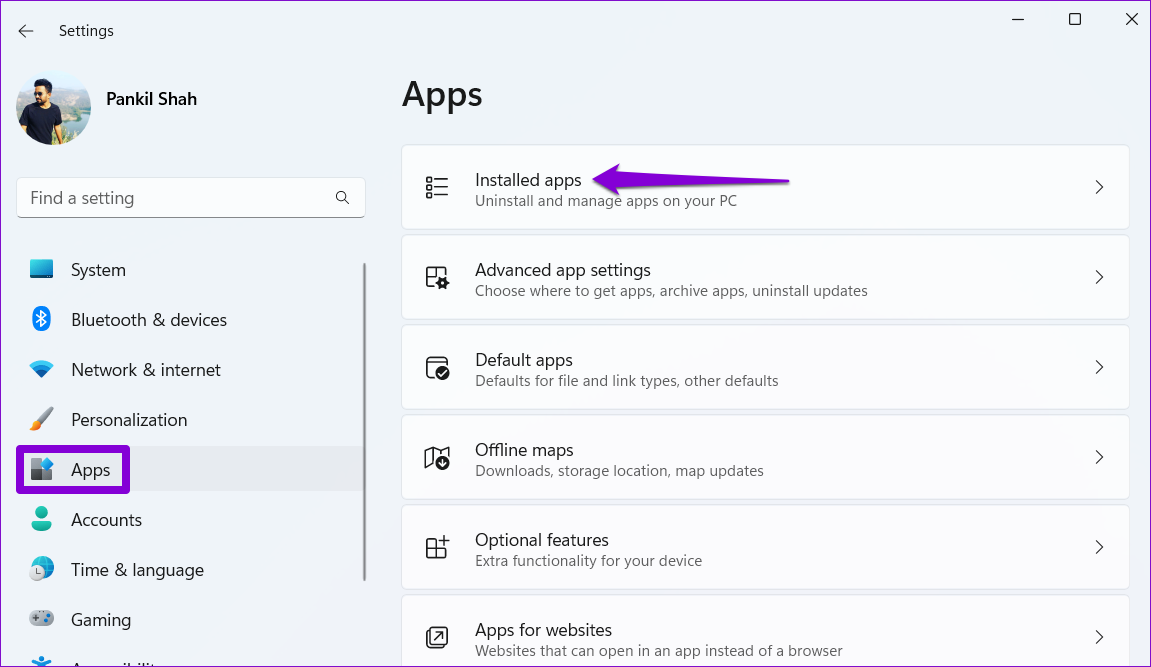
Step 2: Scroll down or use the search bar to locate Microsoft Store on the list. Click the three-dot menu icon next to it and select Advanced options.

Step 3: Scroll down to the Reset section and click Repair.
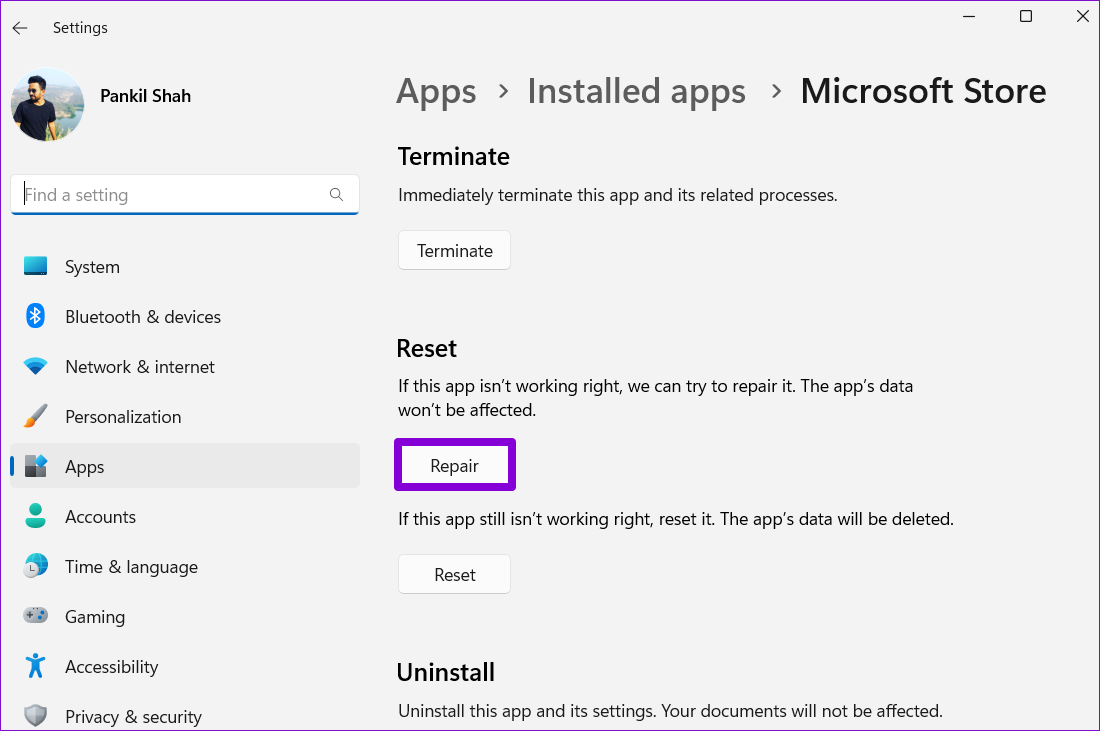
Windows will attempt to repair the Microsoft Store app, after which you should be able to exit S mode.
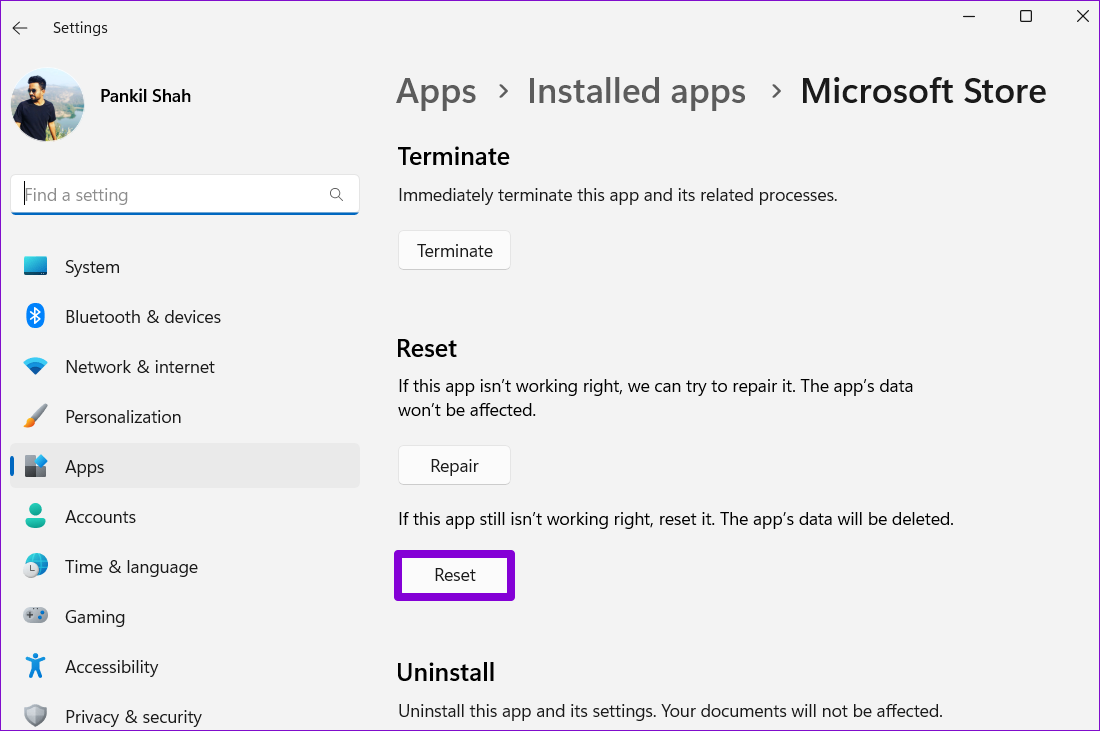
If repairing the app does not help, try resetting the Microsoft Store from the same menu. Note that this will delete all the app data and reset the Microsoft Store to its default state.
Fix 4: Create a New User Account
Problems with your current user account can also prevent you from switching out of S mode on Windows 11. In that case, you can create and switch to a new user account. Here’s how:
Step 1: Press the Windows key + I to open the Settings app. Navigate to the Accounts tab > click on Other users.
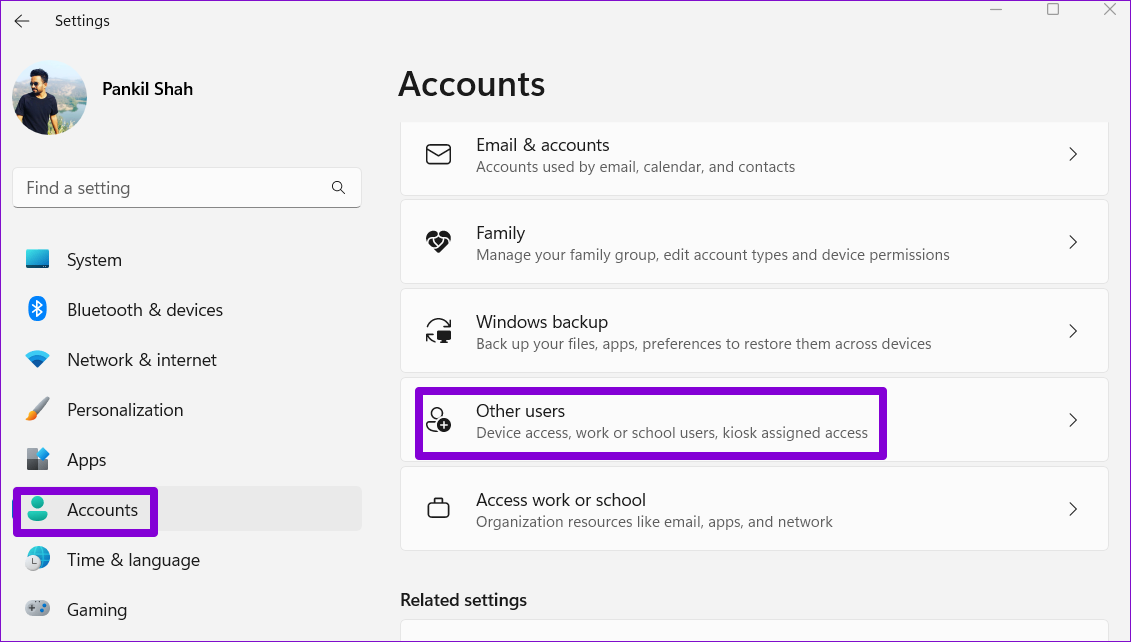
Step 2: Click the Add account button.
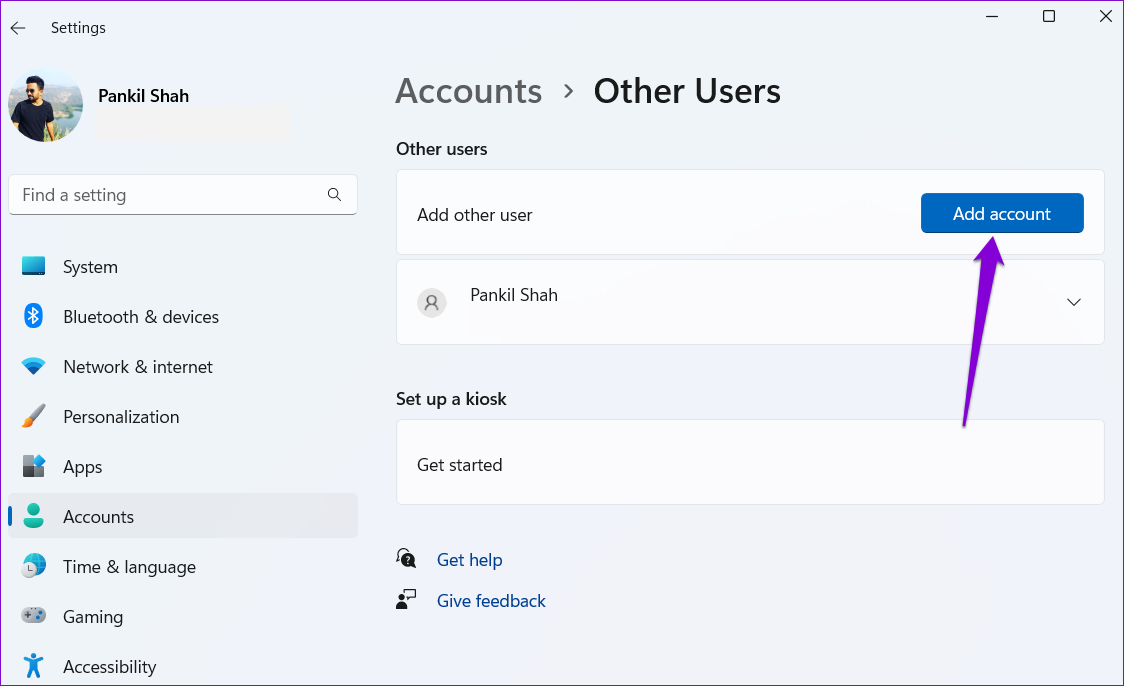
Step 3: Follow the on-screen prompts to create a new user account. Then, sign in with your new account and try to exit S mode again.
Was this helpful?
Last updated on 14 August, 2024
7 Comments
Leave a Reply
Read Next
 6 Ways to Fix NVIDIA’s ‘Unable to Change Display Mode’ Error on Windows 11
Method 1: Terminate and Restart the NVIDIA Control Panel It is common for apps and their associated processes to encounter glitches and stop working properly.
6 Ways to Fix NVIDIA’s ‘Unable to Change Display Mode’ Error on Windows 11
Method 1: Terminate and Restart the NVIDIA Control Panel It is common for apps and their associated processes to encounter glitches and stop working properly.
 5 Ways to Fix Unable to Remove Bluetooth Device on Windows 11
Fix 1: Try Removing Device in Airplane Mode To start, enable Airplane mode and remove the Bluetooth device again.
5 Ways to Fix Unable to Remove Bluetooth Device on Windows 11
Fix 1: Try Removing Device in Airplane Mode To start, enable Airplane mode and remove the Bluetooth device again.
 4 Ways to Fix Unable to Install Programs or Software on Windows 11
Try Basic Fixes Check program compatibility: Programs and games that worked perfectly on Windows 10 may not necessarily be compatible with Windows 11.
4 Ways to Fix Unable to Install Programs or Software on Windows 11
Try Basic Fixes Check program compatibility: Programs and games that worked perfectly on Windows 10 may not necessarily be compatible with Windows 11.
 5 Ways to Fix Unable to Eject a USB Drive on Windows 11
Fix 1: Eject Drive Using the Settings App Windows provides several options for removing a USB drive.
5 Ways to Fix Unable to Eject a USB Drive on Windows 11
Fix 1: Eject Drive Using the Settings App Windows provides several options for removing a USB drive.
 5 Ways to Fix Unable to Print From Microsoft Excel on Windows 11
Fix 1: Save Your Excel File in XPS Format and Try Again If Excel can't respond to print requests, save your file in the XPS format and try again.
5 Ways to Fix Unable to Print From Microsoft Excel on Windows 11
Fix 1: Save Your Excel File in XPS Format and Try Again If Excel can't respond to print requests, save your file in the XPS format and try again.
 4 Ways to Fix Unable to Rename Folders on Windows 11
Try Basic Fixes Make sure the folder is not in use: You may have difficulty renaming a folder on your PC if it is already open in another program.
4 Ways to Fix Unable to Rename Folders on Windows 11
Try Basic Fixes Make sure the folder is not in use: You may have difficulty renaming a folder on your PC if it is already open in another program.
 4 Ways to Fix Unable to Install Drivers on Windows 11
Try Basic Fixes Install Windows updates: The driver installation issue may be limited to your Windows build.
4 Ways to Fix Unable to Install Drivers on Windows 11
Try Basic Fixes Install Windows updates: The driver installation issue may be limited to your Windows build.
 3 Ways to Fix Unable to Sign in to Microsoft OneNote on Windows
Fix 1: Remove OneNote Credentials From Credential Manager The Credential Manager in Windows stores login details for all your apps.
3 Ways to Fix Unable to Sign in to Microsoft OneNote on Windows
Fix 1: Remove OneNote Credentials From Credential Manager The Credential Manager in Windows stores login details for all your apps.
The article above may contain affiliate links which help support Guiding Tech. The content remains unbiased and authentic and will never affect our editorial integrity.


I tried everything. The one that worked for me was switching out of S mode in a new user account. Thanks!
Same here. New HP laptop off ermerzern. Couldn’t switch. Updated windows 10x, reboot, reboot… still nothing….
Add new user acct and the Windows store method worked… out of S mode in seconds!
I need s mode off, which it is , and app installation is set from EVERYWHERE , yet by protocol, by app, by ext, only gives me MS store option.
How did u end up turning it off?
I’ve tried all these…anything else?
S mode provides nothing but frustration for everyone injured by buying an OS or complete PC and having this garbage thrust on them. S mode is default because people in mass opted to disable edge and to run DuckDuckGo and Mozilla Firefox for some chance at privacy! Microsoft makes their money now farming human data, whether experimenting on unwitting victims with shots designed specifically to kill them and selling that data or selling everything they glean from you using your new Windows 11 S mode laptop that doesn’t allow you to use YouTube or itch.IO or any other common use stuff. Fuck Bill Gates! The whole of the earth would be much happier without his quest for absolute control over us all. Maybe we don’t need a computer or YouTube or anything as I would never have bought this shit yesterday if I had known the bullshit they hid from me by not advertising Windows 11 is an intentional pain in the ass, worse than a 14 foot hemorrhoid dragging a bed of hot coals. Lenovo Fucked me over selling that garbage bullshit and they know it! Shot is going back Today or Sunday! It’s not even a real Operating System because you are 100% crippled by it and may not do anything but gift that fucker gates more money to turn on permissions to use his versions of functions we have all downloaded elsewhere for decades.
Solution to Windows PC Stuck in “C Mode”
Click on “start” –> “Windows settings” –> “System” –> “About”
Verify that the version shows that it is running in S Mode
Click on “Start” –> “Settings” –> System –> Recovery” –> “Advanced Startup” “Restart Now” button
When PC reboots, click on “Troubleshoot” –> “Advanced Options” –> “Command prompt”
If asked to log in at this point, do so.
In the command prompt type “regedit” and press enter
Left Click on “Local Machine” Left Click on “Fille” from the menu then click on “Load Hive”
When prompted, navigate to “c:\windows\system32\config\” (It defaults to the X: drive so be sure to get the file from the C: drive) and select the file named “SYSTEM”
Click on “Open”
It will have you name the hive. Set the Key Name to “Offline System”
Inside of “Offline System” navigate to “System” then “ControlSet” or “ControlSet001” Only one should be present.
Now navigate to “ci” –> “Policy”
Double click on “SKUPolicyRequired” and change the value from 1 to 0 and click “Ok”
Right click on “Offline System” and select “Unload Hive”
Click on “Yes”
Close Regedit
Int the command prompt type “Exit” and press “Enter”
Left click on “Turn off PC”
Allow system to shutdown, and wait a minute or two before turning it back on.
When system is back up, Click on “start” –> “Windows settings” –> “About”
Verify that the version shows that it is NOT running in S Mode