Basic Fixes
- Turn off Low Power Mode: Unless your iPhone is running really low on battery, it’s best to turn off Low Power Mode since it limits background activities like rendering to save battery power.
- Update Your iPhone to the Latest Version of iOS: The iOS version on your iPhone may be outdated, leading to photos and videos not loading properly. Hence, update your iPhone to the latest version of iOS to fix any potential bugs and issues.
- Enable Network Access to the Photos App: If you sync your media to iCloud, you will need to ensure that you grant network access to the Photos app. To do so, go to Settings > Mobile Data/Cellular, and toggle the switch next to Photos.
Method 1: Add the Video to Favorites and Then Remove It
This trick has worked for several users facing this issue. If you see the aforesaid error message while loading a high-quality photo or video on your iPhone, try adding the video or image to your favorites before opening it. Here’s how it works.
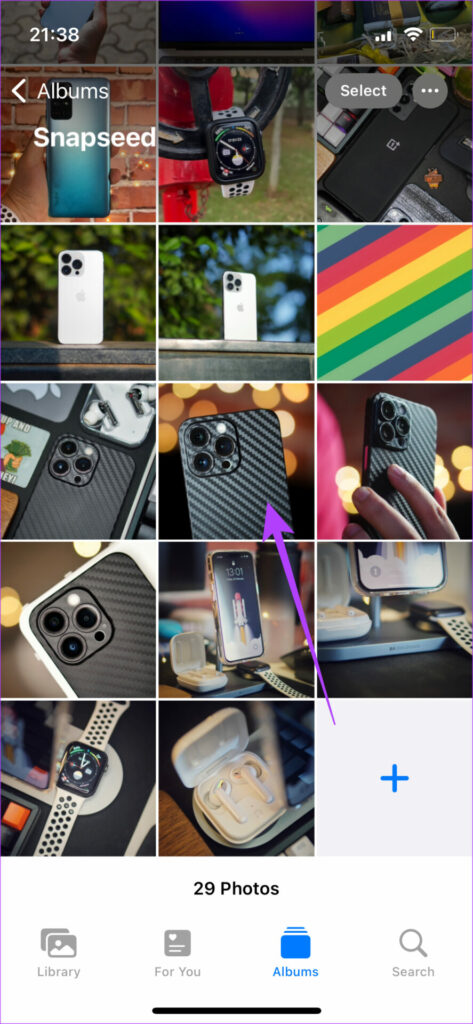
Step 1: Open the Photos app on your iPhone and navigate to the photo or video your iPhone cannot load.
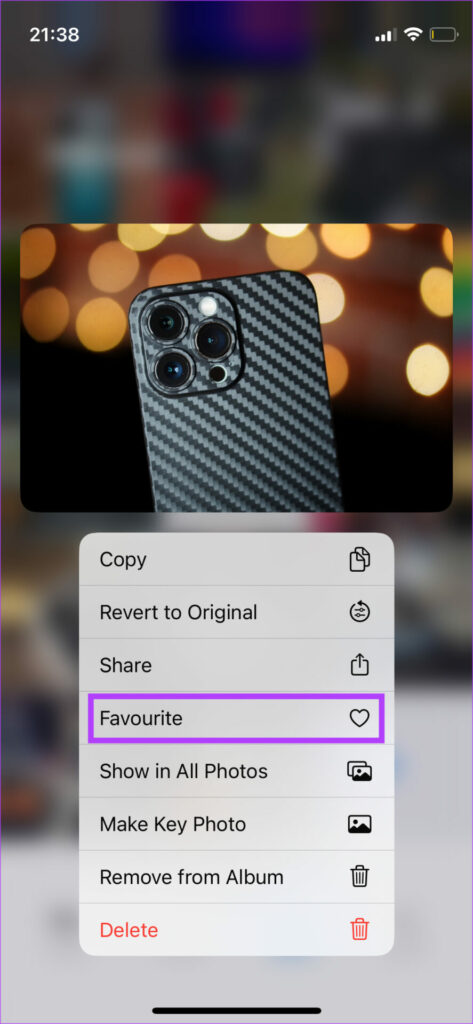
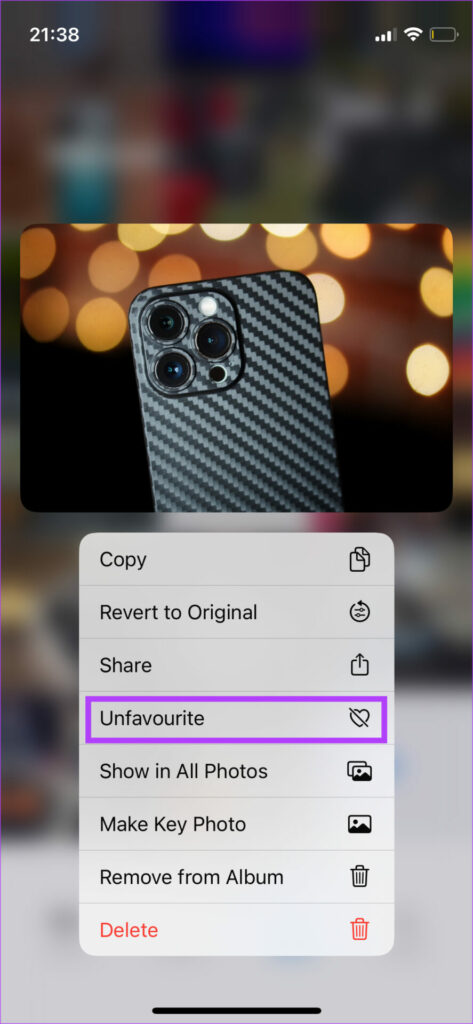
Step 2: Tap and hold onto it and select Favorite. After a few seconds, Unfavorite it.
Open the video or photo now and see if your iPhone can play it.
Method 2: Check if Your iPhone Has Sufficient Free Storage
Some apps or functions on your iPhone may not run properly if there isn’t sufficient free storage. This may also lead to your iPhone storage not loading properly.
Removing unnecessary data should ensure that your iPhone has enough free storage. Then, try opening the photo or video once again.
Method 3: Free up RAM by Clearing Background Apps
After freeing up storage on your iPhone, it’s also essential to ensure there’s utilizable free RAM to run processes efficiently, even in the background.
The best way to ensure there’s enough free RAM on your iPhone is to kill the apps running in the background. These apps consume resources, so ending them would free up some RAM for the Photos app to work correctly.
Method 4: Switch From iOS Beta to Stable Version
The beta version of iOS might give you access to several new features, but given that it’s in the beta stages, it may also bring some bugs and issues. The most common issue with running the beta version of iOS is that some apps may not work as intended.
So, roll back to the stable version of iOS on your iPhone and then use the Photos app to view your videos and photos without any issues.
Was this helpful?
Last updated on 30 August, 2024
Read Next
 5 Ways to Fix “Unable to Load Photo” Error on iPhone
Try Basic Fixes Free up storage space: A lack of storage space could prevent your iPhone from loading photos from the cloud.
5 Ways to Fix “Unable to Load Photo” Error on iPhone
Try Basic Fixes Free up storage space: A lack of storage space could prevent your iPhone from loading photos from the cloud.
 Top 7 Ways to Fix Google Docs Unable to Load File Issue
Google Docs is one of the popular word-processing software out there.
Top 7 Ways to Fix Google Docs Unable to Load File Issue
Google Docs is one of the popular word-processing software out there.
 3 Ways to Fix Discord Messages Failed to Load Error
Basic Fixes Force Restart Discord: You can force quit Discord on your PC or Mac using Task Manager or Activity Monitor.
3 Ways to Fix Discord Messages Failed to Load Error
Basic Fixes Force Restart Discord: You can force quit Discord on your PC or Mac using Task Manager or Activity Monitor.
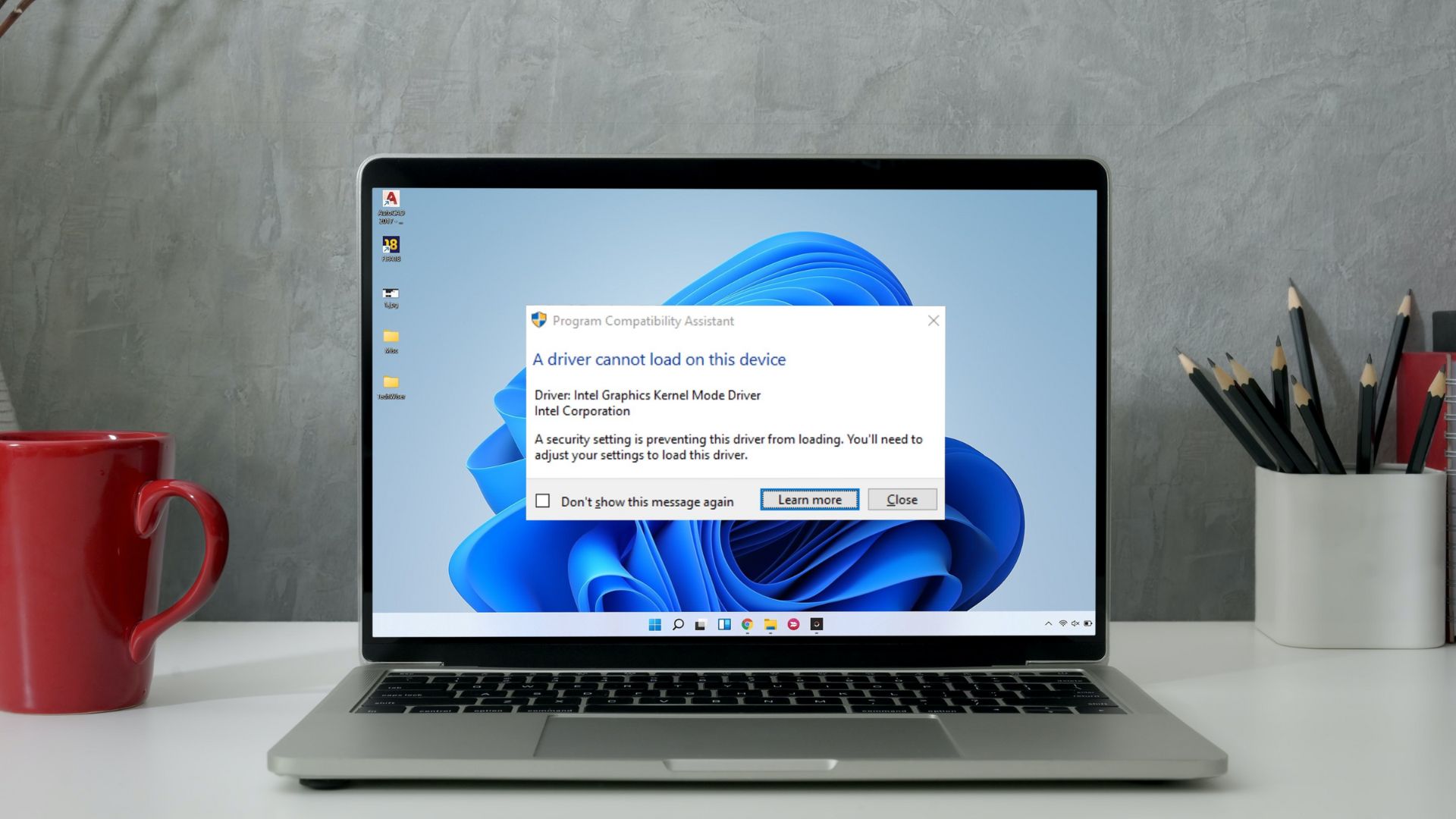 5 Ways to Fix “A Driver Cannot Load on This Device” Error on Windows 11
Fix 1: Update the Problematic Driver If a driver is incompatible, Windows may fail to load it.
5 Ways to Fix “A Driver Cannot Load on This Device” Error on Windows 11
Fix 1: Update the Problematic Driver If a driver is incompatible, Windows may fail to load it.
 6 Ways to Fix Failed to Load Web Page Error in Steam for Windows
Fix 1: Terminate Steam Processes and Reopen the App The "Failed to load web page" error in Steam can occur if one of the app processes is experiencing issues.
6 Ways to Fix Failed to Load Web Page Error in Steam for Windows
Fix 1: Terminate Steam Processes and Reopen the App The "Failed to load web page" error in Steam can occur if one of the app processes is experiencing issues.
 4 Fixes for “Failed to Load Module” Error on Twitch
Try Basic Fixes Ensure Twitch servers are working: Before trying anything, it's a good idea to ensure that the Twitch servers are working.
4 Fixes for “Failed to Load Module” Error on Twitch
Try Basic Fixes Ensure Twitch servers are working: Before trying anything, it's a good idea to ensure that the Twitch servers are working.
 Top 7 Ways to Fix Google Chrome Failed to Load Extension
Extensions play an important role in the Chrome ecosystem.
Top 7 Ways to Fix Google Chrome Failed to Load Extension
Extensions play an important role in the Chrome ecosystem.
 How to Add Photo Cutout Sticker to Another Photo on iPhone
Method 1: Using Markup Editor In this method, first, you need to add the sticker to the sticker gallery.
How to Add Photo Cutout Sticker to Another Photo on iPhone
Method 1: Using Markup Editor In this method, first, you need to add the sticker to the sticker gallery.
The article above may contain affiliate links which help support Guiding Tech. The content remains unbiased and authentic and will never affect our editorial integrity.