Try These Things First
- Disable VPN: If you’re using a VPN connection, X may log you out due to unusual or suspicious account activity. Turn off the VPN connection momentarily on your phone or computer and check if the issue occurs after that.
- Check X server status: It’s not uncommon for services like X to sometimes suffer from server outages. When this happens, X won’t load or log you out repeatedly. You can visit a website like Downdetector to see if there’s an issue with X servers.
- Disable ad blocker or extensions: X may log you out if you use an ad blocker or a similar extension on your device. To fix this, turn off the ad blocker or extension and try using X again.
Fix 1: Allow Your Browser to Save Cookies (Computer)
One of the most common reasons browsers like Chrome or Edge may log you out of X is if you have prevented them from saving cookies. Hence, it’s the first thing you should check.
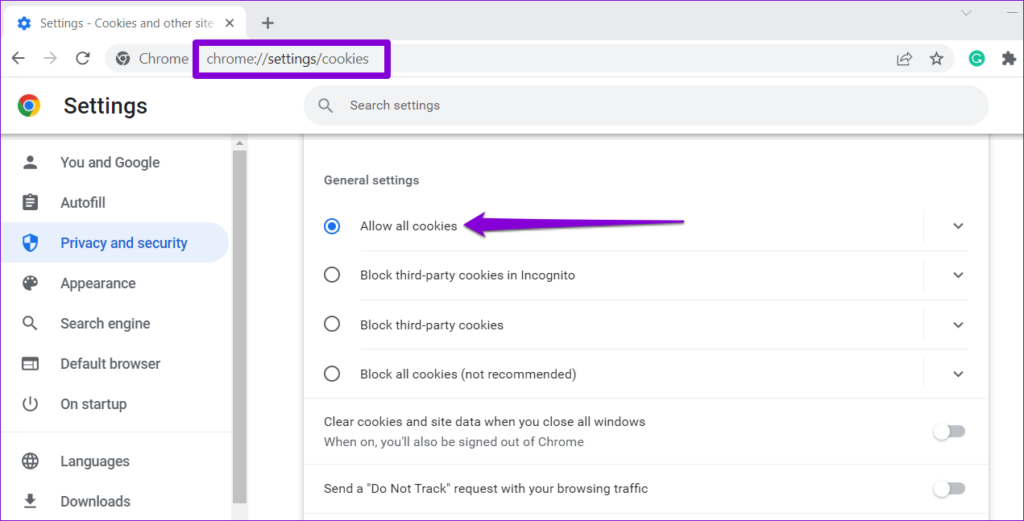
If you are using Chrome, type chrome://settings/cookies in the URL bar at the top and press Enter. Then, select Allow all cookies.
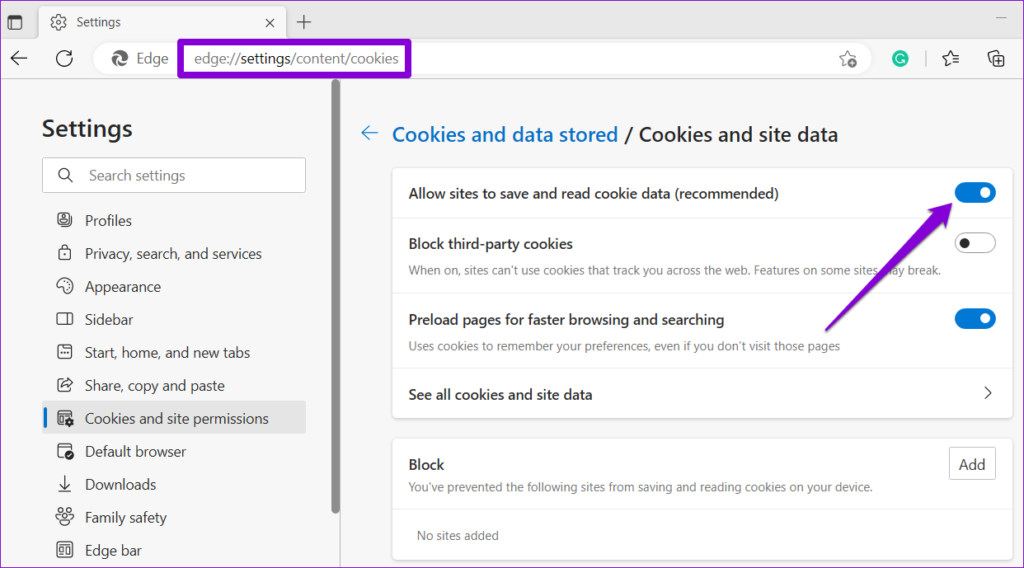
For those using Edge, type edge://settings/content/cookies in the address bar and press Enter. Then, enable the toggle for Allow sites to save and read cookie data (recommended).
Similarly, you can enable cookies in any other browser you may be using. Following that, X should not log you out.
Fix 2: Disconnect Third-Party Apps From Your X Account
If you have connected your X account to any third-party apps, those apps may be why X is logging you out automatically. You need to disconnect any suspicious third-party apps from your X account using the steps below to fix this.
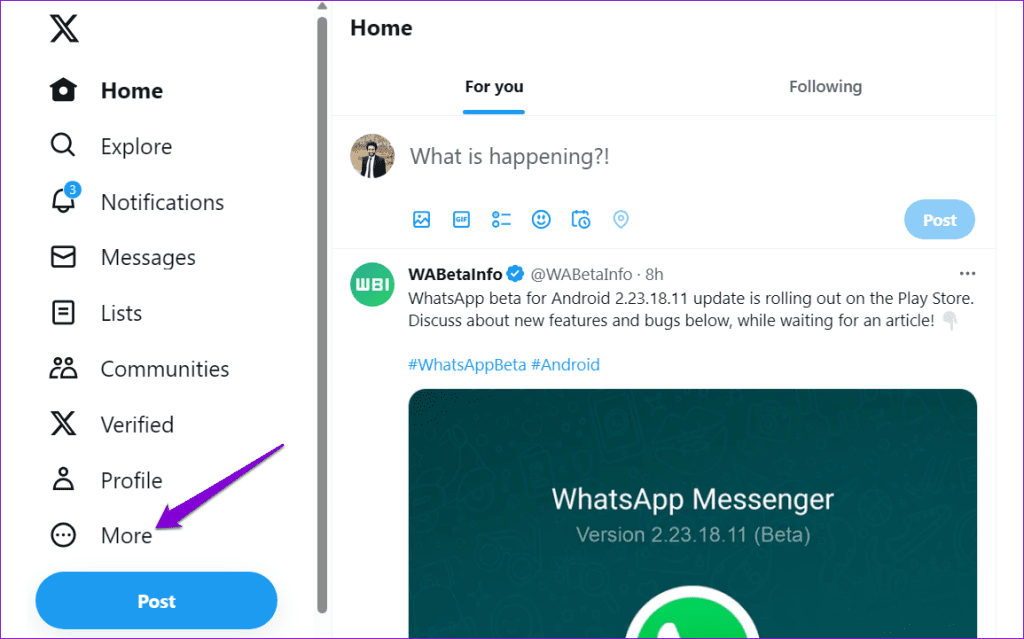
Step 1: Open your web browser, sign in to your X account, and click on More.
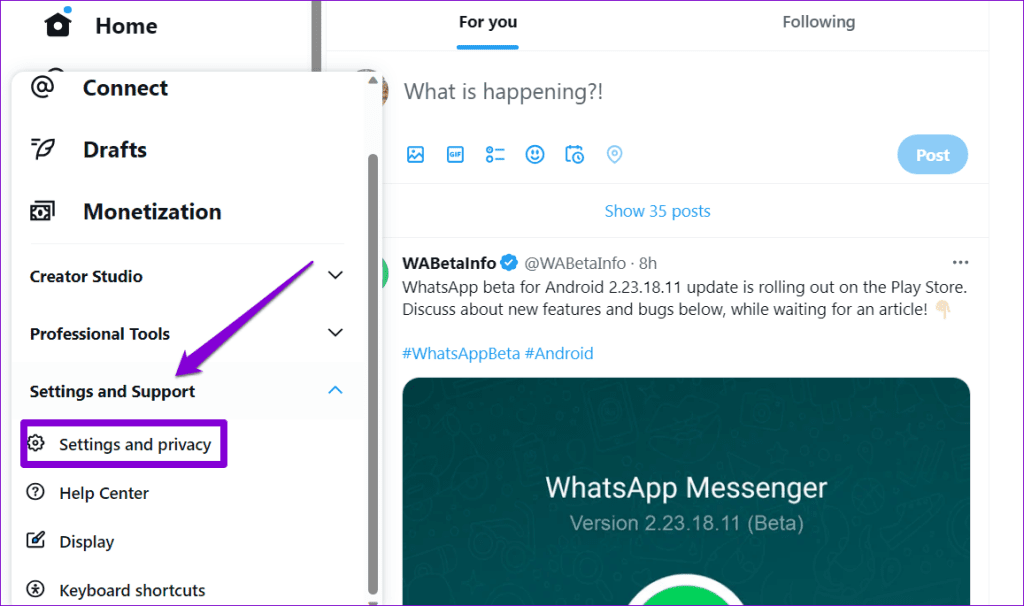
Step 2: Click on Settings and Support to expand it. Select Settings and privacy.
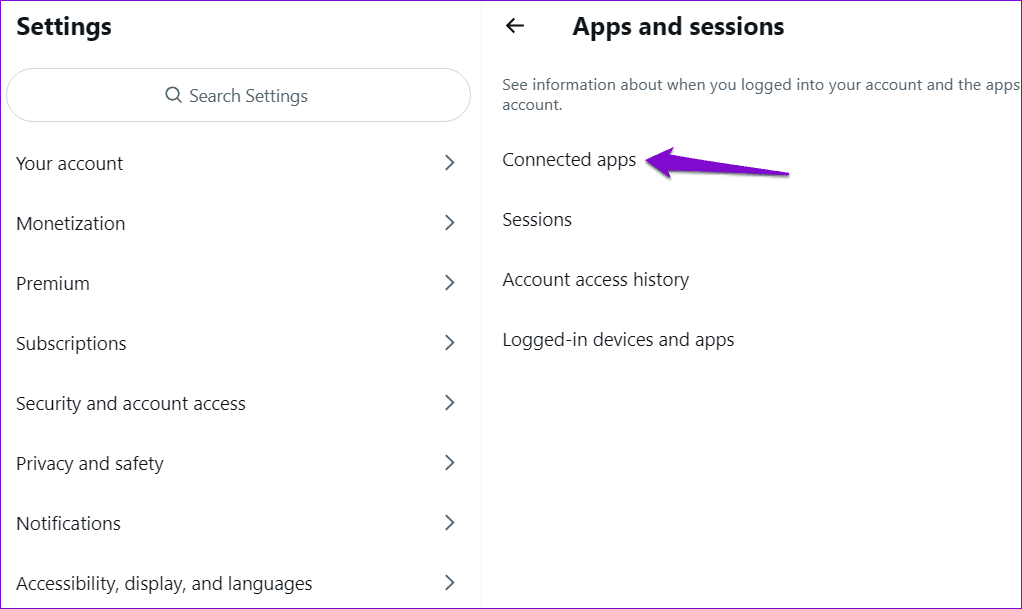
Step 3: Click on Security and account access and select Apps and sessions from the right pane.
Step 4: Click on Connected apps. This will open a list of apps linked to your X account.
Step 5: Select the app to revoke access and click Revoke app permissions.
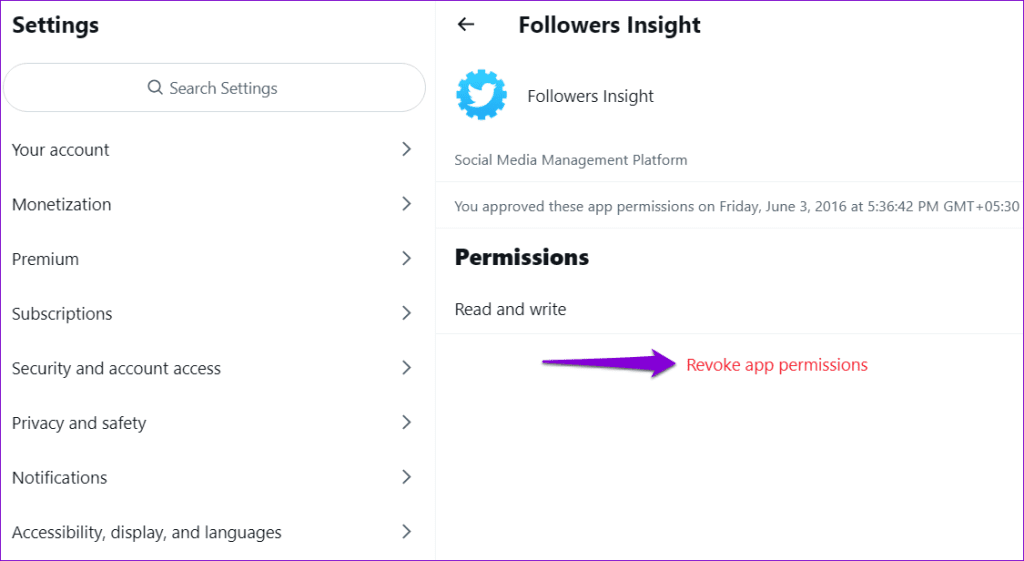
Repeat the above steps to revoke access to all the suspicious third-party apps. After that, X won’t log you out of your account.
Fix 3: Reset Your Password
Resetting your password can help resolve various issues related to your X account, including persistent logouts. Also, if your password is compromised, resetting it should help secure your X account.
Step 1: Visit the X password reset page > enter your phone number, email address, or X username > click Search.

Step 2: Specify whether you want to reset the password using your phone number or email address. Then, click Next.
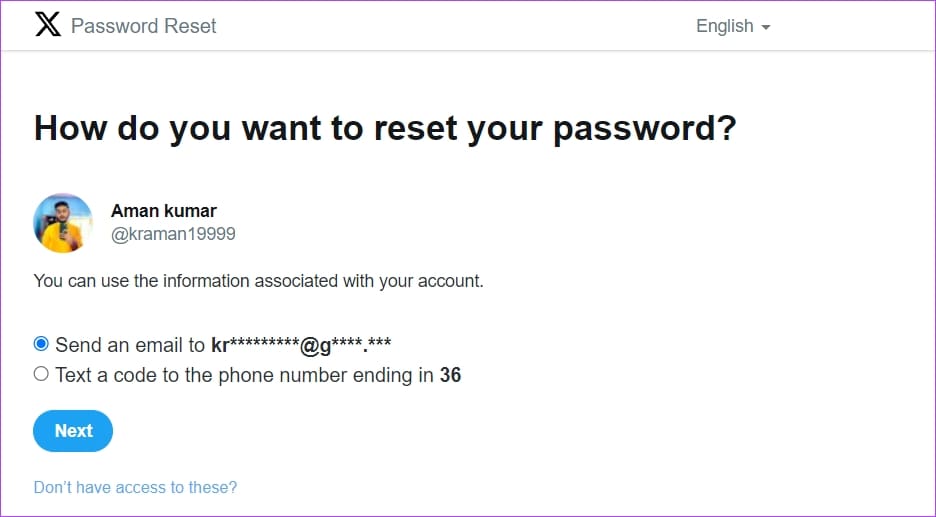
Step 3: Enter the code received in your phone number or email > click Verify > enter your new password twice > click Reset password.
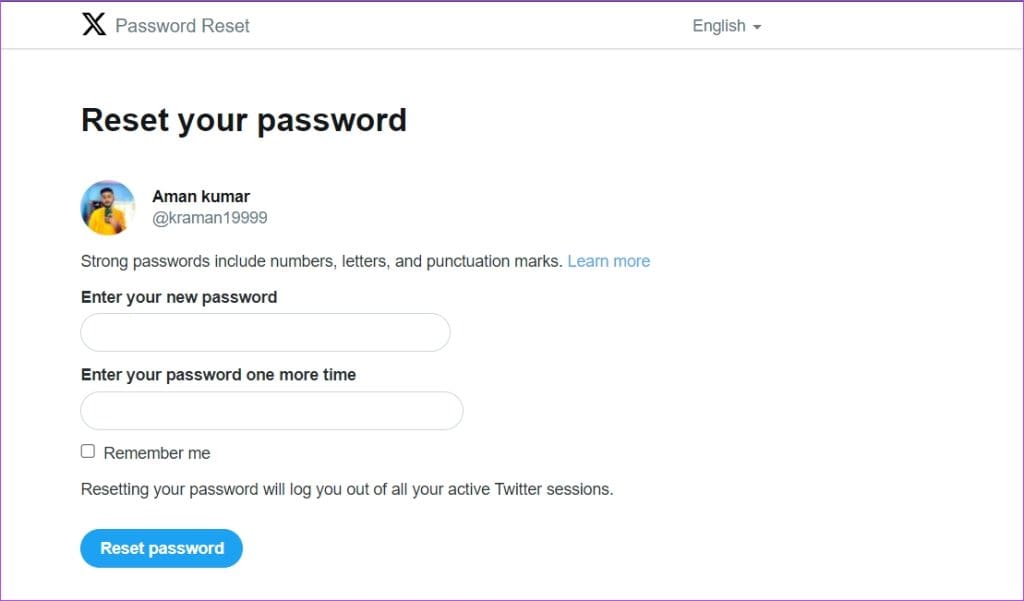
Your password will be reset, and you will regain access to your X account. To add an extra layer of security and avoid such instances in the future, enable two-factor authentication for your X account.
Fix 4: Clear the X App Cache and Data
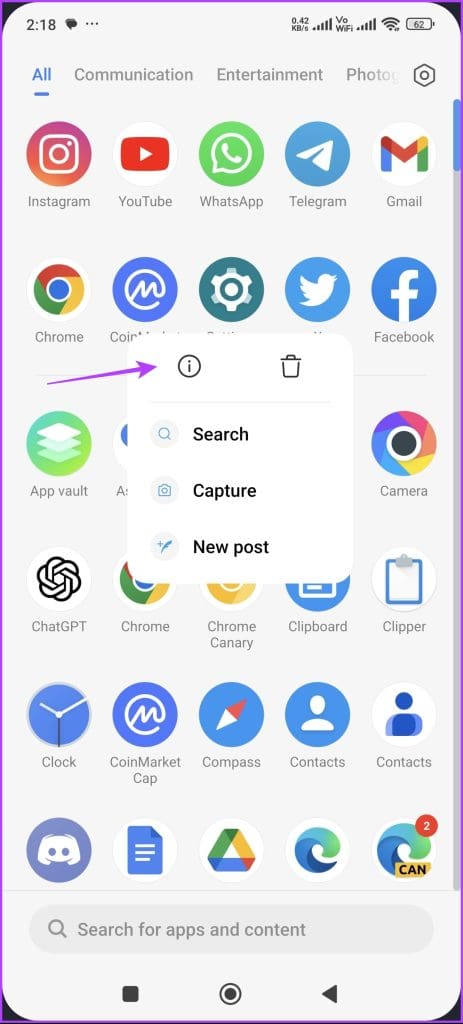
Clearing the app cache data is another effective way to fix the issue. To clear the cache data for the X app on Android, follow these steps:
Step 1: Press and hold the X app icon on your smartphone and choose app info. Then, select Clear data.
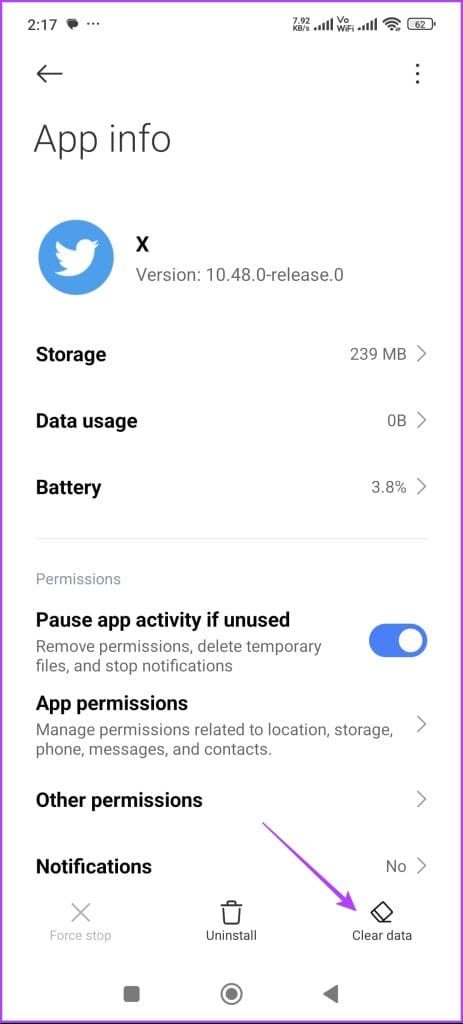
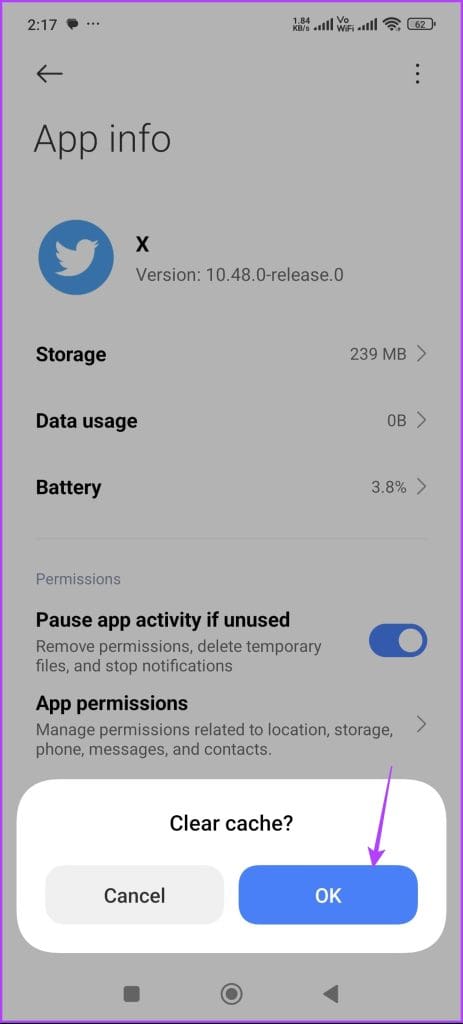
Step 2: Tap Clear cache and OK to confirm your decision.

Unlike Android, iPhones don’t have a built-in way to clear individual app cache data. You must reinstall the app, which will also clear its cache data.
Fix 5: Update or Reinstall the App
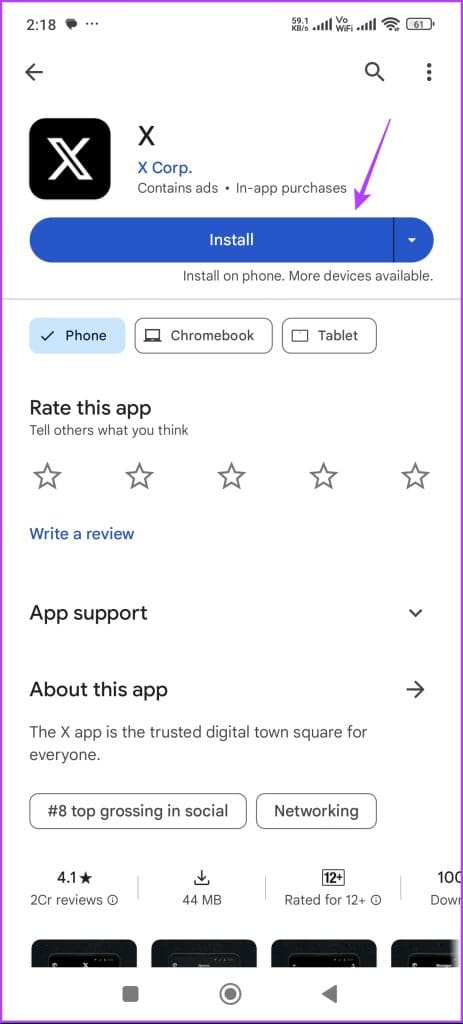
If X keeps logging you out even though you’re using the official app, it might be outdated. Head over to the Play Store or App Store to update the app and see if that fixes the problem.
However, if updating the app didn’t help, try reinstalling it. To do this, first uninstall the X app from your device.
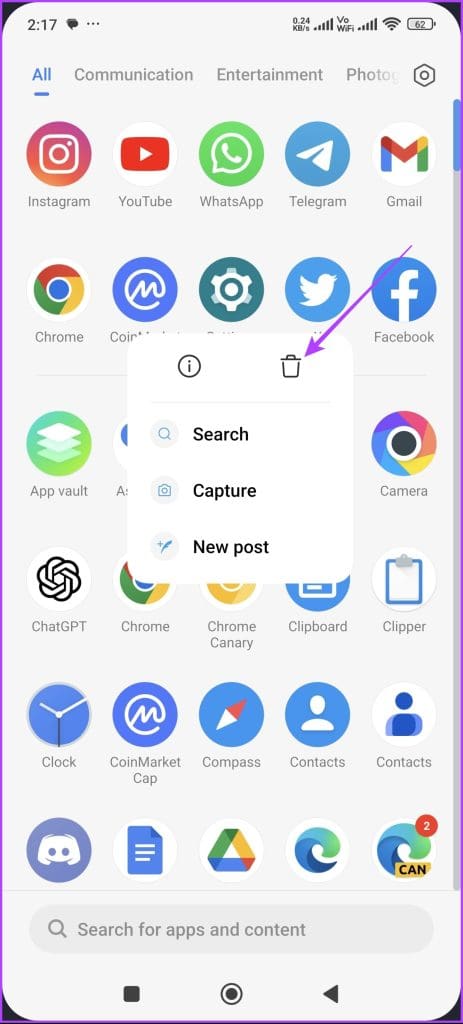
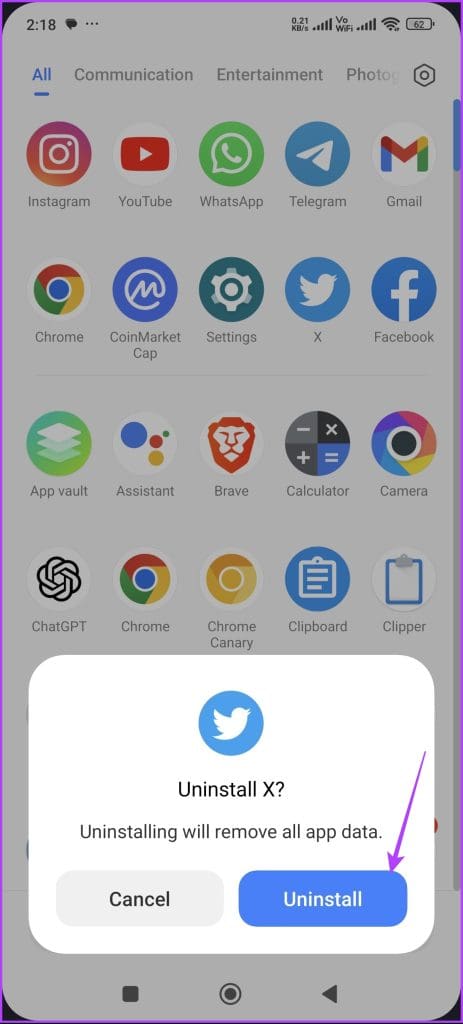
On Android, press and hold the X app icon > choose the uninstall icon. Confirm your choice by tapping Uninstall. Then, reinstall the app from the Play Store.
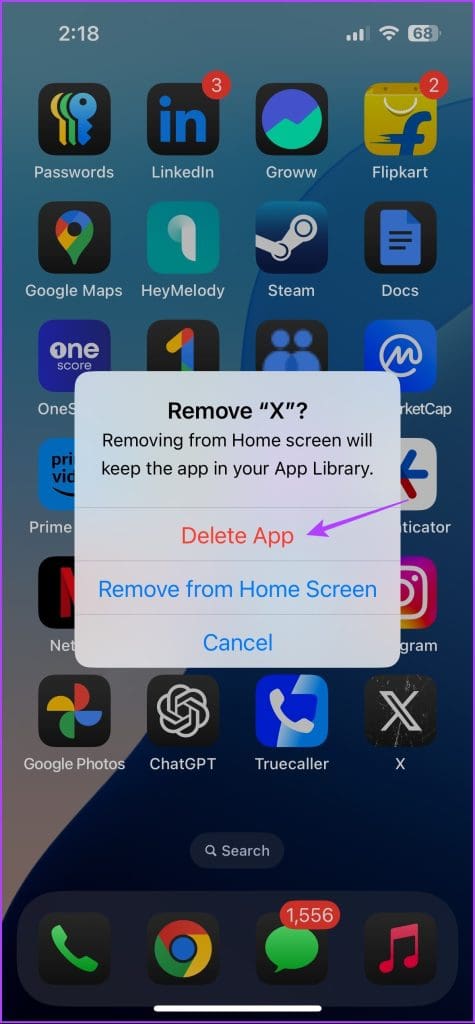
On iPhone, tap and hold the X app icon > select Remove App. In the menu that appears, choose Delete App > reinstall the app from the App Store.


Also Read: How to make X account private and what happens when you do it
Was this helpful?
Last updated on 26 August, 2024
Read Next
 6 Ways to Fix Chrome Keeps Logging Me Out Issue
Basic Fixes Disable Chrome extensions: Select the vertical three-dot menu at the top right of Google Chrome, and click Extensions > Manage Extensions.
6 Ways to Fix Chrome Keeps Logging Me Out Issue
Basic Fixes Disable Chrome extensions: Select the vertical three-dot menu at the top right of Google Chrome, and click Extensions > Manage Extensions.
 4 Ways to Fix Facebook Keeps Logging You Out
Fix 1: Clear Cache and Cookies Cache and cookies data stored by your browser can sometimes cause problems, such as Facebook logging you out randomly.
4 Ways to Fix Facebook Keeps Logging You Out
Fix 1: Clear Cache and Cookies Cache and cookies data stored by your browser can sometimes cause problems, such as Facebook logging you out randomly.
 3 Fixes for Telegram Keeps Logging Me Out on Mobile and Desktop
Basic Fixes Force quit and relaunch the Telegram app: This will give the app a fresh start on your device.
3 Fixes for Telegram Keeps Logging Me Out on Mobile and Desktop
Basic Fixes Force quit and relaunch the Telegram app: This will give the app a fresh start on your device.
 How to Fix WhatsApp Desktop Keeps Logging Me Out on Windows
Try Basic Fixes Rule out issues with your internet: A slow or patchy internet connection is commonly why WhatsApp Desktop may encounter sync issues and log you out.
How to Fix WhatsApp Desktop Keeps Logging Me Out on Windows
Try Basic Fixes Rule out issues with your internet: A slow or patchy internet connection is commonly why WhatsApp Desktop may encounter sync issues and log you out.
 2 Ways to Fix Discord Keeps Logging Me Out
Basic Fixes: Log out of unknown devices: You should log out from unknown devices and try again.
2 Ways to Fix Discord Keeps Logging Me Out
Basic Fixes: Log out of unknown devices: You should log out from unknown devices and try again.
 Why Does Netflix Keep Logging Me Out and 3 Ways to Fix It
Why Netflix Logged You Out Automatically There are a few reasons why Netflix asks for sign-in every time you open the service.
Why Does Netflix Keep Logging Me Out and 3 Ways to Fix It
Why Netflix Logged You Out Automatically There are a few reasons why Netflix asks for sign-in every time you open the service.
 9 Telegram Bots for Groups You Should Try
1.
9 Telegram Bots for Groups You Should Try
1.
 WhatsApp Verification Code Not Received? Try These Workarounds
Basic Fixes Double-check your region code and number - WhatsApp automatically detects your region and shows a dialing code and a menu to enter your mobile number.
WhatsApp Verification Code Not Received? Try These Workarounds
Basic Fixes Double-check your region code and number - WhatsApp automatically detects your region and shows a dialing code and a menu to enter your mobile number.
The article above may contain affiliate links which help support Guiding Tech. The content remains unbiased and authentic and will never affect our editorial integrity.