Try Basic Fixes
- Check if TikTok is down: Servers-side glitches can also cause the TikTok app to repeatedly show the “Something went wrong” error on your Android or iPhone. To overrule this possibility, you can check TikTok’s server status on a website like Downdetector.
- Enable or disable the VPN: When you use a VPN connection, your internet traffic is routed through different servers. While this helps protect your privacy and enables access to geo-blocked content, it can also lead to issues. On the other hand, if TikTok has banned your IP address due to violations or suspicious activity, using a VPN connection can restore your access to the TikTok app and resolve any errors.
- Update the app: If the “Something went wrong” error is occurring due to a buggy or outdated build, this should help. Head over to the Play Store or App Store to update the TikTok app and then try using it again.
Fix 1: Disable Ad Blocker Extension
Are you encountering the “Something went wrong” error while using TikTok in a browser? That could happen if you have an ad-blocking extension enabled. Try disabling any ad-blocker extensions in your browser and see if that solves the problem.
In your browser, type chrome://extensions (Chrome) or edge://extensions (Edge) in the address bar at the top and press Enter. Then, turn off the toggle next to the ad-blocker extension.

Fix 2: Clear App Cache
Apps like TikTok tend to collect a significant amount of cache as you use them. The problem occurs when this data becomes corrupted, hindering the app’s performance. In such cases, TikTok could malfunction on your Android or iPhone and throw the “Something went wrong” error.
Fortunately, TikTok includes an option to clear the cache within its in-app settings menu. Here’s how to access it.
Step 1: Open the TikTok app and switch to the Profile tab.
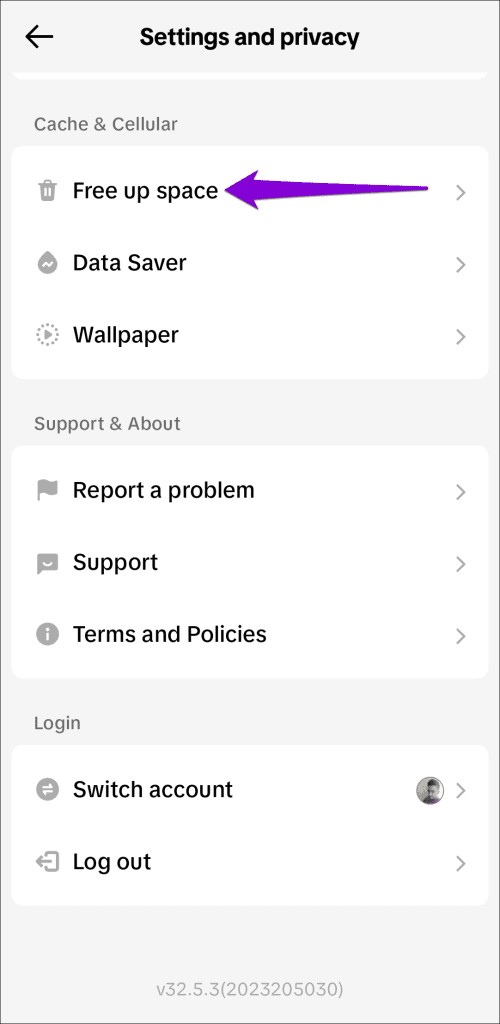
Step 2: Tap the menu icon in the top right corner and select Settings and privacy.


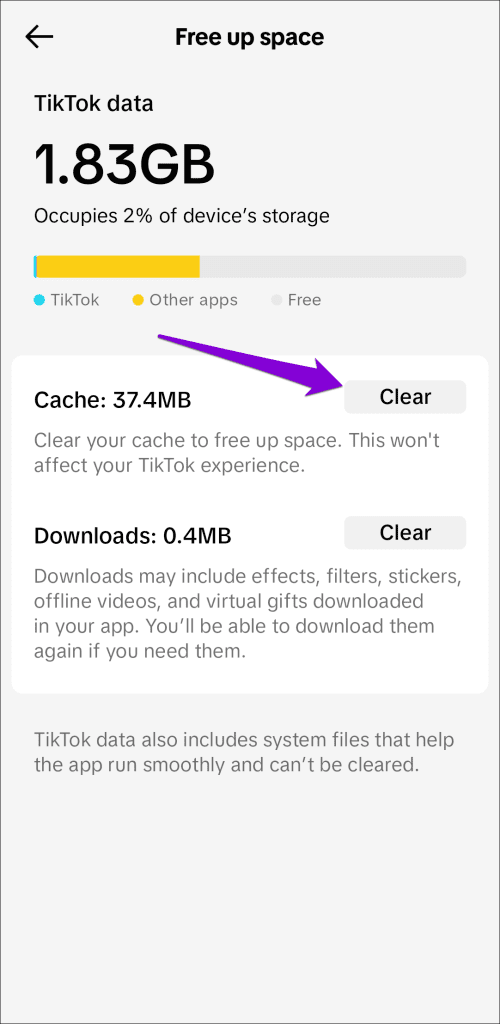
Step 3: Scroll down to select Free up space and tap the Clear button next to Cache in the following menu.
Was this helpful?
Last updated on 28 August, 2024
Read Next
 3 Fixes for “Something Went Wrong” Error in Gmail
Try Basic Fixes Switch to a different network connection: If your network connection is faulty, you may encounter the "Something went wrong" error in Gmail.
3 Fixes for “Something Went Wrong” Error in Gmail
Try Basic Fixes Switch to a different network connection: If your network connection is faulty, you may encounter the "Something went wrong" error in Gmail.
 Top 9 Fixes For ‘There Is Something Wrong With the Proxy Server’ Error in Chrome
Proxy servers are useful when you need to hide your internet traffic from your ISP or connect to blocked websites.
Top 9 Fixes For ‘There Is Something Wrong With the Proxy Server’ Error in Chrome
Proxy servers are useful when you need to hide your internet traffic from your ISP or connect to blocked websites.
 TikTok vs TikTok Lite: What’s Best for You?
TikTok (previously known as Musical.ly) is one of the massively growing social media apps out there, and it's easy to see why.
TikTok vs TikTok Lite: What’s Best for You?
TikTok (previously known as Musical.ly) is one of the massively growing social media apps out there, and it's easy to see why.
 6 Fixes for Windows Hello Something Went Wrong Error
Fix 1: Enable Camera Access If you have previously disabled camera access, Windows Hello may have trouble using your camera and display the "Sorry, something went wrong.
6 Fixes for Windows Hello Something Went Wrong Error
Fix 1: Enable Camera Access If you have previously disabled camera access, Windows Hello may have trouble using your camera and display the "Sorry, something went wrong.
 3 Ways to Fix Snapchat “Something Went Wrong” Error on Android and iPhone
https://youtu.be/qmKVtzAaayE Try Basic Fixes Avoid adding too many friends at once: If you've recently added too many friends, Snapchat may prevent you from adding more by displaying errors like "Something
3 Ways to Fix Snapchat “Something Went Wrong” Error on Android and iPhone
https://youtu.be/qmKVtzAaayE Try Basic Fixes Avoid adding too many friends at once: If you've recently added too many friends, Snapchat may prevent you from adding more by displaying errors like "Something
 3 Ways to Fix Something Went Wrong Error in Spotify for Android and iPhone
Try Basic Fixes Update the app: Using an outdated version of the Spotify app can also trigger the "Something went wrong" error.
3 Ways to Fix Something Went Wrong Error in Spotify for Android and iPhone
Try Basic Fixes Update the app: Using an outdated version of the Spotify app can also trigger the "Something went wrong" error.
 Top 4 Ways to Fix ‘Something Went Wrong’ Error on X (Formerly Twitter)
Preliminary Fixes Check Network Connection: First, check the network connection on your phone and the desktop.
Top 4 Ways to Fix ‘Something Went Wrong’ Error on X (Formerly Twitter)
Preliminary Fixes Check Network Connection: First, check the network connection on your phone and the desktop.
 4 Ways to Fix Outlook Error 500 ‘Something Went Wrong’
Preliminary Fixes Troubleshoot your internet connection: Ensure you have a stable and reliable internet connection.
4 Ways to Fix Outlook Error 500 ‘Something Went Wrong’
Preliminary Fixes Troubleshoot your internet connection: Ensure you have a stable and reliable internet connection.
The article above may contain affiliate links which help support Guiding Tech. The content remains unbiased and authentic and will never affect our editorial integrity.