Basic Fixes:
- Double-check the link: Some users prefer to just manually type the link, which gives way to mistakes in the link address. So, double-check the link and see to it that the spelling is correct. Then, try opening the link again.
- Check if Instagram is down: If you frequently see the ‘Content unavailable’ error on Instagram, despite the correct link address, it might be because Instagram is down. To check this, go to Down Detector’s Instagram status page and see if any recent outage reports are visible.
- Restart the Instagram app: By force closing any app, you stop all app functions in the background. Then, once the app reopens, it restarts again. This can help fix any temporary issue or bug for most apps.
- Set date & time to automatic: If your phone is set to the wrong date or time as per your current timezone, it might cause certain apps like Instagram to not work properly. In this case, ensure your phone is set to automatically fetch your date & time details.
- Disable VPN: While VPN can help access geo-blocked content, it might cause Instagram to glitch out, especially if your currently connected server has slow speeds. So, disconnect the VPN and restart the Instagram app. Then, check again.
- Update the Instagram app: Updating to the latest version helps apps get the latest features, security, and bug updates. This can also help get rid of the app bugs that might be causing issues like Instagram pages or links not opening.
Fix 1: Search the Page While Logged Off
You can still access certain pages on Instagram without logging in. So, to check if the link is working, open your web browser and copy-paste the link into the address bar. Then, see if the page opens. Ensure you’re not logged in to your Instagram account. Here’s how.
Step 1: Open your web browser in incognito mode. In the search bar, paste the relevant link and press enter.
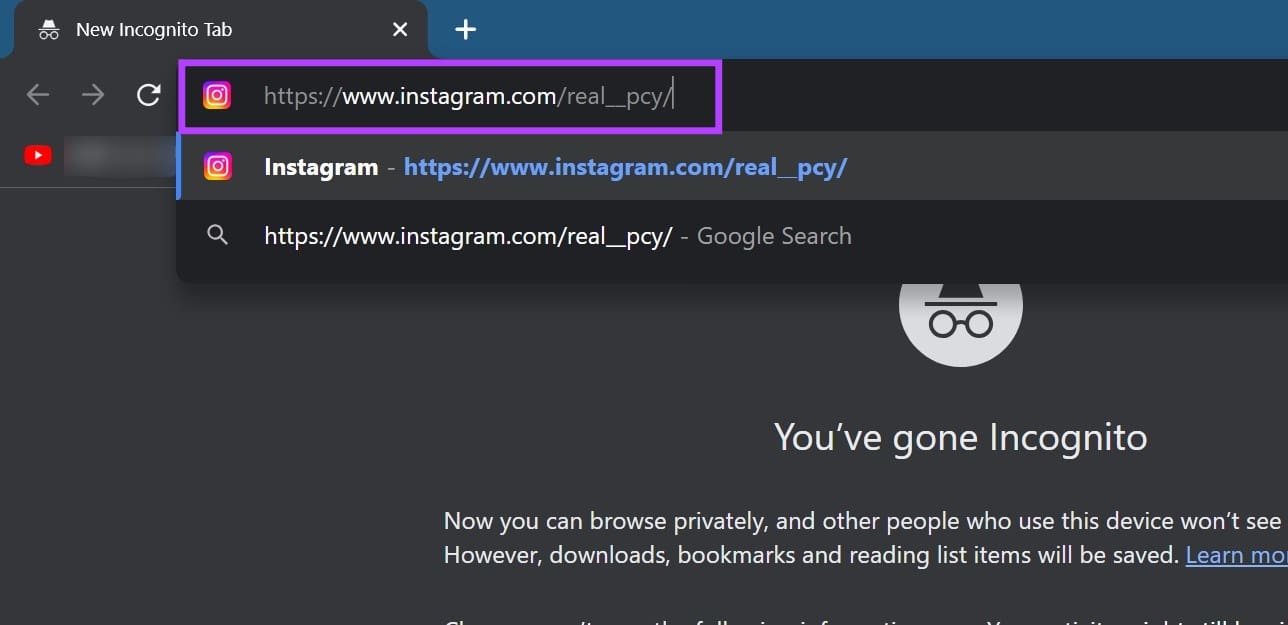
Now, wait for the page to load. Please note for certain pages, you might need to log in to Instagram in the incognito window and check again.
Fix 2: Check if the User Is Active
If you’re viewing a link from a specific user, they need to be available on Instagram for it to work. To check this, open Instagram and search for the relevant user. If the user does not appear in the search results, there’s a good chance they’re currently unavailable or have deleted their Instagram profile.
Also Read: How to fix Instagram links not working on Android and iPhone
Fix 3: Confirm You’re Not Blocked
Like every other social media platform, you can block someone on Instagram. This means that if someone has blocked you on Instagram, you can no longer view any of their posts or stories. So, check and ensure the other user hasn’t blocked you on Instagram before proceeding.
Fix 4: Disable Cross-Site Tracking in Safari
Most browsers collect information related to your browsing habits to help improve the quality of your recommended content. However, this can sometimes cause pages to not work properly. If this happens to you, disable cross-site tracking in Safari on your iPhone using the below steps. Then, check again.
Step 1: Open Settings and tap on Safari. Turn on the Prevent Cross-Site Tracking toggle.
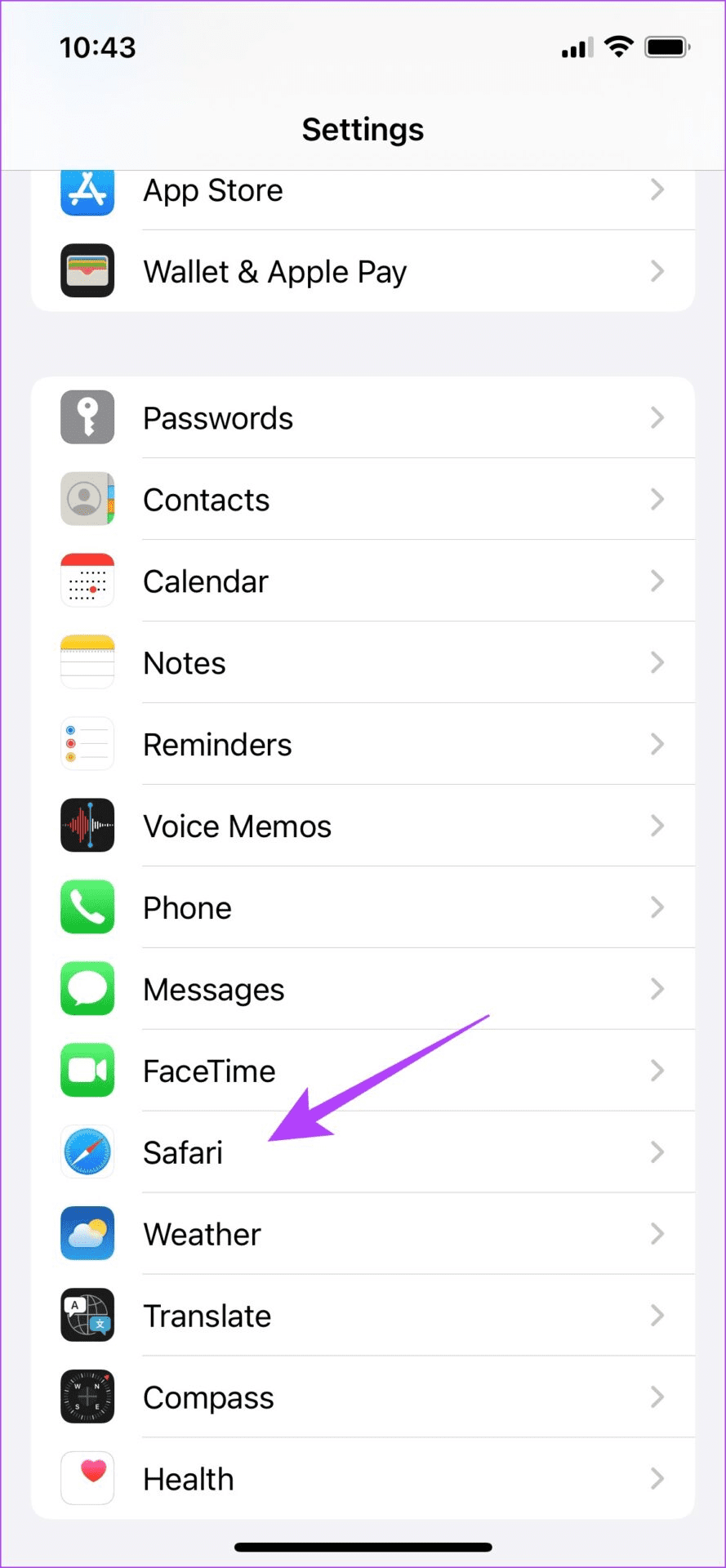

Once done, restart Safari and sign in to Instagram again. Then, try using it for a while to check if this fixes the issue.
Was this helpful?
Last updated on 22 July, 2024
Read Next
 How To Fix Instagram Not Posting To Facebook Business Page Issue
Both Facebook and Instagram have features that make them easy to use together.
How To Fix Instagram Not Posting To Facebook Business Page Issue
Both Facebook and Instagram have features that make them easy to use together.
 How to Properly Link Instagram to Facebook Page and Profile
Link Instagram to Facebook Page Before following these steps, ensure you are the admin (owner) of the Facebook page you want to link with Instagram.
How to Properly Link Instagram to Facebook Page and Profile
Link Instagram to Facebook Page Before following these steps, ensure you are the admin (owner) of the Facebook page you want to link with Instagram.
 How to Manage the Content Shown on Your Instagram Explore Page
A large number of Instagram users scroll through the app discover new content.
How to Manage the Content Shown on Your Instagram Explore Page
A large number of Instagram users scroll through the app discover new content.
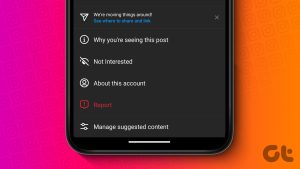 How to Reset Instagram Explore Page
Note: For this guide, we used the OnePlus 7T running Android 11 and iPhone 12 running iOS 16, but you can follow the same steps on your iOS or Android device.
How to Reset Instagram Explore Page
Note: For this guide, we used the OnePlus 7T running Android 11 and iPhone 12 running iOS 16, but you can follow the same steps on your iOS or Android device.
 5 Ways to Fix Google Chrome Showing Untitled Blank Page
Basic Fixes: Close and restart Chrome: Temporary browser glitches can cause Chrome to show an untitled blank page.
5 Ways to Fix Google Chrome Showing Untitled Blank Page
Basic Fixes: Close and restart Chrome: Temporary browser glitches can cause Chrome to show an untitled blank page.
 Top 8 Ways to Fix Wi-Fi Login Page Not Showing on iPhone
Public Wi-Fi networks have become ubiquitous.
Top 8 Ways to Fix Wi-Fi Login Page Not Showing on iPhone
Public Wi-Fi networks have become ubiquitous.
 7 Fixes for Wi-Fi Login Page Not Showing Up on Mac and Windows
https://youtu.be/ZVvbLZKKXKk Fix 1: Forget the Network and Reconnect to It Try forgetting the network so you can reconnect to it.
7 Fixes for Wi-Fi Login Page Not Showing Up on Mac and Windows
https://youtu.be/ZVvbLZKKXKk Fix 1: Forget the Network and Reconnect to It Try forgetting the network so you can reconnect to it.
 How to Delete a Blank Page in Google Docs on Any Device
How to Remove Empty Pages Using the Google Docs Mobile App Although the Google Docs mobile app does not have as many options as the desktop version, it still gets
How to Delete a Blank Page in Google Docs on Any Device
How to Remove Empty Pages Using the Google Docs Mobile App Although the Google Docs mobile app does not have as many options as the desktop version, it still gets
The article above may contain affiliate links which help support Guiding Tech. The content remains unbiased and authentic and will never affect our editorial integrity.