Preliminary Fixes
- Check for Windows Update: Sometimes, the error can occur due to bugs or issues introduced in a previous Windows update. Ensuring that your Windows operating system is up to date can often resolve these issues, as updates typically include patches and fixes.
- Perform System Restore: If the error started occurring recently and you suspect it was caused by a recent change, performing a System Restore can help revert your computer to a previous state where everything was working fine.
Fix 1: Run the Power Troubleshooter
Step 1: Press the Windows key on your keyboard, type Settings, and click Open.
Step 2: Under System, click on the Troubleshoot option.
Note: If you are on Windows 10, click Update & Security and go to Troubleshoot from the left pane.

Step 3: In the Troubleshoot window, select Other troubleshooters.
Note: If you are on Windows 10, select the Additional troubleshooters option and select Power Options.

Step 4: Scroll down to find Power and click Run.
Note: If you are on Windows 10, click Run the troubleshooter.

The troubleshooter will scan your PC for the issue and resolve it. Once done, restart your PC and see if the issue persists. However, the troubleshooter sometimes may not identify the error. In such cases, check out the next method.
Also Read: How to restore the classic File Explorer ribbon in Windows 11
Fix 2: Update the Battery Driver
Note: The steps are similar for both Windows 10 and 11.
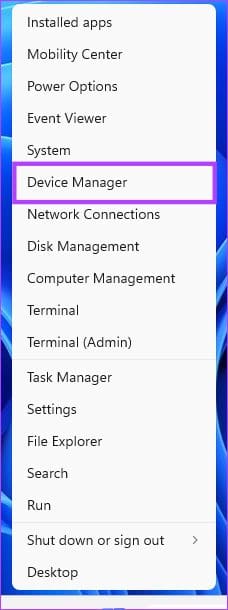
Step 1: Press the Windows key + X on your keyboard.
Step 2: From the quick menu, select Device Manager.
Step 3: Under Device Manager, click on Batteries to expand and right-click Microsoft ACPI-Compliant Control Method Battery.
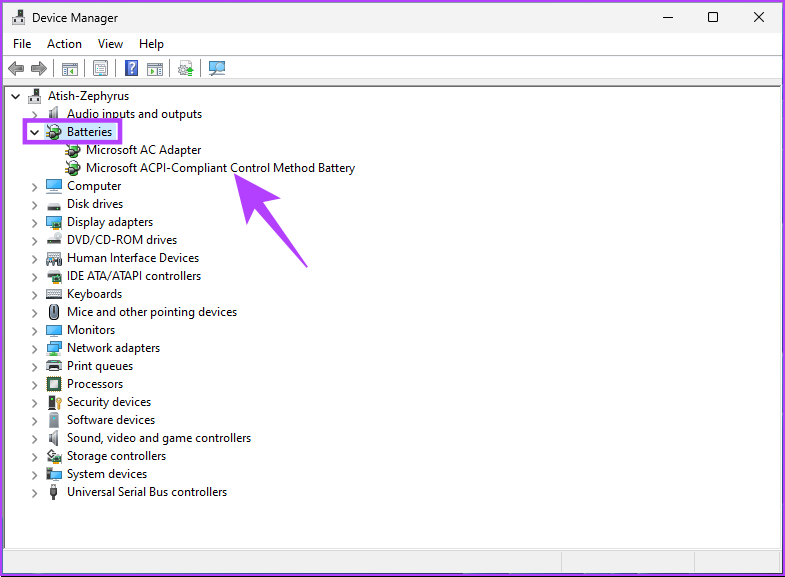
Step 4: Now, choose Update driver.

Follow the prompt and update the battery driver, resolving the error from your Windows PC. However, the following method might help you fix the error if this didn’t.
Fix 3: Run an SFC Scan to Fix Corrupt Files
Step 1: Press the Windows key, type Command Prompt, and click Run as administrator.
Step 2: Type the below command and hit Enter.
sfc /scannow
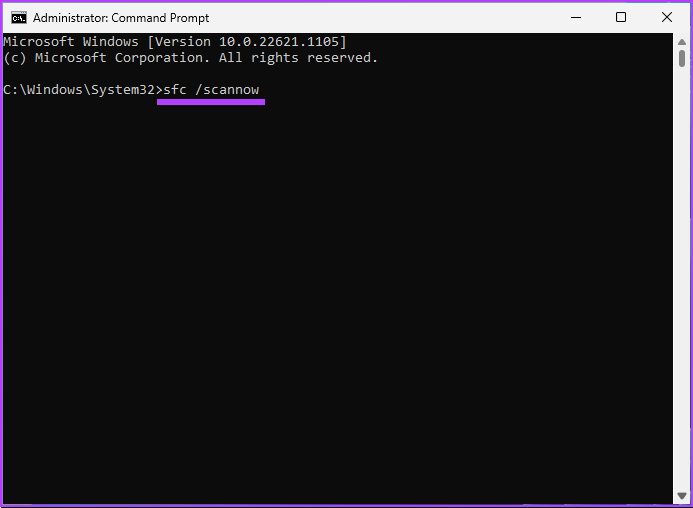
Once the scanning is complete, restart your computer, and if the power option error persists, continue with the steps below.
Step 3: Press the Windows key, type Command Prompt, and click Run as administrator.
Step 4: Type or copy the below command and hit Enter.
dism /online /cleanup-image/ restorehealth

The above command will do a DISM scan. Once the scan is complete, reboot your Windows PC again. This should eliminate the error of there being currently no power options available.
Fix 4: Reset Using Command Prompt
Step 1: Press the Windows key, type Command Prompt, and click Run as administrator.
Step 2: Type the below command and press Enter.
powercfg -restoredefaultschemes
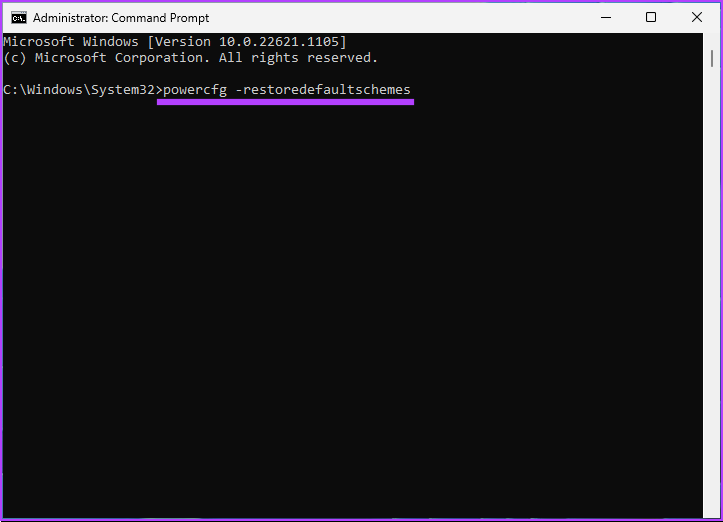
Step 3: Once you have executed the above command, you should have resolved the power issue. If it didn’t, type the following command and press Enter.
secedit /configure /cfg %windir%\inf\defltbase.inf /db defltbase.sdb /verbose

Once the above command is executed, restart your Windows PC, and it should have been fixed. If this couldn’t resolve the power problem, move on to the following method.
Also Read: 4 Ways to fix Recycle Bin corrupted error on Windows 11
Fix 5: Edit Windows Registry
Step 1: Press the Windows key, type Registry Editor, and click Run as administrator.
Note: You can also press ‘Windows key + R’ to open the Run dialog box, type regedit.exe, and click OK to open Registry Editor.
In the prompt, select Yes.
Step 2: In the top address bar, enter the mentioned address.
HKEY_CURRENT_USER\Software\Microsoft\Windows\CurrentVersion\Policies\Explorer
Note: You can manually navigate to the following path too.
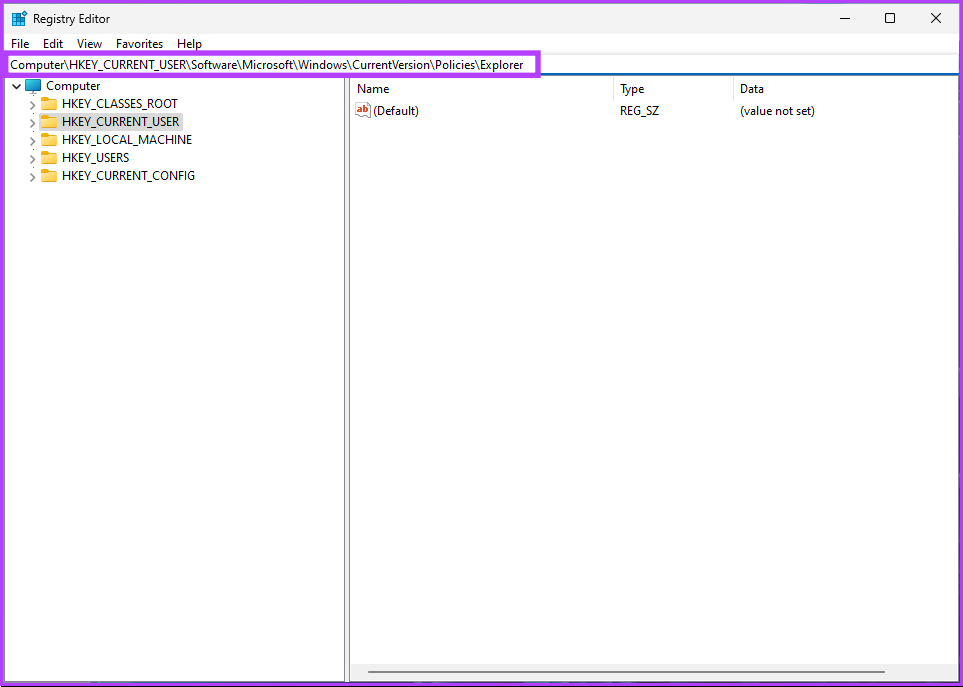
Step 3: Double-click the NoClose file.

Step 4: Now, type 1 in the Value Data field and press OK.

Finally, the system must be rebooted to implement the changes. And that’s it! When the system boots back, there are currently no power options available error should be resolved. If this method doesn’t help, the next method will.
Fix 6: Edit Local Group Policy
Step 1: Press the Windows keys on your keyboard, type gpedit, and click Open.
Note: You can also press ‘Windows key + R’ to open the Run dialog box, type gpedit.msc, and click OK.
Step 2: In the left pane, under Local Computer Policy, select User Configuration.
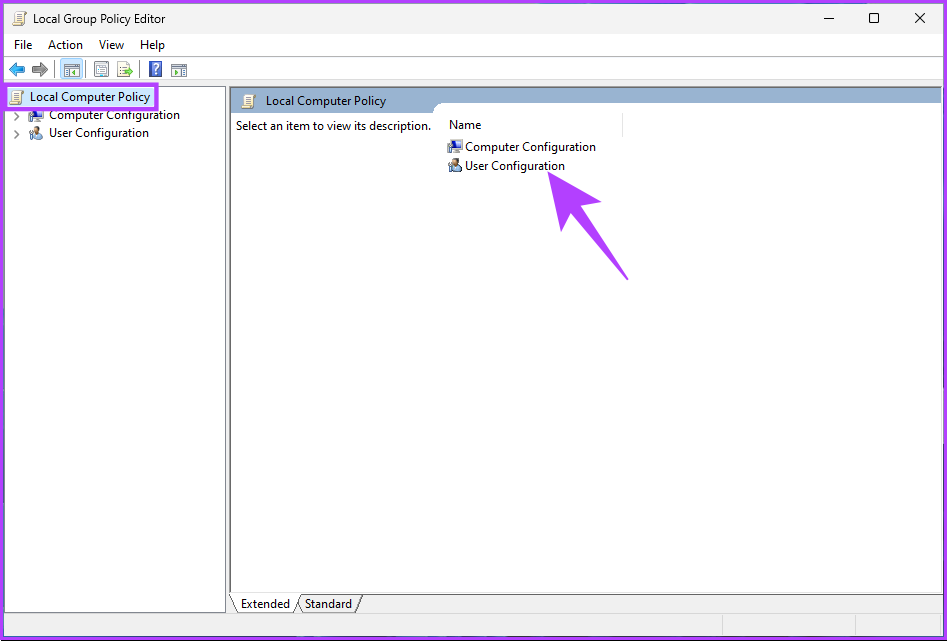
Step 3: In the right pane, double-click on Administrative Templates.
Step 4: Select the Start Menu and Taskbar option.

Step 5: Now, go to Remove and prevent access to the Shut Down, Restart, Sleep, and Hibernate commands policy settings and double-click on it.
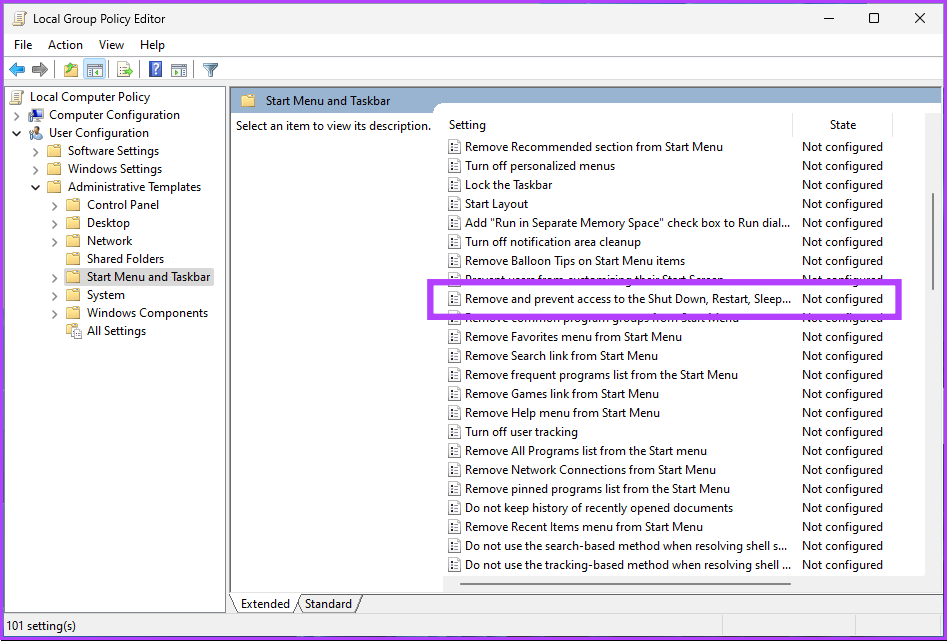
Step 6: Select the Disabled option. Finally, click on Apply and then OK.

There you go. Now, all you need to do is reboot Windows. And once it boots back up, you won’t see the there are currently no power options available error again. If you do, move on to the next method.
Also Read: How to create and use a Recovery Drive on Windows 11
Fix 7: Reset the PC
Step 1: Press the Windows key, type Settings, and click Open.
Step 2: Under System, scroll down to find Recovery.
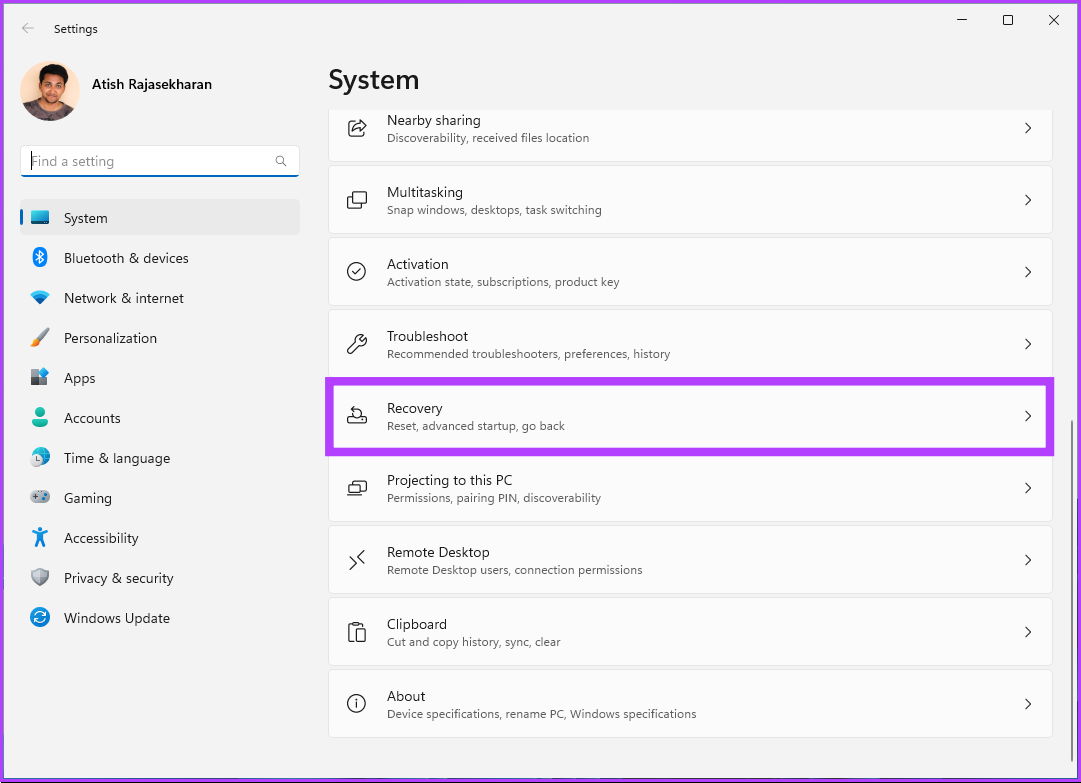
Step 3: Click the Reset PC button on the far right of the Reset this PC option.

Step 4: Under Reset this PC window, click Keep my files.
Note: If you wish to remove all personal files, click Remove everything.

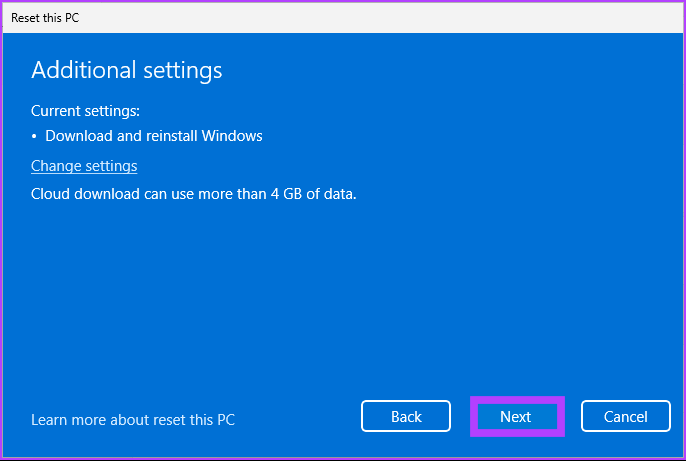
Step 5: On the next screen, choose Cloud download.
Note: Since there could be an issue with the local file, it is ideal for you to download a fresh copy of Windows. Cloud Download will require an active internet connection and consume slightly more than 4GB of data.

Step 6: Click Next.
Note: If you wish to change your data and download preference, click Change settings.
Step 7: Finally, click Reset.
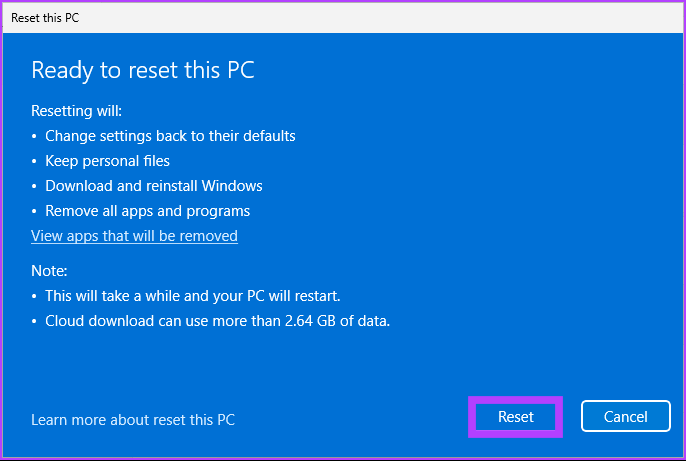
Give your PC some time to complete the resetting process. Once it comes back, you will eliminate the no power options available error on your Windows PC. If you have any queries, check out the FAQ section below.
FAQs on Windows PC Power Options
Depending on your needs and how you use your device, Windows 11 has several power modes. Some prefer the ‘Balanced’ power mode to balance performance and energy efficiency. If you’re running on battery power, the ‘High performance’ power mode will give you maximum performance, while the ‘Battery saver’ mode will give you maximum energy efficiency.
The low-power mode is designed to conserve battery life on a laptop or tablet. So, if you need to use the device for a longer duration or don’t have access to a power outlet, enabling low-power mode can be a good idea. However, if you need maximum performance for a demanding task, avoid using the low-power mode, as it may limit the performance of your device.
The battery-saver mode in Windows is designed to help conserve laptop battery life. It reduces the usage of background apps and services, adjusts display brightness, and turns off other features that may consume a lot of power. It is not intended to cause damage to the battery but to extend its life.
To prevent this error from occurring in the future, it is always a good idea to perform regular system maintenance and keep your drivers up-to-date.
Was this helpful?
Last updated on 20 August, 2024
Read Next
 How to Fix Windows 10’s This Action Is Only Valid for Products That Are Currently Installed Error
Windows 10 users usually face the error 'This action is only valid for products that are currently installed' when working with a version of Office suite of apps.
How to Fix Windows 10’s This Action Is Only Valid for Products That Are Currently Installed Error
Windows 10 users usually face the error 'This action is only valid for products that are currently installed' when working with a version of Office suite of apps.
 6 Fixes for “This Image Cannot Currently Be Displayed” Error in Microsoft Word
Fix 1: Use the "In Line With Text" Option for Wrap Text A common reason images might not appear in your Word document is if you use a wrapping style
6 Fixes for “This Image Cannot Currently Be Displayed” Error in Microsoft Word
Fix 1: Use the "In Line With Text" Option for Wrap Text A common reason images might not appear in your Word document is if you use a wrapping style
 What Does Your Location Is Currently in Use Mean on Windows
Why Do Apps Track Your Location on Windows Weather, Maps, and news widgets frequently use your location to deliver astute results.
What Does Your Location Is Currently in Use Mean on Windows
Why Do Apps Track Your Location on Windows Weather, Maps, and news widgets frequently use your location to deliver astute results.
 How to Find Who Is Currently Logged Into Your Windows Computer
Method 1: Use the Start Menu The simplest and quickest method to view all the users who are currently logged in to Windows is through the Start menu.
How to Find Who Is Currently Logged Into Your Windows Computer
Method 1: Use the Start Menu The simplest and quickest method to view all the users who are currently logged in to Windows is through the Start menu.
 5 Ways to Fix Sync Is Currently Experiencing Problems on Android
Basic Fixes: Check Google server status: If Google is experiencing issues in the backend, it might affect sync on your Android phone.
5 Ways to Fix Sync Is Currently Experiencing Problems on Android
Basic Fixes: Check Google server status: If Google is experiencing issues in the backend, it might affect sync on your Android phone.
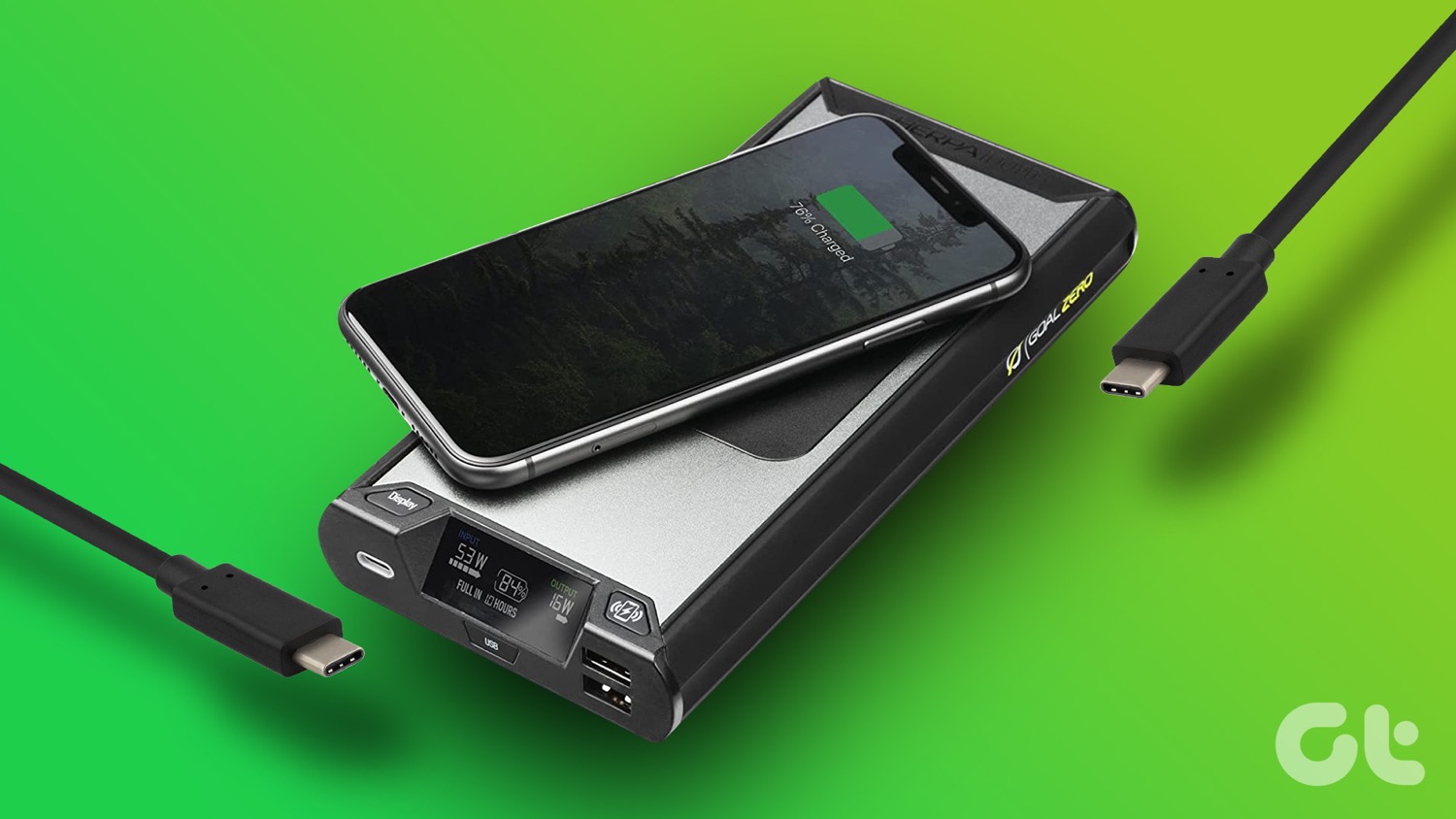 6 Best Power Banks With USB Type-C Power Delivery
A power bank is a must-have for many of us who are often on the road.
6 Best Power Banks With USB Type-C Power Delivery
A power bank is a must-have for many of us who are often on the road.
 5 Quick Ways to Fix Can’t Change Power Plan in Windows 11
Are you unable to change the power plan on your Windows PC?
5 Quick Ways to Fix Can’t Change Power Plan in Windows 11
Are you unable to change the power plan on your Windows PC?
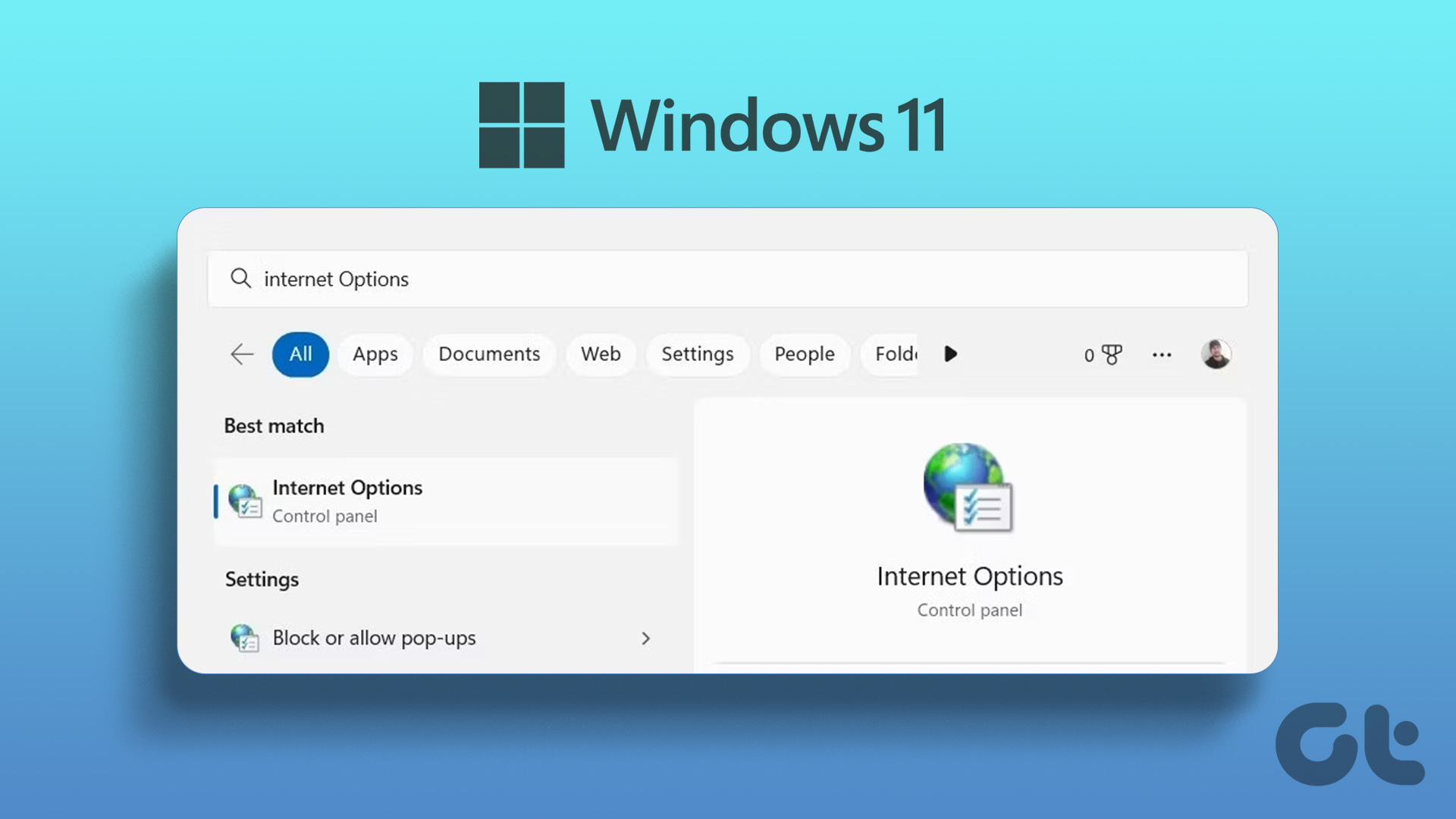 7 Ways to Open Internet Options on Windows 11
Method 1: Using the Start Menu The quickest way to search and open settings, programs, or files on Windows is through the Start Menu.
7 Ways to Open Internet Options on Windows 11
Method 1: Using the Start Menu The quickest way to search and open settings, programs, or files on Windows is through the Start Menu.
The article above may contain affiliate links which help support Guiding Tech. The content remains unbiased and authentic and will never affect our editorial integrity.