Common Fixes
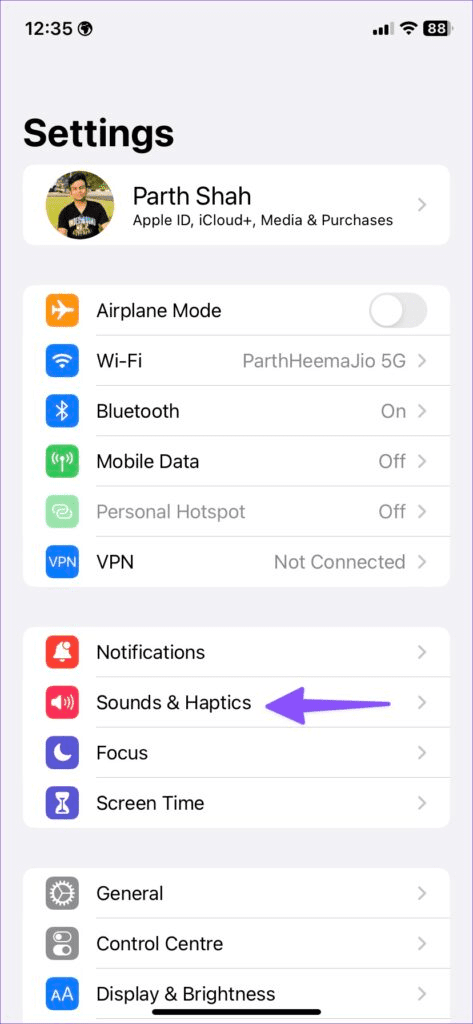
- Check the notification volume – Open the Settings app, tap Sounds & Haptics, and maximize the Ringtone and Alerts volume slider.
- Flick the mute switch – Disable the mute mode on your iPhone by turning off the physical mute switch on the side.
- Disconnect Bluetooth devices – Toggle off Bluetooth under Settings > Bluetooth to disconnect all connected devices and get the text notification sound on your iPhone.
- Close and reopen Messages – Swipe up from the bottom to switch apps and drag up the Messages card to remove it. Further, relaunch the Messages app.
- Enable iMessage – Open iPhone Settings, tap Messages, and enable the iMessage toggle.
- Check speakers – Ensure iPhone speakers are intact and don’t produce any crackling sound.
- Update iOS – Open General settings on your iPhone, tap Software Update, and select Update Now (if available).
Fix 1: Change Text Message Tone
If the text message notification tone is too low or set to none, you won’t hear sound alerts for new messages. Changing the notification sound will resolve the issue.
Step 1: Open iPhone Settings > tap Sounds & Haptics > select Text Tone.
Step 2: Ensure the Alert Tone isn’t set to None, and pick an audible tone from the list.


Fix 2: Disable Focus Mode
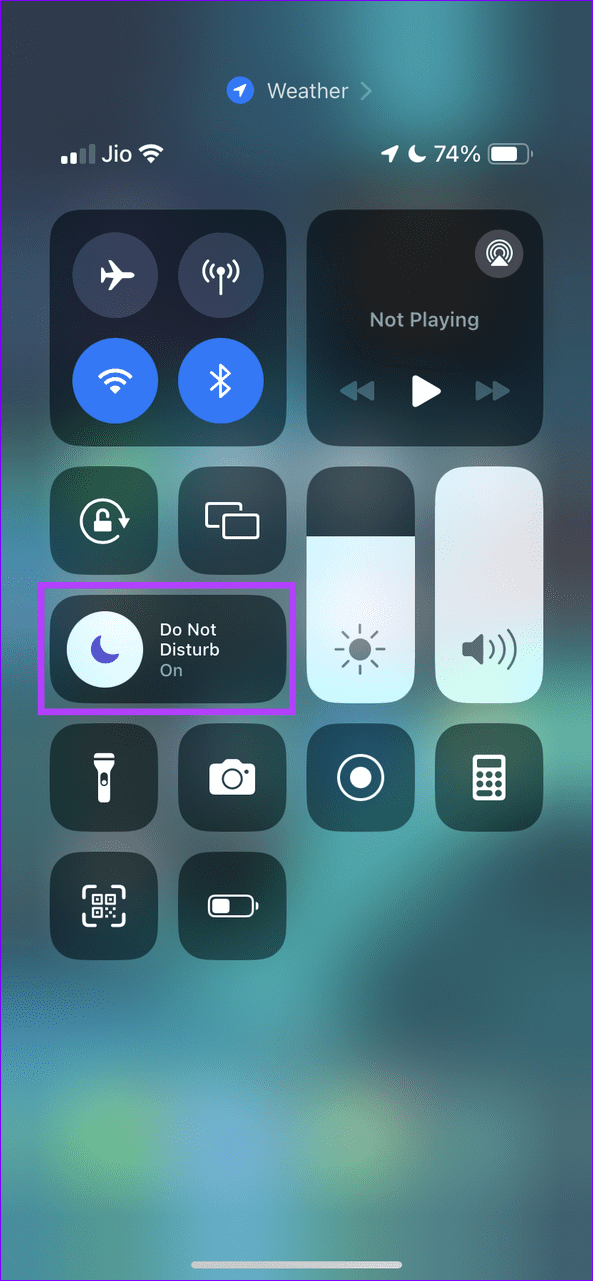
The Focus mode on your iPhone silences notifications from all contacts and apps. Disabling it should restore the notification sound when a new text message arrives.
Step 1: Swipe down from the top right to open the Control Center and tap the Focus toggle.
Step 2: Tap the active Focus mode toggle to turn it off.
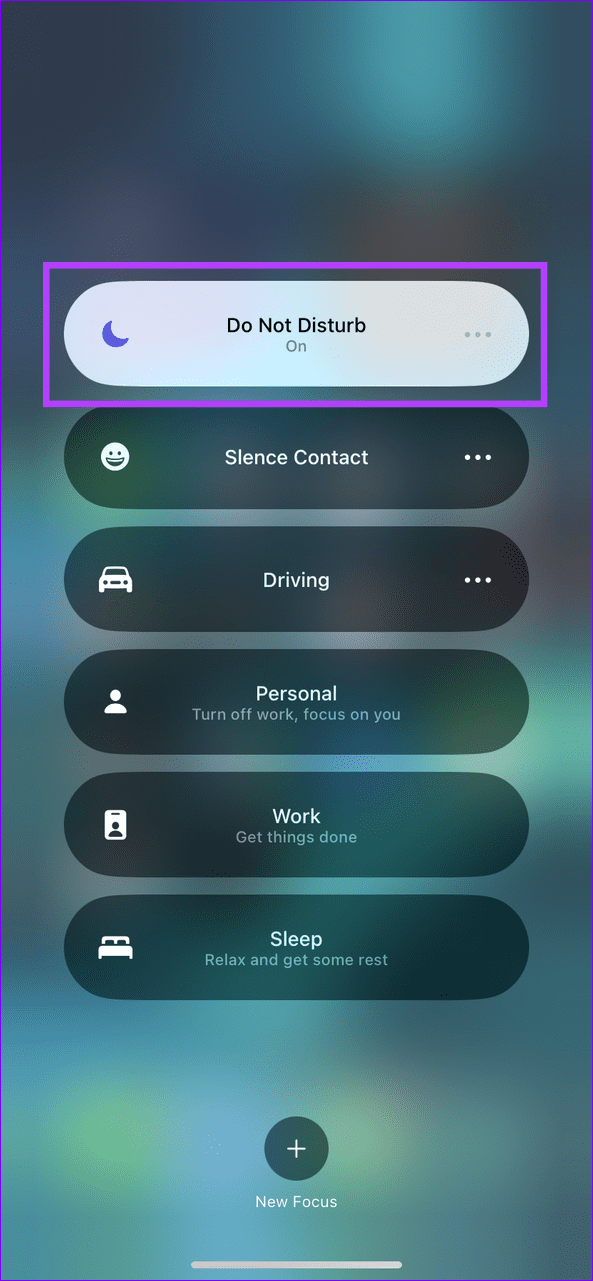
Alternatively, exclude the Messages app from your Focus profile. Doing this will give you sound notifications for new text messages while silencing all other app alerts.
Step 1: Open Settings > tap Focus > select your desired profile to edit.
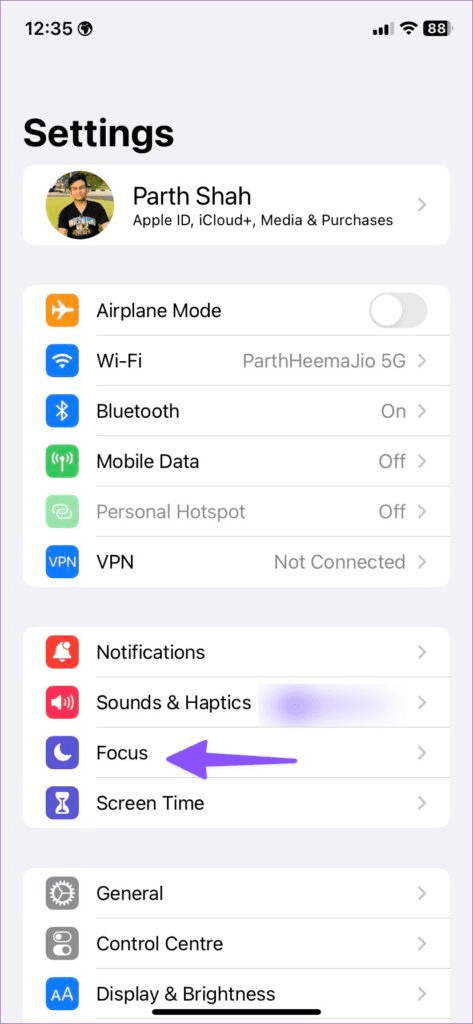

Step 2: Tap Apps > enable Allow Notifications From > add the Messages app to the list. Select Done to save changes.


Fix 3: Toggle off Hide Alerts for Conversations
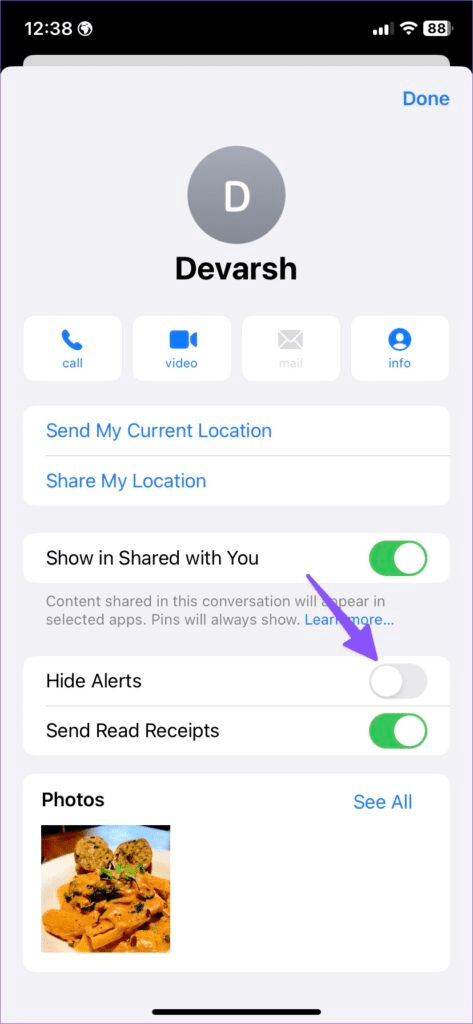
If you aren’t getting sound notifications for new texts from a specific contact, you must have enabled the Hide Alerts feature for the conversation. Disabling it should restore normalcy.
Open your desired conversation in the Messages app, tap the contact name at the top, and disable the Hide Alerts toggle.

Fix 4: Disable Filter Unknown Senders
By default, iOS blocks text messages from unknown senders. To restore sound notifications for new texts from unknown senders, disable its filter in the Messages app settings.
Open Messages in the iPhone Settings app, scroll down to select Unknown & Spam, and toggle off Filter Unknown Senders.


Fix 5: Customize Text Tone for a Specific Contact
Besides changing the message notification sound for all contacts, you can assign a different tone for specific contacts to recognize them instantly without picking up your iPhone.
Step 1: Open your preferred contact in the Contacts app, tap Edit at the top right corner, and select Text Tone.
Step 2: Pick your desired message tone and tap Done to save changes.


Alternative: Enable Vibration for Text Messages
If you still don’t get a text message notification sound after applying the above fixes, I recommend enabling the vibration alert to avoid missing any important messages.
Step 1: Open Sounds & Haptics under iPhone settings and select Text Tone.
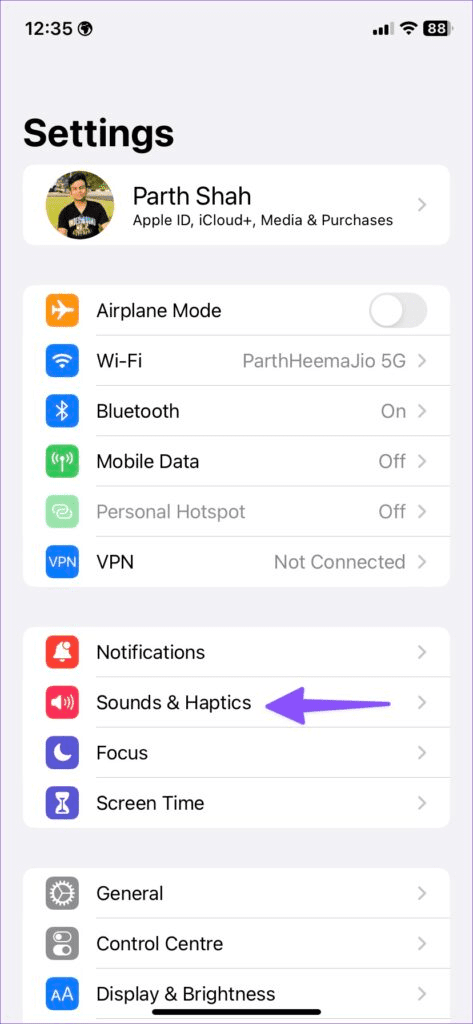

Step 2: Tap Vibration and select one from the existing vibration patterns or create a custom vibration profile for message alerts.


Was this helpful?
Last updated on 23 April, 2024
Read Next
 5 Fixes for iPhone Not Receiving Text Notifications
https://youtu.be/bmD4KSVPxfI Basic Fixes Force quit and relaunch Messages app: This will give the app a fresh start if it has been running in the background for some time now.
5 Fixes for iPhone Not Receiving Text Notifications
https://youtu.be/bmD4KSVPxfI Basic Fixes Force quit and relaunch Messages app: This will give the app a fresh start if it has been running in the background for some time now.
 6 Fixes for Samsung Galaxy Phones Not Receiving Text Messages
Basic Fixes Check cellular network: Ensure that you have a working cellular network on your phone.
6 Fixes for Samsung Galaxy Phones Not Receiving Text Messages
Basic Fixes Check cellular network: Ensure that you have a working cellular network on your phone.
 Why Am I Receiving the Same Text Messages on Two iPhones
Basic Fixes Check the Apple account: Open Settings on the 2nd iPhone > Profile name > Choose the iPhone name > Remove from Account.
Why Am I Receiving the Same Text Messages on Two iPhones
Basic Fixes Check the Apple account: Open Settings on the 2nd iPhone > Profile name > Choose the iPhone name > Remove from Account.
 Receiving Texts on Your Old Phone? Here’s How to Stop It
Fix 1: Disable iMessage on Your Old iPhone or via Apple Website Are you switching from an iPhone to an Android phone?
Receiving Texts on Your Old Phone? Here’s How to Stop It
Fix 1: Disable iMessage on Your Old iPhone or via Apple Website Are you switching from an iPhone to an Android phone?
 6 Ways to Fix iPhone Not Receiving Call Issue
https://youtu.be/kvx_Yard1jI Basic Fixes: Remove and reinstall the SIM card: A recent iOS update may have corrupted your phone’s SIM card system.
6 Ways to Fix iPhone Not Receiving Call Issue
https://youtu.be/kvx_Yard1jI Basic Fixes: Remove and reinstall the SIM card: A recent iOS update may have corrupted your phone’s SIM card system.
 5 Ways to Fix iPhone Not Receiving Texts
Basic Troubleshooting Check cellular connectivity: If you are in an area with low or no coverage, errors like call drop, call failing, and not receiving or sending can occur.
5 Ways to Fix iPhone Not Receiving Texts
Basic Troubleshooting Check cellular connectivity: If you are in an area with low or no coverage, errors like call drop, call failing, and not receiving or sending can occur.
 5 Ways to Fix Outlook Not Receiving Emails on iPhone
Common Fixes Enable and disable the Airplane Mode: Open the Settings app, toggle on the Airplane Mode, and turn it off after a few seconds.
5 Ways to Fix Outlook Not Receiving Emails on iPhone
Common Fixes Enable and disable the Airplane Mode: Open the Settings app, toggle on the Airplane Mode, and turn it off after a few seconds.
 4 Ways to Fix iPhone Not Receiving Emails
https://youtu.be/F6cOkDGNWuU Basic Fixes: Manually refresh the email inbox: Open the Mail app on your iPhone and swipe down from the top to refresh the inbox.
4 Ways to Fix iPhone Not Receiving Emails
https://youtu.be/F6cOkDGNWuU Basic Fixes: Manually refresh the email inbox: Open the Mail app on your iPhone and swipe down from the top to refresh the inbox.
The article above may contain affiliate links which help support Guiding Tech. The content remains unbiased and authentic and will never affect our editorial integrity.