

Basic Fixes
- Check network connection: Make sure that you have an active internet connection on your iPhone, and that there’s no problem with it.
- Restart iPhone: Restarting your iPhone can help get rid of any bugs and temporary glitches.
- Update iPhone: Update your iPhone to the latest version of iOS for a bug-free experience.
Fix 1: Check if You Are Using the Same Apple ID on Other Devices
This feature will only let you receive text messages on other Apple devices provided they are using the same Apple ID.
To check the Apple ID on your iPhone and iPad, open the Settings app and tap on the very first option that shows your information.
On your Mac: Click on the Apple icon at the top left → select System Settings → tap on your name. Now, see the Apple ID on your device.
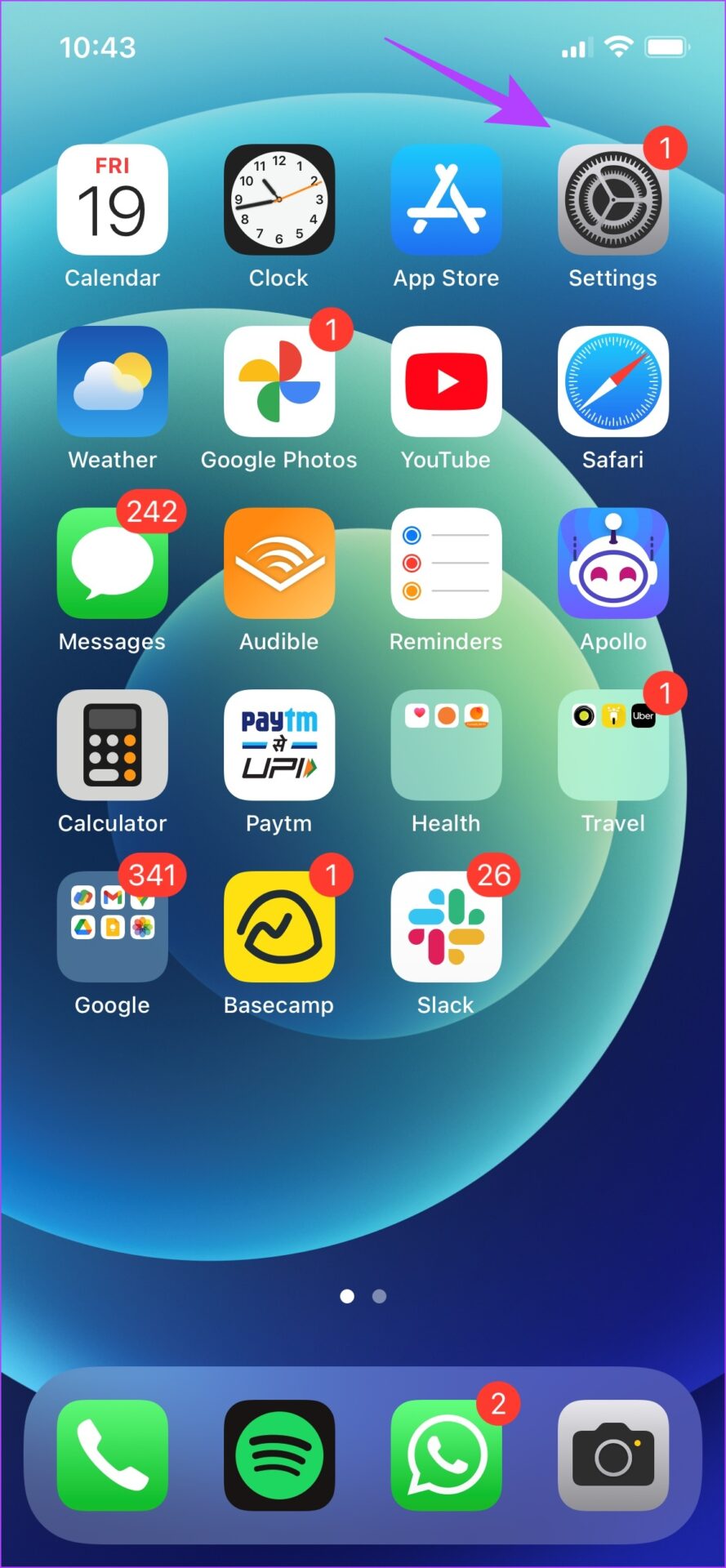
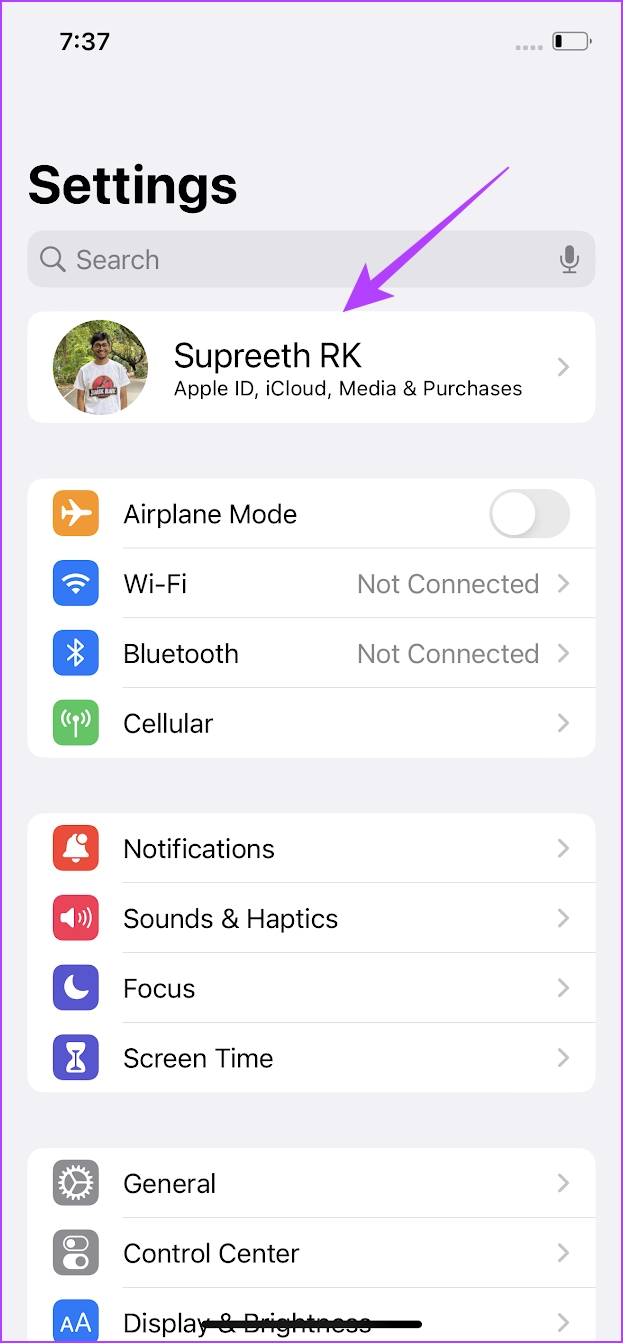
Also Read: How to fix iCloud and iMessage accounts do not match error on iPhone.
Fix 2: Turn on iCloud Sync for Message
Text Message Forwarding may not show up if iCloud Sync for iMessage is turned off since it syncs messages across devices with the same Apple ID.
Step 1: Open the Settings app. Tap on the first option that shows your name and profile picture.
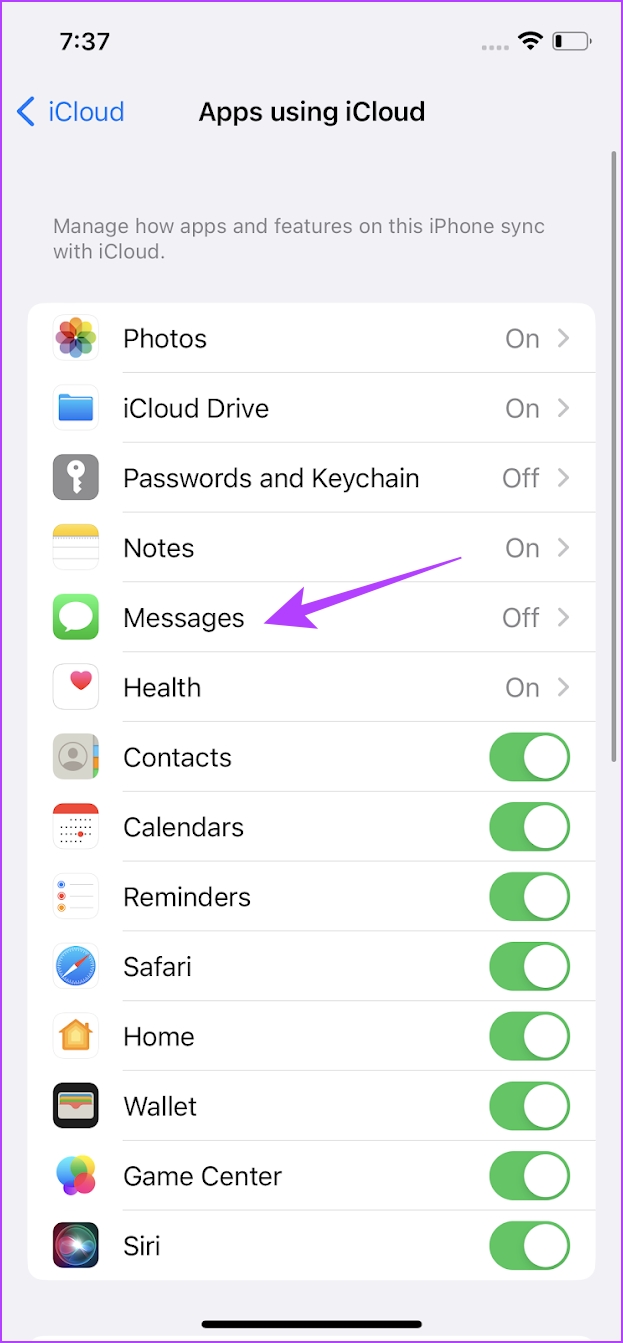
Step 2: Tap on iCloud. Then, select Show All under ‘Apps using iCloud’.
Step 3: Now, tap on Messages. Turn on the toggle for Sync this iPhone on the next screen.


Also Read: How to fix messages not syncing between iPhone and iPad.
Fix 3: Turn off and Turn on iMessage
If your iMessage is struck with a bug, turning it off and starting the service again might help.
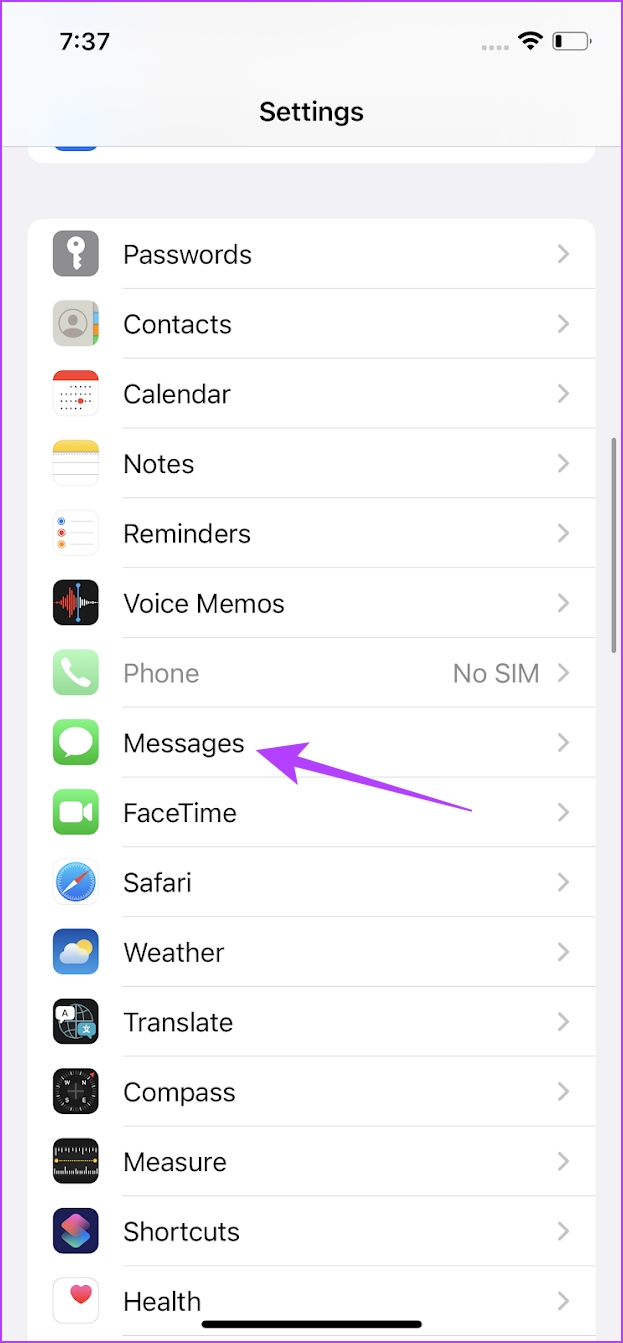
Open the Settings app, and go to Messages. Turn off the toggle for iMessage and then turn it back on.

If none of the above methods work, try resetting your iPhone to factory settings.
Was this helpful?
Last updated on 19 May, 2024
Read Next
 How to Fix iMessage “Sent as Text Message” Issue on iPhone
Basic Fixes Trigger Airplane Mode: If your mobile data has trouble, it is best to trigger airplane mode.
How to Fix iMessage “Sent as Text Message” Issue on iPhone
Basic Fixes Trigger Airplane Mode: If your mobile data has trouble, it is best to trigger airplane mode.
 How to Send Pictures in Text Message or Email on Android or iPhone
How to Send Pictures in a Text Message You can send pictures using the Messages app on your Android or iPhone.
How to Send Pictures in Text Message or Email on Android or iPhone
How to Send Pictures in a Text Message You can send pictures using the Messages app on your Android or iPhone.
 Fix: WhatsApp Not Showing Message Notifications Until Opened
Common Fixes Unmute the WhatsApp conversation: Long-tap the muted contact or group and select the Sound icon at the top right corner to unmute it.
Fix: WhatsApp Not Showing Message Notifications Until Opened
Common Fixes Unmute the WhatsApp conversation: Long-tap the muted contact or group and select the Sound icon at the top right corner to unmute it.
 How to Force Send Text Message Instead of iMessage to a Contact
Let's see how to force send a text message instead of iMessage to a contact on your iPhone and iPad.
How to Force Send Text Message Instead of iMessage to a Contact
Let's see how to force send a text message instead of iMessage to a contact on your iPhone and iPad.
 iMessage vs. Text Message: What’s the Difference
Understanding the Difference Between iMessage vs.
iMessage vs. Text Message: What’s the Difference
Understanding the Difference Between iMessage vs.
 Fix: Mac Mail Showing Blank Message Body for Exchange Emails
Basic Fixes Check your Outlook account details: Open Mail > Mail at the top-left corner > Accounts > Exchange account > Check your account details.
Fix: Mac Mail Showing Blank Message Body for Exchange Emails
Basic Fixes Check your Outlook account details: Open Mail > Mail at the top-left corner > Accounts > Exchange account > Check your account details.
 15 Samsung Text Message Settings That You Should Know
1.
15 Samsung Text Message Settings That You Should Know
1.
 How to Tell if a Text Message Was Delivered on Android
1.
How to Tell if a Text Message Was Delivered on Android
1.
The article above may contain affiliate links which help support Guiding Tech. The content remains unbiased and authentic and will never affect our editorial integrity.
