Basic Fixes:
- Uninstall recent Windows updates: If the cursor problem starts after an update, rolling back the update will fix it. This means that the update must have certain bugs.
- Clean boot the computer: Clean booting will force the computer to start with only a limited number of services and apps. This will block apps that may trigger the problem.
Fix 1: Update the Mouse Properties to Use beam_r
Updating the mouse properties is one of the most effective ways of fixing the cursor problem. Specific mouse settings may cause the cursor to turn white, so follow the steps below to update them.
Step 1: Click the magnifying lens on the Taskbar, type mouse, and click the Mouse Settings option.

Step 2: Scroll down and click Additional mouse settings.

Step 3: Click the Pointers tab, click Text Select in the Customize category, and click the Browse button.

Step 4: Select beam_r and click Open.

Step 5: Click Apply and OK on the Mouse properties windows.
Fix 2: Disable the Registry’s Multi-Plane Overlay Key
The Multi-Plane Overplay (MPO) is a function that helps enhance graphics rendering on Windows devices starting from Windows 8. It does so by offloading certain rendering tasks to a dedicated overlay plane. However, the MPO may interfere with how the cursor is rendered and can turn your cursor white on Windows 11.
You may disable the MPO from the Registry editor, but you should back up your registry before making the changes in case you need to revert it.
Step 1: Press Windows + R to open the Run dialog, type Regedit, and hit Enter.

Step 2: Navigate to the path below.
Computer\HKEY_LOCAL_MACHINE\SOFTWARE\Microsoft\Windows\Dwm
Step 3: Right-click a Space on the right pane, click New and DWORD (32-bit) Value, then name the newly created value OverlayTestMode.
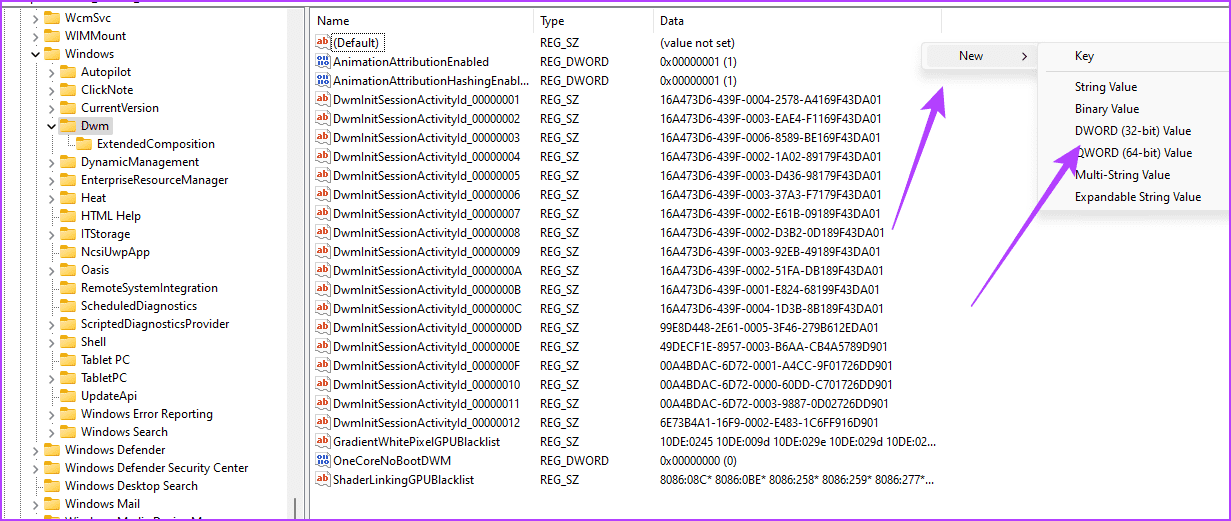
Step 4: Double-click OverlayTestMode and give it a Value data of 5, click OK, then restart the computer for the changes to take effect.

Fix 3: Enable Show Location of Pointer When I Press Ctrl Key
Windows has a feature that allows the cursor to show when you press the Ctrl key. This may not be a permanent fix, but it will always help you know the position of your cursor, even when it turns white.
Step 1: Click the magnifying lens on the Taskbar, type mouse, and click the Mouse Settings option.
Step 2: Scroll down and click Additional mouse settings.
Step 3: Click the Pointers Option tab, tick the Show Location of Pointer When I Press Ctrl Key option, then click Apply and OK.

Fixes if Cursor Turns White in Google Docs, Word or Other Online Apps
While this problem may happen with built-in applications, having the cursor turn white when you use online tools is also prevalent. If this is the case, you should try any of the following fixes:
- Disable Hardware Acceleration: Disabling hardware acceleration reduces the chances of GPU-related conflicts and resolves compatibility issues that cause the cursor problem.
- Disable extensions: If you run multiple extensions, conflicts may trigger the problem. Disable them one after the other to determine the root cause.
- Update browser: An outdated browser is prone to glitches and bugs. SOme of them will interfere with how the cursor is displayed. You should update the browser to fix it.
- Clear cache and cookies: Clearing the browser’s cache and cookies can resolve temporary glitches or conflicts.
- Refresh the page: Sometimes, it is a minor glitch, and a page refresh would fix it.
Was this helpful?
Last updated on 30 August, 2024
Read Next
 4 Fixes if Samsung Phone Stops Playing Music When Screen Turns Off
Basic Fixes: Restart your phone: Restarting your phone can help solve temporary system glitches.
4 Fixes if Samsung Phone Stops Playing Music When Screen Turns Off
Basic Fixes: Restart your phone: Restarting your phone can help solve temporary system glitches.
 5 Ways to Fix Computer Turns on but No Display on Windows 11
Basic Fixes: Ensure the monitor is turned on: If you're using an external monitor or if your laptop's monitor has an external power switch, ensure it is turned on before
5 Ways to Fix Computer Turns on but No Display on Windows 11
Basic Fixes: Ensure the monitor is turned on: If you're using an external monitor or if your laptop's monitor has an external power switch, ensure it is turned on before
 3 Fixes for Roblox Cursor Going Off Screen on Windows
Fix 1: Repair or Reset Roblox First, you should use the app repair feature on Windows to fix Roblox.
3 Fixes for Roblox Cursor Going Off Screen on Windows
Fix 1: Repair or Reset Roblox First, you should use the app repair feature on Windows to fix Roblox.
 6 Ways to Fix Mouse Cursor Moving on Its Own in Windows
Basic Fixes Change old mouse pads: If a portion of your mousepad has faded and lost the coarseness needed to hold the mouse in place, it can make your mouse
6 Ways to Fix Mouse Cursor Moving on Its Own in Windows
Basic Fixes Change old mouse pads: If a portion of your mousepad has faded and lost the coarseness needed to hold the mouse in place, it can make your mouse
 How to Customize the Mouse Cursor on Windows 11
How to Change the Color and Size of the Mouse Cursor There are a few default cursor options in Windows 11 if you want to change the way the mouse
How to Customize the Mouse Cursor on Windows 11
How to Change the Color and Size of the Mouse Cursor There are a few default cursor options in Windows 11 if you want to change the way the mouse
 5 Ways to Fix Mouse Cursor Not Showing on Windows 11
https://youtu.be/99YOYxqJPQ0 Fix 1: Clean the Trackpad or the Bottom Surface of the Mouse Sometimes, the dirt accumulated on your laptop’s trackpad may hinder the cursor’s movement.
5 Ways to Fix Mouse Cursor Not Showing on Windows 11
https://youtu.be/99YOYxqJPQ0 Fix 1: Clean the Trackpad or the Bottom Surface of the Mouse Sometimes, the dirt accumulated on your laptop’s trackpad may hinder the cursor’s movement.
 5 Ways to Fix Computer Boots to Blinking Cursor Error
What happens when you boot your computer?
5 Ways to Fix Computer Boots to Blinking Cursor Error
What happens when you boot your computer?
 Top 8 Ways to Fix Mouse Cursor Lagging on Mac
A Mac is generally known for its friendly UI and smooth performance.
Top 8 Ways to Fix Mouse Cursor Lagging on Mac
A Mac is generally known for its friendly UI and smooth performance.
The article above may contain affiliate links which help support Guiding Tech. The content remains unbiased and authentic and will never affect our editorial integrity.