Try These Fixes First
- Restart your computer: The Issue can occur due to a temporary bug or glitch on your computer. In this case you can simply restart your device to fix the problem.
- Check for physical damage: Physical damage to your keyboard can affect the proper functioning of the Tab key. To confirm whether this is the case, visit a keyboard test website and press the Tab key to see if it registers on the website. If the website fails to register the Tab key, it is likely damaged. In such situations, the only solution is to take your keyboard to a repair shop.
Tip: If you have urgent work requiring the Tab key, consider using the on-screen keyboard as a temporary solution. Alternatively, you can also assign an alternate key for the Tab function.
Fix 1: Close TeamViewer From Background
Another potential reason for the Tab key not working is the TeamViewer application. It may seem peculiar, but certain applications, like TeamViewer, can impact the functionality of keyboard keys. To resolve this issue, you will need to close TeamViewer from the background. Here’s how to do that:
Step 1: Press the Windows + X keyboard shortcut and choose Task Manager from the menu that crops up.

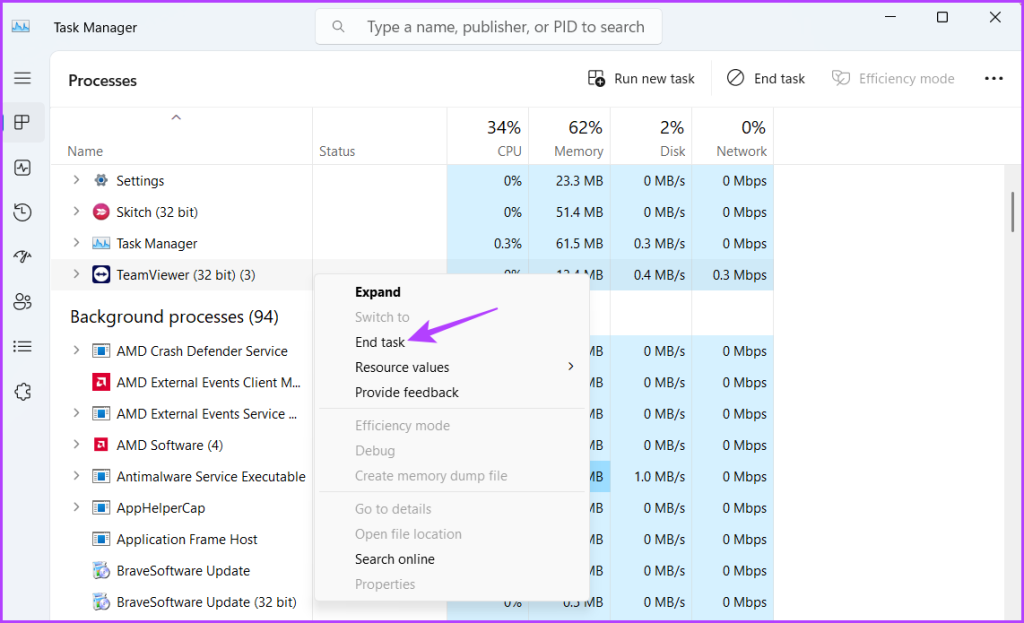
Step 2: Right-click on the TeamViewer and choose End task.
After that, check if you’re still facing the problem. If not, you can uninstall TeamViewer if you don’t actively use it.
Fix 2: Run Hardware and Device Troubleshooter
The Hardware and Device Troubleshooter is a Windows utility you can use to eliminate hardware issues on your computer. You can run this troubleshooter to fix the Tab key not working on Windows 11. Here’s how to run it:
Step 1: Press the Windows + R keyboard shortcut to open the Run tool.
Step 2: Type the following command in the search bar and click the OK button.
msdt.exe -id DeviceDiagnostic
Step 3: Click the Advanced button.

Step 4: Check the Apply repairs automatically box and click Next.

The Hardware and Device Troubleshooter will now look for any available issues. It’ll automatically fix it without much user input if it finds any.
Fix 3: Disable Sticky and Filter Keys
Sticky and Filter Keys are accessibility features that can affect the normal working of keyboard keys. The Sticky Keys feature allows you to use keyboard shortcuts by pressing one key at a time. However, if you’ve mistakenly pressed the Tab key multiple times quickly, the Stick Keys feature can get active and make the Tab key unresponsive.
On the other hand, the Filter Keys feature prevents the keyboard from responding to brief and repeated keystrokes. However, if you mistakenly press the Tab key multiple times quickly, Filter Keys can consider it as false input and make the Tab key unresponsive.
If either of these situations contributes to the issue, you will need to disable Sticky Keys and Filter Keys to resolve the problem of the Tab key not working on Windows 11. Here’s how to do that:
Step 1: Press the Windows + I keyboard shortcut to open the Settings app.
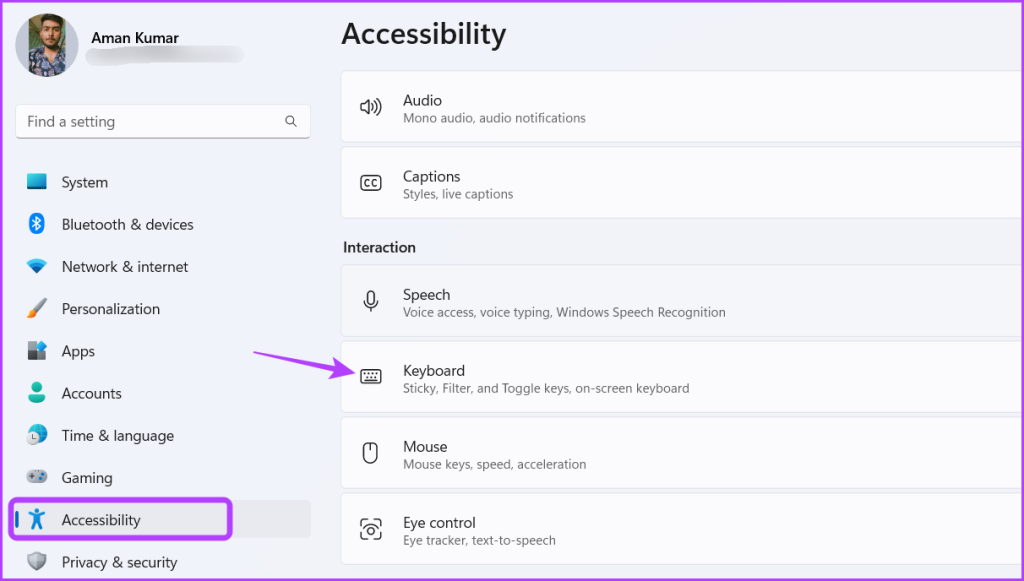
Step 2: Select Accessibility from the left sidebar and choose the Keyboard option from the right pane.
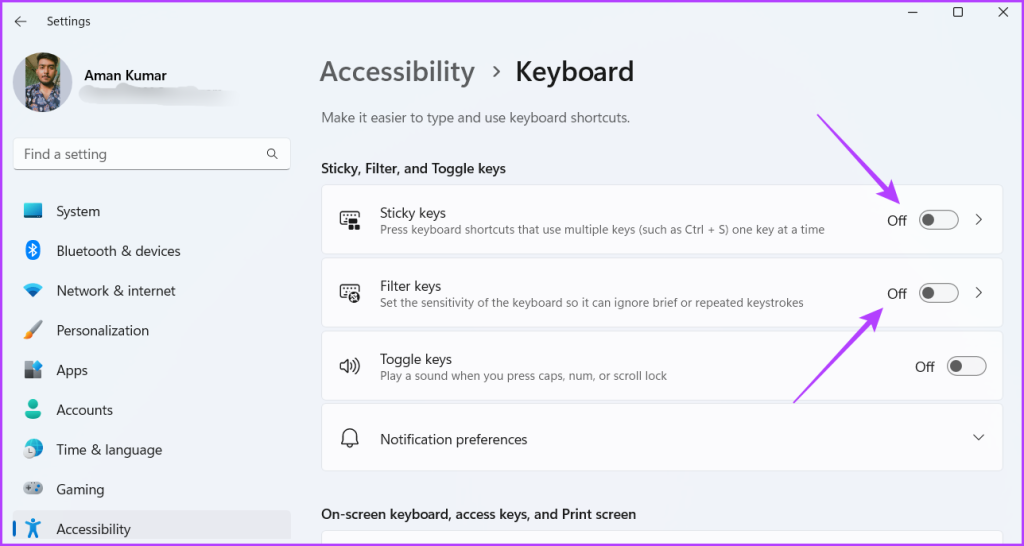
Step 3: Disable the toggle next to the Sticky and Filter Keys.
After that, restart your computer and check for the issue.
Fix 4: Update the Keyboard Driver
Is the Tab button still not working? There may be corruption in the keyboard driver, which could cause the issue. The best way to remove the corruption is to update the keyboard driver. You can do that by following the below instructions:
Step 1: Open the Settings app, choose Windows Update from the left sidebar and choose Advanced options on the right.

Step 2: Select Optional updates. In the following window, you will see available updates for different drivers installed on your computer. If an update is available for your keyboard driver, select it and click Download & install option to update the driver.

Also Read: 5 Ways to Fix Keyboard Auto-Typing on Windows
Was this helpful?
Last updated on 29 July, 2024
Read Next
 Top 7 Ways to Fix Windows Key Not Working on Windows 10
Windows 10 operating system is full of keyboard shortcuts.
Top 7 Ways to Fix Windows Key Not Working on Windows 10
Windows 10 operating system is full of keyboard shortcuts.
 7 Ways to Fix Windows Key Not Working in Windows 11
Basic Fixes Check for physical damage: There might be physical damage or dirt buildup on your keyboard.
7 Ways to Fix Windows Key Not Working in Windows 11
Basic Fixes Check for physical damage: There might be physical damage or dirt buildup on your keyboard.
 How to Fix Enter Key or Backspace Not Working on Windows 11
Basic Fixes: Restart Windows device: Restarting your device can help fix any minor software issue that might be preventing the Backspace or Enter key from working on Windows after the
How to Fix Enter Key or Backspace Not Working on Windows 11
Basic Fixes: Restart Windows device: Restarting your device can help fix any minor software issue that might be preventing the Backspace or Enter key from working on Windows after the
 3 Quick Ways to Find Product Key on Windows 10 or Windows 11
1.
3 Quick Ways to Find Product Key on Windows 10 or Windows 11
1.
 4 Fixes When the Windows 11 Activation Key Is Not Working
Basic Fixes: Confirm the OS is running an updated Windows 11: You may use the built-in Winver utility to check your OS version and update status.
4 Fixes When the Windows 11 Activation Key Is Not Working
Basic Fixes: Confirm the OS is running an updated Windows 11: You may use the built-in Winver utility to check your OS version and update status.
 6 Ways to Fix Black Screen on Pressing Alt + Tab on Windows
Fix 1: Change the Display Mode of the Application (Game) The black screen issue usually appears when tabbing out of a full-screen game.
6 Ways to Fix Black Screen on Pressing Alt + Tab on Windows
Fix 1: Change the Display Mode of the Application (Game) The black screen issue usually appears when tabbing out of a full-screen game.
 6 Fixes for Alt + Tab Shortcut Not Working on Windows 11
Fix 1.
6 Fixes for Alt + Tab Shortcut Not Working on Windows 11
Fix 1.
 The List of All Excel Function Key (F1 to F12) Shortcuts
F1 Shortcuts Shortcut KeyActionF1Opens the Excel Help task pane.Ctrl+F1Hide/Unhide the taskbar.Alt+F1Create a chart from data in the current range.Ctrl+Shift+F1Hide/Unhide ribbon and taskbar.Alt+Shift+F1Create a new worksheet.
The List of All Excel Function Key (F1 to F12) Shortcuts
F1 Shortcuts Shortcut KeyActionF1Opens the Excel Help task pane.Ctrl+F1Hide/Unhide the taskbar.Alt+F1Create a chart from data in the current range.Ctrl+Shift+F1Hide/Unhide ribbon and taskbar.Alt+Shift+F1Create a new worksheet.
The article above may contain affiliate links which help support Guiding Tech. The content remains unbiased and authentic and will never affect our editorial integrity.