Before you begin, try restarting your iPhone or updating it to the latest version to get rid of any bugs that are affecting Spotlight Search.
Fix 1: Remove Shortcut Widgets
Some bugs are fixed in mysterious ways – and as per several community forums, removing the Shortcuts widget on your home screen is one way to fix the problem.
Swipe right from the first page of your home screen. Long-press on the Shortcuts widget, tap on Remove Widget and confirm your action.


Also Read: How to fix Spotlight Search not working on Mac.
Fix 2: Disable ‘Show Home Controls’
Here’s another fix that may not be directly related to Spotlight Search, but several community forums suggest that it may help.
Step 1: Open the Settings app. Select Control Centre.
Step 2: Turn off the toggle for Show Home Controls.


Fix 3: Check Storage Space
Spotlight Search has to index every single file or folder and the process might get sluggish, or may not work at all if you are running out of storage space. Go to Settings > General > iPhone Storage and check the remaining storage space.
If your iPhone is running low on storage, you can uninstall apps, delete redundant photos, or clear the ‘Other’ storage.
Fix 4: Change Default Language
At times, Spotlight Search may have some trouble working with the set default language. Therefore, you can try and change the default language.
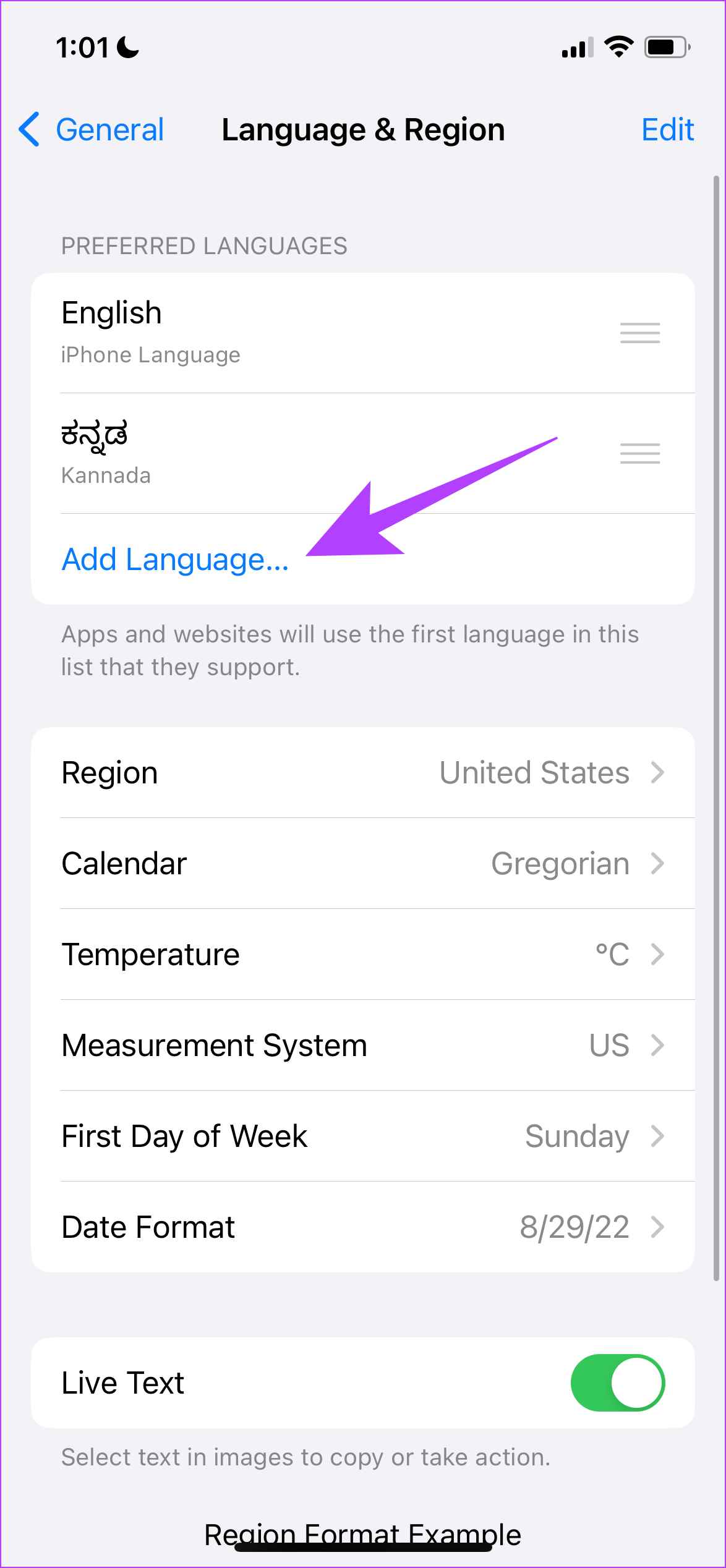
Step 1: Open the Settings app and select General > Language and Region.
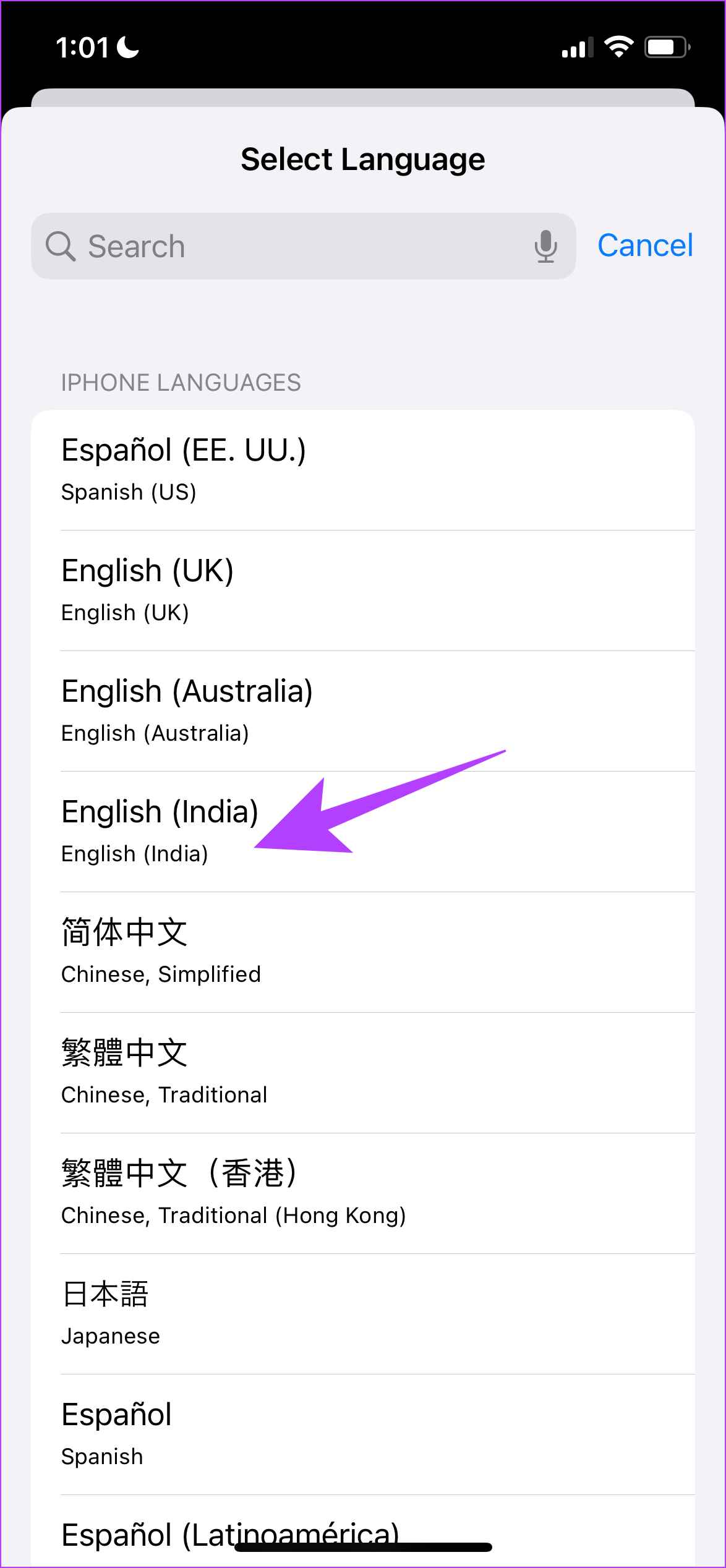
Step 2: Tap on Add Language. Select a language that you are familiar with. If you prefer English, you can always select an alternate version.
Step 3: Now, you can confirm using the selected language as a primary language for your iPhone.

Fix 5: Remove Third-Party Keyboards
I also faced the issue of the keyboard not loading up while we used the search bar. This mainly occurred when using a third-party keyboard.
Step 1: Open the Settings app select General and go to Keyboard.
Step 2: Select Keyboards and open the third-party keyboard. Turn off the toggle for Allow Full Access.


Fix 6: Disable and Enable Search for Apps
When you turn off and turn on Spotlight Search in the Settings app, you refresh the feature which may clear the bug affecting it.
Step 1: Open the Settings app and select Siri & Search.
Step 2: There is no toggle to disable Spotlight Search entirely. However, you can disable it on a per-app basis. Hence, select an app from the list, turn off the toggle for Show App in Search, and turn it back on.


If none of the above methods work, you can try resetting your iPhone.
Was this helpful?
Last updated on 16 May, 2024
Read Next
 6 Fixes for Spotlight Search Not Working on Mac
Basic Fixes Restart Mac: If you're having issues with spotlight search, restart your Mac to fix temporary glitches.
6 Fixes for Spotlight Search Not Working on Mac
Basic Fixes Restart Mac: If you're having issues with spotlight search, restart your Mac to fix temporary glitches.
 How to Save Windows Spotlight (Lock Screen) Wallpapers
Windows Spotlight's stunning landscapes and vibrant scenes might just be the refresh you need.
How to Save Windows Spotlight (Lock Screen) Wallpapers
Windows Spotlight's stunning landscapes and vibrant scenes might just be the refresh you need.
 4 Ways to Fix App Store Search Not Working on iPhone
Try Basic Fixes Check the App Store server status: Sometimes, the App Store can suffer from service outages.
4 Ways to Fix App Store Search Not Working on iPhone
Try Basic Fixes Check the App Store server status: Sometimes, the App Store can suffer from service outages.
 4 Ways to Fix iPhone Calendar Search Not Working
Basic Troubleshooting Restart the Calendar app: Restarting the app can usually fix minor bugs or system errors.
4 Ways to Fix iPhone Calendar Search Not Working
Basic Troubleshooting Restart the Calendar app: Restarting the app can usually fix minor bugs or system errors.
 3 Ways to Fix WhatsApp Search Not Working on iPhone
Fix 1: Disable and Re-Enable iCloud Sync for WhatsApp If WhatsApp has trouble retrieving chats from iCloud, it may get stuck when using the search tool.
3 Ways to Fix WhatsApp Search Not Working on iPhone
Fix 1: Disable and Re-Enable iCloud Sync for WhatsApp If WhatsApp has trouble retrieving chats from iCloud, it may get stuck when using the search tool.
 How to Change Default Search Engine in Safari on iPhone, iPad, and Mac
The Safari browser is the default app to browse the web on Apple devices.
How to Change Default Search Engine in Safari on iPhone, iPad, and Mac
The Safari browser is the default app to browse the web on Apple devices.
 3 Ways to Fix Guided Access Not Working on iPhone or iPad
Basic Fixes Enable Guided Access: Make sure you have enabled Guided Access on your iOS device.
3 Ways to Fix Guided Access Not Working on iPhone or iPad
Basic Fixes Enable Guided Access: Make sure you have enabled Guided Access on your iOS device.
 3 Ways to Fix Amazon Prime Video Not Working on iPhone and iPad
Basic Fixes: Check your internet connection: The app may not load properly if you access Prime Video on a sketchy internet connection.
3 Ways to Fix Amazon Prime Video Not Working on iPhone and iPad
Basic Fixes: Check your internet connection: The app may not load properly if you access Prime Video on a sketchy internet connection.
The article above may contain affiliate links which help support Guiding Tech. The content remains unbiased and authentic and will never affect our editorial integrity.