Common Fixes
- Reboot Windows: Press the Windows key, click the Power button at the bottom right of the Windows search menu, and select Restart.
- Delete and Install the Sound Recorder app: Search Installed Apps in the Windows search menu, click three dots beside Sound Recorder, and select Uninstall. Next, download the Windows Sound Recorder app from the Microsoft Store.
- Update Windows 11: Press the Windows + I keys to open Settings. Expand Windows Update in the left sidebar and install new updates.
Fix 1: Enable Microphone Permissions for Sound Recorder
The Sound Recorder app will not work on Windows 11 if it doesn’t have access to your computer’s microphone. Granting the necessary permissions should fix it.
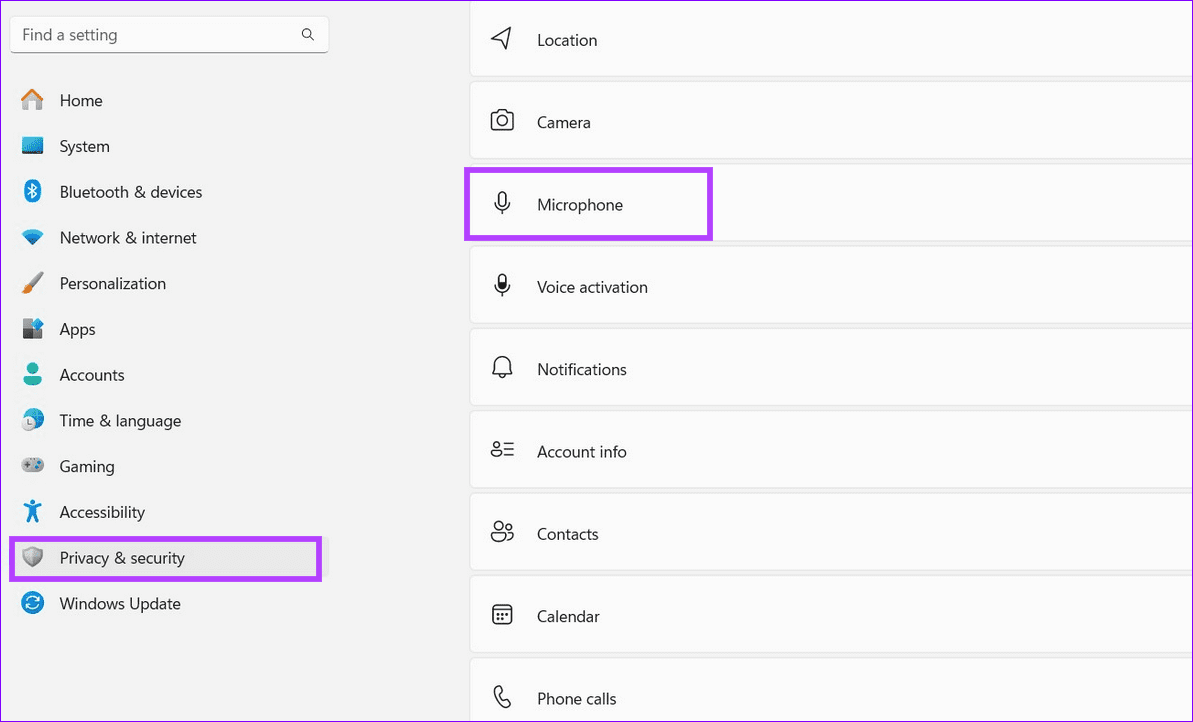
Step 1: Open the Windows Settings app (press the Windows + I keys), expand Privacy & security in the left sidebar, and select Microphone.
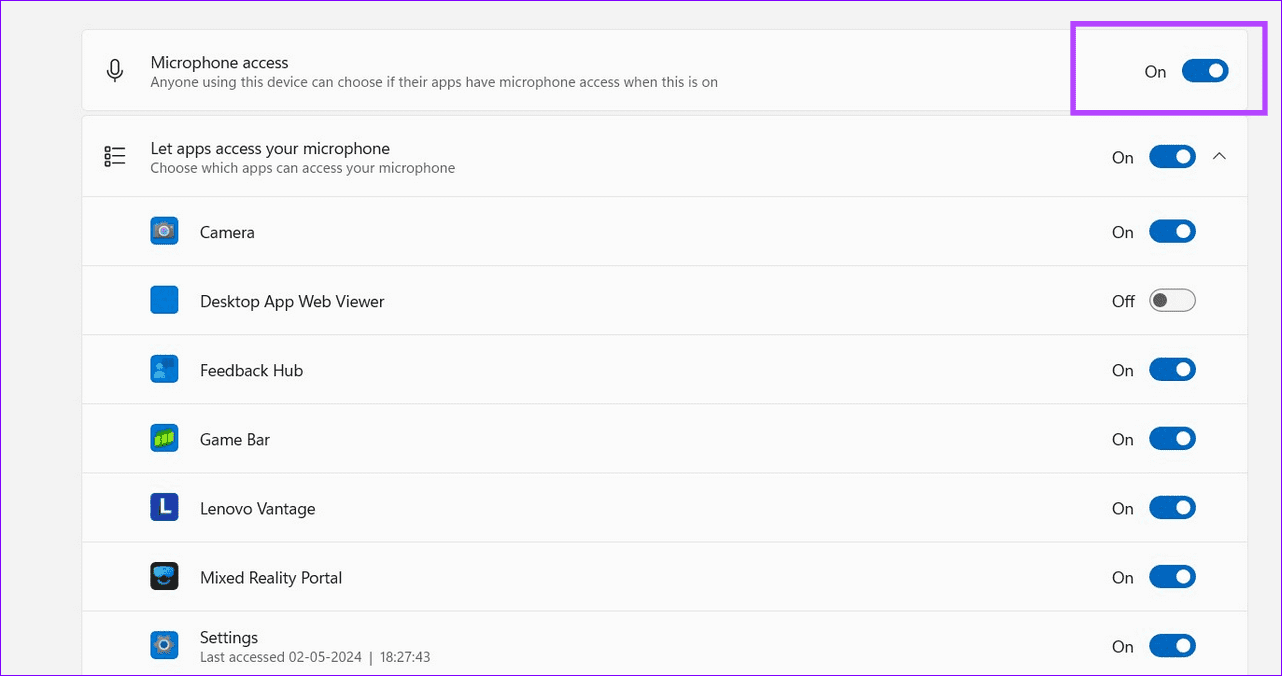
Step 2: Enable the toggle for Microphone Access, scroll down, and turn on the toggle for Sound Recorder.
Fix 2: Ensure Selecting Correct Audio Input Source
Setting the correct audio input source is crucial to ensure the Sound Recorder app functions accurately on Windows 11.
Step 1: Open Windows Settings > click System in the left sidebar > select Sound.
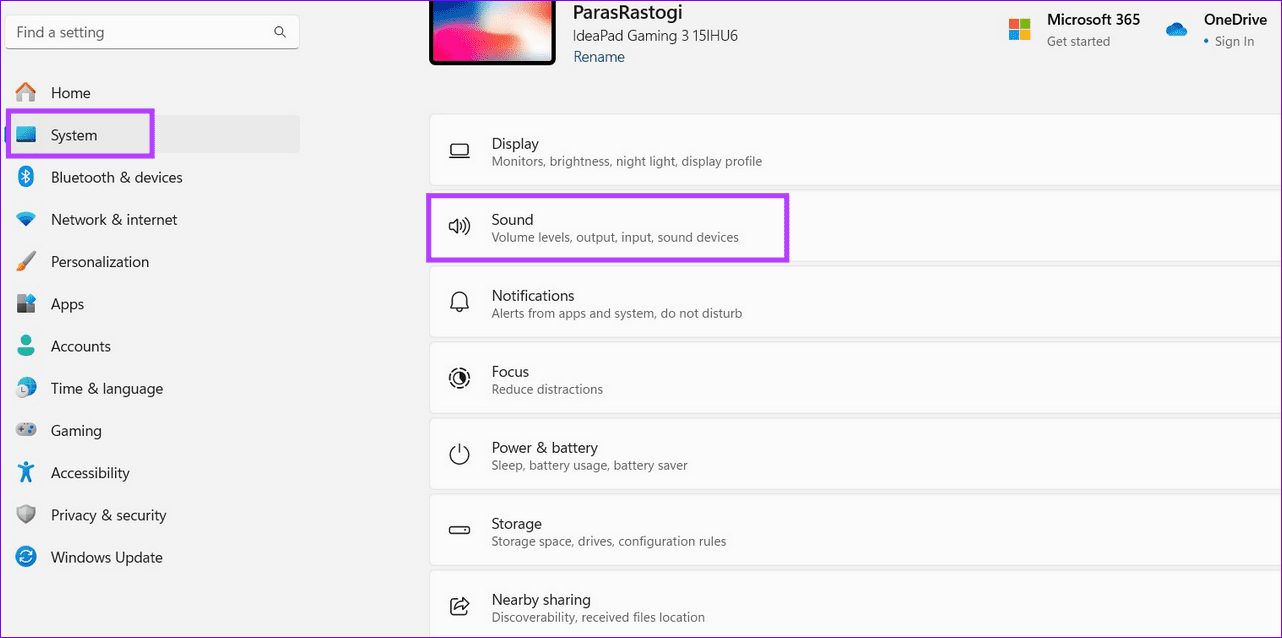
Step 2: Locate Input and pick the correct Microphone to use with the Sound Recorder app.

Fix 3: Disable Audio Enhancements
Audio enhancement improves the audio quality of the connected hardware on Windows 11. However, it is known to create issues with the Sound Recorder app. Disable it to restore normalcy.
Step 1: Press the Windows + I keys to open Settings, click System in the left sidebar > select Sound.
Step 2: Next, click More sound settings.
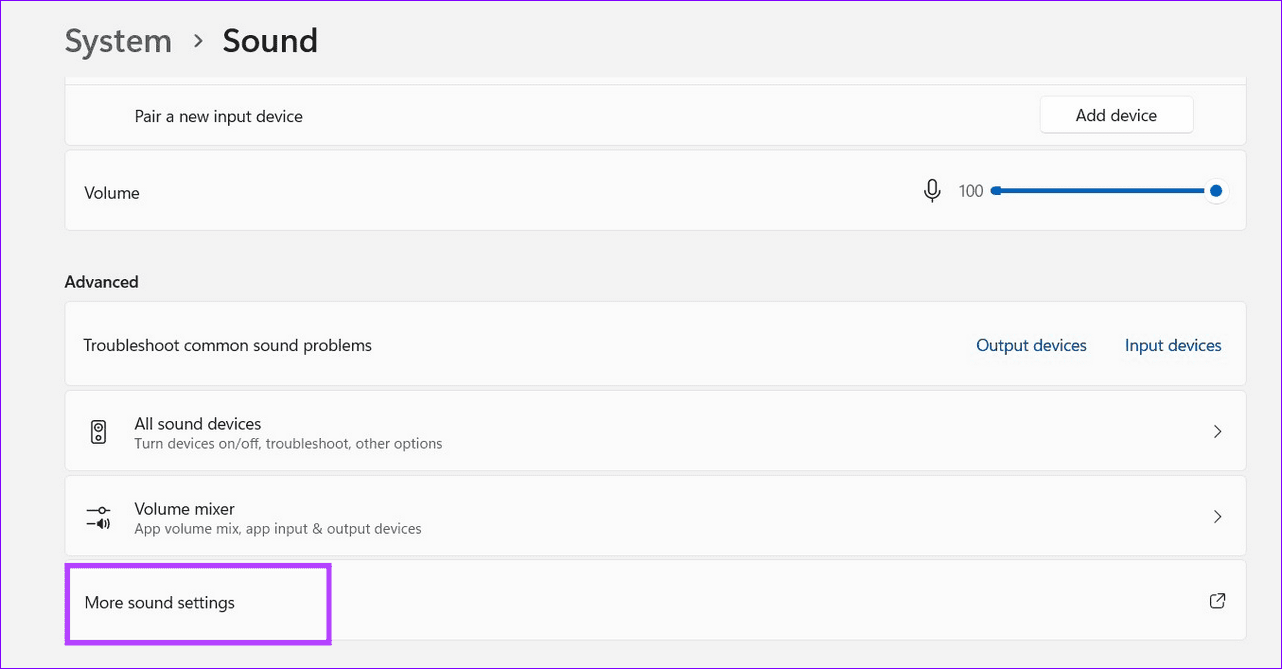
Step 3: Go to the Playback tab, right-click your audio hardware, and select Properties.

Step 4: Open the Advanced tab > turn off Enable audio enhancements > click Apply.

Fix 4: Repair and Reset the Sound Recorder App
If the Sound Recorder app’s installation is corrupted, it may not work on Windows 11. Go to the Windows settings app to repair or reset it.
Note: Resetting the Sound Recorder app removes all its user configurations.
Step 1: Open Windows Settings > click Apps in the left sidebar > select Installed apps.

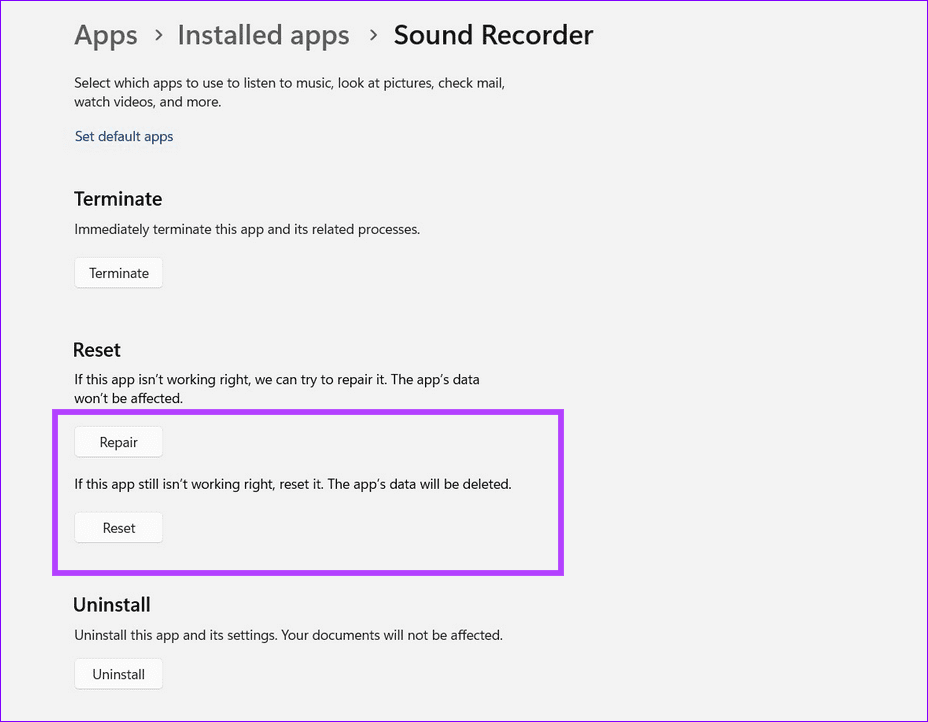
Step 2: Click the three-dot menu next to the Sound Recorder app > select Advanced options.

Step 3: Scroll down and click Repair. If it doesn’t solve the issue, click Reset > set up afresh.
Fix 5: Restart the Windows Audio Service
If nothing works, restart the Windows Audio service to fix the existing sound recorder app glitches and record the audio on Windows 11.
Step 1: Press the Windows key, search Services, and open the app.
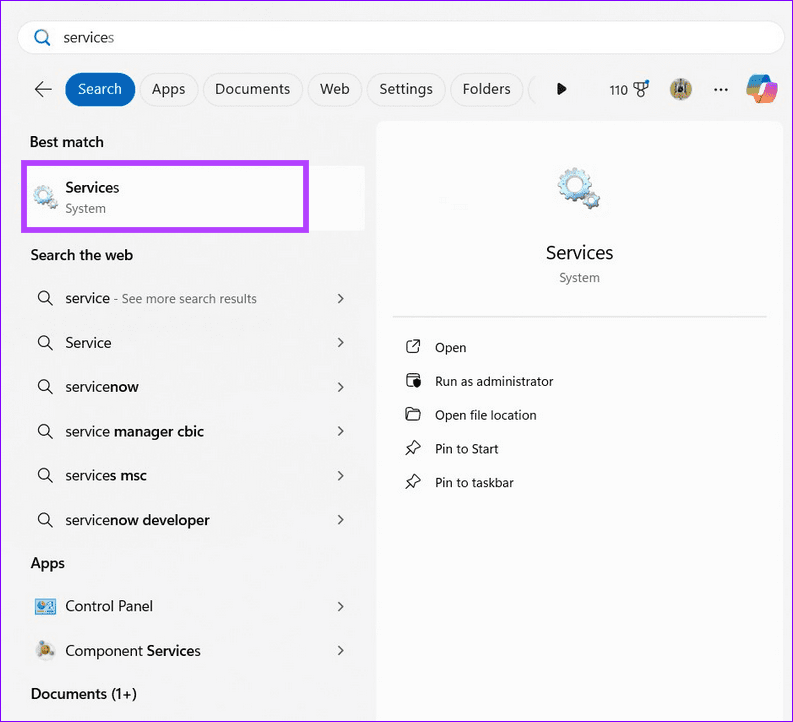
Step 2: Locate Windows Audio in the list, right-click it, and select Restart.

Was this helpful?
Last updated on 21 May, 2024
Read Next
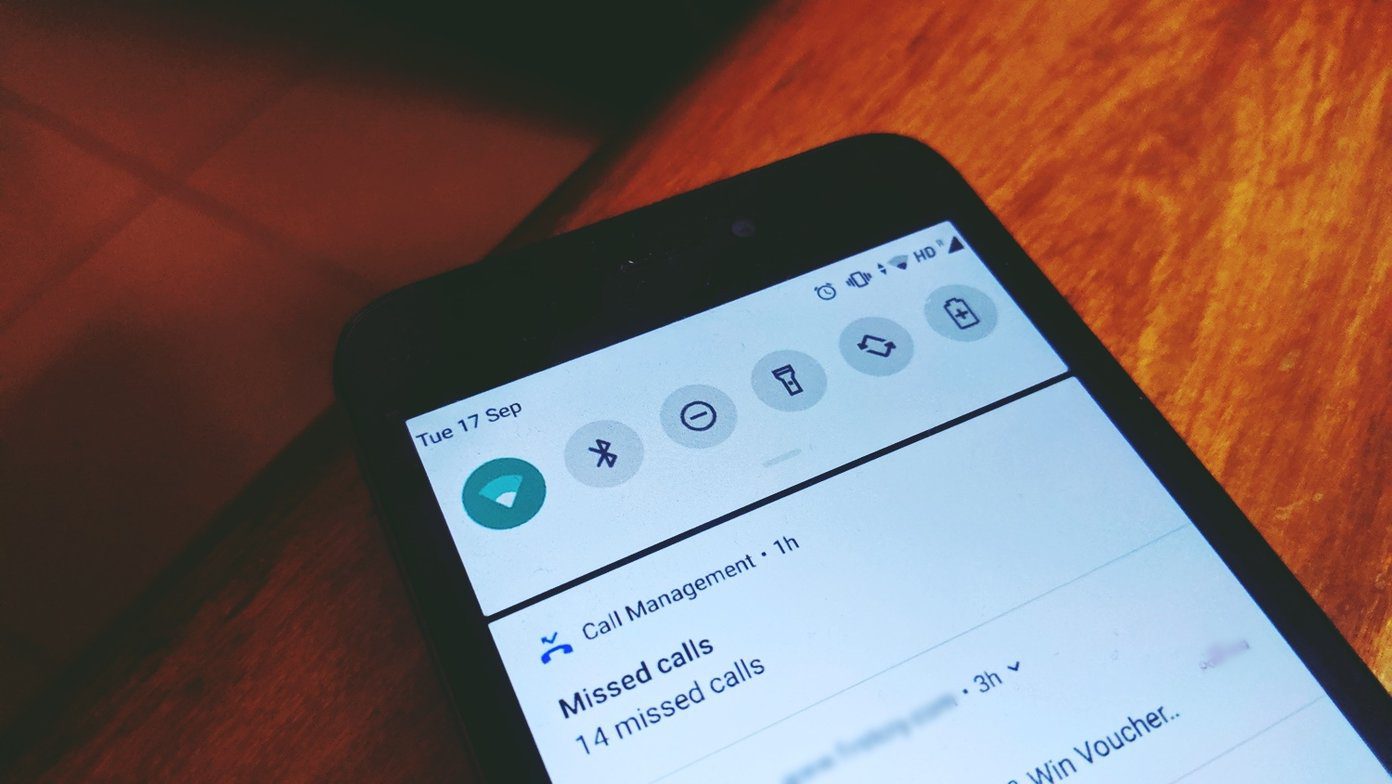 How to Fix MIUI Screen Recorder Has No Sound Error
Basic Fixes Restart device: Restarting your device can help get rid of any bugs affecting the Screen Recorder app.
How to Fix MIUI Screen Recorder Has No Sound Error
Basic Fixes Restart device: Restarting your device can help get rid of any bugs affecting the Screen Recorder app.
 5 Fixes for Voice Recorder App Not Working on Samsung Phones
Fix 1: Allow Voice Recorder App to Use Microphone Like any other app, Voice Recorder needs permission to use your Samsung Galaxy phone's microphone.
5 Fixes for Voice Recorder App Not Working on Samsung Phones
Fix 1: Allow Voice Recorder App to Use Microphone Like any other app, Voice Recorder needs permission to use your Samsung Galaxy phone's microphone.
 7 Best Screen Recorder Apps for Windows 10
There can be many reasons behind why you would want to record the screen on your Windows 10 computer.
7 Best Screen Recorder Apps for Windows 10
There can be many reasons behind why you would want to record the screen on your Windows 10 computer.
 2 Ways to Fix Screen Recorder Not Showing up on Android
Basic Fixes Check if your device is eligible: If you're unsure which Android version your device is running, use the Settings app.
2 Ways to Fix Screen Recorder Not Showing up on Android
Basic Fixes Check if your device is eligible: If you're unsure which Android version your device is running, use the Settings app.
 4 Ways to Fix Call Recorder Not Recording Incoming Voice on Android
Basic Fixes: Check the Android version: To use call recording features, your Android phone must run Android version 9 and above.
4 Ways to Fix Call Recorder Not Recording Incoming Voice on Android
Basic Fixes: Check the Android version: To use call recording features, your Android phone must run Android version 9 and above.
 11 Ways to Fix Sound Not Working on Windows 11
While Windows 11 is Microsoft's most stable release to date, it's not without its flaws.
11 Ways to Fix Sound Not Working on Windows 11
While Windows 11 is Microsoft's most stable release to date, it's not without its flaws.
 3 Ways to Fix the Notification Sound Not Working on Windows 11
Basic Fixes: Unmute your Windows PC: You might have muted your Windows PC and forgotten to unmute it after an important meeting or work hours.
3 Ways to Fix the Notification Sound Not Working on Windows 11
Basic Fixes: Unmute your Windows PC: You might have muted your Windows PC and forgotten to unmute it after an important meeting or work hours.
 4 Ways to Fix Video Sound Not Working on Windows 11
Basic Fixes: Ensure the video is not muted and has sound: Click the speaker icon in the player window or the taskbar and increase the volume using the slider.
4 Ways to Fix Video Sound Not Working on Windows 11
Basic Fixes: Ensure the video is not muted and has sound: Click the speaker icon in the player window or the taskbar and increase the volume using the slider.
The article above may contain affiliate links which help support Guiding Tech. The content remains unbiased and authentic and will never affect our editorial integrity.