Basic Fixes
- Update or reinstall Microsoft Edge: Open the Microsoft Store, search Microsoft Edge browser, and click Update. Alternatively, uninstall it from Windows Settings > Apps > Installed apps > reinstall it from the Microsoft Store.
- Remove unnecessary Edge extensions: Select the three-dot menu at the top right of Microsoft Edge and click Extensions > Manage extensions. Under the unnecessary extension, click Remove to delete it.
- Update Windows 11: Press the Windows + I shortcut to open the Settings app, select Windows Update from the left sidebar, and install available system updates.
Fix 1: Disable Preloading Your New Tab Page
Edge’s preloading tab feature loads your favorite wallpaper and other home screen components when opening a new tab, which can be resource-intensive. Disable it to boost the browser speed.
Step 1: Click on the horizontal three-dot menu at the top right of Microsoft Edge and select Settings.

Step 2: Select Start, home, and new tabs from the sidebar and toggle off Preload your new tab page for a faster experience.

Fix 2: Disable Graphics Acceleration
Graphics acceleration is designed to improve the browser’s performance but demands significant system and GPU resources, slowing down Microsoft Edge. To turn it off, go to the Edge settings.
Step 1: Open Microsoft Edge settings from the three-dot menu > Settings.

Step 2: Select System and Performance from the sidebar and toggle off Use graphics acceleration when available.

Fix 3: Enable Efficiency Mode in Edge
If Microsoft Edge is consistently running slow on your PC, enable its built-in efficiency mode that reduces system resource consumption and enhances your device battery life.
Open Edge settings > select System and performance from the sidebar > toggle on Efficiency mode.
Tip: To define the efficiency mode intensity, choose between Balanced savings and Maximum savings.

Fix 4: Remove All Cookies and Site Data
Excessive cookies and site data accumulation often slow down the Edge browser speed. Clear them manually to restore normalcy.
Step 1: Open Microsoft Edge settings from the three-dot menu > select Privacy, search, and services from the sidebar > click Choose what to clear next to Clear browsing data now.
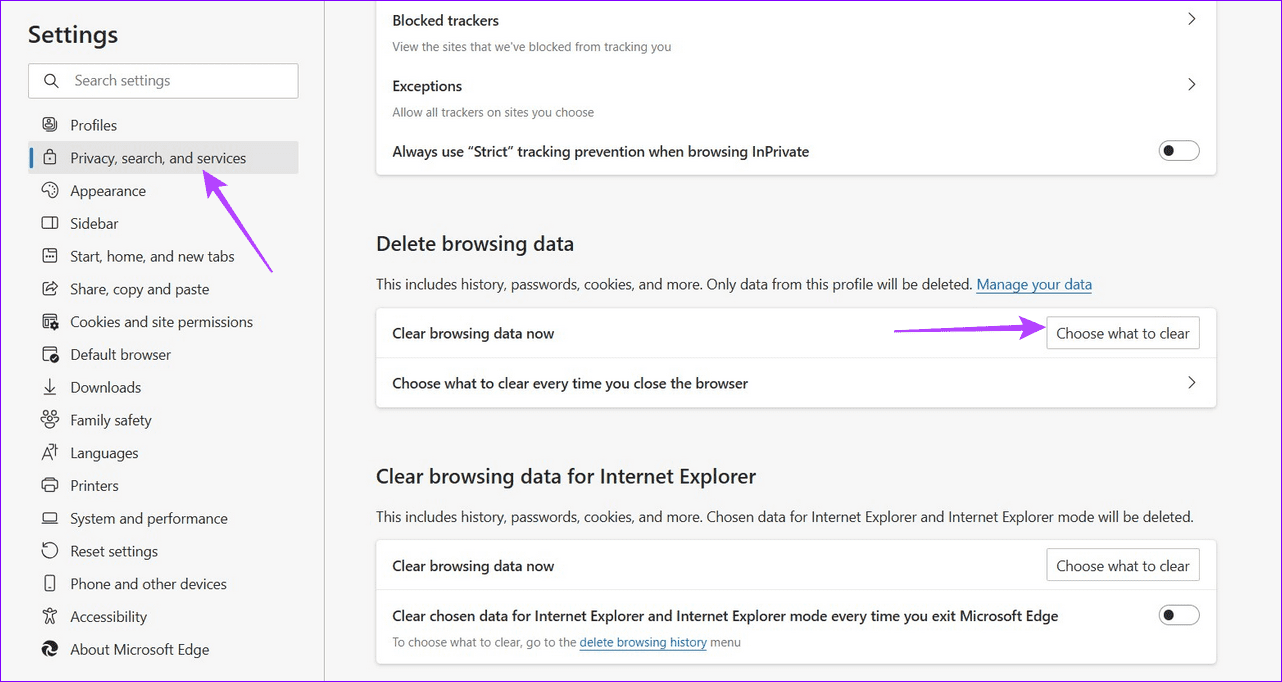
Step 2: Check the boxes for Cookies and other site data and Cached images and files > select Clear now.

Fix 5: Switch to Basic Tracking Prevention
Microsoft Edge’s strict tracking prevention blocks most website trackers, causing long loading times and occasional glitches. Switch to Basic tracking prevention to improve browsing speed.
Open Edge settings, select Privacy, search, and services from the sidebar, and select Basic under Tracking prevention to switch it.

Fix 6: Flush the Edge DNS
Flushing the DNS cache in Microsoft Edge clears recorded IP addresses and DNS records from your cache, improving the browser speed significantly.
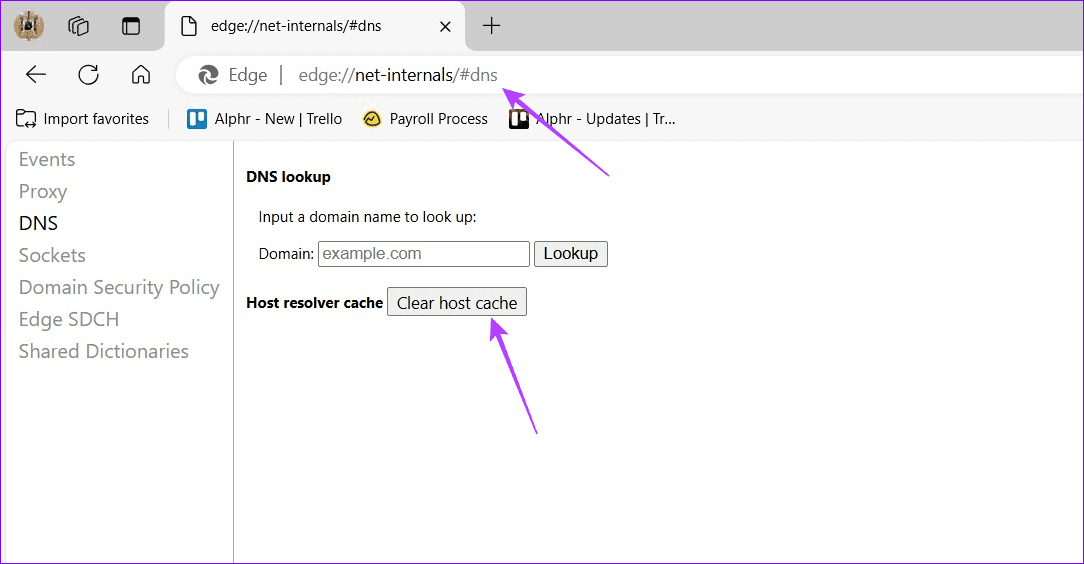
Step 1: Open a new tab in Microsoft Edge, paste the following path in the URL, and press Enter.
edge://net-internals/#dns
Step 2: Click Clear host cache to flush the Edge DNS and restart the Microsoft Edge browser.
Fix 7: Reset Edge Settings
Lastly, if nothing works, reset Microsoft Edge to its factory defaults, fixing its slow speed on Windows 11.
Step 1: Click the three-dot menu at the top right of Microsoft Edge and select Settings.
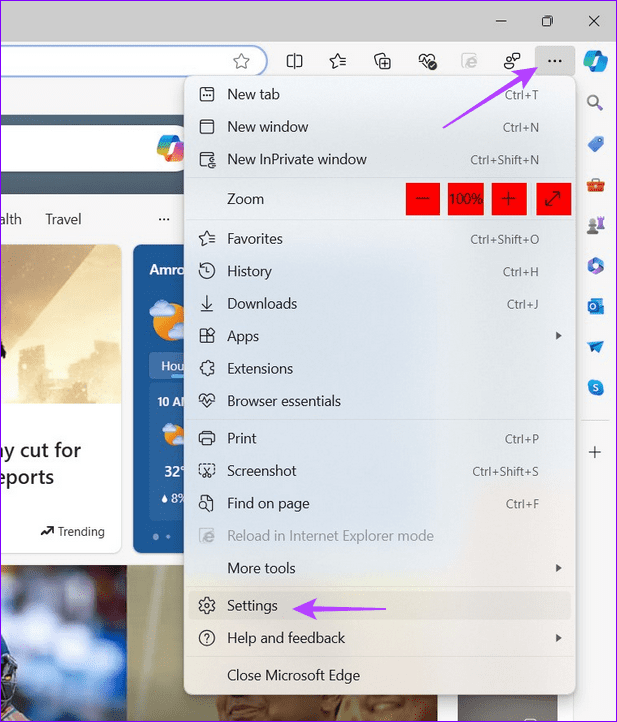
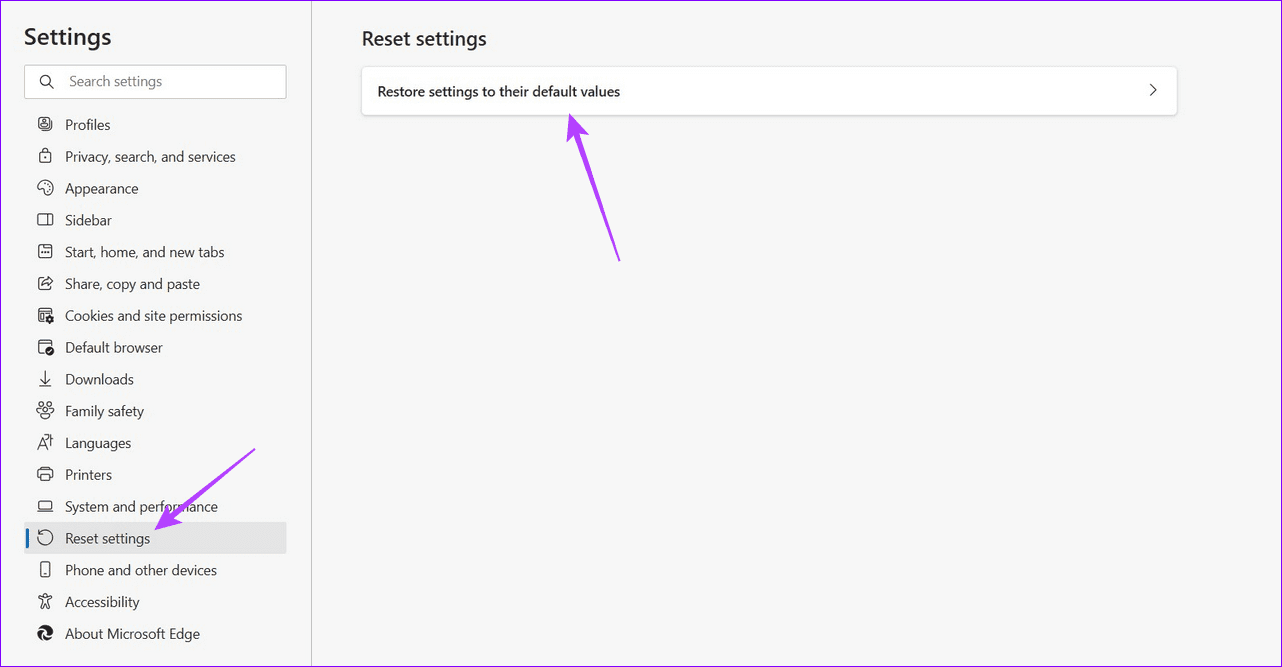
Step 2: Select Reset settings from the sidebar and click Restore settings to their default values.
Step 3: Click Reset to confirm resetting Microsoft Edge settings.

Was this helpful?
Last updated on 12 July, 2024
Read Next
 4 Ways to Fix Slow Download Speed in Microsoft Edge for Windows
Basic Yet Essential Fixes Check internet speed: If your internet speed is slow or bandwidth is less, all downloads will get slow.
4 Ways to Fix Slow Download Speed in Microsoft Edge for Windows
Basic Yet Essential Fixes Check internet speed: If your internet speed is slow or bandwidth is less, all downloads will get slow.
 3 Ways to Fix Microsoft Edge Keeps Running in Background Issue
Basic Fixes: Stop Edge using Task Manager: You can use Task Manager to check Edge's resource usage and stop it from running in the background if it is using too
3 Ways to Fix Microsoft Edge Keeps Running in Background Issue
Basic Fixes: Stop Edge using Task Manager: You can use Task Manager to check Edge's resource usage and stop it from running in the background if it is using too
 How to Use the Edge Bar in Microsoft Edge on Windows 11
How to Enable Edge Bar in Microsoft Edge Step 1: Launch Microsoft Edge on your PC > click the three-dot menu icon at the top right > select Settings.
How to Use the Edge Bar in Microsoft Edge on Windows 11
How to Enable Edge Bar in Microsoft Edge Step 1: Launch Microsoft Edge on your PC > click the three-dot menu icon at the top right > select Settings.
 5 Ways to Fix Slow Startup Times on Windows 10 and 11
Basic Fixes Install Windows Updates: Microsoft regularly releases updates that bring security patches, new features, and performance improvements to your Windows PC.
5 Ways to Fix Slow Startup Times on Windows 10 and 11
Basic Fixes Install Windows Updates: Microsoft regularly releases updates that bring security patches, new features, and performance improvements to your Windows PC.
 8 Ways to Fix Slow Internet Speed on Windows 11
https://youtu.be/JSqfxm-5XZI Fix 1: Turn Off the Metered Connection Setting your internet connection as metered on Windows can prevent apps from using the internet proficiently, leading to slow internet speeds.
8 Ways to Fix Slow Internet Speed on Windows 11
https://youtu.be/JSqfxm-5XZI Fix 1: Turn Off the Metered Connection Setting your internet connection as metered on Windows can prevent apps from using the internet proficiently, leading to slow internet speeds.
 5 Ways to Fix Slow Download Speeds on Windows 11
Basic Fixes Connect to a 5GHz network: When you work with a dual-band Wi-Fi router, it's a good idea to choose a faster 5GHz Wi-Fi frequency band for better internet
5 Ways to Fix Slow Download Speeds on Windows 11
Basic Fixes Connect to a 5GHz network: When you work with a dual-band Wi-Fi router, it's a good idea to choose a faster 5GHz Wi-Fi frequency band for better internet
 6 Ways to Fix Slow USB File Transfer in Windows 11
Fix 1: Change USB Drive Policy to Better Performance By default, Windows 11 employs the Quick Removal policy for all USB devices.
6 Ways to Fix Slow USB File Transfer in Windows 11
Fix 1: Change USB Drive Policy to Better Performance By default, Windows 11 employs the Quick Removal policy for all USB devices.
 4 Ways to Fix Slow Download Speed in Epic Games Launcher on Windows 11
https://youtu.be/w8E4d-rCMUQ Basic Fixes: Check the Epic Server Status: Epic Games Launcher also relies on multiple servers to operate, and It’s possible that a server might be out of order or
4 Ways to Fix Slow Download Speed in Epic Games Launcher on Windows 11
https://youtu.be/w8E4d-rCMUQ Basic Fixes: Check the Epic Server Status: Epic Games Launcher also relies on multiple servers to operate, and It’s possible that a server might be out of order or
The article above may contain affiliate links which help support Guiding Tech. The content remains unbiased and authentic and will never affect our editorial integrity.