Basic Fixes
- Install Shortcuts from App Store: Go to the Apple App Store, search Shortcuts, and tap Get to install the app on your iPhone.
- Use Siri to open Shortcuts: Instruct Siri to open the Shortcuts app by saying ‘Hey Siri, open Shortcuts’.
- Force restart your iPhone: Press and quickly release the Volume Up button followed by Volume Down. Press and hold the Side button and release it when the Apple logo shows up.
- Update or reinstall Shortcuts: Search Shortcuts in the App Store and tap Update (if available). Alternatively, long-tap the Shortcuts icon to select Remove app, and reinstall it from the App Store.
- Update iOS: Open iPhone settings, select General, and tap Software Update. Tap Install to update iOS.
Fix 1: Reset the Home Screen Layout
If the Shortcuts app is missing from your iOS home screen, reset its layout to restore all app icons to their default positions. This will help you easily find and launch the Shortcuts app on your iPhone.
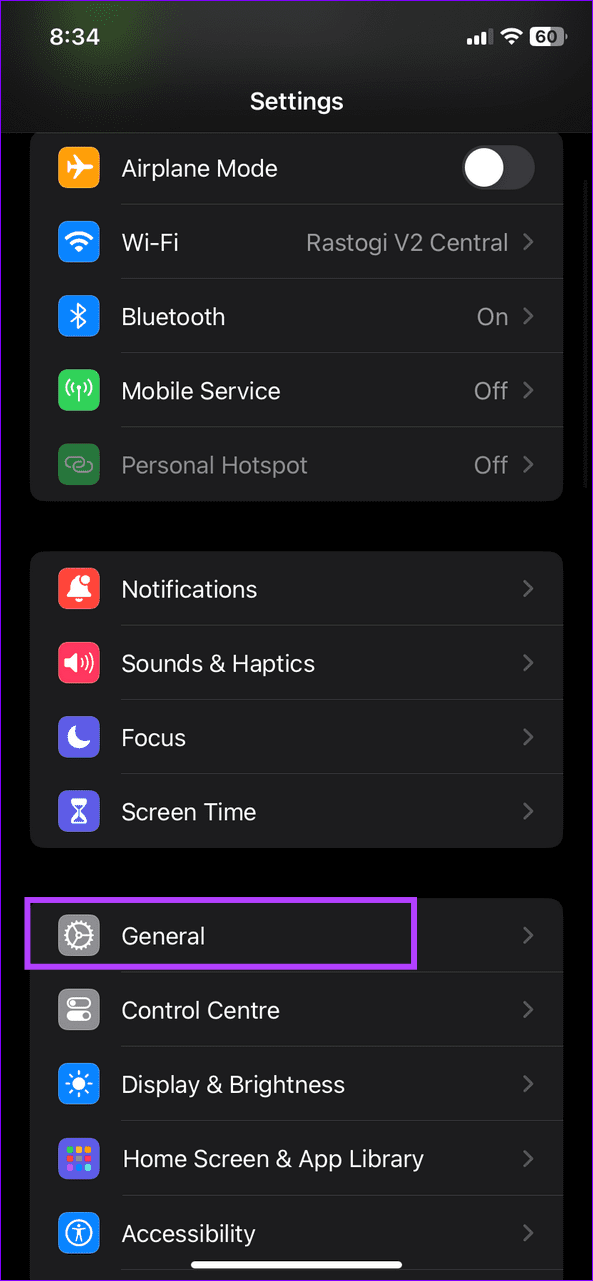
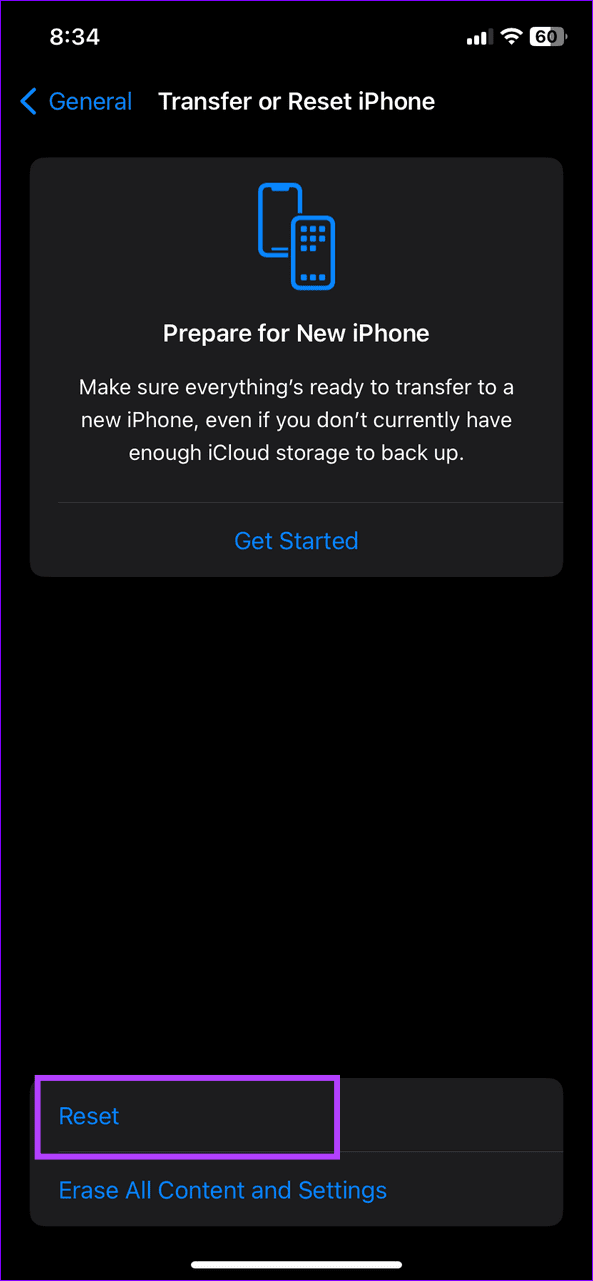
Step 1: Open the Settings app > select General > tap Transfer or Reset iPhone.
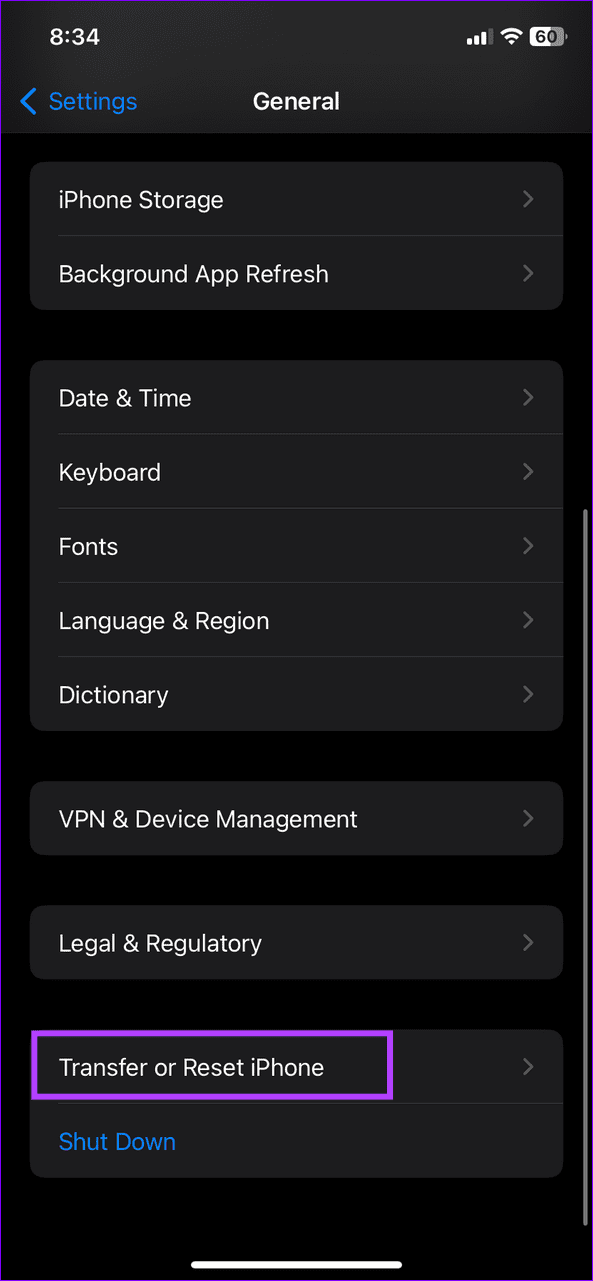
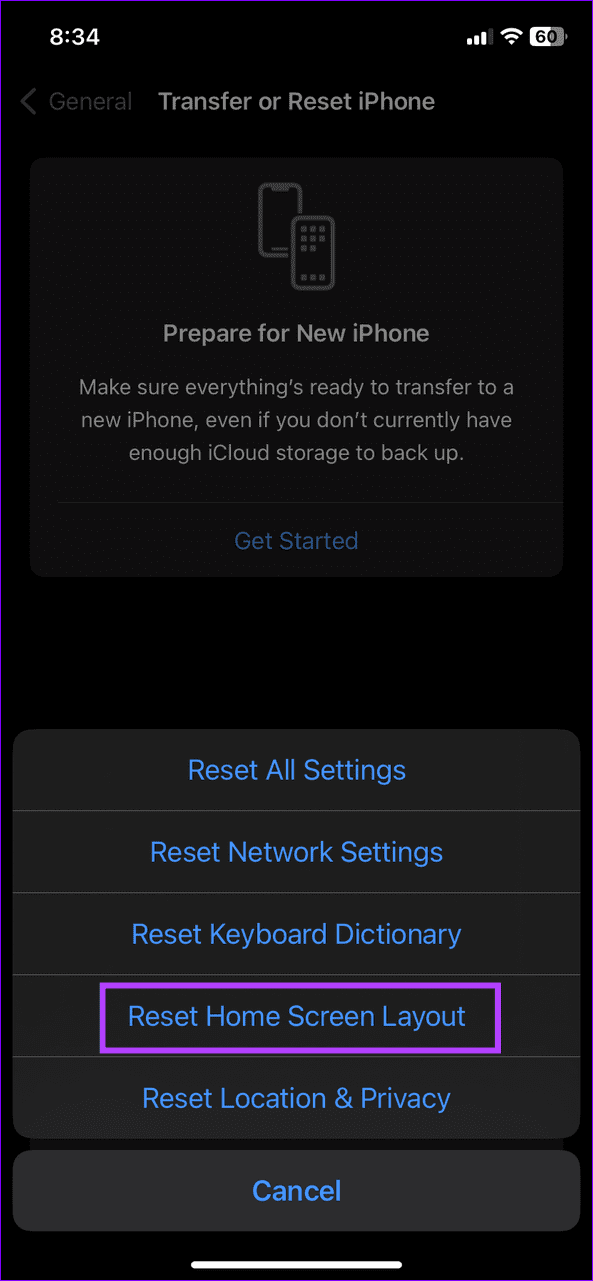
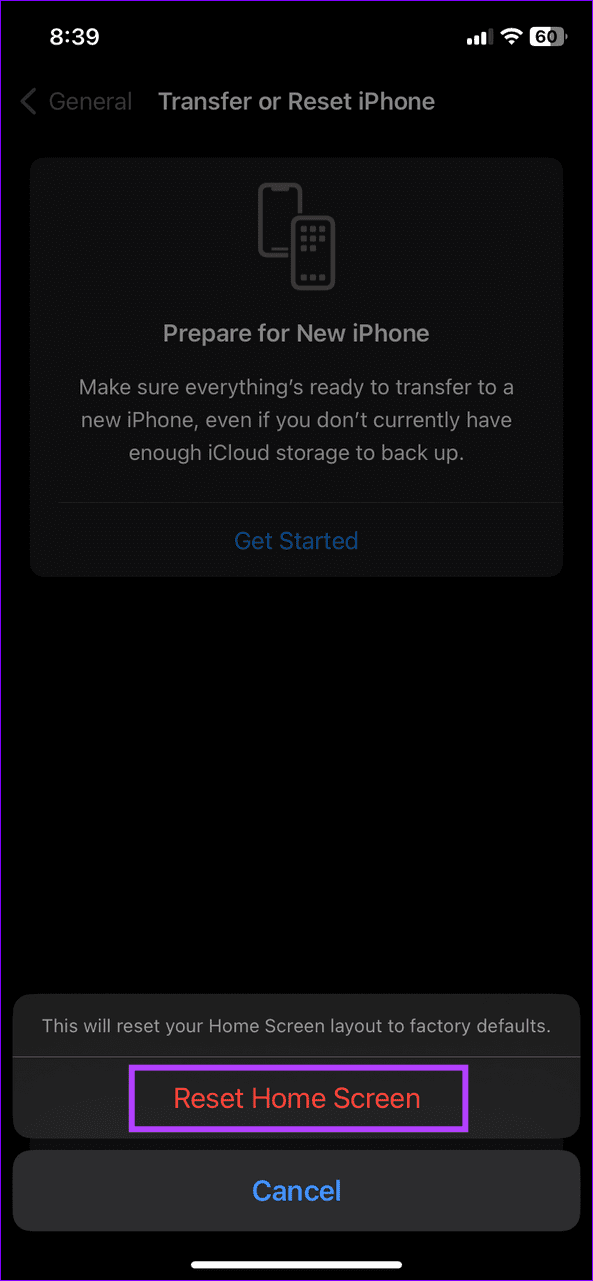
Step 2: Tap Reset and select Reset Home Screen Layout. When prompted, confirm it by selecting Reset Home Screen.
Fix 2: Exclude the App From Screen Time
If you’ve imposed restrictions on the Shortcuts app via Screen Time, the app greys out automatically, making it inaccessible. To manually exclude it from the Screen Time feature, add it to the Always Allowed list.
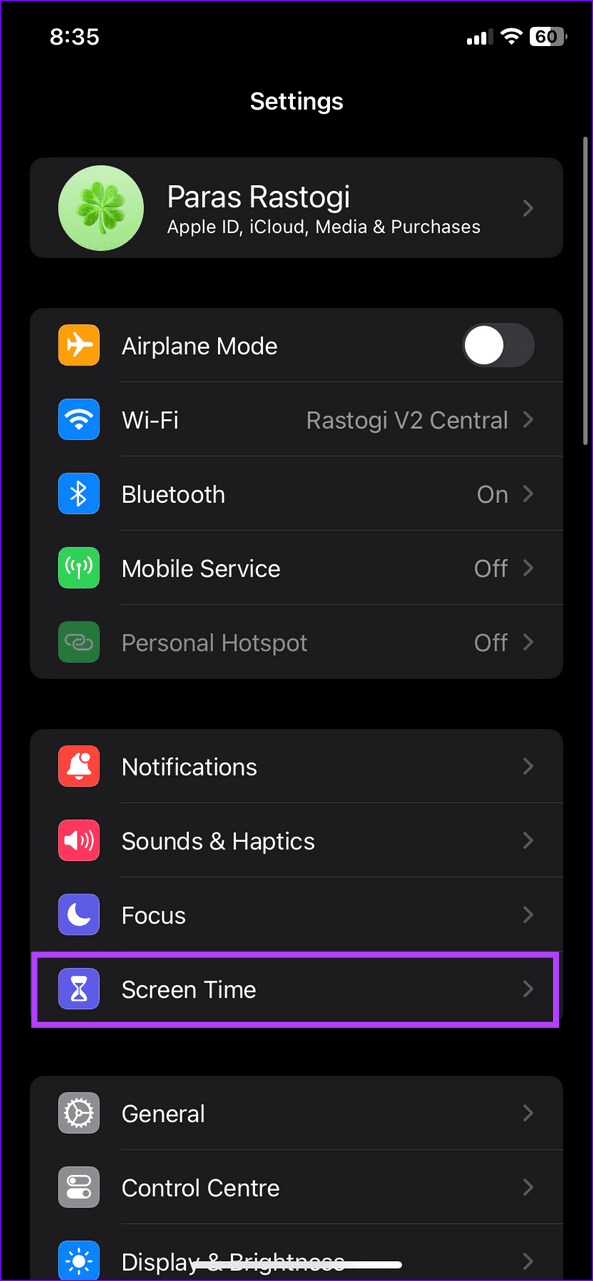
Step 1: Select Screen Time under iPhone Settings and tap Always Allowed.
Step 2: Scroll down and tap + to the immediate left of Shortcuts to exclude it from Screen Time.


Fix 3: Disable Offload Unused Apps
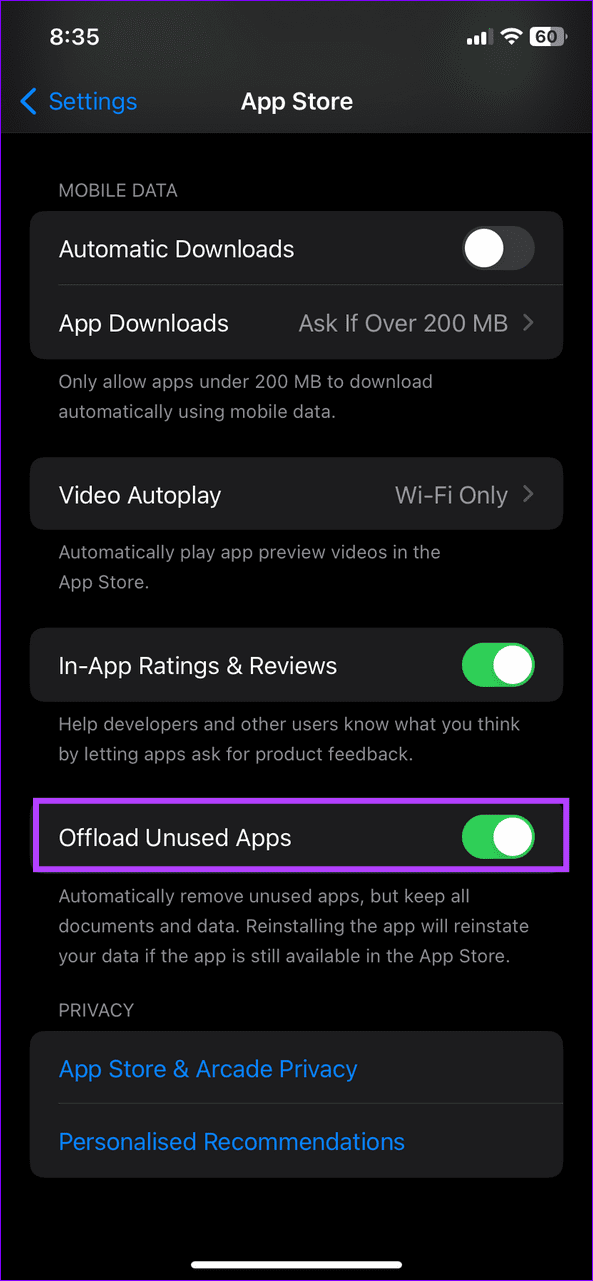
The Offload Unused Apps setting on your iPhone automatically removes apps you haven’t used in a long time. If you haven’t used Shortcuts in a while, the App Store might have offloaded it. Toggle it off from your iPhone settings to prevent it.
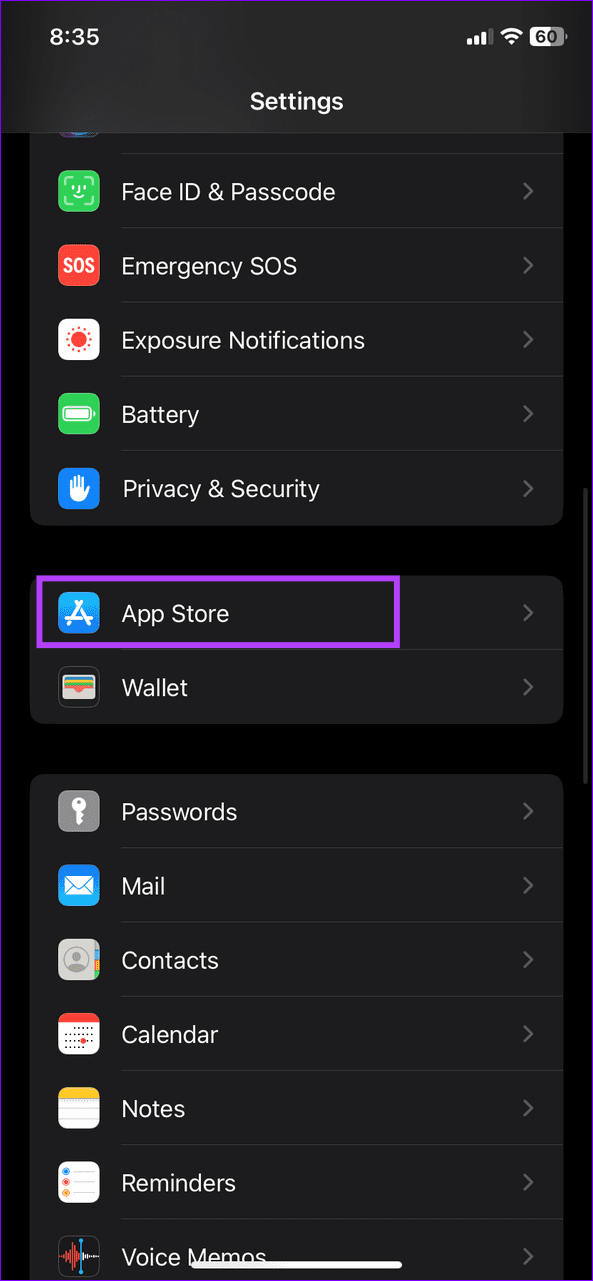
Step 1: Open iPhone Settings > scroll down and select App Store.
Step 2: Scroll to the bottom and toggle off Offload Unused Apps to disable it.
Was this helpful?
Last updated on 15 July, 2024
Read Next
 How to Fix Shortcuts Automation Not Working on iPhone
Basic Fixes Disable Bluetooth connections: You can disable Bluetooth-paired connections to avoid not receiving notifications from the Shortcuts app.
How to Fix Shortcuts Automation Not Working on iPhone
Basic Fixes Disable Bluetooth connections: You can disable Bluetooth-paired connections to avoid not receiving notifications from the Shortcuts app.
 4 Ways to Fix Keyboard Shortcuts Not Working on Windows 11
Preliminary Fixes Disable Game Mode: Gaming keyboards often have special modes that disable keyboard shortcuts.
4 Ways to Fix Keyboard Shortcuts Not Working on Windows 11
Preliminary Fixes Disable Game Mode: Gaming keyboards often have special modes that disable keyboard shortcuts.
 6 Ways to Fix Keyboard Shortcuts Not Working in Gmail
Fix 1.
6 Ways to Fix Keyboard Shortcuts Not Working in Gmail
Fix 1.
 4 Ways to Fix Missing App Icons Issue on Android
Basic Fixes: Ensure the app is installed on your phone: If the app you're looking for has been uninstalled from your device, you cannot find its app icon.
4 Ways to Fix Missing App Icons Issue on Android
Basic Fixes: Ensure the app is installed on your phone: If the app you're looking for has been uninstalled from your device, you cannot find its app icon.
 3 Ways to Fix Spotify Sleep Timer Missing or Not Working
Basic Fixes Check Spotify server status: If Spotify is currently facing issues in the backend, it might cause issues with the app.
3 Ways to Fix Spotify Sleep Timer Missing or Not Working
Basic Fixes Check Spotify server status: If Spotify is currently facing issues in the backend, it might cause issues with the app.
 How to Fix On My iPhone or iPad Folder Missing Issue on iOS 11 Files App
You decide to save a file locally into the On My iPhone or On My iPad folder.
How to Fix On My iPhone or iPad Folder Missing Issue on iOS 11 Files App
You decide to save a file locally into the On My iPhone or On My iPad folder.
 5 Ways to Restore the Missing Personal Hotspot on iPhone
Try Basic Fixes Check with your carrier: It's important to note that not all cellphone carriers or cellular plans support the Personal Hotspot feature on the iPhone.
5 Ways to Restore the Missing Personal Hotspot on iPhone
Try Basic Fixes Check with your carrier: It's important to note that not all cellphone carriers or cellular plans support the Personal Hotspot feature on the iPhone.
 How to Fix Netflix Subtitles Not Working or Missing Error
Basic Fixes Check internet connection: Check whether your internet connection is stable.
How to Fix Netflix Subtitles Not Working or Missing Error
Basic Fixes Check internet connection: Check whether your internet connection is stable.
The article above may contain affiliate links which help support Guiding Tech. The content remains unbiased and authentic and will never affect our editorial integrity.