

Basic Fixes
- Switch to Wi-Fi: Starting with internet speeds, we suggest switching from mobile data to Wi-Fi.
- Check internal storage: Your Samsung device needs enough internal storage, in the long run, to continue installing app updates from the Galaxy Store.
- Log in again to your Samsung account. At times, the sync between your Samsung account and its servers may fail, preventing you from downloading desired apps from the Galaxy Store.
- Force quit and relaunch: This will give the app a fresh start and reload all its contents.
- Update the Galaxy Store app: Go to Galaxy Store App Info > tap on About Galaxy Store to check and install the update if one is available.
Fix 1: Check Download Permissions
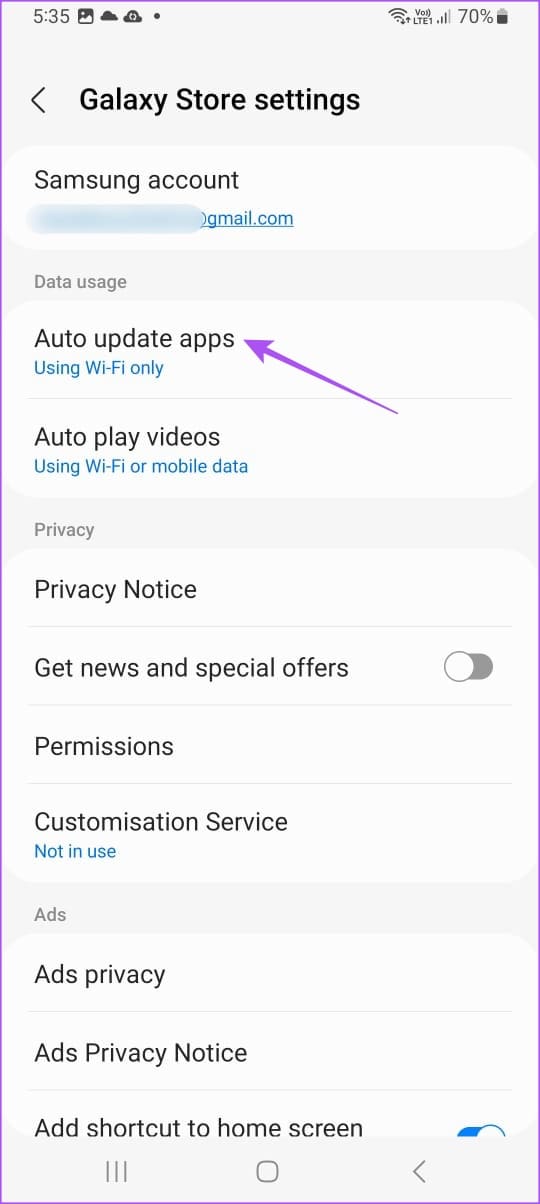
The Galaxy Store can update apps automatically on your Samsung phone after installing them. But if that is still not happening, here’s how to check and enable automatic updates.
Step 1: Long-press the Galaxy Store app icon > tap on App Info.
Step 2: Select Galaxy Store Settings > tap on Auto Update Apps > ensure to select updates over Wi-Fi and Mobile Data.

Fix 2: Clear App Cache
Like for other apps on your Samsung phone, try clearing the app cache for the Galaxy Store as well. This will reset your in-app permissions and remove your Samsung account info.
Step 1: Long-press the Galaxy Store app icon and select App Info.
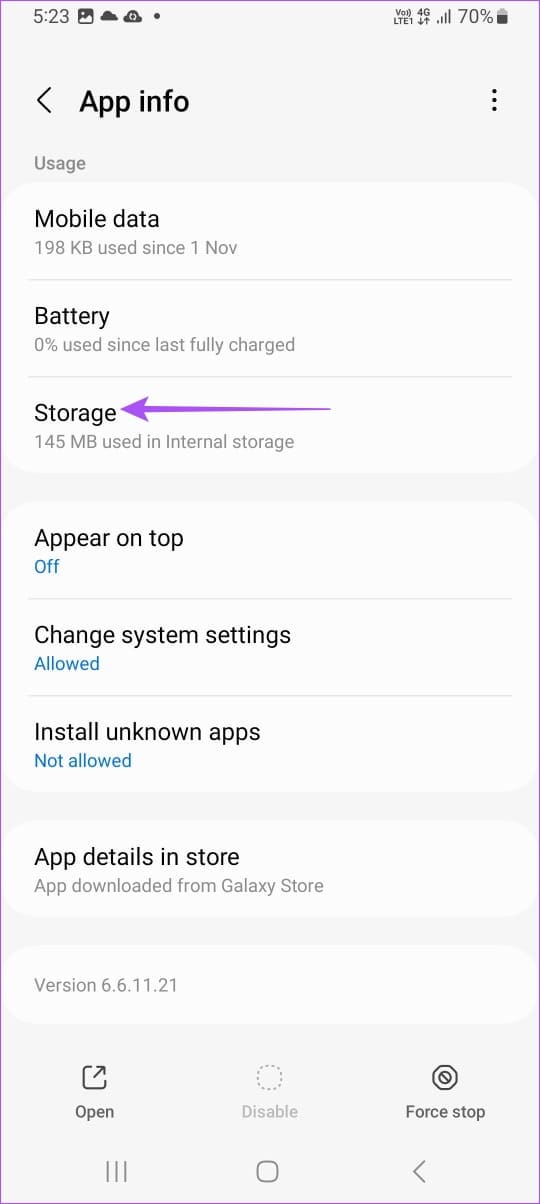
Step 2: Scroll down and tap on Storage. Then, tap on Clear Cache.

Fix 3: Reset App Preferences
Resetting app preferences on your Samsung Galaxy phone resets the permissions of all apps on your device including those for background data restrictions, app notifications, and default apps. You can try this if the Samsung Galaxy Store is still not downloading apps
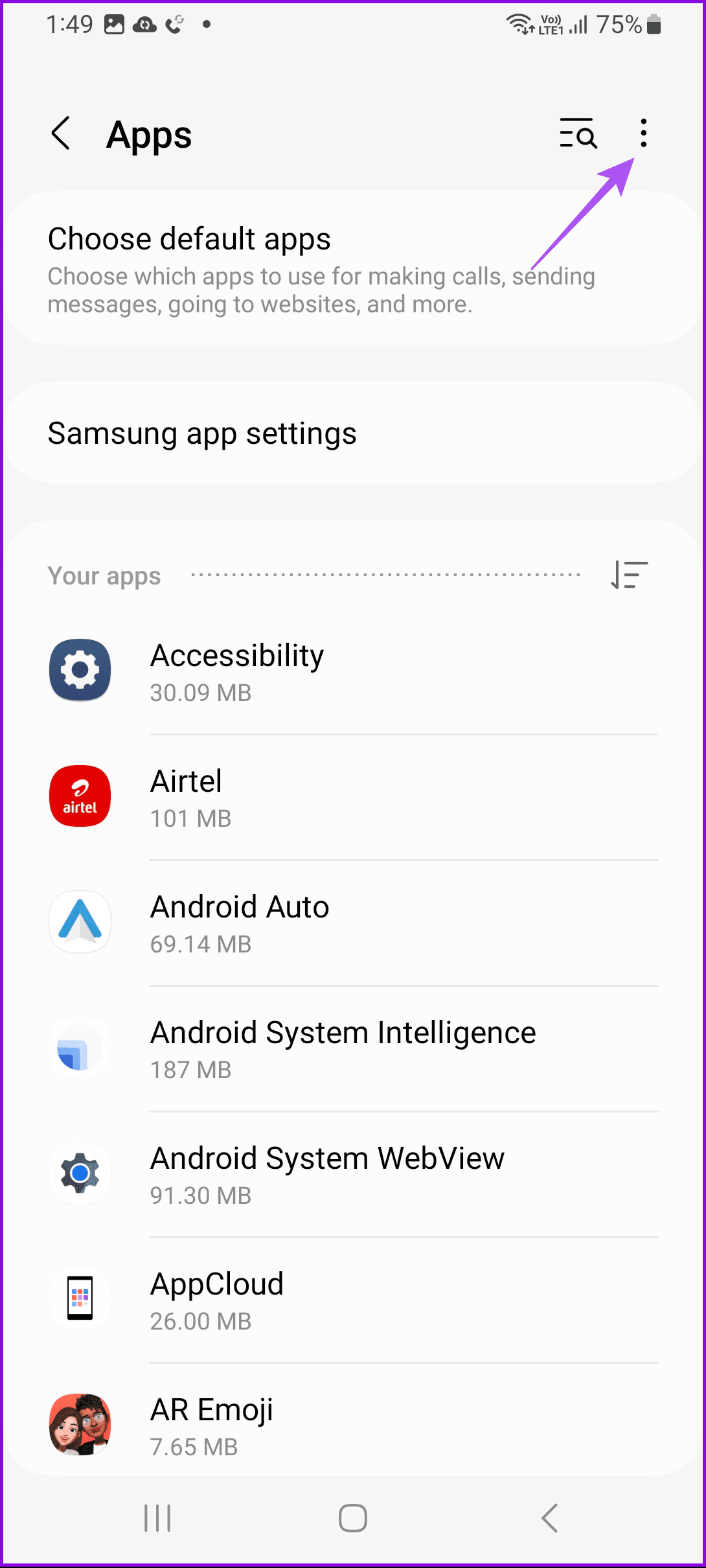
Step 1: Open Settings > tap on Apps.
Step 2: Tap the three vertical dots at the top-right corner > select Reset app preferences.

Step 3: Tap on Reset again to confirm.
After that, close Settings and open the Galaxy Store to check if the problem is solved.
Fix 4: Use Safe Mode
If none of the solutions work, the last resort is using Safe Mode on your Samsung device. Safe Mode will prevent third-party apps from booting up and allow only system apps like Galaxy Store to show up on your device. If the issue gets fixed, remove any third-party apps causing the issue.
Note that booting your phone in Safe Mode will remove home screen widgets but not your data.
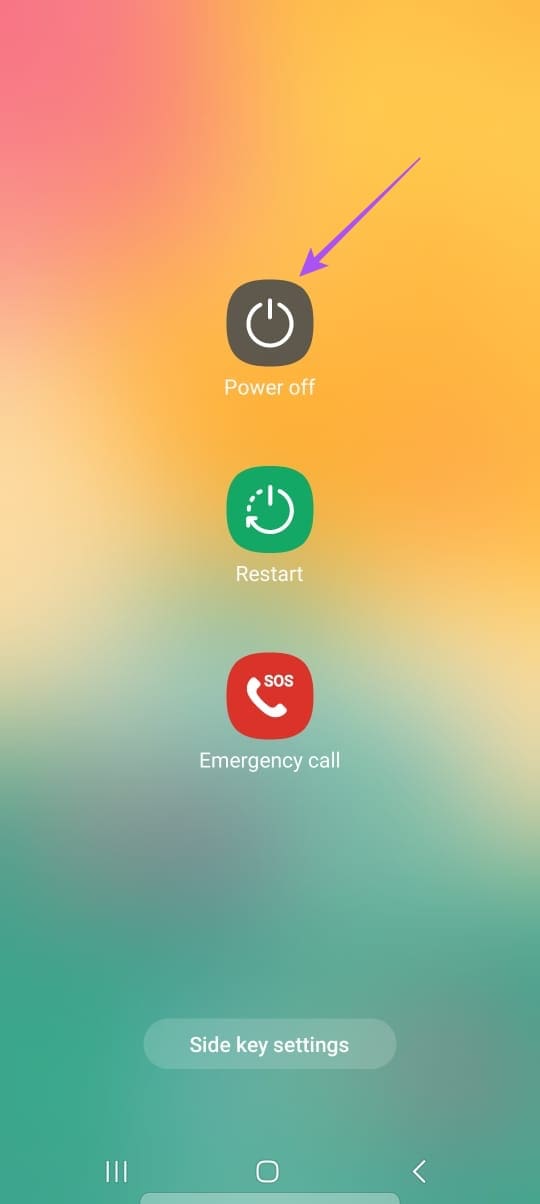
Step 1: Long-press the Power Button on your Samsung Galaxy phone to open the Power Menu.
Note: Some Galaxy phones might require you to press Power and Volume Up or Power and Volume Down buttons together to see the Power Menu.
Step 2: Long-press the Power Off icon until you see the Safe Mode icon. Then, tap on Safe Mode to confirm.
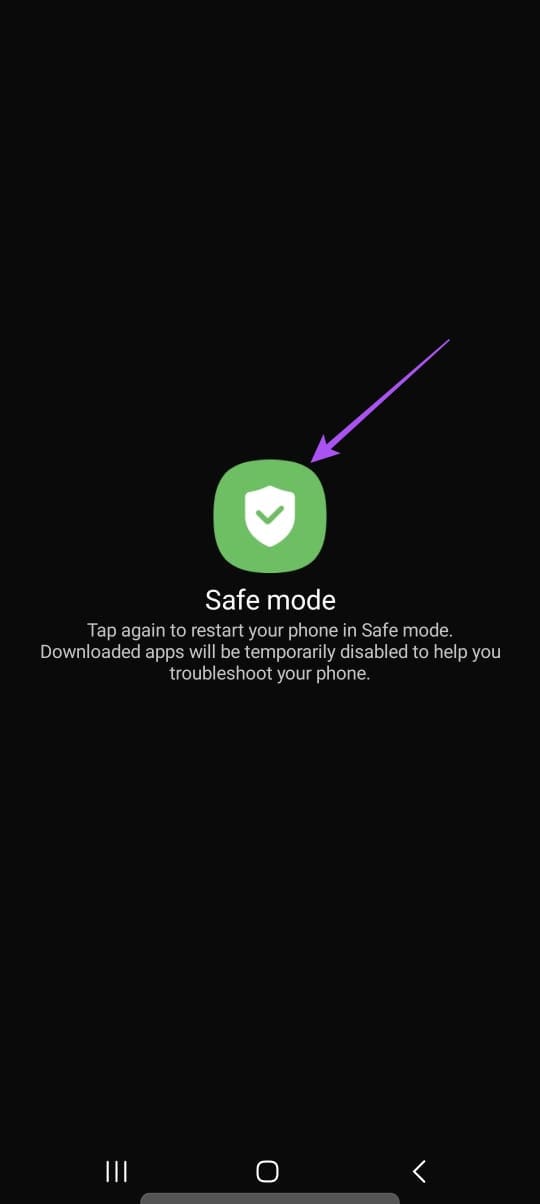
To exit from Safe Mode, restart your phone. You can refer to our post if your phone gets stuck in Safe Mode.
Was this helpful?
Last updated on 29 July, 2024
1 Comment
Leave a Reply
Read Next
 7 Ways to Fix Microsoft Store Not Downloading Apps or Games
Fix 1: Restart Microsoft Store Shutting down the app can kill any bugs, and it is unlikely to appear once you open the Microsoft Store again.
7 Ways to Fix Microsoft Store Not Downloading Apps or Games
Fix 1: Restart Microsoft Store Shutting down the app can kill any bugs, and it is unlikely to appear once you open the Microsoft Store again.
 6 Fixes for Google Play Store Not Working on Samsung Galaxy Phones or Tablets
Try Basic Fixes Free up storage space: The Google Play Store may not download or update apps on your Samsung device if there is not enough storage space.
6 Fixes for Google Play Store Not Working on Samsung Galaxy Phones or Tablets
Try Basic Fixes Free up storage space: The Google Play Store may not download or update apps on your Samsung device if there is not enough storage space.
 Top 5 Ways to Fix Samsung TV Not Downloading Apps
Preliminary Fixes Check the Network Connection: Ensure your Samsung TV is connected to a stable Wi-Fi network.
Top 5 Ways to Fix Samsung TV Not Downloading Apps
Preliminary Fixes Check the Network Connection: Ensure your Samsung TV is connected to a stable Wi-Fi network.
 5 Fixes for Samsung Health App Not Tracking Steps
Basic Fixes Ensure that step counter is enabled: Open the Health app > Tap on Steps > Three dots in the top-right corner > Check and ensure that the step
5 Fixes for Samsung Health App Not Tracking Steps
Basic Fixes Ensure that step counter is enabled: Open the Health app > Tap on Steps > Three dots in the top-right corner > Check and ensure that the step
 4 Ways to Fix “Account Not in This Store” Error in App Store for iPhone
Try Basic Fixes Disable VPN: The 'Account Not In This Store' error may be appearing due to a VPN connection.
4 Ways to Fix “Account Not in This Store” Error in App Store for iPhone
Try Basic Fixes Disable VPN: The 'Account Not In This Store' error may be appearing due to a VPN connection.
 3 Fixes for iMessage Not Downloading Pictures on iPhone
Basic Fixes Free up internal storage of your iPhone: You can go to Settings > iPhone Storage and check which apps are taking up maximum storage.
3 Fixes for iMessage Not Downloading Pictures on iPhone
Basic Fixes Free up internal storage of your iPhone: You can go to Settings > iPhone Storage and check which apps are taking up maximum storage.
 3 Fixes for YouTube Premium Not Downloading Videos Offline
Basic Fixes Check Internet Connectivity: Ensure your device is connected to a Wi-Fi network or cellular data with good signal strength and an active plan.
3 Fixes for YouTube Premium Not Downloading Videos Offline
Basic Fixes Check Internet Connectivity: Ensure your device is connected to a Wi-Fi network or cellular data with good signal strength and an active plan.
 3 Fixes for Apple Books App Not Downloading Books
Basic Fixes Check internet connection: Ensure that you have a strong internet connection on your Apple device.
3 Fixes for Apple Books App Not Downloading Books
Basic Fixes Check internet connection: Ensure that you have a strong internet connection on your Apple device.
The article above may contain affiliate links which help support Guiding Tech. The content remains unbiased and authentic and will never affect our editorial integrity.


Hack problem