Try Basic Fixes
- Use the default contacts app: Instant messaging apps like Telegram and WhatsApp also let you add new contacts to your Android. If your Android is having trouble saving contacts through one of these apps, the problem may be with the app itself. You can use the default Contacts app to add a new contact and see if that works.
- Update the app: Have you disabled automatic app updates on your Android or iPhone? If so, you may be using an outdated version of the Contacts app, which can sometimes lead to problems. Head over to the Play Store to update the Contacts app. Following this, the app should be able to save contacts as before.
Fix 1: Configure the Contacts App to Display All Entries
Have you applied filters or configured the Contacts app only to show entries from a specific account? If so, that might prevent your Android from showing new contacts, making it seem like it is not saving them.
Most Android phones come with the Google Contacts app as the default option. If you are using the same, open it, tap the three-dot menu icon at the top, and select Customize view. Then, select the All contacts option.


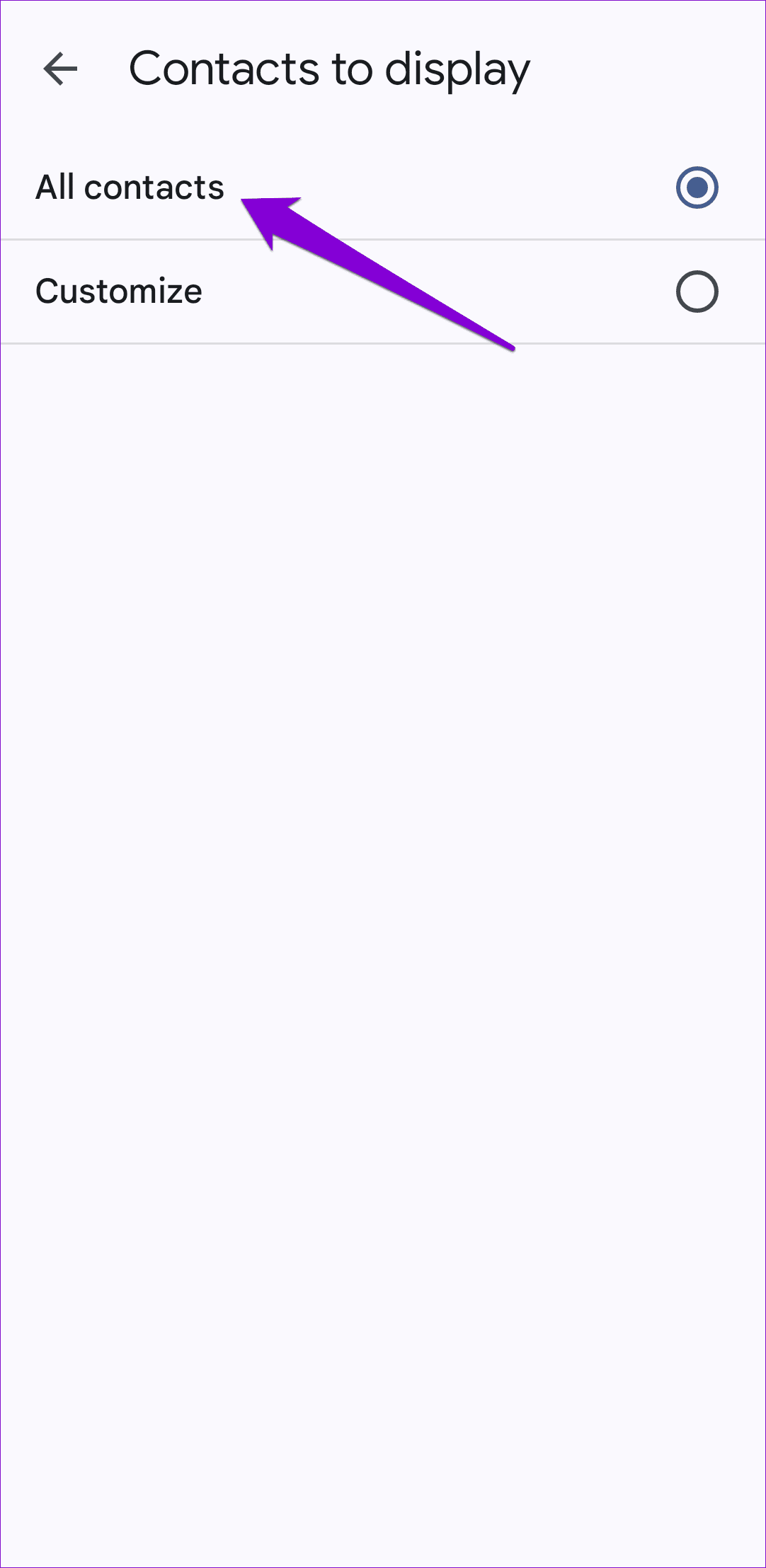
If you are using a Samsung Galaxy phone, you need to ensure that you are not looking for your newly added contacts in a specific group. Tap the menu icon (three horizontal lines) in the top left corner and select All contacts. Following this, the Contacts app should show all the entries, including your newly added contacts.


Fix 2: Try Saving Contacts to Your Phone’s Storage
Sometimes, your Android may have trouble saving contacts to your Google, Samsung, or Outlook account. This might be due to authentication issues, sync errors, or other account-specific problems. You can try saving contacts on your phone’s local storage to see if that helps.
Open the Contacts app on your phone, tap the plus icon to create a new contact, and enter all the relevant details. Use the drop-down menu at the top to select Device or Phone. Then, tap Save.


Fix 3: Allow Necessary Permissions
The Contacts app on your Pixel, Samsung, or any other Android phone may be unable to save contacts if it does not have the necessary permissions. To resolve this, you need to allow the Contacts app all the permissions it requires.
Step 1: Long press on the Contacts app icon and tap the info icon from the resulting menu. Then, select Permissions.


Step 2: Go through each permission one by one and allow it.


Fix 4: Clear App Cache
Suppose you can’t save new contacts on your Android even after allowing all the necessary permissions. In that case, the existing cache data associated with the Contacts app may be causing problems. You can clear the cache of the Contacts app to see if that resolves the issue.
Step 1: Long-press on the Contacts app icon and tap the info icon from the resulting menu.
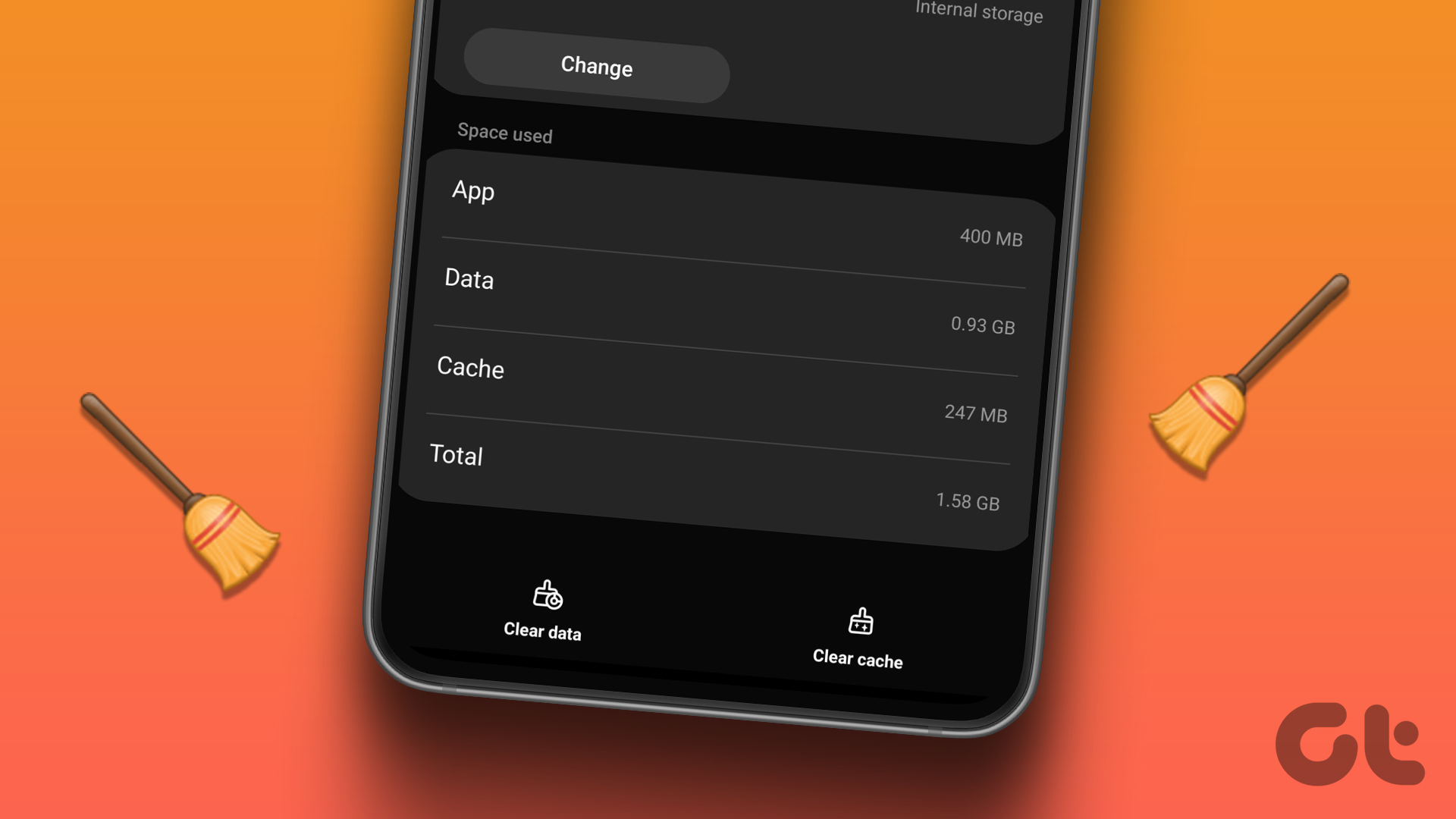
Step 2: Go to Storage and tap the Clear cache option at the bottom.


Was this helpful?
Last updated on 24 July, 2024
Read Next
 Google Contacts vs Samsung Contacts: Which App Is Best for Saving and Managing Contacts
Apart from phones running Stock Android, all other Android phones have their own set of basic apps.
Google Contacts vs Samsung Contacts: Which App Is Best for Saving and Managing Contacts
Apart from phones running Stock Android, all other Android phones have their own set of basic apps.
 iCloud Contacts vs Google Contacts: Where Should You Save Contacts on Your iPhone
When you are using an Android phone, one prefers using Google Contacts to store and manage contacts.
iCloud Contacts vs Google Contacts: Where Should You Save Contacts on Your iPhone
When you are using an Android phone, one prefers using Google Contacts to store and manage contacts.
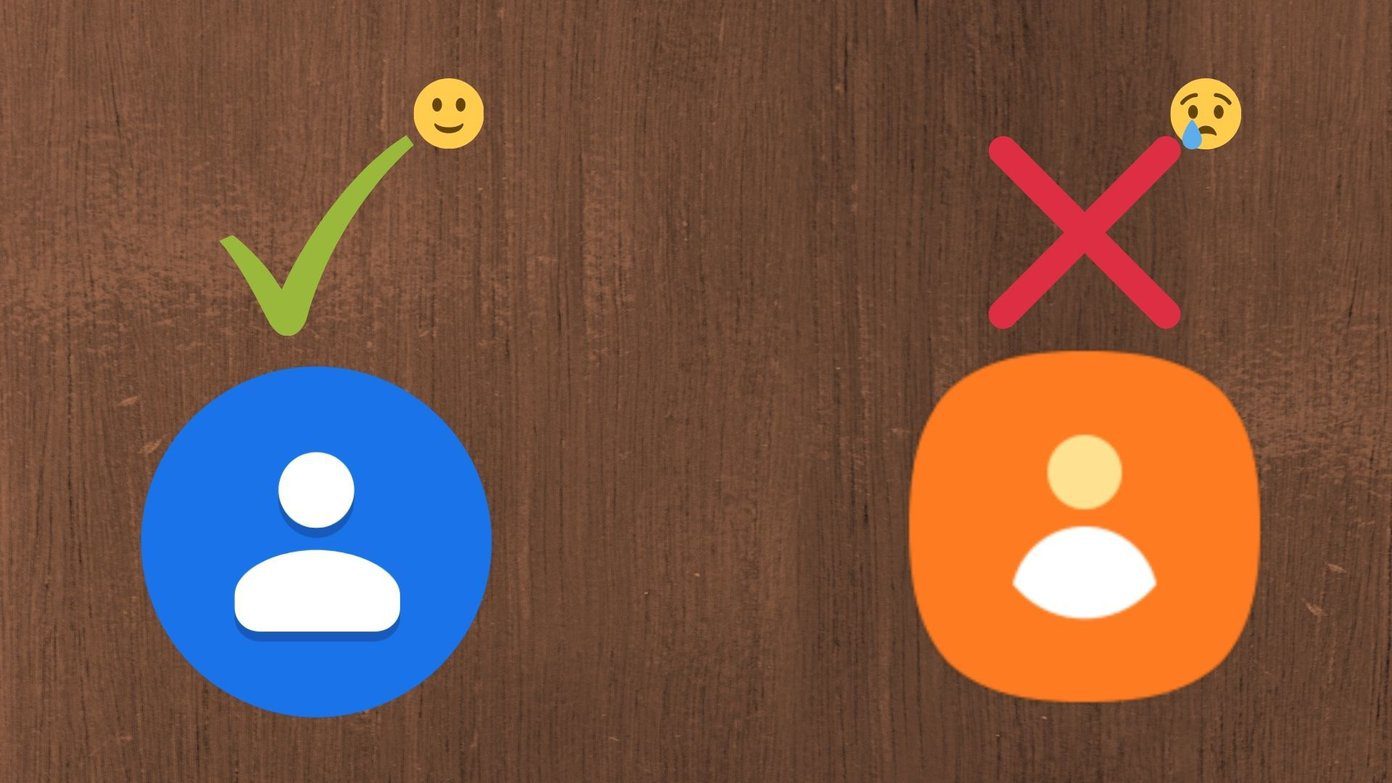 How to Use Google Contacts Instead of Samsung Contacts
Samsung Galaxy phones carry a lot of pre-loaded apps, and some of them you'll rarely use.
How to Use Google Contacts Instead of Samsung Contacts
Samsung Galaxy phones carry a lot of pre-loaded apps, and some of them you'll rarely use.
 2 Fixes When Google Docs Auto Saving Is Not Working
Basic Fixes: Confirm you have a stable internet: Before exploring further fixes, confirm your internet connection is stable and strong.
2 Fixes When Google Docs Auto Saving Is Not Working
Basic Fixes: Confirm you have a stable internet: Before exploring further fixes, confirm your internet connection is stable and strong.
 4 Fixes for iPhone Not Saving Photos
Basic Fixes Verify app permissions: You can go to Settings > Photos and then check the app access to your photos.
4 Fixes for iPhone Not Saving Photos
Basic Fixes Verify app permissions: You can go to Settings > Photos and then check the app access to your photos.
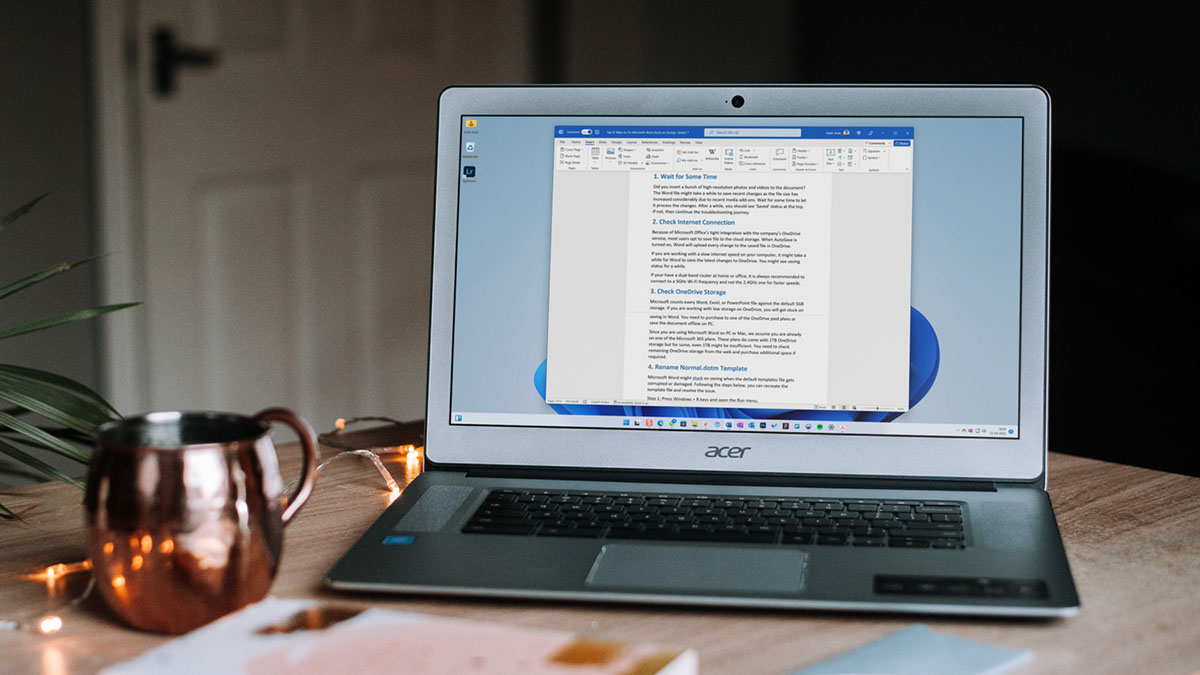 5 Ways to Fix Microsoft Word Stuck on Saving
Basic Fixes Wait for some time: Give it a moment since Word files might take a while to save recent changes, especially when the file size has increased considerably.
5 Ways to Fix Microsoft Word Stuck on Saving
Basic Fixes Wait for some time: Give it a moment since Word files might take a while to save recent changes, especially when the file size has increased considerably.
 5 Ways to Fix Microsoft Excel Not Saving Changes on Windows
Fix 1: Repair Files From File Explorer Step 1: Open the Microsoft Excel app on your computer.
5 Ways to Fix Microsoft Excel Not Saving Changes on Windows
Fix 1: Repair Files From File Explorer Step 1: Open the Microsoft Excel app on your computer.
 How to Fix Discord Profile Theme and Other Changes Not Saving
Basic Fixes Check your network connection: Ensure your device has a good internet connection.
How to Fix Discord Profile Theme and Other Changes Not Saving
Basic Fixes Check your network connection: Ensure your device has a good internet connection.
The article above may contain affiliate links which help support Guiding Tech. The content remains unbiased and authentic and will never affect our editorial integrity.