Preliminary Fixes
- Check the Streaming Service status: Can’t play videos from Netflix, Prime Video, Disney+, or YouTube on Safari? Go to Downdetector and check if your preferred service is facing an outage.
- Disable ad blockers: Some websites may block video playback due to ad blockers. Disable such extensions and try streaming videos again.
- Use Safari Private mode: You can visit the same webpage in private mode and try again.
Fix 1: Disable Ad-Blockers
Some websites may block video playback due to ad blockers. You should disable such extensions and try streaming videos again.
Step 1: Launch Safari on Mac.
Step 2: Click Safari at the top-right corner of the Menu bar and open Settings.
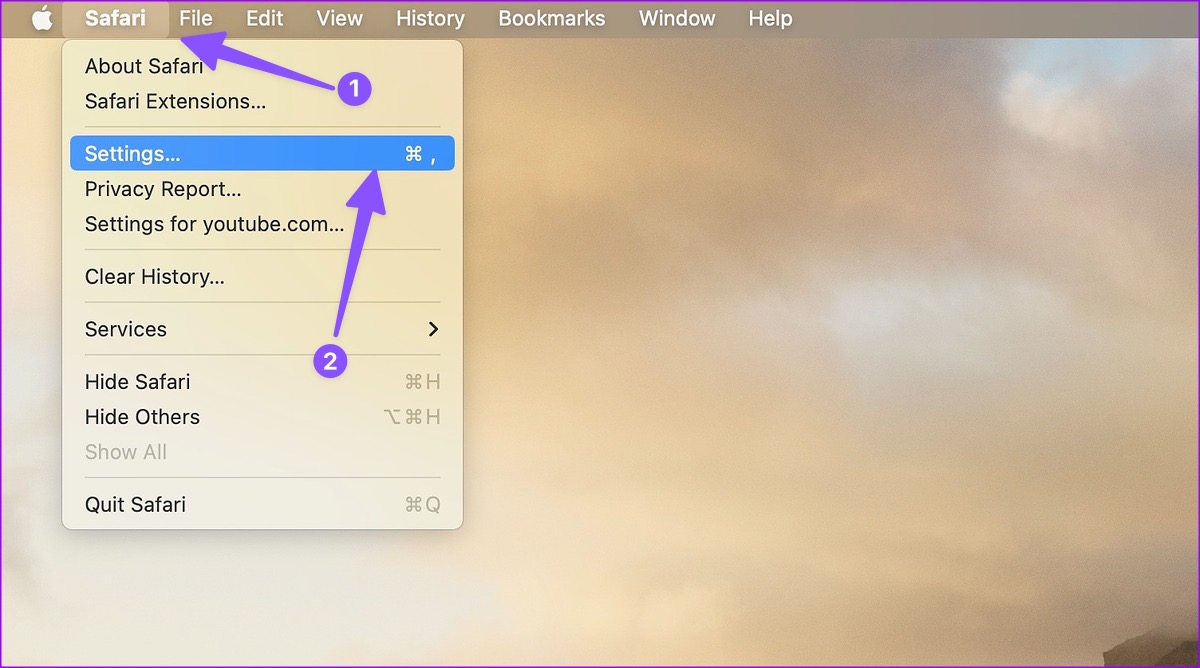
Step 3: Move to the Extensions tab. Select the troubling extension from the sidebar.
Step 4: Click on Uninstall and open the same in Finder.
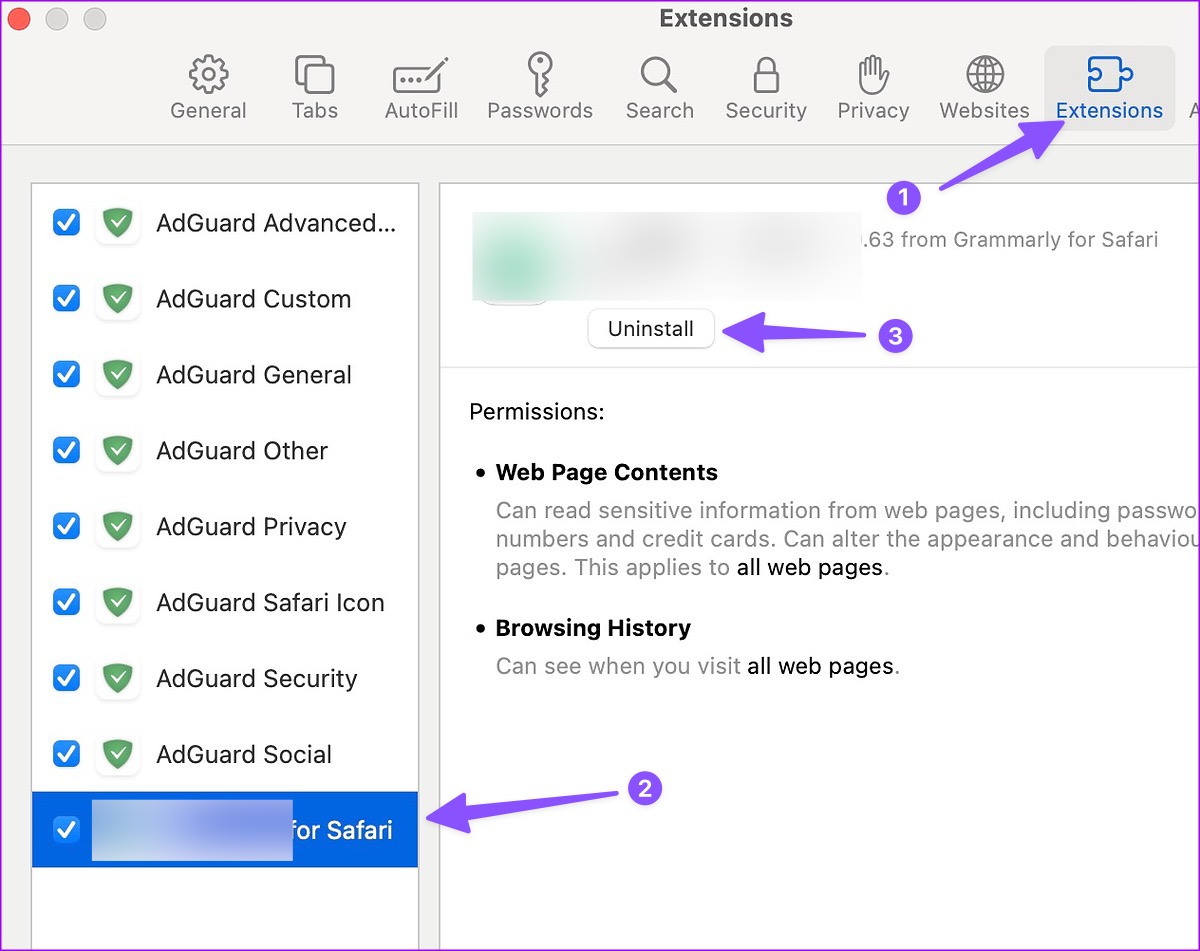
Step 5: Right-click on Extension and move it to Bin.
Now, try refreshing the webpage and check if the issue has been resolved. If it didn’t, move on to the next fix.
Also Read: How to delete website trackers from Safari
Fix 2: Clear Safari Cookies and Website Data
Safari may fail to play videos due to a corrupt cache. Try clearing the Safari cookies and website data. Here’s how.
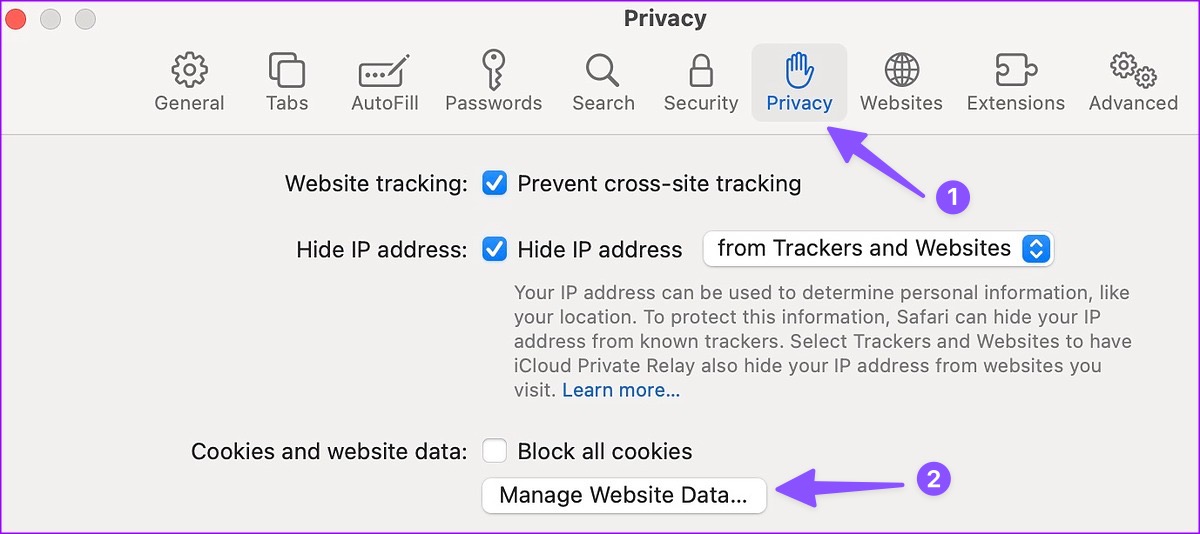
Step 1: With Safari open on your Mac, click Safari at the top-left corner of the Menu bar and select Settings.
Step 2: When the Safari Settings window opens, go to the Privacy tab and click on Manage Website Data.
Step 3: Click on Remove All > Done and you are good to go.
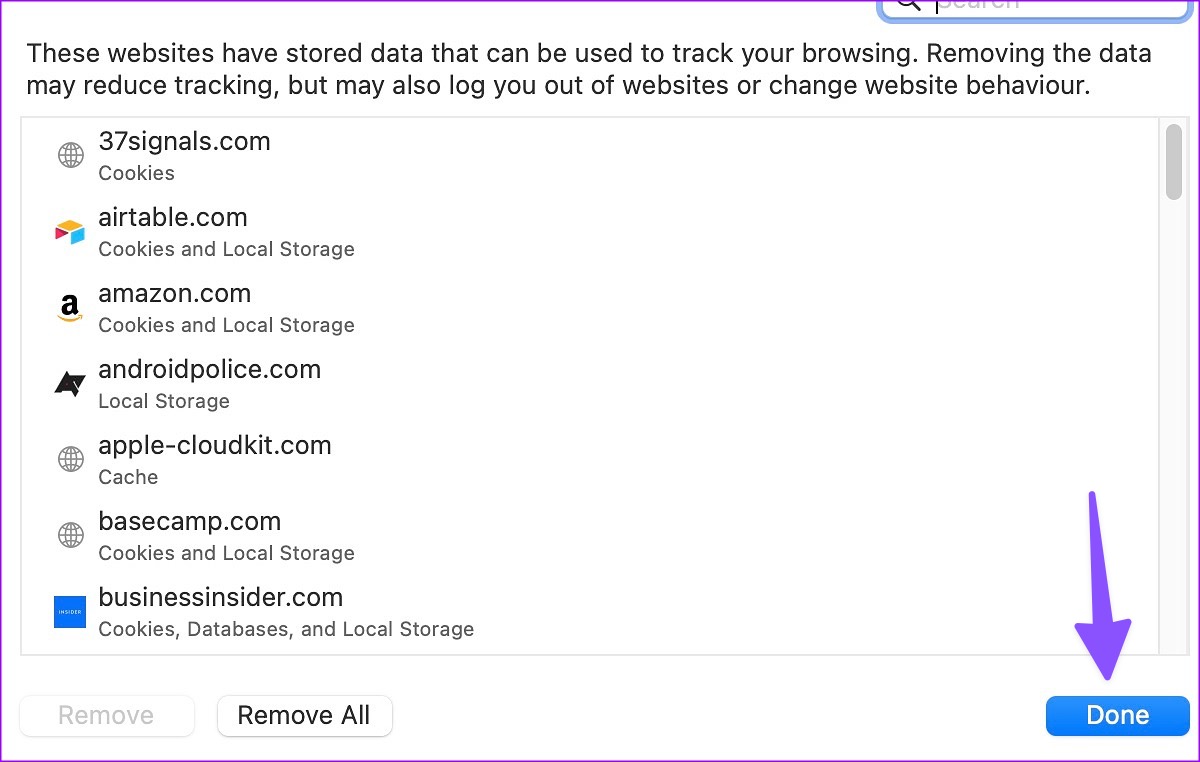
If this didn’t fix the issue, move on to the next one.
Fix 3: Disable iCloud Private Relay
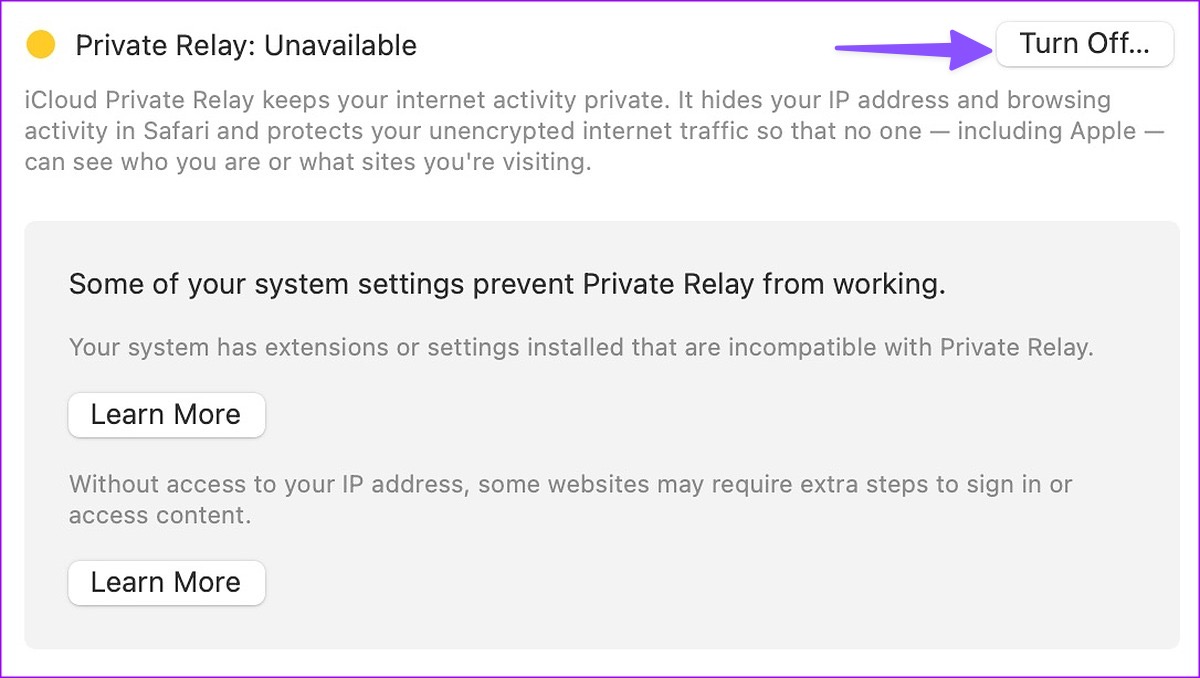
iCloud Private Relay shields your browsing history from prying eyes. The option is enabled by default for Safari users. You must disable iCloud Private Relay and try again. Here’s how.
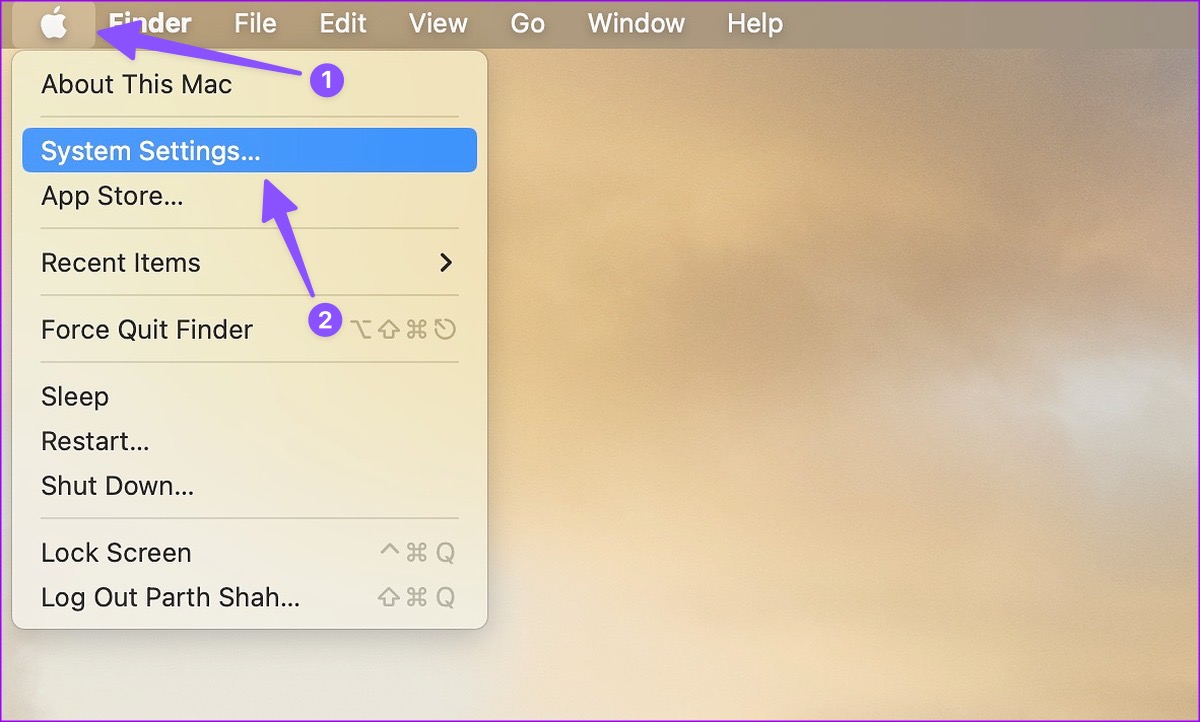
Step 1: Click on the Apple logo at the top-left corner and open System Settings from the contextual menu.
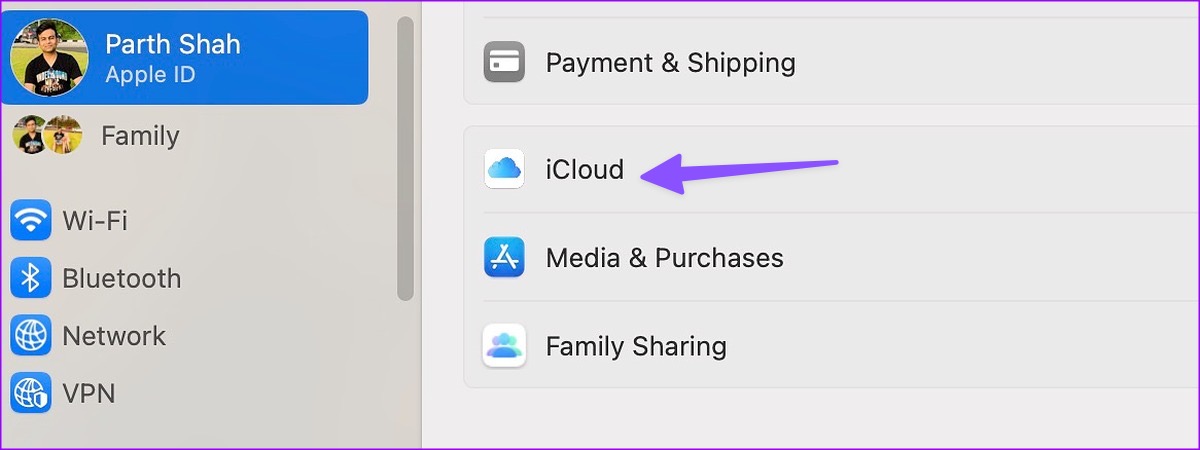
Step 2: Now, select your Apple account > open iCloud.
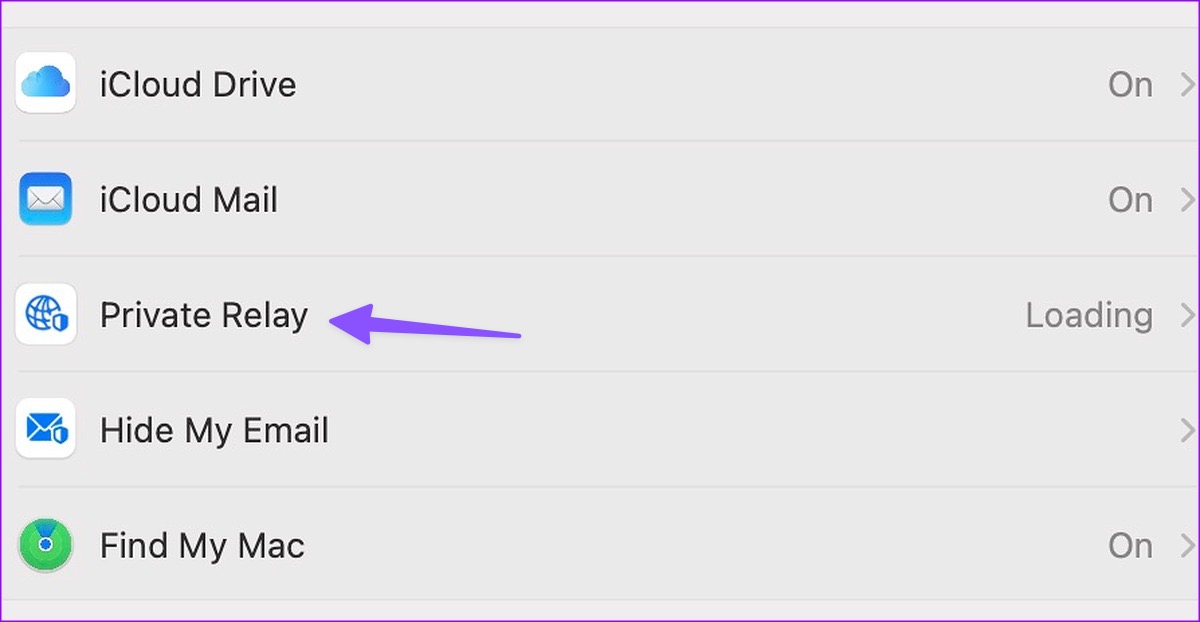
Step 3: Select Private Relay.
Step 4: Turn off Private Relay from the following menu.
Also Read: How to refresh webpages in Safari on iPhone, iPad, and Mac
Alternative: Try Using Another Browser
Since Chromium is the most popular rendering engine, many websites are optimized for it. You need to ditch Safari in favor of Google Chrome or Microsoft Edge on Mac and try streaming videos again.
Sometimes, websites remove videos for unknown reasons. If you visit the same website again, Safari may load the webpage from the cache and show an old video. However, you can’t play the video since it’s removed from the servers.
Was this helpful?
Last updated on 09 July, 2024
Read Next
 5 Ways to Fix Safari Not Playing Videos on iPhone
Fix 1: Disable Extensions Using third-party extensions in Safari can occasionally interfere with its video playback functionality.
5 Ways to Fix Safari Not Playing Videos on iPhone
Fix 1: Disable Extensions Using third-party extensions in Safari can occasionally interfere with its video playback functionality.
 4 Ways to Fix Telegram Videos Not Playing on Android
https://youtu.be/vJeVqA9FFzA Method 1: Make Sure to Download the Full Video Step 1: Open Telegram on Android and go to the Telegram group or channel.
4 Ways to Fix Telegram Videos Not Playing on Android
https://youtu.be/vJeVqA9FFzA Method 1: Make Sure to Download the Full Video Step 1: Open Telegram on Android and go to the Telegram group or channel.
 3 Ways to Fix Telegram Videos Not Playing on Windows 11
Fix 1: Download Telegram Videos Without Glitches First, here's how to download Telegram videos without problems on your PC.
3 Ways to Fix Telegram Videos Not Playing on Windows 11
Fix 1: Download Telegram Videos Without Glitches First, here's how to download Telegram videos without problems on your PC.
 3 Ways to Fix Videos Not Playing on Windows 11
Fix 1: Run Video Playback Troubleshooter If you also face playback issues on other media players, turn to Windows troubleshooters for help.
3 Ways to Fix Videos Not Playing on Windows 11
Fix 1: Run Video Playback Troubleshooter If you also face playback issues on other media players, turn to Windows troubleshooters for help.
 3 Ways to Fix Videos Not Playing on Instagram
https://youtu.be/27MXAW2cROQ Try Basic Fixes Update the Instagram app: Running an older version of Instagram can lead to such problems.
3 Ways to Fix Videos Not Playing on Instagram
https://youtu.be/27MXAW2cROQ Try Basic Fixes Update the Instagram app: Running an older version of Instagram can lead to such problems.
 5 Ways to Fix Videos Not Playing on Android TV
Common Fixes Restart the Android TV: Long-press the power button on your Android TV remote and select Restart in the pop-up menu.
5 Ways to Fix Videos Not Playing on Android TV
Common Fixes Restart the Android TV: Long-press the power button on your Android TV remote and select Restart in the pop-up menu.
 3 Ways to Fix Snapchat Not Playing Videos on Android and iPhone
Try Basic Fixes Check if Snapchat is down: At times, server congestion or other related issues can impact Snapchat’s performance and trigger various errors.
3 Ways to Fix Snapchat Not Playing Videos on Android and iPhone
Try Basic Fixes Check if Snapchat is down: At times, server congestion or other related issues can impact Snapchat’s performance and trigger various errors.
 Top 5 Ways to Fix Google Photos Not Playing Videos
Basic Fixes Check Network Connection: If you're trying to stream content backed up to the cloud, then you’ll need to use high-speed internet to sync and stream it.
Top 5 Ways to Fix Google Photos Not Playing Videos
Basic Fixes Check Network Connection: If you're trying to stream content backed up to the cloud, then you’ll need to use high-speed internet to sync and stream it.
The article above may contain affiliate links which help support Guiding Tech. The content remains unbiased and authentic and will never affect our editorial integrity.