Fix 1: Repair or Reset Roblox
First, you should use the app repair feature on Windows to fix Roblox. This will let you address the Roblox cursor issue without affecting its data. Although Windows offers several ways to repair an app, the easiest way is through the Settings app. Here are the steps for the same.
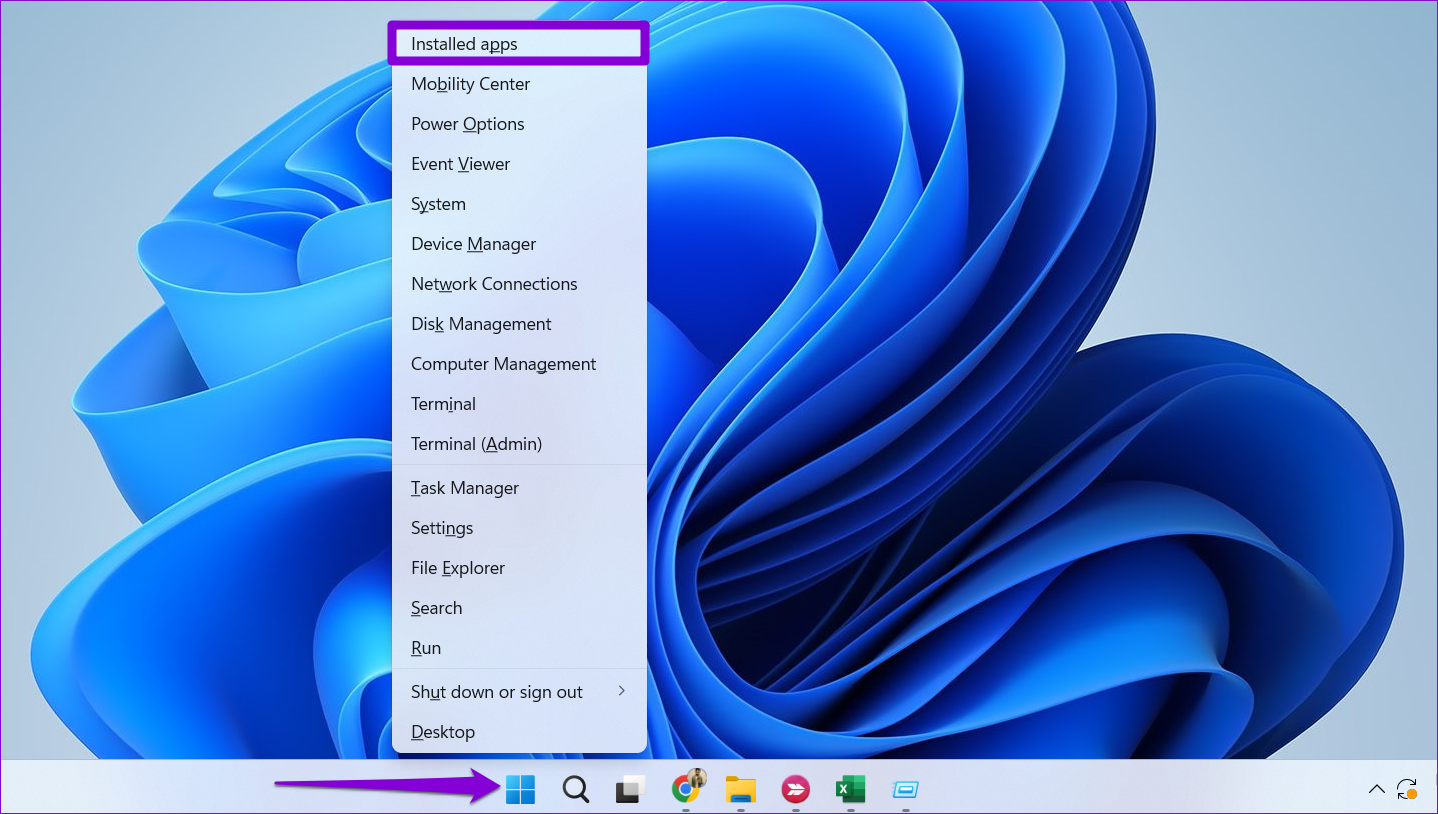
Step 1: Right-click on the Start icon > select Installed apps from the list.
Step 2: Scroll through the list to locate Roblox. Click the three-dot menu icon next to it > select Advanced options.

Step 3: Click the Repair button and wait for the process to complete.

If repairing Roblox proves ineffective, try resetting it from the same menu. This will clear all the existing data associated with Roblox and fix any issues.
Fix 2: Use the Recommended Display Scale
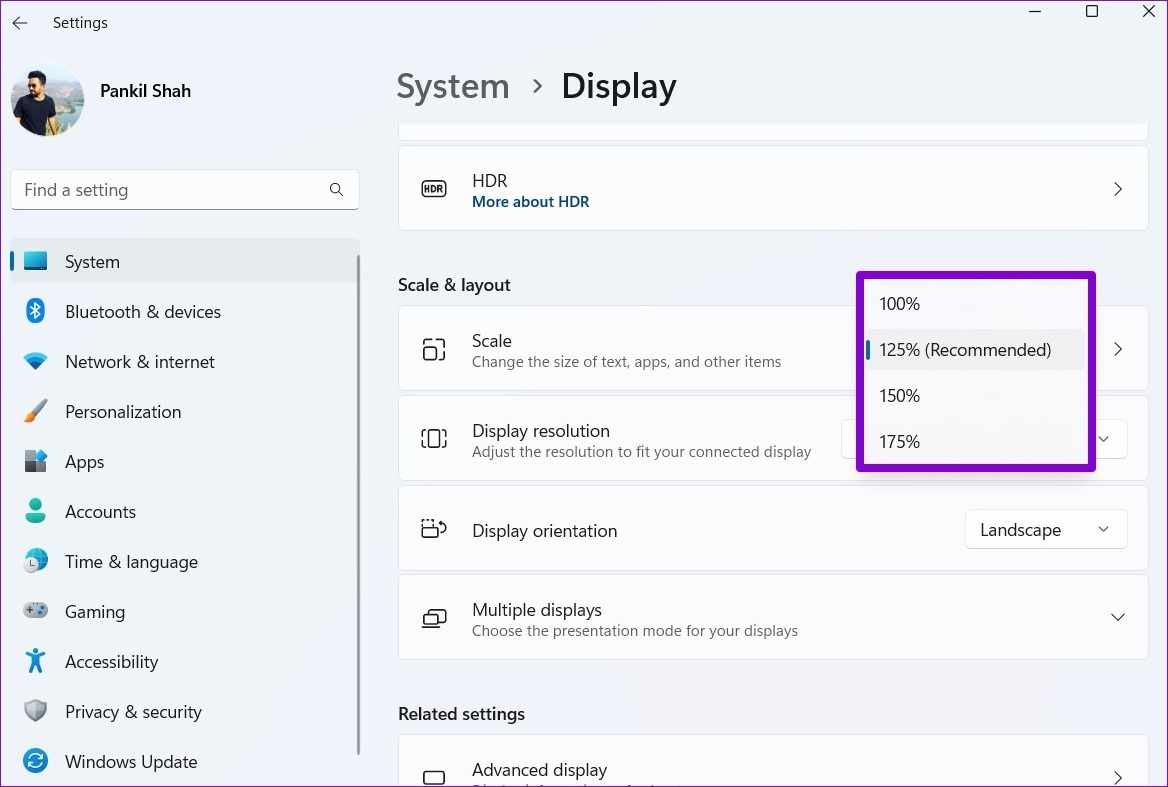
Setting your Windows PC to a display scale higher or lower than the recommended value can also cause the Roblox cursor to go off-screen repeatedly. To avoid this, it’s best to set the display scale to the recommended value. To do so, use these steps:
Step 1: Press the Windows key + I to open the Settings app > head to System > Display.
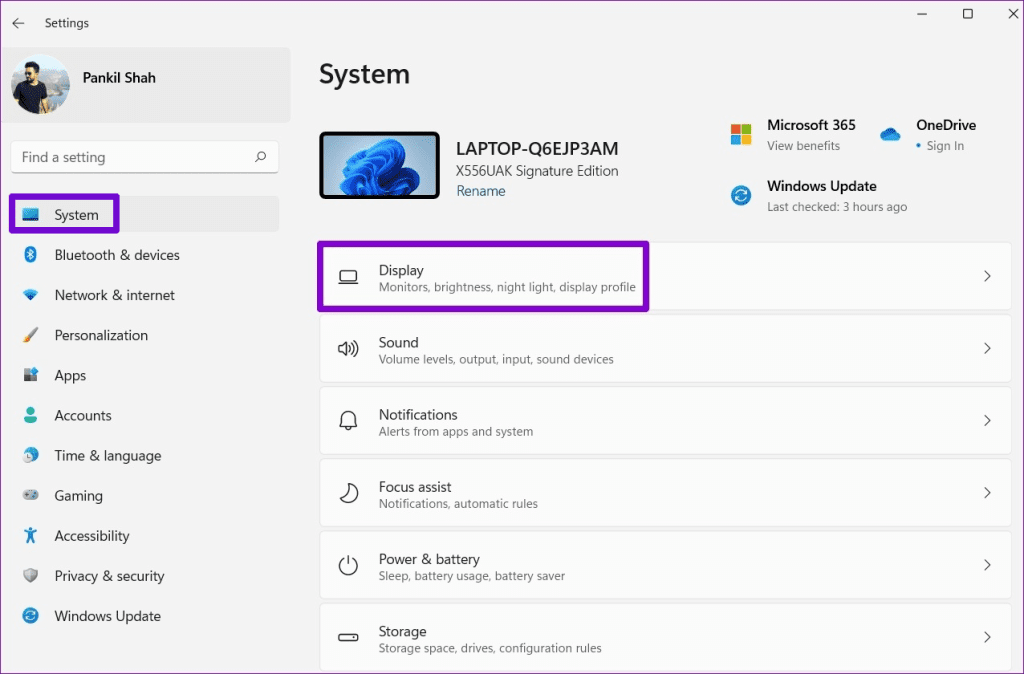
Step 2: Under Scale & layout, click the drop-down menu next to Scale to select the recommended value.
Fix 3: Uninstall Roblox and Install It From the Website
Several users on a Microsoft Community post reported experiencing the cursor going off screen issue while playing the Microsoft Store version of Roblox on Windows. If you are using the same, try to download the Roblox game client from the official website and see if that helps.
To uninstall the store version of Roblox from your PC:
Step 1: Press the Windows key + S to open the search menu. Type Roblox in the text box > select Uninstall.

Step 2: Select Uninstall again to confirm.

Wait for Windows to remove Roblox, and download the Roblox installer again. Once downloaded, run the installer and follow the on-screen prompts to finish installing Roblox.
Was this helpful?
Last updated on 14 August, 2024
Read Next
 8 Fixes When the Text Cursor Turns White on Windows 11
Basic Fixes: Uninstall recent Windows updates: If the cursor problem starts after an update, rolling back the update will fix it.
8 Fixes When the Text Cursor Turns White on Windows 11
Basic Fixes: Uninstall recent Windows updates: If the cursor problem starts after an update, rolling back the update will fix it.
 6 Ways to Fix Mouse Cursor Moving on Its Own in Windows
Basic Fixes Change old mouse pads: If a portion of your mousepad has faded and lost the coarseness needed to hold the mouse in place, it can make your mouse
6 Ways to Fix Mouse Cursor Moving on Its Own in Windows
Basic Fixes Change old mouse pads: If a portion of your mousepad has faded and lost the coarseness needed to hold the mouse in place, it can make your mouse
 How to Customize the Mouse Cursor on Windows 11
How to Change the Color and Size of the Mouse Cursor There are a few default cursor options in Windows 11 if you want to change the way the mouse
How to Customize the Mouse Cursor on Windows 11
How to Change the Color and Size of the Mouse Cursor There are a few default cursor options in Windows 11 if you want to change the way the mouse
 5 Ways to Fix Mouse Cursor Not Showing on Windows 11
https://youtu.be/99YOYxqJPQ0 Fix 1: Clean the Trackpad or the Bottom Surface of the Mouse Sometimes, the dirt accumulated on your laptop’s trackpad may hinder the cursor’s movement.
5 Ways to Fix Mouse Cursor Not Showing on Windows 11
https://youtu.be/99YOYxqJPQ0 Fix 1: Clean the Trackpad or the Bottom Surface of the Mouse Sometimes, the dirt accumulated on your laptop’s trackpad may hinder the cursor’s movement.
 5 Ways to Fix Computer Boots to Blinking Cursor Error
What happens when you boot your computer?
5 Ways to Fix Computer Boots to Blinking Cursor Error
What happens when you boot your computer?
 5 Ways to Fix Mouse Cursor Stuck on Mac
Basic Troubleshoot Remove connected devices - To ensure that the culprit isn't a connected device, say a Bluetooth mouse or keyboard, remove all devices and try again.
5 Ways to Fix Mouse Cursor Stuck on Mac
Basic Troubleshoot Remove connected devices - To ensure that the culprit isn't a connected device, say a Bluetooth mouse or keyboard, remove all devices and try again.
 Top 8 Ways to Fix Mouse Cursor Lagging on Mac
A Mac is generally known for its friendly UI and smooth performance.
Top 8 Ways to Fix Mouse Cursor Lagging on Mac
A Mac is generally known for its friendly UI and smooth performance.
 5 Fixes for Roblox Black Screen Issue
Fix 1: Turn On Reduced Motion Is Roblox showing a black screen when you try to join an experience?
5 Fixes for Roblox Black Screen Issue
Fix 1: Turn On Reduced Motion Is Roblox showing a black screen when you try to join an experience?
The article above may contain affiliate links which help support Guiding Tech. The content remains unbiased and authentic and will never affect our editorial integrity.