

Before you begin, ensure there are no problems with the network connection on your device.
Fix 1: Update Your Browser
There is likely a problem with the current version of the web browser or you’re likely using an outdated version. Hence, always ensure you stay on the latest version of your browser.
On Chrome
Step 1: Open Chrome, click on the three dots icon on the toolbar, and select Help.
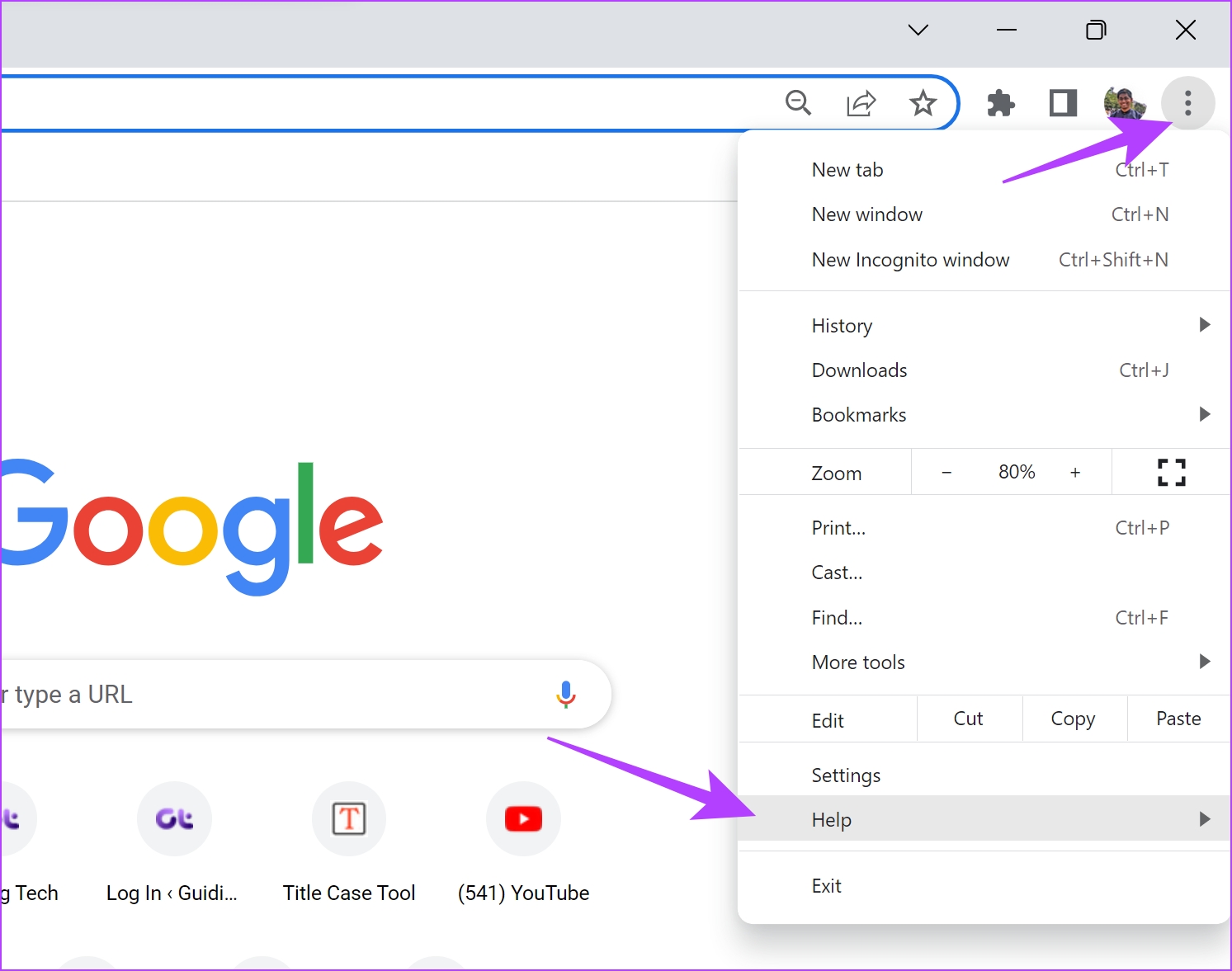
Step 2: Now, select About Google Chrome.
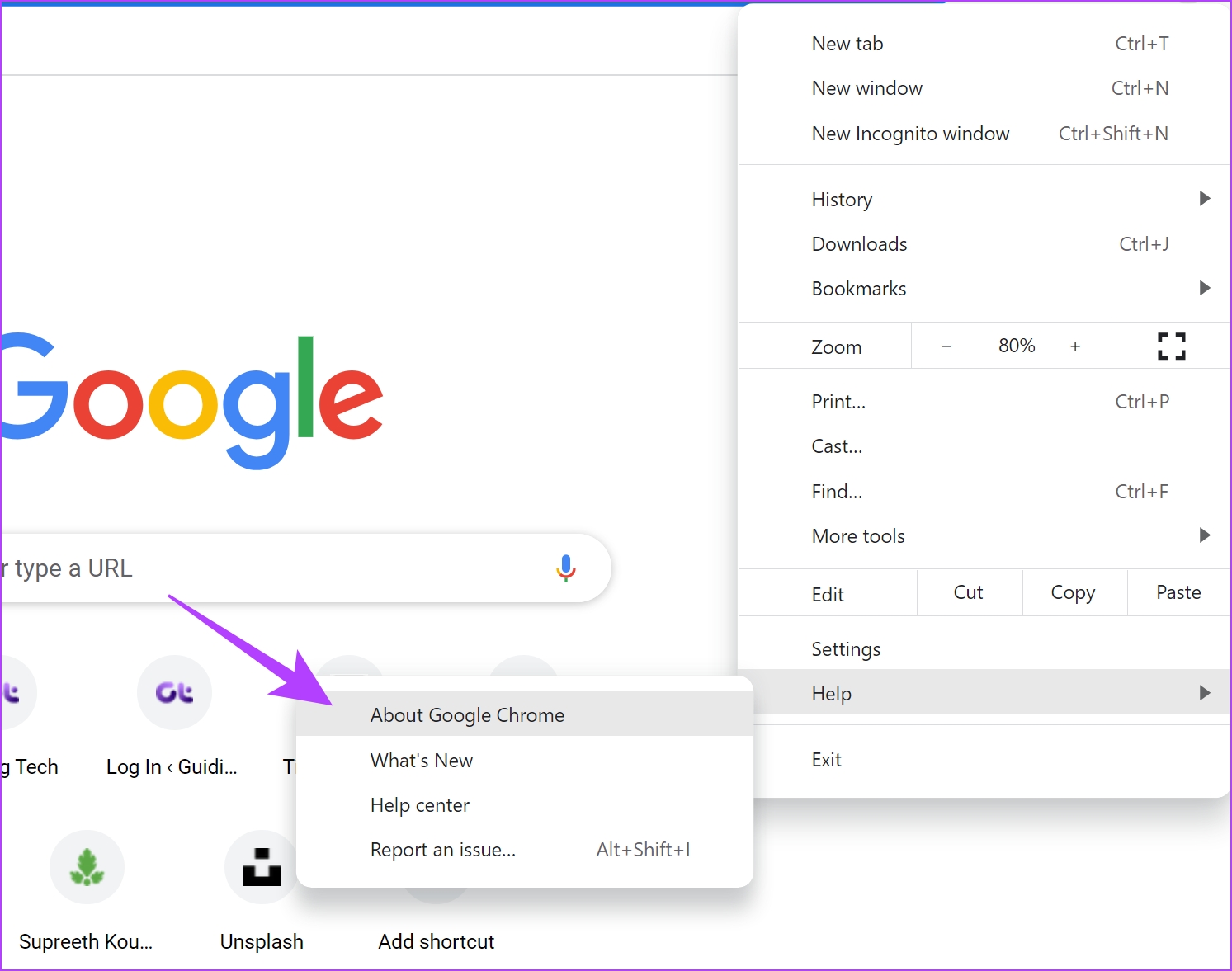
Step 3: In this window, you will see the status regarding the version of Google Chrome. If it is not updated to the latest version, you will get an option to do the same.

On Firefox
Step 1: Click on the three-bar icon > select Settings.

Step 2: In the Firefox Updates section, click on Update if available. Then, restart Firefox on your device.

Fix 2: Enable JavaScript
Websites and internet services use JavaScript to display and embed interactive content. As mentioned earlier, reCAPTCHA involves you checking a box called ‘I’m not a robot’, and this uses JavaScript.
On Chrome
Step 1: Open Chrome, click on the three dots icon on the toolbar, and select Settings.

Step 2: Select Privacy and Security on the left pane and open Site Settings.
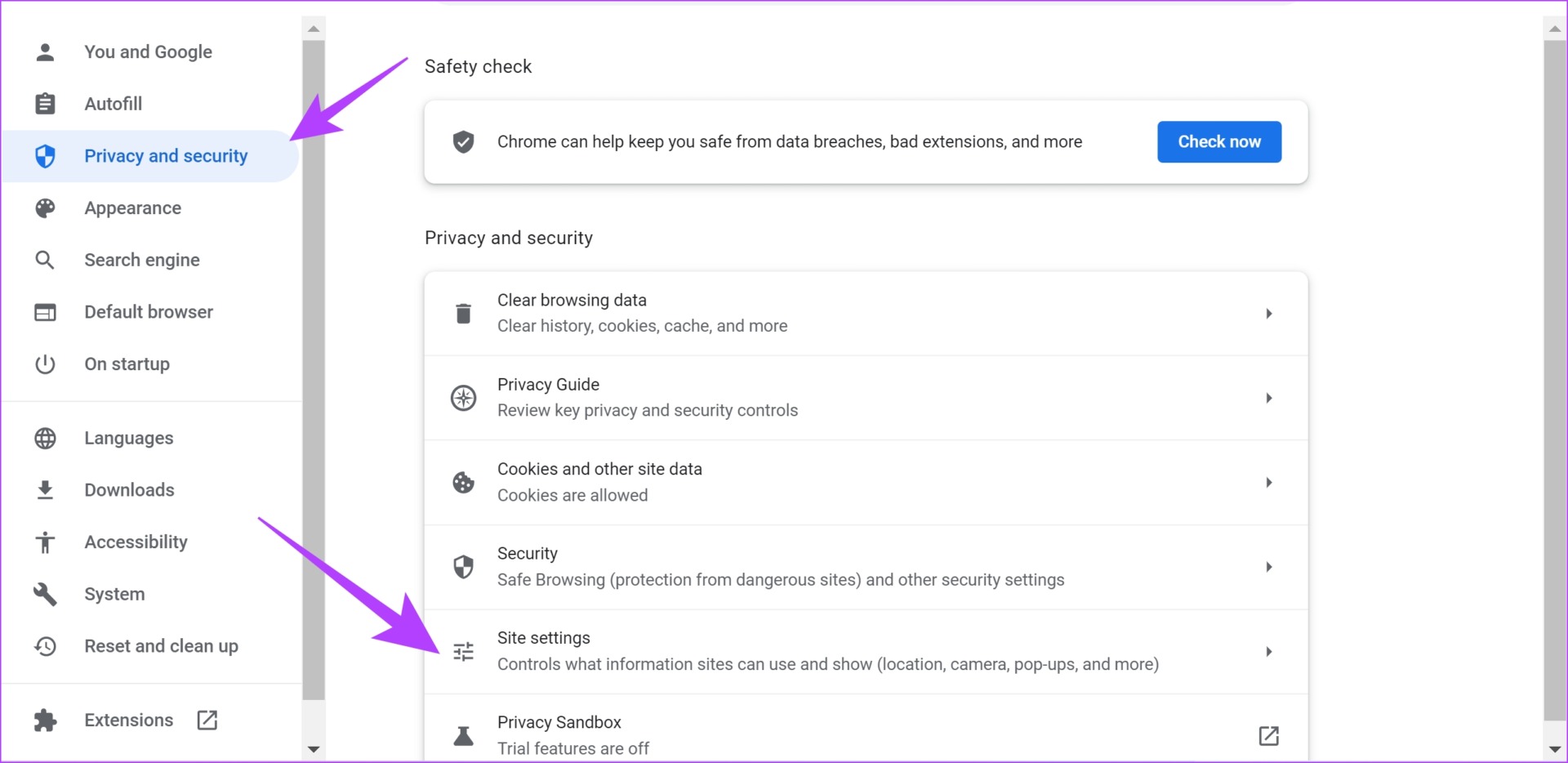
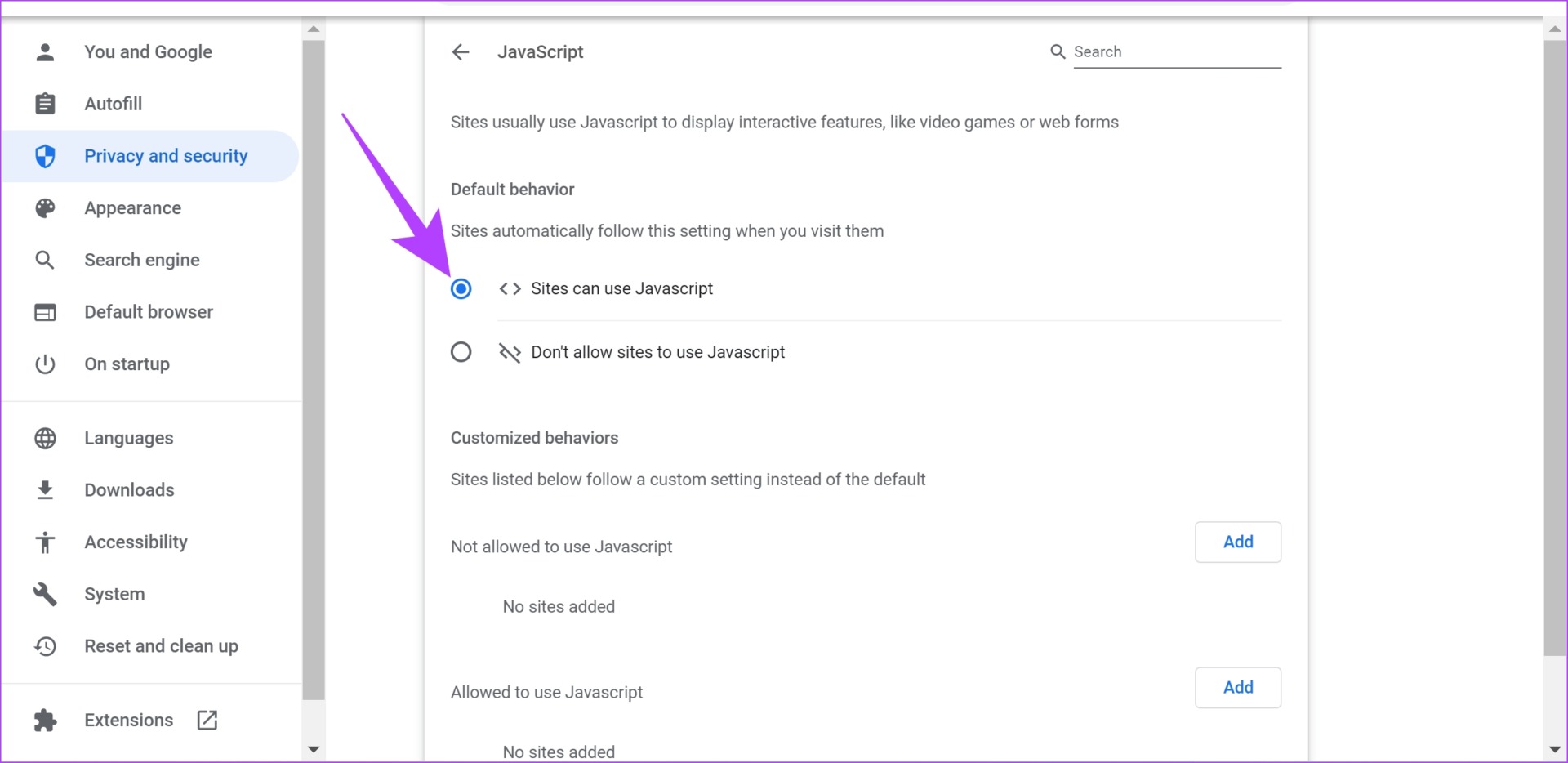
Step 3: Scroll down and click on JavaScript.
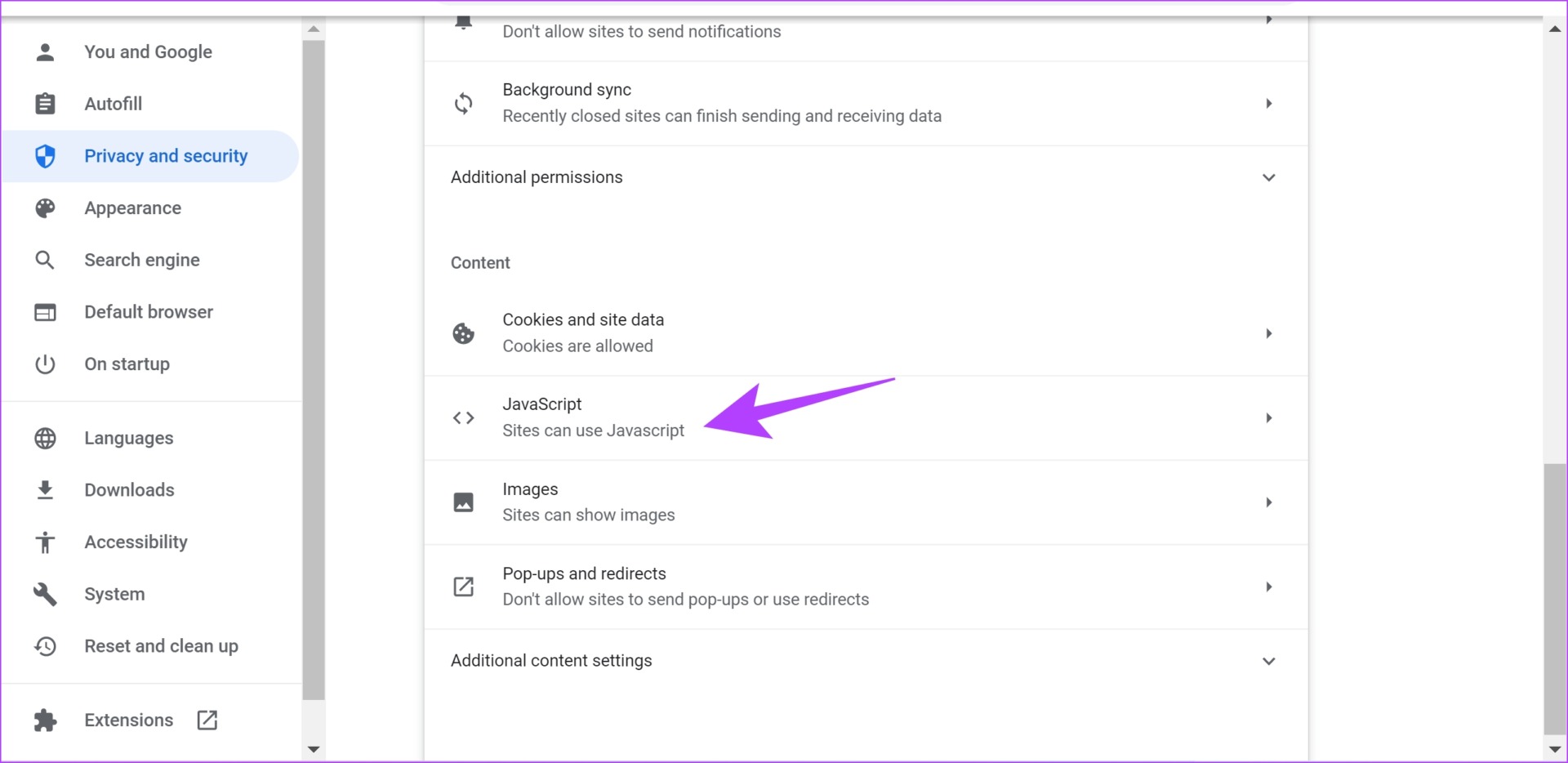
Step 4: Ensure that you select Sites can use JavaScript to enable JavaScript. Also, ensure you haven’t added any exceptions to the Customized Behaviors list.
On Firefox
Step 1: Type about:config in the URL bar and hit Enter.
Step 2: Select Accept the Risk and Continue.

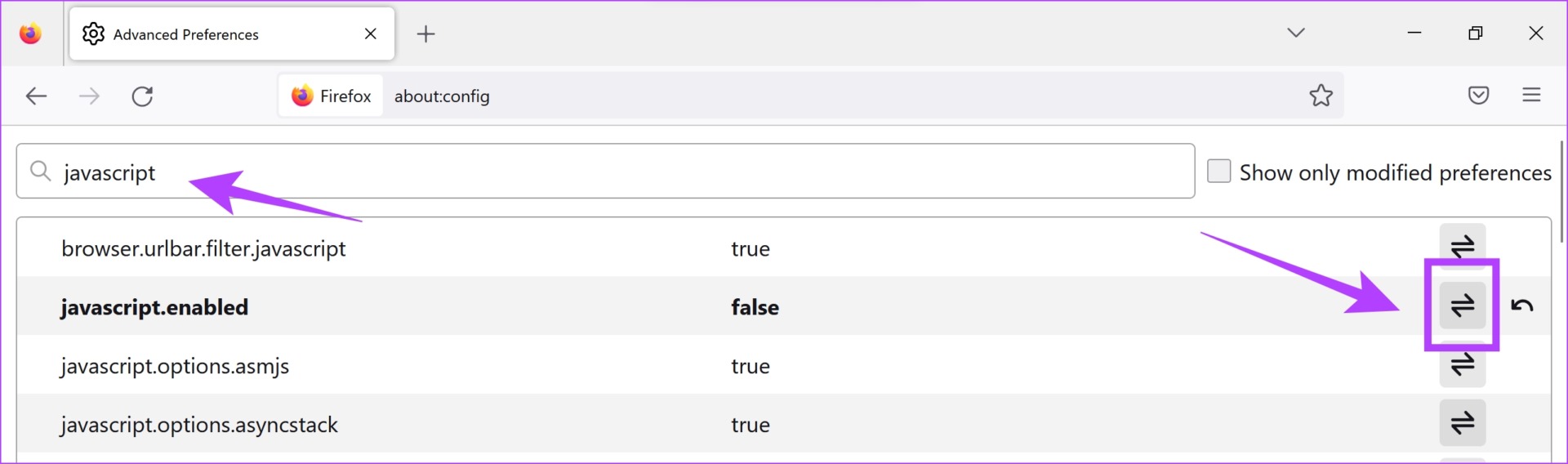
Step 3: Search for JavaScript and check its status—whether it is true or false.
Step 4: If it is false, tap on the toggle status button to make it true, and therefore enable Javascript.
Fix 3: Disable Extensions
You can try disabling extensions, especially ad blockers or pop-up blockers, to see if reCAPTCHA starts working again on your browser.
On Chrome
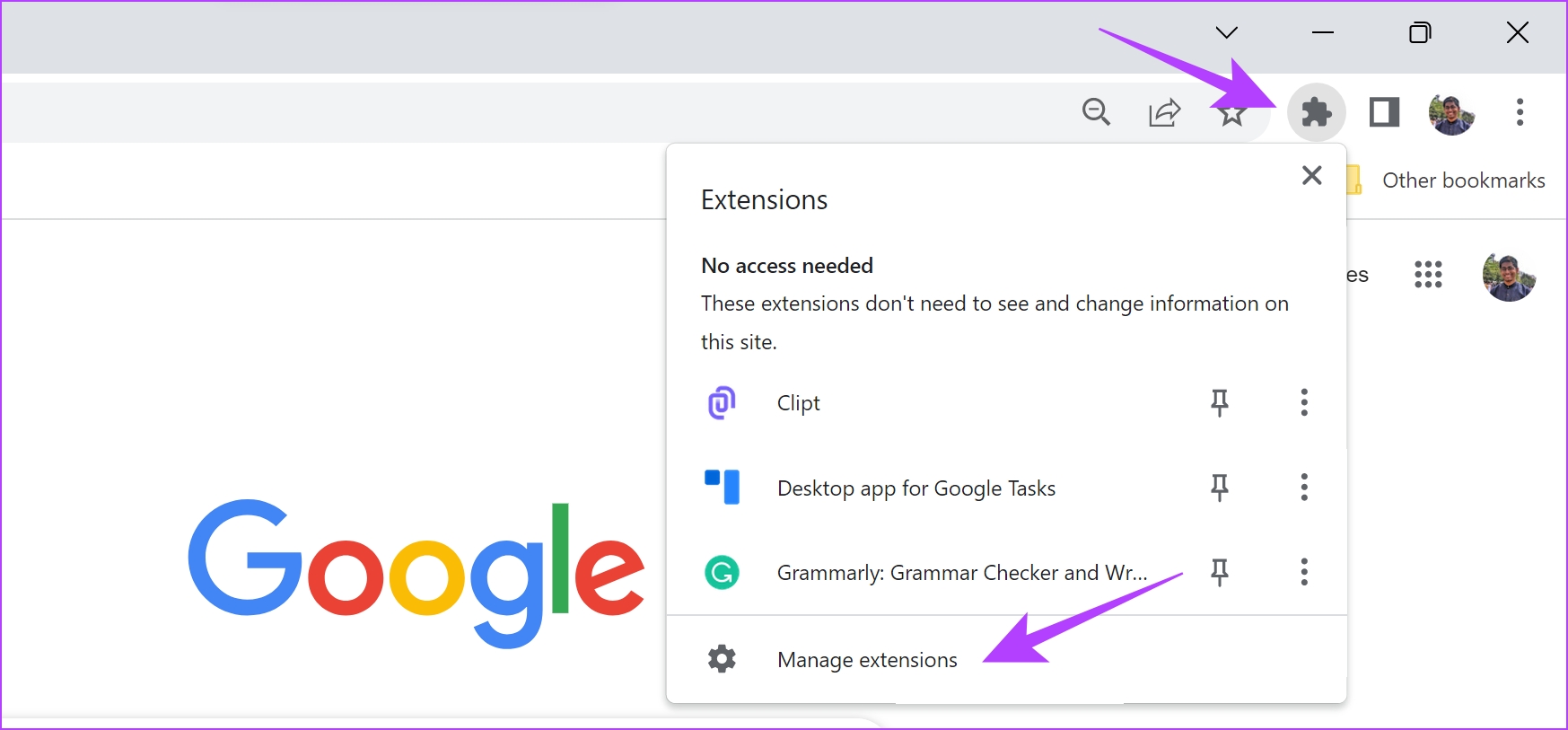
Step 1: Open Chrome, click on the extensions icon on the toolbar, and select Manage Extensions.
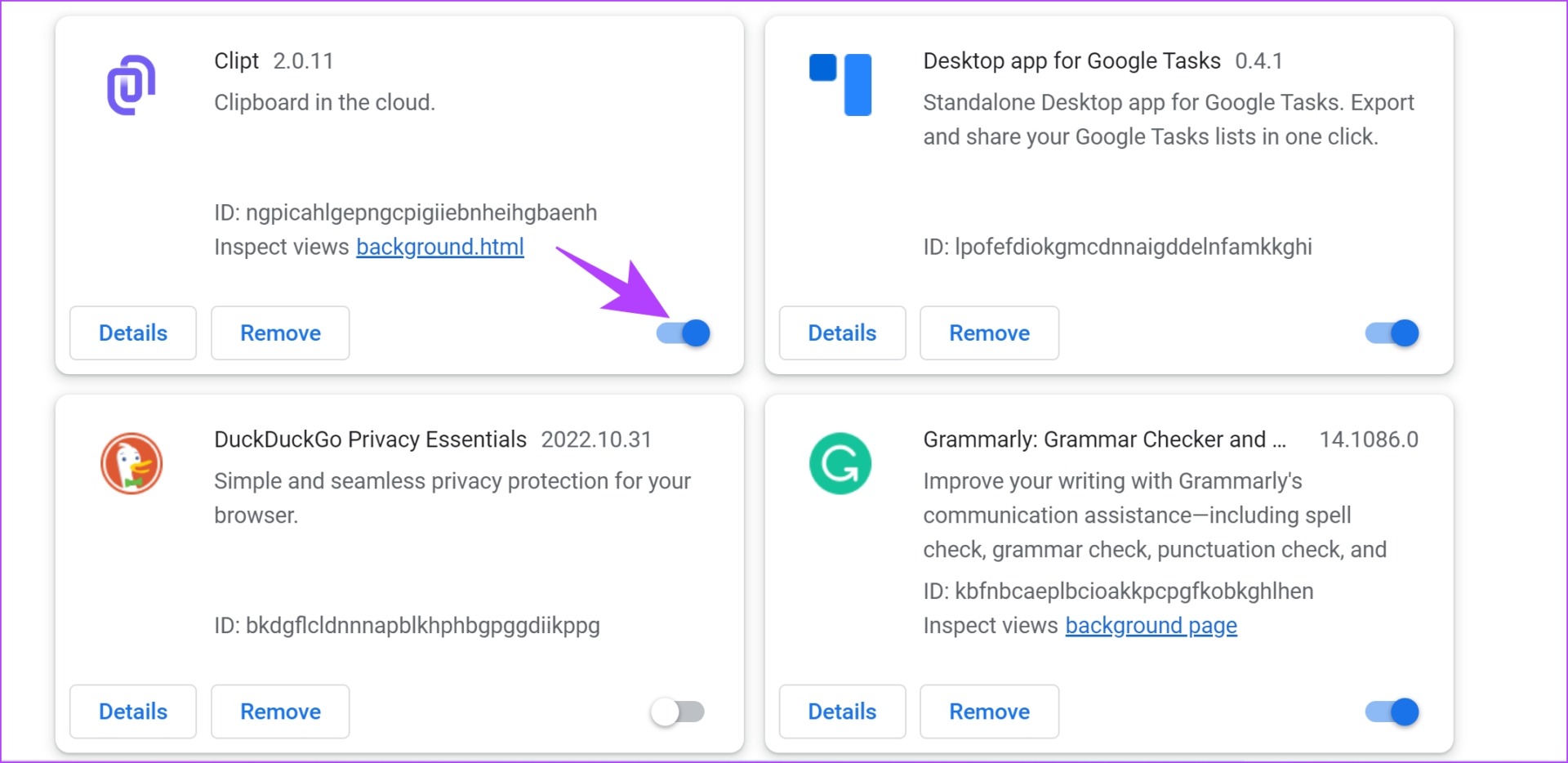
Step 2: You will now see a list of installed extensions. Turn off the toggle to disable an extension and check if it solves the issue. Repeat this for all the installed extensions.
On Mozilla Firefox
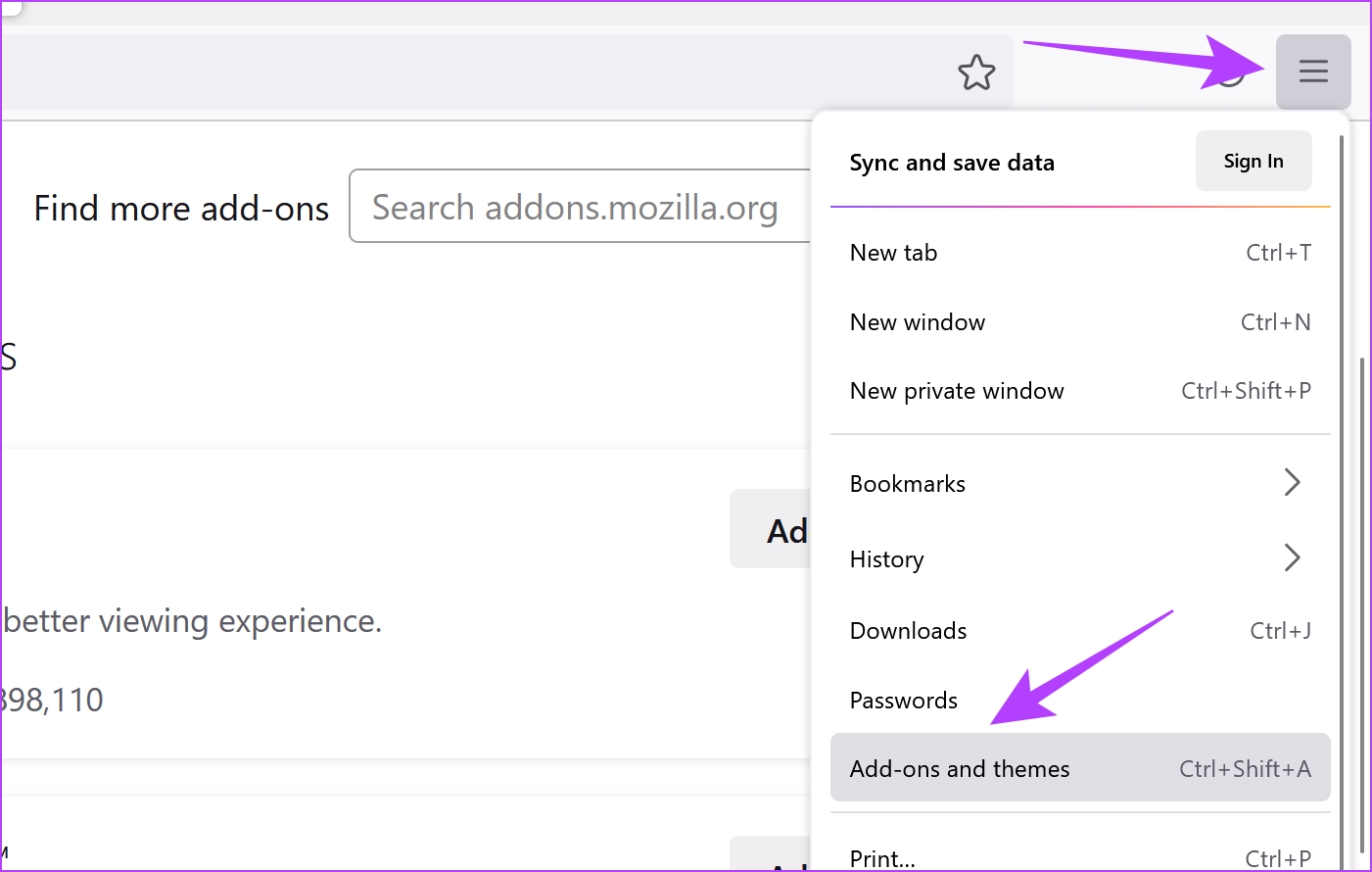
Step 1: Click on the hamburger-shaped menu on the toolbar. Select Add-ons and Themes.
Step 2: In the window that opens, disable and remove extensions.
Fix 4: Reset the Browser
Resetting a web browser restores all its settings to their default values – fixing any misconfigured settings causing problems with reCAPTCHA.
On Chrome
Step 1: Open Chrome and click on the three dots icon in the toolbar. Select Settings.
Step 2: Now, select Reset and Clean up in the left pane.
Step 3: Select Restore settings to their original defaults.

Step 4: Now, click on Reset settings to reset all settings on Chrome.

On Firefox
Firefox calls it a ‘Refresh’ instead of a ‘Reset’, and while it does the same job, the option isn’t available on the Settings page. You can find the ‘Refresh Firefox’ option on the support page.
Step 1: Type about:support in the address bar, and click on the Refresh Firefox button.
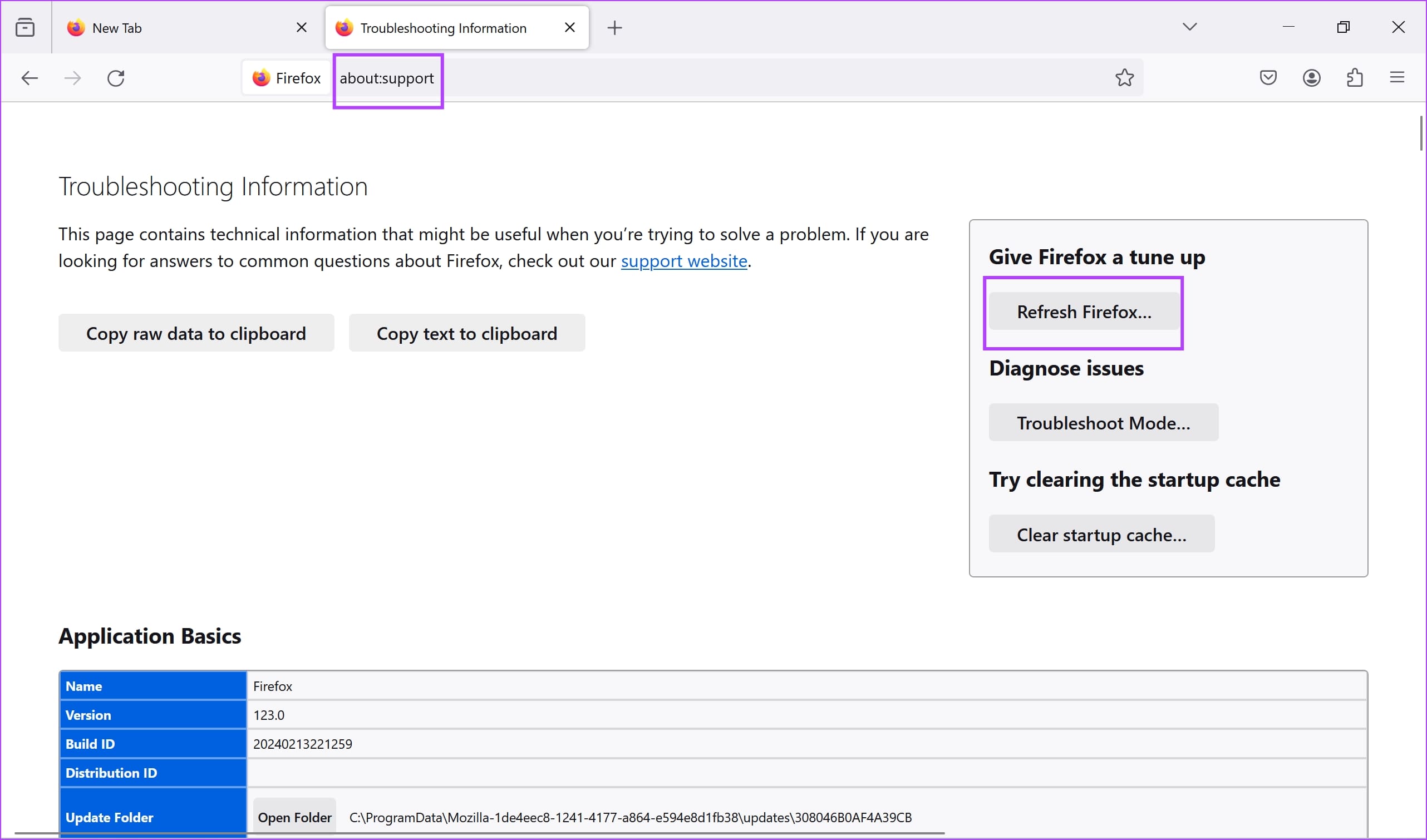
Step 2: Click on Refresh Firefox to confirm the action.

Fix 5: Change DNS
If there is any issue with your current DNS protocol, it might be why reCAPTCHA isn’t working.
Step 1: Open the Control Panel and select Network and Internet.

Step 2: Open Network and Sharing Center.
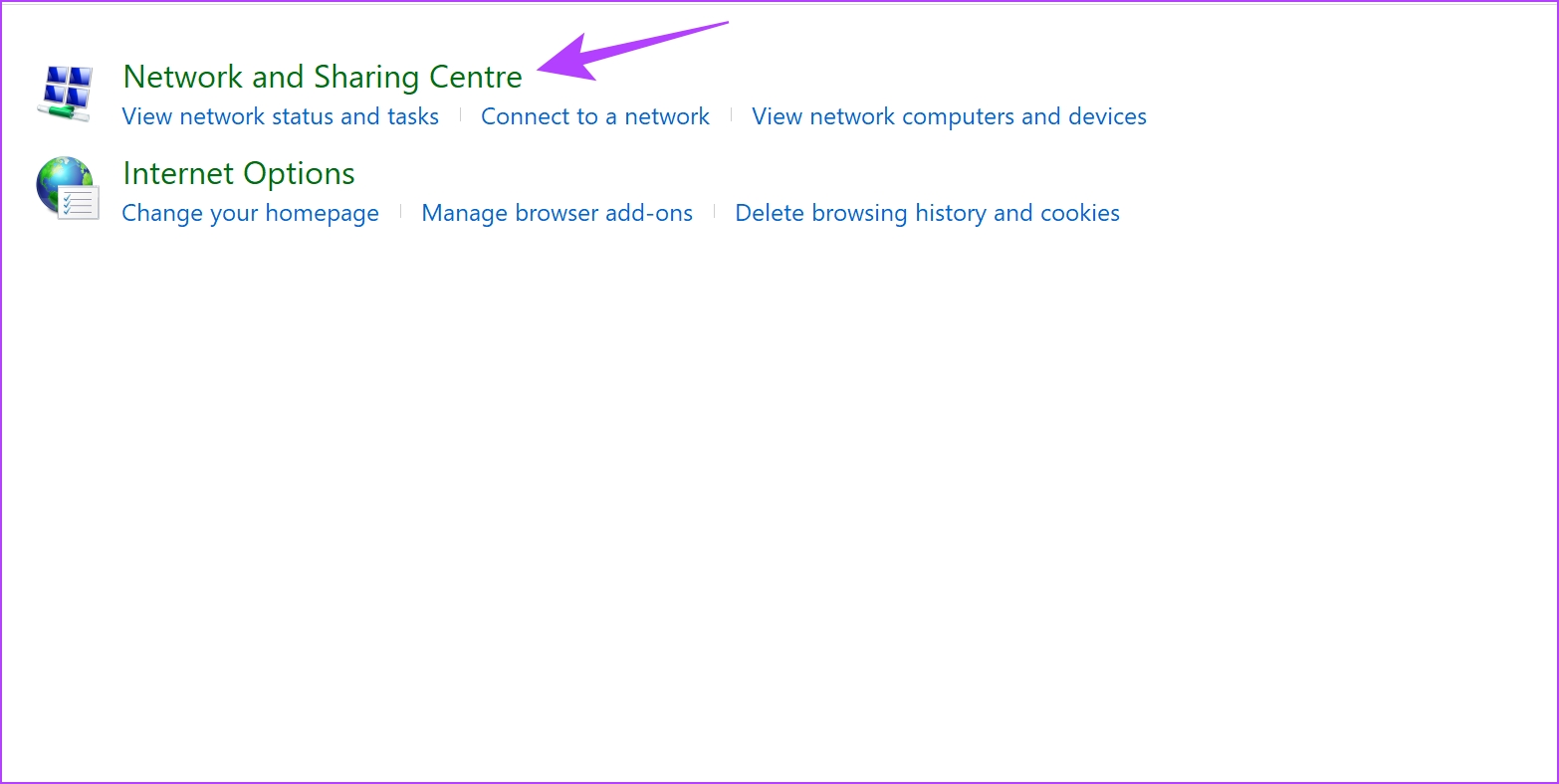
Step 3: Select your network.
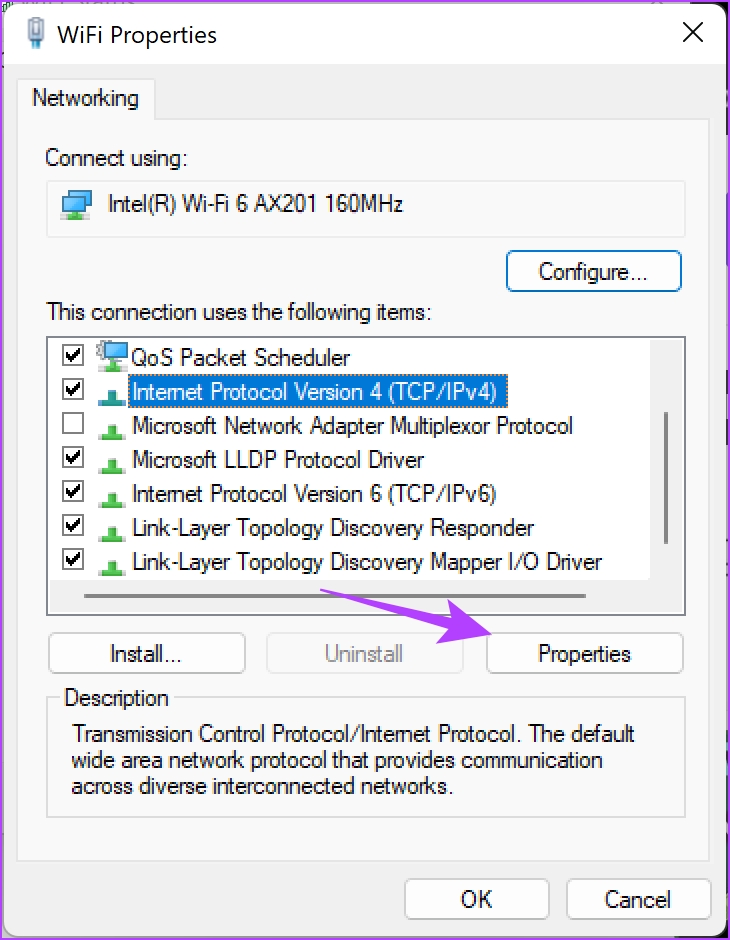
Step 4: Now, select Properties.

Step 5: Check the box for Internet Protocol Verison and click on Properties.

Step 6: Check the box for Use the following DNS server addresses to enter the DNS server address manually.
Step 7: Now, enter the address 8.8.8.8 in the Preferred DNS server box and 8.8.4.4 in the Alternative DNS server box. These are the addresses for the Google DNS server.
Step 8: Lastly, click on OK to apply the changes.


Fix 6: Reset IP Address
If reCAPTCHA does not work in Chrome or Firefox, try resetting your IP address using Command Prompt. If your IP address is suspicious, this might be causing the issue.
Step 1: Find Command Prompt on your PC in the start menu. Right-click and Run as Administrator.

Step 2: Once you open Command Prompt, type each of these commands one by one, and hit Enter. Once you execute the first command, move to the second one, and so on.
netsh winsock reset
netsh int ip reset
ipconfig /release
ipconfig /renew
Step 3: Once you finish executing all of these commands, restart your PC for the changes to take effect.
Was this helpful?
Last updated on 27 August, 2024
1 Comment
Leave a Reply
Read Next
 6 Ways to Fix YouTube Lagging on Chrome, Firefox, and Other Browsers
https://youtu.be/YyRuUvT3-ho Basic Fixes Use a reliable Wi-Fi network: It goes without saying that you need a fast and reliable network connection to play YouTube videos.
6 Ways to Fix YouTube Lagging on Chrome, Firefox, and Other Browsers
https://youtu.be/YyRuUvT3-ho Basic Fixes Use a reliable Wi-Fi network: It goes without saying that you need a fast and reliable network connection to play YouTube videos.
 Firefox vs Firefox Focus: Should You Switch
Firefox Focus is a strange name for a browser, and the fact that it’s developed by none other Mozilla is even weirder.
Firefox vs Firefox Focus: Should You Switch
Firefox Focus is a strange name for a browser, and the fact that it’s developed by none other Mozilla is even weirder.
 5 Browsers to Always Open Desktop Sites on Android and iOS
1.
5 Browsers to Always Open Desktop Sites on Android and iOS
1.
 How to Update Opera Browsers on Desktop and Mobile
Method 1: Update Opera Browser on iPhone Updating the Opera browsers on your iPhone is straightforward.
How to Update Opera Browsers on Desktop and Mobile
Method 1: Update Opera Browser on iPhone Updating the Opera browsers on your iPhone is straightforward.
 6 Fastest Browsers for Windows 11 You Should Try
How Did We Test Each Browser on Windows 11 To find the best and fastest browsers for Windows 11, we installed multiple browsers and tested each on popular benchmarking tools.
6 Fastest Browsers for Windows 11 You Should Try
How Did We Test Each Browser on Windows 11 To find the best and fastest browsers for Windows 11, we installed multiple browsers and tested each on popular benchmarking tools.
 6 Best Browsers With Built-in VPN for Android
Why Should You Need a Browser With VPN VPN (Virtual Private Network) serves multiple purposes apart from the fact that it unlocks content locked away in your geolocation.
6 Best Browsers With Built-in VPN for Android
Why Should You Need a Browser With VPN VPN (Virtual Private Network) serves multiple purposes apart from the fact that it unlocks content locked away in your geolocation.
 5 Privacy-Focused Browsers for iPhone and iPad
1.
5 Privacy-Focused Browsers for iPhone and iPad
1.
 4 Android Browsers With Extension Support
1.
4 Android Browsers With Extension Support
1.
The article above may contain affiliate links which help support Guiding Tech. The content remains unbiased and authentic and will never affect our editorial integrity.

This is an amazing article! It is so well written. To the author I’d like to say how much I appreciate all the work put into compiling all of this information. Kudos to you my Internet friend.