Basic Fixes
- Clean your camera lens: Try cleaning the lens of your phone camera using a cotton bud.
- Check the lighting of your surroundings: Avoid scanning a QR code in low-light surroundings.
- Force quit and relaunch Camera: You can try doing this to give the app a fresh start on your Android phone.
- Update the Camera app and Android version: Older versions of the Camera app and the Android OS can cause issues with QR code scanning.
Fix 1: Check if Google Lens Suggestions Is Enabled
After pointing your Android phone’s camera toward a QR code, you must activate Google Lens to scan the code and reveal the relevant web page link. The Google Lens Suggestions feature in the Camera app takes care of this entire process.
Step 1: Open the Camera app on your Android phone. Tap the downward arrow icon at the top and select Settings.

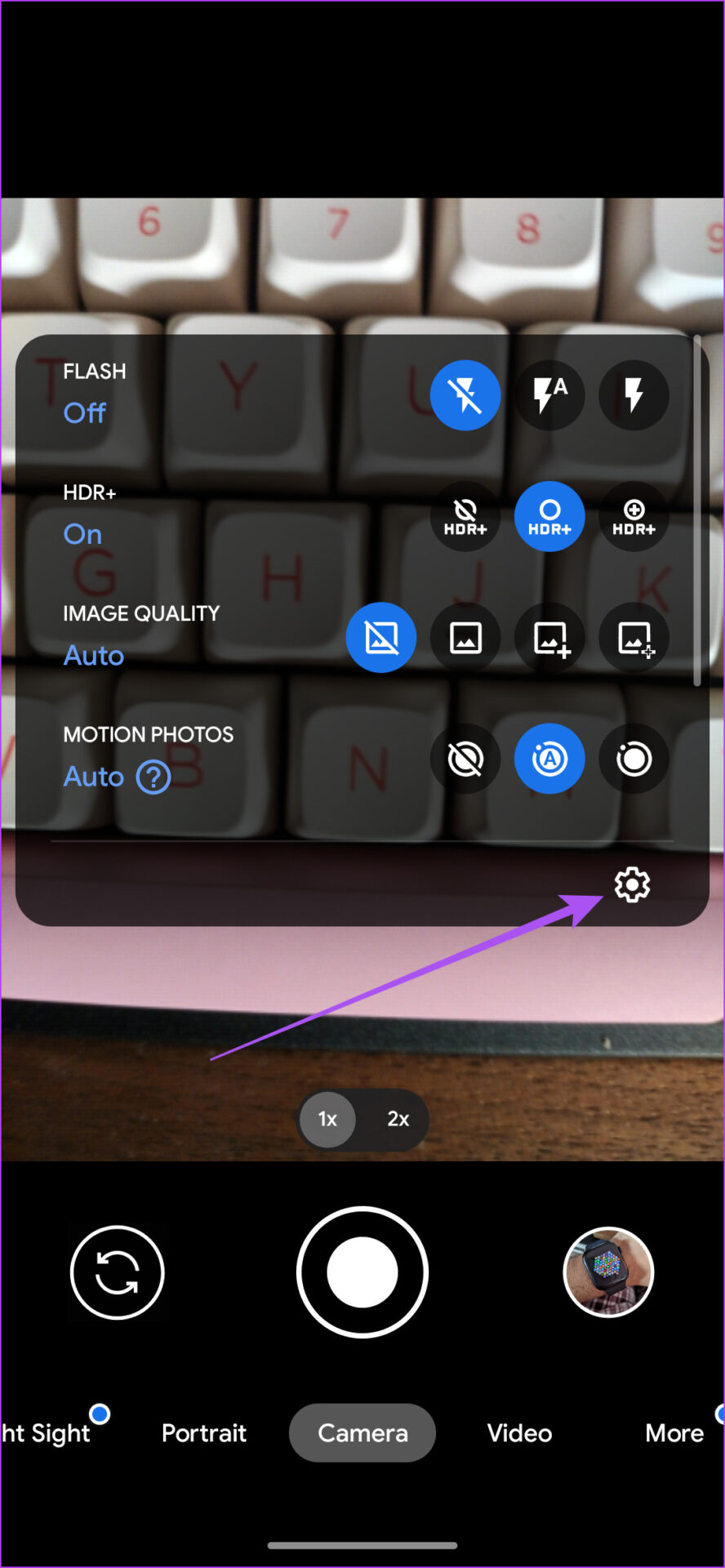
Step 2: Enable the feature of Google Lens Suggestions, if not enabled.
We have used Google Pixel to show these steps. But you can access this feature on your Android phone by accessing the Settings menu in the Camera app.
Fix 2: Update Google Lens
After enabling the Google Lens Suggestion feature, we recommend checking whether you are using the latest version of the Google Lens app. You can visit the Play Store and install the latest version of Google Lens.
An alternative that we suggest is taking a photo of the QR code and then scanning it.
Was this helpful?
Last updated on 06 June, 2024
Read Next
 2 Ways to Fix QR Code Scanner Not Working on iPhone
Common Fixes Use Camera in Photo mode: QR code scanning doesn't work in other camera modes such as Portrait, Pano, Macro, Video, etc.
2 Ways to Fix QR Code Scanner Not Working on iPhone
Common Fixes Use Camera in Photo mode: QR code scanning doesn't work in other camera modes such as Portrait, Pano, Macro, Video, etc.
 5 Ways to Fix Scanner Not Working on Windows 11
Fix 1: Remove and Re-Add Your Scanner Removing the scanner from Windows and setting it up again can help resolve any problems caused by incorrect configuration.
5 Ways to Fix Scanner Not Working on Windows 11
Fix 1: Remove and Re-Add Your Scanner Removing the scanner from Windows and setting it up again can help resolve any problems caused by incorrect configuration.
 Adobe Scan vs Genius Scan: Which Document Scanner App Is Better on iPhone
You can recollect the times you ran around looking for an actual scanner to get a digital copy of a document.
Adobe Scan vs Genius Scan: Which Document Scanner App Is Better on iPhone
You can recollect the times you ran around looking for an actual scanner to get a digital copy of a document.
 How to Fix WhatsApp Web QR Code Not Loading or Scanning
Basic Fixes Reload WhatsApp QR code - If not scanned for long, the QR code expires.
How to Fix WhatsApp Web QR Code Not Loading or Scanning
Basic Fixes Reload WhatsApp QR code - If not scanned for long, the QR code expires.
 5 Ways to Fix Snapchat Support Code C14A Error
What Does Snapchat’s Support Code: C14A Error Indicate?
5 Ways to Fix Snapchat Support Code C14A Error
What Does Snapchat’s Support Code: C14A Error Indicate?
 6 Fixes for the “Connection Problem or Invalid MMI Code” Error on Android
https://youtu.be/BTOeKo08OPA Try Basic Fixes Toggle the airplane mode: Turning airplane mode on and off is an effective way to refresh your phone's network connections.
6 Fixes for the “Connection Problem or Invalid MMI Code” Error on Android
https://youtu.be/BTOeKo08OPA Try Basic Fixes Toggle the airplane mode: Turning airplane mode on and off is an effective way to refresh your phone's network connections.
 4 Ways to Fix the Login Error Code E84 in Steam for Windows
Switch to a different network connection: A slow or intermittent internet connection can also cause login errors in Steam.
4 Ways to Fix the Login Error Code E84 in Steam for Windows
Switch to a different network connection: A slow or intermittent internet connection can also cause login errors in Steam.
 2 Ways to Fix Discord Not Sending a Security Code
Basic Troubleshooting Double-check the number and country code: A silly mistake could be causing the issue.
2 Ways to Fix Discord Not Sending a Security Code
Basic Troubleshooting Double-check the number and country code: A silly mistake could be causing the issue.
The article above may contain affiliate links which help support Guiding Tech. The content remains unbiased and authentic and will never affect our editorial integrity.