Try Basic Fixes
- Make sure the hard drive is compatible: Your PS5 supports nearly all external hard drives ranging from 250GB to 8TB in storage capacity, connected via the SuperSpeed USB interface (USB 3.0 or later). However, it must be formatted in either exFAT or FAT32 and not NTFS. Additionally, while you can connect multiple USB storage drives to the console, you can use only one at a time.
- Use the correct port: The PS5 supports both, hard disk drives (HDD) and solid-state drives (SSD). However, since the console ships with a USB-A 2.0 port on the front, you’ll need to connect the drive to one of the two USB-A ports on the back of the PS5. Additionally, if you’ve connected the hard drive through a USB hub, the PS5 won’t detect it, so connect it directly to one of the console’s USB ports.
- Disconnect and reconnect the hard drive: If your hard drive is already connected to the correct USB port, try disconnecting and reconnecting it. While doing so, inspect the USB 3.0 cable for any damages and replace it if necessary.
Fix 1: Format the Drive as USB Extended Storage
You’ll need to format an external hard drive with your PS5 for the first time as external storage. While the PS5 should prompt you to format a newly connected external hard drive, the notification may occasionally fail to appear, or you might miss it. In such cases, you can follow these steps to format the drive as extended storage.
Step 1: On your PS5 home screen, select the Settings icon at the top right corner.

Step 2: Select Storage from the list.

Step 3: Select USB Extended Storage > Format as USB Extended Storage.
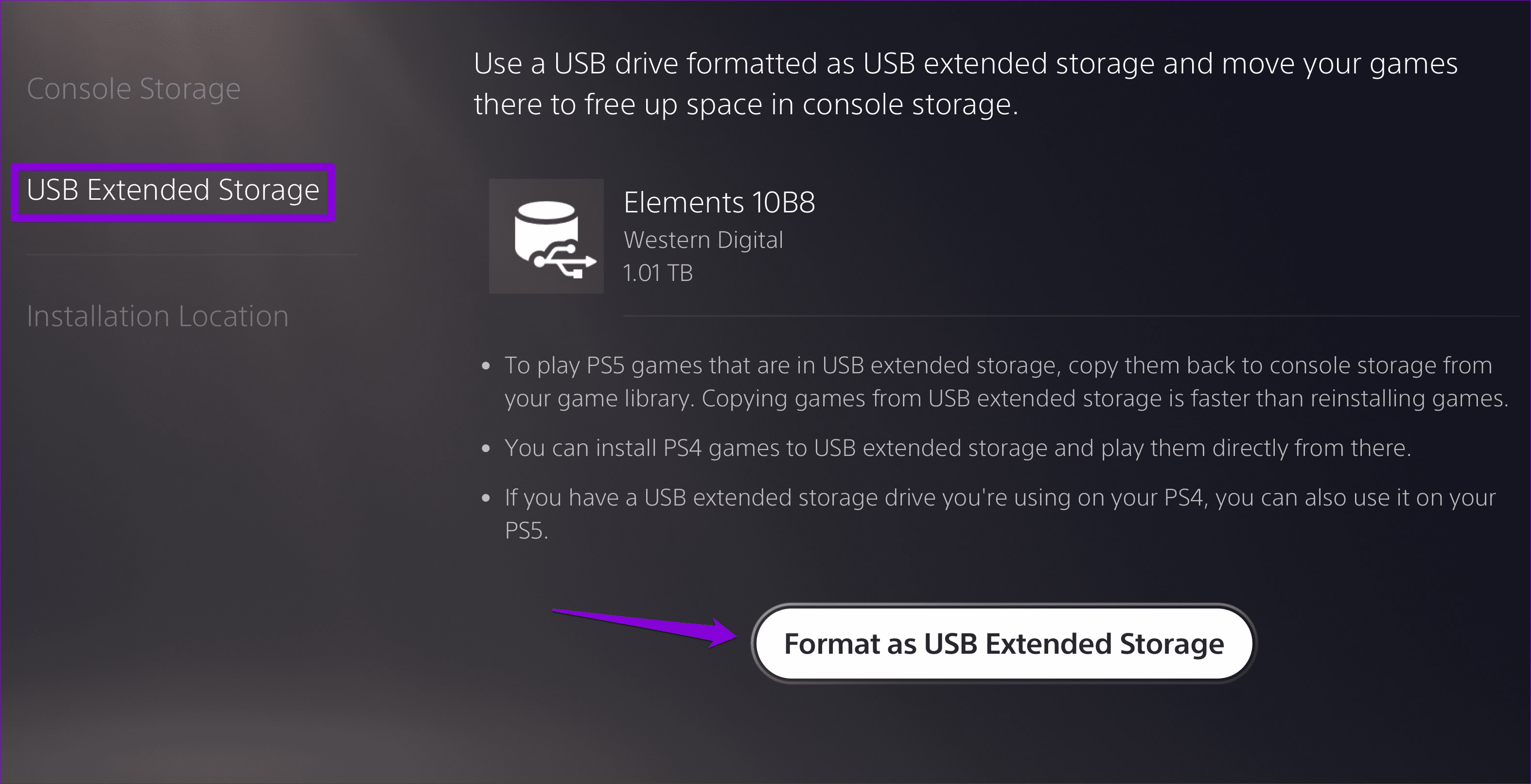
Wait for the process to complete, and you should then be able to use your drive as external storage on your PS5.
Fix 2: Configure the PS5 to Supply Power to USB Ports in Rest Mode
Is your PS5 not recognizing the external hard drive when you wake it up from Rest Mode? Or does the external hard drive stop working when the PS5 is in Rest Mode? This could occur if you’ve configured the console so that it does not supply power to USB ports during Rest Mode. Here’s how to change that setting.
Step 1: On your PS5 home screen, select the Settings icon at the top right corner.
Step 2: Select System from the list.

Step 3: Select Power Saving > Features Available in Rest Mode.

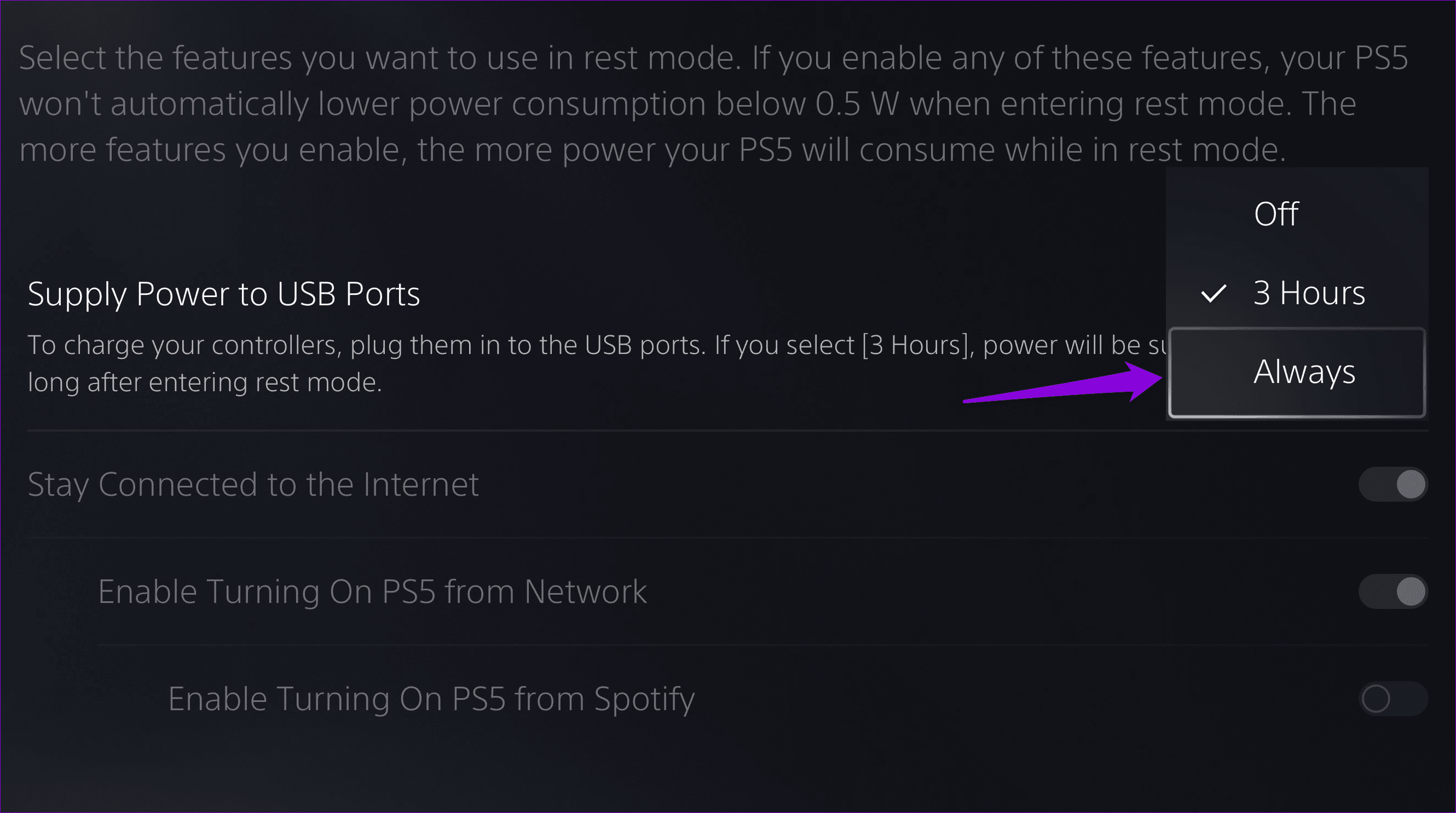
Step 4: Select Supply Power to USB Ports and choose Always.
Fix 3: Rebuild PS5 Database
If the existing PS5 database is corrupt, you may experience problems using an external hard drive. Here’s what you can do to fix it.
Step 1: Power off your PS5 and connect your DualSense wireless controller to the console via a USB cable.
Step 2: Press and hold the PS5’s Power button until it beeps twice to enter Safe Mode.
Step 3: Press the PS button on the controller.
Step 4: Select the Clear Cache and Rebuild Database option.

Step 5: Select the Rebuild Database option.

Once the process is complete, your PS5 should boot normally. Then, check if it still fails to recognize your external storage drive.
Fix 4: Update the System Software
Your PlayStation 5 regularly receives updates that bring performance improvements and bug fixes. Installing these updates is a good idea if you want to steer clear of any issues.
Step 1: On your PS5, go to Settings > System.
Step 2: Select the System Software tab and select the System Software Update and Settings option.

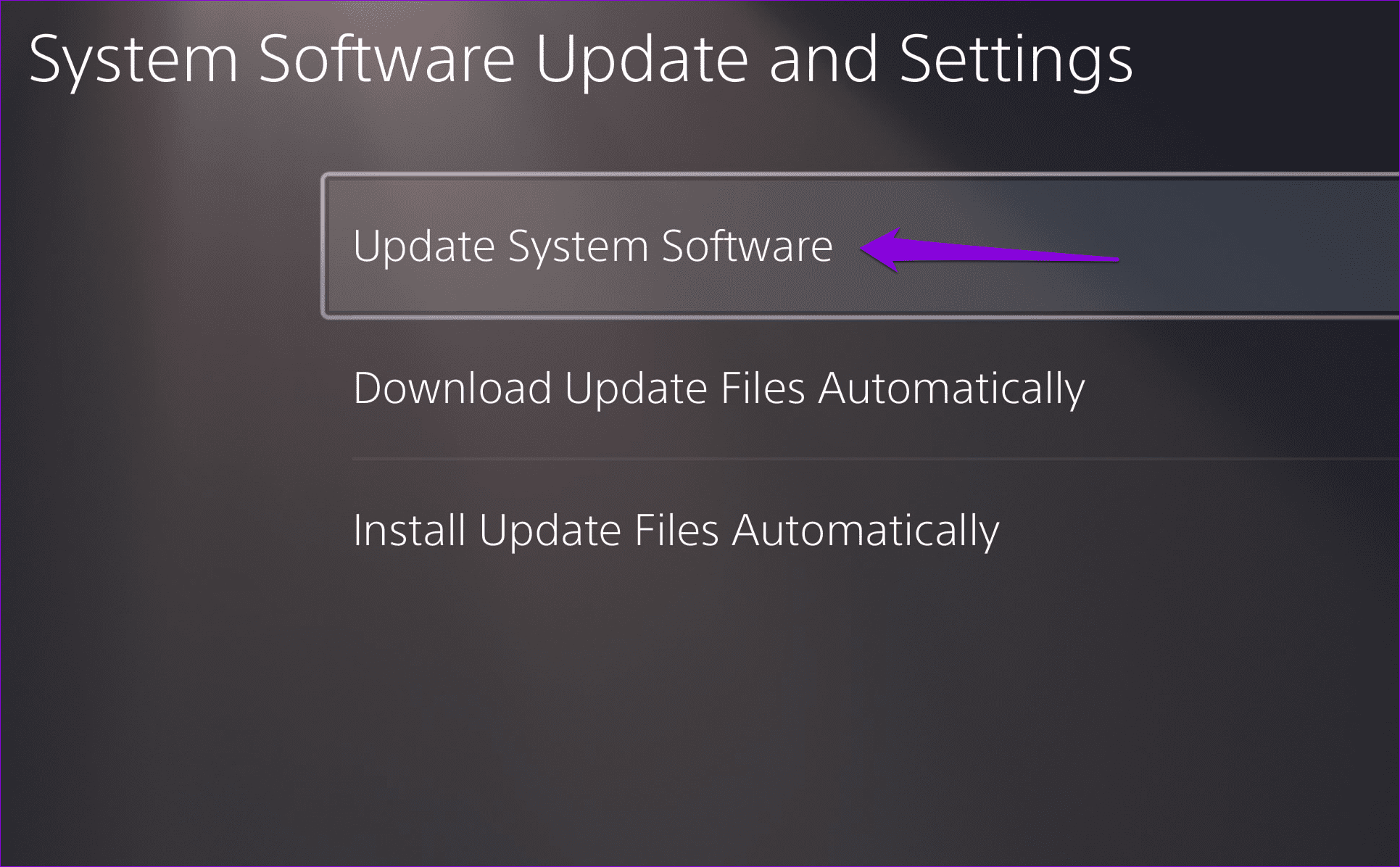
Step 3: Select Update System Software to continue.
Step 4: Select the Update Using Internet option.

Was this helpful?
Last updated on 27 August, 2024
Read Next
 6 Fixes if Windows 11 Is Not Recognizing USB Devices
Fix 1: Unlock and Trust the Device Some devices, like iPhones or Androids, have an added layer of authentication to verify user identity.
6 Fixes if Windows 11 Is Not Recognizing USB Devices
Fix 1: Unlock and Trust the Device Some devices, like iPhones or Androids, have an added layer of authentication to verify user identity.
 3 Fixes for Amazon Fire TV Stick 4K Not Recognizing USB Drive
Basic Fixes Avoid using largely sized USB drives: You need to avoid using USB drives that are larger than 128GB in size.
3 Fixes for Amazon Fire TV Stick 4K Not Recognizing USB Drive
Basic Fixes Avoid using largely sized USB drives: You need to avoid using USB drives that are larger than 128GB in size.
 5 Fixes for Apple Photos Not Recognizing Faces on iPhone
Fix 1: Disable and Re-Enable iCloud Photos Sync A common reason why the Apple Photos app may fail to recognize and organize photos by face is due to sync issues
5 Fixes for Apple Photos Not Recognizing Faces on iPhone
Fix 1: Disable and Re-Enable iCloud Photos Sync A common reason why the Apple Photos app may fail to recognize and organize photos by face is due to sync issues
 Top 9 Ways to Fix Windows 11 Computer Not Recognizing Headphones
Connecting your favorite pair of headphones allows you to isolate yourself from the surrounding noise and lets you focus on the task at hand.
Top 9 Ways to Fix Windows 11 Computer Not Recognizing Headphones
Connecting your favorite pair of headphones allows you to isolate yourself from the surrounding noise and lets you focus on the task at hand.
 Top 7 Ways to Fix Steam Not Recognizing Controller on Windows 11
Select games on your PC are more fun with a controller rather than the keyboard and mouse combo.
Top 7 Ways to Fix Steam Not Recognizing Controller on Windows 11
Select games on your PC are more fun with a controller rather than the keyboard and mouse combo.
 3 Fixes When an External Hard Drive Is Not Showing up in Windows 11
https://youtu.be/zu_eLoLltq4 Basic Fixes: Try another USB port: Your current port may be faulty, and using a different one may be effective.
3 Fixes When an External Hard Drive Is Not Showing up in Windows 11
https://youtu.be/zu_eLoLltq4 Basic Fixes: Try another USB port: Your current port may be faulty, and using a different one may be effective.
 3 Fixes for External Microphone Not Working on Mac
Quick Fixes Check USB Port: The USB port of your Mac used for connecting the external mic might be faulty.
3 Fixes for External Microphone Not Working on Mac
Quick Fixes Check USB Port: The USB port of your Mac used for connecting the external mic might be faulty.
 4 Fixes for Macbook Not Outputting in High Refresh Rate to External Monitor
Basic Fixes Restart your Mac: Restarting your Mac often fixes things by refreshing the configuration, solving software glitches, and reinitializing ports.
4 Fixes for Macbook Not Outputting in High Refresh Rate to External Monitor
Basic Fixes Restart your Mac: Restarting your Mac often fixes things by refreshing the configuration, solving software glitches, and reinitializing ports.
The article above may contain affiliate links which help support Guiding Tech. The content remains unbiased and authentic and will never affect our editorial integrity.