

Fix 1: Run the Printer Troubleshooter
Windows 11 includes several troubleshooters that can help you fix common system-level issues. You can try running the printer troubleshooter to see if that fixes this particular error.
Step 1: Press the Windows key + I to launch the Settings app and head to Bluetooth & devices > Printers & scanners.
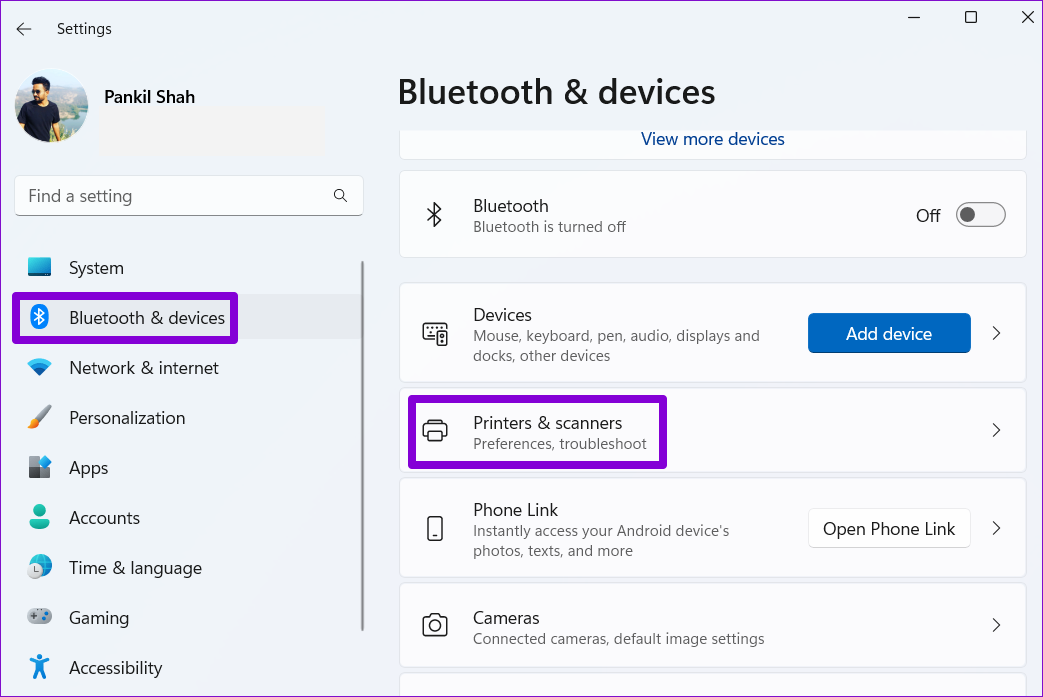
Step 2: Choose your printer from the list.

Step 3: Click on Run the troubleshooter.

Windows will automatically detect any issues with your printer and suggest fixes accordingly. Apply the recommended fixes and try using your printer again.
Fix 2: Update or Reinstall the Printer Driver
Outdated or incompatible printer drivers on your PC can also cause the “Driver is unavailable” error. You can try updating the current printer drivers to see if that improves the situation.
Step 1: Right-click on the Start icon and select Device Manager from the menu that pops open.
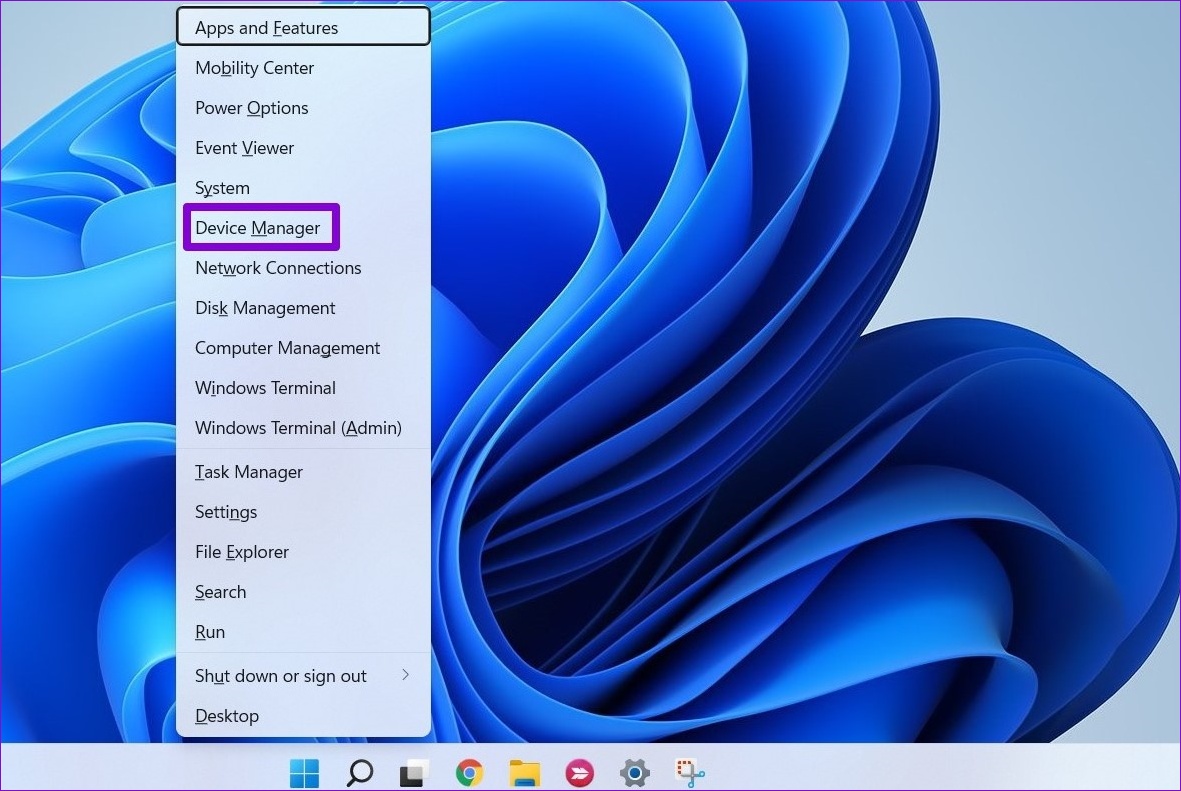
Step 2: Double-click on Print queues to expand it. Right-click on your printer and select Update driver.

Step 3: Select Search automatically for drivers and allow Windows to install the best available drivers for your printer.

If the error persists even after updating the drivers, the current printer drivers may be corrupt. In that case, you’ll need to uninstall the printer drivers and install them again. Go to Device Manager again, right-click on your printer, and select Uninstall device. Then, restart your PC and Windows will automatically install the missing printer driver.

Fix 3: Switch to Generic Printer Drivers
You can temporarily switch to Microsoft’s generic printer drivers to solve the issue with the current printer drivers on your Windows computer. Here’s how.
Step 1: Right-click on the Start icon and select Device Manager from the menu that pops open.
Step 2: Expand Print queues, right-click on your printer device, and select Update driver.
Step 3: Select Browse my computer for drivers.
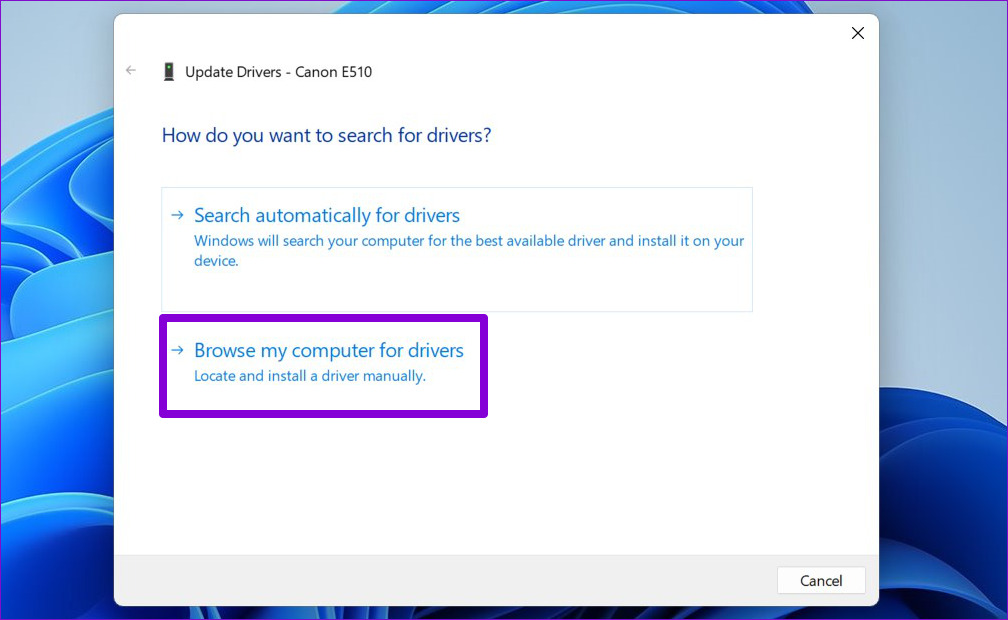
Step 4: Select Let me pick from a list of available drivers on my computer.

Step 5: Select Generic software device and hit Next.
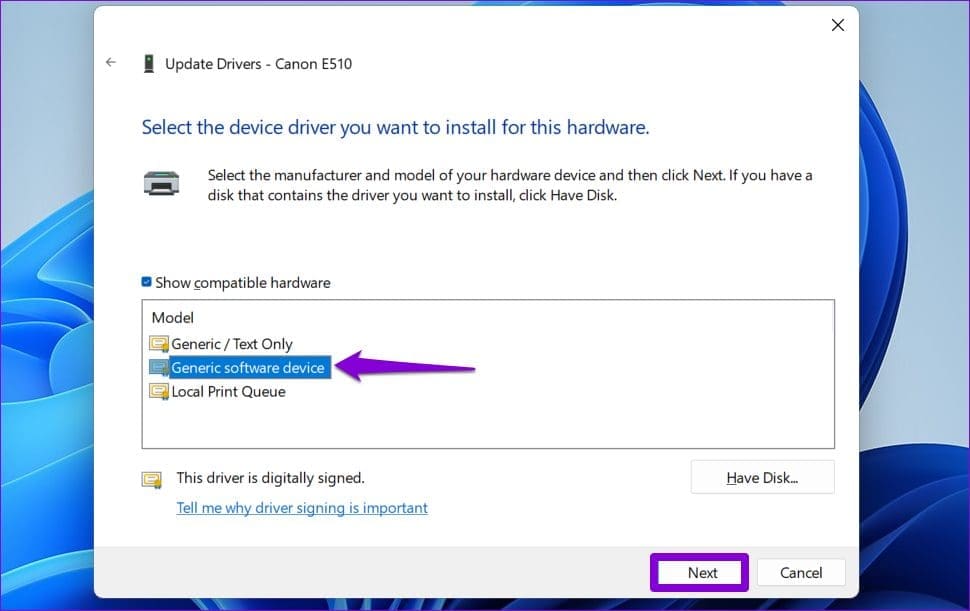
Restart your PC and see if you can use your printer without getting the “Driver is unavailable” error. However, this might be a temporary solution to get your printer working. You still might need the latest driver for the printer.
Fix 4: Reset Firewall Settings
Your current firewall settings might be preventing Windows from communicating with your printer. Instead of going through the Windows Firewall settings individually, you should consider resetting them by following the steps below.
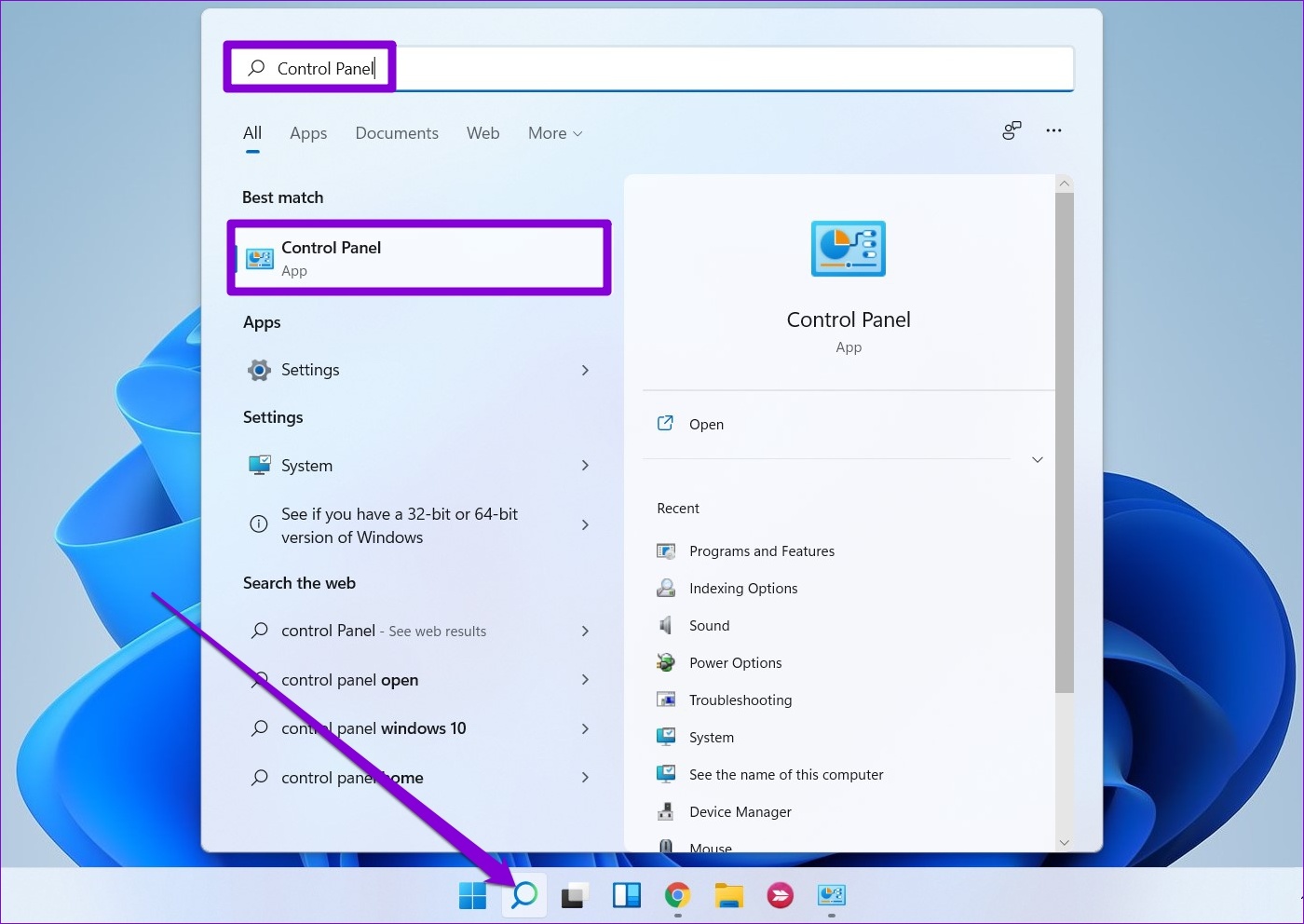
Step 1: Press the Windows key + S to open the search menu. Type control panel in the box and press Enter.
Step 2: Switch the view type to Large icons and select Windows Defender Firewall.

Step 3: Select Restore defaults from the left pane.
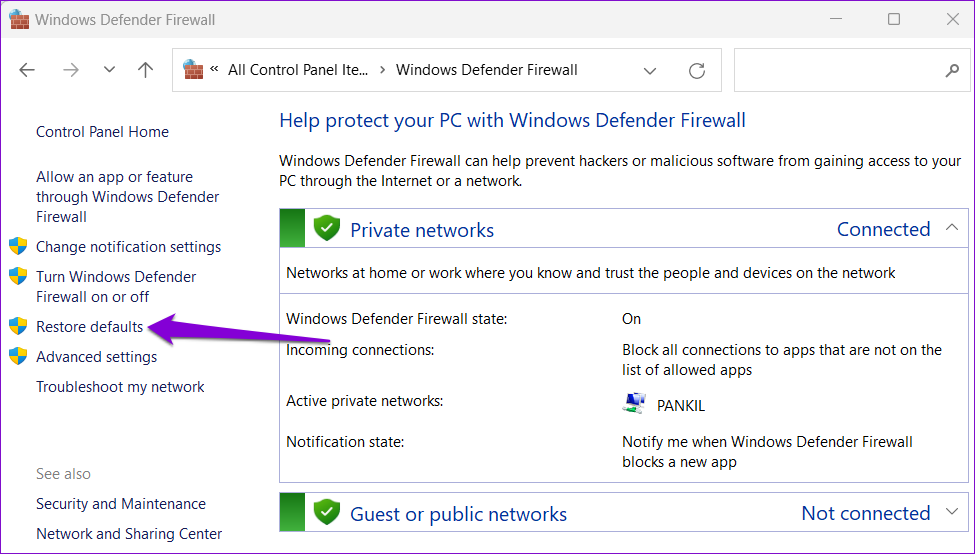
Step 4: Click the Restore defaults button to confirm.

Fix 5: Install Windows Updates
Windows updates bring several new features, improvements, and bug fixes to your system. If the error is only occurring due to a buggy Windows build or compatibility issues, updating Windows 11 to its most recent version should help.
Press the Windows key + I to open the Settings app. Navigate to the Windows Update tab and click on Check for updates. Download and install any pending Windows updates and see if the issue is still there.

Was this helpful?
Last updated on 08 August, 2024
1 Comment
Leave a Reply
Read Next
 How to Fix Printer Not Activated (Error Code 30) on Windows 11
Basic Fixes Reconnect printer: If you're using a wired printer, its loose USB connection to your PC may result in 'Printer not activated (Error Code 30)'.
How to Fix Printer Not Activated (Error Code 30) on Windows 11
Basic Fixes Reconnect printer: If you're using a wired printer, its loose USB connection to your PC may result in 'Printer not activated (Error Code 30)'.
 5 Ways to Fix “A Driver Cannot Load on This Device” Error on Windows 11
Fix 1: Update the Problematic Driver If a driver is incompatible, Windows may fail to load it.
5 Ways to Fix “A Driver Cannot Load on This Device” Error on Windows 11
Fix 1: Update the Problematic Driver If a driver is incompatible, Windows may fail to load it.
 4 Ways to Fix “Windows Could Not Find a Driver for Your Network Adapter” Error
Fix 1: Enable Network Adapter Windows may fail to communicate with the network adapter if you've previously disabled it.
4 Ways to Fix “Windows Could Not Find a Driver for Your Network Adapter” Error
Fix 1: Enable Network Adapter Windows may fail to communicate with the network adapter if you've previously disabled it.
 4 Ways to Fix Graphics Device Driver Error Code 22 on Windows
Fix 1: Enable and Update the Graphics Driver You may see error code 22 on Windows if you have previously disabled the graphics driver or if it's outdated.
4 Ways to Fix Graphics Device Driver Error Code 22 on Windows
Fix 1: Enable and Update the Graphics Driver You may see error code 22 on Windows if you have previously disabled the graphics driver or if it's outdated.
 Top 10 Ways to Fix ‘Display Driver Failed to Start’ Error in Windows 10 and 11
Display drivers facilitate communication between the Windows operating system (or any OS) with your GPU.
Top 10 Ways to Fix ‘Display Driver Failed to Start’ Error in Windows 10 and 11
Display drivers facilitate communication between the Windows operating system (or any OS) with your GPU.
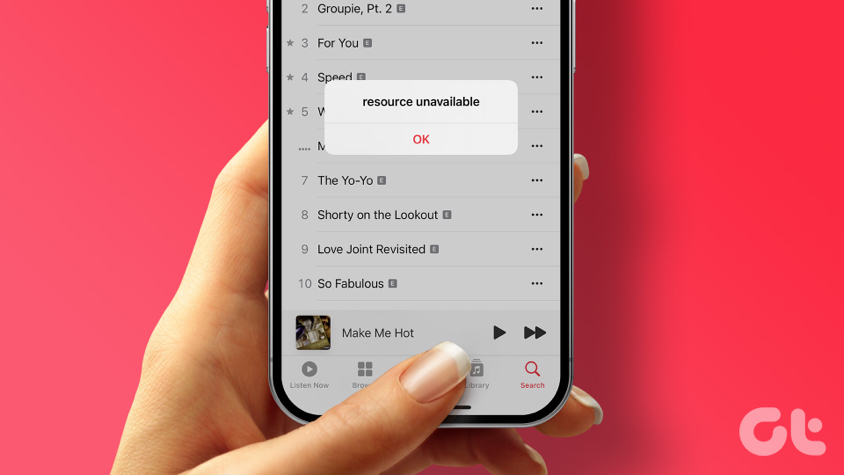 3 Ways to Fix the Resource Unavailable Error in Apple Music on iPhone
What Is the Apple Music Resource Unavailable Error The Resource Unavailable Error in Apple Music is something that we faced while playing certain songs only, and we suspect that the
3 Ways to Fix the Resource Unavailable Error in Apple Music on iPhone
What Is the Apple Music Resource Unavailable Error The Resource Unavailable Error in Apple Music is something that we faced while playing certain songs only, and we suspect that the
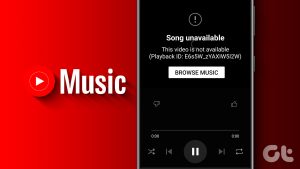 4 Ways to Fix “Song Is Unavailable” Error in YouTube Music App
Try Basic Fixes Try playing other songs or playlists: The availability of songs on YouTube Music can vary depending on your geographical location and YouTube's agreements with music copyright owners.
4 Ways to Fix “Song Is Unavailable” Error in YouTube Music App
Try Basic Fixes Try playing other songs or playlists: The availability of songs on YouTube Music can vary depending on your geographical location and YouTube's agreements with music copyright owners.
 4 Ways to Fix Roblox Error 503 “This Service Is Unavailable”
Why Are You Seeing Roblox Error Code 503 Server overload: One of the most common reasons for Roblox error 503 is when the servers become overloaded with too many user
4 Ways to Fix Roblox Error 503 “This Service Is Unavailable”
Why Are You Seeing Roblox Error Code 503 Server overload: One of the most common reasons for Roblox error 503 is when the servers become overloaded with too many user
The article above may contain affiliate links which help support Guiding Tech. The content remains unbiased and authentic and will never affect our editorial integrity.
I tried all those suggestions they didn’t work.