

Try Basic Fixes
- Update the Messenger app: Using an outdated version of the Facebook app on your Android or iPhone can trigger the “This media is no longer available” error in the Messenger app. Hence, it’s a good idea to update the Facebook app from the Play Store (Android) or App Store (iPhone). While you are at it, you should also update the Messenger app.
- Check if Messenger is down: Another reason why you may have trouble loading media or messages is if the Facebook Messenger servers are down. You can visit a website like Downdetector to check if others are experiencing similar issues.
Fix 1: Allow Facebook Messenger to Use Mobile Data (iPhone)
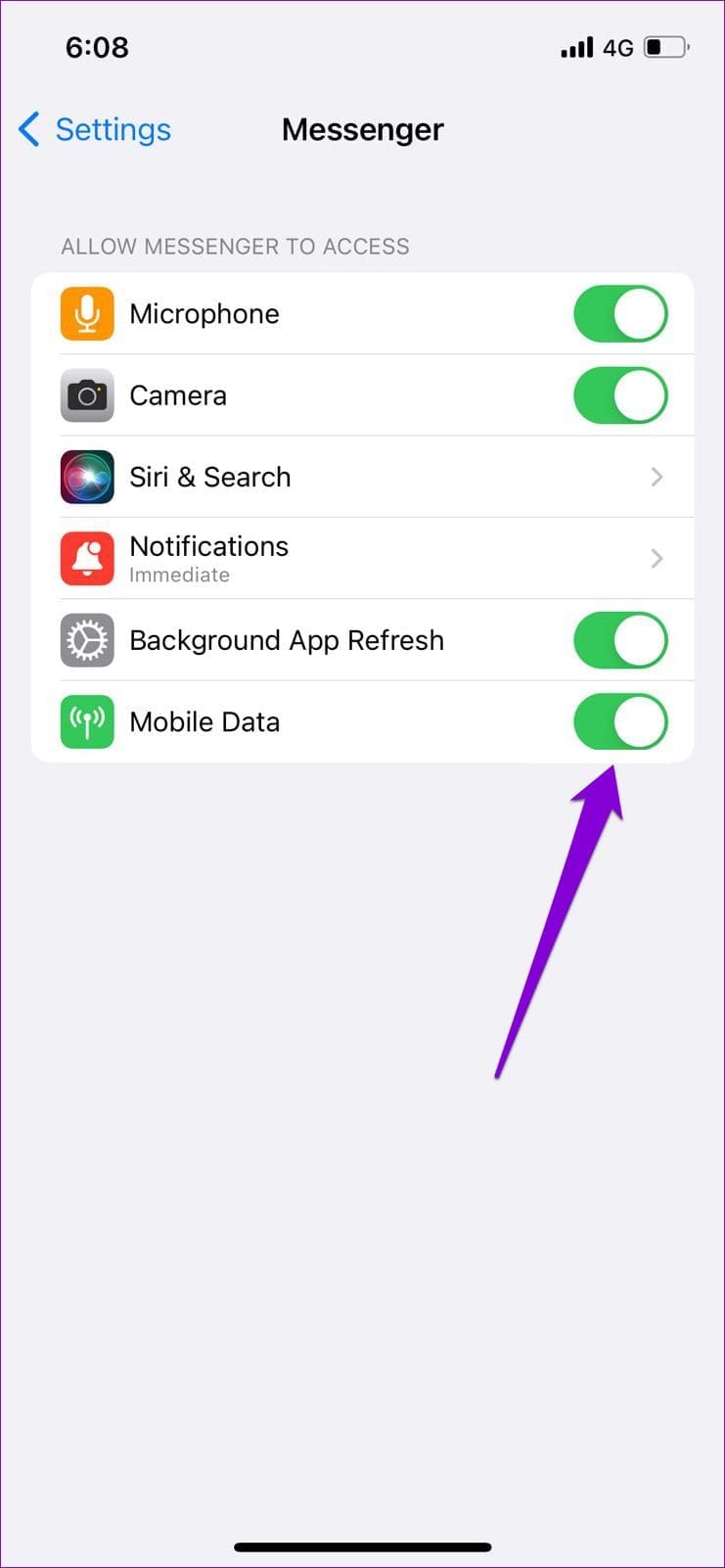
On iOS, you can manage mobile data permissions for each app separately. If you’ve inadvertently disabled mobile data access for the Messenger app, it won’t load photos and videos when you’re not connected to Wi-Fi. Here’s how you can change that.
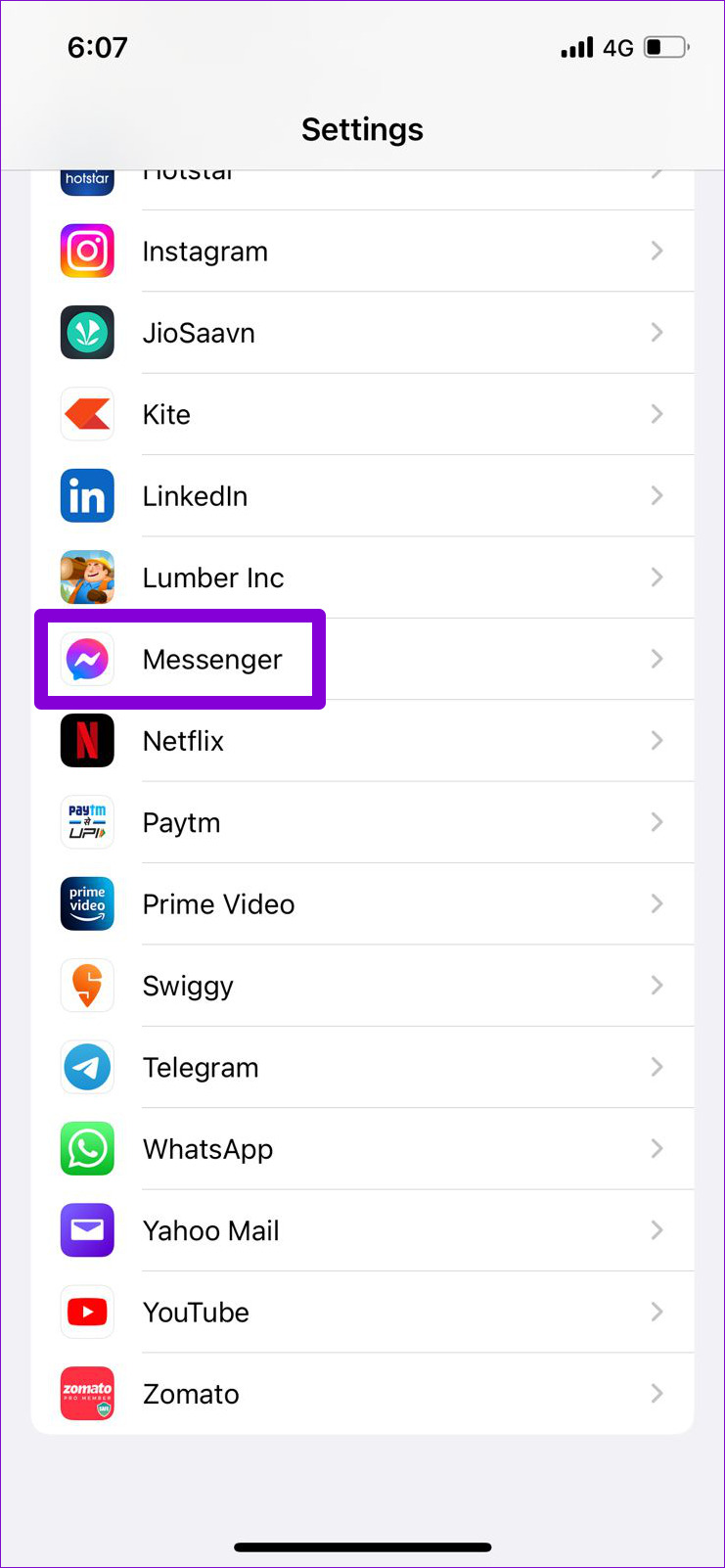
Step 1: Open the Settings app on your iPhone.
Step 2: Scroll down to tap on Messenger and turn on the toggle on the switch next to Mobile Data.
Fix 2: Disable Messenger Data Saver Mode (Android)
Messenger for Android includes the Data Saver feature, which is useful if you have a limited data plan. However, this feature occasionally prevents the app from downloading photos and videos. You can try disabling it to see if it helps.
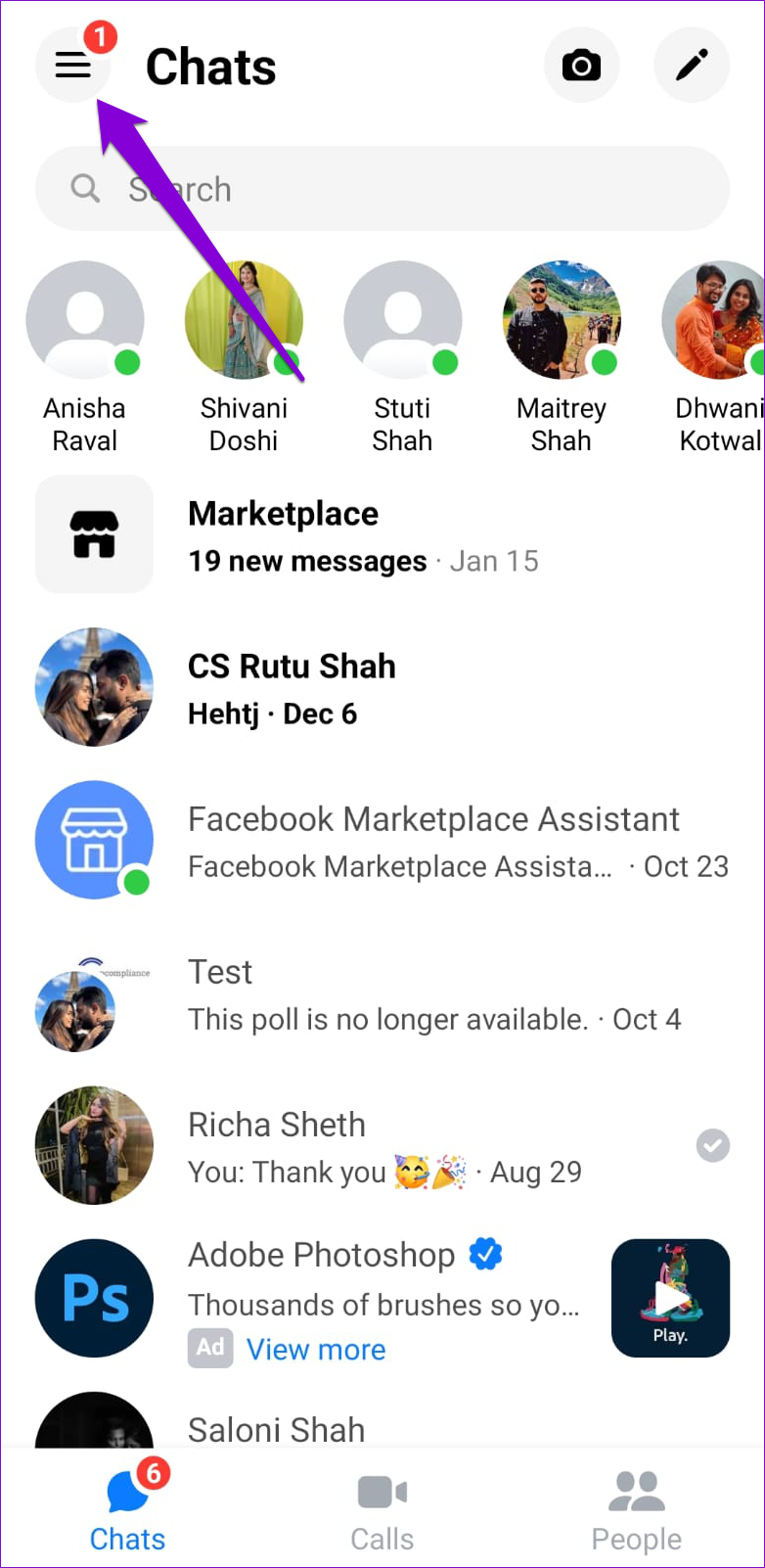
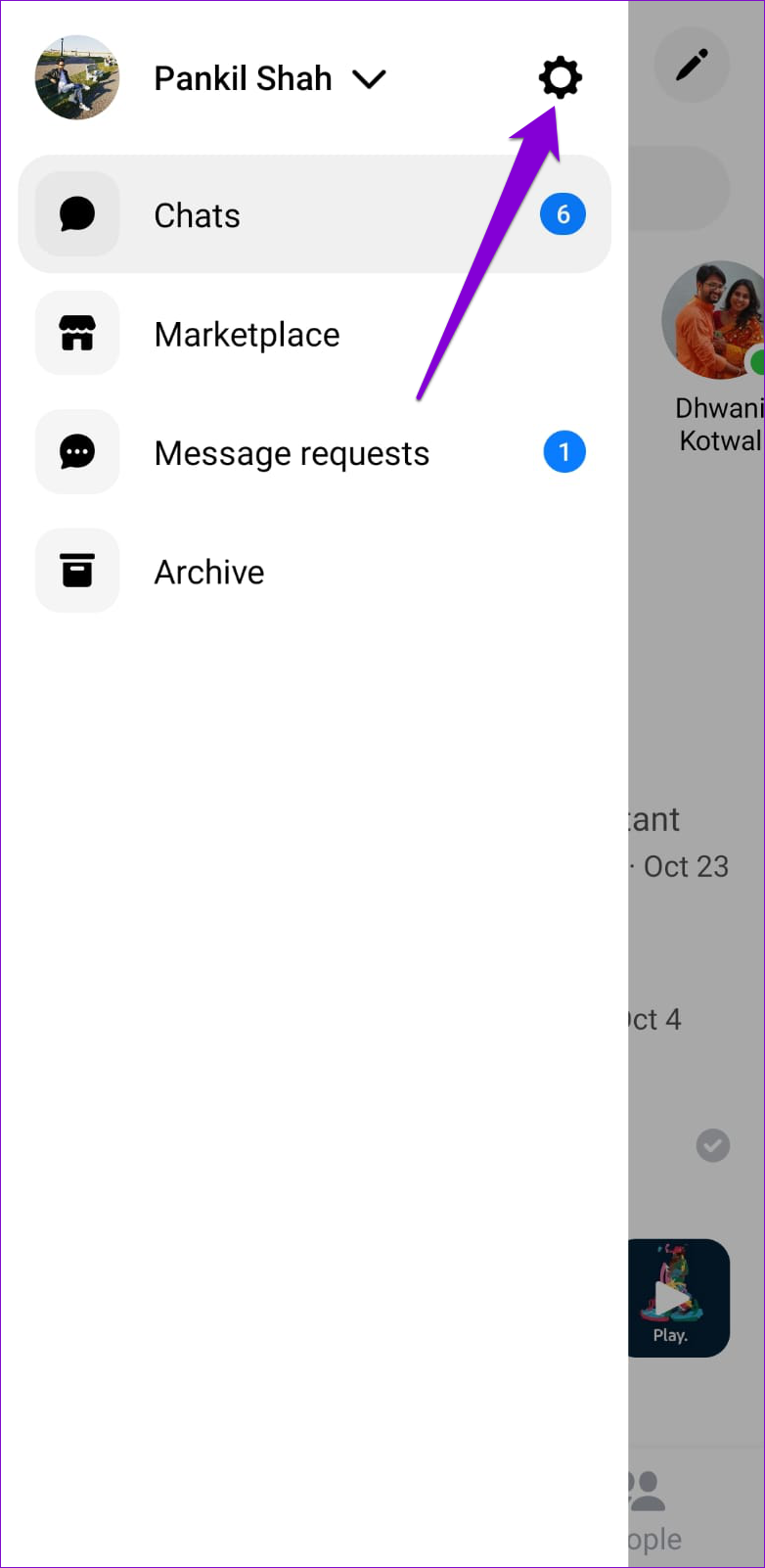
Step 1: Open up Messenger on your phone. Tap on your profile picture in the top left corner and then tap the gear icon.
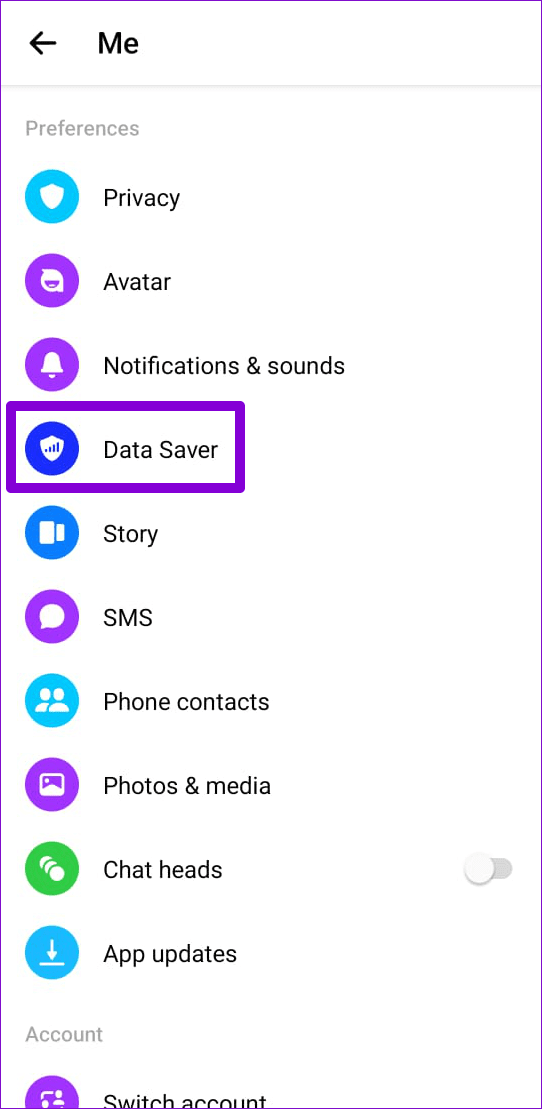
Step 2: Under Preferences, tap on Data Saver and disable it from the following menu.

Fix 3: Uninstall and Reinstall the Messenger App
If nothing else works, you can consider reinstalling the Messenger app on your Android or iPhone. Several users on an Apple Community post reported fixing the photos and videos not loading issue in Messenger with this trick. You can also give it a try.
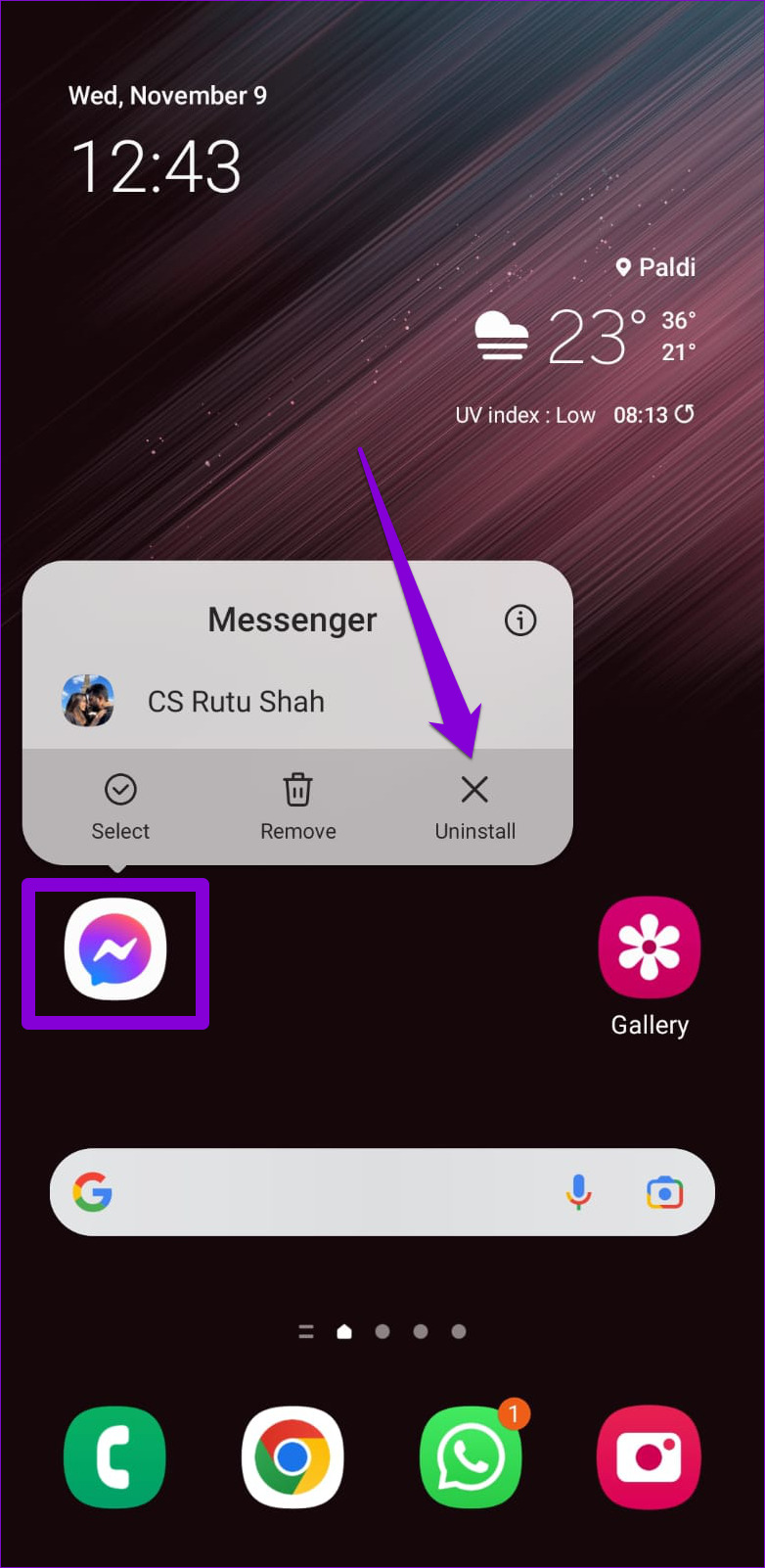
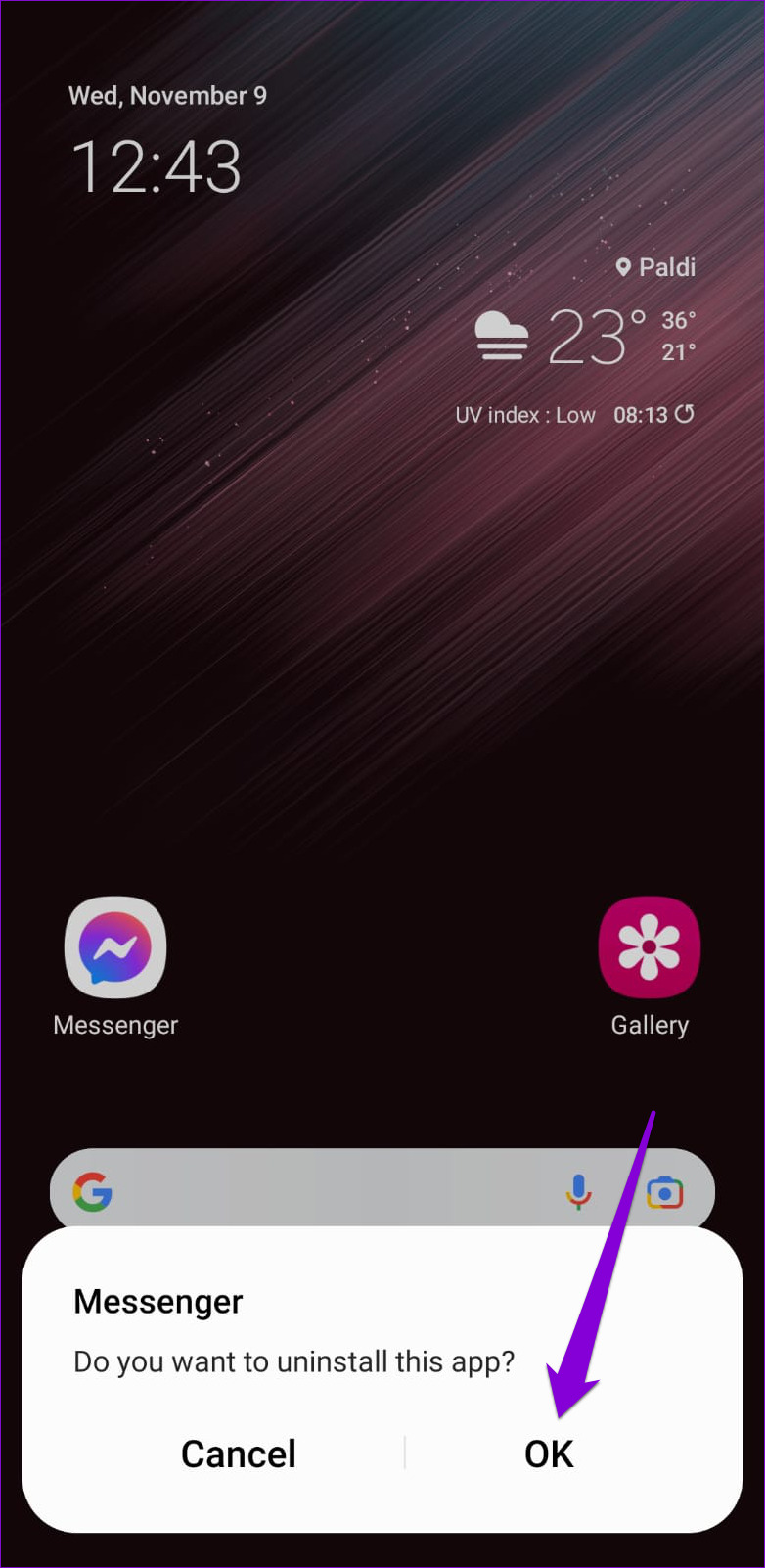
To delete Messenger from your Android, long-press on its app icon and select Uninstall. Then, tap OK to confirm.
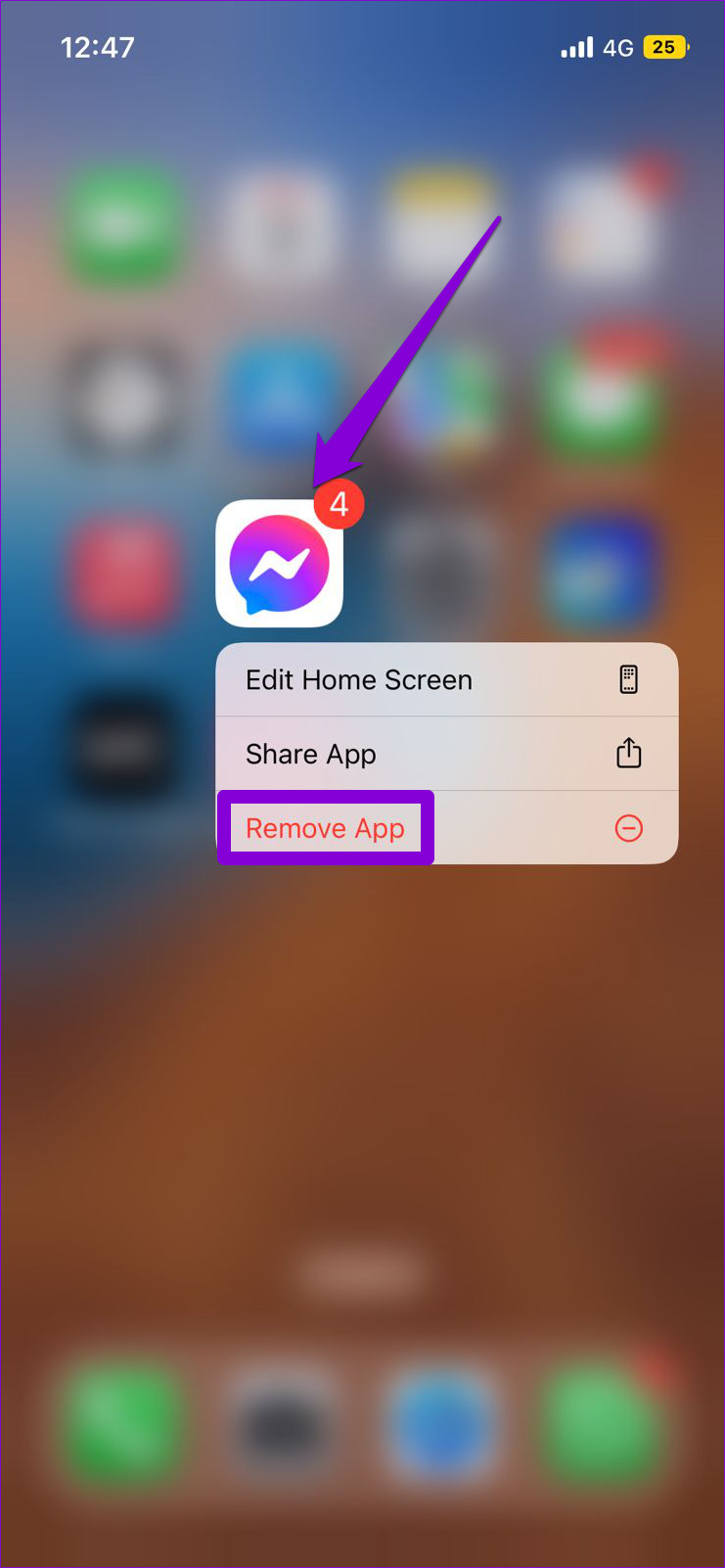
If you’re using Messenger on your iPhone, press and hold its app icon and select Remove App from the resulting menu. Select Delete App when prompted.
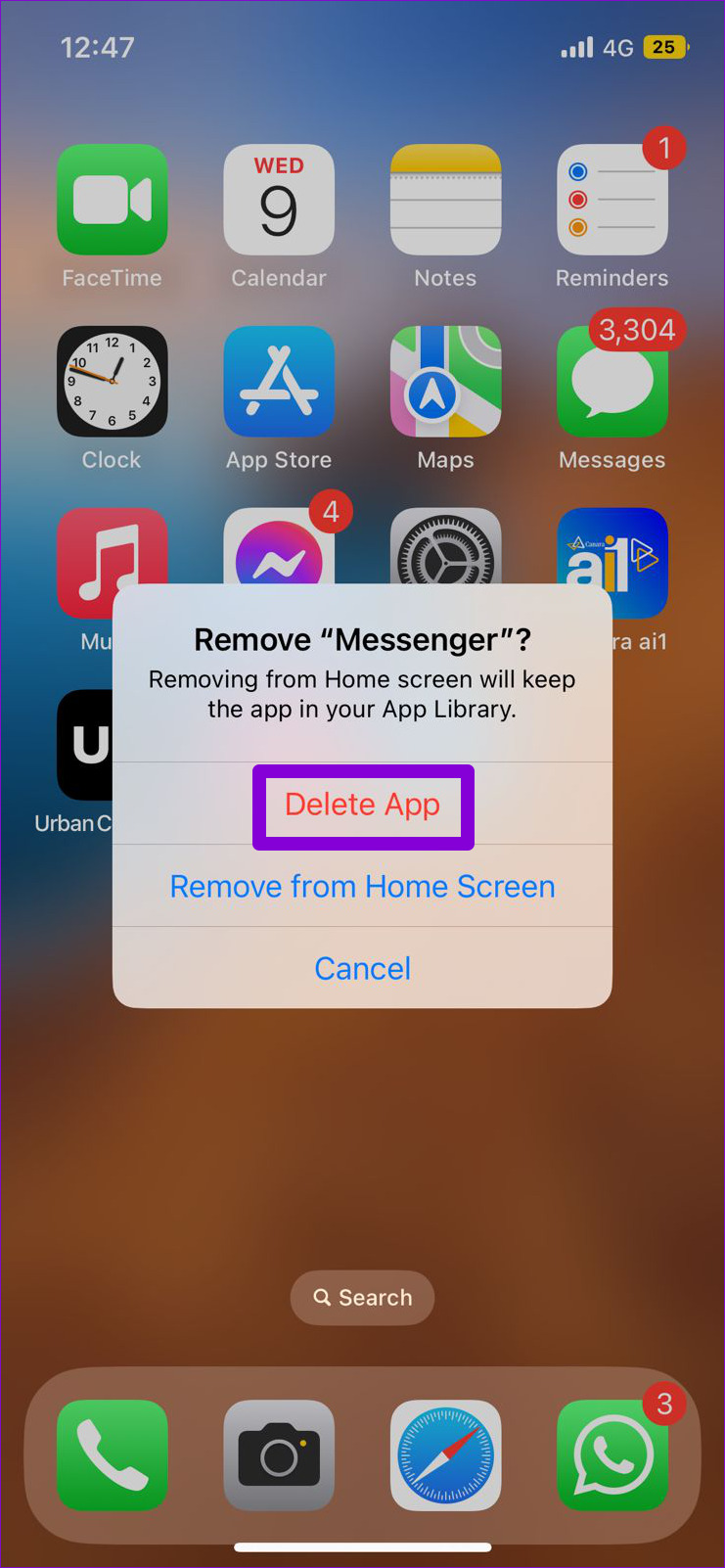
Once removed, head over to the Play Store or App Store to download the Messenger app. After that, you should not encounter any issues.
Was this helpful?
Last updated on 08 July, 2024
3 Comments
Leave a Reply
Read Next
 4 Ways to Fix Facebook Messenger Voice Messages Not Working
Try Basic Fixes Check the volume level on phone: If the volume level on your phone is too low, you may have trouble hearing your Messenger voice messages.
4 Ways to Fix Facebook Messenger Voice Messages Not Working
Try Basic Fixes Check the volume level on phone: If the volume level on your phone is too low, you may have trouble hearing your Messenger voice messages.
 How to See All the Photos Shared via Facebook Messenger
Check Shared Photos on the Web Messaging is an important part of our lives and each platform that is offering IM services is trying to one-up the other.
How to See All the Photos Shared via Facebook Messenger
Check Shared Photos on the Web Messaging is an important part of our lives and each platform that is offering IM services is trying to one-up the other.
 How to Add Multiple Photos to Facebook and Messenger Story
Add Multiple Photos From Android and Ios Devices Step 1: Tap on Create Story on the home screen and tap on Select Multiple.
How to Add Multiple Photos to Facebook and Messenger Story
Add Multiple Photos From Android and Ios Devices Step 1: Tap on Create Story on the home screen and tap on Select Multiple.
 4 Ways to Fix Facebook Messenger Lag on Android
Basic Fixes Check internet speeds: Check whether your Android phone is connected to a strong internet network.
4 Ways to Fix Facebook Messenger Lag on Android
Basic Fixes Check internet speeds: Check whether your Android phone is connected to a strong internet network.
 3 Ways to Fix Facebook Messenger Not Connecting to the Internet on iPhone
Try Basic Fixes Check if Messenger is down: Facebook Messenger servers can occasionally experience problems.
3 Ways to Fix Facebook Messenger Not Connecting to the Internet on iPhone
Try Basic Fixes Check if Messenger is down: Facebook Messenger servers can occasionally experience problems.
 Top 4 Ways to Fix Facebook Not Loading in Safari
https://youtu.be/rIpRwwjzGtQ Basic Fixes Check Facebook server status - When facing server issues, Facebook won't load properly no matter the browser.
Top 4 Ways to Fix Facebook Not Loading in Safari
https://youtu.be/rIpRwwjzGtQ Basic Fixes Check Facebook server status - When facing server issues, Facebook won't load properly no matter the browser.
 3 Ways to Fix Facebook Comments Not Loading on Android and iPhone
Try Basic Fixes Check Facebook's server status: It’s not uncommon for Facebook servers to experience problems.
3 Ways to Fix Facebook Comments Not Loading on Android and iPhone
Try Basic Fixes Check Facebook's server status: It’s not uncommon for Facebook servers to experience problems.
 3 Ways to Fix Facebook Games Not Loading in Google Chrome
Try Basic Fixes Close and reopen the game: Sometimes, temporary glitches can cause your Facebook games to become unresponsive and stop working.
3 Ways to Fix Facebook Games Not Loading in Google Chrome
Try Basic Fixes Close and reopen the game: Sometimes, temporary glitches can cause your Facebook games to become unresponsive and stop working.
The article above may contain affiliate links which help support Guiding Tech. The content remains unbiased and authentic and will never affect our editorial integrity.
I tried all the suggestions and still can’t see photos on my android tablet in FB messenger. Problem just started about 1 month ago. See them in messenger on my phone ok. Any other suggestions?
I have tried all these Different methods My photos are Is coming up grey still I’m blacking out when I send them 2 different people
None of these worked. When I click on a FB video I receive in Messenger, it goes to FB, but not the video.