Fix 1: Open Outlook in Safe Mode
Running Office apps like Outlook in safe mode can help you determine if one of the add-ins is responsible for the issue. To do that, press and hold the Ctrl key on your keyboard and double-click the Outlook shortcut. Then, click Yes to confirm.
After opening Outlook in safe mode, try using it for some time. If it does not show any errors, one of your add-ins may be causing the problem. To identify the culprit, you will need to disable all the add-ins and re-enable them one at a time.
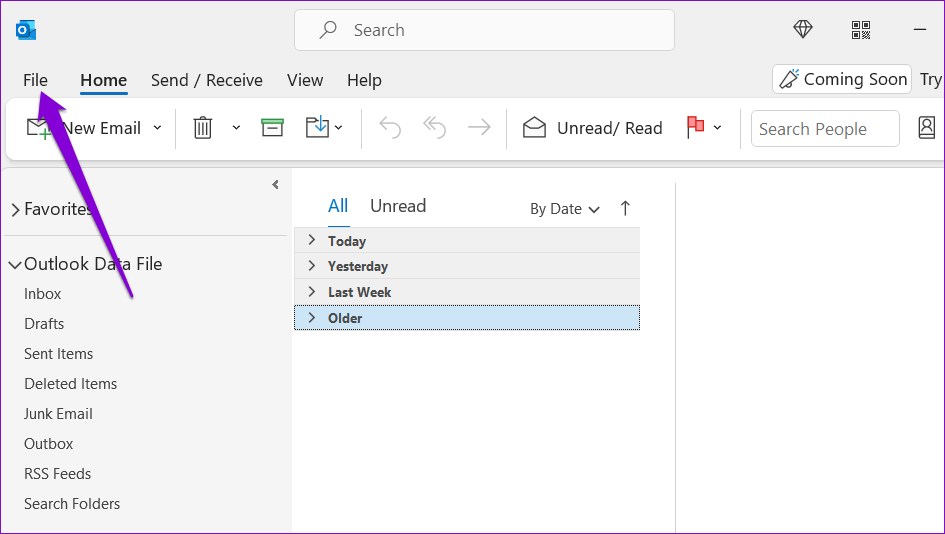
Step 1: In the Outlook app, click the File menu at the top.
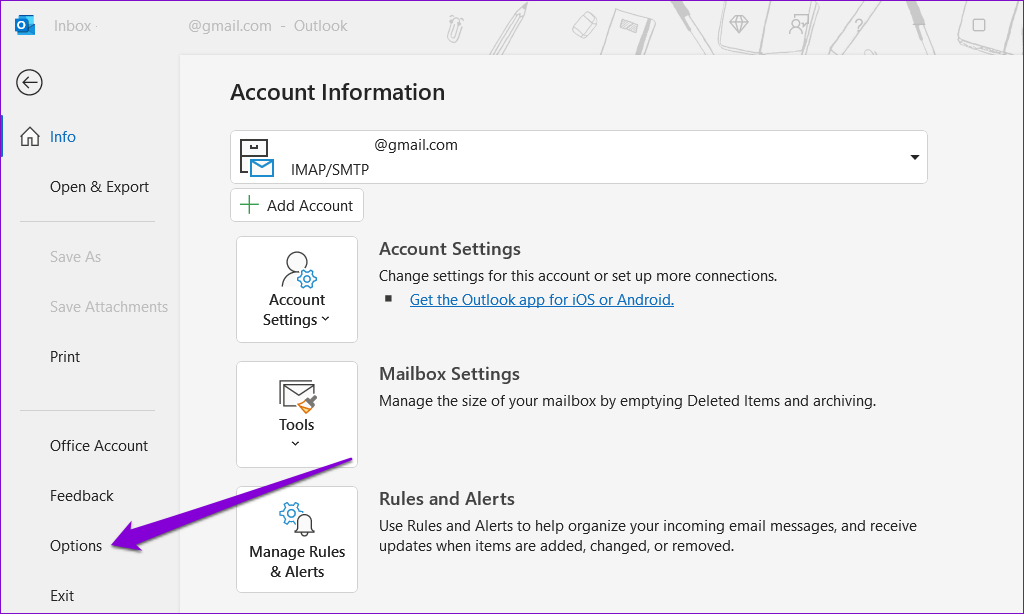
Step 2: Select Options from the left pane.
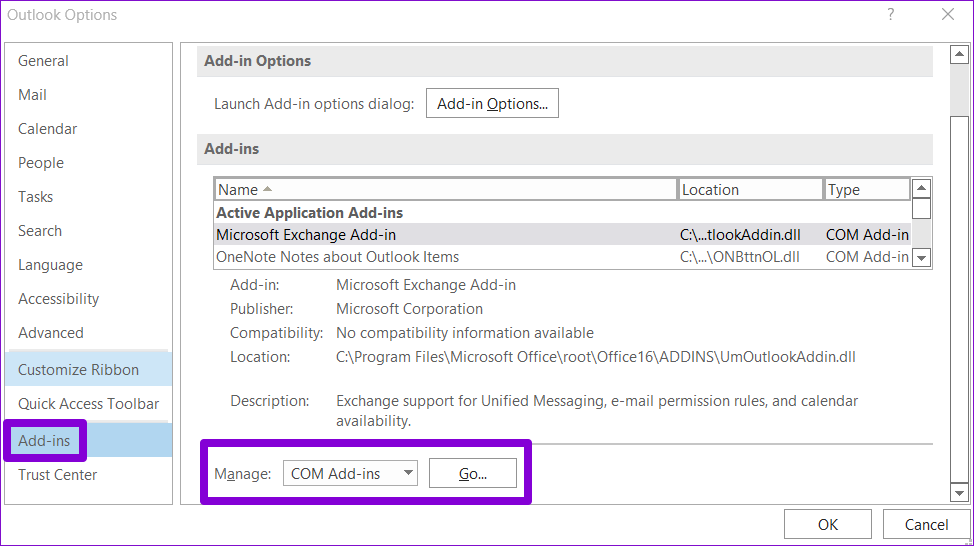
Step 3: In the Outlook Options window, switch to the Add-ins tab. Use the drop-down menu next to Manage to select COM Add-ins and click the Go button.
Step 4: Uncheck the boxes to disable add-ins and click OK.
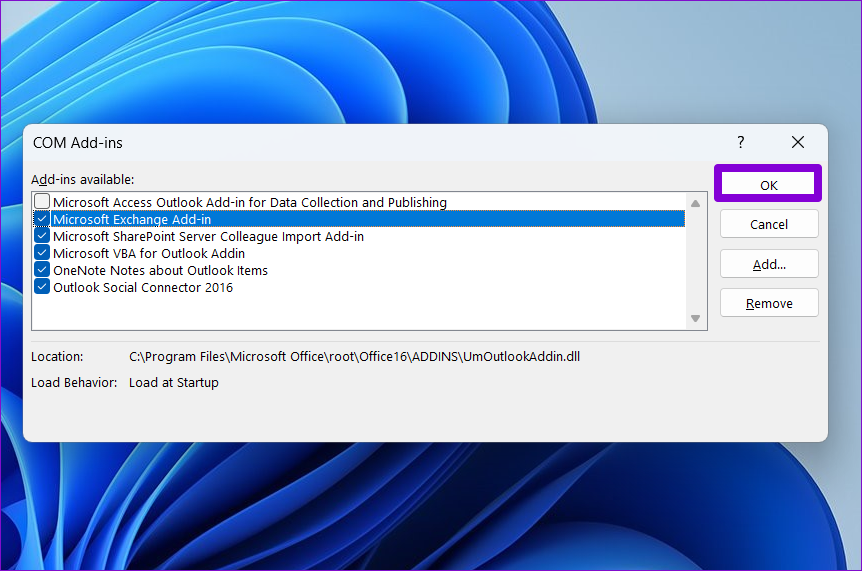
Restart the Outlook app after this and enable your add-ins one by one. Test the app after enabling each add-in until the error appears again. Once you find the troublesome add-in, consider removing it.
Fix 2: Change the Default Email Format
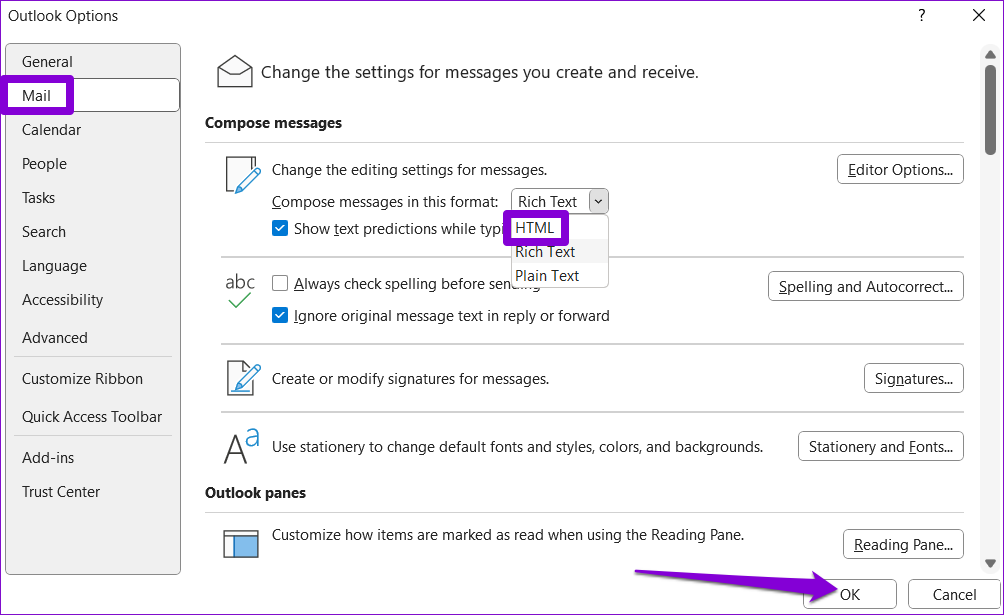
Does Outlook only show “The operation failed” error when you attempt to send an email or save it in the draft? If so, try changing the email format to HTML and see if that fixes the problem.
Step 1: Open the Outlook app on your PC and head to File > Options.
Step 2: In the Outlook Options window, select the Mail tab. Click the drop-down menu next to Compose messages in this format to select HTML and click OK.
Fix 3: Delete Conflicting Outlook Rules
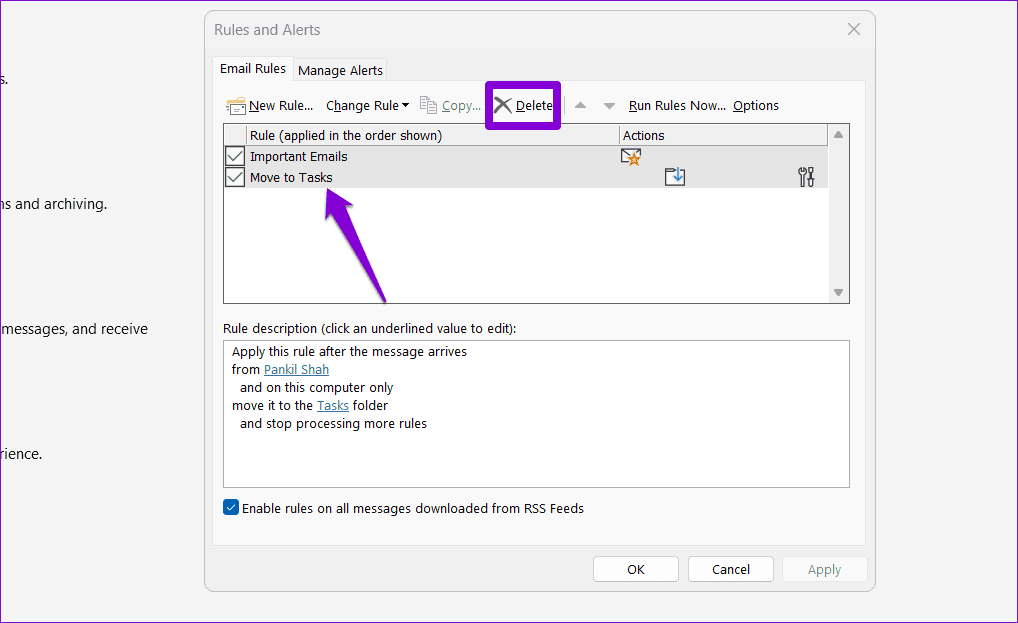
Outlook rules can help you automate tasks and manage your emails more efficiently. However, if they are not set up correctly, they can create looping scenarios or conflict with each other, resulting in errors. To fix this, you need to delete any Outlook rules that may be causing the error.
Step 1: Open the Outlook app and click the File menu in the top left corner.
Step 2: Select the Info tab and click the Manage Rules & Alerts button.

Step 3: Press and hold the Ctrl key and select the rules you want to remove. Then, click the Delete option at the top.
Fix 4: Repair Outlook Data File
Corrupted or damaged data files can also lead to issues with your Outlook emails or calendar. You can try running the Outlook Inbox Repair Tool to see if that resolves the issue.
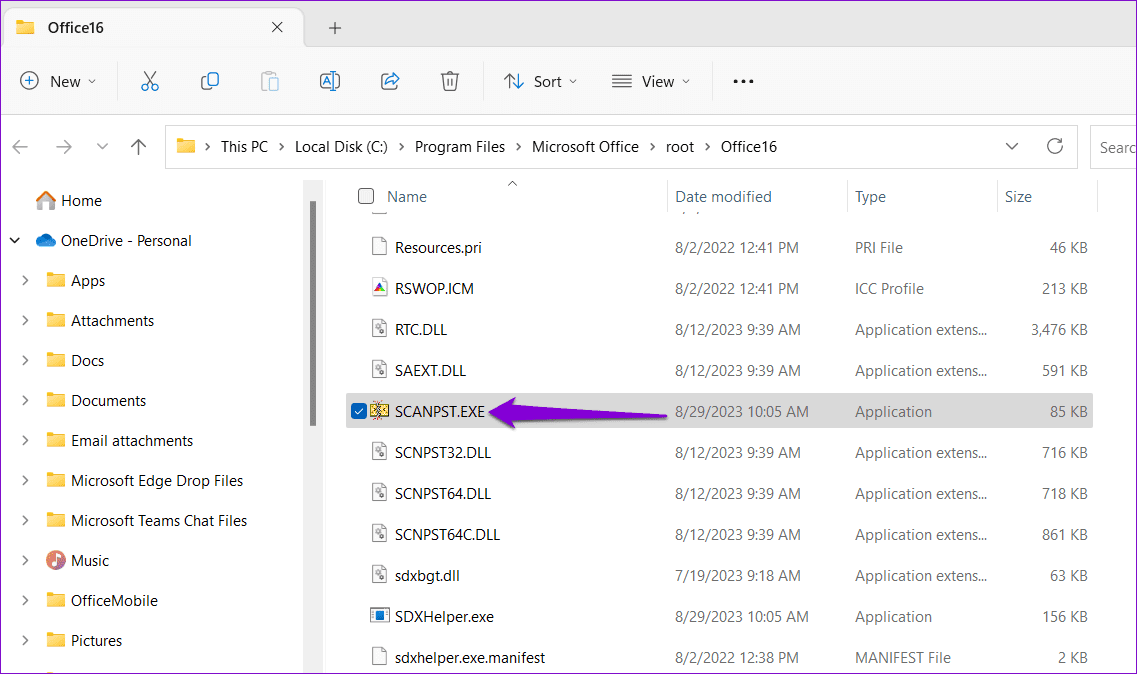
Step 1: Press the Windows key + E keyboard shortcut to open File Explorer and navigate to the following folder.
C:\Program Files\Microsoft Office\root\Office16
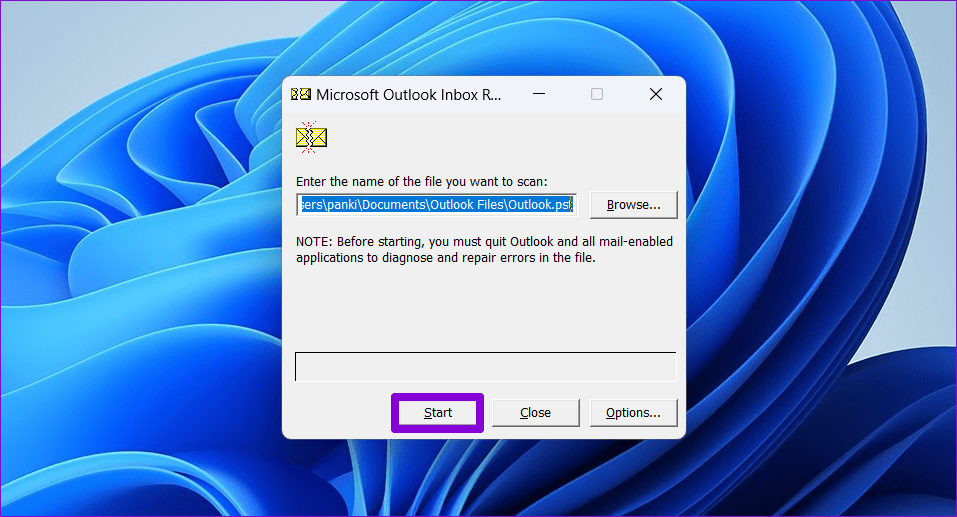
Step 2: Double-click the SCANPST.EXE file.
Step 3: Click Start to initiate the scan.
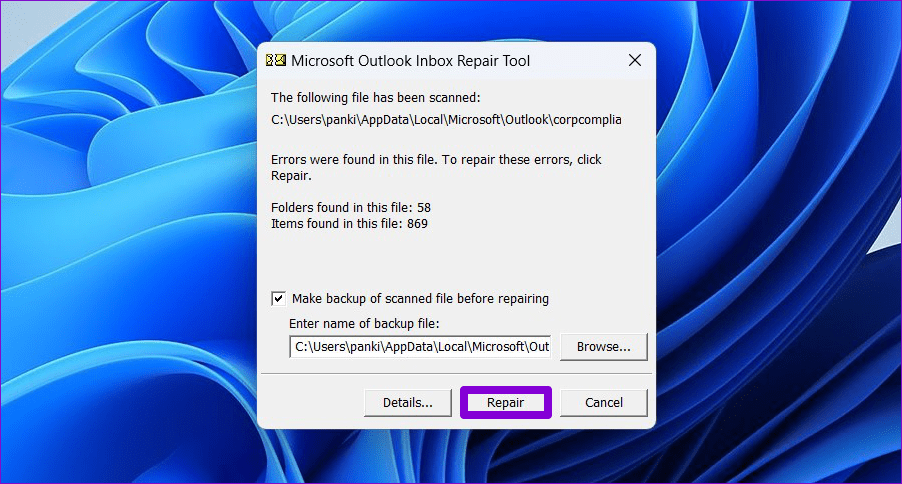
Step 4: If the tool finds any issues, click Repair.
Fix 5: Create a New Outlook Profile
Your Outlook profile on Windows saves your Outlook settings. If this profile has become corrupted, the Outlook app may misbehave. If the error “The operation failed” occurs due to a corrupted Outlook profile, you will need to create a new Outlook profile.
Step 1: Press the Windows key + R keyboard shortcut to open the Run dialog, type in control, and press Enter.
Step 2: Click the view type menu to select Large icons and then click on Mail (Microsoft Outlook).

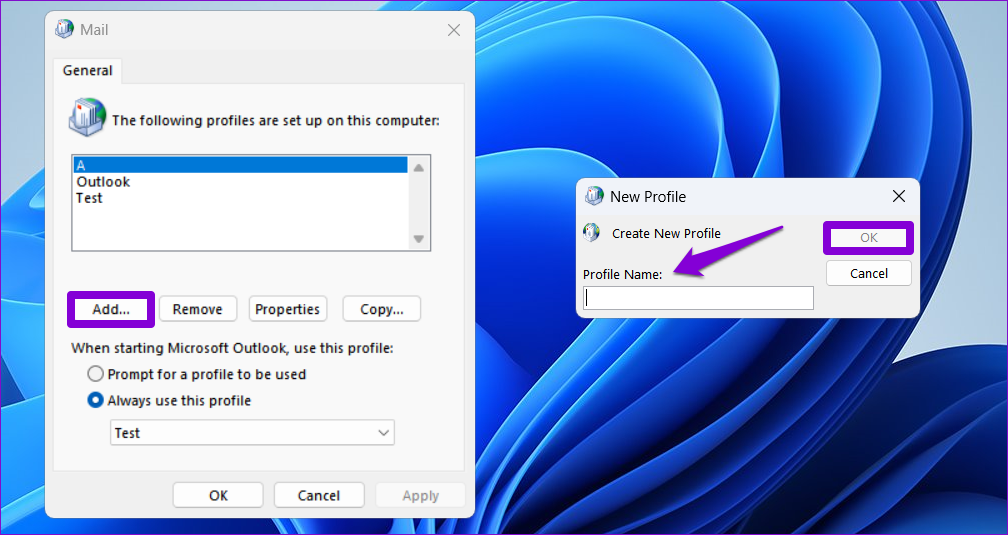
Step 3: Click the Show Profiles button.

Step 4: Click on Add, enter a name for the new profile, and click OK.
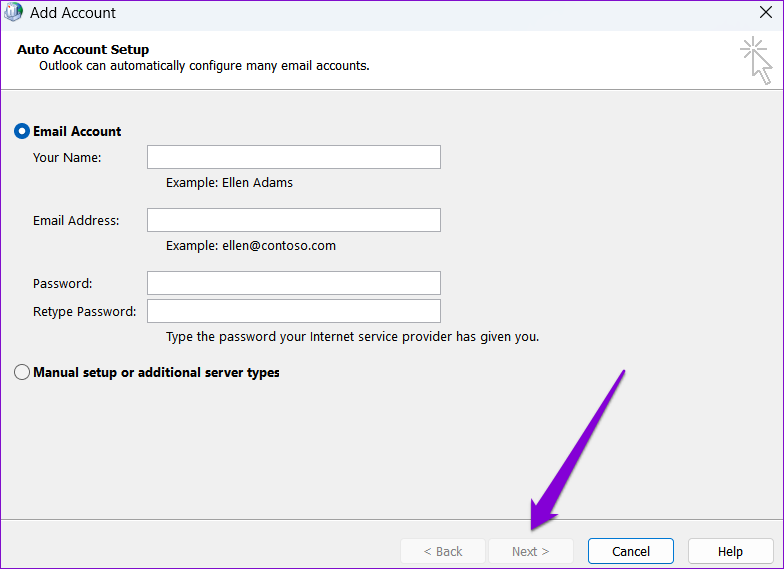
Step 5: In the Add Account window, enter your account details and hit Next.
Step 6: Select your new profile under When starting Microsoft Outlook and hit Apply.

Fix 6: Run the Office Repair Tool
If Microsoft Outlook still displays the error “The operation failed” at this point, there may be an issue with some of the core app files. Microsoft includes a handy repair tool that automatically identifies and resolves issues with all Office apps, including Outlook. Here’s how to run it.
Step 1: Press the Windows key + R to open the Run dialog box. In the Open field, type appwiz.cpl and press Enter.
Step 2: In the Programs and Features window, locate the Microsoft Office suite or Microsoft 365. Right-click on it and select Change.
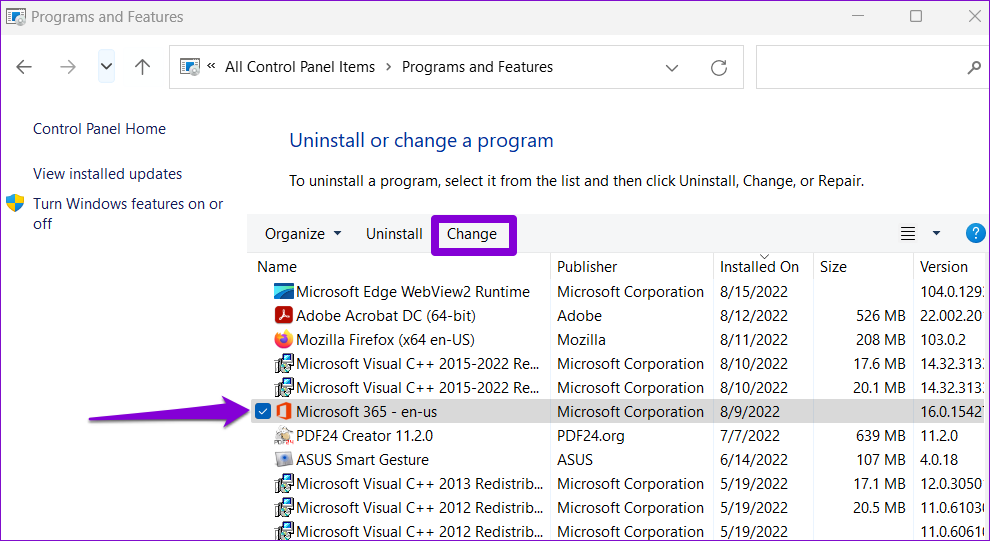
Step 3: Select Online Repair and click the Repair button to continue.

Was this helpful?
Last updated on 25 July, 2024
Read Next
 3 Fixes for OneDrive Error 0x80070185 “Cloud Operation Was Unsuccessful”
Try These Things First Check your internet connection: If your internet connection is not working as expected, it might cause OneDrive to glitch.
3 Fixes for OneDrive Error 0x80070185 “Cloud Operation Was Unsuccessful”
Try These Things First Check your internet connection: If your internet connection is not working as expected, it might cause OneDrive to glitch.
 6 Ways to Fix Microsoft Outlook Failed to Delete a Message Error
Fix 1.
6 Ways to Fix Microsoft Outlook Failed to Delete a Message Error
Fix 1.
 5 Fixes for “User Profile Service Failed the Sign-In” Error in Windows 11
Fix 1: Configure the User Profile Service If the User Profile Service on your PC is not set to run automatically, you could encounter the "User Profile Service failed the
5 Fixes for “User Profile Service Failed the Sign-In” Error in Windows 11
Fix 1: Configure the User Profile Service If the User Profile Service on your PC is not set to run automatically, you could encounter the "User Profile Service failed the
 4 Fixes for “This Interaction Failed” Error in Discord for Windows
Try Basic Fixes Update the Discord app: You may be getting the "This interaction failed" error due to an outdated or buggy Discord app.
4 Fixes for “This Interaction Failed” Error in Discord for Windows
Try Basic Fixes Update the Discord app: You may be getting the "This interaction failed" error due to an outdated or buggy Discord app.
 5 Fixes for Microsoft Outlook Out of Memory or System Resources Error on Windows
Fix 1: Run the Inbox Repair Tool Damaged or corrupted PST or OST files can cause Outlook to run out of memory on your Windows computer.
5 Fixes for Microsoft Outlook Out of Memory or System Resources Error on Windows
Fix 1: Run the Inbox Repair Tool Damaged or corrupted PST or OST files can cause Outlook to run out of memory on your Windows computer.
 5 Fixes for “Not Implemented” Error in Microsoft Outlook for Windows
Fix 1: Rename the Send/Receive Settings File Is Outlook only showing the "Not Implemented" error when you click the "Send/Receive" tab?
5 Fixes for “Not Implemented” Error in Microsoft Outlook for Windows
Fix 1: Rename the Send/Receive Settings File Is Outlook only showing the "Not Implemented" error when you click the "Send/Receive" tab?
 4 Fixes for “Failed to Load Module” Error on Twitch
Try Basic Fixes Ensure Twitch servers are working: Before trying anything, it's a good idea to ensure that the Twitch servers are working.
4 Fixes for “Failed to Load Module” Error on Twitch
Try Basic Fixes Ensure Twitch servers are working: Before trying anything, it's a good idea to ensure that the Twitch servers are working.
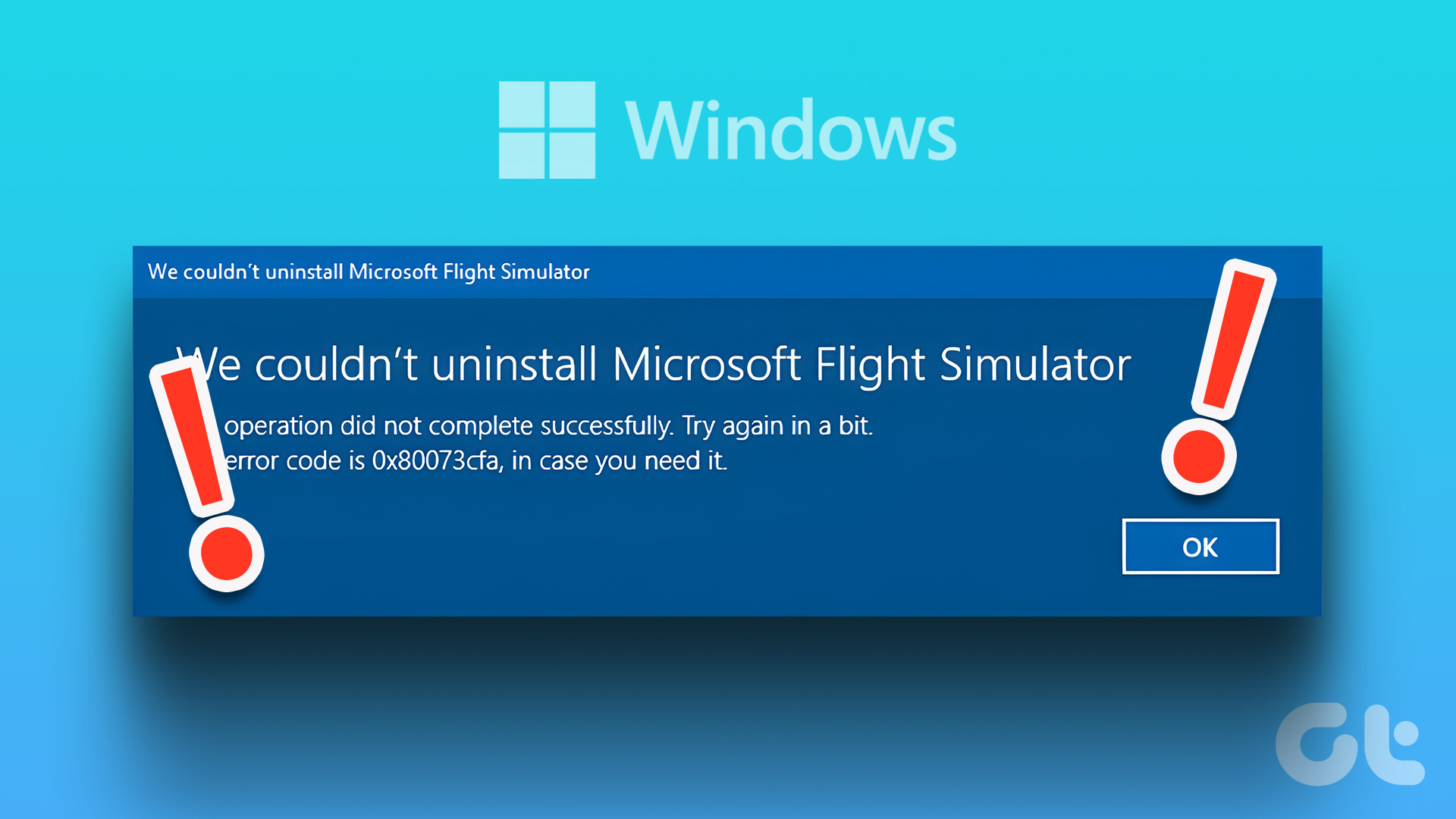 4 Ways to Fix “App Removal Failed” Error 0x80073CFA in Windows 11
Fix 1: Reset the Problematic App If the 0x80073CFA error only occurs while uninstalling a specific app, try resetting it first.
4 Ways to Fix “App Removal Failed” Error 0x80073CFA in Windows 11
Fix 1: Reset the Problematic App If the 0x80073CFA error only occurs while uninstalling a specific app, try resetting it first.
The article above may contain affiliate links which help support Guiding Tech. The content remains unbiased and authentic and will never affect our editorial integrity.