Fix 1: Check the Attachment File Size
The maximum file size allowed for attachments in Outlook and Gmail is 20MB, while business emails are usually limited to 10MB. If your attachments exceed this limit, you will receive an error message: The following files couldn’t be attached. Hence, it is a good idea to check the attachment file size before trying anything else.
If the file size exceeds the allowable limit, consider compressing it or sending it via a cloud storage platform such as Google Drive or OneDrive.
Fix 2: Check if Outlook Supports Attachment File Format
Although Outlook supports nearly every popular file format available, it doesn’t support all of them. For security reasons, Outlook doesn’t allow users to send executable files (.exe) or script files (.vbs, .js).
You can refer to Microsoft’s website to view a list of file types that Outlook doesn’t support. If your file is in an unsupported format, one possible solution is to change the file’s extension to one that Outlook supports. After receiving it, you can ask the recipient to revert the file’s extension to its original format.
Also, keep Outlook updated if Microsoft enables new file support.
Fix 3: Resize Image Attachments
Outlook’s built-in image resizer can be used to send images without using a ZIP or RAR.
Step 1: When composing a new email, attach the files.
Step 2: Click on File > Info > select Resize large images when I send this message radio button.

Outlook will automatically resize the images to a maximum of 1024X768 pixels. Anything smaller remains untouched.
Fix 4: Run Outlook in Safe Mode
Running Outlook in safe mode allows the app to run without any add-ins. This can help determine if a faulty add-in prevents you from adding attachments.
Hold down the CTRL key and double-click the Outlook shortcut to open it in safe mode. After Outlook opens in safe mode, add attachments to your email. If it works, one of the third-party add-ins may be causing the issue.
Next, disable all Outlook add-ins and re-enable them one at a time to find the one causing the issue.
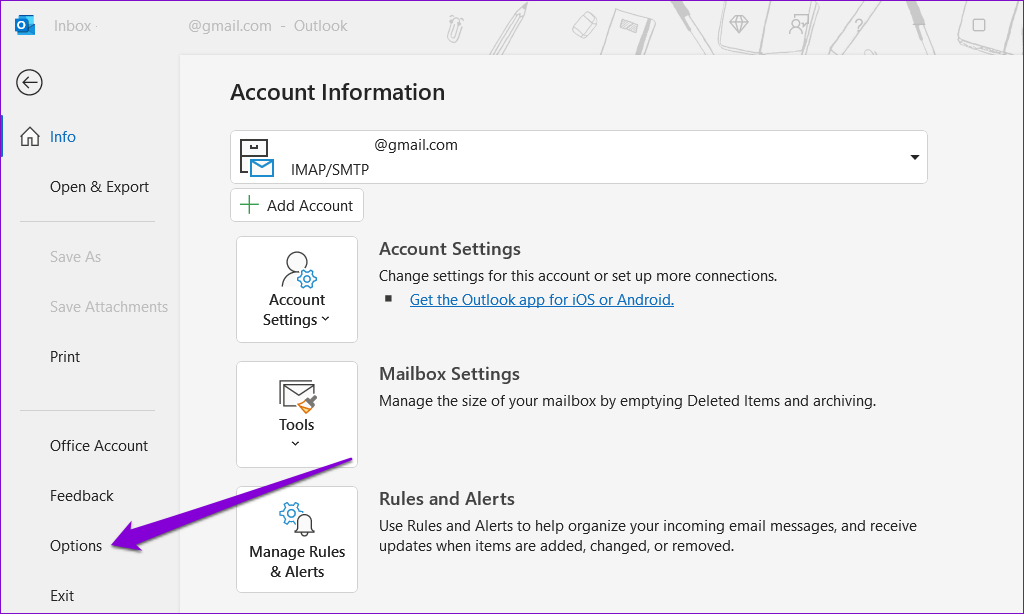
Step 1: Click on the File menu at the top of the Outlook app.
Step 2: Use the left pane to navigate to Options.
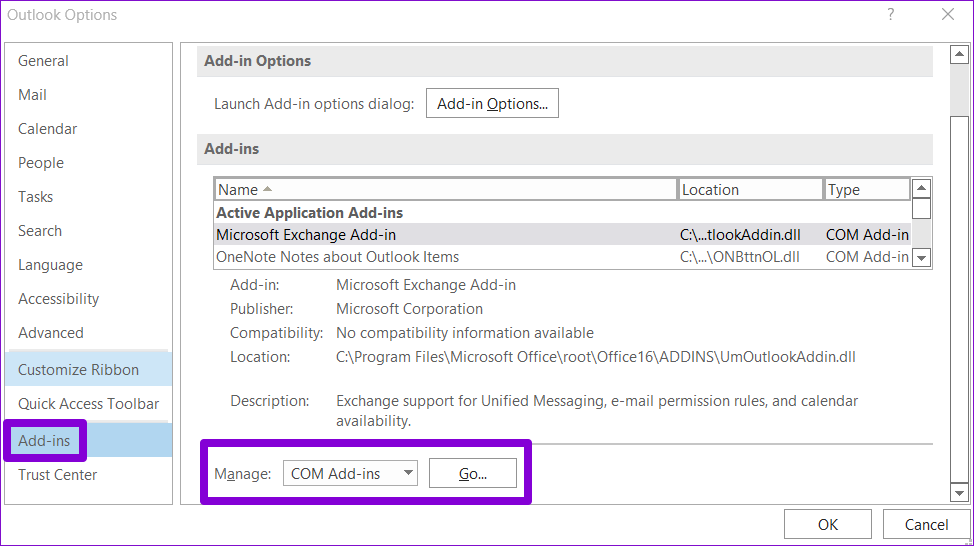
Step 3: Switch to the Add-ins tab in the Outlook Options window. Use the drop-down menu next to Manage > select COM Add-ins. Then, click on the Go button next to it.
Step 4: Clear all the checkboxes to disable add-ins and click OK.
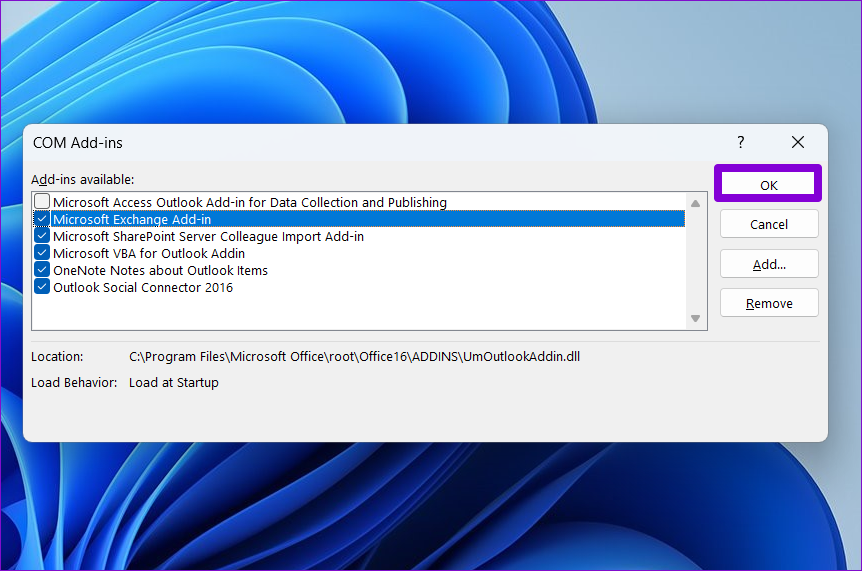
Restart Outlook in normal mode and enable your add-ins one by one until the problem occurs again. Once you find the faulty add-in, consider removing it.
Fix 5: Run the Office Repair Tool
If you still can’t attach files in the Outlook app, try running the Office repair tool on Windows as a last resort. This tool can automatically find and fix any issues with your Office apps, including Outlook.
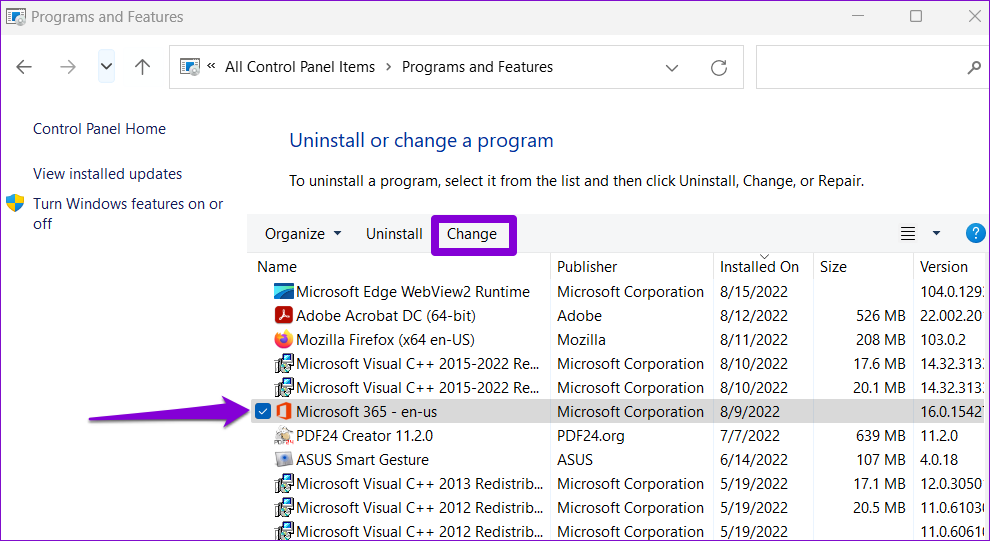
Step 1: Type appwiz.cpl in the Run (Win + R) prompt, and press Enter.
Step 2: Locate and select Microsoft Office Suite or Microsoft 365 on the list. Then, click the Change option at the top.
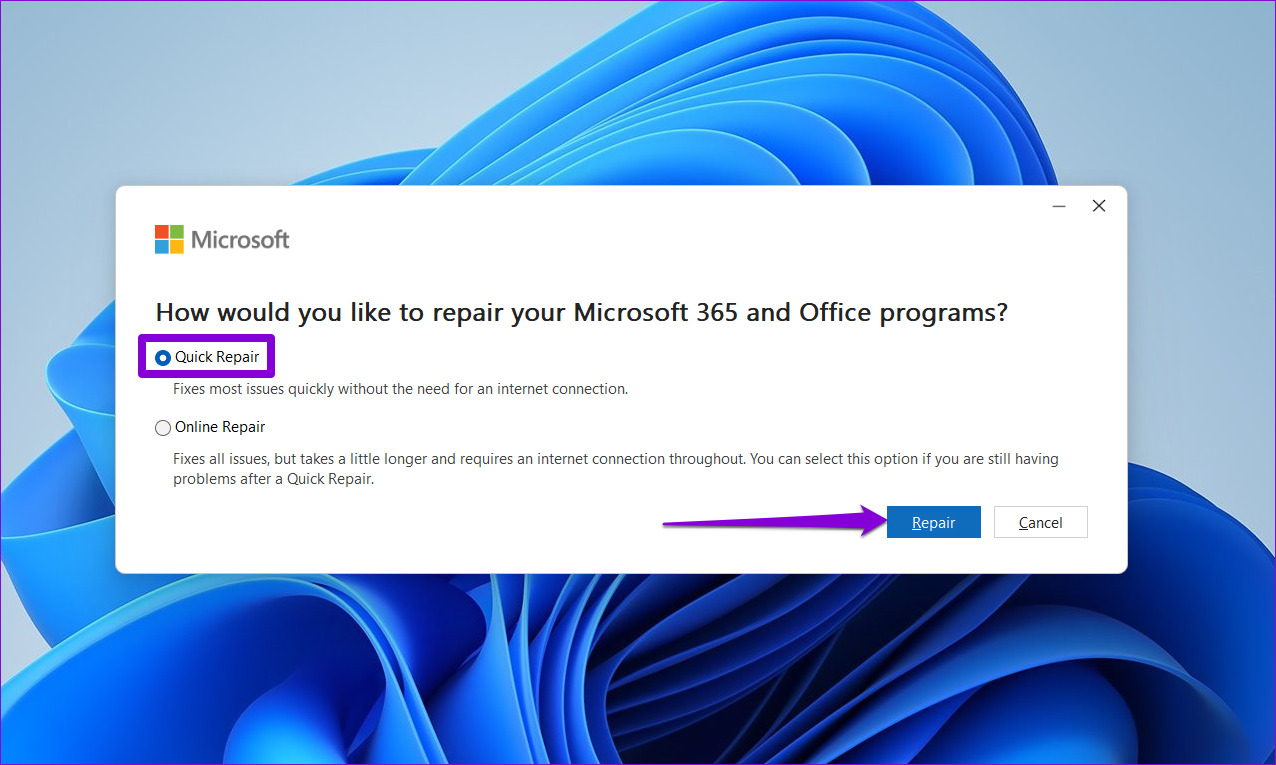
Step 3: Select Quick Repair and hit Repair.
Note: If the problem persists, Microsoft suggests performing the Online Repair instead. This process may take a little longer, but it’s likely to fix the issue.
Alternatively, you can achieve this by going to Windows Settings > Apps > Installed Apps > Microsoft 365 (Office) > Advanced options and choosing Repair.
Was this helpful?
Last updated on 23 April, 2024
Read Next
 5 Fixes for Unable to Open Attachments in Microsoft Outlook on Windows
Fix 1: Check Attachment Handling Settings If Outlook is unable to open your email attachments, it may be because the file previewer option is disabled.
5 Fixes for Unable to Open Attachments in Microsoft Outlook on Windows
Fix 1: Check Attachment Handling Settings If Outlook is unable to open your email attachments, it may be because the file previewer option is disabled.
 4 Fixes for Outlook App Not Downloading Attachments
Basic Fixes Check the device's internal storage: You should have enough internal storage on your device so that the attachments can be saved.
4 Fixes for Outlook App Not Downloading Attachments
Basic Fixes Check the device's internal storage: You should have enough internal storage on your device so that the attachments can be saved.
 4 Ways to Fix Gmail App Not Downloading Attachments
Basic Fixes Check network connection: Ensure there's no problem with network connectivity on your smartphone.
4 Ways to Fix Gmail App Not Downloading Attachments
Basic Fixes Check network connection: Ensure there's no problem with network connectivity on your smartphone.
 4 Ways to Fix Microsoft Teams Meeting Add-in Won’t Appear in Outlook for Windows
Fix 1: Enable the Teams Add-In A common reason the Microsoft Teams meeting option may disappear from Outlook is if you have accidentally disabled the related add-in.
4 Ways to Fix Microsoft Teams Meeting Add-in Won’t Appear in Outlook for Windows
Fix 1: Enable the Teams Add-In A common reason the Microsoft Teams meeting option may disappear from Outlook is if you have accidentally disabled the related add-in.
 Top 4 Ways to Change New Outlook Back to Old (Classic View) Outlook on Windows and Mac
The new Outlook app for desktop boasts a modern and simplified design, aligning it more closely with the web version of Microsoft Outlook.
Top 4 Ways to Change New Outlook Back to Old (Classic View) Outlook on Windows and Mac
The new Outlook app for desktop boasts a modern and simplified design, aligning it more closely with the web version of Microsoft Outlook.
 4 Ways to Fix Microsoft Outlook Not Saving Drafts on Windows
Try Basic Fixes Use Outlook search to locate the draft: Outlook may sometimes fail to sort your drafts correctly, making it difficult to locate them.
4 Ways to Fix Microsoft Outlook Not Saving Drafts on Windows
Try Basic Fixes Use Outlook search to locate the draft: Outlook may sometimes fail to sort your drafts correctly, making it difficult to locate them.
 6 Ways to Fix Microsoft Outlook Not Showing Email Content on Windows
Fix 1: Disable Offline Mode Your first step is to ensure that Outlook is not in offline mode.
6 Ways to Fix Microsoft Outlook Not Showing Email Content on Windows
Fix 1: Disable Offline Mode Your first step is to ensure that Outlook is not in offline mode.
 4 Ways to Fix Microsoft Outlook Stuck on Updating Inbox on Windows
Fix 1: Disable Cached Exchange Mode Cached Exchange Mode (CEM) is a feature available in Microsoft Outlook that allows you to keep a copy of your Exchange mailbox on your
4 Ways to Fix Microsoft Outlook Stuck on Updating Inbox on Windows
Fix 1: Disable Cached Exchange Mode Cached Exchange Mode (CEM) is a feature available in Microsoft Outlook that allows you to keep a copy of your Exchange mailbox on your
The article above may contain affiliate links which help support Guiding Tech. The content remains unbiased and authentic and will never affect our editorial integrity.