Basic Fixes
- Check internet speed: Check if you are getting good internet speeds on your mobile network or Wi-Fi.
- Add your outlook account again: You can sign in again to your Outlook account and then try syncing contacts.
- Disable Low Power Mode: Open Settings > Battery > Disable Low Power Mode.
- Connect your device to the charger: This will improve the speed of syncing your contacts that gets affected due to low battery charge.
- Force quit and relaunch Outlook: This will give the app a fresh start if it has been running in the background for quite some time now.
- Update the Apple Contacts app:
Fix 1: Enable Contact Syncing
You need to check and enable contact syncing for your Outlook account. This is the first solution if your iPhone or Mac is not syncing with Outlook contacts. Here’s how to check the same.
On iPhone
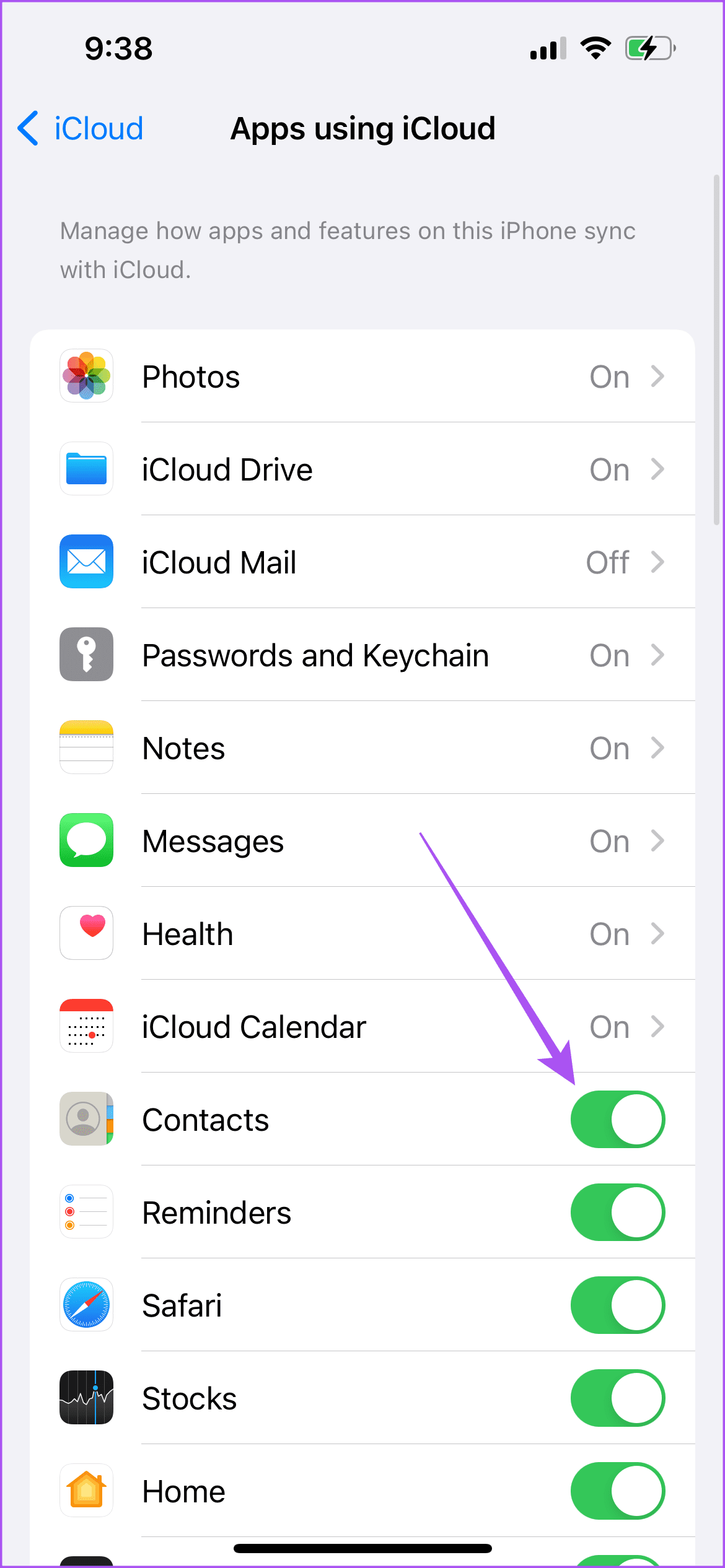
Step 1: Open Settings > Contacts > Accounts > Choose your Outlook account > Enable Contacts syncing.


Step 2: Go back and then tap on your profile name.
Step 3: Tap on iCloud > Show All > Enable Contact syncing.

On Mac
Step 1: Open Contacts > Click on Contacts at the top-right corner and then select Settings.

Step 2: Under the Accounts tab, select your Outlook account from the left menu and then click the checkbox next to Enable This Account.

Step 3: Close the window and open Settings on your Mac.
Step 4: Go to your profile name > iCloud > Show All.
Step 5: Click the toggle next to Contacts and then select Done.

Fix 2: Set Outlook As Default Account
If your Outlook contacts are still not syncing with iCloud, you can check if your Outlook account is set as default. Here’s how.
On iPhone
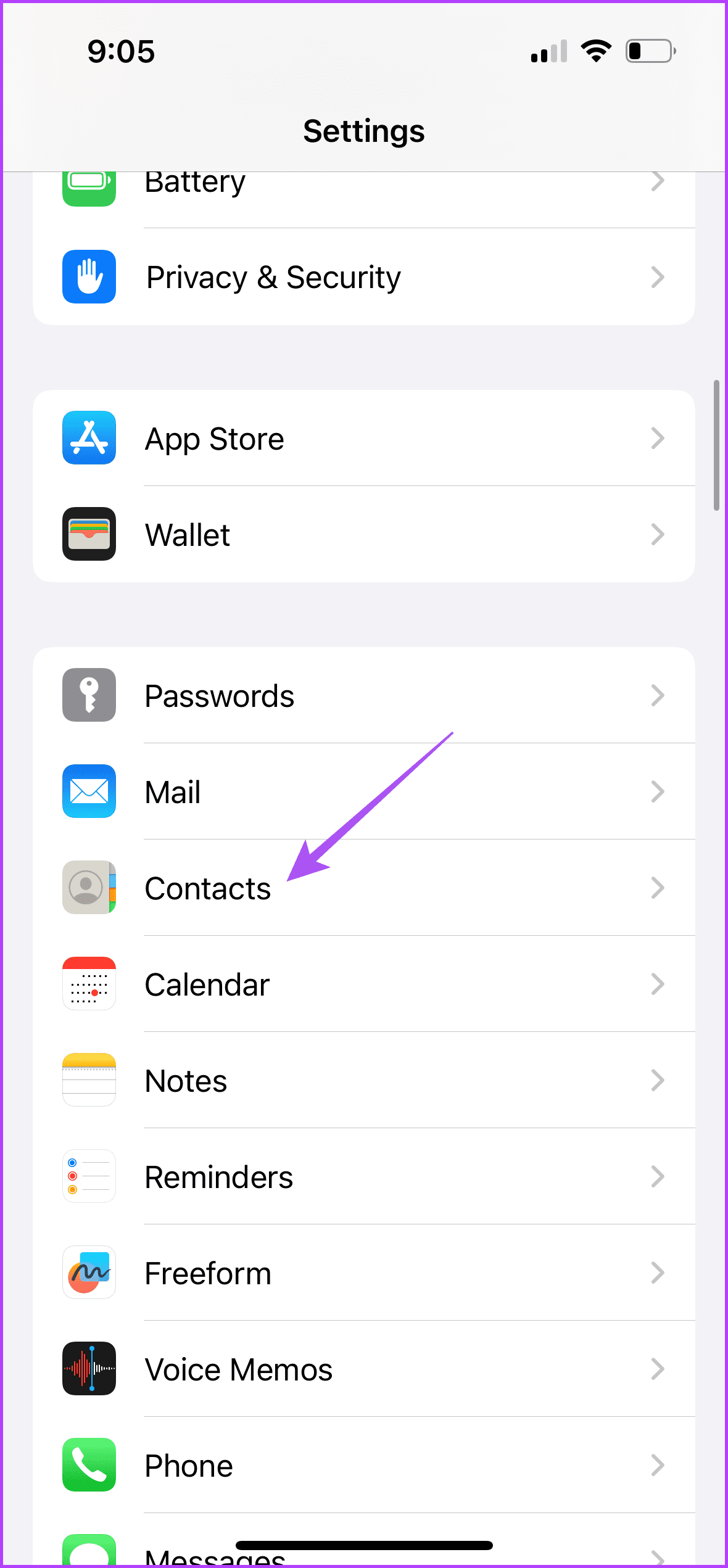
Open Settings > Contacts > Default Account > Outlook.

On Mac
Open Contacts > Settings > General > Default Account > Choose Outlook.

Fix 3: Disable Low Data Mode for Wi-Fi
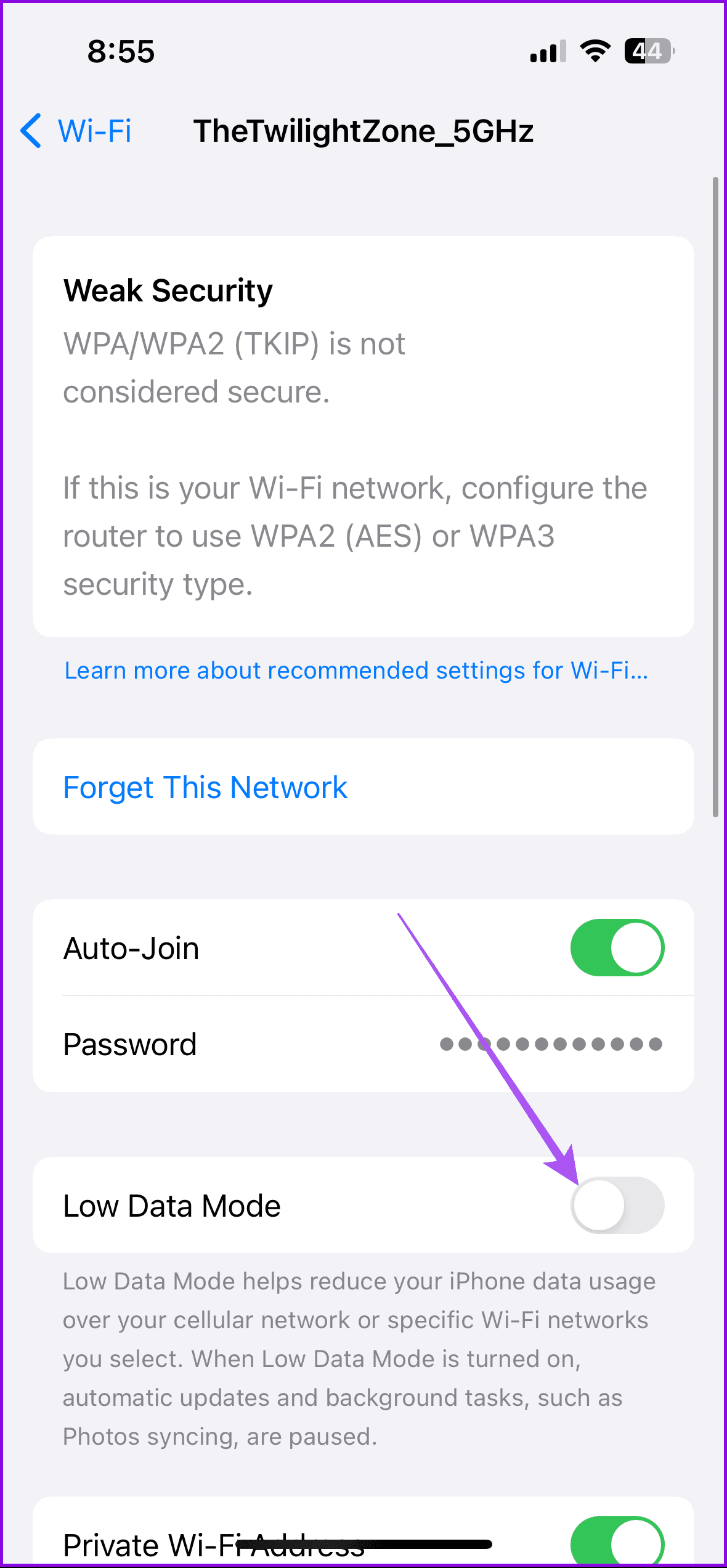
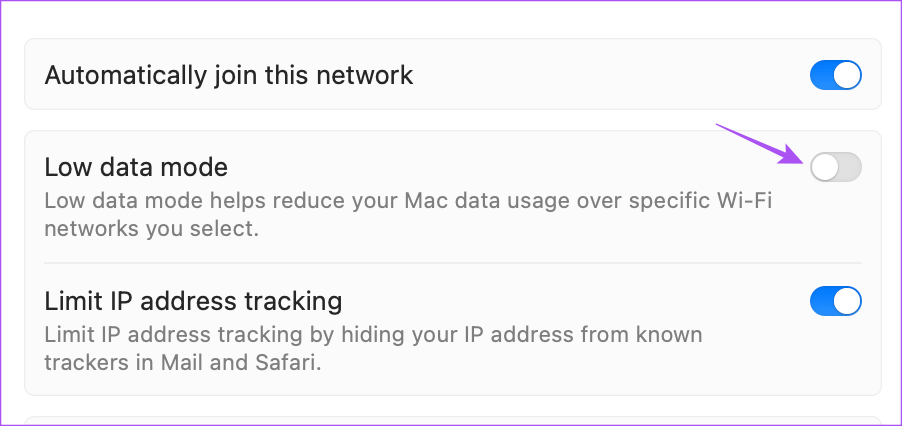
After you connect to a Wi-Fi network, you need to ensure that Low Data Mode has been disabled for the connected Wi-Fi network. You need a good internet speed from your Wi-Fi to sync your Outlook contacts. Here’s how to check the same on your iPhone and Mac.
On iPhone
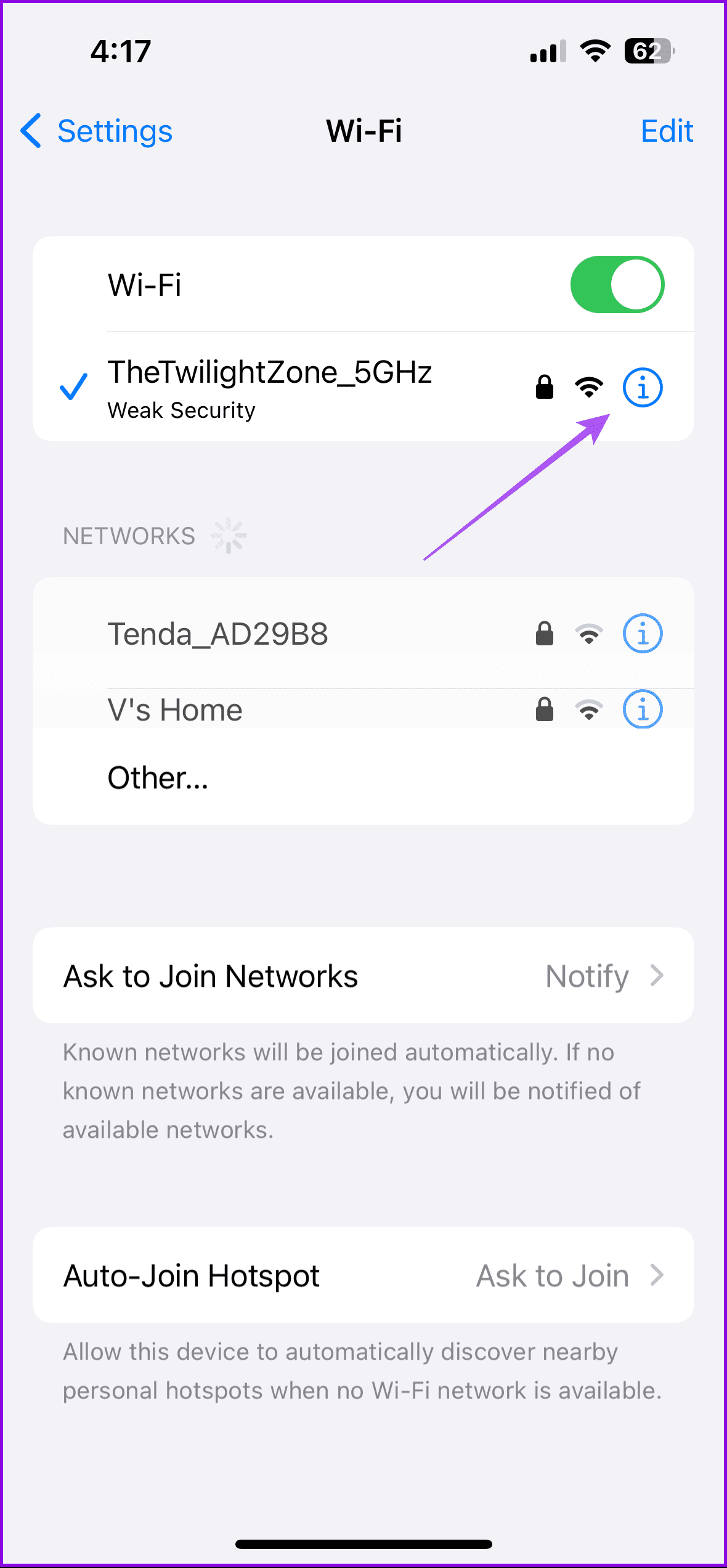
Open Settings > Wi-Fi > Info icon next to your connected Wi-Fi network > Disable Low Data Mode.
On Mac
Open Settings > Wi-Fi > Info icon > Disable Low Data Mode > Click Ok.
Tip: You can also read our post to change your Outlook account password.
Was this helpful?
Last updated on 15 August, 2024
Read Next
 3 Fixes for Telegram Not Syncing Contacts
Basic Fixes Switch to Wi-Fi: Contact syncing on Telegram requires faster internet speeds.
3 Fixes for Telegram Not Syncing Contacts
Basic Fixes Switch to Wi-Fi: Contact syncing on Telegram requires faster internet speeds.
 iCloud Contacts vs Google Contacts: Where Should You Save Contacts on Your iPhone
When you are using an Android phone, one prefers using Google Contacts to store and manage contacts.
iCloud Contacts vs Google Contacts: Where Should You Save Contacts on Your iPhone
When you are using an Android phone, one prefers using Google Contacts to store and manage contacts.
 Google Contacts vs Samsung Contacts: Which App Is Best for Saving and Managing Contacts
Apart from phones running Stock Android, all other Android phones have their own set of basic apps.
Google Contacts vs Samsung Contacts: Which App Is Best for Saving and Managing Contacts
Apart from phones running Stock Android, all other Android phones have their own set of basic apps.
 7 Best Ways to Fix Outlook for Mac Not Syncing
https://youtu.be/L1MhNBH9Z7I Note: Before moving on to the fixes, ensure that your Exchange account credentials are correct so that the Outlook for Mac app can sync properly.
7 Best Ways to Fix Outlook for Mac Not Syncing
https://youtu.be/L1MhNBH9Z7I Note: Before moving on to the fixes, ensure that your Exchange account credentials are correct so that the Outlook for Mac app can sync properly.
 How to Stop Syncing Google Contacts to iPhone
How to Remove Google Contacts from iPhone Open the Settings app, go to Contacts > Accounts, select the Gmail account, and turn off contacts.
How to Stop Syncing Google Contacts to iPhone
How to Remove Google Contacts from iPhone Open the Settings app, go to Contacts > Accounts, select the Gmail account, and turn off contacts.
 Top 7 Ways to Fix iCloud Contacts Not Syncing on iPhone
Most iPhone users sync their data to iCloud, thanks to the free 5GB storage with every Apple account.
Top 7 Ways to Fix iCloud Contacts Not Syncing on iPhone
Most iPhone users sync their data to iCloud, thanks to the free 5GB storage with every Apple account.
 A Guide to Syncing iPhone Contacts to Google Account
Here's a guide to syncing iPhone contacts to your Google Account.
A Guide to Syncing iPhone Contacts to Google Account
Here's a guide to syncing iPhone contacts to your Google Account.
 3 Fixes for Apple Mail Not Syncing With Gmail on Mac
Basic Fixes Check internet connection: Check your internet speed and rest assured that your Internet Service Provider is not facing any downtime or undergoing maintenance in your area.
3 Fixes for Apple Mail Not Syncing With Gmail on Mac
Basic Fixes Check internet connection: Check your internet speed and rest assured that your Internet Service Provider is not facing any downtime or undergoing maintenance in your area.
The article above may contain affiliate links which help support Guiding Tech. The content remains unbiased and authentic and will never affect our editorial integrity.