

Basic Fixes
- Check Bluetooth devices: Disconnect any Bluetooth device to which the audio from YouTube might be transmitting.
- Force quit and relaunch the YouTube app: This will give the app a fresh start on your Apple TV.
- Update YouTube app and tvOS: Install the latest versions of both so that any bugs or glitches are removed.
Fix 1: Check Remote Volume Control Settings
To control the volume on your Apple TV, you can also use your IR remote along with the Siri Remote. But it is always better to let your Apple TV automatically detect the remote for controlling the volume on apps like YouTube. We suggest doing the same to fix the no sound problem in the YouTube app on your Apple TV or Apple TV 4K.
Step 1: Open Settings and then choose Remotes and Devices.
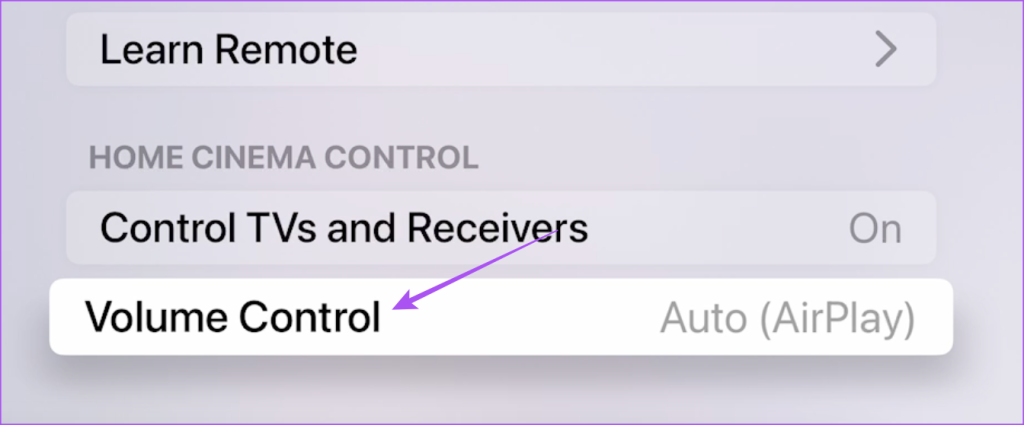
Step 2: Scroll down to the bottom and then select Volume Control.
Step 3: Select Auto to allow Apple TV to select your Siri Remote for volume control.
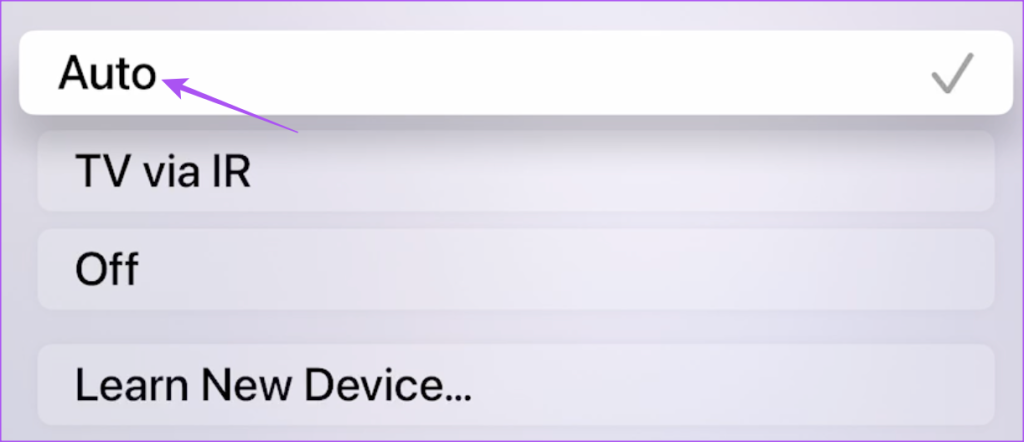
This step also helps your Apple TV to check for an AirPlay device to let it control the volume on YouTube. If you get no sound when playing YouTube over AirPlay on your Apple TV, you need to select your AirPlay speakers as your Output Source.
Fix 2: Check Audio Output Settings
If there is still no sound in the YouTube app on your Apple TV, check the audio output settings for content playback via Apple TV. If you have a home theatre system along with a bunch of smart speakers or soundbars, check the audio output source.
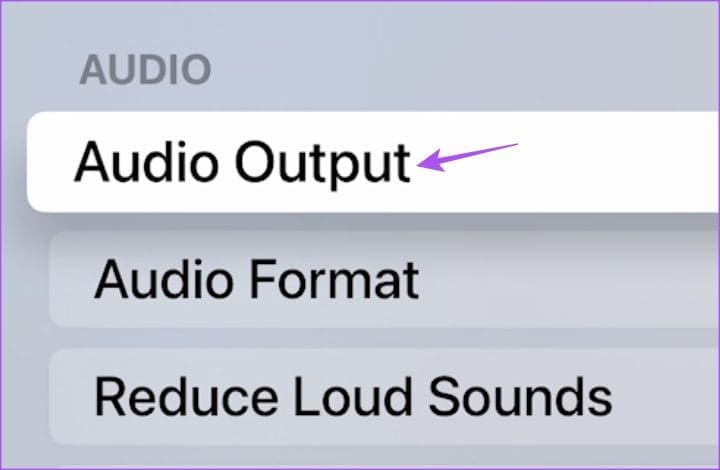
Step 1: Open Settings > Video and Audio > Choose Audio Output.
Step 2: Under Default Audio Output, select TV Speakers or choose another output source listed there.
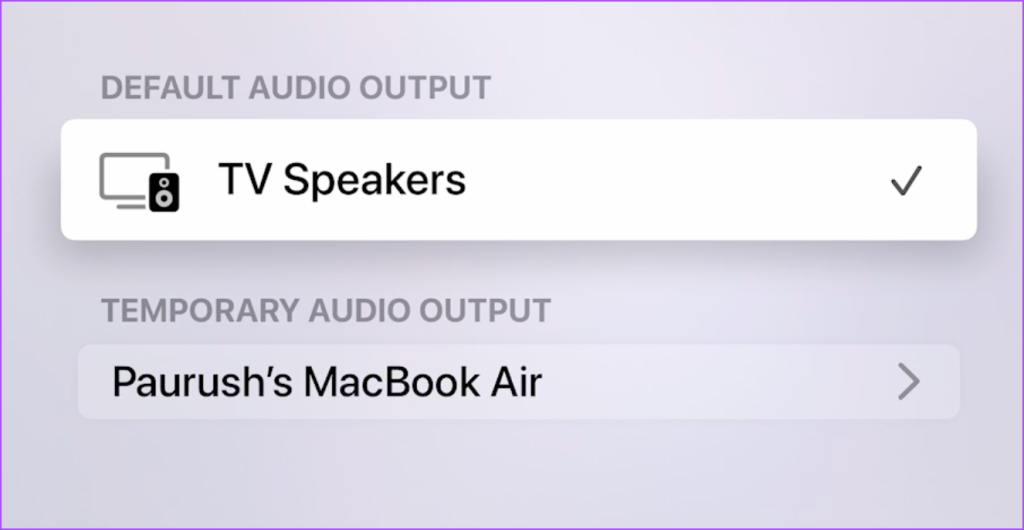
Ensure that the Temporary Audio Output device has been turned off.
Fix 3: Change Audio Format on Apple TV
YouTube supports Dolby Digital Plus playback on its platform. It means that you can enjoy 5.1 surround sound while watching videos. So you need to change the audio format on your Apple TV.
Step 1: Open Settings > Video and Audio > Audio Format.
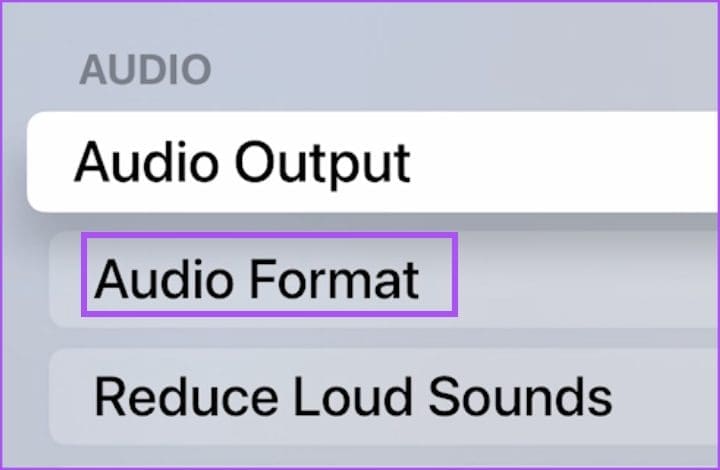
Step 2: Enable Change Format and then choose Dolby Digital Plus 5.1.
Fix 4: Reset Your Apple TV
The last resort is to reset your Apple TV model. This will restore all settings to default, especially when it comes to features like sound output.
Open Settings > System > Reset and then follow the on-screen instructions.

Tip: Refer to our guide if YouTube is not playing 4K videos on your Apple TV 4K.
Was this helpful?
Last updated on 10 July, 2024
Read Next
 5 Ways to Fix No Sound in YouTube App on Android TV
Common Fixes Check if TV audio is mute - Press the Mute button on your TV remote to unmute the sound.
5 Ways to Fix No Sound in YouTube App on Android TV
Common Fixes Check if TV audio is mute - Press the Mute button on your TV remote to unmute the sound.
 No Sound on Amazon Fire TV Stick YouTube App? Here’s the Fix
Basic Fixes Check if the audio is muted: The Fire TV 4K remote has a dedicated Mute button to disable audio.
No Sound on Amazon Fire TV Stick YouTube App? Here’s the Fix
Basic Fixes Check if the audio is muted: The Fire TV 4K remote has a dedicated Mute button to disable audio.
 3 Fixes for YouTube Not Playing 4K Videos on Apple TV 4K
Basic Fixes Check your internet connection: YouTube lets you watch 4K content in Dolby Vision and HDR.
3 Fixes for YouTube Not Playing 4K Videos on Apple TV 4K
Basic Fixes Check your internet connection: YouTube lets you watch 4K content in Dolby Vision and HDR.
 4 Fixes for Amazon Echo Connected to Bluetooth but No Sound
Fix 1: Remove AUX Cable Is an aux cable connected to your Echo?
4 Fixes for Amazon Echo Connected to Bluetooth but No Sound
Fix 1: Remove AUX Cable Is an aux cable connected to your Echo?
 3 Ways to Fix Apple TV No Sound Issue
Basic Fixes Unmute using remote: The Apple TV remote has a dedicated mute button.
3 Ways to Fix Apple TV No Sound Issue
Basic Fixes Unmute using remote: The Apple TV remote has a dedicated mute button.
 3 Ways to Fix Sound Not Working on YouTube
Basic Fixes Check the volume level and unmute the tab: Ensure you haven't accidentally muted your phone or computer's volume.
3 Ways to Fix Sound Not Working on YouTube
Basic Fixes Check the volume level and unmute the tab: Ensure you haven't accidentally muted your phone or computer's volume.
 2 Fixes for Apple TV Remote App Not Working on iPhone
Basic Fixes Restart your router: A simple restarting of your internet router can fix the issue once you reconnect to your network.
2 Fixes for Apple TV Remote App Not Working on iPhone
Basic Fixes Restart your router: A simple restarting of your internet router can fix the issue once you reconnect to your network.
 3 Fixes for Android Keyboard Not Working in the YouTube App
Basic Fixes Force quit and relaunch YouTube and Android keyboard: This will give the apps a fresh start on your device.
3 Fixes for Android Keyboard Not Working in the YouTube App
Basic Fixes Force quit and relaunch YouTube and Android keyboard: This will give the apps a fresh start on your device.
The article above may contain affiliate links which help support Guiding Tech. The content remains unbiased and authentic and will never affect our editorial integrity.

