Try Basic Fixes
- Check with your carrier: It’s important to note that not all cellphone carriers or cellular plans support the Personal Hotspot feature on the iPhone. Hence, it’s a good idea to contact your carrier and ensure the feature is available for your current cellular plan.
- Toggle the airplane mode: Open the Settings app and toggle on the switch next to Airplane Mode. Wait for a few seconds and turn it back off. Then, close and reopen the Settings app and see if you can find the Personal Hotspot option.
- Install the iOS updates: iOS updates not only include new features but also bring much-needed bug fixes. Open the Settings app, tap on General, and select Software Update. Download and install any pending updates and see if that solves your problem.
Fix 1: Access Personal Hotspot From the Mobile Data Menu
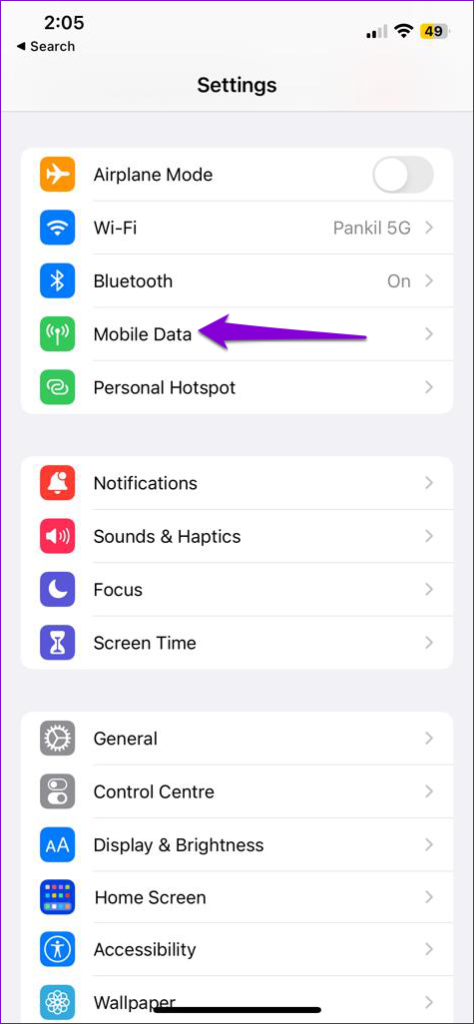
Another thing you can do is enable the Personal Hotspot feature from the Mobile Data menu and see if it works. To do that, open the Settings app and tap on Mobile data. Select Personal Hotspot and enable the toggle next to Allow others to Join in the following menu.
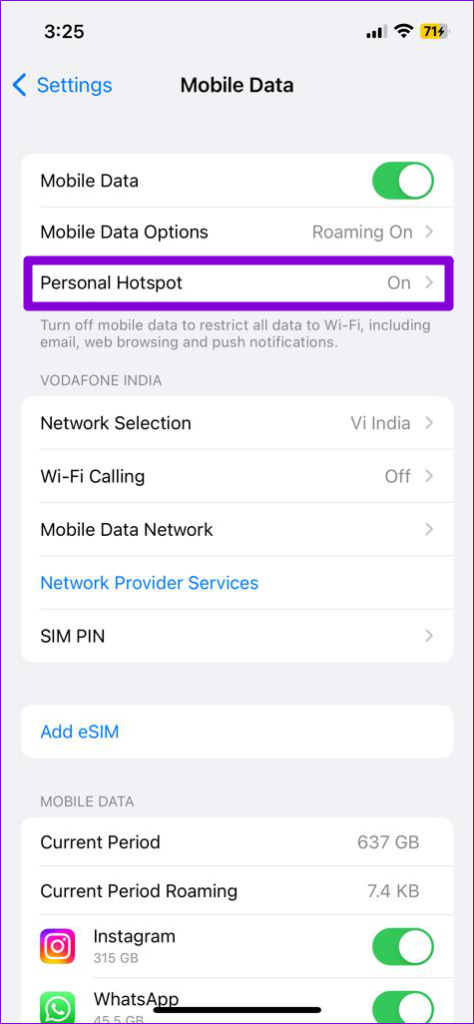
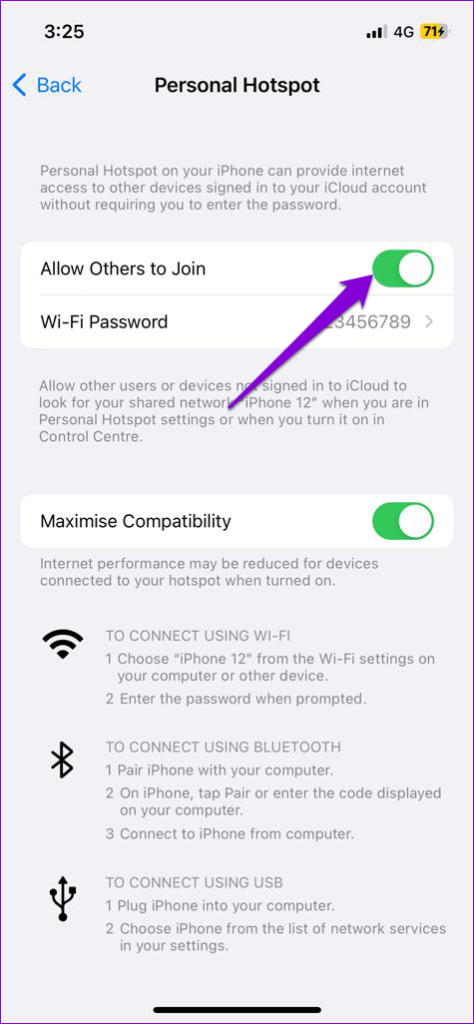
After that, see if the missing Personal Hotspot option appears on the main page of the Settings menu.
Fix 2: Check APN Settings
Incorrect Access Point Name (APN) configurations on your iPhone can also cause such problems. Several users on Reddit reported fixing the issue by simply modifying the APN settings for Personal Hotspot. You can also give it a try.
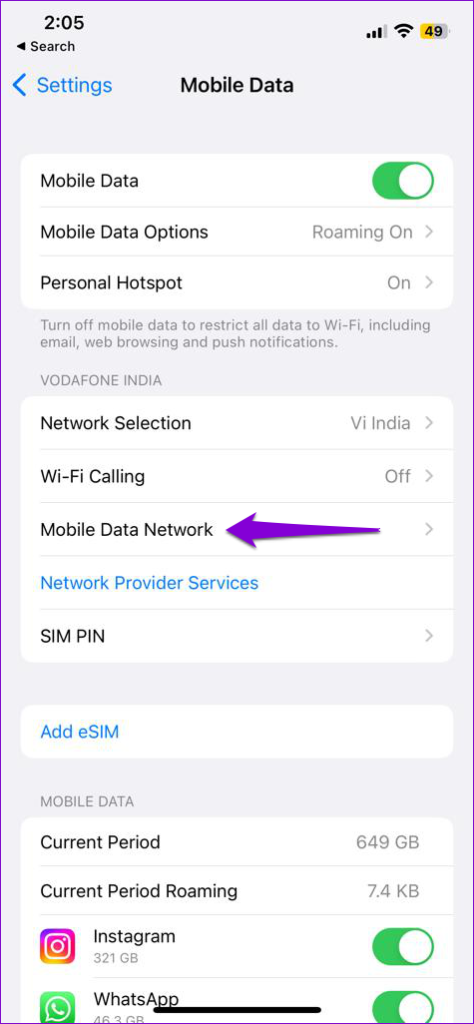
Step 1: Open the Settings app, tap on Mobile Data, and select Mobile Data Network from the following menu.
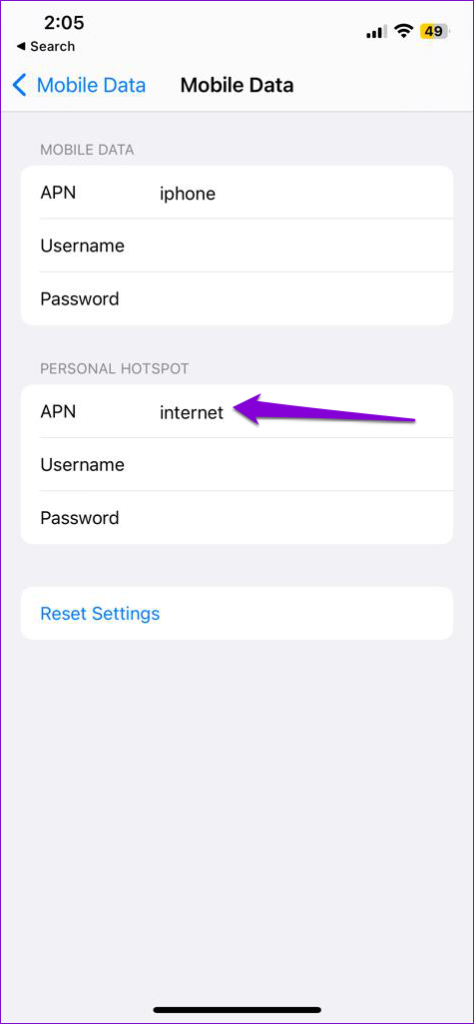
Step 2: Under Personal Hotspot, type internet in the APN field.
Fix 3: Update Carrier Settings
Network carriers frequently release updates to enhance network connectivity and improve the user experience. You can install these updates to see if they restore the missing Personal Hotspot option on your iPhone.
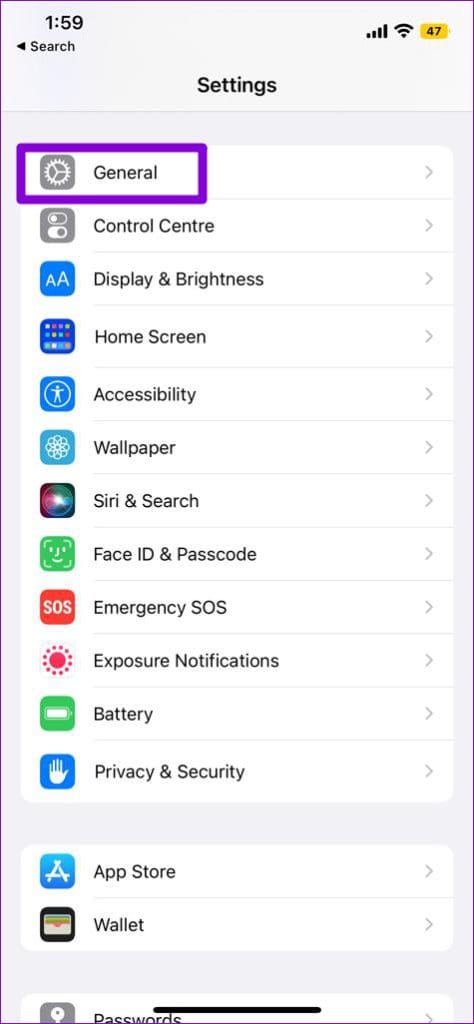
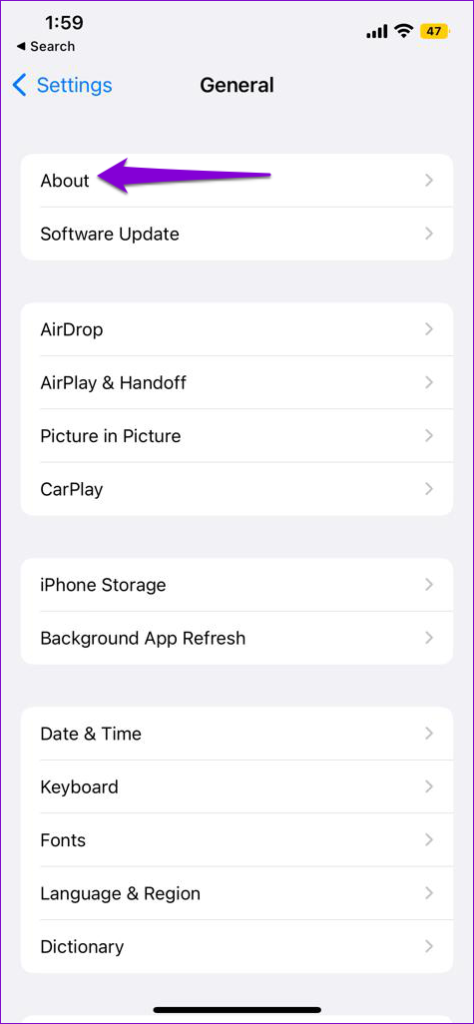
Step 1: Open the Settings app and tap on General.
Step 2: Tap on About. If there are any pending updates, you should see a pop-up. Tap on Update to proceed.
Fix 4: Change Your iPhone’s Hotspot Name
Oddly enough, changing your iPhone’s hotspot name can also cause such anomalies. If you have recently changed your iPhone’s name, try switching back to the original name and see if it works.
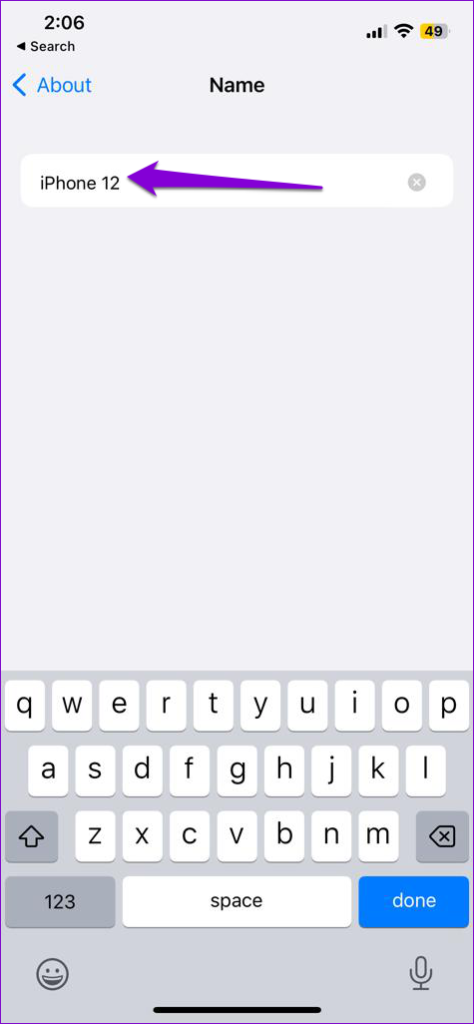
Step 1: Open the Settings app, tap on General, and select About.
Step 2: Tap the Name option and enter the original name in the text field.

Fix 5: Reset Network Settings
If you still can’t find Personal Hotspot, there may be an issue with the network settings on your iPhone. In that case, consider resetting all the network settings on your iPhone to fix the problem.
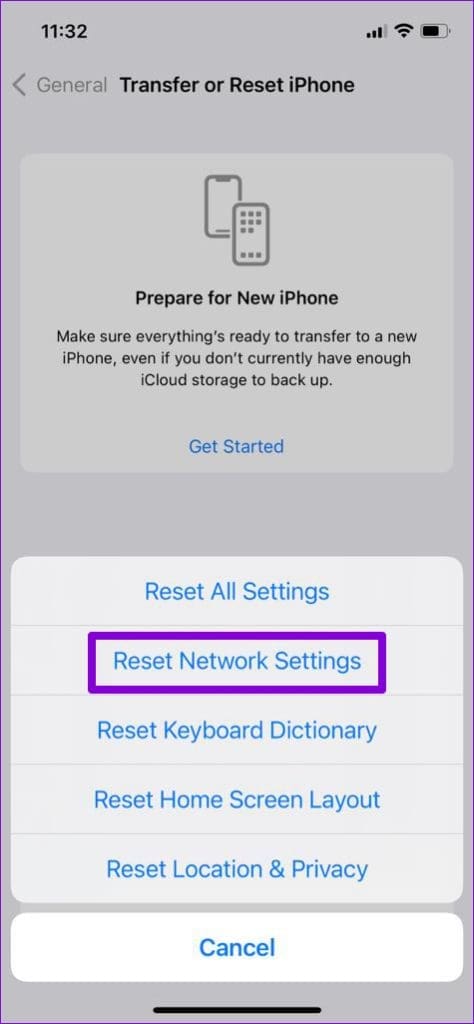
Step 1: Open the Settings app, navigate to General, and tap on Transfer or Reset iPhone.
Step 2: Tap on the Reset option at the bottom and choose Reset Network Settings from the menu that pops up.


Was this helpful?
Last updated on 01 August, 2024
Read Next
 How to Stop iPhone Personal Hotspot From Turning On Automatically
https://youtu.be/RIBOWbQOnMU Fix 1.
How to Stop iPhone Personal Hotspot From Turning On Automatically
https://youtu.be/RIBOWbQOnMU Fix 1.
 How to Restore the Missing Google Chrome Toolbar
Fix 1: Re-Enable or Reinstall Extensions If Chrome is not showing your favorite extensions on the toolbar, try disabling and re-enabling them.
How to Restore the Missing Google Chrome Toolbar
Fix 1: Re-Enable or Reinstall Extensions If Chrome is not showing your favorite extensions on the toolbar, try disabling and re-enabling them.
 2 Ways to Fix iPhone Hotspot Not Showing Up on Android
https://youtu.be/U75VRX50Yzw Basic Fixes Toggle airplane mode: Toggling Airplane Mode essentially resets the radios on your phone.
2 Ways to Fix iPhone Hotspot Not Showing Up on Android
https://youtu.be/U75VRX50Yzw Basic Fixes Toggle airplane mode: Toggling Airplane Mode essentially resets the radios on your phone.
 4 Ways to Fix iPhone Hotspot Not Working With Mac
Basic Fixes Turn on hotspot and mobile data manually: You can check and manually enable the Hotspot and Mobile Data on your iPhone and Mac, which go hand-in-hand.
4 Ways to Fix iPhone Hotspot Not Working With Mac
Basic Fixes Turn on hotspot and mobile data manually: You can check and manually enable the Hotspot and Mobile Data on your iPhone and Mac, which go hand-in-hand.
 How to Fix iPhone Hotspot Keeps Disconnecting on Windows and Mac
Why Does My iPhone Hotspot Keeps Disconnecting Before we show you step-by-step instructions to fix the hotspot issue on your iPhone, let's quickly go over some of the possible reasons
How to Fix iPhone Hotspot Keeps Disconnecting on Windows and Mac
Why Does My iPhone Hotspot Keeps Disconnecting Before we show you step-by-step instructions to fix the hotspot issue on your iPhone, let's quickly go over some of the possible reasons
 5 Ways to Restore Deleted Contacts on iPhone
Method 1: Enable iCloud or Google Contacts Sometimes, contacts on your iPhone can simply disappear with an accidental tap.
5 Ways to Restore Deleted Contacts on iPhone
Method 1: Enable iCloud or Google Contacts Sometimes, contacts on your iPhone can simply disappear with an accidental tap.
 4 Ways to Fix OneDrive Personal Vault Not Showing on Windows Error
Basic Fixes: Access From Another Device: OneDrive works on desktop, mobile, and the web.
4 Ways to Fix OneDrive Personal Vault Not Showing on Windows Error
Basic Fixes: Access From Another Device: OneDrive works on desktop, mobile, and the web.
 Top 7 Ways to Fix Android Mobile Hotspot Not Working
We are relying on mobile hotspot more than ever in the work from home situation.
Top 7 Ways to Fix Android Mobile Hotspot Not Working
We are relying on mobile hotspot more than ever in the work from home situation.
The article above may contain affiliate links which help support Guiding Tech. The content remains unbiased and authentic and will never affect our editorial integrity.