Basic Fixes
- Sign out and sign back in: Authentication issues with your Microsoft account can sometimes cause Teams to stop working. You can try signing out of your account and signing back in.
- Check the Microsoft Teams service status: Teams servers may be experiencing problems. You can visit the Microsoft Office service status page to see if there’s a widespread outage.
Fix 1: Reset Site Permissions for Microsoft Teams
Misconfigured site permissions can also cause certain Teams features to stop working on your browser. For example, if you’ve accidentally disabled notification permissions for Teams, you won’t receive any alerts for new messages or calls.
To resolve such issues, reset site permissions for Microsoft Teams and configure them again. To do so, click the padlock icon on the left of the URL and click the Reset permissions button.

Fix 2: Correct System Date and Time
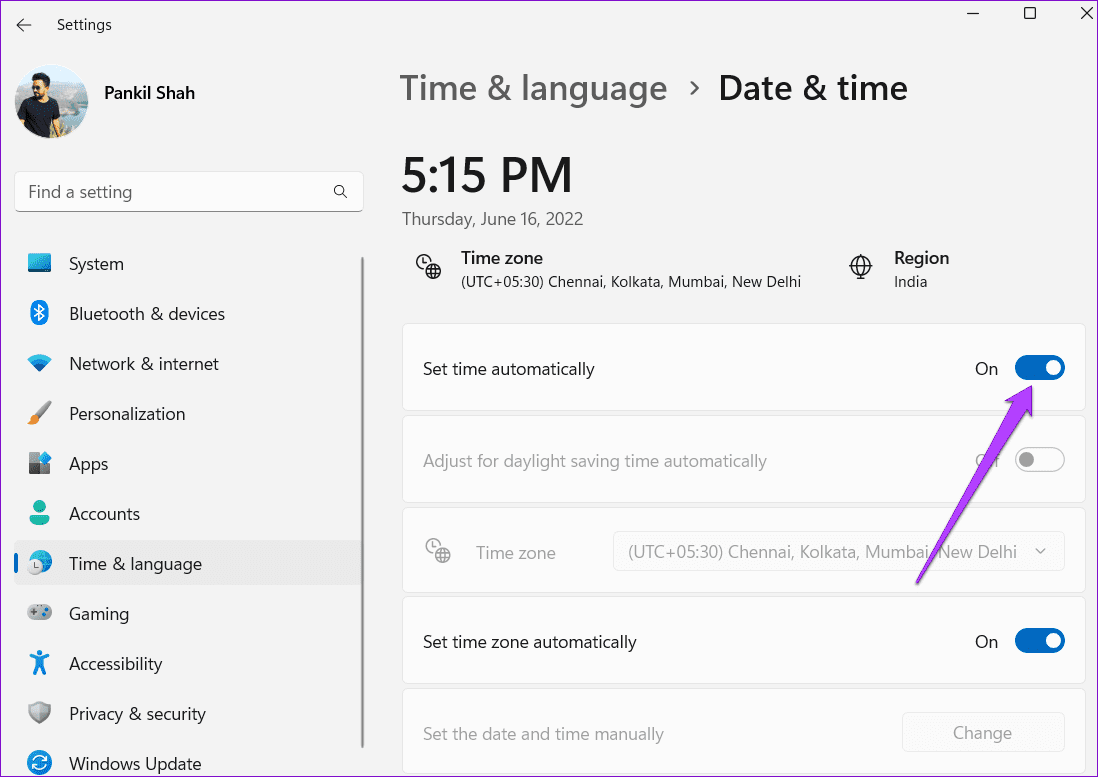
Is your computer set to an incorrect date or time? If so, apps and websites may be unable to connect to their servers. To avoid such problems, you can enable the automatic date and time feature in Windows.
Step 1: Press the Windows key + I to launch the Settings app. Click the Time & language tab and click on Date & time.

Step 2: Turn on the toggle for Set time automatically.
Fix 3: Disable Browser Extensions
Although third-party extensions bring additional functionality to your browser, not all are reliable. It’s possible that one of your browser extensions is acting up and preventing Teams from loading on your computer. To check this, disable all the extensions and enable them one by one.
Step 1: Type chrome://extensions (Chrome) or edge://extensions (Edge) in the address bar at the top and press Enter.
Step 2: Turn off the toggles next to the extensions to disable them.
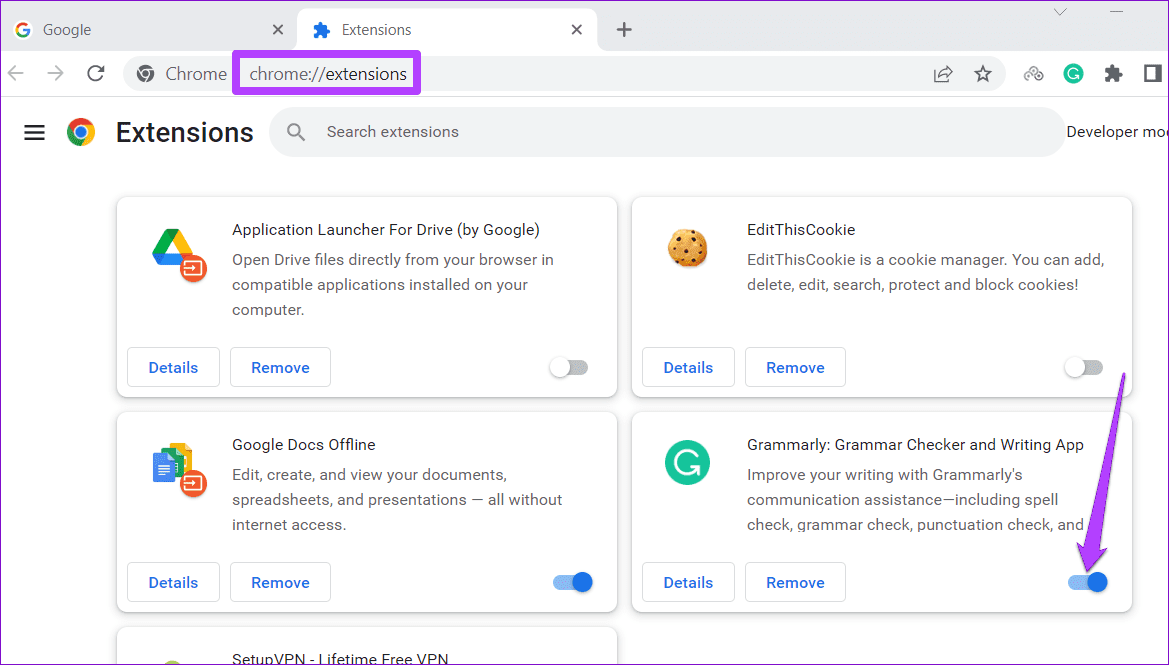
After disabling all the extensions, restart the browser. If this gets Microsoft Teams to work, re-enable all extensions one by one to isolate the culprit and remove the problematic one from the browser.
Fix 4: Enable Website Cookies
Microsoft Teams web app may fail to work properly if you’ve blocked website cookies on your browser.
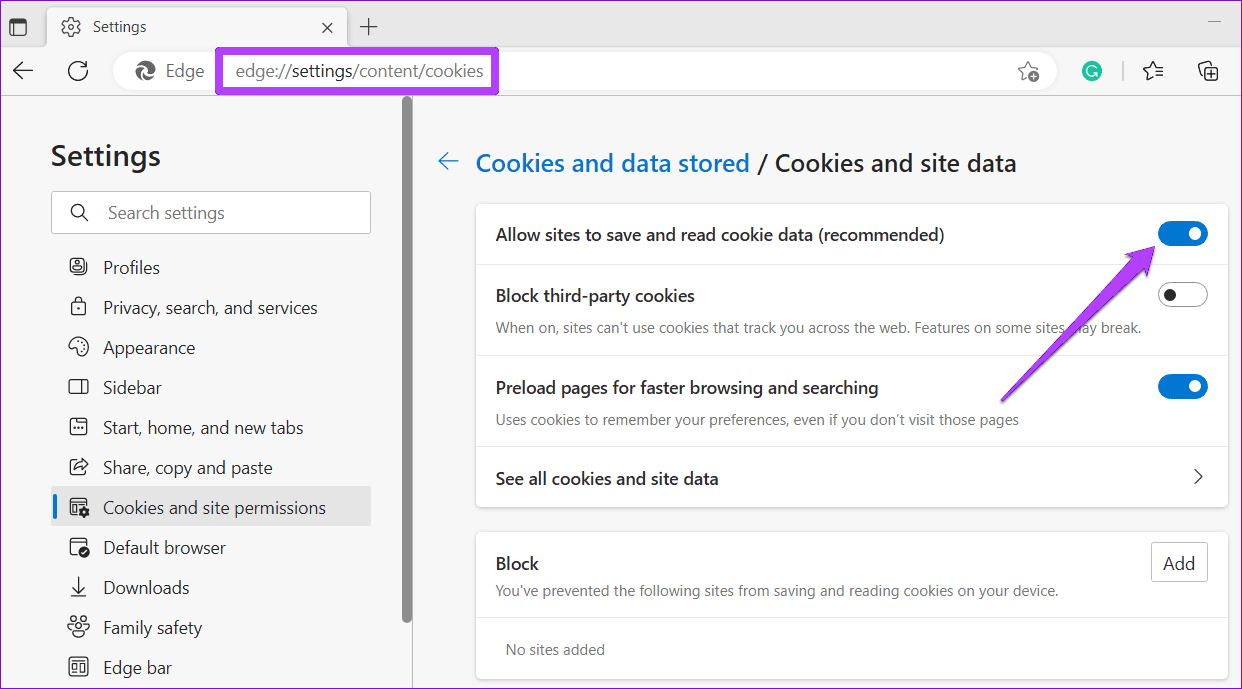
To enable cookies in Google Chrome: Type chrome://settings/cookies in the URL bar at the top and press Enter. Under General settings, select Allow all cookies.
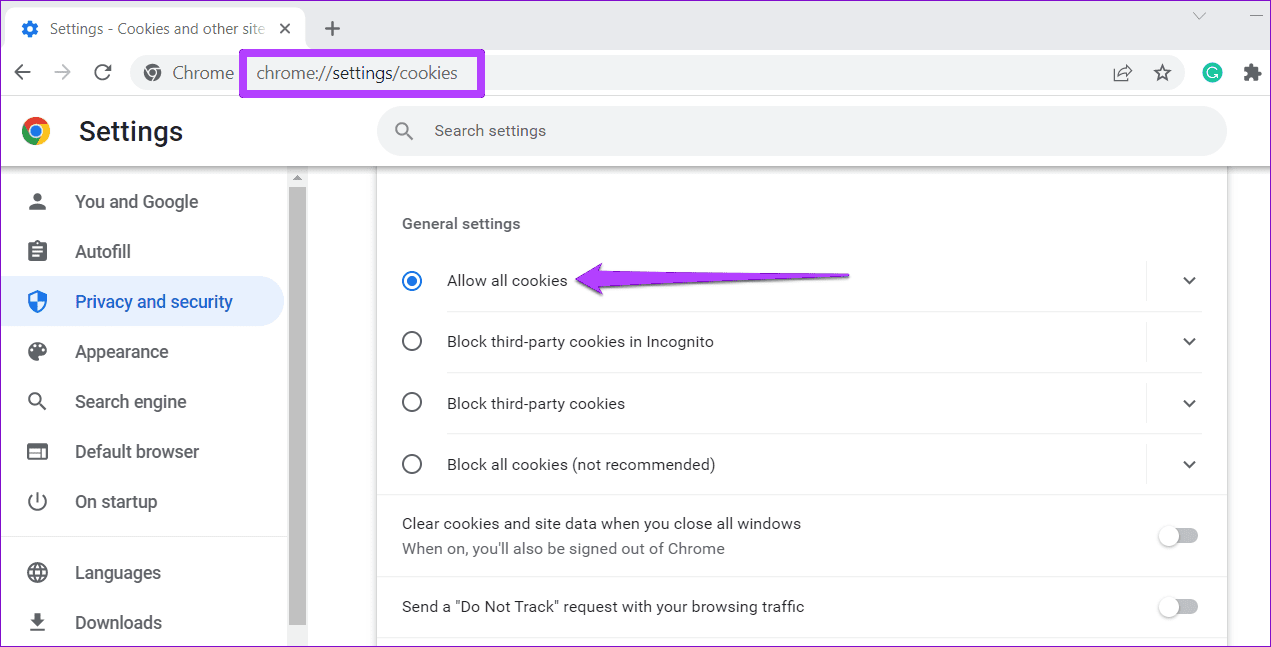
If you use Microsoft Edge: Type edge://settings/content/cookies in the address bar and press Enter. Enable the toggle for Allow sites to save and read cookie data (recommended).
Fix 5: Clear Browser Cache
A corrupt or outdated cache can prevent your browser from loading websites. Hence, clearing browsing data whenever you encounter such issues is a good idea.
Step 1: To clear the browser cache in Chrome or Edge, press Ctrl + Shift + Delete on your keyboard to open the Clear browsing data panel.
Step 2: Select All time in the Time Range option. Mark the box that reads Cookies and other site data and Cached images and files.
Step 3: Now, hit Clear data.

Was this helpful?
Last updated on 07 May, 2024
Read Next
 4 Ways to Fix Microsoft Outlook Web Not Working
Try Basic Fixes Check if Outlook is down: If Outlook servers are having an off day, you can't use Outlook in your web browser.
4 Ways to Fix Microsoft Outlook Web Not Working
Try Basic Fixes Check if Outlook is down: If Outlook servers are having an off day, you can't use Outlook in your web browser.
 2 Ways to Fix Microsoft Teams Notifications Not Working on Windows 11/10
Preliminary Fixes Turn off Battery Saver: To ensure Microsoft Teams notifications work properly on Windows 11/10, turning off Battery Saver is essential.
2 Ways to Fix Microsoft Teams Notifications Not Working on Windows 11/10
Preliminary Fixes Turn off Battery Saver: To ensure Microsoft Teams notifications work properly on Windows 11/10, turning off Battery Saver is essential.
 4 Ways to Fix Microsoft Teams Notifications Not Working on Android
Basic Fixes Check the Microsoft Teams server: Open the Microsoft Service Health page and click on Teams in the left sidebar to check its service status.
4 Ways to Fix Microsoft Teams Notifications Not Working on Android
Basic Fixes Check the Microsoft Teams server: Open the Microsoft Service Health page and click on Teams in the left sidebar to check its service status.
 Top 4 Ways to Fix Microsoft Teams Notifications Not Working on Mac
Basic Fixes Check Microsoft Teams Status: If Microsoft suffers from an outage, you might want to confirm the issue via Downdetector.
Top 4 Ways to Fix Microsoft Teams Notifications Not Working on Mac
Basic Fixes Check Microsoft Teams Status: If Microsoft suffers from an outage, you might want to confirm the issue via Downdetector.
 3 Ways to Fix Hyperlink Is Not Working in Microsoft Teams
Basic Fixes Re-sign in Microsoft Team: It could be a temporary glitch which can be easily fixed by signing out and then signing back into your Microsft account Reinstall the
3 Ways to Fix Hyperlink Is Not Working in Microsoft Teams
Basic Fixes Re-sign in Microsoft Team: It could be a temporary glitch which can be easily fixed by signing out and then signing back into your Microsft account Reinstall the
 6 Ways to Fix Microsoft Teams App Not Working on Android
Basic Fixes Check internet connectivity: Ensure your device is connected to a Wi-Fi network or cellular data with good signal strength and an active plan.
6 Ways to Fix Microsoft Teams App Not Working on Android
Basic Fixes Check internet connectivity: Ensure your device is connected to a Wi-Fi network or cellular data with good signal strength and an active plan.
 3 Ways to Fix Microsoft Teams Not Loading or Opening
Basic Fixes Check for downtime: Servers can be down, as many people worldwide rely on Teams.
3 Ways to Fix Microsoft Teams Not Loading or Opening
Basic Fixes Check for downtime: Servers can be down, as many people worldwide rely on Teams.
 8 Ways to Fix Microsoft Teams Black Screen Issues
Work productivity applications are indispensable in the post-COVID era.
8 Ways to Fix Microsoft Teams Black Screen Issues
Work productivity applications are indispensable in the post-COVID era.
The article above may contain affiliate links which help support Guiding Tech. The content remains unbiased and authentic and will never affect our editorial integrity.