

Fix 1: Run Windows Store Apps Troubleshooter
Running the Windows Store Apps troubleshooter is a hassle-free way to resolve any common issues with Microsoft Store apps. Hence, this is the first thing you can try.
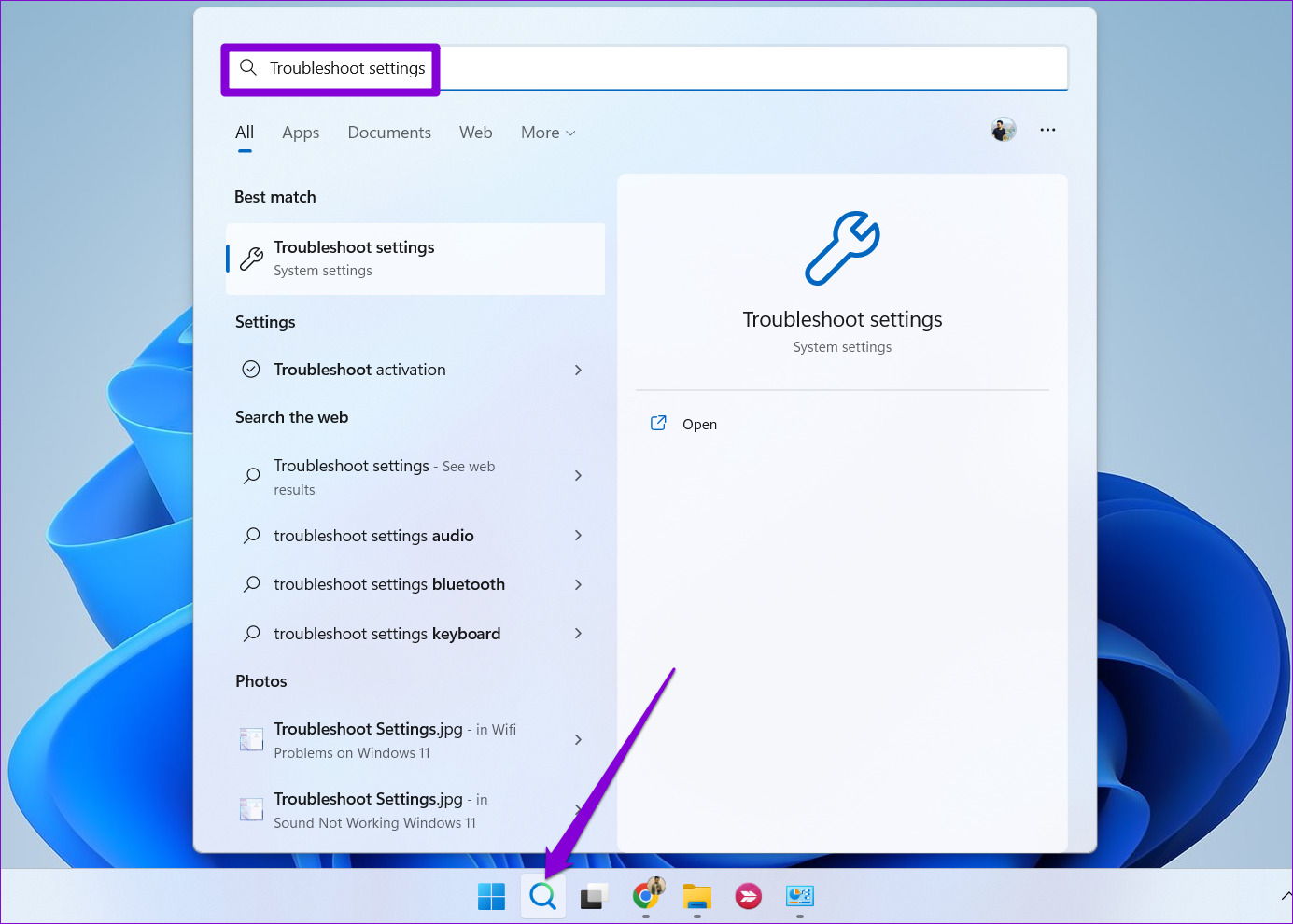
Step 1: Click the search icon on the taskbar, type in troubleshoot settings, and select the first result that appears.
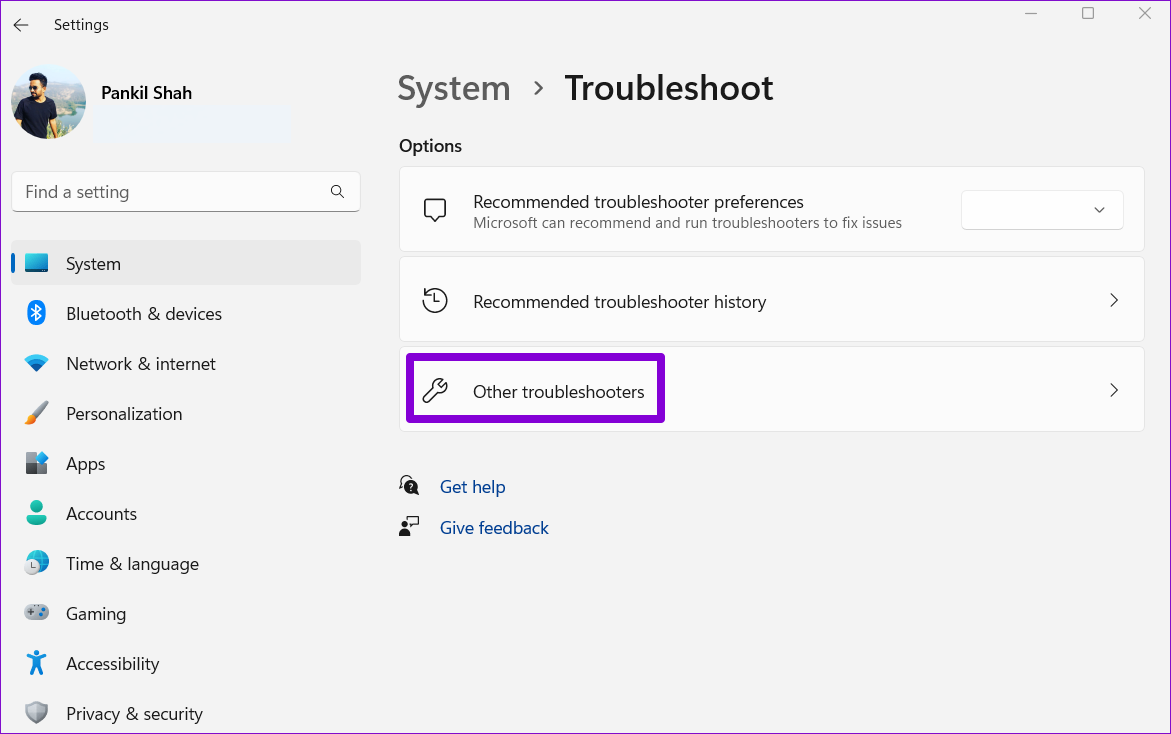
Step 2: Click on Other troubleshooters.
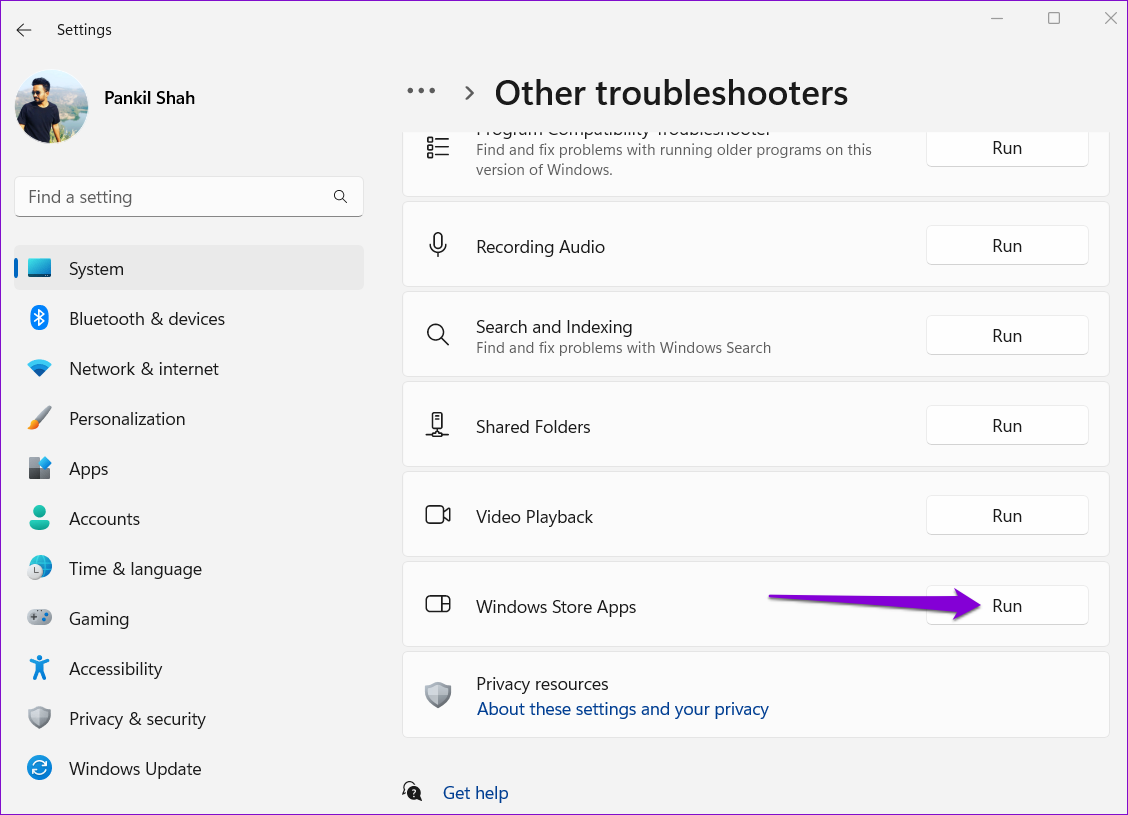
Step 3: Scroll down and click the Run button next to Windows Store Apps.
Fix 2: Repair or Reset the Solitaire Collection App
If the Windows Store Apps troubleshooter fails to identify any issues, you can try to repair the Microsoft Solitaire Collection app on Windows. Here’s how.
Step 1: Press the Windows key + S to open the search menu. Type Solitaire Collection in the box and select App settings.

Step 2: Scroll down to the Reset section and click the Repair button.

If the problem persists, there might be an issue with the Solitaire Collection app data. In that case, click the Reset button in the above menu. That will clear all the app data and reset the app to its default settings.
Fix 3: Update the Solitaire Collection App
The problems with Solitaire Collection can also occur if you’re using an older version of the app. You can update the app from the Microsoft Store to see if that helps.
Step 1: Open the Microsoft Store on your PC. Type Microsoft solitaire collection in the search bar at the top and press Enter.

Step 2: Click the Update button to install updates for the Microsoft Solitaire Collection. If you do not see the Update option, then the app is already up to date.
Fix 4: Restart or Update Graphics Driver
At times, temporary glitches with your graphics driver can cause problems with your apps and games on Windows. In most cases, you can fix the issue by restarting the graphics driver. To do so, press the Windows Key + Ctrl + Shift + B keyboard shortcut on your PC. Your screen will flash once the driver reboots.
If rebooting the graphics driver does not help, you can try updating it from Device Manager. Here’s how to do it.
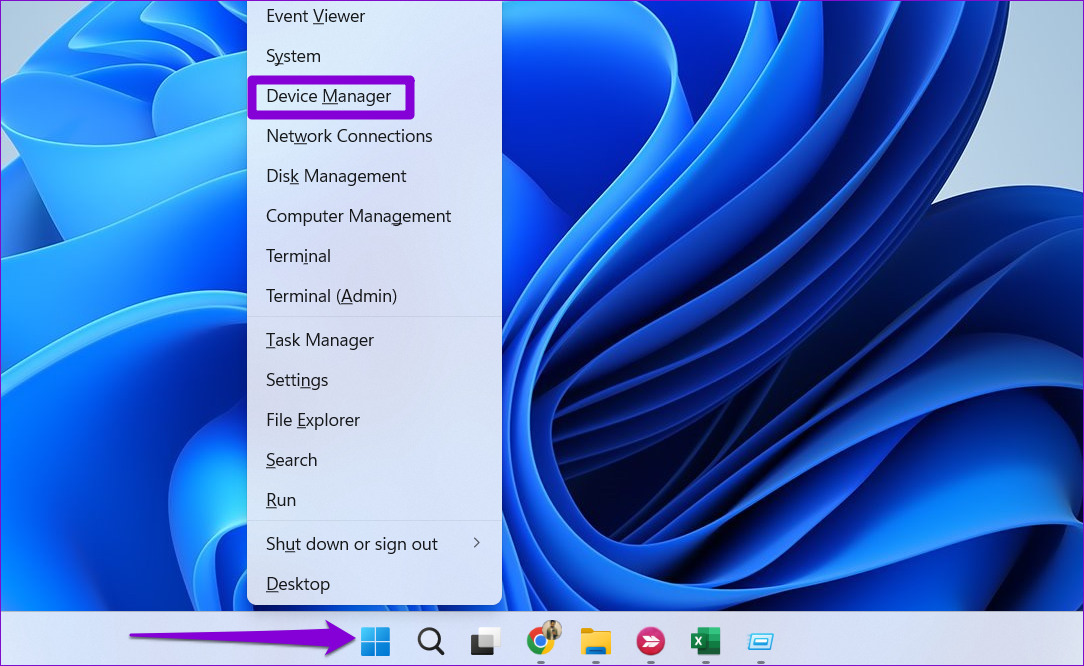
Step 1: Right-click on the Start icon and select Device Manager from the list.
Step 2: Expand Display adapters, right-click on your graphics adapter, and select Update driver.
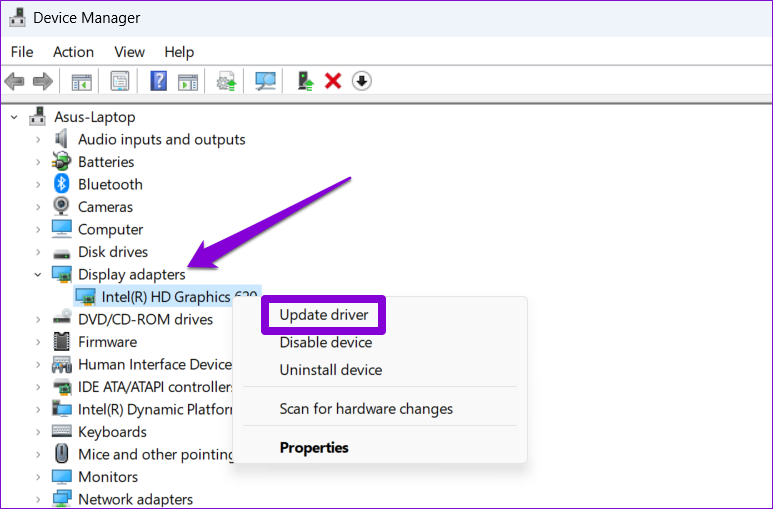
From there, follow the on-screen instructions to finish updating the driver.
Fix 5: Re-Register Microsoft Solitaire Collection on Windows
Lastly, if nothing helps, you can try re-registering the Microsoft Solitaire Collection on your PC to get it working. Thankfully, it isn’t as intimidating as it might sound.
Step 1: Press the Windows key + S to open the search menu, type in Windows PowerShell, and select Run as administrator.
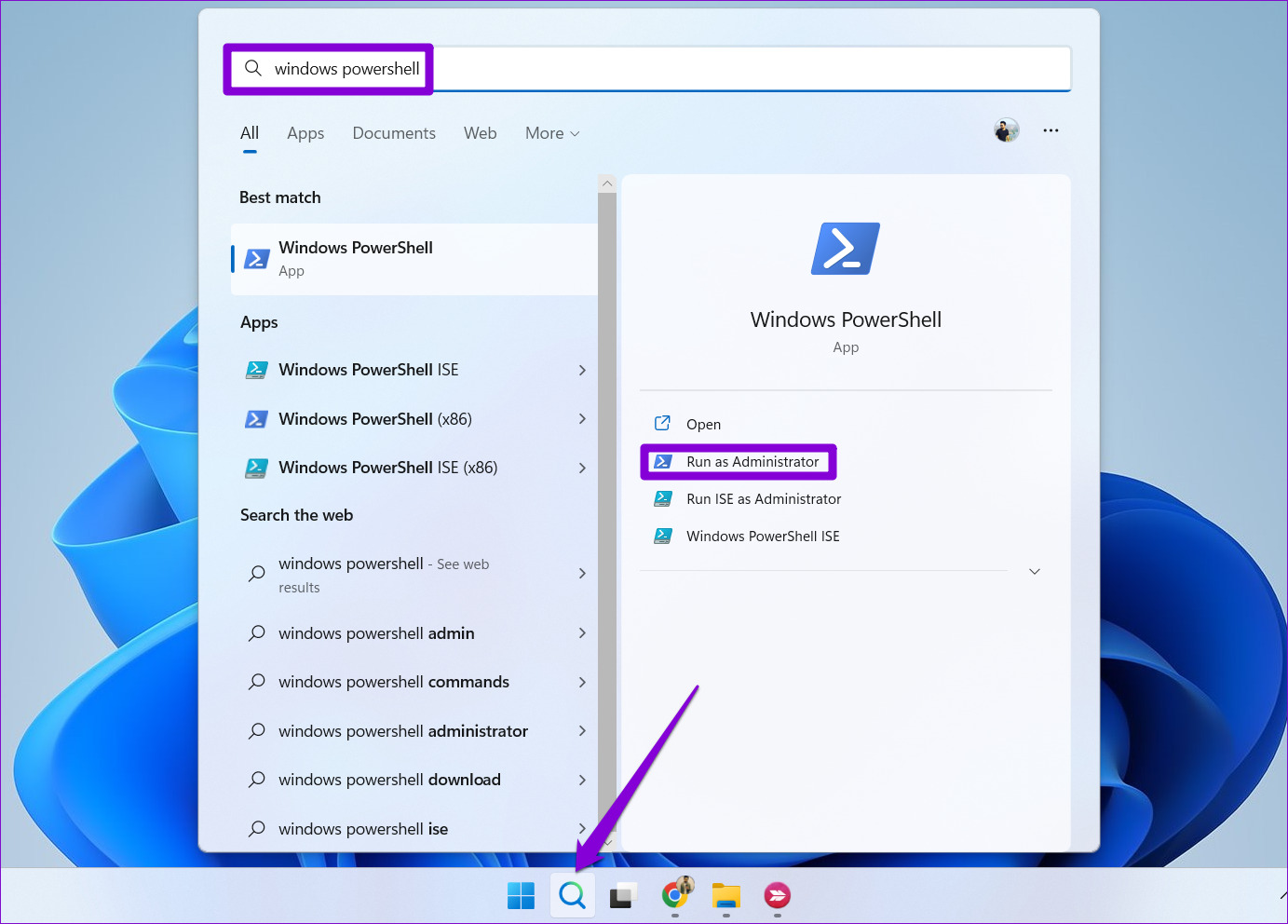
Step 2: In the console, copy and paste the following command and press Enter:
Get-AppxPackage -allusers *MicrosoftSolitaireCollection* | Foreach {Add-AppxPackage -DisableDevelopmentMode -Register “$($_.InstallLocation)\AppXManifest.xml”}
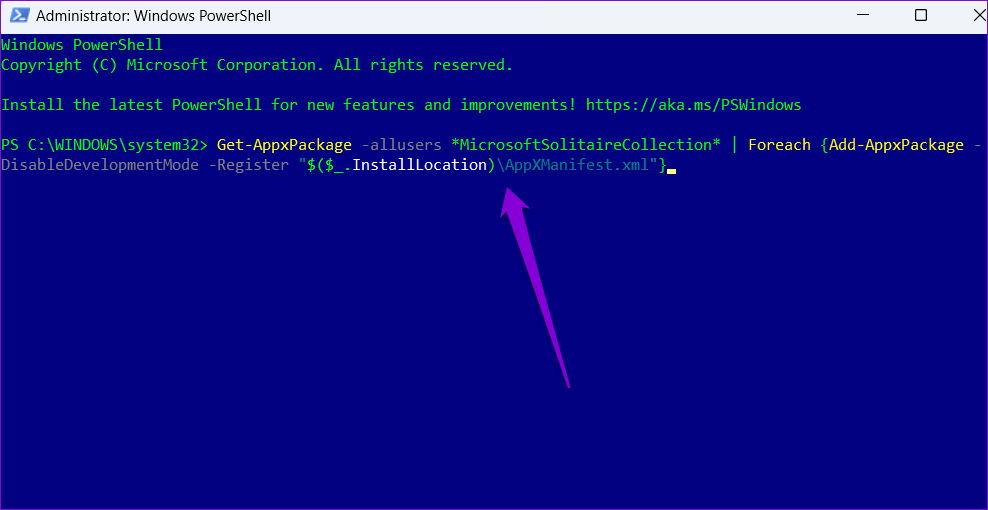
Restart your PC after executing the above command. Following that, the Microsoft Solitaire Collection should work as expected.
Was this helpful?
Last updated on 19 May, 2024
2 Comments
Leave a Reply
Read Next
 4 Ways to Turn off Windows 11 Telemetry Collection
Method 1: Disable Diagnostic Data Collection on Windows 11 Microsoft collects data regarding system usage and functions.
4 Ways to Turn off Windows 11 Telemetry Collection
Method 1: Disable Diagnostic Data Collection on Windows 11 Microsoft collects data regarding system usage and functions.
 How to Fix Instagram Save to Collection Not Working (And Other Tips)
Instagram lets you save posts so you can easily reference them later in the future.
How to Fix Instagram Save to Collection Not Working (And Other Tips)
Instagram lets you save posts so you can easily reference them later in the future.
 Exploring Windows 7 Theme Collection Online & How to Download and Install Them
Yesterday I talked about the basics of a Windows Theme and how to change it if you are working on Windows 7.
Exploring Windows 7 Theme Collection Online & How to Download and Install Them
Yesterday I talked about the basics of a Windows Theme and how to change it if you are working on Windows 7.
 4 Ways to Fix Microsoft Print to PDF Not Working on Windows 11
Fix 1: Ensure Print to PDF Is Enabled in Windows Features Microsoft Print to PDF integrates into the Print dialog box on your PC.
4 Ways to Fix Microsoft Print to PDF Not Working on Windows 11
Fix 1: Ensure Print to PDF Is Enabled in Windows Features Microsoft Print to PDF integrates into the Print dialog box on your PC.
 6 Ways to Fix Microsoft Edge Notifications Not Working on Windows
Fix 1: Check System Notification Settings The first thing you should do is check the system notification settings and ensure that Microsoft Edge is allowed to send notifications on your
6 Ways to Fix Microsoft Edge Notifications Not Working on Windows
Fix 1: Check System Notification Settings The first thing you should do is check the system notification settings and ensure that Microsoft Edge is allowed to send notifications on your
 6 Ways to Fix Hyperlinks Not Working in Microsoft Word for Windows
Fix 1: Check the Link for Typos Your first course of action is to check the hyperlink for any typos.
6 Ways to Fix Hyperlinks Not Working in Microsoft Word for Windows
Fix 1: Check the Link for Typos Your first course of action is to check the hyperlink for any typos.
 6 Ways to Fix Hyperlinks Not Working in Microsoft Excel for Windows
Fix 1: Double Check the Link Path It is possible that the file path mentioned in the hyperlink is no longer accessible or that the web page link is misspelled.
6 Ways to Fix Hyperlinks Not Working in Microsoft Excel for Windows
Fix 1: Double Check the Link Path It is possible that the file path mentioned in the hyperlink is no longer accessible or that the web page link is misspelled.
 5 Ways to Fix AutoFill Not Working in Microsoft Excel for Windows
Basic Fixes Try a different workbook: Testing the AutoFill feature in a different workbook will help determine if the issue is limited to a specific Excel file.
5 Ways to Fix AutoFill Not Working in Microsoft Excel for Windows
Basic Fixes Try a different workbook: Testing the AutoFill feature in a different workbook will help determine if the issue is limited to a specific Excel file.
The article above may contain affiliate links which help support Guiding Tech. The content remains unbiased and authentic and will never affect our editorial integrity.

Apparently you didn’t understand the first message I cannot open my PREMIUM cards games THAT I PAY FOR and now you expect me to fix it????? So how much do I get for doing your job and explain to me my wages, after all I seem to be working for you. FIX YOU PROBLEM it is your problem not mine
None of the above worked on my premium games subscription. Any other ideas?