


Basic Fixes:
- Check for browser updates: Browser bugs can randomly change the search engine. So, check and install the latest software updates for Edge.
- Run antivirus scan: If your Windows PC is affected by malicious files, it may change the search engine to Yahoo and send you to advertiser websites. Hence, run an antivirus scan and check for any infected files or programs. Then, remove them as required.
Fix 1: Manually Change the Default Search Engine
First, check the default search engine on Microsoft Edge. If it’s set to Yahoo, change it to Bing or Google. Then, follow the steps below.
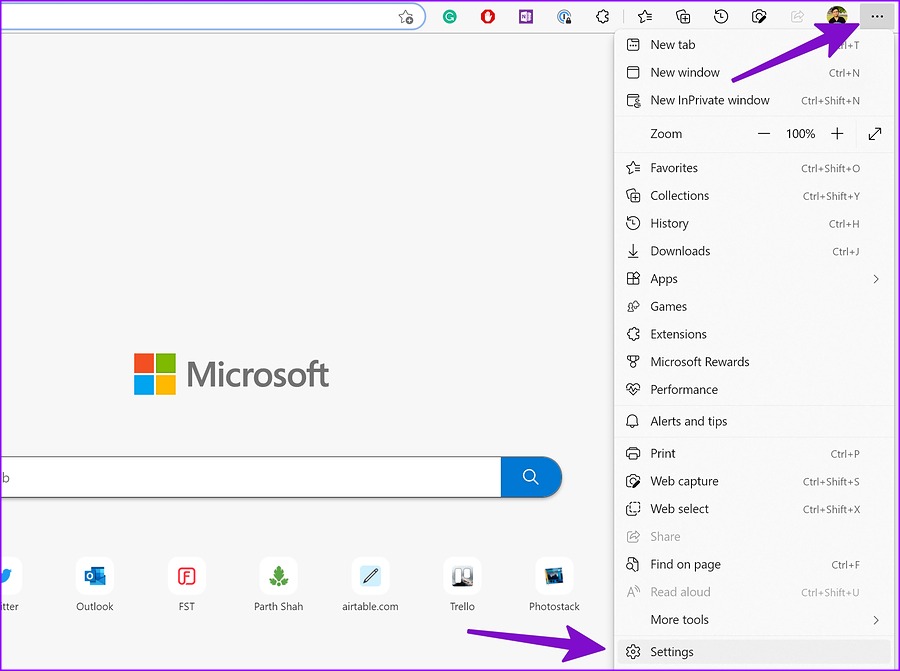
Step 1: Open Microsoft Edge > click on the three-dot icon at the top right corner > click on Settings.
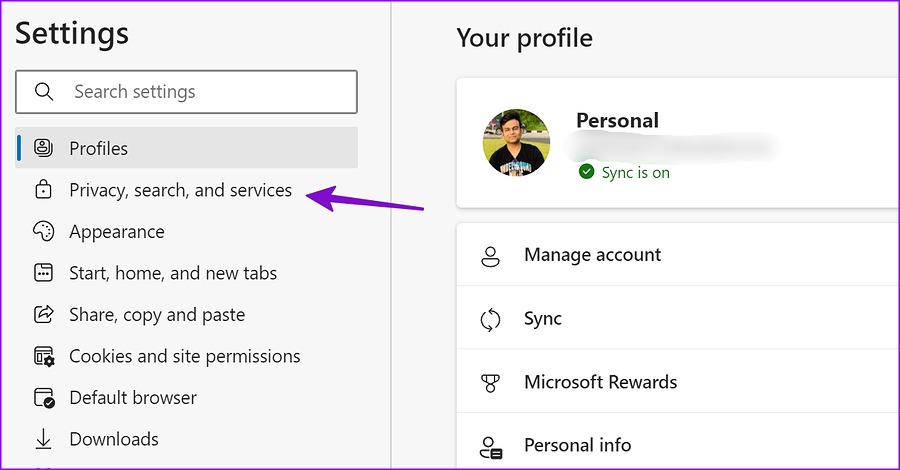
Step 2: Click on Privacy, search, and services from the left sidebar.
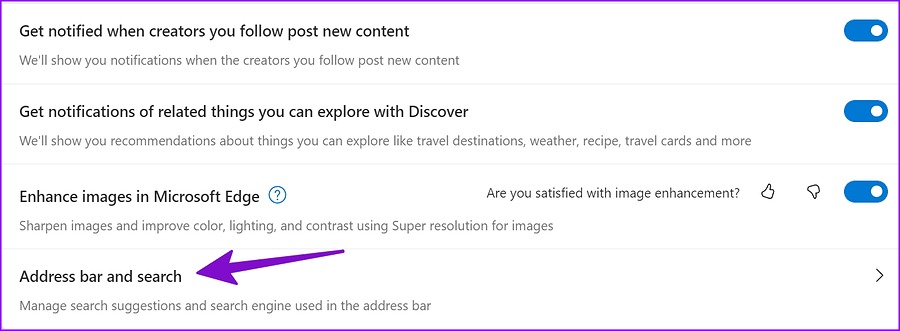
Step 3: Scroll down and click on Address bar and search.
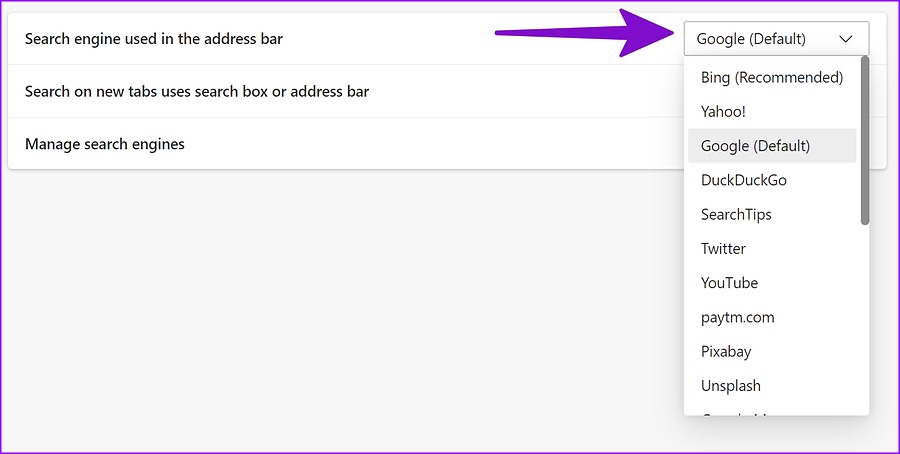
Step 4: Click on the drop-down in front of the Search engine used in the address bar option and select Google or any other search engine.
Fix 2: Remove Edge Extensions
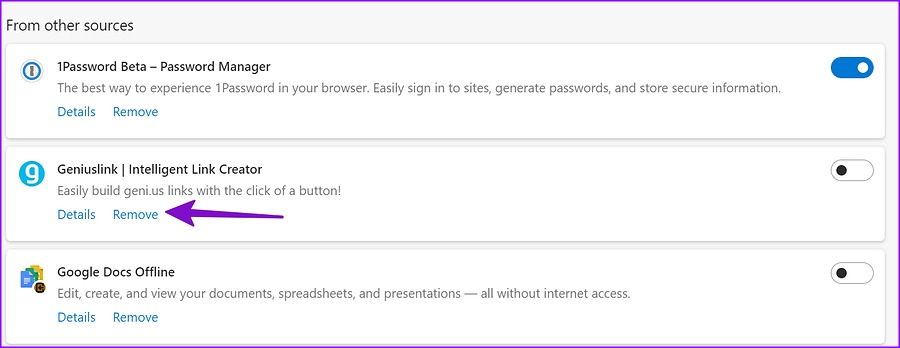
Third-party extensions improve your browser functionality. However, certain sketchy extensions might take over Microsoft Edge and change the search engine to Yahoo. So, remove any such extensions from Microsoft Edge. Here’s how.
Step 1: Launch Microsoft Edge and go to Edge’s Extensions page.
Step 2: Go through the currently installed extensions and click on Remove for the ones you wish to delete.
Fix 3: Reset All Edge Settings
Certain Edge settings can change the search engine to Yahoo unprompted. In this case, reset Microsoft Edge settings and set the search engine back to Bing. Then, manually change it to Google or any other search engine. Here’s how.
Step 1: Open Microsoft Edge > click on the three-dot icon > click on Settings.
Step 2: Click on Reset settings from the sidebar. Then, click on Restore settings to their default values. If prompted, confirm your decision in the pop-up menu.
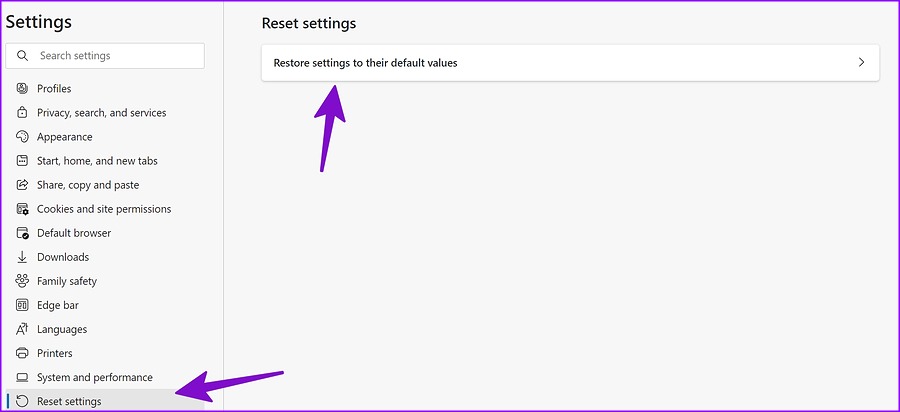
Microsoft Edge will return to using Bing as the search engine in the address bar. You can now follow the abovementioned steps to change the search engine as required.
Fix 4: Remove Browser Hijackers or Suspicious Programs
Certain PUAs (Potentially Unwanted Applications) on your Windows laptop can install irrelevant extensions on Microsoft Edge and even change the search engine to Yahoo. In this case, you can uninstall these apps from your Windows 11 device. Once done, the search engine should go back to your choice.
Was this helpful?
Last updated on 20 April, 2024
Read Next
 9 Best Ways to Fix Safari Search Engine Keeps Changing to Yahoo
Although it’s not as popular as Google Chrome, Safari remains a go-to choice for many iPhone and Mac users to browse the web.
9 Best Ways to Fix Safari Search Engine Keeps Changing to Yahoo
Although it’s not as popular as Google Chrome, Safari remains a go-to choice for many iPhone and Mac users to browse the web.
 How to Fix Search Engine Keeps Changing to Yahoo in Chrome
Google Chrome remains the most popular desktop browser out there.
How to Fix Search Engine Keeps Changing to Yahoo in Chrome
Google Chrome remains the most popular desktop browser out there.
 How to Stop Edge From Changing Default Search Engine
Common Fixes Avoid recommended settings: Skip the recommended settings popup in Microsoft Edge to avoid changing its default search engine.
How to Stop Edge From Changing Default Search Engine
Common Fixes Avoid recommended settings: Skip the recommended settings popup in Microsoft Edge to avoid changing its default search engine.
 3 Ways to Fix Google Chrome Search Engine Changing to Bing
Why Is Chrome Searching With Bing?
3 Ways to Fix Google Chrome Search Engine Changing to Bing
Why Is Chrome Searching With Bing?
 How to Make Google the Default Search Engine on Microsoft Edge
Microsoft Edge has emerged as a strong contender, offering users many features in the Chromium version.
How to Make Google the Default Search Engine on Microsoft Edge
Microsoft Edge has emerged as a strong contender, offering users many features in the Chromium version.
 How to Change Default Search Engine in Safari on iPhone, iPad, and Mac
The Safari browser is the default app to browse the web on Apple devices.
How to Change Default Search Engine in Safari on iPhone, iPad, and Mac
The Safari browser is the default app to browse the web on Apple devices.
 Top 5 Ways to Fix a D3D11-Compatible GPU is Required to Run the Engine Error on Windows 11
Preliminary Fixes Update DirectX: Updating DirectX can resolve compatibility issues and errors related to the D3D11 GPU.
Top 5 Ways to Fix a D3D11-Compatible GPU is Required to Run the Engine Error on Windows 11
Preliminary Fixes Update DirectX: Updating DirectX can resolve compatibility issues and errors related to the D3D11 GPU.
 How to Use the Edge Bar in Microsoft Edge on Windows 11
How to Enable Edge Bar in Microsoft Edge Step 1: Launch Microsoft Edge on your PC > click the three-dot menu icon at the top right > select Settings.
How to Use the Edge Bar in Microsoft Edge on Windows 11
How to Enable Edge Bar in Microsoft Edge Step 1: Launch Microsoft Edge on your PC > click the three-dot menu icon at the top right > select Settings.
The article above may contain affiliate links which help support Guiding Tech. The content remains unbiased and authentic and will never affect our editorial integrity.

