Basic Troubleshoot
- Remove the phone case: If your phone case blocks the microphone, you may notice muffled audio during video recording and calls. Remove your current case and try again.
- Clean phone mic: It’s one of the prime reasons behind microphone issues in apps like WhatsApp, Facebook, and Messenger. Over time, your phone microphone gets stuffed with dust, debris, and other dirty particles. Clean the phone microphone carefully.
- Close other background apps: If another app utilizes a microphone in the background, Messenger can’t use the same during calls or voice messages. Close such apps and try taking calls on Messenger.
- Force stop microphone: Close Messenger and reopen it to resolve any bugs or glitches.
- Update Messenger: Facebook regularly updates Messenger with new features and bug fixes. An outdated Messenger app often leads to microphones and other issues. Visit the Play Store or App Store and install the latest Messenger app.
Fix 1. Check Microphone Permission
When you first try to send a voice message or compose a call on Messenger, the app asks you to enable microphone permission. If you deny it, Messenger can’t access the device microphone. Here’s how to enable the permission.
On iPhone
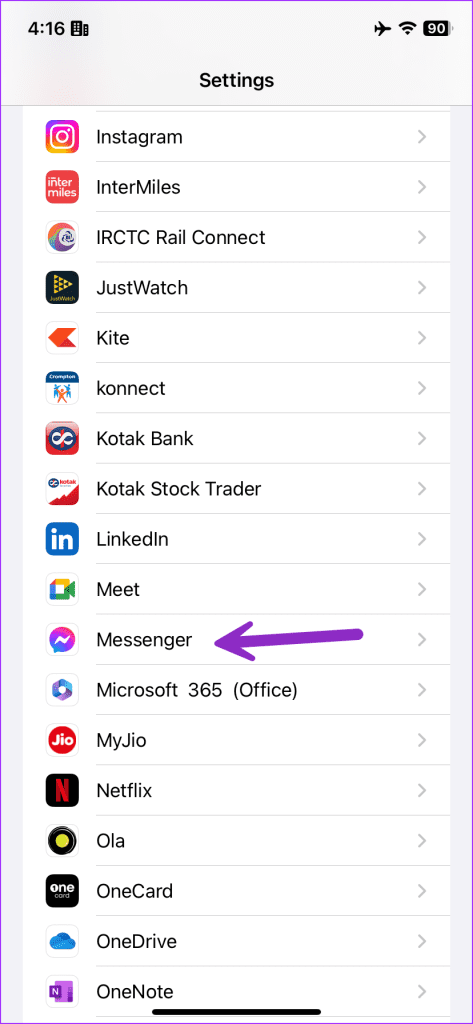
Step 1: Launch the Settings app.
Step 2: Scroll to Messenger. Enable the Microphone toggle.

On Android
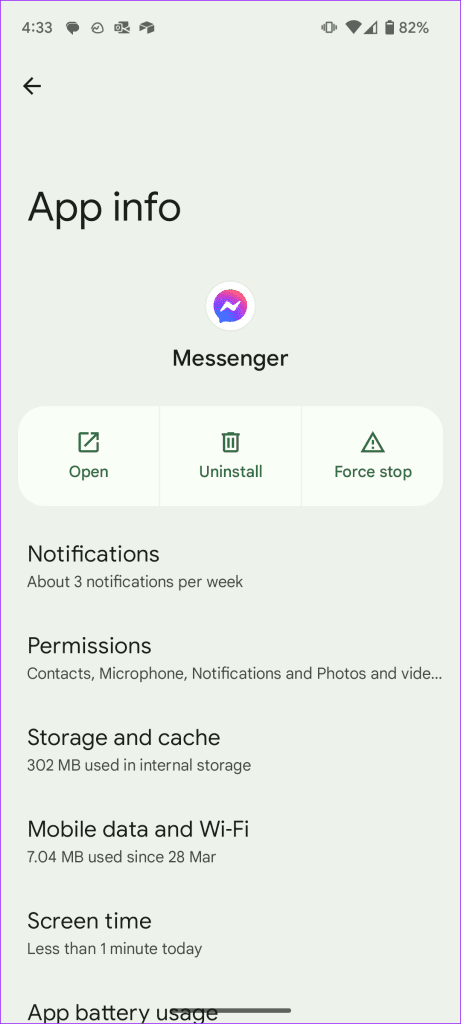
Step 1: Long-press on the Messenger app icon. Tap i to open the info menu.
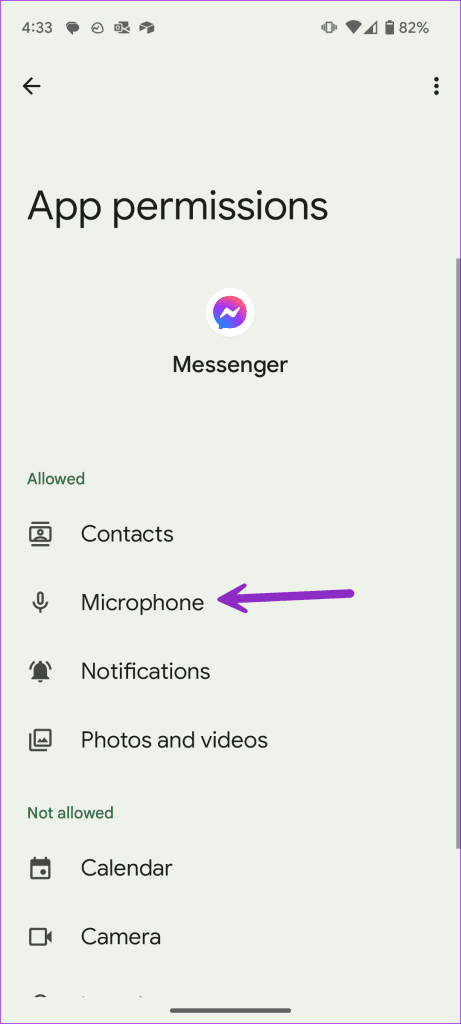
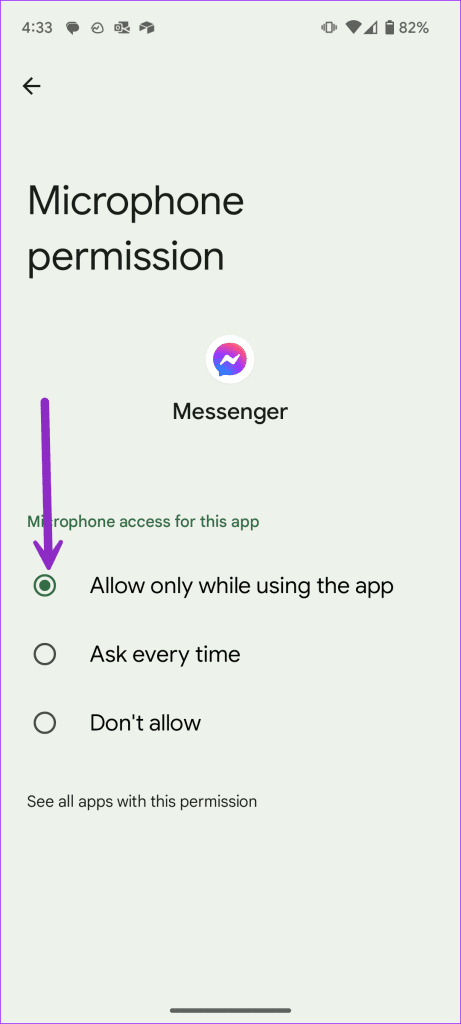
Step 2: Select Permissions > open Microphone.
Step 3: Tap the radio button for Allow only while using the app.
Fix 2. Clear Messenger Cache
Like any Android app, Messenger collects app cache to improve the overall user experience. The cache is a small set of files stored on your phone to speed up app actions.
When an app collects a corrupt cache, it often leads to irregularities. Messenger isn’t an exception, either.
Step 1: Open the Messenger app info menu (check the steps above).
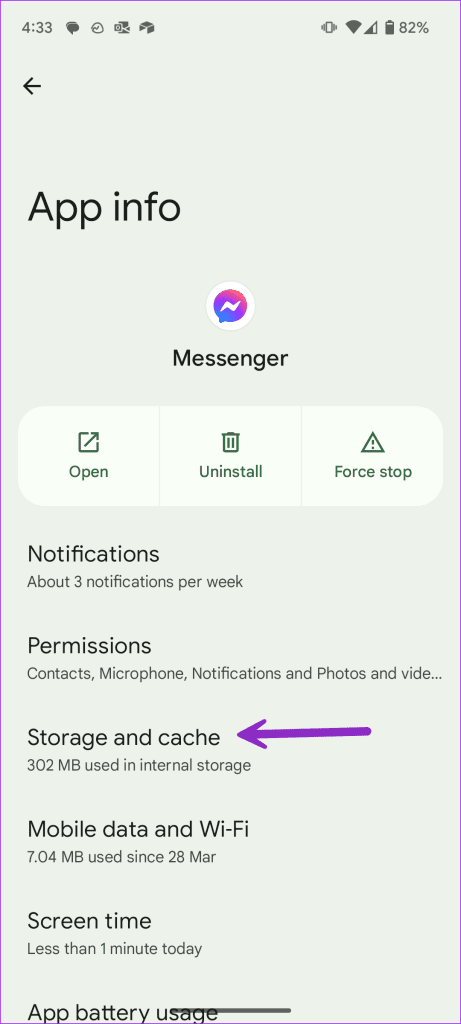
Step 2: Select Storage and cache. Tap Clear cache from the following menu.

If you are confused about clearing the cache, check our dedicated post to learn the implications of it.
Fix 3. Disable and Enable Microphone During Calls
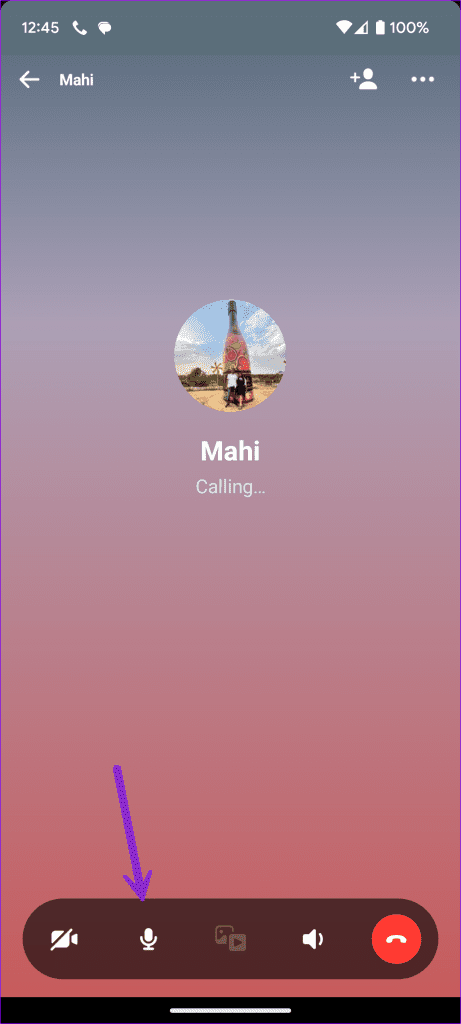
You can temporarily disable and enable the microphone during Messenger calls and ask the recipient about audio quality. Look for the microphone icon at the bottom bar. Tap on it to disable the permission. After a couple of seconds, enable it.
Although Messenger started as a text messaging app, Facebook eventually added support for voice calls, video meetings, and voice messages. This is a handy way to continue conversations without switching to another platform.
Was this helpful?
Last updated on 16 August, 2024
Read Next
 4 Ways to Fix Facebook Messenger Not Working on the Desktop
Basic Fixes Run Messenger app as an Admin: Search for the Messenger app on your PC and select Run as Administrator.
4 Ways to Fix Facebook Messenger Not Working on the Desktop
Basic Fixes Run Messenger app as an Admin: Search for the Messenger app on your PC and select Run as Administrator.
 3 Ways to Fix Facebook Messenger Camera Not Working on Android and iPhone
Fix 1: Enable Camera Permission for Messenger Like any other app, Messenger needs permission to access your phone's camera.
3 Ways to Fix Facebook Messenger Camera Not Working on Android and iPhone
Fix 1: Enable Camera Permission for Messenger Like any other app, Messenger needs permission to access your phone's camera.
 4 Ways to Fix Facebook Messenger Notification Sound Not Working
Try Basic Fixes Close the Messenger app on your computer: If you have the Messenger app open on your computer, notifications may appear there instead of on your phone, and
4 Ways to Fix Facebook Messenger Notification Sound Not Working
Try Basic Fixes Close the Messenger app on your computer: If you have the Messenger app open on your computer, notifications may appear there instead of on your phone, and
 How to Fix Facebook Messenger Not Working on iPad or iPhone
Basic Fixes Check internet connection: Check the stability or speed of your internet connection.
How to Fix Facebook Messenger Not Working on iPad or iPhone
Basic Fixes Check internet connection: Check the stability or speed of your internet connection.
 Top 5 Ways to Fix Facebook Messenger Calls Not Working (iPhone and Android)
Preliminary Fixes Check the Network Connection: A stable internet connection is crucial for Messenger calls.
Top 5 Ways to Fix Facebook Messenger Calls Not Working (iPhone and Android)
Preliminary Fixes Check the Network Connection: A stable internet connection is crucial for Messenger calls.
 3 Ways to Fix Picture-In-Picture Not Working in Facebook Messenger
Common Fixes Restart device - Long-press the physical Power button and tap Reboot to restart Android.
3 Ways to Fix Picture-In-Picture Not Working in Facebook Messenger
Common Fixes Restart device - Long-press the physical Power button and tap Reboot to restart Android.
 Top 8 Ways to Fix WhatsApp Microphone Not Working on iPhone and Android
Thanks to group calls, the ability to share and create call links, and desktop support, WhatsApp voice and video calls are gaining traction among users.
Top 8 Ways to Fix WhatsApp Microphone Not Working on iPhone and Android
Thanks to group calls, the ability to share and create call links, and desktop support, WhatsApp voice and video calls are gaining traction among users.
 2 Ways to Fix Microphone Not Working on Instagram
Basic Fixes: Force close all background apps: If other apps use the microphone in the background, you may have issues accessing it on Instagram. You can close such apps on your
2 Ways to Fix Microphone Not Working on Instagram
Basic Fixes: Force close all background apps: If other apps use the microphone in the background, you may have issues accessing it on Instagram. You can close such apps on your
The article above may contain affiliate links which help support Guiding Tech. The content remains unbiased and authentic and will never affect our editorial integrity.