

Fix 1: Allow Messenger to Open Supported Links (Android)
Messenger may fail to open links on your Android phone due to a lack of relevant permissions. Here’s what you can do to fix that.
Step 1: Long-press the Messenger app icon and tap the info icon from the resulting menu.
Step 2: Tap on Set as default and enable the toggle next to Open supported links in the following menu.


Fix 2: Sign Out of the Messenger App and Sign Back In
Authentication issues with your account may prevent the links from opening or working as expected in the Messenger app. If that’s the case, signing out of the Messenger app and signing back in should solve the problem.
Step 1: Open the Messenger app, tap the menu icon at the top, and then tap the gear icon to visit the settings menu.


Step 2: Tap on the See more in Accounts Center option.
Step 3: Go to Password and security and select Where you’re logged in from the following menu.
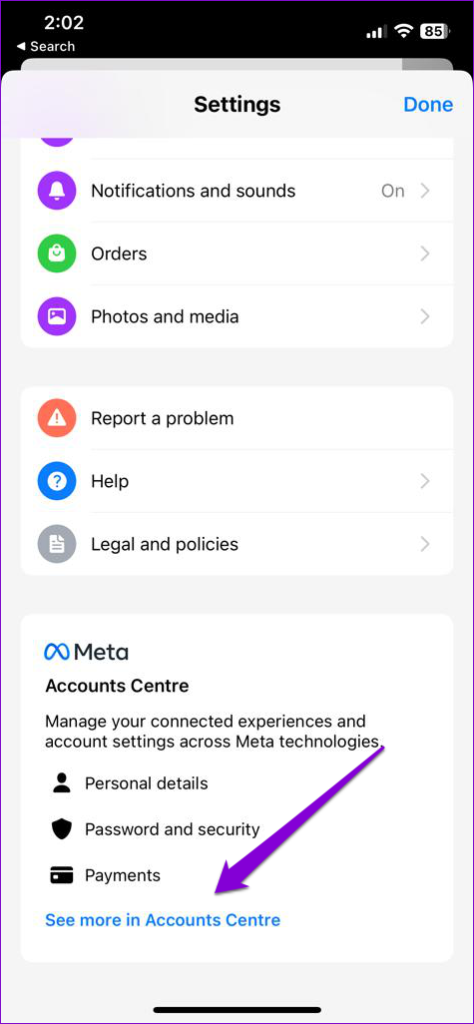

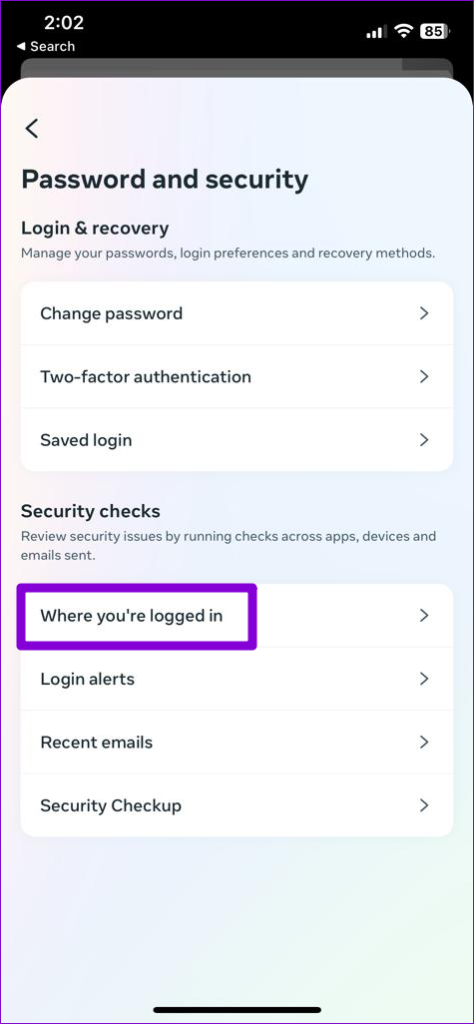
Step 4: Tap on Select devices to log out. Select your device from the list and tap the Log Out button at the bottom.


Sign back into the Messenger app and check if the issue persists.
Fix 3: Clear App Cache (Android)
Such issues with the Messenger app can also occur if the existing cache data has become old or corrupt. To fix this, you can try clearing the Messenger cache data using these steps:
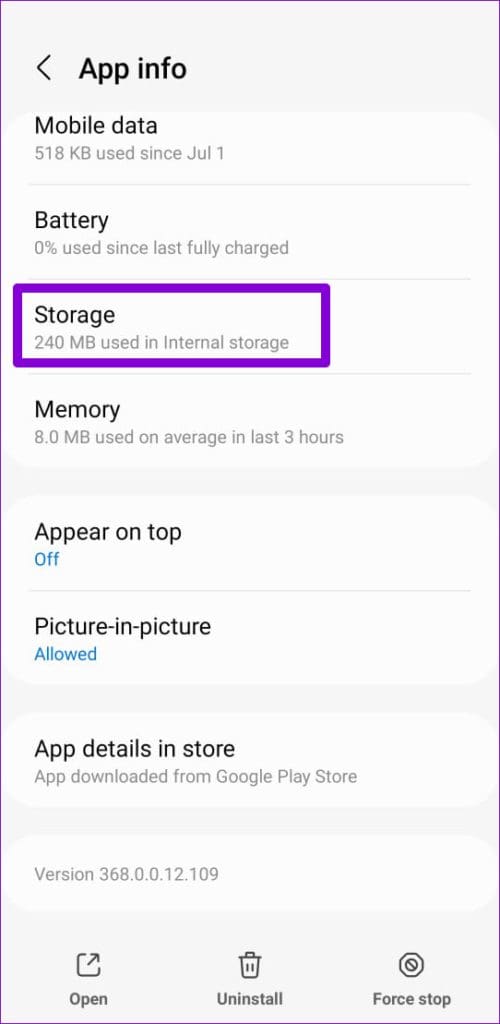
Step 1: Long-press the Messenger app icon and tap the info icon from the resulting menu.
Step 2: Go to Storage and tap the Clear cache option.


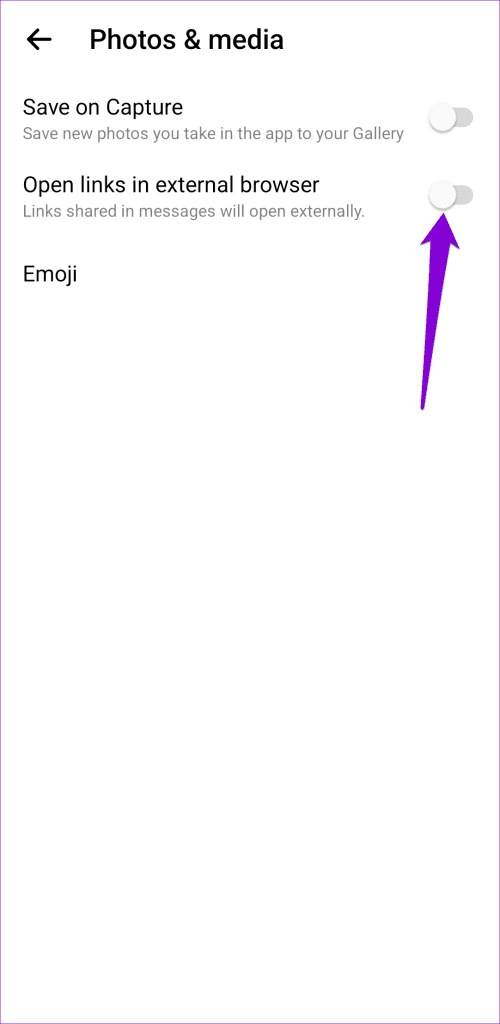
Fix 4: Enable the “Open Links in External Browser” Option
Is Messenger still not opening links in its in-app browser? If so, you can configure the app to open them in your phone’s browser instead. Here’s how:
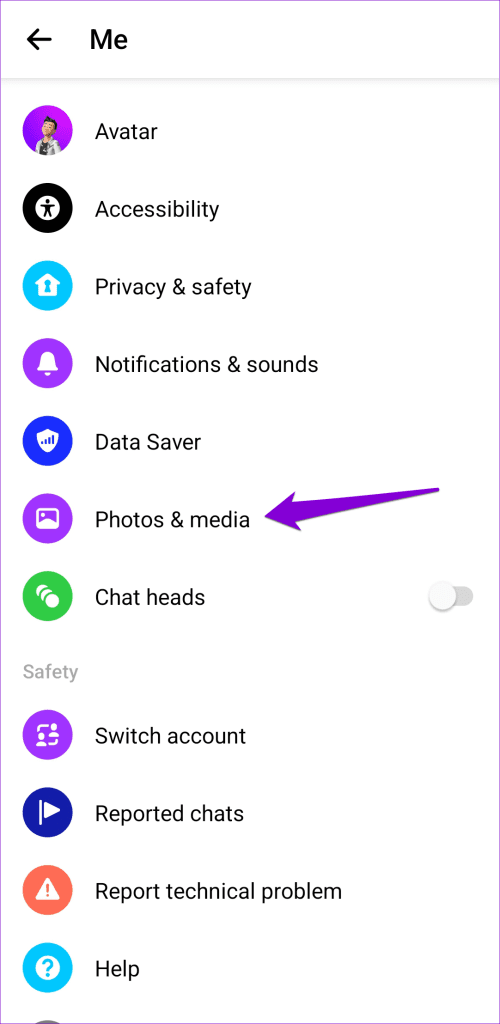
Step 1: Open the Messenger app settings menu.
Step 2: Scroll down to tap on Photos & media. Then, enable the toggle next to Open links in external browser.
Fix 5: Change the Default Browser
If Messenger can’t open links even in the external browser, you can try changing the default browser on your iPhone or Android and see if that solves the problem. Here’s how to do it.
Android
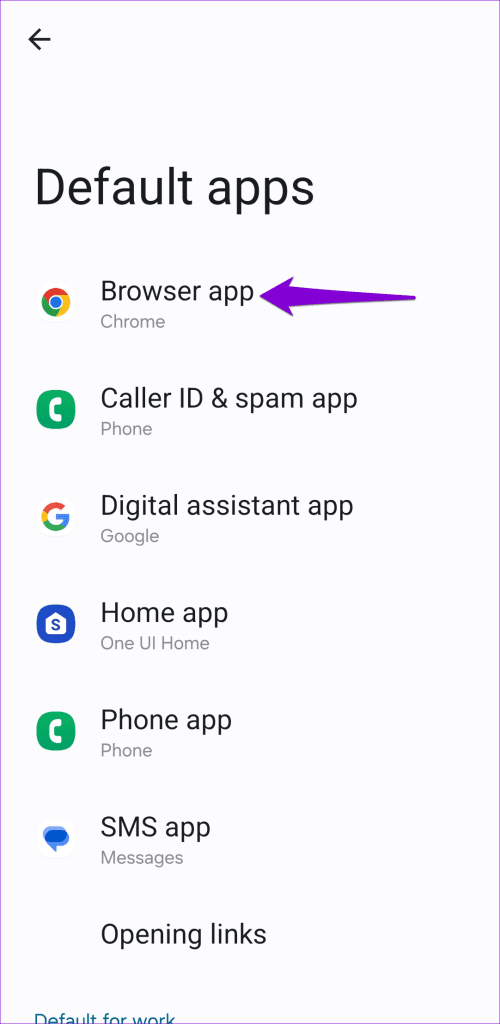
Step 1: Open the Settings app on your phone, scroll down to tap on Apps, and select the Choose default apps option.


Step 2: Tap on Browser app and select the browser you want to set as the default from the following menu.

iPhone
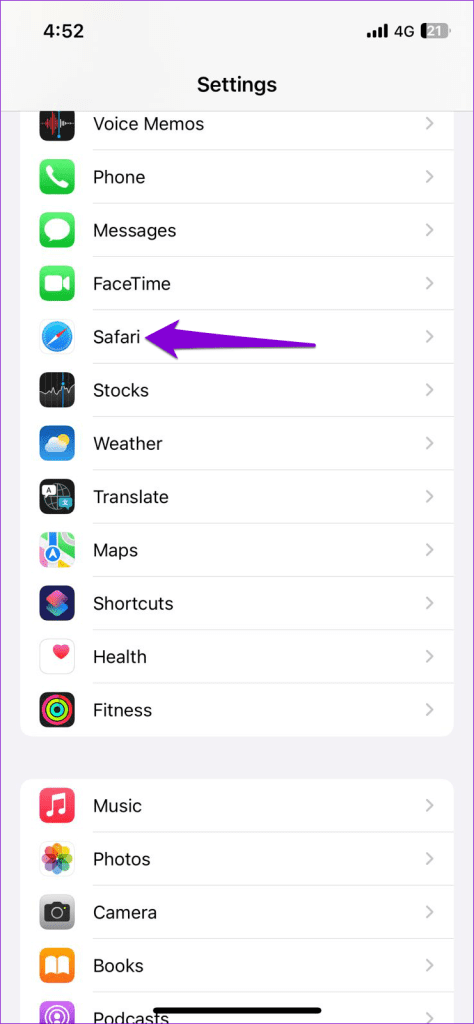
Step 1: Open the Settings app and tap on Safari.
Step 2: Tap on Default Browser App and select your preferred browser to set it as the default option.


Was this helpful?
Last updated on 10 August, 2024
Read Next
 4 Fixes for Links Not Opening in WhatsApp on iPhone and Android
Basic Fixes Check if the link is working: If the links you shared with your contact are not working, you should check whether the link is correct.
4 Fixes for Links Not Opening in WhatsApp on iPhone and Android
Basic Fixes Check if the link is working: If the links you shared with your contact are not working, you should check whether the link is correct.
 4 Ways to Fix Links Not Opening in Telegram for Android and iPhone
Try Basic Fixes Check if Telegram is down: Telegram links may stop working if there’s an issue with its servers.
4 Ways to Fix Links Not Opening in Telegram for Android and iPhone
Try Basic Fixes Check if Telegram is down: Telegram links may stop working if there’s an issue with its servers.
 3 Ways to Fix Links Not Opening in Google Chrome
Fix 1: Disable Browser Extensions (for Desktop Only) Using third-party extensions in Chrome allows you to extend the browser's functionality.
3 Ways to Fix Links Not Opening in Google Chrome
Fix 1: Disable Browser Extensions (for Desktop Only) Using third-party extensions in Chrome allows you to extend the browser's functionality.
 How to Fix Links Not Opening or Working in X (Twitter) App
Basic Fixes: Restart your device: Restarting your smartphone helps close and restart the app process from scratch.
How to Fix Links Not Opening or Working in X (Twitter) App
Basic Fixes: Restart your device: Restarting your smartphone helps close and restart the app process from scratch.
 4 Ways to Fix X (Twitter) Links Not Opening in Chrome and Safari
Basic Fixes: Open page in Incognito Mode: Incognito mode allows you to load your browser without any extensions, cookies, or cache data.
4 Ways to Fix X (Twitter) Links Not Opening in Chrome and Safari
Basic Fixes: Open page in Incognito Mode: Incognito mode allows you to load your browser without any extensions, cookies, or cache data.
 3 Ways to Stop Mac From Opening Links in Safari
Method 1: Change the Default Browser on Your Mac Your Mac comes with Safari as the default browser.
3 Ways to Stop Mac From Opening Links in Safari
Method 1: Change the Default Browser on Your Mac Your Mac comes with Safari as the default browser.
 How to Stop Facebook Messenger From Opening at Startup on Windows
Method 1: Modify In-App Settings to Prevent Messenger From Opening Automatically Like most apps, Facebook Messenger lets you customize its startup behavior from its in-app settings menu.
How to Stop Facebook Messenger From Opening at Startup on Windows
Method 1: Modify In-App Settings to Prevent Messenger From Opening Automatically Like most apps, Facebook Messenger lets you customize its startup behavior from its in-app settings menu.
 4 Fixes if Facebook Messenger Keeps Crashing on Android and iPhone
Basic Fixes Update the Messenger app: Using an outdated version of an app can cause it to behave strangely.
4 Fixes if Facebook Messenger Keeps Crashing on Android and iPhone
Basic Fixes Update the Messenger app: Using an outdated version of an app can cause it to behave strangely.
The article above may contain affiliate links which help support Guiding Tech. The content remains unbiased and authentic and will never affect our editorial integrity.

