

Basic Fixes
- Check network connection: Ensure you are on a good internet connection to fully load the received email and all of its parts.
- Restart iPhone: Restart your iPhone to fix any temporary bugs and glitches.
- Check iPhone storage: If your iPhone storage is full, you may not be able to view or download the attachment on the Mail app
- Re-install the Mail app: Once you uninstall the Mail app and install it back again, any misconfiguration that is causing this bug will be reset.
Fix 1: Delete the Account and Add It Again
Deleting your account on the Mail app and then adding it again is one way to refresh your mailbox. Doing this potentially fixes the issue of the mail attachment not showing up.
Step 1: Open Settings > Mail > Accounts and select the account that is not showing attachments.


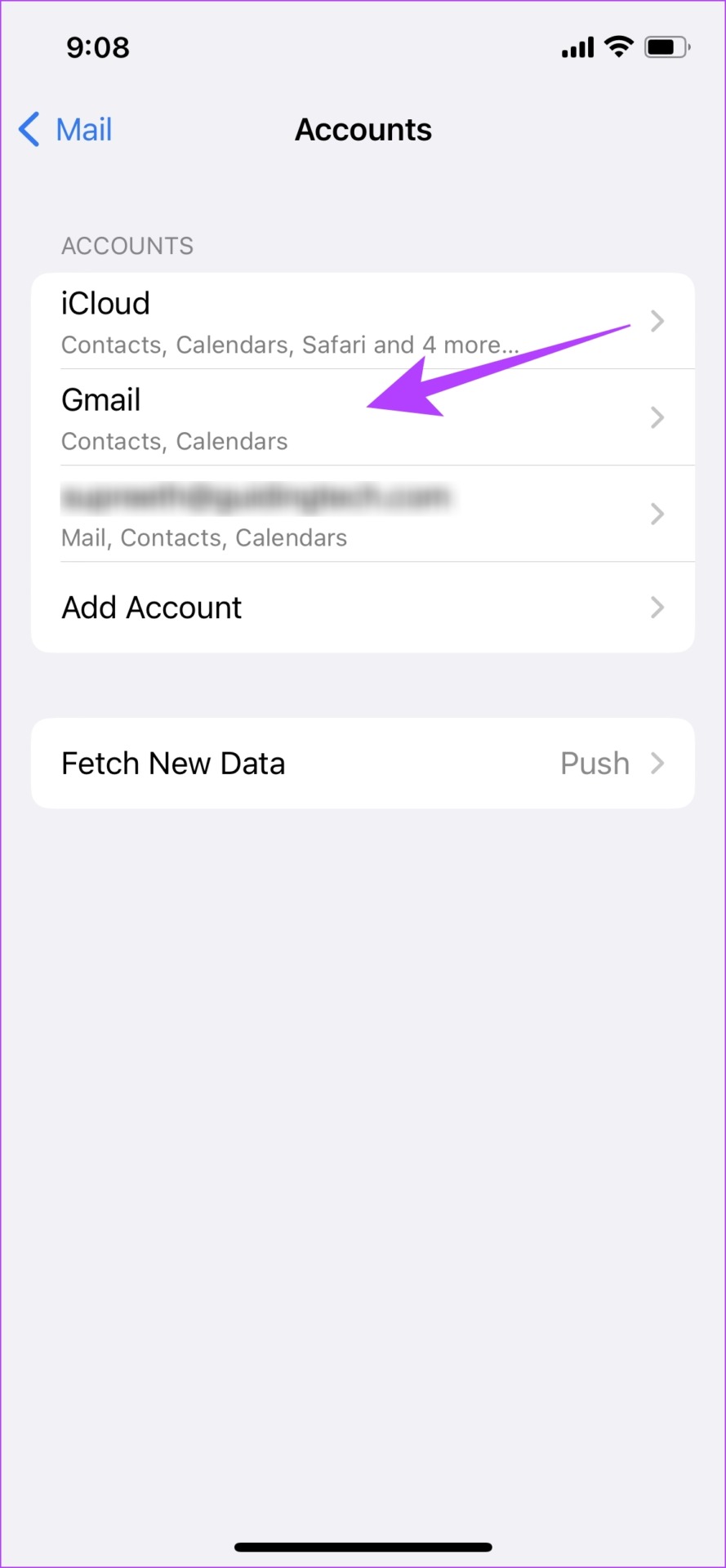
Step 2: Tap on Delete Account. Tap on Delete from My iPhone to delete the account from your Mail app.
Note: Once you delete an account from your iPhone, all the synced contacts, calendar events, notes, and other data will be removed until you add the account back again.
Step 3: Now, go back to Accounts and tap on Add Account.
Step 4: Select the service of your account to add it back again.
You can now follow the on-screen instructions to add the account.


Also Read: How to fix images not loading in Mail app for iPhone.
Fix 2: Enable Cellular Data for Mail
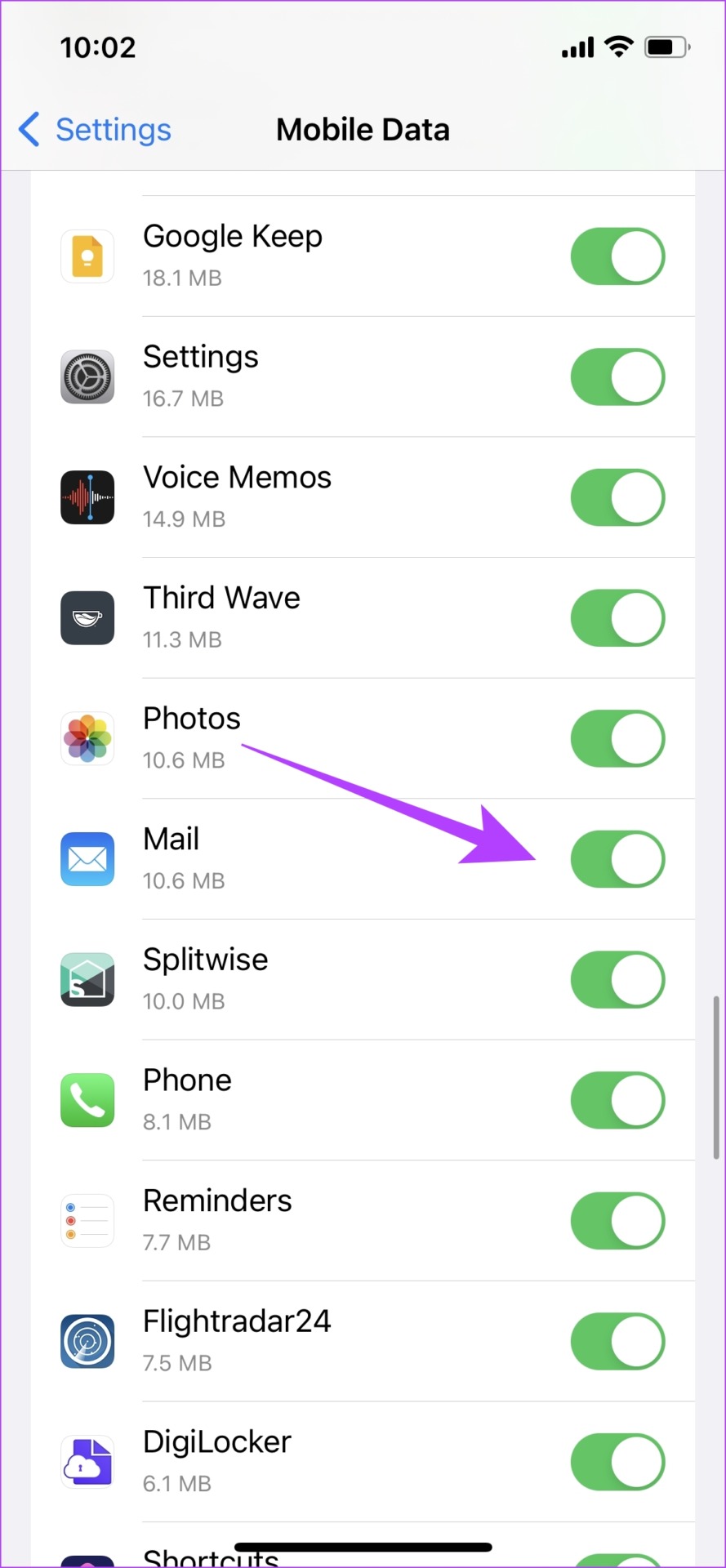
If you are using Mail on cellular data and you are not able to load the attachment on the email, there is a chance that cellular data is disabled for the app. Ensure to turn it on so that the app works properly even when using cellular data.
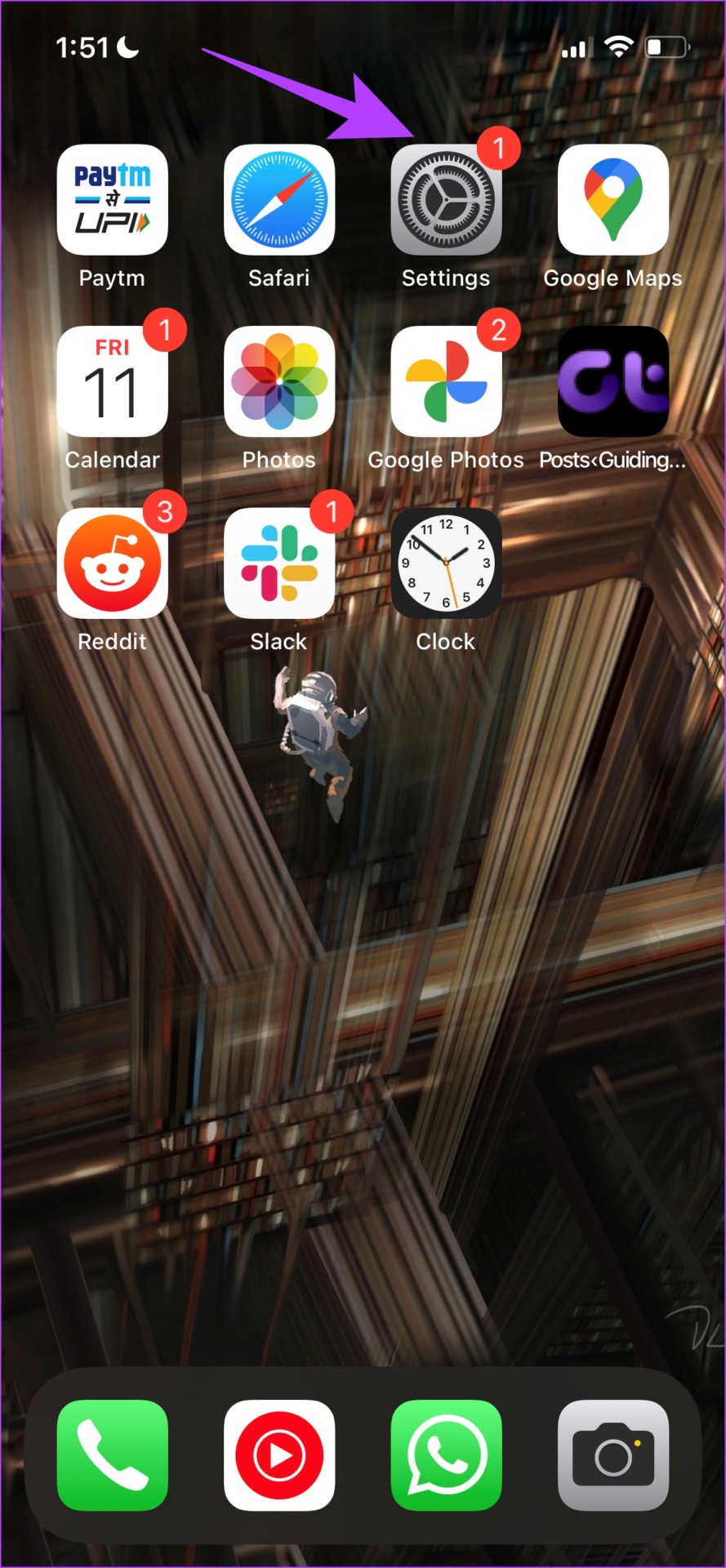
Tap on Settings > Mobile Data, and turn on the toggle for Mail.

Fix 3: Reset Network Settings
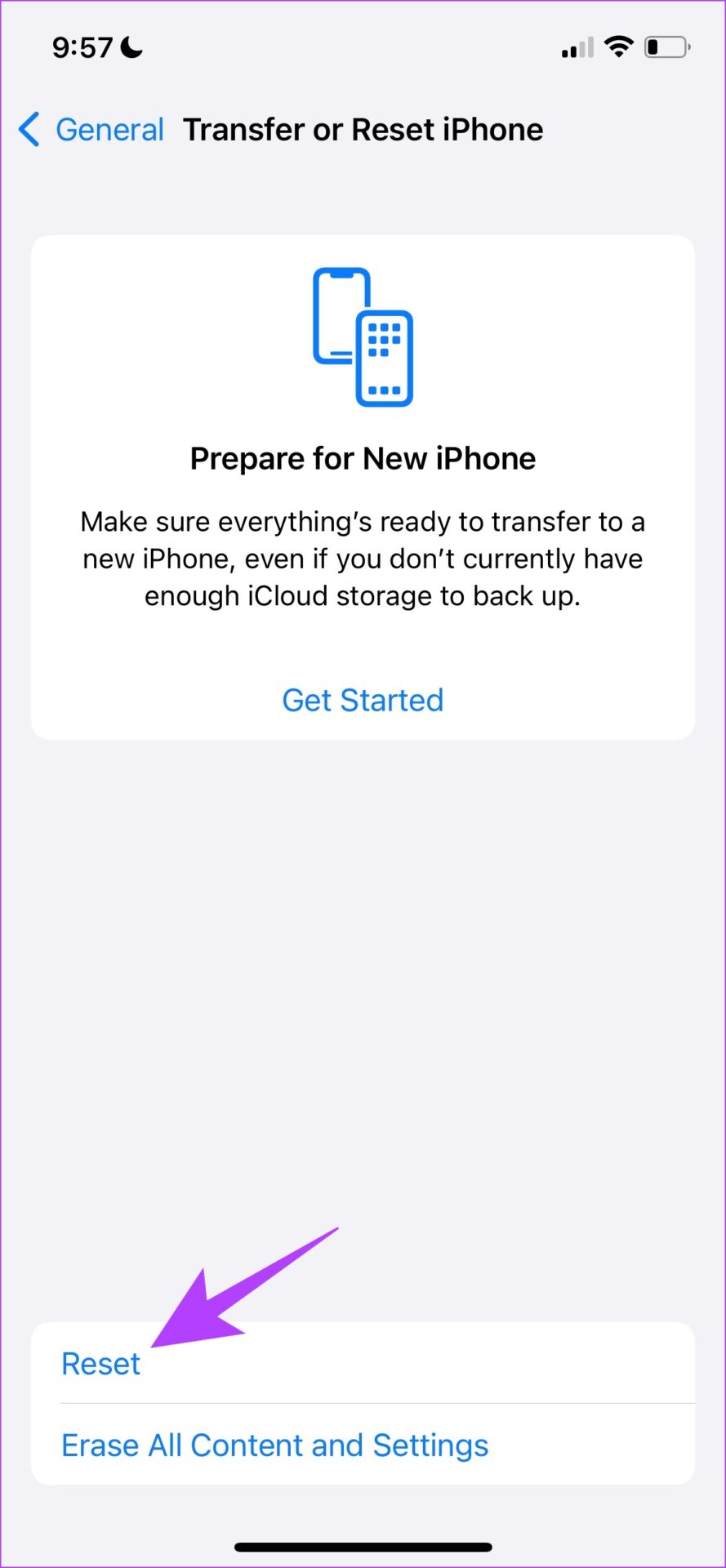
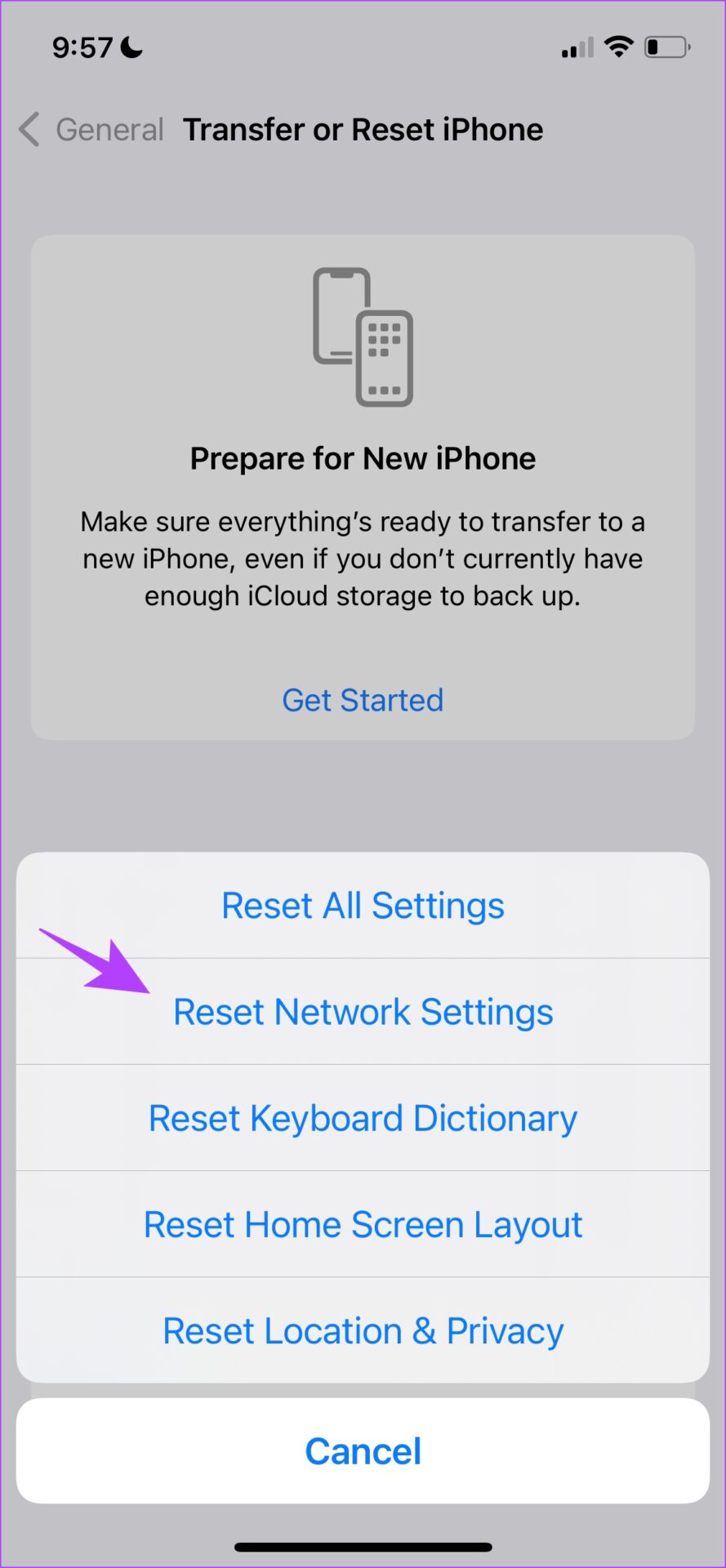
Resetting Network Settings will reset all the network-related configurations on your iPhone and establish a fresh connection. There is a good chance that the Mail app can fetch the attachment from the server after a reset of network settings.
Note: This option forgets the Wi-Fi passwords from your iPhone and resets all the network configurations you’ve made. So, ensure to view and save Wi-Fi passwords before erasing them.
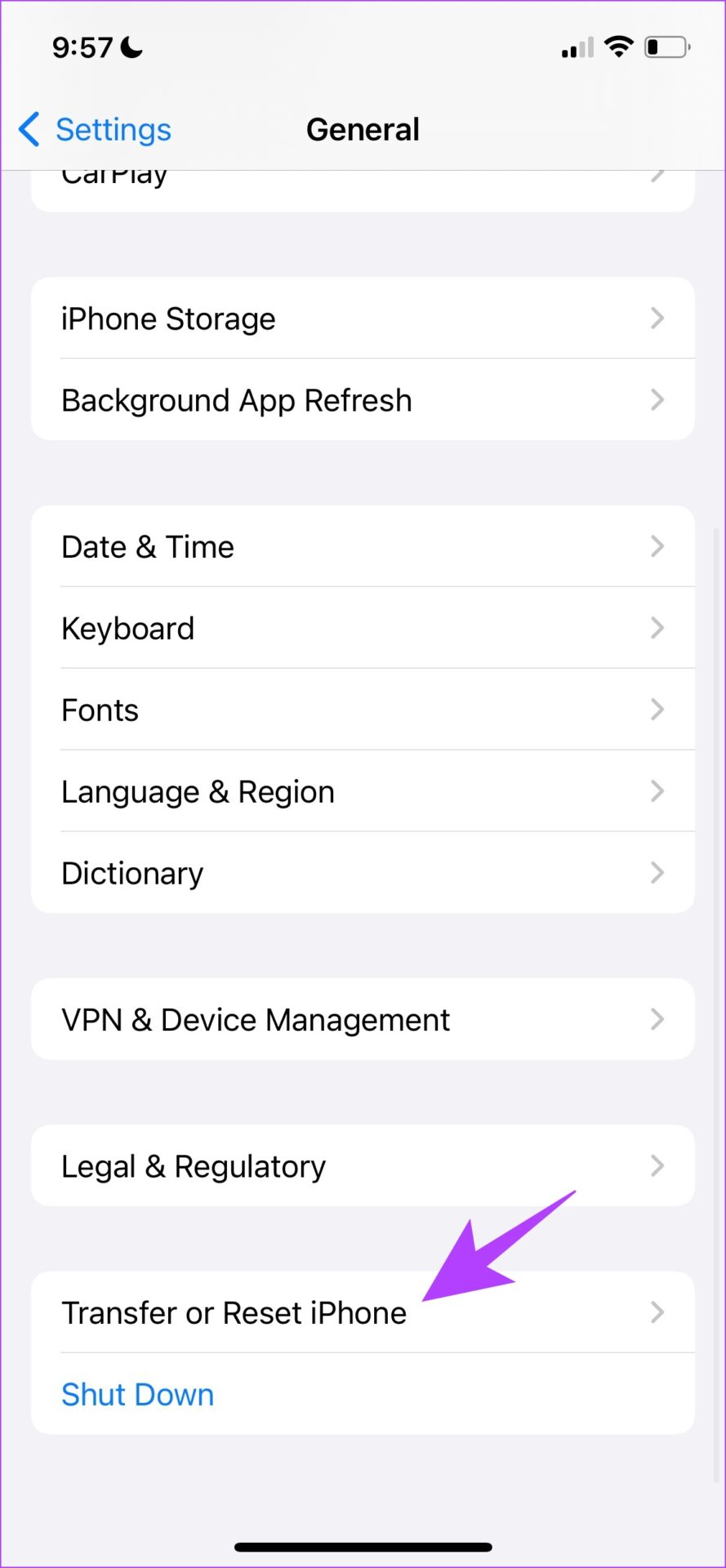
Open Settings > General > Transfer or Reset iPhone > Reset and Reset Network Settings.
Well, if nothing else works, this is the last resort you can try. Move away from the Mail app and use a different one until Apple releases a few updates to fix the problem. Apple did it with Apple Maps and improved it significantly, so don’t lose hope yet.
Was this helpful?
Last updated on 31 July, 2024
Read Next
 How to Add Pictures to Outlook Email (Body or Attachment)
Add Inline Image to Outlook Email on Desktop For Windows Step 1: Open the Outlook app and click on New Email at the top-left corner.
How to Add Pictures to Outlook Email (Body or Attachment)
Add Inline Image to Outlook Email on Desktop For Windows Step 1: Open the Outlook app and click on New Email at the top-left corner.
 3 Fixes for Attachment Unavailable Error in Facebook Messenger
Try Basic Fixes The post may have been removed: Is the Facebook Messenger app showing the "Attachment Unavailable" error when you share someone else’s post?
3 Fixes for Attachment Unavailable Error in Facebook Messenger
Try Basic Fixes The post may have been removed: Is the Facebook Messenger app showing the "Attachment Unavailable" error when you share someone else’s post?
 3 Ways to Fix Apple Mail Stuck on Checking for Mail on iPhone
Basic Fixes: Check the network connection: First, check the network connection quality on your iPhone. If you face network issues, you can enable Airplane mode on your iPhone and disable it
3 Ways to Fix Apple Mail Stuck on Checking for Mail on iPhone
Basic Fixes: Check the network connection: First, check the network connection quality on your iPhone. If you face network issues, you can enable Airplane mode on your iPhone and disable it
 Outlook App vs Apple Mail: Which Is a Better iOS Mail App
Frankly, there are so many mail apps for the iOS platform that it can be difficult to zero in on one.
Outlook App vs Apple Mail: Which Is a Better iOS Mail App
Frankly, there are so many mail apps for the iOS platform that it can be difficult to zero in on one.
 Fix: Mac Mail Showing Blank Message Body for Exchange Emails
Basic Fixes Check your Outlook account details: Open Mail > Mail at the top-left corner > Accounts > Exchange account > Check your account details.
Fix: Mac Mail Showing Blank Message Body for Exchange Emails
Basic Fixes Check your Outlook account details: Open Mail > Mail at the top-left corner > Accounts > Exchange account > Check your account details.
 5 Ways to Fix Mail App Not Working on iPhone
Basic Fixes Check your network connection: Ensure your iPhone has a good internet connection.
5 Ways to Fix Mail App Not Working on iPhone
Basic Fixes Check your network connection: Ensure your iPhone has a good internet connection.
 2 Ways to Fix Apple Mail Not Syncing With Gmail on iPhone
https://youtu.be/qe9j2VLn6QY Fix 1: Check Your Gmail Account Settings The Mail app is the default email client app for Apple devices, just like Gmail comes pre-installed for Android.
2 Ways to Fix Apple Mail Not Syncing With Gmail on iPhone
https://youtu.be/qe9j2VLn6QY Fix 1: Check Your Gmail Account Settings The Mail app is the default email client app for Apple devices, just like Gmail comes pre-installed for Android.
 7 Best Ways to Fix Mail App Not Syncing With Outlook on iPhone
The default Mail app on your iPhone lets you quickly sign in to your Outlook account.
7 Best Ways to Fix Mail App Not Syncing With Outlook on iPhone
The default Mail app on your iPhone lets you quickly sign in to your Outlook account.
The article above may contain affiliate links which help support Guiding Tech. The content remains unbiased and authentic and will never affect our editorial integrity.

