Basic Fixes
- Move close to your router: Poor Wi-Fi signal can force your iPhone to switch to mobile data instead of Wi-Fi.
- Connect to the 5GHz frequency band: Your iPhone will receive more Wi-Fi signal strength and faster speeds than the 2.4 GHz frequency band, preventing iOS from switching to mobile data.
- Forget and reconnect to the Wi-Fi network: Open the Settings app > select Wi-Fi > tap on i next to the connected network > select Forget This Network to remove it. Next, tap the Wi-Fi network and connect it using its passcode.
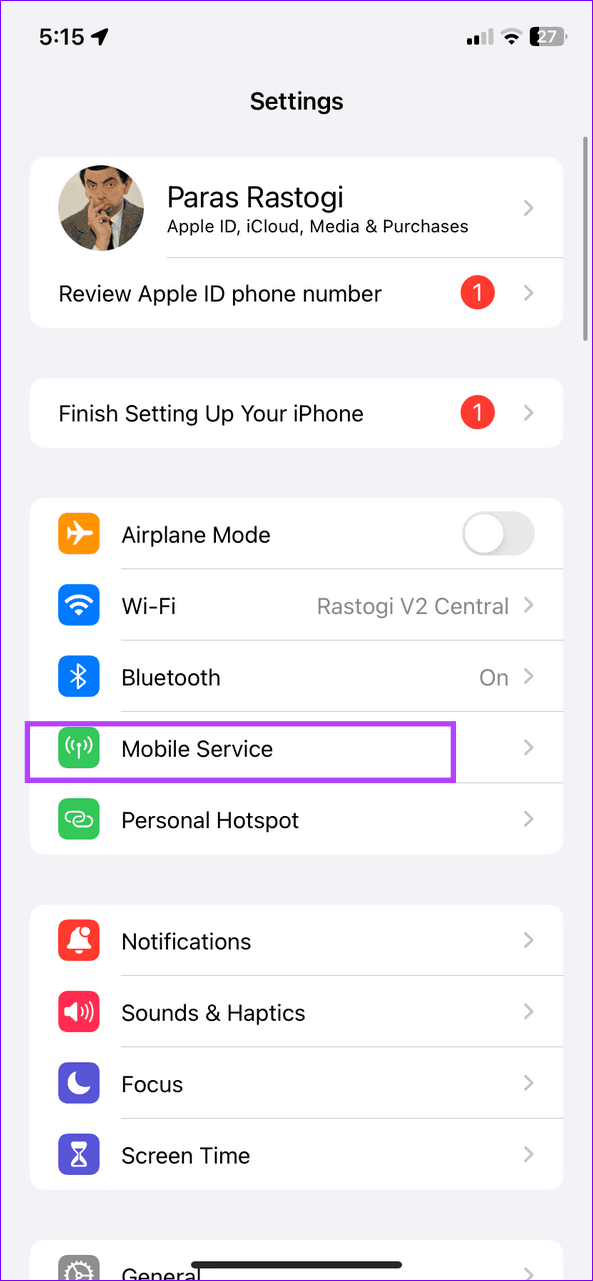
- Turn off mobile data manually: Open the Settings app > select Mobile Service > toggle off Mobile Data.
- Update iOS: Head to iPhone settings > select General > tap Software Update. Select Update Now (if available) to install new updates.
Fix 1: Disable Wi-Fi Assist
The Wi-Fi Assist feature on iOS automatically switches your iPhone to mobile data from Wi-Fi when it detects a poor Wi-Fi network connection. Disable it to prevent the switch.
Open the Settings app > select Mobile Service > scroll to the bottom and disable Wi-Fi Assist.

Fix 2: Turn off Low Data Mode for Wi-Fi
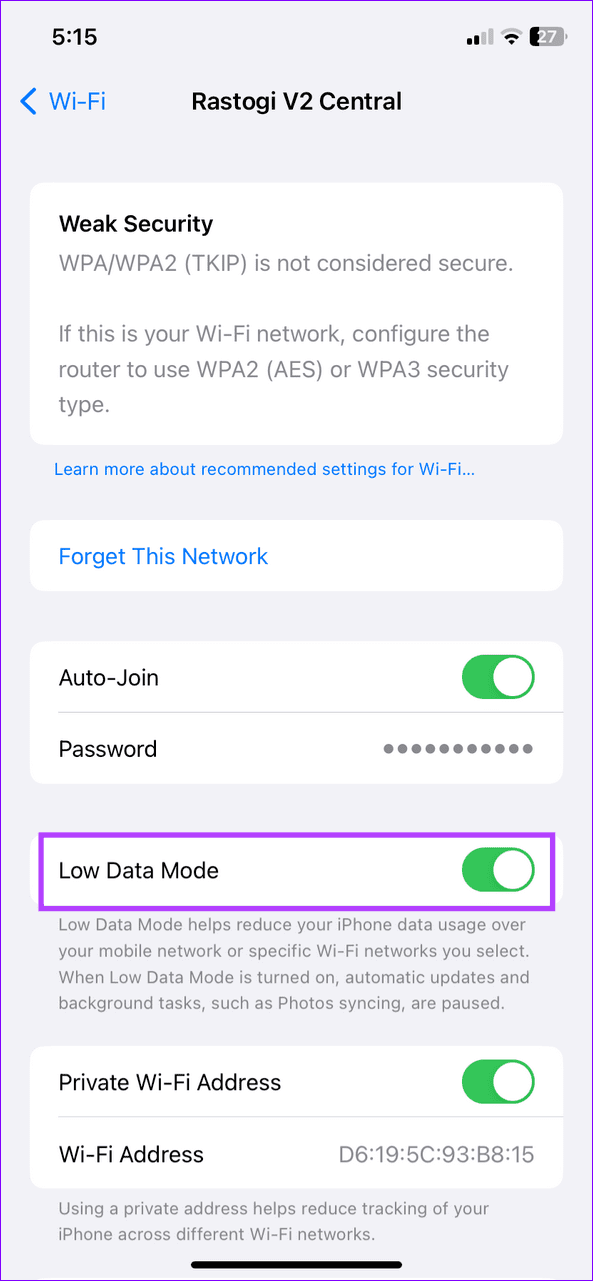
An active Low Data Mode on your Wi-Fi network can interrupt the internet connectivity, compelling your iPhone to switch to mobile data. Disable it manually under Wi-Fi settings.
Select Wi-Fi under iPhone settings > tap on i next to the connected network > toggle off the Low Data Mode.


Fix 3: Disable Limit IP Address Tracking for Wi-Fi
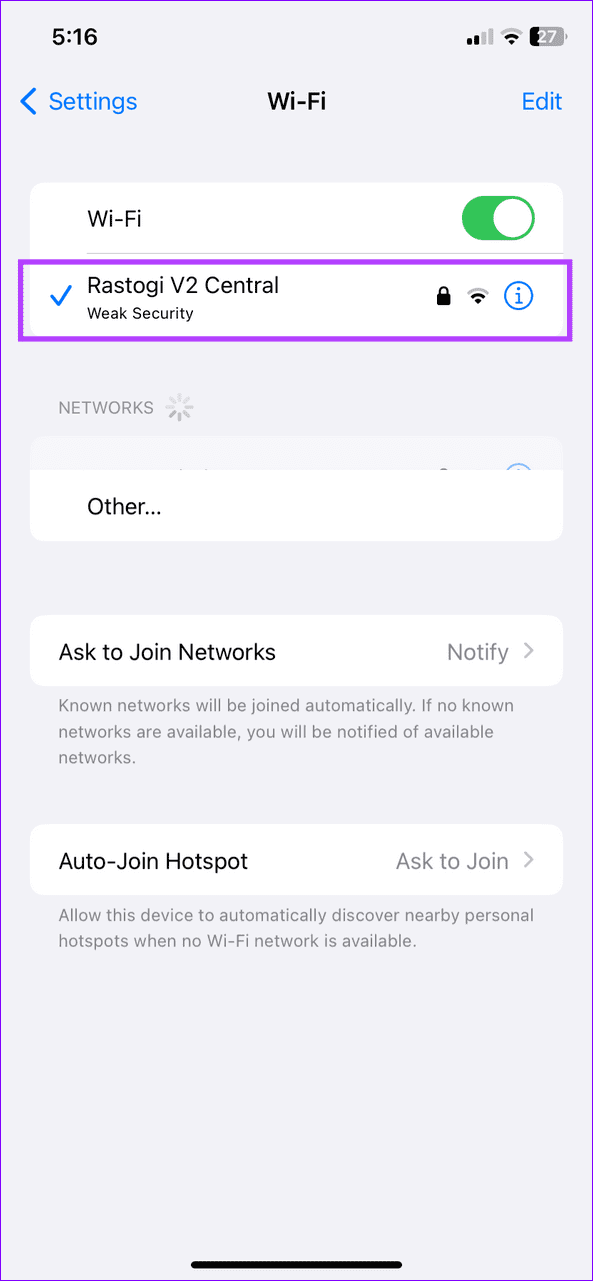
The Limit IP Address tracking hides your IP address from known trackers in Safari and Mail over Wi-Fi. If Apple servers are down or Wi-Fi is slow, iOS may automatically switch to mobile data from Wi-Fi. Disable the feature to avoid the scenario.
Open Wi-Fi settings on your iPhone (Settings > Wi-Fi) > tap on i next to the connected network > toggle off Limit IP Address Tracking.

Fix 4: Reset Network Settings
Lastly, reset network settings on your iPhone to remove incorrect network configurations forcing iOS to switch to mobile data from Wi-Fi.
Step 1: Select General under iPhone Settings > tap on Transfer or Reset iPhone.


Step 2: Tap on Reset > select Reset Network Settings. When prompted, type your device passcode to confirm the action.


Was this helpful?
Last updated on 11 July, 2024
Read Next
 3 Ways to Fix Telegram Calls Not Switching to Speaker on iPhone
Common Fixes Check volume levels - Go to Settings > Sounds & Haptics and maximize the Ringtone and Alerts volume slider.
3 Ways to Fix Telegram Calls Not Switching to Speaker on iPhone
Common Fixes Check volume levels - Go to Settings > Sounds & Haptics and maximize the Ringtone and Alerts volume slider.
 How to Stop iPhone Camera From Switching to Macro Mode Automatically
Apple introduced a new Macro Mode in the camera app with the iPhone 13 Pro.
How to Stop iPhone Camera From Switching to Macro Mode Automatically
Apple introduced a new Macro Mode in the camera app with the iPhone 13 Pro.
 A Detailed Guide to Fixing AirPods Not Switching to Noise Cancellation
The AirPods Pro features Active Noise Cancellation, and that's what makes them better over AirPods.
A Detailed Guide to Fixing AirPods Not Switching to Noise Cancellation
The AirPods Pro features Active Noise Cancellation, and that's what makes them better over AirPods.
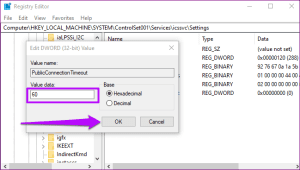 4 Ways to Fix Windows Mobile Hotspot Keeps Turning off
Fix 1: Disable Mobile Hotspot Power Saving Disable the power saving feature to prevent Windows from automatically turning off the hotspot when not in use.
4 Ways to Fix Windows Mobile Hotspot Keeps Turning off
Fix 1: Disable Mobile Hotspot Power Saving Disable the power saving feature to prevent Windows from automatically turning off the hotspot when not in use.
 5 Ways to Fix Mobile Data Not Working on Android
Basic Fixes Check your data plan: To start, ensure your data plan is active.
5 Ways to Fix Mobile Data Not Working on Android
Basic Fixes Check your data plan: To start, ensure your data plan is active.
 4 Ways to Fix WhatsApp Not Working on Mobile Data
Before you begin, ensure you have no problems with using the internet via mobile data on your smartphone.
4 Ways to Fix WhatsApp Not Working on Mobile Data
Before you begin, ensure you have no problems with using the internet via mobile data on your smartphone.
 3 Ways to Fix Facebook “No Data Available” Error on Desktop and Mobile
Try Basic Fixes Check if Facebook is down: Facebook is not immune to occasional server-level hiccups.
3 Ways to Fix Facebook “No Data Available” Error on Desktop and Mobile
Try Basic Fixes Check if Facebook is down: Facebook is not immune to occasional server-level hiccups.
 4 Ways to Fix Google Chrome Not Working on Mobile Data
Basic Fixes Restart device: Restart your device to fix temporary bugs and glitches.
4 Ways to Fix Google Chrome Not Working on Mobile Data
Basic Fixes Restart device: Restart your device to fix temporary bugs and glitches.
The article above may contain affiliate links which help support Guiding Tech. The content remains unbiased and authentic and will never affect our editorial integrity.