


Basic Fixes:
- Check network connection: If your iPad has network connection issues, it can’t receive new emails and update the current inbox in the Mail app. So, connect to a better network or move closer to your router and check again.
- Check the Mail app server status: If the Mail app is currently down, you can’t receive any new emails. To check this, go to Apple’s system status page and check the current status of the Mail app. If it is indeed down, wait before checking again.
- Ensure email storage is not full: Free Gmail and Outlook accounts have limited storage space. If this space is full, you can’t receive new emails. So, check your mail account and ensure at least 10-20% space is available. If not, delete a few items and check again.
- Enable all notification permissions: Your Mail app requires permission to deliver you email notifications. So, open the notification settings for the Mail app and ensure all notification permissions are enabled.
- Check for iPadOS update: Apple updates the Mail app through the system updates. Mail not receiving emails on iPad can be due to an outdated iPadOS build. You can navigate to the General menu in iPad Settings and install the latest iPadOS update to fix the problem.
- Reinstall the Mail app: If the issue persists, uninstall and reinstall the Mail app on your iPad. This will delete all custom app settings. Then, set up Gmail or any other email account and check again.
Fix 1: Check Added Accounts
The default Mail app supports Gmail, Outlook, Microsoft 365, Yahoo, and other leading email providers. However, you need to enable the Mail toggle for a specific account to check messages in the native app. Otherwise, the added account won’t show up in the first place. Here’s how to do it.
Step 1: Open the Settings app and tap on Mail. Here, tap on Accounts.

Step 2: Then, tap on an email provider from the right pane.
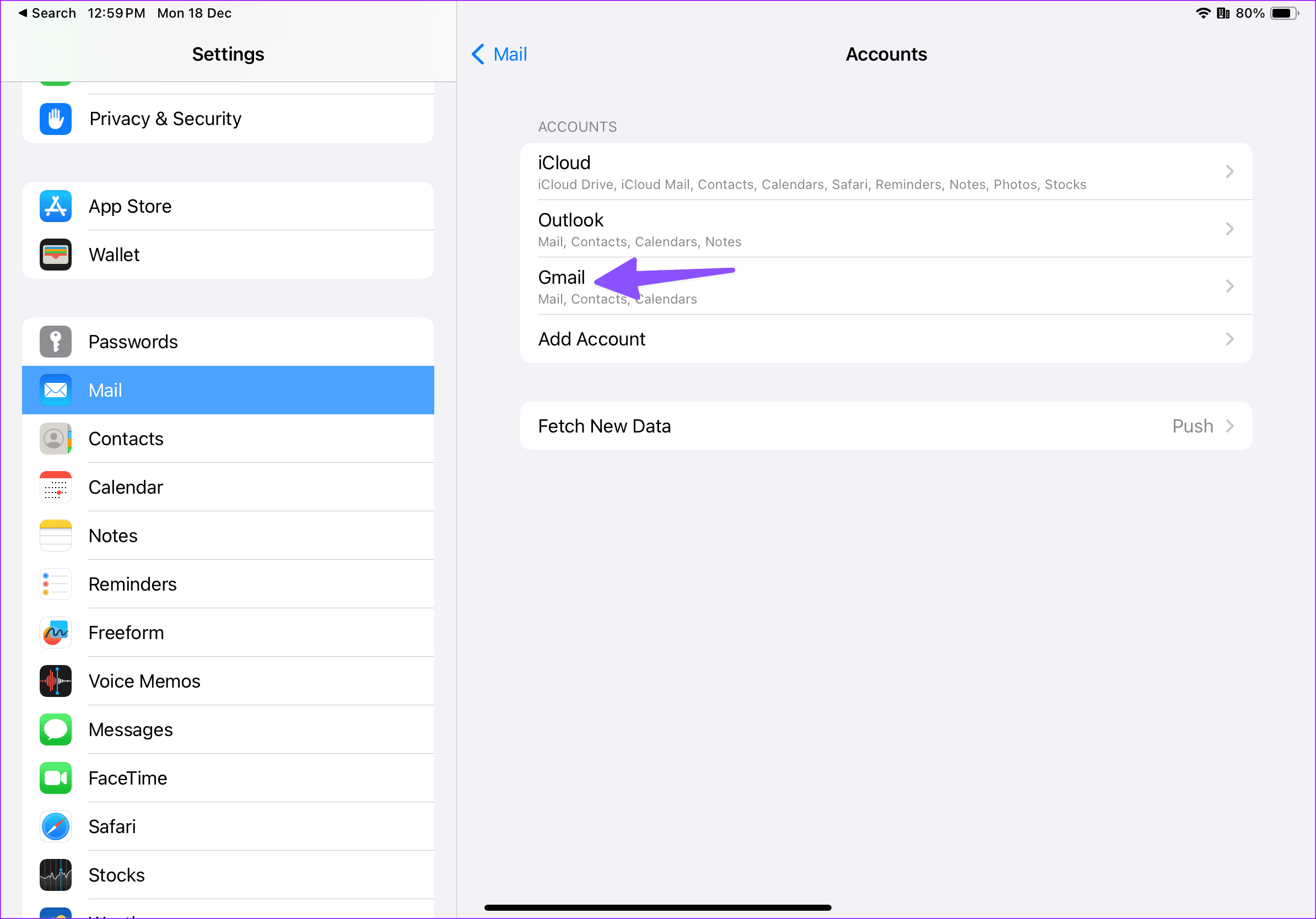
Step 3: Here, enable the Mail toggle. Once done, restart the Mail app and check again.

Fix 2: Remove and Re-Add Account
If you have recently changed your Gmail or Outlook account password, you may not receive emails on your iPad due to an account authentication error. So, remove your account and add it again with the updated login credentials. Follow the below steps to do it.
Step 1: Open the Settings app and tap on Mail > Accounts.

Step 2: Here, tap on the relevant mail account.

Step 3: Then, tap on Delete Account and finish the deletion process.

Step 4: Once done, go back to the Accounts page and tap on Add Account. Sign in with your updated account login credentials, and check if it is working as expected.

Fix 3: Check Sync Frequency
You can also check the sync frequency that refreshes new emails at set intervals on your iPad. If you fetch new emails every hour, you may notice a significant delay in receiving emails. So, change this setting to fetch emails automatically. Here’s how.
Step 1: Open Mail Settings using the abovementioned steps and tap on Accounts.
Step 2: Here, tap on Fetch New Data.
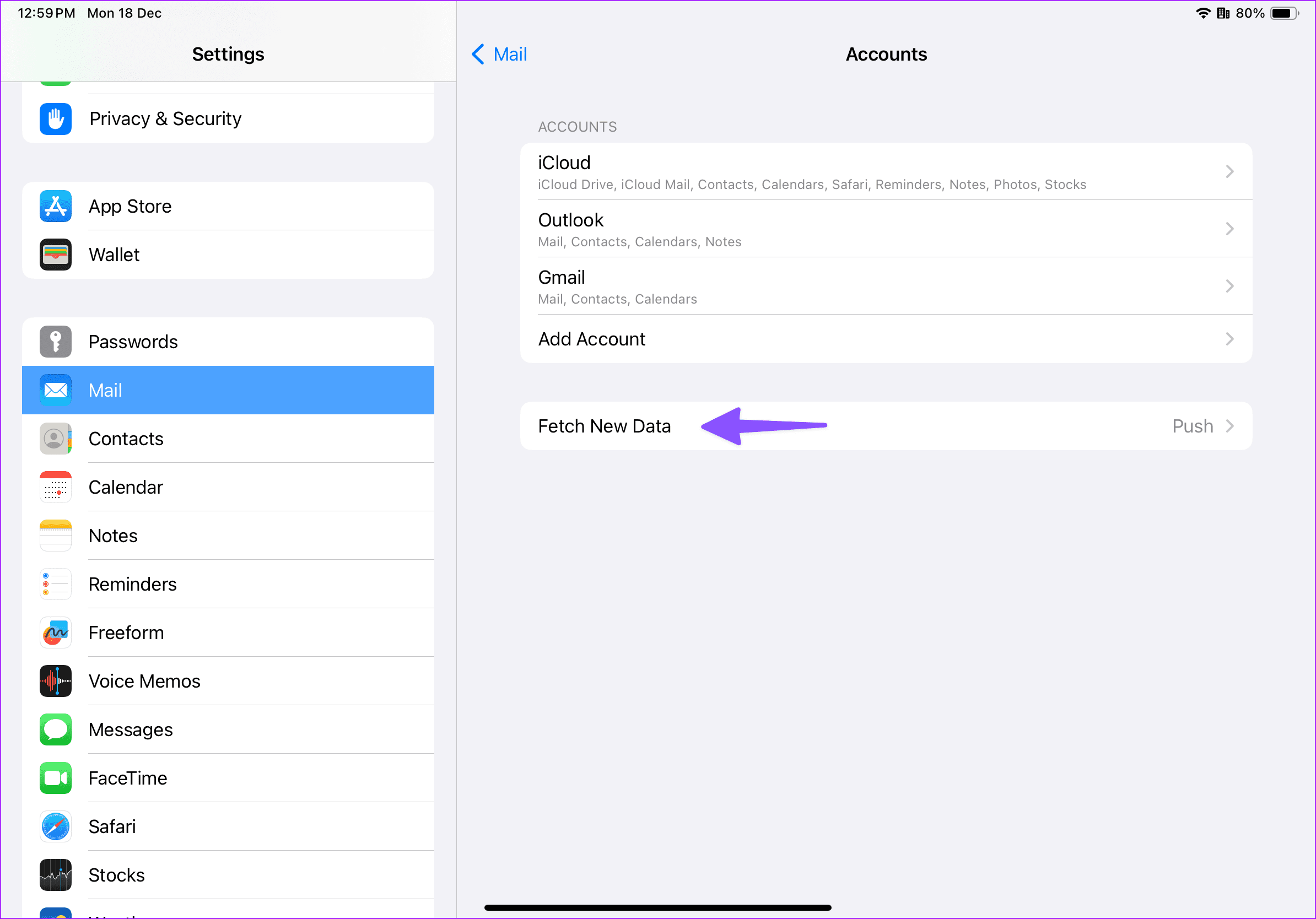
Step 3: Enable the Push toggle that sends new emails to your iPad from the server when possible. Then, select Automatically.
Tip: If an email provider doesn’t support Push, select Fetch and set it to sync new emails after every 15 minutes.

Fix 4: Disable Protect Mail Activity
If you are an iCloud+ or Apple One subscriber, Apple enables the Protect Mail Activity option for your account. While this helps hide your IP address, it can make it harder for senders to follow your Mail activity. If you face issues with your email, disable it and try again. Here’s how to do it.
Step 1: Open the Settings app and tap on Mail from the side menu. Then, tap on Privacy Protection.

Step 2: Here, disable the toggle for Protect Mail Activity.
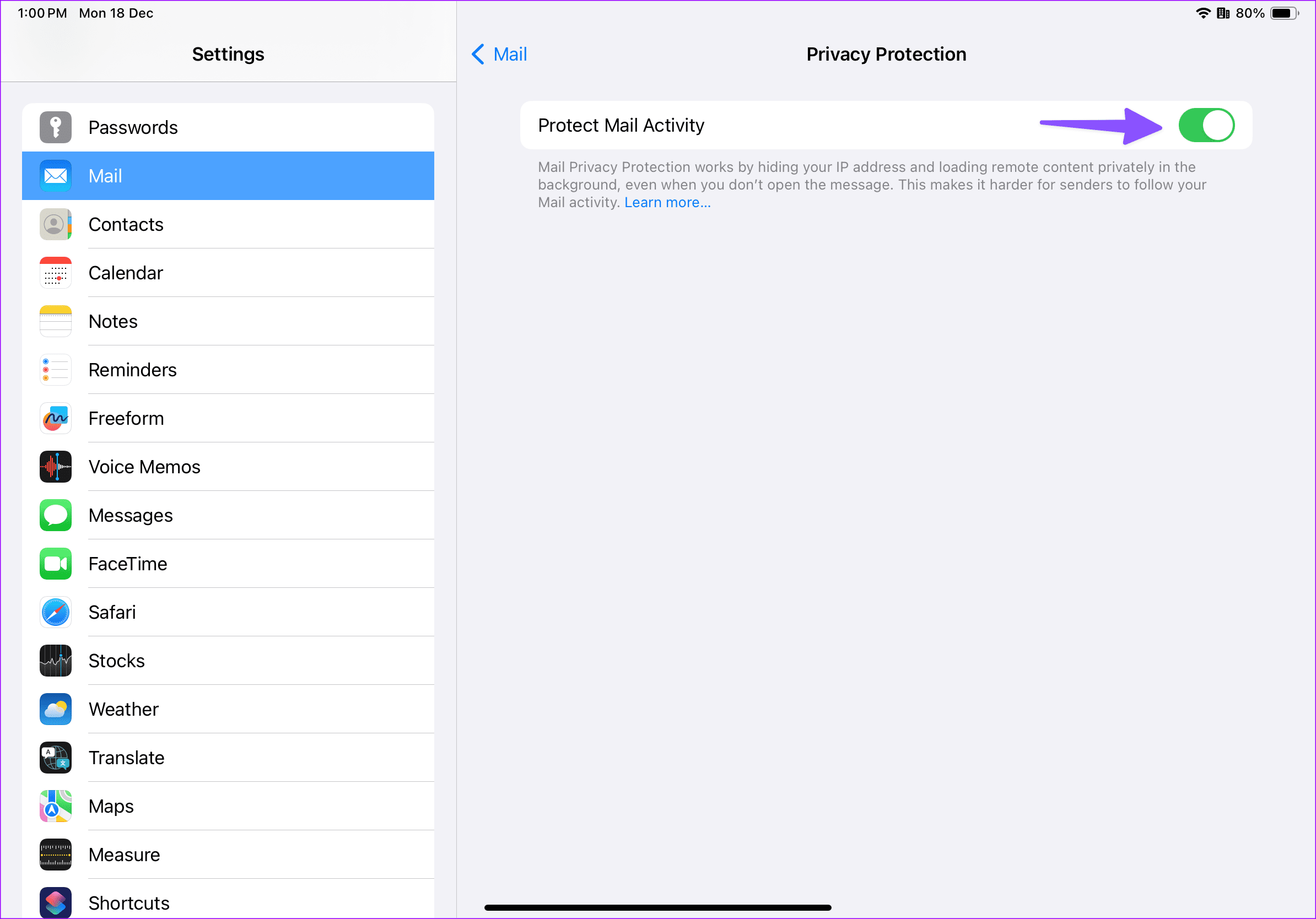
This should turn off Protect Mail Activity. Now, wait a while and check if you can timely receive emails on your iPad.
Was this helpful?
Last updated on 17 May, 2024
3 Comments
Leave a Reply
Read Next
 5 Ways to Fix Outlook Not Receiving Emails on iPhone
Common Fixes Enable and disable the Airplane Mode: Open the Settings app, toggle on the Airplane Mode, and turn it off after a few seconds.
5 Ways to Fix Outlook Not Receiving Emails on iPhone
Common Fixes Enable and disable the Airplane Mode: Open the Settings app, toggle on the Airplane Mode, and turn it off after a few seconds.
 4 Ways to Fix iPhone Not Receiving Emails
https://youtu.be/F6cOkDGNWuU Basic Fixes: Manually refresh the email inbox: Open the Mail app on your iPhone and swipe down from the top to refresh the inbox.
4 Ways to Fix iPhone Not Receiving Emails
https://youtu.be/F6cOkDGNWuU Basic Fixes: Manually refresh the email inbox: Open the Mail app on your iPhone and swipe down from the top to refresh the inbox.
 5 Ways to Fix Gmail Receiving Late Emails on Phone
Common Fixes Check your network connection: Ensure your phone has a good internet connection to avoid delays in receiving new emails on Gmail.
5 Ways to Fix Gmail Receiving Late Emails on Phone
Common Fixes Check your network connection: Ensure your phone has a good internet connection to avoid delays in receiving new emails on Gmail.
 4 Fixes for Outlook Web Not Receiving Emails
Basic Fixes Check outlook server status: Visit DownDetector and check whether Outlook servers are responding in your region.
4 Fixes for Outlook Web Not Receiving Emails
Basic Fixes Check outlook server status: Visit DownDetector and check whether Outlook servers are responding in your region.
 5 Ways to Fix Mail App Not Receiving Emails on Mac
Basic Fixes Check junk mail: Sometimes, Gmail, iCloud, or Outlook algorithms can be aggressive and send emails directly to the Junk box.
5 Ways to Fix Mail App Not Receiving Emails on Mac
Basic Fixes Check junk mail: Sometimes, Gmail, iCloud, or Outlook algorithms can be aggressive and send emails directly to the Junk box.
 3 Fixes for Microsoft Outlook Not Receiving Emails on Android
Basic Fixes Check other inboxes: If you have multiple email accounts in the Outlook app, you might have opened the wrong one in the app.
3 Fixes for Microsoft Outlook Not Receiving Emails on Android
Basic Fixes Check other inboxes: If you have multiple email accounts in the Outlook app, you might have opened the wrong one in the app.
 5 Ways to Fix Android Phone Not Receiving Emails
Basic Fixes Check internet connectivity: Ensure your device is connected to a Wi-Fi network or cellular data with good signal strength and an active plan.
5 Ways to Fix Android Phone Not Receiving Emails
Basic Fixes Check internet connectivity: Ensure your device is connected to a Wi-Fi network or cellular data with good signal strength and an active plan.
 2 Ways to Fix Outlook Receiving Late Emails on Windows 11
Basic Fixes: Check the Internet connection and Outlook server status: If you work with a sketchy Internet connection on your laptop, you may face delays in receiving emails on Outlook.
2 Ways to Fix Outlook Receiving Late Emails on Windows 11
Basic Fixes: Check the Internet connection and Outlook server status: If you work with a sketchy Internet connection on your laptop, you may face delays in receiving emails on Outlook.
The article above may contain affiliate links which help support Guiding Tech. The content remains unbiased and authentic and will never affect our editorial integrity.

Still unable to resolve problem which is only on my I pad. I phone and Apple Watch receive picture okay
I can’t open my emails so if I’m sent codes I can not retrieve them. I had to change my internet network name and password due to xfinity working on our lines. Now I can get my emails on my iPad.
I cannot receive e mails