Try Basic Fixes
- Avoid engaging in spammy behavior: Activities such as following, unfollowing, or sending direct messages to a large number of people in a short time can trigger this warning on Instagram. Hence, it’s best to avoid such activities for a while.
- Turn off VPN: If your VPN service frequently switches servers, Instagram may flag the activity as suspicious. You can temporarily disable your VPN connection to see if this prevents Instagram from displaying automated behavior warnings.
- Update the app: Such warnings and errors can also appear due to a buggy or outdated Instagram app. If you have turned off automatic app updates, go to the Play Store or App Store and update the Instagram app.
Fix 1: Review Apps Connected to Your Account
Do you use a third-party app to post or view content on Instagram? That’s a common reason for the “We’ve detected automated behavior on your account” warning. This is especially true if you use apps for automated actions like liking several posts or following several accounts.
You must review apps and websites connected to your Instagram account. Next, revoke access for those you don’t recognize or use.
Step 1: Open the Instagram app > go to your profile > tap the menu icon (three horizontal lines) at the top-right corner > select Settings and privacy.

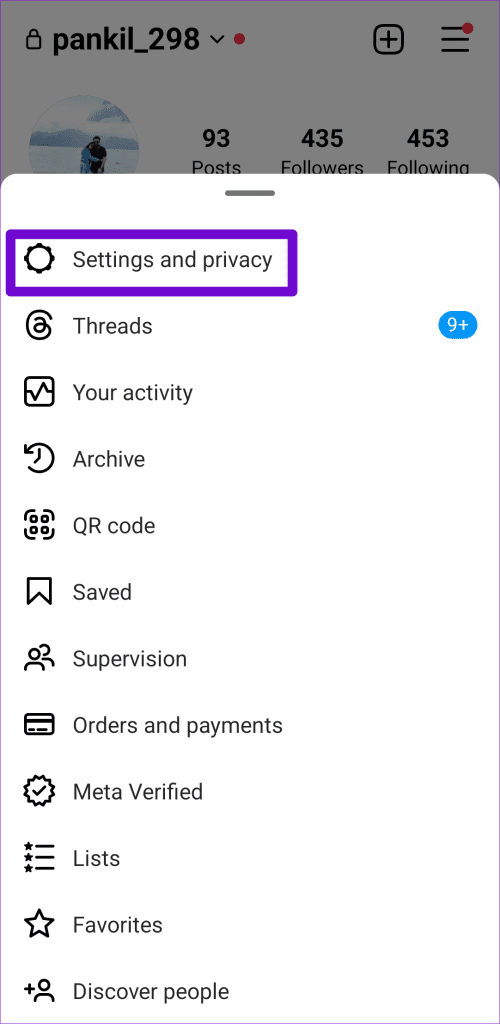
Step 2: Go to Website permissions > Apps and websites.
Step 3: Under the Active tab, look for any apps or websites that may be automating tasks and tap Remove.


Fix 2: Change Your Password
If Instagram continues to display the “We’ve detected automated behavior on your account” warning, or if you have observed suspicious login attempts, changing your Instagram account password is a good idea. It will secure your account from unauthorized access and prevent potential problems.
Step 1: Open the Instagram app > go to Settings and privacy.
Step 2: Tap on Accounts Center > select Password and security.


Step 3: Tap on Change password > select your account.
Step 4: Enter your current password, followed by a new password. Then, tap the Change password button to confirm.


Once you complete the above steps, Instagram will log you out of all other devices except the one you are using. After that, see if you encounter any warnings again.
Was this helpful?
Last updated on 30 July, 2024
Read Next
 How to Enable Sensitive Content Warning on iPhone, iPad, and Mac
Apple provides the best security features for iPhone, iPad, and Mac.
How to Enable Sensitive Content Warning on iPhone, iPad, and Mac
Apple provides the best security features for iPhone, iPad, and Mac.
 How to Fix Battery Not Detected in Windows 10 Error in 8 Ways
The battery is what keeps your laptop alive when it’s not connected to a power outlet.
How to Fix Battery Not Detected in Windows 10 Error in 8 Ways
The battery is what keeps your laptop alive when it’s not connected to a power outlet.
 4 Ways to Fix No Battery Is Detected on Windows 11 Laptop
Fix 1: Reconnect the Battery and Perform a Power Cycle You can start by removing your laptop’s battery if possible and installing it again.
4 Ways to Fix No Battery Is Detected on Windows 11 Laptop
Fix 1: Reconnect the Battery and Perform a Power Cycle You can start by removing your laptop’s battery if possible and installing it again.
 4 Ways to Fix Liquid Detected in Lightning Connector Error on iPhone
Why Does iPhone Keep Showing Liquid Detected in Lighting Connector Error?
4 Ways to Fix Liquid Detected in Lightning Connector Error on iPhone
Why Does iPhone Keep Showing Liquid Detected in Lighting Connector Error?
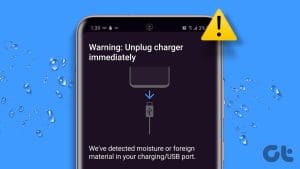 10 Ways to Fix Moisture Detected in Charging Port Error on Samsung Galaxy Phones
Most Samsung Galaxy devices these days come with an IP rating.
10 Ways to Fix Moisture Detected in Charging Port Error on Samsung Galaxy Phones
Most Samsung Galaxy devices these days come with an IP rating.
 How to Turn off Business Account on Instagram
What Is a Business Account on Instagram An Instagram business account gives businesses access to certain features restricted to personal accounts that help grow their brands.
How to Turn off Business Account on Instagram
What Is a Business Account on Instagram An Instagram business account gives businesses access to certain features restricted to personal accounts that help grow their brands.
 Why Can’t I Create an Instagram Account?
Why You Can't Create an Instagram Account?
Why Can’t I Create an Instagram Account?
Why You Can't Create an Instagram Account?
 How to Know if an Instagram Account Is Private or Public
Method 1: By Trying to Share the User’s Post This method will help you determine whether someone’s account is private or public on Instagram if you follow them.
How to Know if an Instagram Account Is Private or Public
Method 1: By Trying to Share the User’s Post This method will help you determine whether someone’s account is private or public on Instagram if you follow them.
The article above may contain affiliate links which help support Guiding Tech. The content remains unbiased and authentic and will never affect our editorial integrity.