Fix 1: Reset HomePod
While you can easily reset your HomePod from the Home app, the process becomes a little complex if your device isn’t appearing in the app. For this, you can use the steps below to complete the reset process.
Step 1: Unplug the power adapter for your HomePod or HomePod Mini. Wait for around 10-20 seconds and plug it back in.
Step 2: Wait 10 seconds and touch and hold on top of the HomePod. White spinning light should turn Red. Lift your finger when you hear three beeps and Siri talks about resetting the HomePod.

Fix 2: Enable Home in iCloud
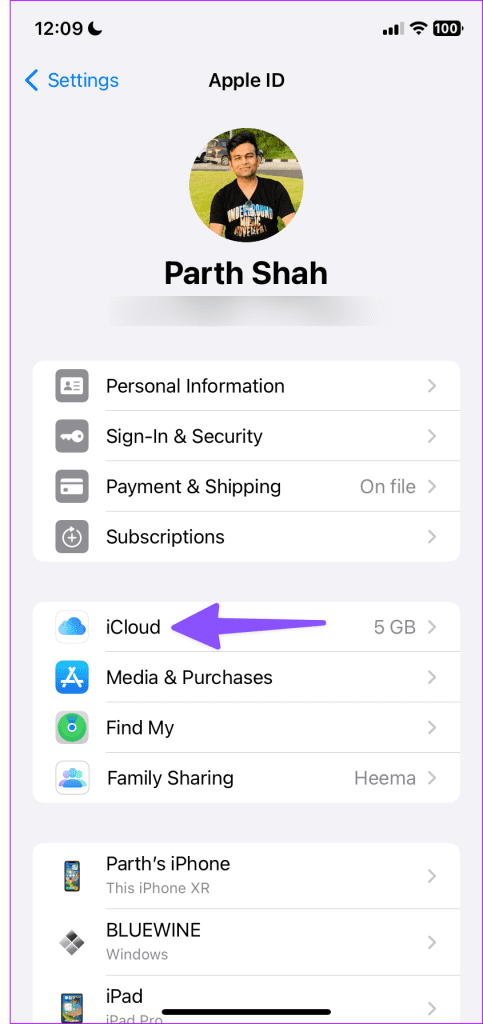
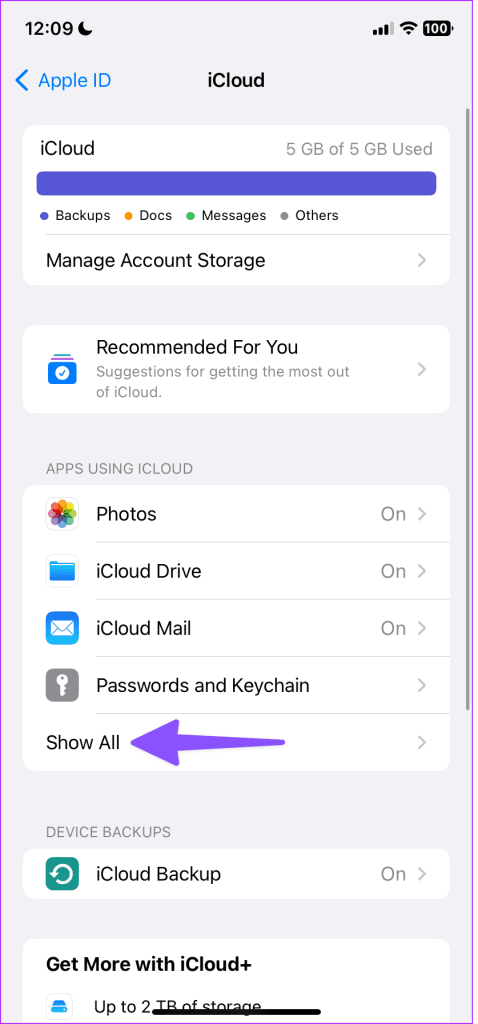
Open the Settings app on your iPhone. Go to your profile and select iCloud. Expand Show All and enable the Home app in iCloud.

Note: It may take a while for the HomePod to appear on your iPad and Mac’s Home app.
Fix 3: Reinstall the Home App
You can reinstall the Home app on your iPhone and check if the HomePod shows up.
Long-press on the Home app and select Remove app. Then Tap Delete app. Now Head to the App Store and install the Home app.

Fix 4: Restore HomePod With a Mac or PC
If the tricks above don’t work, you can use your Mac or PC to restore HomePod.
Step 1: Use the supplied USB-C cable and connect your HomePod to a Mac or PC. Open Finder on the Mac or the latest iTunes app on Windows. Select your HomePod and hit Restore HomePod.
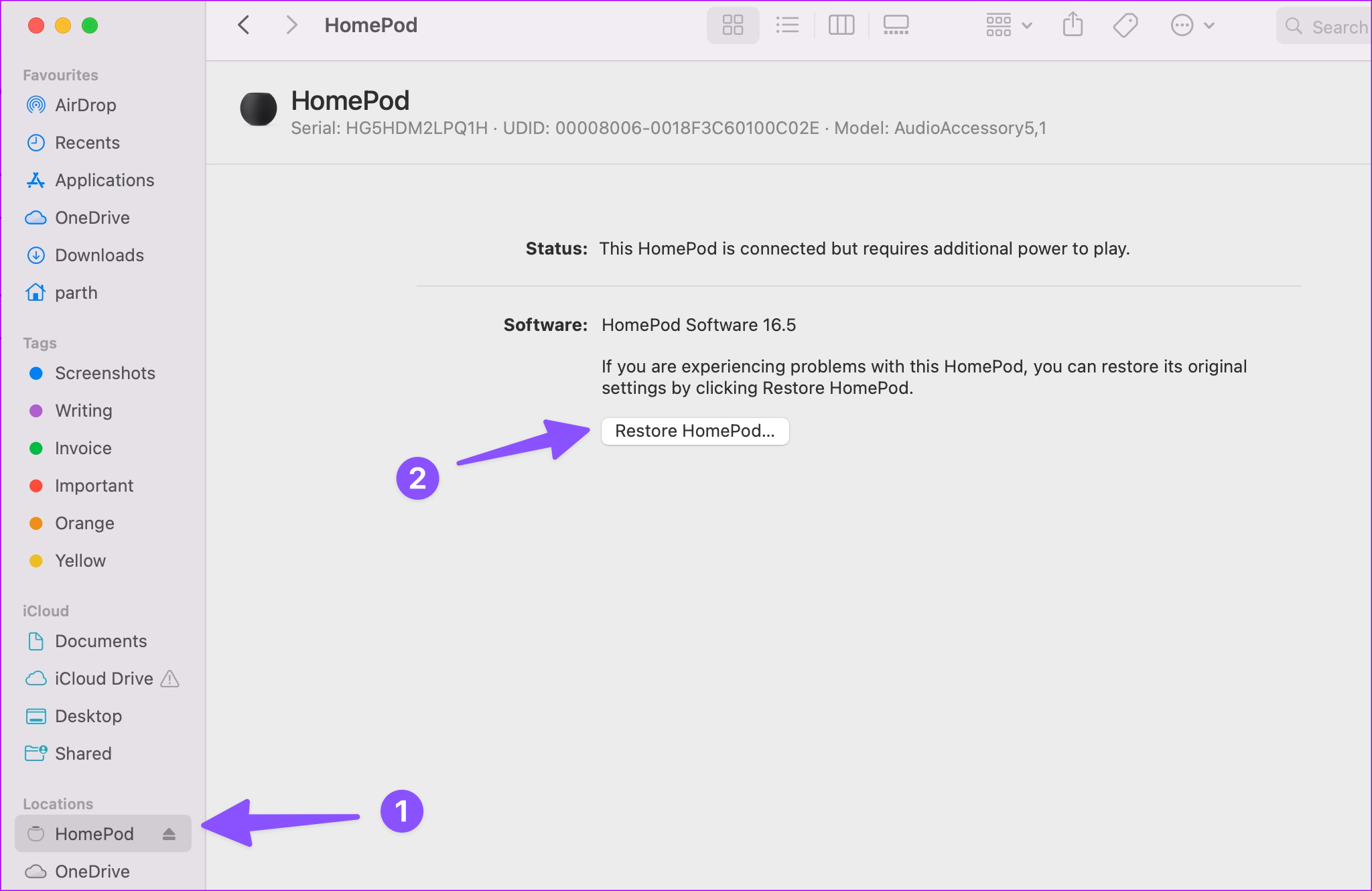
Note: Your Mac or PC sends an alert when the restore process completes on the HomePod.
Was this helpful?
Last updated on 23 August, 2024
Read Next
 8 Ways to Add an App Back to Home Screen on iPhone and Android
Method 1: Look for the App Inside the Folders If an app has gone missing from your iPhone or Android phone, start by looking in the folders on your phone’s
8 Ways to Add an App Back to Home Screen on iPhone and Android
Method 1: Look for the App Inside the Folders If an app has gone missing from your iPhone or Android phone, start by looking in the folders on your phone’s
 3 Ways to Fix Fire TV Not Showing in Alexa App
Basic Fixes Use the same Amazon account and Wi-Fi network: As suggested, you need to do the same to allow the devices contact with each other.
3 Ways to Fix Fire TV Not Showing in Alexa App
Basic Fixes Use the same Amazon account and Wi-Fi network: As suggested, you need to do the same to allow the devices contact with each other.
 7 Best Ways to Fix App Icons Not Showing in Taskbar on Windows 10
Don't you just love loading up your Windows 10 PC with all the amazing apps?
7 Best Ways to Fix App Icons Not Showing in Taskbar on Windows 10
Don't you just love loading up your Windows 10 PC with all the amazing apps?
 6 Ways to Fix WhatsApp Desktop App Not Showing Notifications on Windows 11
Fix 1: Verify In-App Notification Settings The first thing you should do is check WhatsApp’s in-app settings to ensure that notifications are not disabled.
6 Ways to Fix WhatsApp Desktop App Not Showing Notifications on Windows 11
Fix 1: Verify In-App Notification Settings The first thing you should do is check WhatsApp’s in-app settings to ensure that notifications are not disabled.
 4 Ways to Fix Snapchat My AI Not Working or Showing on Mobile App
Why Can’t I Add My AI on Snapchat?
4 Ways to Fix Snapchat My AI Not Working or Showing on Mobile App
Why Can’t I Add My AI on Snapchat?
 5 Ways to Fix Google Photos App Not Showing All Photos
Basic Fixes Check your network connection - Ensure your phone is connected to a good internet connection.
5 Ways to Fix Google Photos App Not Showing All Photos
Basic Fixes Check your network connection - Ensure your phone is connected to a good internet connection.
 Top 7 Ways to Fix Samsung One UI Home Keeps Stopping Issue
What can be more annoying than the random errors popping up on your Android phone?
Top 7 Ways to Fix Samsung One UI Home Keeps Stopping Issue
What can be more annoying than the random errors popping up on your Android phone?
 5 Ways to Fix Blurry Home or Lock Screen Wallpaper on iPhone
Fix 1: Check if the Wallpaper Resolution Fits Your iPhone's Screen If you have downloaded a wallpaper, check its resolution and ensure that it matches the screen resolution of your
5 Ways to Fix Blurry Home or Lock Screen Wallpaper on iPhone
Fix 1: Check if the Wallpaper Resolution Fits Your iPhone's Screen If you have downloaded a wallpaper, check its resolution and ensure that it matches the screen resolution of your
The article above may contain affiliate links which help support Guiding Tech. The content remains unbiased and authentic and will never affect our editorial integrity.