Basic Fixes:
- Restart Google Chrome: Temporary browser glitches can cause autocomplete to not work properly in Chrome. When this happens, close the browser and restart it. This can help do away with such glitches.
- Clear Chrome cache: While browser caches can help speed up the process, they might also be one of the reasons why certain browser functions are not working properly. So, if you’ve been having issues using autocomplete, clear the cache for Chrome and try again.
- Check for software updates: Regular software updates can help provide your browser with the latest bug fixes and feature updates. So, if your browser is currently out of date, certain issues might occur. In this case, check and ensure Chrome is updated.
Fix 1: Enable Autocomplete in Google Search
When using Google search in Chrome, you get the option to enable or disable the autocomplete feature for trending searches. If this is turned off, autocomplete might not work for you. So, follow the below steps and ensure autocomplete is enabled in Google search settings.
Step 1: Open the Google search page in Chrome and click on Settings. Click on Search settings.

Step 2: Go to Other settings from the side menu.

Step 3: Scroll down and turn on the Autocomplete with trending searches toggle.

Also Read: How to get Google search results by date
Fix 2: Check Google Services Settings
Chrome search settings might get in the way of Google search settings. This can also result in autocomplete not working properly or not working at all. To fix this, open the Google services settings in Chrome and enable the settings using the below steps.
Step 1: Open Chrome and click the three-dot icon. Click on Settings.

Step 2: Click on Sync and Google services.

Step 3: Turn on the Improve search suggestions toggle.

Fix 3: Disable Chrome Extensions
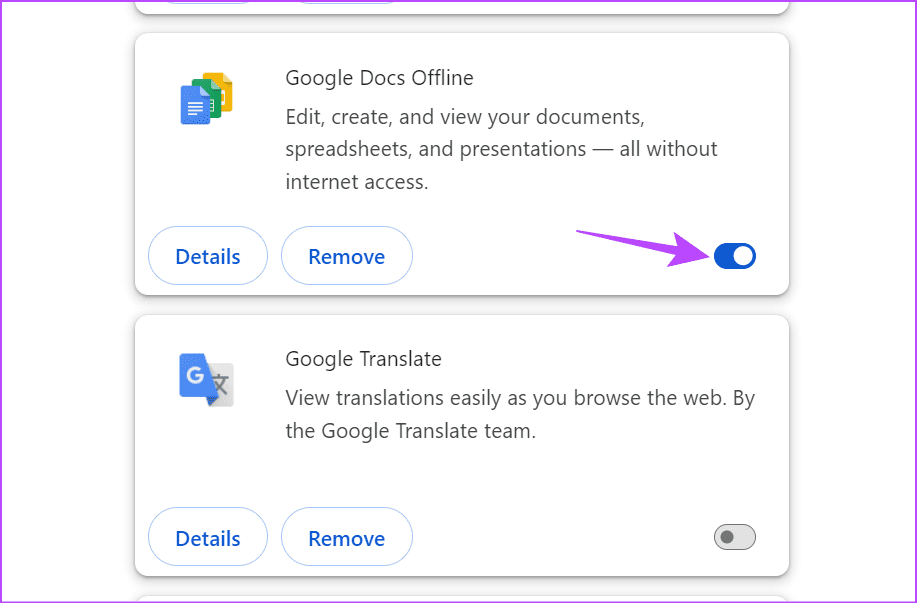
Certain extensions can hijack your browser’s features, causing certain functions, like autocomplete, to not work properly. When this happens, disable any newly added extensions in Chrome and see if this fixes the issue. Here’s how to do it.
Step 1: Open Chrome and click the three-dot icon. Go to Extensions and click on Manage Extensions.

Step 2: Go to the relevant extension and turn the toggle off.
Fix 4: Turn Sync off and On
You can sync your data across devices as long as you’re using the same Google account. However, sync issues can cause certain browser features to not work properly. When this happens, disable Chrome sync. Wait a while and turn it back on to resync the current data. Here’s how to do it.
Step 1: Open Chrome and click the three-dot icon → your profile information. Click on Sync is on.

Step 2: Click on Turn off.

Step 3: Check the box and click on Turn off to confirm.

Once done, restart Google Chrome and use the above steps to enable sync on Chrome. Then, try using the autocomplete feature to check.
Fix 5: Reset Google Chrome
While Chrome settings don’t usually affect Google search functions, certain settings might end up interfering. This can cause the autocomplete feature to not work properly when using Google search. To fix this, reset all Chrome settings to default using the below steps.
Step 1: Open Chrome and click the three-dot icon. Click on Settings.
Step 2: Go to Reset settings and click on Restore settings to their original defaults.

Step 3: Click on Reset settings to confirm.

Wait for Chrome settings to reset. Once done, restart Chrome and try using autocomplete in Google search to check if the issue is fixed.
Was this helpful?
Last updated on 01 August, 2024
Read Next
 3 Ways to Fix Google Chrome Search Engine Changing to Bing
Why Is Chrome Searching With Bing?
3 Ways to Fix Google Chrome Search Engine Changing to Bing
Why Is Chrome Searching With Bing?
 A Guide to Using the Search Bar and Search Operators in Microsoft Outlook
How to Use the Microsoft Outlook Search Bar There are two ways to use the Microsoft Outlook Search bar.
A Guide to Using the Search Bar and Search Operators in Microsoft Outlook
How to Use the Microsoft Outlook Search Bar There are two ways to use the Microsoft Outlook Search bar.
 12 Hidden Google Games You Can Play on Chrome, Android, Earth, Search, and Assistant
Google is a company like no other.
12 Hidden Google Games You Can Play on Chrome, Android, Earth, Search, and Assistant
Google is a company like no other.
 How to Fix Search Engine Keeps Changing to Yahoo in Chrome
Google Chrome remains the most popular desktop browser out there.
How to Fix Search Engine Keeps Changing to Yahoo in Chrome
Google Chrome remains the most popular desktop browser out there.
 4 Fixes for Google Search Bar or Widget Not Working on Android
Basic Fixes: Restart your phone: Temporary glitches in the Google app can cause the search bar or widget not to work properly.
4 Fixes for Google Search Bar or Widget Not Working on Android
Basic Fixes: Restart your phone: Temporary glitches in the Google app can cause the search bar or widget not to work properly.
 5 Ways to Fix YouTube Search Not Working
Try Basic Fixes Update or Reinstall the YouTube app: Apps like YouTube regularly receive updates that include bug fixes and performance improvements.
5 Ways to Fix YouTube Search Not Working
Try Basic Fixes Update or Reinstall the YouTube app: Apps like YouTube regularly receive updates that include bug fixes and performance improvements.
 Top 8 Ways to Fix Messenger Search in Conversation Not Working on Android and iPhone
As your Messenger conversations grow and the number of messages increases, it can be quite difficult to find specific messages during a conversation.
Top 8 Ways to Fix Messenger Search in Conversation Not Working on Android and iPhone
As your Messenger conversations grow and the number of messages increases, it can be quite difficult to find specific messages during a conversation.
 4 Ways to Fix TikTok Search Not Working
Quick Fixes Check TikTok Servers: If TikTok servers are down, you may run into glitches with the search function.
4 Ways to Fix TikTok Search Not Working
Quick Fixes Check TikTok Servers: If TikTok servers are down, you may run into glitches with the search function.
The article above may contain affiliate links which help support Guiding Tech. The content remains unbiased and authentic and will never affect our editorial integrity.