Basic Fixes
- Clear cache Google app: Go to Google App Info > Storage and cache > Clear cache.
- Force quit and relaunch Google Lens App: Go to Google App Info > Force Stop > tap Ok to confirm.
- Update Google Lens App: Install the latest version of the Google Lens app on your phone to ensure that no bugs are causing the issue.
Fix 1: Check Camera Access
That is a necessary troubleshooting check you should run if the Google Lens app won’t translate words in your pictures or images—perhaps because the app can’t detect your smartphone’s camera or storage. For efficient performance, ensure that Google Lens has permissions to your device’s Camera and Storage.
On Android
Open Google Lens App Info > Permissions > Camera > Allow.
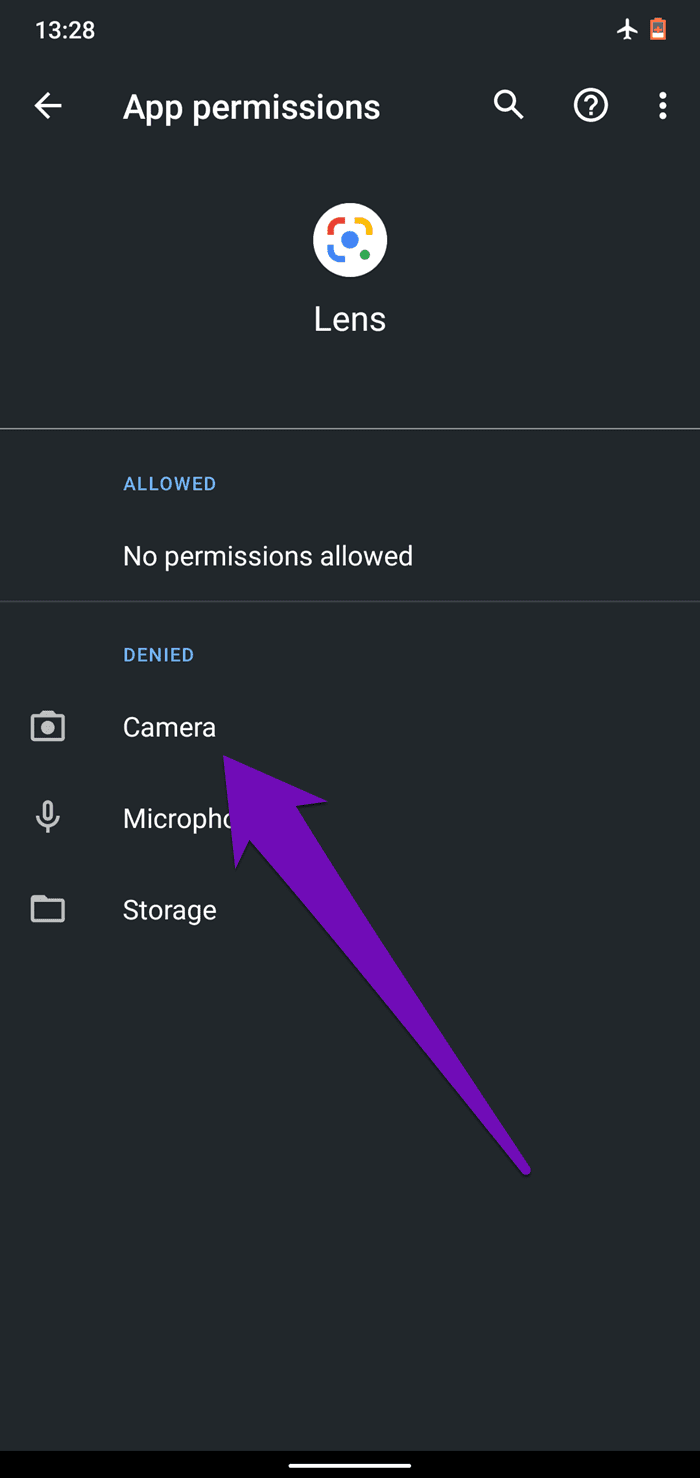

Repeat the steps for Storage permissions.
On iPhone
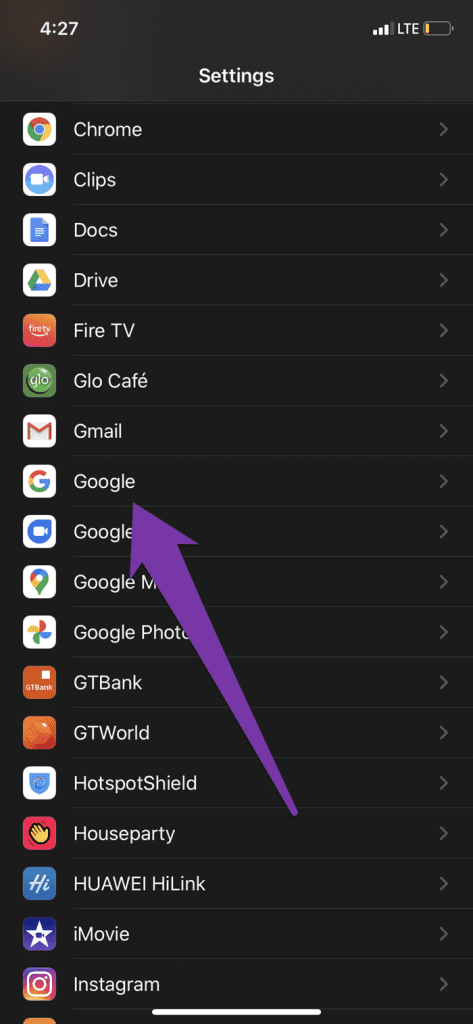
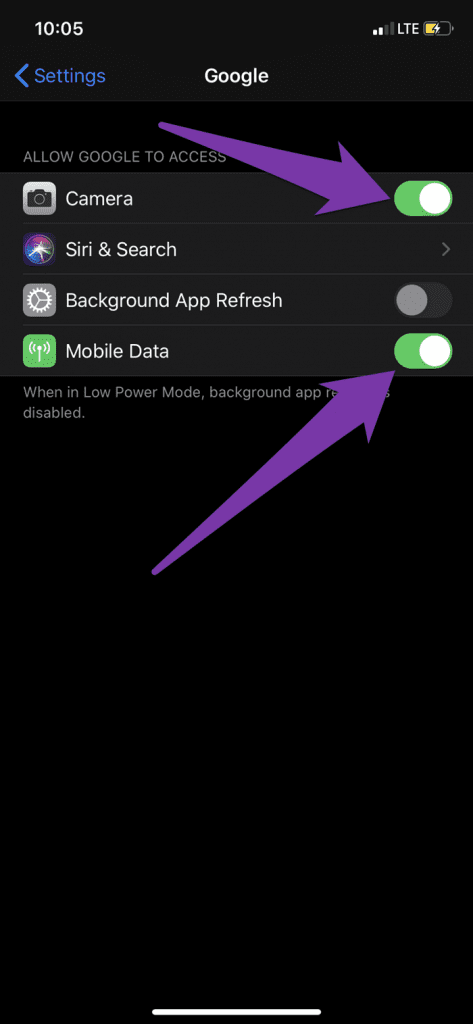
Open Settings > Google > allow Camera access. You should also allow Mobile Data access.
Fix 2: Clear Google Lens Cache
The Google Lens translation might cease to work if the app’s accumulated cache data has become corrupted. There’s no way to determine if this is why the in-app translate feature isn’t working, but you can try clearing Lens’ cache data and see if it resolves the issue.
On Android
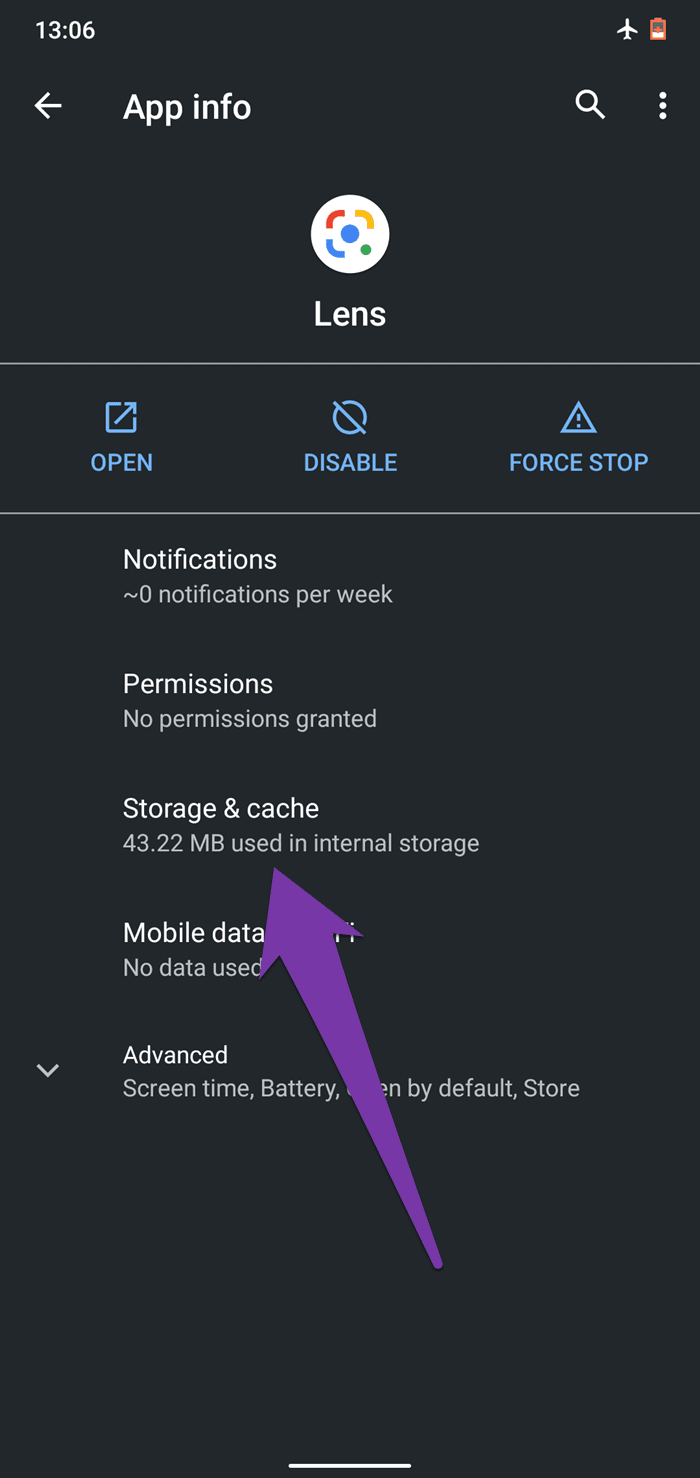
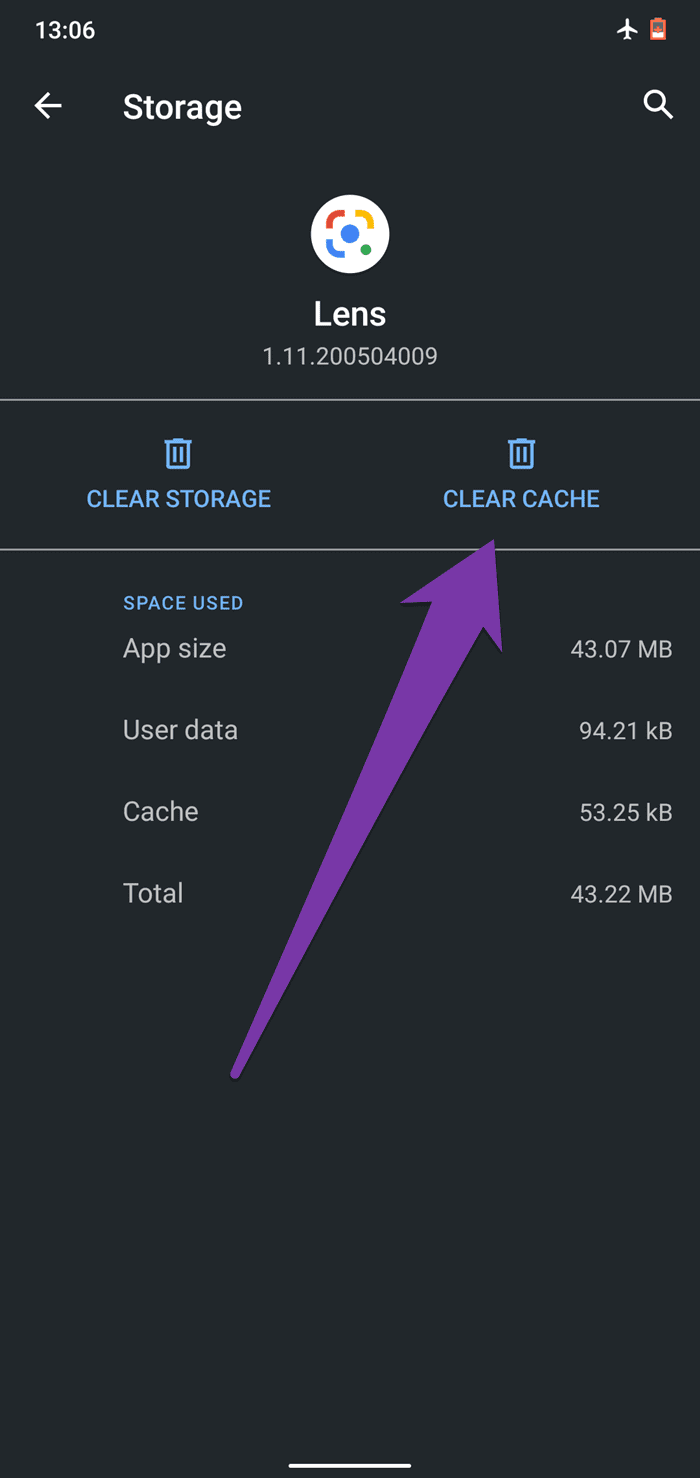
Open Google Lens App Info > Storage and cache > Clear cache.
On iPhone
You need to clear cache for the Google app on iPhone.
Open Settings > General > iPhone Storage > Google > Offload App > tap on Offload again.


Fix 3: Check Data Usage Settings for Google Lens App
The Google Lens app requires an active internet connection to translate text from images in your gallery or photos you shoot. Without the internet, you’d see a ‘No connection’ error message displayed when you open the Translate section of the app.
On Android
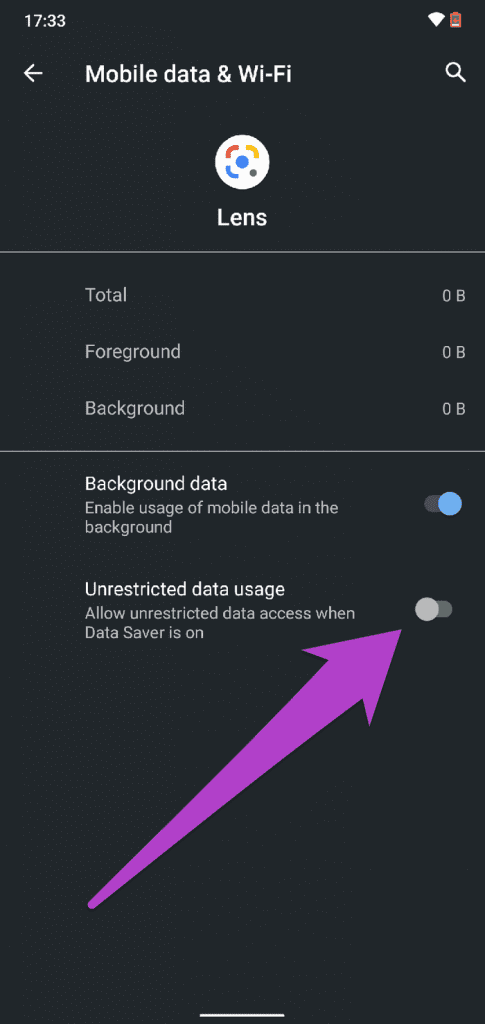
Step 1: Open Google Lens App Info > Mobile data and Wi-Fi > enable Unrestricted Data Usage.

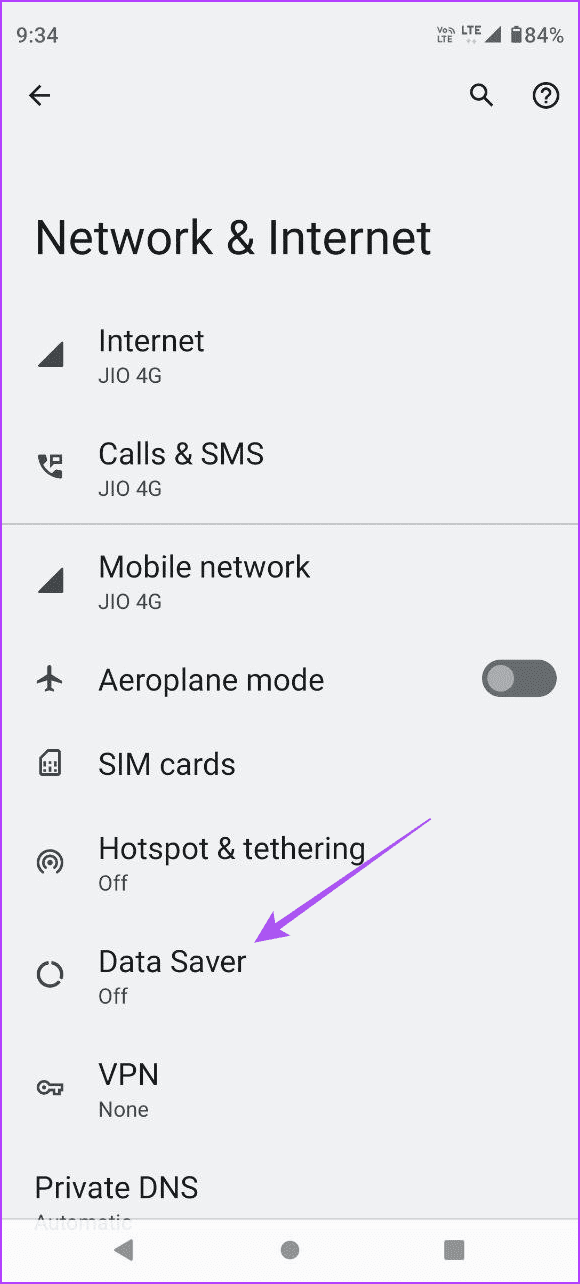
Step 2: Go back and tap on Network and Internet > Data Saver > turn off Data Saver.

On iPhone
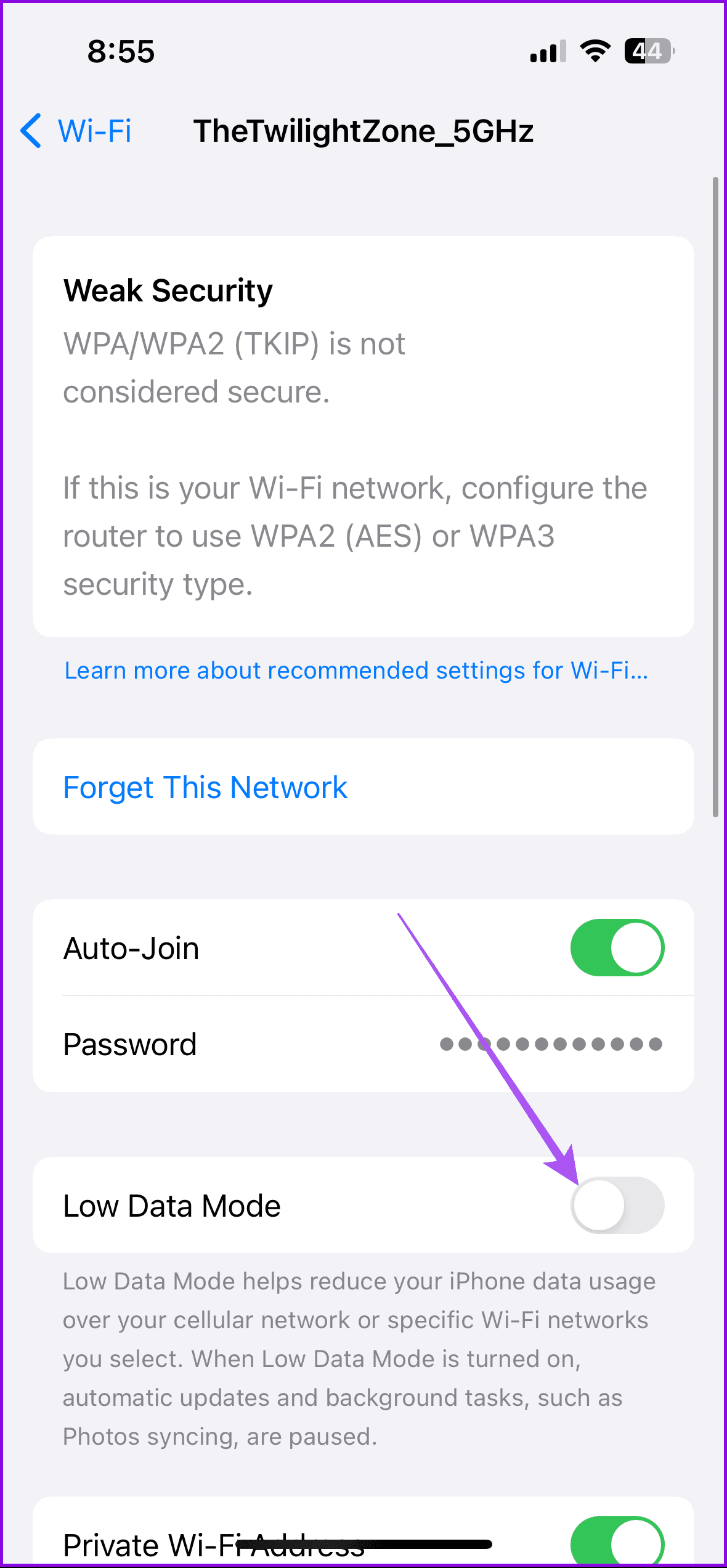
You must allow the Google app to use Mobile Data and disable Low Data Mode on Wi-Fi.
Step 1: Open Settings > Mobile Service > enable access for the Google app.


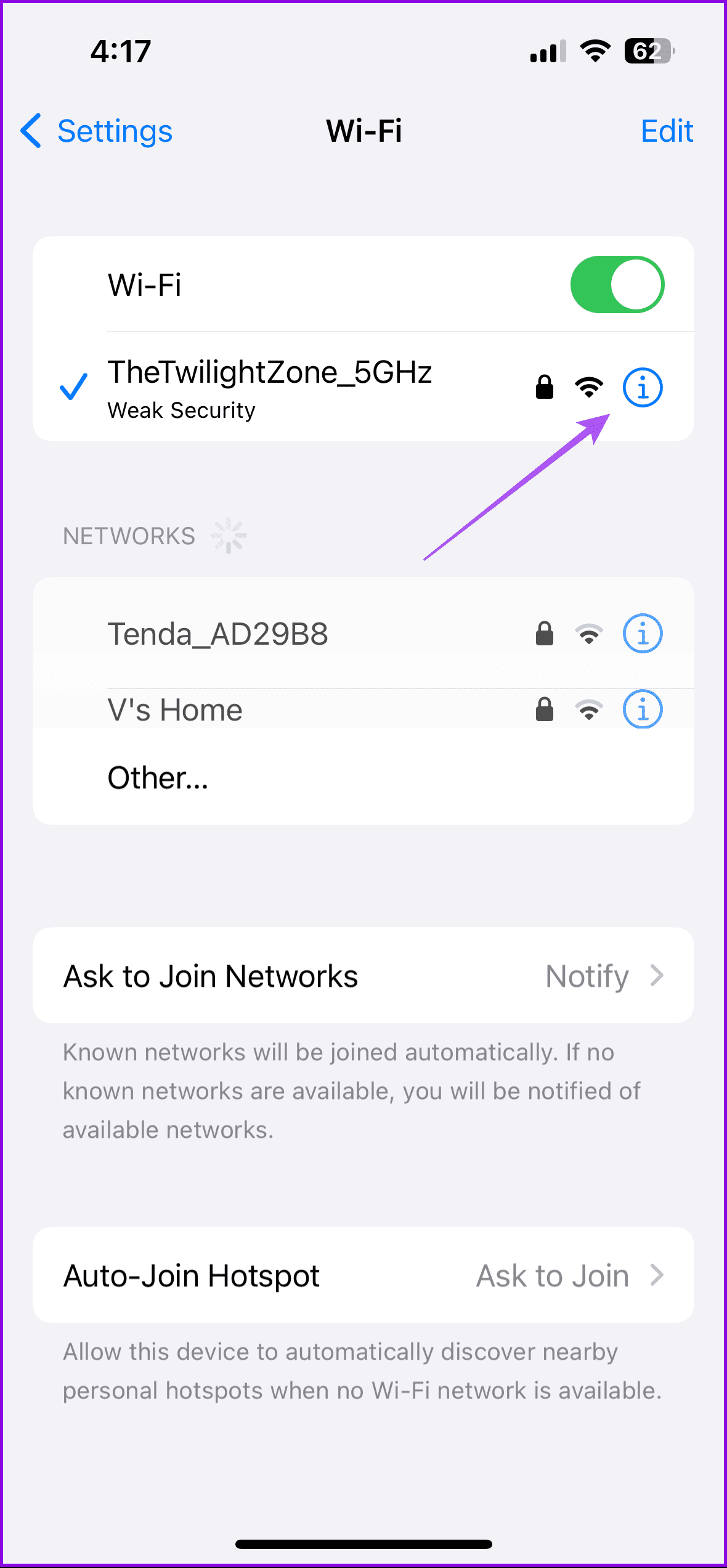
Step 2: Go back to Wi-Fi > Info icon next to the connected network name > disable Low Data Mode.
Fix 4: Download Your Desired Language
The Google Lens app lets you download multiple languages while translating text.
Open the Google Lens app > Translate > translation language > tap the download icon next to the language name.


Was this helpful?
Last updated on 05 August, 2024
Read Next
 3 Fixes for the Translate App Not Working on iPhone
Basic Fixes Enable or disable On-Device mode: Open Settings > Translate > Disable On-Device Mode.
3 Fixes for the Translate App Not Working on iPhone
Basic Fixes Enable or disable On-Device mode: Open Settings > Translate > Disable On-Device Mode.
 5 Fixes When Wireless Display Feature is Not Working on Windows 11
Basic Fixes: Ensure your devices support Miracast and Wi-Fi Direct protocol: One essential prerequisite for using the wireless display feature on Windows 11 is that all your devices, including your
5 Fixes When Wireless Display Feature is Not Working on Windows 11
Basic Fixes: Ensure your devices support Miracast and Wi-Fi Direct protocol: One essential prerequisite for using the wireless display feature on Windows 11 is that all your devices, including your
 3 Fixes for iPhone Check In Feature Not Working or Unavailable
Basic Fixes: Ensure both devices are running iOS 17: Because the Check In feature is exclusive to iOS 17, to use it, both you and your contact must have iOS
3 Fixes for iPhone Check In Feature Not Working or Unavailable
Basic Fixes: Ensure both devices are running iOS 17: Because the Check In feature is exclusive to iOS 17, to use it, both you and your contact must have iOS
 5 Best Ways to Fix Google Chrome Translate Not Working
https://youtu.be/OYo1Caq10A0 Preliminary Fixes Disable Extensions: Sometimes, browser extensions can interfere with the functionality of Google Chrome, including the translation feature.
5 Best Ways to Fix Google Chrome Translate Not Working
https://youtu.be/OYo1Caq10A0 Preliminary Fixes Disable Extensions: Sometimes, browser extensions can interfere with the functionality of Google Chrome, including the translation feature.
 How to Stop Google Translate From Popping Up in Apps
Stop Live Translation on Android You can stop the Live Translation feature for a specific language or disable it entirely from popping up across different Android apps.
How to Stop Google Translate From Popping Up in Apps
Stop Live Translation on Android You can stop the Live Translation feature for a specific language or disable it entirely from popping up across different Android apps.
 3 Ways to Fix Translate Not Working on X (Twitter) App
Basic Fixes Check network connection: If there's a problem with your Wi-Fi or cellular connection, X may not be able to translate the post.
3 Ways to Fix Translate Not Working on X (Twitter) App
Basic Fixes Check network connection: If there's a problem with your Wi-Fi or cellular connection, X may not be able to translate the post.
 4 Ways to Use Google Lens to Copy Text From an Image
Tip: You can also use the below methods to copy hand-written notes without typing.
4 Ways to Use Google Lens to Copy Text From an Image
Tip: You can also use the below methods to copy hand-written notes without typing.
 How to Use the Google Translate App on iPhone
Whether trying to learn a new language or traveling, knowing the local language can take time and effort.
How to Use the Google Translate App on iPhone
Whether trying to learn a new language or traveling, knowing the local language can take time and effort.
The article above may contain affiliate links which help support Guiding Tech. The content remains unbiased and authentic and will never affect our editorial integrity.