


Preliminary Fixes
- Restart your computer: A restart clears the system cache, refreshes the operating system, and can eliminate any temporary glitches or conflicts preventing Google Drive from launching properly.
- Check internet connection: Google Drive needs a stable internet connection to function properly.
- Reinstall Google Drive: Reinstalling Google Drive can often resolve issues related to the application not starting on startup. To reinstall Google Drive, begin by uninstalling the existing version from your computer and downloading the latest one.
Fix 1: Enable Google Drive to Launch on Startup
On Windows
Step 1: Open the Settings app on Windows.
Step 2: Go to the Apps menu > select Startup from the following menu.
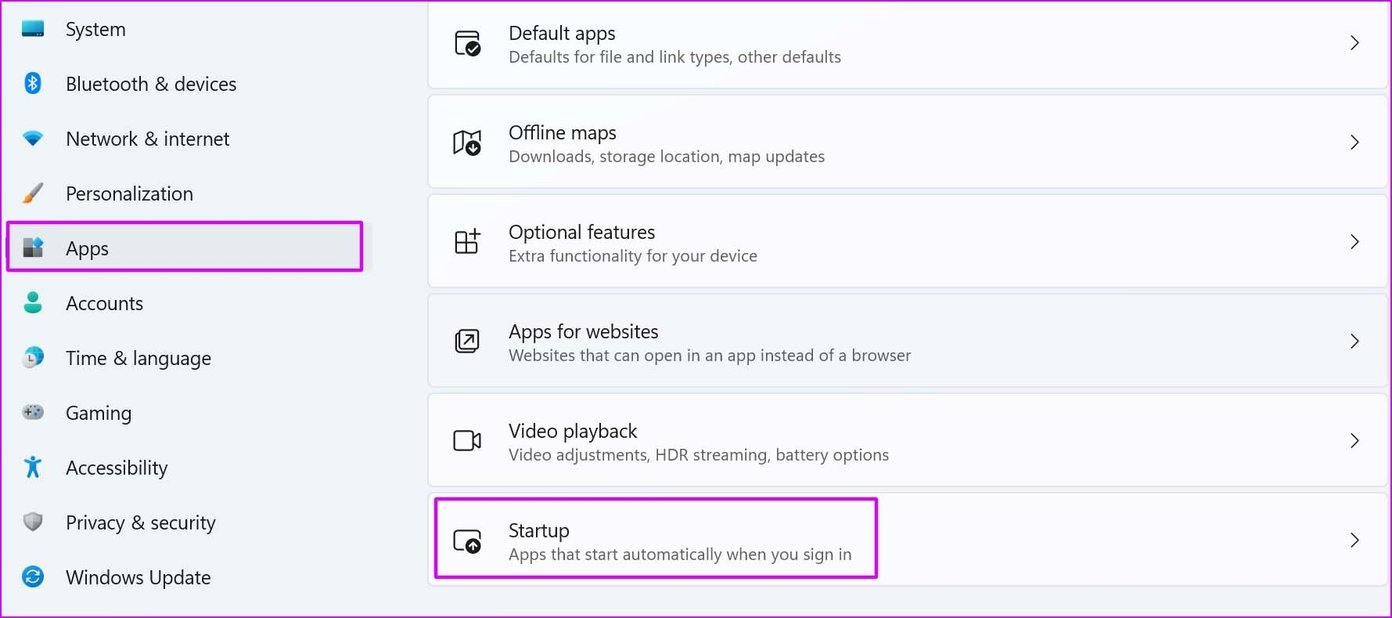
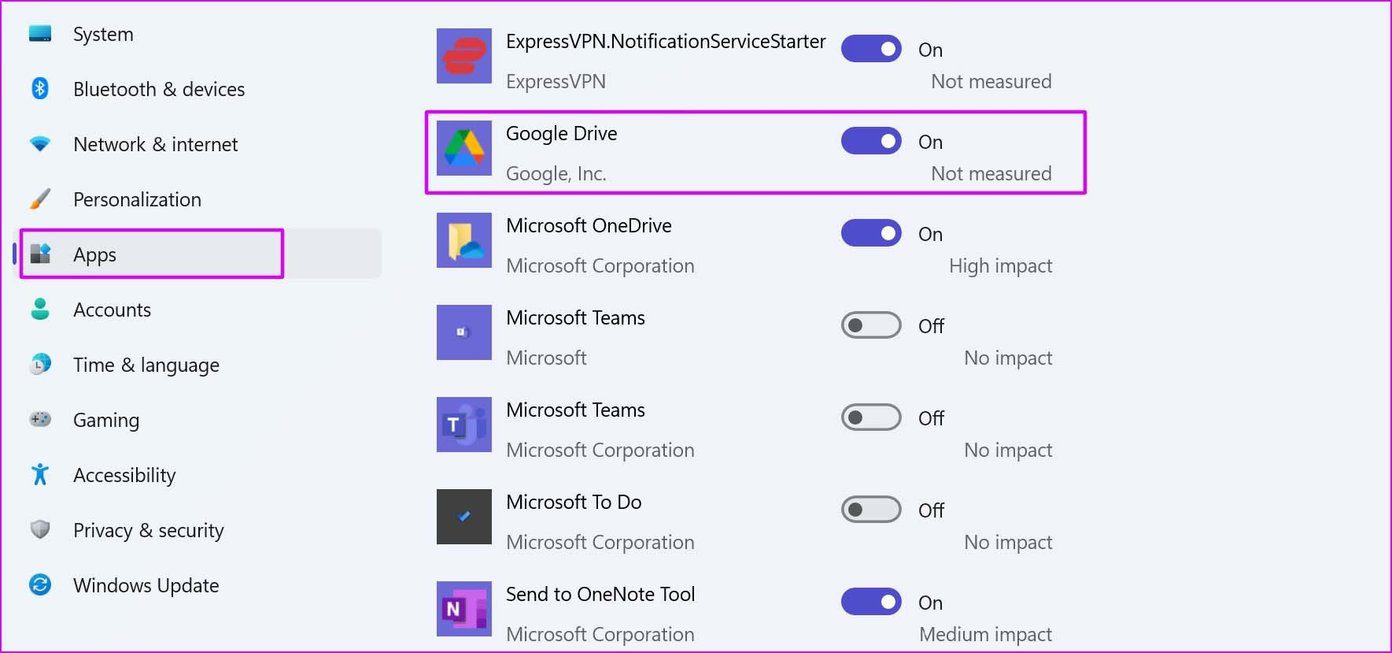
Step 4: Ensure the Google Drive toggle is enabled.
On Mac
Step 1: Right-click on the Google Drive app icon and select Options.
Step 2: Click on Open at login, and the app should sync files during startup.
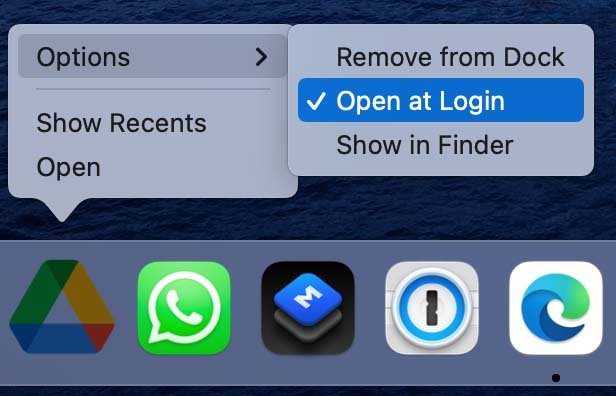
This should fix the issue of not starting up on startup.
2. Make Changes From Google Drive Preferences
Note: The steps are the same for both Windows and Mac. However, for the demonstration, we will go with Windows.
Step 1: Click on the up arrow from the Windows taskbar.
Step 2: Right-click on the Drive icon and select the Settings icon.
Step 3: Open the Preferences menu.
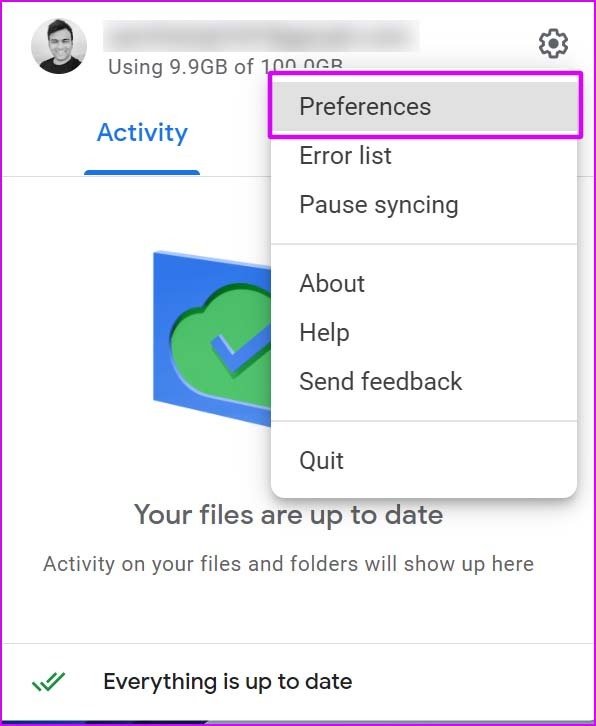
Step 4: Select Google Drive settings.
Step 5: Scroll down and enable Launch Google Drive on the system startup menu.

Fix 3: Manually Sync Google Drive Files
Note: The steps are the same for both Windows and Mac.
Step 1: Find Google Drive on the taskbar and click on it.
Step 2: Select the Settings icon.
Step 3: Click on Pause syncing and resume the service after a while.

After that, Google Drive should sync the latest files. If you are still experiencing the issue of Drive not starting on startup, use the Drive web to find and download files on a PC or Mac.
Was this helpful?
Last updated on 20 August, 2024
5 Comments
Leave a Reply
Read Next
 5 Ways to Fix Google Drive Stuck at Starting Upload on Android
How to Stop Google Drive Uploads in Progress on Android Before we get started on how to fix the issue of Google Drive uploads getting stuck, let us have a
5 Ways to Fix Google Drive Stuck at Starting Upload on Android
How to Stop Google Drive Uploads in Progress on Android Before we get started on how to fix the issue of Google Drive uploads getting stuck, let us have a
 4 Ways to Fix Microsoft Excel Stuck at Starting on Windows 11/10
Preliminary Fixes Force restart Microsoft Excel: When Microsoft Excel is stuck at starting on Windows 11, a force restart can often resolve the issue.
4 Ways to Fix Microsoft Excel Stuck at Starting on Windows 11/10
Preliminary Fixes Force restart Microsoft Excel: When Microsoft Excel is stuck at starting on Windows 11, a force restart can often resolve the issue.
 Top 3 Ways to Stop Microsoft Teams From Starting Automatically on Windows 10
Microsoft Teams app is great for team management and communication.
Top 3 Ways to Stop Microsoft Teams From Starting Automatically on Windows 10
Microsoft Teams app is great for team management and communication.
 How to Create and Share Link of YouTube Videos Starting at a Certain Time
YouTube, one of the most popular video-streaming community, actually has a lot of tricks that power users like you must be aware of, but if you’re specifically looking for a
How to Create and Share Link of YouTube Videos Starting at a Certain Time
YouTube, one of the most popular video-streaming community, actually has a lot of tricks that power users like you must be aware of, but if you’re specifically looking for a
 How to Fix “Android Is Starting Optimizing App” Error
https://youtu.be/NcFLqP6nUrE Why Does Android Get Stuck at Optimizing Apps on Startup Before we get started on fixing this issue, let us briefly look at what might be causing your Android
How to Fix “Android Is Starting Optimizing App” Error
https://youtu.be/NcFLqP6nUrE Why Does Android Get Stuck at Optimizing Apps on Startup Before we get started on fixing this issue, let us briefly look at what might be causing your Android
 How to Change the Startup and Home Page on Google Chrome
How to Change the Startup Page on Google Chrome The Google logo and a search bar are the first things you'll see when you open the Chrome browser.
How to Change the Startup and Home Page on Google Chrome
How to Change the Startup Page on Google Chrome The Google logo and a search bar are the first things you'll see when you open the Chrome browser.
 5 Ways to Fix Slow Startup Times on Windows 10 and 11
Basic Fixes Install Windows Updates: Microsoft regularly releases updates that bring security patches, new features, and performance improvements to your Windows PC.
5 Ways to Fix Slow Startup Times on Windows 10 and 11
Basic Fixes Install Windows Updates: Microsoft regularly releases updates that bring security patches, new features, and performance improvements to your Windows PC.
 4 Ways to Fix OneDrive Not Opening on Startup in Windows 11
Fix 1: Enable OneDrive as a Startup App Windows 11 provides several options for running apps at startup.
4 Ways to Fix OneDrive Not Opening on Startup in Windows 11
Fix 1: Enable OneDrive as a Startup App Windows 11 provides several options for running apps at startup.
The article above may contain affiliate links which help support Guiding Tech. The content remains unbiased and authentic and will never affect our editorial integrity.
Tried everything. Goggle Drive still doesn’t start-up when Windows loads.
I have also tried all of these steps for Windows and Google Drive does not automatically start upon start-up. Very annoying.
Same experience here!
Basically, the same here. I tried all the “fixes” here and none worked for me.
Sometimes Google drive starts, and I can see it in the “This PC” list of drives. Then later, when I look for it, or an app tries to access the G:\ drive, it’s gone.
Found this from Microsoft:
1. Select the Start button and scroll to find the app you want to run at startup.
2. Right-click the app, select More, and then select Open file location. This opens the location where the shortcut to the app is saved. If there isn’t an option for Open file location, it means the app can’t run at startup.
3. With the file location open, press the Windows logo key + R, type shell:startup, then select OK. This opens the Startup folder.
4. Copy and paste the shortcut to the app from the file location to the Startup folder